Setting Up Selenium with Java
Setting up Selenium with Java is not just a one-time configuration step—it is the foundation upon which every reliable and scalable automation framework is built. Many beginners approach Selenium setup as a simple task of adding dependencies and running a basic script. However, in real-world projects, a proper setup determines whether your automation suite remains stable, maintainable, and CI/CD-friendly or becomes fragile and error-prone.
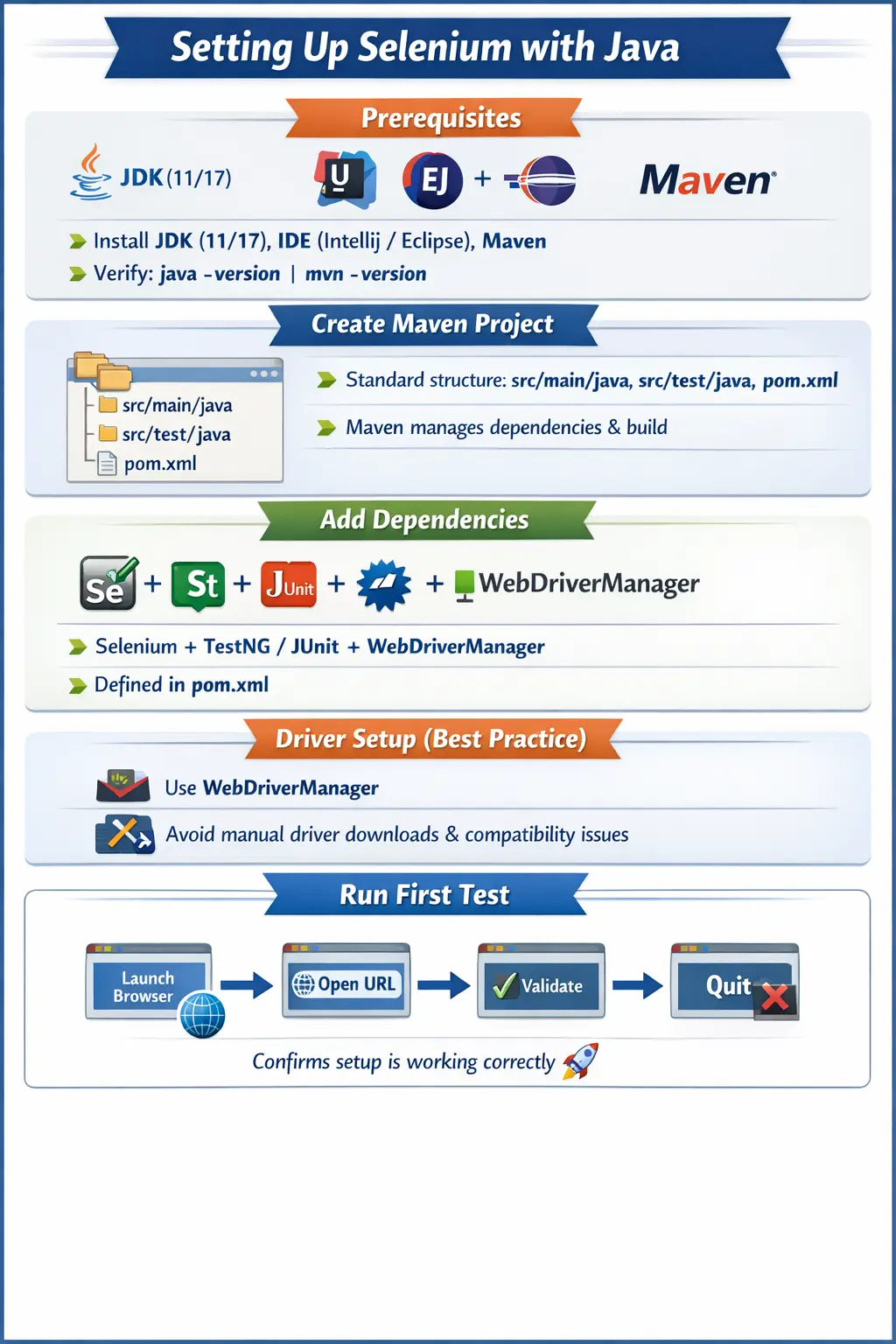
A well-structured setup eliminates the most common failures such as driver–browser incompatibility, dependency conflicts, and environment inconsistencies. It also prepares your project for long-term scalability, where automation evolves from simple scripts into a full-fledged framework supporting reporting, logging, parallel execution, and integration with pipelines.
Understanding the setup process deeply ensures that you are not just able to run Selenium tests, but also capable of building production-grade automation solutions.
A good Selenium setup is also the first point where a tester begins thinking like a framework engineer rather than a script writer. A script may work once on one laptop. A framework must work repeatedly on different machines, with different browsers, across multiple environments, and often inside a pipeline where nobody is watching the browser window. That difference changes how setup should be approached. The goal is not simply to make Chrome open. The goal is to create a repeatable base that another team member, a CI agent, or a future version of the project can use without guesswork.
This is why setup should be treated as an engineering activity. The chosen JDK version affects compilation and compatibility. The build tool affects dependency management. The test framework affects lifecycle and reporting. The driver strategy affects browser startup reliability. The project structure affects maintainability. The configuration approach affects how easily the suite can switch between local, headless, grid, and CI execution. Every one of these decisions shapes the long-term quality of the automation project.
Understanding the Foundation of Selenium with Java
Before diving into setup steps, it is important to understand what Selenium with Java represents. Selenium WebDriver is a browser automation API, and Java is the programming language used to write automation logic. Together, they form one of the most widely adopted combinations in the automation industry.
However, Selenium alone is not sufficient. A complete setup includes multiple components working together:
- Java (programming language)
- Selenium WebDriver (automation API)
- Build tool (Maven or Gradle)
- Test framework (TestNG or JUnit)
- Driver management (WebDriverManager)
- IDE (development environment)
Each of these plays a specific role, and missing or misconfiguring any of them can lead to failures.
These components should not be viewed as isolated tools. They form a chain. Java compiles and runs the automation code. Maven or Gradle downloads Selenium and test framework libraries. Selenium WebDriver sends browser commands through the driver layer. The browser driver controls the real browser. TestNG or JUnit organizes the execution lifecycle. The IDE helps during development, while CI/CD tools execute the same project in an automated environment. If one link in this chain is weak, the entire test run becomes unreliable.
For beginners, the most common mistake is to copy a working code snippet without understanding this chain. The code may work temporarily, but when a dependency changes, a browser updates, or Maven fails to resolve a library, the tester does not know where to look. A strong setup mindset helps you diagnose failures by layer. If WebDriver cannot be imported, check dependencies. If the browser cannot start, check driver and browser compatibility. If tests do not execute from Maven, check the test framework and plugin configuration. This layered thinking is essential in real projects.
Prerequisites: The Mandatory Setup Layer
Before creating a Selenium project, certain tools must be installed and verified. These prerequisites ensure that your environment is ready to execute Java-based automation code.
Java Development Kit (JDK)
The JDK is the most critical requirement because Selenium tests are written and executed using Java. Modern projects typically use JDK 11 or JDK 17, as these versions provide stability and long-term support.
After installation, it is essential to verify that Java is correctly configured in your system environment. This is done using:
java -version
javac -version
If these commands return version details successfully, it confirms that Java is properly installed and accessible.
It is also important to distinguish between the JRE and the JDK. A Java Runtime Environment can run compiled Java applications, but Selenium test development requires the Java Development Kit because the project must compile source code. In a professional setup, the IDE, Maven, terminal, and CI pipeline should all point to a consistent JDK version. If IntelliJ uses one JDK and Maven uses another, the project may behave differently between IDE execution and command-line execution. This is a subtle source of setup confusion.
Modern Selenium projects commonly use long-term support Java versions such as Java 11, Java 17, or newer organization-approved versions. The exact choice should match the company standard and the dependencies used by the project. A team should avoid using a random JDK only because it is installed locally. Automation code is part of the software delivery system, so its runtime version should be documented and reproducible.
Integrated Development Environment (IDE)
An IDE simplifies development by providing features such as code completion, debugging, and project management. The most commonly used IDEs for Selenium with Java are IntelliJ IDEA and Eclipse.
IntelliJ IDEA is widely preferred in modern automation projects due to its advanced features, faster performance, and better Maven integration. Eclipse is also a valid choice and is commonly used in legacy projects.
Build Tool (Maven or Gradle)
A build tool is responsible for managing project dependencies and execution. Maven is the most commonly used build tool in Selenium frameworks because of its simplicity and widespread adoption.
To verify Maven installation:
mvn -version
A proper Maven setup ensures that dependencies such as Selenium and TestNG are automatically downloaded and managed without manual intervention.
Creating a Selenium Java Project
Once prerequisites are in place, the next step is to create a structured project. In real-world automation, a Maven-based project is the standard approach.
Maven Project Creation
In IntelliJ IDEA, you can create a Maven project by selecting New Project, choosing Maven, and specifying the JDK version. Once created, the project follows a standard structure.
The default Maven structure includes:
- src/main/java for framework code
- src/test/java for test cases
- pom.xml for dependency management
This structure enforces separation of concerns, which is critical for maintainability.
The value of Maven structure becomes clearer as the project grows. Test classes belong under src/test/java because they are executed by the test framework. Shared framework code may live under src/main/java if it is treated as reusable production-like support code, or under src/test/java if it is specific to tests. Configuration files, test data, log settings, and suite XML files often live under src/test/resources. This structure makes the project understandable to Maven, the IDE, CI tools, and other engineers.
A beginner can run one class directly from the IDE, but a professional framework must run from the command line as well. If a test can run only by clicking a green button in the IDE, it is not ready for CI/CD. Maven makes execution portable. A teammate should be able to clone the repository, install the required JDK and Maven, run a documented command, and see the same tests execute. That repeatability is one of the main reasons Maven remains common in Selenium with Java projects.
Managing Dependencies with pom.xml
The pom.xml file is the heart of a Maven project. It defines all required libraries and plugins.
For a Selenium project, the key dependencies typically include:
- Selenium Java (core automation library)
- TestNG or JUnit (test execution framework)
- WebDriverManager (driver management utility)
Adding these dependencies ensures that all required classes and libraries are available during compilation and execution.
A properly configured pom.xml eliminates manual dependency management and ensures consistency across environments.
Dependency management is more than adding Selenium once. A Selenium project may include Selenium Java, TestNG or JUnit, WebDriverManager, logging libraries, reporting tools, assertion libraries, JSON utilities, Excel readers, or REST clients depending on the framework. If dependencies are added casually, the project can develop version conflicts. Maven resolves transitive dependencies automatically, but it cannot always know which version is best for your framework. The team should review major dependency upgrades and keep the pom.xml clean.
It is usually better to define important versions in Maven properties. This makes upgrades easier because the version is declared in one place. For example, Selenium version, TestNG version, compiler source level, and plugin versions can be managed centrally. When the team upgrades Selenium, it can update the property, run the suite, and review failures intentionally. This is cleaner than scattering version numbers across the file.
Another practical habit is to verify the project from the command line after dependency changes. Running mvn clean test reveals whether the project is truly configured, not merely accepted by the IDE cache. IDEs sometimes hide dependency problems by indexing or resolving locally. Maven command-line execution is closer to what CI will use, so it is the better setup validation.
Project Structure for Real-World Automation
A clean project structure is essential for scaling automation. Beginners often write all code in a single class, which quickly becomes unmanageable.
A professional Selenium project is typically organized as follows:
- base package for driver setup and initialization
- pages package for Page Object Model classes
- utils package for reusable utilities
- config package for configuration handling
- tests package for test classes
- resources folder for configuration files and test data
This layered architecture ensures that each component has a clear responsibility. For example, UI interactions are handled in page classes, while test logic resides in test classes.
This separation makes the framework easier to maintain, debug, and extend.
A well-structured Selenium framework usually begins with a base layer that manages setup and teardown. This layer creates the WebDriver instance, applies browser options, opens the application URL if required, and quits the browser after execution. Above that, page classes represent application screens or components. Tests call page methods instead of directly scattering locators and low-level WebDriver commands everywhere. Utility classes handle reusable functions such as screenshots, property reading, waits, data generation, and file handling.
This organization prevents a common beginner problem: test classes becoming large scripts filled with setup code, locators, assertions, sleeps, and cleanup steps. Such scripts are hard to maintain because every change requires editing many places. A project structure based on clear responsibilities lets the suite grow gradually. When the login page changes, update the login page object. When browser setup changes, update the driver factory. When reporting changes, update the reporting utility. Setup is the foundation that makes this separation possible.
Configuration is another important part of structure. Hard-coding browser names, URLs, usernames, passwords, timeouts, and execution modes inside test classes creates long-term pain. A better setup reads configuration from properties files, environment variables, Maven profiles, or CI parameters. This allows the same framework to run against QA, staging, local, or production-like environments without rewriting code.
Driver Setup: The Most Critical Step
One of the most common issues in Selenium projects is driver–browser compatibility. Every browser requires a corresponding driver, and mismatches often lead to failures such as SessionNotCreatedException.
Problems with Manual Driver Management
Traditionally, developers downloaded driver executables manually and set system properties. This approach is error-prone because:
- Browsers update frequently
- Drivers become outdated
- Paths may differ across environments
These issues lead to inconsistent test execution.
WebDriverManager: The Modern Solution
WebDriverManager solves these problems by automatically detecting the browser version and downloading the appropriate driver.
This approach eliminates manual intervention and ensures compatibility. It also improves reliability in CI/CD environments where consistent execution is critical.
In modern automation frameworks, WebDriverManager is considered a best practice and is widely adopted.
Selenium Manager and Modern Driver Setup
Recent Selenium versions include Selenium Manager, which can automatically resolve browser drivers in many common cases. This is why a simple new ChromeDriver() example may work without manually downloading ChromeDriver or setting webdriver.chrome.driver. Selenium Manager checks the browser and driver requirements behind the scenes and helps create the session.
This does not mean driver knowledge is unnecessary. The driver layer still exists, and driver-browser compatibility still matters. Selenium Manager helps with resolution, but corporate networks, offline machines, restricted CI agents, or security policies may prevent automatic downloads. Some companies prefer WebDriverManager, internal binary repositories, Docker images, or preinstalled drivers for governance reasons. A strong setup should define which approach the project uses and why.
The best practical approach is to keep driver creation centralized. Whether the framework uses Selenium Manager, WebDriverManager, explicit paths, Selenium Grid, or a cloud provider, test classes should not care. Tests should request a browser session from a factory or base class. This makes driver strategy replaceable without rewriting every test.
Writing the First Selenium Test
After setting up dependencies and driver management, the next step is to write a basic test to verify that everything is working correctly.
The goal of this test is simple:
- Launch a browser
- Open a URL
- Retrieve the page title
- Close the browser
This initial test acts as a sanity check. If it runs successfully, it confirms that the setup is correct.
One important practice is to always close the browser session using quit(). This ensures that all resources are released properly and prevents memory leaks.
The first Selenium test should be intentionally simple. It should not include complicated page objects, multiple assertions, screenshots, or data files. Its purpose is to confirm that the toolchain works end to end: Java compiles, dependencies resolve, Selenium classes are available, the driver can start the browser, the browser can navigate, and the session can close. Once that sanity check passes, the project can safely add a test framework and structure.
When the first test fails, the failure point gives useful information. If the project does not compile, the problem is Java or dependencies. If the WebDriver class cannot be found, Maven dependencies are missing or not reloaded. If ChromeDriver cannot create a session, the problem is driver-browser compatibility or browser setup. If the browser opens but the title assertion fails, then the problem may be application navigation or test logic. Reading the failure by layer is more effective than changing code randomly.
Integrating TestNG for Test Execution
TestNG is one of the most widely used testing frameworks in Selenium projects. It provides powerful features such as annotations, assertions, and test lifecycle management.
Once TestNG is added as a dependency, developers can use annotations like:
- @Test for defining test methods
- @BeforeMethod and @AfterMethod for setup and teardown
Tests can be executed in multiple ways:
- Directly from the IDE
- Using Maven commands such as mvn test
- Through XML suite files (testng.xml)
TestNG also supports parallel execution, grouping, and data-driven testing, making it ideal for large automation suites.
TestNG brings discipline to the setup process because it gives the framework a lifecycle. Instead of creating and quitting drivers manually in every main method, a TestNG project can create the driver before each test method, before each class, or before each suite depending on the framework design. It can also guarantee cleanup through teardown methods. This lifecycle is important because browser sessions are expensive resources and must be managed consistently.
For most UI automation suites, creating a fresh browser session per test method gives better isolation. It prevents cookies, local storage, window state, and previous test data from leaking into the next test. The tradeoff is execution time. Some teams reuse sessions for speed, but that requires careful cleanup and increases the risk of test dependency. Setup decisions should be based on reliability first, then optimized for speed through parallel execution, grid usage, and smart test selection.
JUnit as an Alternative Test Framework
JUnit is another valid choice for Selenium with Java. Many teams use JUnit 5 because it integrates well with modern Java tooling and build systems. Like TestNG, JUnit supports annotations for setup, teardown, assertions, and test organization. The choice between TestNG and JUnit often depends on team familiarity, existing framework standards, and required features.
TestNG is popular in Selenium interview discussions because of its suite XML files, grouping, data providers, and parallel execution features. JUnit is common in broader Java projects and may be preferred when automation is integrated closely with application test code. Either framework can support a strong Selenium setup if the driver lifecycle, assertions, reporting, and execution strategy are designed cleanly.
The important point is that Selenium itself is not a test framework. Selenium automates the browser. TestNG or JUnit organizes test execution. Confusing these responsibilities leads to weak setup design. A complete Selenium Java project needs both browser automation capability and a test execution framework.
Common Setup Issues and Real-Time Fixes
Even with proper setup, beginners often encounter issues. Understanding these problems and their solutions is crucial.
SessionNotCreatedException
This occurs when the browser and driver versions are incompatible. The best solution is to use WebDriverManager and ensure consistent browser versions.
Dependency Resolution Errors
Errors like “Cannot resolve symbol WebDriver” indicate that Maven dependencies are not downloaded. This can be fixed by reloading the Maven project or running mvn clean install.
Browser Opens and Closes Immediately
This usually happens when the program ends quickly or an exception occurs. Ensuring proper test flow and debugging exceptions resolves this issue.
Driver Executable Not Found
This occurs when the driver path is incorrect. Using WebDriverManager eliminates this problem entirely.
Cannot Resolve Symbol Errors
Cannot resolve symbol errors usually mean the IDE has not loaded Maven dependencies correctly or the pom.xml is incomplete. Reloading the Maven project, checking internet access, verifying repository access, and running mvn clean test from the terminal usually reveals the real issue. If the command line works but the IDE shows errors, the IDE project model may need to be refreshed.
Tests Work in IDE but Fail in Maven
This is a common setup problem. The IDE may run a class directly, while Maven relies on naming conventions and test plugins. If Maven does not find tests, check whether test class names match the expected pattern, whether TestNG or JUnit is configured correctly, and whether the Surefire plugin is able to detect the tests. A professional Selenium setup must work from Maven because CI tools usually execute Maven commands.
Browser Starts but Element Steps Fail
Once the browser launches successfully, setup is only partly complete. Element failures may point to missing waits, wrong application URL, blocked login, incorrect environment configuration, or viewport differences. Beginners often add Thread.sleep everywhere, but the better setup includes explicit wait utilities and standard browser window sizing. Stable setup prepares the environment so test logic can run predictably.
Best Practices for a Strong Setup
A stable Selenium setup requires adherence to best practices:
- Use Maven for dependency management
- Use WebDriverManager for driver handling
- Maintain a clear project structure
- Separate test logic from UI interactions
- Avoid writing unstructured scripts
Starting with a proper foundation saves significant time in the long run and prevents common issues.
A strong setup also avoids unnecessary global state. Static WebDriver variables may look convenient in small scripts, but they often break when tests run in parallel. A framework that plans for parallel execution should use proper driver lifecycle management, such as ThreadLocal WebDriver or dependency injection patterns, depending on the framework style. Even if the project does not run in parallel today, avoiding bad global design makes future scaling easier.
Another best practice is to avoid mixing test data, configuration, and code. URLs, browser names, timeouts, credentials, and execution modes should not be hard-coded into test methods. Use configuration files or environment variables. CI tools can then run the same project with different parameters. This is especially important when the same test suite must run against local, QA, staging, or release environments.
Good setup includes cleanup. The browser should be closed with quit(), screenshots should be captured on failure when useful, downloaded files should not pollute shared folders, and test data should not leave the environment in an unknown state. Cleanup is not an afterthought. It is part of reliable automation design.
Real-World Perspective
In real projects, Selenium setup is not limited to local execution. It extends to CI/CD pipelines, Docker environments, and Selenium Grid.
A well-configured setup ensures that tests run consistently across different environments. It also supports scalability, where tests can run in parallel across multiple browsers and machines.
Automation is not just about writing scripts—it is about building a reliable system. A proper setup is the first step toward achieving that reliability.
In CI/CD, the setup must be non-interactive. A pipeline cannot depend on a developer clicking a browser prompt, accepting a certificate manually, or changing an IDE setting. Everything required for execution should be expressed through code, configuration, dependencies, images, or pipeline variables. This includes browser choice, headless mode, application URL, credentials, timeouts, and driver strategy.
Docker is often used to make Selenium execution more consistent. A container image can include a known browser version, required system libraries, fonts, and execution settings. Selenium Grid can distribute execution across nodes and browsers. Cloud providers can supply managed browser environments. Each option solves a different problem, but all of them depend on a clean local framework setup first. If the project is messy locally, moving it to CI or Grid usually amplifies the mess.
Reporting and logging also become part of real-world setup. When a pipeline fails, engineers need enough information to diagnose the failure without watching the test live. At minimum, the framework should expose the browser name, browser version, test name, failure message, screenshot on UI failure, and relevant logs. This information helps separate setup failures from application failures.
Interview Perspective
From an interview standpoint, explaining Selenium setup requires both conceptual clarity and practical understanding.
A concise answer would describe installing JDK, creating a Maven project, adding Selenium and TestNG dependencies, using WebDriverManager, and running a basic test.
A more advanced answer would highlight framework design, dependency management, and CI/CD integration.
Demonstrating real-world understanding, rather than just listing steps, creates a strong impression.
A strong interview answer should explain the setup as a sequence with purpose. First install and verify the JDK because Java code must compile and run. Then choose an IDE for development and debugging. Next create a Maven or Gradle project so dependencies are managed consistently. Add Selenium Java and a test framework such as TestNG or JUnit. Use Selenium Manager or WebDriverManager for driver management. Write a simple test to launch a browser, open a URL, verify the title, and quit the browser. Then evolve the project into a framework with base classes, page objects, utilities, configuration, reporting, and CI execution.
If asked about real-time setup issues, mention driver-browser mismatch, missing Maven dependencies, wrong JDK configuration, browser auto-updates, tests that run in the IDE but not through Maven, and CI agents with inconsistent environments. If asked about best practices, mention centralized driver creation, configuration-driven execution, explicit waits, clean teardown, command-line execution, and environment logging. This shows practical experience rather than memorized steps.
Key Takeaway
Setting up Selenium with Java is more than just configuring tools; it is about establishing a robust foundation for automation.
A proper setup includes:
- Reliable dependency management
- Automatic driver handling
- Structured project design
- Integration with testing frameworks
When done correctly, it prevents common failures, improves maintainability, and supports scalable automation.
Mastering this setup is the first step toward becoming proficient in Selenium automation and building enterprise-grade testing frameworks.
When the setup is strong, the rest of the framework becomes easier to build. Page Object Model design becomes cleaner because driver creation is already solved. Reporting becomes easier because the test lifecycle is controlled. Parallel execution becomes safer because browser sessions are managed consistently. CI/CD execution becomes practical because Maven commands can run without IDE dependency. In short, setup quality determines how confidently the automation suite can grow.
1) Maven Setup (pom.xml)
<properties>
  <selenium.version>4.40.0</selenium.version>
</properties>
<dependencies>
  <dependency>
    <groupId>org.seleniumhq.selenium</groupId>
    <artifactId>selenium-java</artifactId>
    <version>${selenium.version}</version>
  </dependency>
</dependencies>
(Example current version shown by Maven Central listings.)
2) Gradle Setup (build.gradle)
dependencies {
    testImplementation "org.seleniumhq.selenium:selenium-java:4.40.0"
}
3) Minimum Working Test (Chrome) — Selenium Manager Auto-Driver
import org.openqa.selenium.WebDriver;
import org.openqa.selenium.chrome.ChromeDriver;
class Demo {
    public static void main(String[] args) {
        WebDriver driver = new ChromeDriver(); // Selenium Manager handles driver
        driver.get("https://example.com");
        System.out.println(driver.getTitle());
        driver.quit();
    }
}
4) Chrome with Options (maximize, incognito)
import org.openqa.selenium.WebDriver;
import org.openqa.selenium.chrome.ChromeDriver;
import org.openqa.selenium.chrome.ChromeOptions;
class Demo {
    public static void main(String[] args) {
        ChromeOptions options = new ChromeOptions();
        options.addArguments("--start-maximized");
        options.addArguments("--incognito");
WebDriver driver = new ChromeDriver(options);
        driver.get("https://example.com");
        driver.quit();
    }
}
5) Headless Setup (CI-friendly)
import org.openqa.selenium.WebDriver;
import org.openqa.selenium.chrome.ChromeDriver;
import org.openqa.selenium.chrome.ChromeOptions;
class Demo {
    public static void main(String[] args) {
        ChromeOptions options = new ChromeOptions();
        options.addArguments("--headless=new");
        options.addArguments("--window-size=1920,1080");
WebDriver driver = new ChromeDriver(options);
        driver.get("https://example.com");
        System.out.println(driver.getTitle());
        driver.quit();
    }
}
6) Firefox / Edge (same pattern)
import org.openqa.selenium.WebDriver;
import org.openqa.selenium.firefox.FirefoxDriver;
class Demo {
    public static void main(String[] args) {
        WebDriver driver = new FirefoxDriver();
        driver.get("https://example.com");
        driver.quit();
    }
}

import org.openqa.selenium.WebDriver;
import org.openqa.selenium.edge.EdgeDriver;
class Demo {
    public static void main(String[] args) {
        WebDriver driver = new EdgeDriver();
        driver.get("https://example.com");
        driver.quit();
    }
}
(Selenium Manager applies across major browsers.)
7) Explicit Driver Path (Old-school / when policy blocks auto-download)
import org.openqa.selenium.WebDriver;
import org.openqa.selenium.chrome.ChromeDriver;
class Demo {
    public static void main(String[] args) {
        System.setProperty("webdriver.chrome.driver", "C:\\drivers\\chromedriver.exe");
        WebDriver driver = new ChromeDriver();
        driver.get("https://example.com");
        driver.quit();
    }
}
8) Using WebDriverManager (Alternative to Selenium Manager)
Still used in some teams; it automates driver binaries.
Maven dependency:
<dependency>
  <groupId>io.github.bonigarcia</groupId>
  <artifactId>webdrivermanager</artifactId>
  <version>5.9.3</version>
</dependency>
(Use a current version from repository listings.)
Code:
import io.github.bonigarcia.wdm.WebDriverManager;
import org.openqa.selenium.WebDriver;
import org.openqa.selenium.chrome.ChromeDriver;
class Demo {
    public static void main(String[] args) {
        WebDriverManager.chromedriver().setup();
        WebDriver driver = new ChromeDriver();
        driver.get("https://example.com");
        driver.quit();
    }
}
9) JUnit 5 “First Test” Example
import org.junit.jupiter.api.*;
import org.openqa.selenium.WebDriver;
import org.openqa.selenium.chrome.ChromeDriver;
class ExampleTest {
    WebDriver driver;
@BeforeEach
    void setup() {
        driver = new ChromeDriver();
    }
@Test
    void openExample() {
        driver.get("https://example.com");
        Assertions.assertTrue(driver.getTitle().contains("Example"));
    }
@AfterEach
    void teardown() {
        driver.quit();
    }
}
10) Common “Setup Errors” Quick Checks (code-level)
A) Always quit driver
try {
   // test steps
} finally {
   driver.quit();
}
B) Use explicit waits (avoid flaky sleeps)
import java.time.Duration;
import org.openqa.selenium.*;
import org.openqa.selenium.support.ui.*;
WebDriverWait wait = new WebDriverWait(driver, Duration.ofSeconds(10));
WebElement el = wait.until(ExpectedConditions.visibilityOfElementLocated(By.id("username")));