WebDriverManager Usage
In modern Selenium automation, one of the most persistent and historically frustrating challenges has been managing browser drivers. Before the introduction of utilities like WebDriverManager, teams spent a significant amount of time downloading, configuring, and maintaining driver binaries across different environments. This process was not only tedious but also highly error-prone, especially in large-scale projects where multiple machines, browsers, and operating systems are involved.
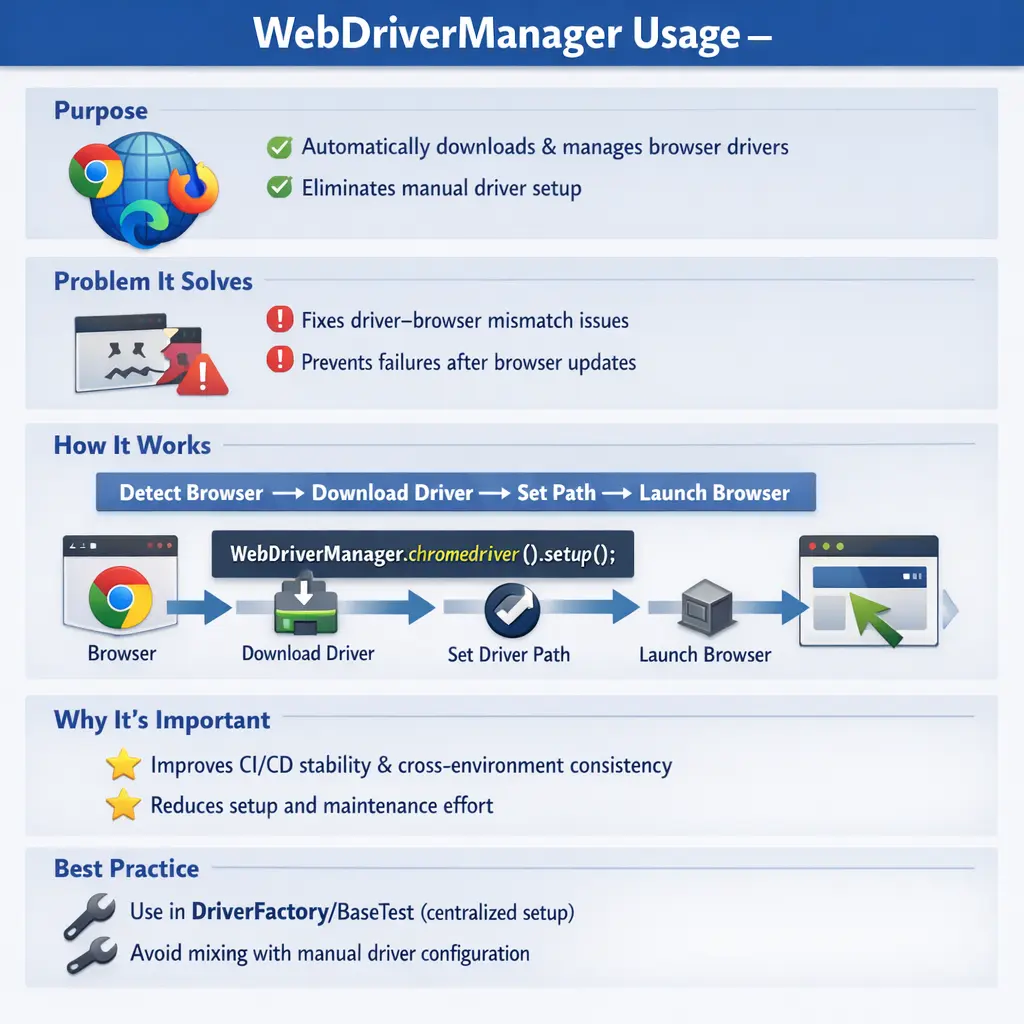
WebDriverManager fundamentally changes how driver management is handled in Selenium. Instead of relying on manual setup, it introduces an automated, intelligent mechanism that detects browser versions, resolves compatible drivers, and configures them at runtime. As a result, WebDriverManager has become the default standard in modern Selenium frameworks. Understanding how it works and how to use it effectively is essential for building stable, scalable, and production-ready automation solutions.
Driver management is not a small setup detail. It is one of the first infrastructure layers that decides whether a Selenium suite can run at all. A test may have perfect locators, clean page objects, strong waits, and meaningful assertions, but none of that matters if Selenium cannot create a browser session. WebDriverManager exists to reduce that risk by making browser driver resolution predictable and repeatable.
In professional Selenium projects, WebDriverManager is usually hidden behind a driver factory, base test class, or browser manager. Test cases should not repeatedly worry about where ChromeDriver is stored, whether GeckoDriver is compatible with Firefox, or whether EdgeDriver was downloaded. The framework should solve that once, consistently, and make browser creation simple for every test. This separation is what turns a working script into a maintainable framework.
The Problem WebDriverManager Solves
To appreciate the importance of WebDriverManager, it is necessary to understand the limitations of traditional driver management. In earlier Selenium setups, testers were required to manually download browser drivers such as ChromeDriver or GeckoDriver, place them in specific directories, and configure system properties to point to these executables.
This approach introduced several challenges. One of the most common issues was driver–browser version mismatch. Browsers update frequently, often automatically, and if the driver version does not match the browser version, Selenium fails to create a session. This leads to errors such as SessionNotCreatedException, which can halt test execution entirely.
Another problem is environment inconsistency. Different team members may have different browser versions installed, leading to inconsistent test results. In CI/CD environments, where tests run on multiple agents, managing drivers manually becomes even more complex.
WebDriverManager eliminates these issues by automating the entire process. It detects the installed browser version, downloads the appropriate driver, sets the required system properties internally, and caches the driver for future use. This removes the need for manual intervention and ensures that the correct driver is always used.
The old driver setup approach also created source control problems. Some teams committed driver executables into the repository. Others asked each tester to download drivers into a local folder. Some used absolute paths such as C:\drivers\chromedriver.exe, which worked only on one machine. These patterns break easily when the project moves to Linux agents, Docker containers, new laptops, or remote execution. WebDriverManager removes most of that machine-specific setup from the codebase.
Another problem WebDriverManager solves is onboarding friction. A new team member should not need a long document explaining where to download ChromeDriver, which version to choose, where to place it, and which system property to set. They should be able to install Java, clone the project, load Maven dependencies, and run the tests. WebDriverManager helps make that workflow realistic.
Importance of WebDriverManager in Real Projects
In real-world automation projects, stability and consistency are critical. Tests must run reliably across different environments, including developer machines, staging servers, and CI/CD pipelines. Any dependency on manual configuration introduces risk and reduces reliability.
WebDriverManager plays a crucial role in addressing these challenges. By automating driver management, it ensures that tests can run seamlessly regardless of the environment. This is particularly important in CI/CD pipelines, where tests are executed on remote agents that may not have pre-configured drivers.
Another significant benefit is reduced onboarding time. New team members can start working on the project without worrying about driver setup. They simply clone the repository, build the project, and run the tests. This improves productivity and reduces setup-related friction.
From an enterprise perspective, manual driver management is considered a bad practice. Modern automation frameworks are expected to be self-sufficient, and WebDriverManager is a key component in achieving that.
Real projects also have multiple execution modes. A tester may run Chrome locally in headed mode. A pipeline may run Chrome headlessly on Linux. A nightly regression may run Chrome, Firefox, and Edge through Selenium Grid. A release validation suite may run on cloud browsers. WebDriverManager is most useful in local and self-managed environments where the framework is responsible for preparing driver binaries. Understanding where it belongs prevents confusion when the execution model changes.
Its value is especially visible when failures happen before the application URL opens. If a suite fails with SessionNotCreatedException because Chrome updated overnight, the team should not waste time debugging locators. Driver resolution should be the first suspect. WebDriverManager reduces those failures by aligning browser and driver versions automatically, and when it cannot, it gives the team a clearer place to investigate.
Adding WebDriverManager Dependency in Maven
In a Maven-based Selenium project, WebDriverManager is added as a dependency in the pom.xml file. This allows Maven to download the library from a repository and make it available to the project.
Once the dependency is added, there is no need to manually download or manage driver binaries. WebDriverManager handles everything at runtime. It is important to use a stable version of the library and ensure compatibility with the Selenium version being used, typically Selenium 4.x in modern projects.
By including WebDriverManager as a dependency, the project becomes more portable. There is no need to include driver executables in the source code, which keeps the repository clean and reduces maintenance overhead.
Because WebDriverManager is a library, it should be versioned like any other Maven dependency. Teams should avoid using very old versions simply because an old tutorial used them. Browser vendors change release mechanisms, driver URLs, version metadata, and download behavior over time. Keeping WebDriverManager reasonably current improves compatibility with modern browsers and execution environments.
At the same time, upgrades should be intentional. A framework should not update dependencies randomly without running at least a smoke suite. WebDriverManager affects browser startup, so an upgrade should be validated on the browsers supported by the framework. This is especially important when the suite runs in CI, behind a proxy, or in a restricted enterprise network.
How WebDriverManager Works Internally
The working mechanism of WebDriverManager is straightforward but highly effective. When a test starts, the framework invokes WebDriverManager for a specific browser. At this point, WebDriverManager performs several steps behind the scenes.
First, it detects the version of the installed browser. This is done by querying the system environment. Next, it determines the compatible driver version for that browser. It then checks whether the driver is already available in the local cache. If not, it downloads the driver from the appropriate source.
Once the driver is available, WebDriverManager sets the required system properties so that Selenium can locate and use the driver. Finally, the WebDriver instance is created, and the browser is launched.
This entire process happens automatically, without any manual configuration. The result is a seamless and reliable driver setup that works consistently across environments.
The word "automatically" does not mean "magically." WebDriverManager still depends on available browser installations, operating system details, network access, remote metadata, and local cache behavior. If Chrome is not installed, WebDriverManager cannot create a useful Chrome session. If the network blocks driver downloads and the driver is not already cached, setup can fail. If multiple browser versions exist, the framework may need to specify the browser binary or version explicitly.
This internal flow is useful for troubleshooting. If setup fails, ask which step failed. Did WebDriverManager detect the browser? Did it determine a compatible driver? Did it download the binary? Did it place the driver in cache? Did Selenium receive the correct system property? Did the browser actually start? Breaking the process into these steps makes debugging much faster than treating every startup failure as a generic Selenium issue.
WebDriverManager and Selenium Manager
Modern Selenium also includes Selenium Manager, which can resolve browser drivers automatically in many common scenarios. This raises a practical question: if Selenium Manager exists, why do some projects still use WebDriverManager? The answer depends on framework history, control requirements, network rules, and team preference.
Selenium Manager is built into Selenium and works well for many straightforward setups. It reduces the need for extra code and makes beginner examples simpler. WebDriverManager remains popular because many mature frameworks were built around it, and it provides explicit APIs for browser version selection, driver version selection, cache handling, proxy configuration, offline usage, and other advanced scenarios. Some teams prefer that explicit control.
The important rule is consistency. A framework should not use Selenium Manager in one path, WebDriverManager in another path, and manual System.setProperty in a third path without a clear reason. Pick one driver-management strategy for the project or define exactly when each strategy applies. Consistency prevents confusing startup behavior and makes failures easier to diagnose.
Browser-Specific Usage
WebDriverManager supports all major browsers, including Chrome, Firefox, Edge, and Safari. Each browser has its own driver, such as ChromeDriver for Chrome and GeckoDriver for Firefox.
The usage pattern is consistent across browsers. A specific WebDriverManager method is called for the desired browser, followed by the creation of the corresponding WebDriver instance. This keeps the setup simple and readable.
Safari is a special case, as its driver is managed by the operating system. WebDriverManager provides limited support for Safari, but in most cases, no additional setup is required.
This browser-specific handling ensures that the framework can support cross-browser testing without additional complexity.
For Chrome, WebDriverManager resolves ChromeDriver. For Firefox, it resolves GeckoDriver. For Edge, it resolves EdgeDriver. Each driver has a different vendor source and compatibility rule, but the WebDriverManager API keeps the setup pattern similar. This is valuable in framework code because browser selection can be configuration-driven. If the test configuration says chrome, the factory calls chromedriver(). If it says firefox, the factory calls firefoxdriver(). The test logic remains browser-independent.
However, browser-specific options are separate from driver resolution. WebDriverManager can prepare the driver, but it does not decide whether the browser should run headlessly, start maximized, accept insecure certificates, use a custom download folder, or load a profile. Those behaviors are configured through ChromeOptions, FirefoxOptions, EdgeOptions, or capabilities. A clean framework handles driver resolution and browser options in the same setup layer but keeps their responsibilities clear.
Centralized Driver Setup in Framework Design
In professional automation frameworks, driver setup is not scattered across test classes. Instead, it is centralized in a base class or a driver factory. This design pattern ensures that driver initialization is consistent and maintainable.
WebDriverManager is typically invoked in this centralized setup method. This avoids redundant calls and ensures that the driver is initialized only once per test execution. It also makes it easier to manage browser configurations, such as headless mode or custom options.
Centralizing driver setup improves code quality and reduces duplication. It also makes the framework easier to extend and maintain, especially in large projects with multiple test suites.
A driver factory is usually the best home for WebDriverManager calls. The factory reads a browser value from configuration, prepares the correct driver, applies browser options, creates the WebDriver instance, and returns it to the test lifecycle. This allows test classes to focus on user scenarios instead of setup plumbing. It also keeps browser changes localized. If the team adds Edge support or switches Chrome to headless mode in CI, the update belongs in the factory rather than every test class.
Centralized setup is also important for parallel execution. A common beginner mistake is to store WebDriver in a static variable and share it across tests. That may work for sequential execution, but it breaks when tests run in parallel. WebDriverManager can prepare driver binaries, but each parallel test still needs its own browser session and lifecycle. Frameworks often combine WebDriverManager with ThreadLocal WebDriver or another safe driver-management pattern.
Driver teardown should be handled with the same care as setup. Every created browser session should be closed with quit(), even when a test fails. If drivers are not cleaned up, background browser processes can accumulate and cause memory pressure, port conflicts, or later failures. A professional framework uses setup and teardown annotations from TestNG or JUnit to manage this lifecycle consistently.
WebDriverManager in CI/CD Pipelines
One of the biggest advantages of WebDriverManager is its seamless integration with CI/CD pipelines. In traditional setups, CI agents must be configured with the correct driver versions, which adds complexity and maintenance overhead.
With WebDriverManager, this requirement is eliminated. The utility automatically resolves and downloads the required drivers at runtime, making it ideal for CI environments. It works across different operating systems, including Windows, Linux, and macOS.
In CI pipelines, it is recommended to use fixed browser versions to ensure consistency. WebDriverManager can then resolve the appropriate drivers dynamically. This combination provides a stable and predictable execution environment.
The result is a more reliable pipeline with fewer failures caused by environment issues.
CI usage introduces two practical concerns: network access and repeatability. WebDriverManager may need to download a driver during execution. If the CI agent has internet access, that can work smoothly. If the pipeline runs behind a corporate proxy or in a locked-down environment, the download may fail unless proxy settings or pre-cached drivers are configured. Teams should decide how driver downloads are allowed in CI rather than discovering the limitation during a release build.
Repeatability matters because pipelines should not fail randomly because browser versions drift across agents. One strategy is to pin browser versions in the CI image and let WebDriverManager resolve matching drivers. Another strategy is to use Docker images that include both browser and driver. A third strategy is to connect tests to Selenium Grid or a cloud provider where browser environments are managed separately. WebDriverManager is most relevant when the test machine is responsible for preparing local driver binaries.
Good CI logs should include browser name, browser version, driver strategy, Selenium version, and whether the execution is local, headless, grid-based, or remote. When a driver failure occurs, that information helps identify whether WebDriverManager, browser installation, network access, or grid routing is the real problem.
Driver Caching and Performance Optimization
WebDriverManager includes a caching mechanism that improves performance. When a driver is downloaded, it is stored in a local cache, typically in the user’s home directory. Subsequent executions reuse the cached driver instead of downloading it again.
This reduces network dependency and speeds up test execution. In large test suites, where tests are executed frequently, this can significantly improve performance.
In most cases, there is no need to clear the cache. However, if issues arise, such as using an outdated driver, the cache can be cleared manually to force a fresh download.
This caching mechanism is one of the reasons why WebDriverManager is both efficient and reliable.
Cache behavior is useful, but it must be understood. If a cached driver is compatible, repeated runs become faster and less dependent on the network. If a cache becomes stale or corrupted, clearing it can resolve strange startup failures. WebDriverManager provides methods to clear driver cache and resolution cache, which are useful during troubleshooting or in temporary CI environments.
In enterprise pipelines, cache policy should be intentional. A persistent agent may benefit from keeping cache across builds. An ephemeral container may start from a clean state every time. A restricted network may require pre-populated cache and offline mode. These are environment decisions. WebDriverManager gives the framework tools, but the team must choose the right cache strategy for its execution platform.
Common Mistakes and How to Avoid Them
Despite its simplicity, WebDriverManager can be misused if not implemented correctly. One common mistake is calling WebDriverManager multiple times unnecessarily. This can lead to redundant operations and reduce performance.
Another mistake is mixing WebDriverManager with manual driver setup. This creates conflicts and defeats the purpose of using WebDriverManager. The rule is simple: use one approach consistently, and prefer WebDriverManager in modern frameworks.
Developers may also overlook browser-specific configurations, such as headless mode or download settings. While WebDriverManager handles driver management, these configurations must still be handled separately.
Using outdated versions of WebDriverManager can also cause compatibility issues. It is important to keep the dependency updated to ensure compatibility with newer browser versions.
Another mistake is calling WebDriverManager inside every page object or utility class. Driver setup belongs to the browser creation layer, not page interaction code. Page objects should not know how drivers are downloaded. They should receive a WebDriver instance and use it to interact with the application. Keeping these responsibilities separate makes the framework easier to understand and test.
Teams should also avoid assuming that WebDriverManager solves all browser automation problems. It solves driver binary management. It does not solve bad locators, missing waits, unstable test data, incorrect assertions, login failures, browser permission prompts, or application defects. If the browser starts successfully and the test fails later, investigate normal Selenium test design issues rather than blaming driver setup.
Troubleshooting WebDriverManager Issues
In some cases, issues may arise when using WebDriverManager. For example, the browser may launch and close immediately. This is often caused by incorrect browser options or missing configurations.
Driver download failures can occur in restricted network environments, such as corporate proxies. In such cases, proxy settings must be configured, or drivers must be pre-downloaded.
Another issue is selecting the wrong driver version when multiple browser versions are installed. This can be resolved by explicitly specifying the browser binary path.
Understanding these scenarios and their solutions is essential for maintaining a stable automation framework.
A structured troubleshooting flow starts by simplifying the test. Run a minimal script that calls WebDriverManager, opens a browser, navigates to a public URL, prints the title, and quits. If that script fails, the issue is setup, browser installation, network, cache, or driver resolution. If the minimal script passes but the framework fails, inspect browser options, test lifecycle, parallel execution code, proxy configuration, or the driver factory.
For corporate proxy issues, configure proxy settings explicitly or coordinate with the network team to allow driver downloads. For offline machines, pre-cache the driver and use offline mode. For machines with multiple browsers, specify browser version or binary path where needed. For CI-only failures, compare local and pipeline browser versions, operating systems, and network behavior. This practical diagnosis prevents wasted time.
Version Control and Browser Governance
WebDriverManager is most effective when it is used with a clear browser governance policy. In small teams, allowing WebDriverManager to resolve drivers dynamically may be enough. In larger organizations, browser versions may be controlled by IT, CI images may be rebuilt on a schedule, and release pipelines may require approved driver binaries. In that case, the framework should document whether it follows the installed browser, pins a browser version, pins a driver version, or relies on cached drivers.
This matters because uncontrolled browser updates can create automation noise. If Chrome updates overnight and the CI agent changes without warning, failures may appear unrelated to code changes. WebDriverManager can help recover by resolving a compatible driver, but the team still needs visibility into what changed. Logging the browser version and driver strategy at startup gives the team a clear audit trail.
For release-critical suites, stability is often more important than always using the newest browser immediately. Teams may update browsers and drivers intentionally during maintenance windows, run smoke validation, and then promote the updated image. WebDriverManager fits this model when configured consistently and paired with disciplined environment management.
WebDriverManager vs Manual Driver Setup
Comparing WebDriverManager with manual driver setup highlights its advantages clearly. Manual setup requires downloading drivers, managing versions, and configuring paths, which is time-consuming and error-prone.
WebDriverManager automates all these tasks, ensuring compatibility and reducing maintenance effort. It is highly CI/CD-friendly and widely adopted in the industry.
As automation frameworks evolve, manual driver setup is becoming obsolete. WebDriverManager represents the modern approach to driver management and is considered a best practice.
Manual setup still appears in older projects and interview questions, so it is worth understanding. System.setProperty tells Selenium where the driver executable is located. That approach works only if the path is correct and the driver version is compatible. It is brittle because paths differ by operating system and driver files must be maintained manually. WebDriverManager replaces that manual path and version maintenance with automated resolution.
There are still situations where manual or pre-installed driver setup may be used. A locked-down production-like machine may not allow downloads. A Selenium Grid node may already include approved drivers. A company may require all binaries to come from an internal repository. In these cases, WebDriverManager may be unnecessary or may need to be configured differently. The best answer is not "always use it blindly"; it is "use the driver-management approach that fits the execution environment, and keep it consistent."
Interview Perspective
From an interview standpoint, WebDriverManager is a commonly discussed topic. A concise answer would describe it as a utility that automatically manages browser drivers, eliminating manual setup and version mismatch issues.
A more detailed answer would explain how it detects browser versions, downloads compatible drivers, and integrates with Selenium to ensure stable execution across environments.
Demonstrating practical knowledge, such as its use in CI/CD pipelines and its role in improving framework stability, can significantly strengthen an interview response.
A strong interview answer should also mention that WebDriverManager is commonly added as a Maven dependency and called before creating the browser driver. For Chrome, the code is WebDriverManager.chromedriver().setup(), followed by new ChromeDriver(). For Firefox, use firefoxdriver(), and for Edge, use edgedriver(). This shows that you know the syntax, but the stronger part of the answer is explaining why it matters: it reduces manual setup, avoids driver-browser mismatch, improves portability, and makes CI execution easier.
If asked about Selenium Manager, explain that Selenium Manager is built into modern Selenium and can also resolve drivers automatically, while WebDriverManager is an external library with explicit APIs and mature usage in many frameworks. Both solve similar driver-management problems. The project should choose a consistent approach based on its needs.
Key Takeaway
WebDriverManager addresses one of the most critical challenges in Selenium automation—driver management. By automating driver resolution, it eliminates manual setup, reduces errors, and ensures compatibility across environments.
It improves stability in CI/CD pipelines, simplifies project setup, and enhances overall framework reliability. In modern Selenium frameworks, WebDriverManager is not optional—it is essential.
A framework that does not use WebDriverManager is likely to face maintenance challenges and instability. Mastering WebDriverManager is therefore a fundamental step in building professional, enterprise-grade automation solutions.
The practical lesson is simple: browser driver setup should be automated, centralized, and visible. WebDriverManager helps automate it. A driver factory helps centralize it. Logs and reports help make it visible when something fails. When these pieces work together, Selenium tests start reliably and the team can spend its energy on application behavior instead of driver maintenance.
1. Basic Chrome Setup with WebDriverManager
import io.github.bonigarcia.wdm.WebDriverManager;
import org.openqa.selenium.WebDriver;
import org.openqa.selenium.chrome.ChromeDriver;
class Demo {
    public static void main(String[] args) {
        WebDriverManager.chromedriver().setup();
        WebDriver driver = new ChromeDriver();
        driver.get("https://example.com");
        driver.quit();
    }
}
Key Point
- Automatically downloads & configures ChromeDriver
2. Firefox Setup with WebDriverManager
import io.github.bonigarcia.wdm.WebDriverManager;
import org.openqa.selenium.WebDriver;
import org.openqa.selenium.firefox.FirefoxDriver;
class Demo {
    public static void main(String[] args) {
        WebDriverManager.firefoxdriver().setup();
        WebDriver driver = new FirefoxDriver();
        driver.get("https://example.com");
        driver.quit();
    }
}
3. Edge Browser Setup
import io.github.bonigarcia.wdm.WebDriverManager;
import org.openqa.selenium.WebDriver;
import org.openqa.selenium.edge.EdgeDriver;
class Demo {
    public static void main(String[] args) {
        WebDriverManager.edgedriver().setup();
        WebDriver driver = new EdgeDriver();
        driver.get("https://example.com");
        driver.quit();
    }
}
4. Headless Chrome Using WebDriverManager
import io.github.bonigarcia.wdm.WebDriverManager;
import org.openqa.selenium.WebDriver;
import org.openqa.selenium.chrome.*;
class Demo {
    public static void main(String[] args) {
        WebDriverManager.chromedriver().setup();
ChromeOptions options = new ChromeOptions();
        options.addArguments("--headless=new");
WebDriver driver = new ChromeDriver(options);
        driver.get("https://example.com");
        System.out.println(driver.getTitle());
        driver.quit();
    }
}
Used In
- CI/CD pipelines (Jenkins, GitHub Actions)
5. WebDriverManager with Browser Version Control
WebDriverManager.chromedriver()
                .browserVersion("122")
                .setup();
Why
- Useful when browser auto-updates break tests
6. WebDriverManager with Specific Driver Version
WebDriverManager.chromedriver()
                .driverVersion("122.0.6261.69")
                .setup();
Interview Point
- Driver version ≠ browser version
7. Disable WebDriverManager Cache
WebDriverManager.chromedriver()
                .clearDriverCache()
                .setup();
Use Case
- Corrupted driver cache
- CI environment reset
8. Clear Browser Cache Managed by WebDriverManager
WebDriverManager.chromedriver()
                .clearResolutionCache()
                .setup();
9. WebDriverManager with Proxy (Corporate Network)
WebDriverManager.chromedriver()
                .proxy("http://proxy.company.com:8080")
                .setup();
10. WebDriverManager with Offline Mode
WebDriverManager.chromedriver()
                .offline()
                .setup();
Use Case
- No internet
- Driver already cached
11. WebDriverManager in JUnit 5 (@BeforeEach)
import io.github.bonigarcia.wdm.WebDriverManager;
import org.junit.jupiter.api.*;
import org.openqa.selenium.*;
class TestDemo {
    WebDriver driver;
@BeforeEach
    void setup() {
        WebDriverManager.chromedriver().setup();
        driver = new ChromeDriver();
    }
@Test
    void openSite() {
        driver.get("https://example.com");
        Assertions.assertTrue(driver.getTitle().contains("Example"));
    }
@AfterEach
    void teardown() {
        driver.quit();
    }
}
12. WebDriverManager in TestNG
import io.github.bonigarcia.wdm.WebDriverManager;
import org.openqa.selenium.*;
import org.testng.annotations.*;
public class TestNGDemo {
    WebDriver driver;
@BeforeMethod
    public void setup() {
        WebDriverManager.chromedriver().setup();
        driver = new ChromeDriver();
    }
@Test
    public void testSite() {
        driver.get("https://example.com");
    }
@AfterMethod
    public void teardown() {
        driver.quit();
    }
}
13. Browser Factory Using WebDriverManager (Best Practice)
import io.github.bonigarcia.wdm.WebDriverManager;
import org.openqa.selenium.*;
public class DriverFactory {
public static WebDriver getDriver(String browser) {
        switch (browser.toLowerCase()) {
            case "chrome":
                WebDriverManager.chromedriver().setup();
                return new ChromeDriver();
            case "firefox":
                WebDriverManager.firefoxdriver().setup();
                return new FirefoxDriver();
            case "edge":
                WebDriverManager.edgedriver().setup();
                return new EdgeDriver();
            default:
                throw new IllegalArgumentException("Invalid browser");
        }
    }
}
14. Using Browser Factory in Test
WebDriver driver = DriverFactory.getDriver("chrome");
driver.get("https://example.com");
driver.quit();
15. WebDriverManager vs System.setProperty()
// Old way
System.setProperty("webdriver.chrome.driver", "path");
// WebDriverManager
WebDriverManager.chromedriver().setup();
16. WebDriverManager + Selenium Grid (Local Node)
WebDriverManager.chromedriver().setup();
WebDriver driver = new ChromeDriver();
Note
- Grid manages nodes, WDM manages drivers
17. Parallel Execution Safety
@BeforeMethod
public void setup() {
    WebDriverManager.chromedriver().setup();
    driver = new ChromeDriver();
}
Why
- Thread-safe per test
18. Common Interview Trap
WebDriverManager.chromedriver().setup();
WebDriverManager.chromedriver().setup(); // redundant
Explanation
- Setup needed once per JVM, not per step
19. When NOT to Use WebDriverManager
// Locked-down prod machines
// Selenium Grid with pre-installed drivers
20. Interview Summary: WebDriverManager
WebDriverManager.chromedriver().setup();
Key Points
- Auto driver management
- Removes manual downloads
- CI/CD friendly
- Supports Chrome, Firefox, Edge, Safari
- Alternative to Selenium Manager (pre-4.6 setups)