Browser Drivers (ChromeDriver, GeckoDriver, EdgeDriver)
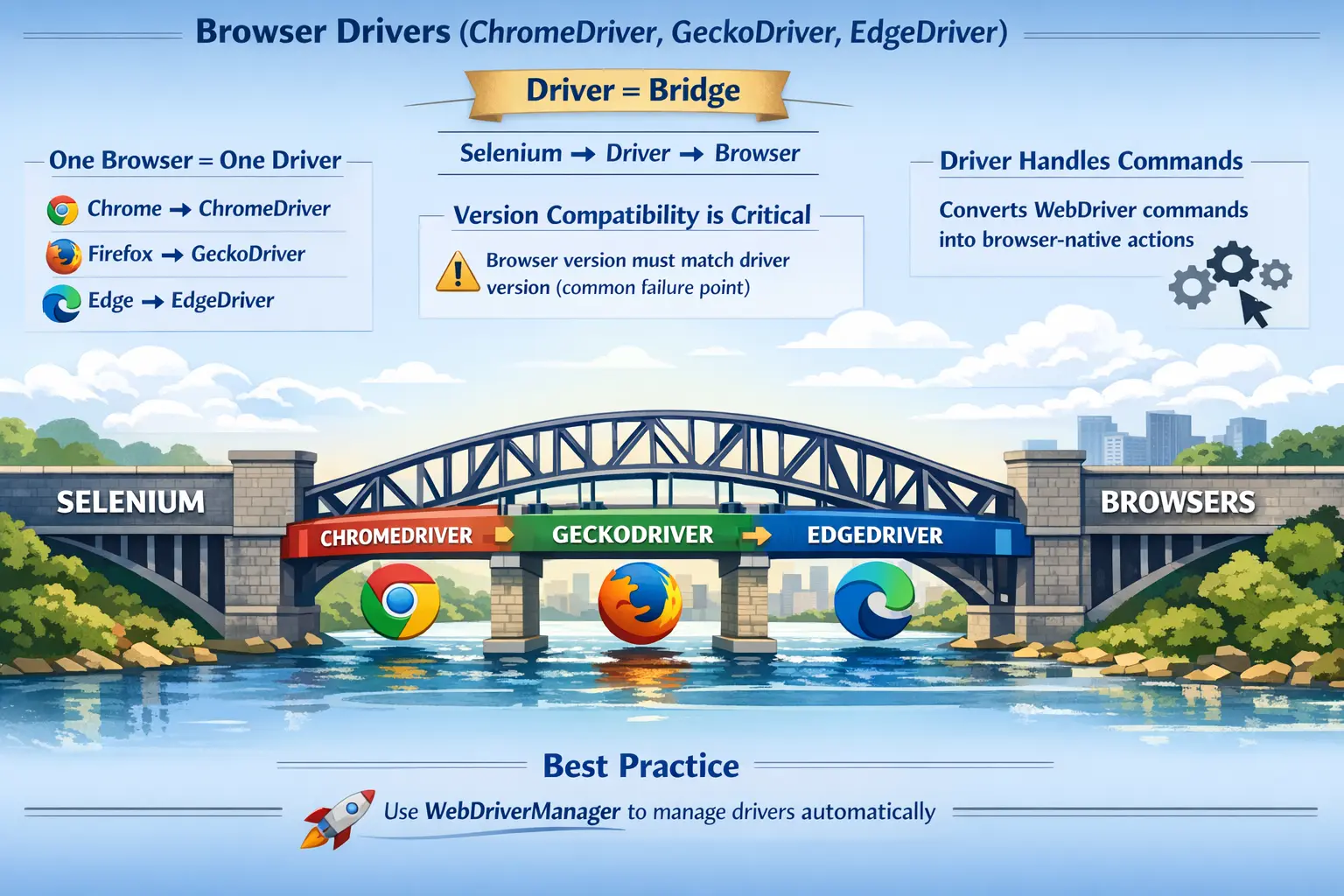
In Selenium WebDriver, browser drivers are not optional components; they are the backbone of real browser automation. Selenium does not communicate directly with Chrome, Firefox, Edge, or Safari. Instead, it relies on browser-specific driver programs such as ChromeDriver, GeckoDriver, EdgeDriver, and SafariDriver to act as intermediaries that translate automation commands into browser-native actions. Without these drivers, Selenium would be unable to perform even the most basic operations such as opening a URL, clicking a button, typing into a field, switching windows, or reading the current page title.
Understanding browser drivers is essential for anyone working with Selenium, whether at a beginner level or in advanced enterprise automation. Many real-world failures, especially those that occur during test setup or execution startup, are directly related to driver misconfiguration, version mismatches, browser updates, missing binaries, blocked permissions, or environment inconsistencies. A strong grasp of how drivers function and how they integrate with Selenium WebDriver is therefore critical for building stable, maintainable automation solutions.
What Is a Browser Driver
A browser driver can be defined as a bridge program that enables communication between Selenium WebDriver and a specific web browser. It receives commands from Selenium client code, interprets those commands according to the WebDriver protocol, and executes the requested action inside the browser.
The relationship can be summarized in a simple but powerful flow:
Selenium → Driver → Browser
This flow highlights an important principle: Selenium never interacts with the browser directly. Every action must pass through the driver layer.
When a tester writes a command like driver.get("https://example.com"), Selenium does not open the browser itself. Instead, it sends this request to the driver, which then communicates with the browser and performs the action. This separation of responsibilities ensures flexibility, scalability, and browser independence.
Why Browser Drivers Are Required
Modern web browsers are developed by different vendors such as Google, Mozilla, Microsoft, and Apple. Each browser has its own rendering engine, process model, security rules, update cycle, command support, and automation interfaces. Because of these differences, a single universal automation mechanism cannot directly control all browsers in exactly the same internal way.
Browser drivers solve this problem by acting as standardization layers. They implement the W3C WebDriver protocol, which defines a common communication format for automation tools. This allows Selenium to remain browser-independent while still interacting with multiple browsers seamlessly.
Without drivers, Selenium would need to handle browser-specific implementations internally, which would make it complex, inconsistent, and difficult to maintain. Drivers delegate this responsibility to browser vendors, ensuring that each browser is controlled in a way that is optimized for its architecture.
ChromeDriver
ChromeDriver is the browser driver used to automate Google Chrome. It is one of the most widely used drivers in the Selenium ecosystem because Chrome is common across development machines, QA environments, and CI pipelines.
When Selenium sends a command, ChromeDriver receives it and translates it into instructions that Chrome can execute. This translation is seamless and happens behind the scenes, allowing testers to write simple, readable automation code without learning Chrome's internal automation APIs.
ChromeDriver is maintained by Google and is frequently updated to match changes in the Chrome browser. This frequent update cycle ensures compatibility but also introduces a common challenge: version mismatch.
ChromeDriver supports advanced features such as headless execution, incognito mode, and custom browser configurations using ChromeOptions. These capabilities make it highly flexible and suitable for both local testing and CI/CD environments.
However, ChromeDriver is also known for issues such as SessionNotCreatedException, which typically occurs when the driver version does not match the browser version. Chrome’s auto-update behavior often causes such mismatches, making version management a critical responsibility for automation engineers.
GeckoDriver (Firefox Driver)
GeckoDriver is the browser driver used for automating Mozilla Firefox. It acts as a bridge between Selenium and Firefox's internal automation engine, known as Marionette.
Unlike ChromeDriver, which is tightly coupled with Chromium architecture, GeckoDriver operates within Firefox’s unique ecosystem. It is maintained by Mozilla and fully complies with the W3C WebDriver standard.
GeckoDriver is known for its strict adherence to standards and security policies. While this ensures robustness and correctness, it can sometimes make Firefox automation slightly slower or more restrictive compared to Chrome.
Common issues with GeckoDriver include compatibility problems with older Firefox versions, profile corruption, and stricter handling of permissions and security settings. Despite these challenges, GeckoDriver remains essential for cross-browser testing and validating application behavior in Firefox environments.
EdgeDriver
EdgeDriver is used to automate Microsoft Edge, particularly the Chromium-based version of Edge. Because Edge is now built on Chromium, its behavior and capabilities are very similar to ChromeDriver.
EdgeDriver is maintained by Microsoft and supports modern browser features such as headless execution and advanced configuration through EdgeOptions. It is especially important in enterprise environments where Microsoft technologies are widely used.
One key advantage of EdgeDriver is its seamless integration with Windows-based systems and enterprise infrastructures. Many organizations rely on Edge for internal applications, making EdgeDriver a critical component in enterprise automation strategies.
Like other drivers, EdgeDriver requires version compatibility with the browser. Mismatches can lead to startup failures or runtime errors, making proper version management essential.
One Browser = One Driver Rule
A fundamental rule in Selenium automation is that each browser requires its own dedicated driver. ChromeDriver cannot be used to automate Firefox, and GeckoDriver cannot be used for Chrome.
This strict one-to-one mapping ensures that each driver can fully leverage the capabilities and internal APIs of its respective browser. Attempting to bypass this rule is not possible within the Selenium framework.
This concept reinforces the importance of understanding the role of drivers and selecting the correct one based on the target browser environment.
Driver Version Compatibility
One of the most critical aspects of working with browser drivers is ensuring version compatibility. The browser version and driver version must align closely. If they do not, automation may fail to start or behave unpredictably.
Version mismatch is the number one issue encountered in real-world Selenium projects. It can lead to errors such as SessionNotCreatedException, where the browser refuses to establish a session with the driver.
Managing compatibility requires continuous monitoring of browser updates and ensuring that the corresponding driver versions are updated accordingly. This is particularly challenging in environments where browsers update automatically.
Driver Management Approaches
Traditionally, driver management was handled manually. Testers had to download the appropriate driver version, configure system properties, and update drivers whenever browser versions changed. This approach was error-prone and required significant maintenance effort.
Modern Selenium projects use tools like WebDriverManager to automate driver management. WebDriverManager automatically downloads the correct driver version based on the browser installed on the system. It also handles configuration and eliminates the need for manual setup.
This approach significantly reduces setup complexity and improves reliability, making it the industry-standard method for managing browser drivers.
Selenium Manager and Modern Driver Setup
Modern Selenium versions have made driver setup easier through Selenium Manager. In older Selenium projects, a tester usually had to download the driver executable manually, place it in a known folder, and configure the path through a system property or environment variable. That workflow was useful when the ecosystem was smaller, but it became painful as browsers started updating frequently. A test suite that worked in the morning could fail in the afternoon if Chrome or Edge updated silently and the local driver binary remained old.
Selenium Manager reduces that friction by discovering the installed browser, locating or downloading a compatible driver, and helping Selenium start the browser session without the same amount of manual setup. This does not mean browser drivers disappeared. The driver layer still exists, and Selenium still needs the correct driver to communicate with the browser. What changed is the amount of setup code a beginner or framework maintainer must write. Instead of focusing on file paths first, the tester can focus on the browser choice, test flow, waits, locators, and assertions.
In real projects, teams may still use a dedicated driver management tool, a prebuilt Docker image, a controlled browser package, or a company-approved binary source. The right choice depends on the organization's network rules, security policies, pipeline design, and release process. The important point is that driver management should be deliberate. A stable automation framework should not depend on random files downloaded to an unknown folder by one engineer. It should define how drivers are resolved locally, how they are resolved in CI, and how compatibility is monitored when browsers update.
How the WebDriver Protocol Fits In
The WebDriver protocol is the standard language used between Selenium and the browser driver. When test code calls methods such as get, click, sendKeys, findElement, or getTitle, Selenium converts those calls into protocol commands. The driver receives those commands and returns responses that Selenium turns back into Java objects, exceptions, or values. This protocol-based design is one of the main reasons Selenium can support multiple browsers through a common API.
For example, a click command is not simply a raw mouse event. Selenium asks the driver to click a specific element. The driver checks the browser state, determines whether the element can be interacted with, scrolls or targets the element if required, performs the interaction, and reports success or failure. If the element is hidden, covered by another element, stale, or outside a valid interaction state, the driver is often the component that reports the resulting error. This is why driver behavior affects more than browser launch. It also affects daily test execution, element interaction, timing, and debugging.
The W3C WebDriver standard also helps reduce browser-specific surprises. Before standardization matured, different drivers sometimes interpreted commands in slightly different ways. Today, the behavior is more predictable, but cross-browser testing can still reveal differences because browsers themselves are not identical. A page that renders correctly in Chrome may expose a timing, CSS, file upload, certificate, or focus issue in Firefox or Safari. Browser drivers make those differences testable through the same Selenium programming model.
ChromeDriver in Practical Automation
ChromeDriver is commonly the first driver students encounter because many tutorials and company laptops use Chrome as the default browser. It supports a rich set of ChromeOptions that allow testers to control how the browser starts. These options can enable headless mode, set the window size, disable notifications, configure download behavior, pass command-line arguments, load extensions, accept insecure certificates, and isolate test profiles. In framework code, ChromeOptions is often where browser-level test requirements are centralized.
ChromeDriver is powerful, but it also forces teams to think carefully about compatibility. Chrome's rapid update model is excellent for browser security and feature delivery, but automation depends on a compatible pairing between browser and driver. If Chrome updates but the framework still tries to start an older driver, the test may fail before the first page opens. The error message may look like a Selenium problem, but the root cause is usually environment management.
In production-grade automation, ChromeDriver setup is usually hidden behind a driver factory or browser manager class. Test cases should not repeatedly create Chrome-specific setup code. They should ask the framework for a browser session. The framework can then decide whether to create Chrome locally, run Chrome headlessly in a pipeline, connect to Selenium Grid, or run the same test through a cloud provider. This separation keeps tests readable and prevents browser setup from being scattered across the suite.
GeckoDriver in Cross-Browser Testing
GeckoDriver matters because Firefox is not just "another Chrome." Firefox has its own browser engine, security model, developer tools behavior, and rendering characteristics. Testing only in Chrome can hide browser-specific defects, especially in applications that rely heavily on CSS, advanced JavaScript behavior, file downloads, popups, authentication flows, or accessibility-related browser features. GeckoDriver gives Selenium a standard way to validate those flows in Firefox.
Firefox automation may feel slightly different from Chrome automation in some scenarios because GeckoDriver follows Firefox's rules closely. That strictness is useful. It can reveal brittle assumptions in a test script, such as clicking too early, relying on a non-visible element, expecting focus to behave the same way in every browser, or using locators that accidentally depend on browser-specific rendering. When Firefox exposes such a problem, the fix is often not to blame GeckoDriver but to improve the automation design.
A mature automation suite treats GeckoDriver as part of the cross-browser validation strategy. Not every test must run in every browser on every commit, because that can be slow and expensive. However, critical user journeys should be scheduled across Chrome, Firefox, Edge, and sometimes Safari depending on the user base. GeckoDriver helps teams answer a practical question: does this application work only in the browser where we wrote the test, or does it work for real users across supported browsers?
EdgeDriver in Enterprise Environments
EdgeDriver is especially important in organizations that use Microsoft ecosystems. Many enterprise users rely on Microsoft Edge because it integrates well with Windows, identity tools, device management, group policies, and internal application environments. Since modern Edge is based on Chromium, many automation behaviors feel familiar to teams already using ChromeDriver. Still, EdgeDriver is not something to ignore or replace with ChromeDriver. Microsoft Edge has its own driver, its own release channel, and its own enterprise configuration behavior.
For internal business applications, Edge may be the official supported browser even when testers prefer Chrome on their local machines. In that situation, a framework that cannot run reliably with EdgeDriver is incomplete. Teams should validate login flows, file downloads, certificate handling, popup behavior, and security prompts in the browser that real business users will use. EdgeDriver allows those validations to remain automated instead of becoming a manual regression burden.
EdgeOptions provides configuration patterns similar to ChromeOptions, but framework code should still keep browser-specific settings separated. A clean design avoids forcing Chrome arguments into Edge blindly. Some arguments may work in both browsers, while others may not be relevant. The driver factory should make those decisions clearly so that cross-browser support remains maintainable as browsers and Selenium versions evolve.
SafariDriver and Browser Coverage
Although ChromeDriver, GeckoDriver, and EdgeDriver are the most commonly discussed drivers in Selenium with Java tutorials, SafariDriver is important when a product supports macOS or iOS users. Safari automation is different because SafariDriver is provided with Safari and follows Apple's security model. Teams cannot always treat Safari automation exactly like Chrome automation. There may be system-level settings, permissions, and platform constraints to consider.
SafariDriver reinforces an important lesson: cross-browser automation is not just about swapping class names. The same WebDriver interface helps tests remain portable, but each browser has real differences. A test suite that is well designed will keep browser creation, options, capability selection, and environment assumptions outside the test logic. Then a test can focus on business behavior while the framework handles whether the session is Chrome, Firefox, Edge, Safari, local, remote, headless, or grid-based.
For interview purposes, mentioning SafariDriver shows that you understand Selenium beyond the three most common desktop drivers. It also shows that you recognize browser support as a product decision. If a company supports Safari users, Safari automation may be necessary. If it does not, the team may decide to focus on Chrome, Edge, and Firefox. The driver strategy should follow real user needs, not just tutorial examples.
Driver Configuration and Options
Browser drivers provide various configuration options that allow testers to customize browser behavior. These configurations are essential for creating realistic test environments and handling specific testing requirements.
Options include running browsers in headless mode, enabling incognito sessions, disabling notifications, accepting insecure certificates, and configuring download directories. These settings are applied using classes such as ChromeOptions, FirefoxOptions, and EdgeOptions.
Proper configuration of drivers ensures that tests run consistently across different environments and reduces the likelihood of unexpected behavior.
Browser Drivers in CI/CD
In continuous integration and continuous delivery (CI/CD) pipelines, browser drivers play a crucial role. Since CI environments often do not have browsers pre-installed, drivers must be configured dynamically.
Headless execution is commonly used in CI pipelines to run tests without a graphical user interface. This improves performance and reduces resource consumption.
Ensuring that driver versions match browser versions in CI environments is critical for pipeline stability. Any mismatch can cause pipeline failures, delaying releases and increasing debugging effort.
A CI pipeline should treat the browser and driver as controlled test dependencies, not as accidental machine state. If a pipeline downloads the latest browser every run, the test suite may become unpredictable. If the browser is frozen forever, the suite may stop representing the real customer environment. Good teams choose a policy: use pinned Docker images, use a known browser channel, update on a schedule, and investigate driver failures as environment issues before assuming the application broke.
Headless execution is useful, but it should not be treated as a different product experience. Some visual, timing, download, focus, and viewport issues can behave differently when the browser runs headlessly. For that reason, many teams run most automation headlessly for speed and run a smaller smoke or release set in headed mode or through a grid that more closely resembles the real user environment. Browser drivers support both patterns; the framework decides which mode fits the test goal.
Local, Remote, and Grid Driver Sessions
A browser driver can be used locally on the same machine as the test code, or Selenium can create a remote session through Selenium Grid or a cloud testing provider. In a local session, Java code starts the driver process and the driver starts the browser on the same machine. This is simple and fast for development. In a remote session, the test code sends commands to a remote WebDriver endpoint, and the browser session runs somewhere else. That design supports parallel execution, browser farms, different operating systems, and scalable regression testing.
The test code should not change dramatically when moving from local to remote execution. Ideally, the framework accepts a browser name, version, platform, and execution mode, then creates the correct session. This is where the WebDriver interface becomes valuable. A test can use WebDriver while the framework decides whether the implementation is ChromeDriver, FirefoxDriver, EdgeDriver, SafariDriver, or RemoteWebDriver. That abstraction is not just an OOP concept; it is a practical design requirement for maintainable automation.
Remote execution also changes troubleshooting. If a test fails locally, the engineer can often see the browser and inspect the machine directly. If a test fails on a grid, the engineer may need logs, screenshots, video recordings, driver output, browser console logs, and capability details. Good driver setup includes observability. It should be easy to know which browser version, driver version, operating system, and execution mode were used for a failed run.
Driver Factories and Framework Design
In beginner scripts, it is common to create the driver directly inside the main method or inside each test class. That is fine for learning, but it does not scale. A real automation framework usually creates a driver factory or browser manager that owns the responsibility of starting, configuring, returning, and quitting browser sessions. This factory reads configuration, applies browser options, handles local or remote mode, maximizes or sizes the window, clears cookies if required, and attaches logs or screenshots when tests fail.
A driver factory keeps test cases clean. Instead of repeating browser setup in every test, the test asks for a WebDriver session and begins interacting with the application. This improves maintainability because changes to browser setup happen in one place. If the team decides to switch from manual driver paths to Selenium Manager, add Edge support, enable headless mode in CI, or run through Selenium Grid, the change belongs in the framework layer rather than every individual test.
Framework design should also manage driver lifecycle carefully. A driver should be created before the test needs it and closed after the test finishes. Forgetting to quit drivers can leave browser processes running in the background, consuming memory and causing later failures. Quitting too early can break teardown logic or screenshot capture. In parallel execution, each thread needs its own browser session, and sharing one driver across tests is a common source of unstable behavior. Driver management is therefore directly connected to reliability.
Common Driver-Related Exceptions
Driver-related issues are among the most common problems in Selenium automation. Exceptions such as SessionNotCreatedException, IllegalStateException, WebDriverException, and TimeoutException often originate from driver misconfiguration.
These errors typically occur during test startup, before any actual test logic is executed. Understanding driver behavior and configuration helps identify and resolve these issues quickly.
Instead of treating these errors as random failures, experienced automation engineers analyze them systematically based on driver setup and compatibility.
SessionNotCreatedException usually points to a failure while creating a new browser session. The common causes are driver-browser version mismatch, missing browser installation, unsupported browser flags, incorrect capabilities, or a blocked executable. IllegalStateException was more common in older setups where the driver path was not configured correctly. WebDriverException is broader and may indicate that the driver process crashed, the browser closed unexpectedly, the remote endpoint was unreachable, or the command could not be completed. TimeoutException may come from application timing, but it can also be influenced by driver startup, browser responsiveness, or grid congestion.
A systematic troubleshooting flow starts with the simplest facts. Confirm the browser is installed. Confirm the browser version. Confirm the driver version or driver management method. Confirm the executable is accessible. Confirm the framework is not mixing browser-specific options. Confirm the same command works in a minimal script. If the minimal script works but the framework fails, the issue is probably in framework configuration. If the minimal script fails, the issue is likely environment or compatibility. This kind of diagnosis saves time because it avoids changing application locators or waits when the browser session itself is the real problem.
Security, Permissions, and Browser Profiles
Browser drivers operate inside real browser security rules. They cannot magically bypass every permission prompt, certificate warning, file download rule, extension policy, or operating system restriction. Testers sometimes expect Selenium to do anything a human can do, but browsers deliberately protect users from unsafe automation behavior. For example, file uploads must be handled through supported input elements, downloads may require configured directories, notifications may need to be disabled, and insecure certificates may need explicit acceptance through browser options or capabilities.
Profiles are another important detail. A browser profile contains settings, cookies, extensions, cache, history, permissions, and user preferences. Using a real user profile can make tests unpredictable because old cookies or saved settings may influence behavior. Using a fresh automation profile improves repeatability, but some tests may need specific profile settings such as language, download directory, proxy, or certificate behavior. Browser drivers support these requirements through options and capabilities, but they should be applied intentionally through the framework.
In enterprise environments, security software and device policies can also affect drivers. A driver executable may be blocked by antivirus, a browser may be controlled by group policy, downloads may be restricted, or remote debugging ports may be unavailable. These problems often look like Selenium issues at first. Experienced automation engineers know to check the environment, logs, and policy constraints before rewriting test logic.
Choosing the Right Driver Strategy
The best driver strategy depends on the project's maturity and execution environment. For a beginner learning Selenium on a laptop, using Selenium Manager with direct ChromeDriver, FirefoxDriver, or EdgeDriver creation is usually enough. For a small team, WebDriverManager or a simple driver factory may be sufficient. For a large organization, a controlled grid, containerized browsers, browser version pinning, execution reports, and remote logs may be necessary.
There is no value in making driver setup unnecessarily complex, but there is also risk in leaving it unmanaged. Browser drivers sit at the boundary between test code and the real browser, so instability at this layer affects every test. A suite with excellent locators and assertions can still fail constantly if the driver layer is fragile. That is why professional Selenium frameworks give driver management the same attention as waits, page objects, test data, reporting, and CI integration.
A practical rule is to keep the test code browser-independent wherever possible and keep browser-specific details in configuration or framework utilities. The test should describe the user's behavior. The framework should decide how to create a compatible browser session. This design makes the suite easier to extend when a new browser, grid, container, or cloud platform is introduced.
Real-Project Best Practices
In real-world projects, following best practices for driver management is essential for stability and maintainability. Using WebDriverManager is highly recommended to handle driver downloads and version compatibility automatically.
Locking browser versions in CI environments prevents unexpected failures caused by automatic updates. Running tests in headless mode improves execution efficiency, while maintaining consistency between local and CI environments ensures reliable results.
Monitoring browser updates and proactively updating drivers helps avoid last-minute issues and reduces debugging effort.
Interview Perspective
From an interview perspective, understanding browser drivers is a key requirement. A concise answer would describe drivers as bridges between Selenium and browsers that enable automation.
A more detailed explanation would include the role of the W3C WebDriver protocol, the need for browser-specific drivers, and the importance of version compatibility. Mentioning tools like WebDriverManager and real-world challenges such as version mismatch demonstrates practical knowledge.
If an interviewer asks why browser drivers are needed, the strongest answer is not just "to launch the browser." Drivers are needed because Selenium sends standardized WebDriver commands, while each browser has its own internal automation implementation. The driver translates commands, creates sessions, controls browser behavior, returns responses, and reports errors. ChromeDriver is for Chrome, GeckoDriver is for Firefox, EdgeDriver is for Edge, and SafariDriver is for Safari. The driver must be compatible with the browser version, and modern Selenium can help manage that setup through Selenium Manager.
If the interviewer asks about real-time problems, version mismatch should be the first example. Then discuss missing browser installations, wrong driver paths in older Selenium setups, blocked executables, incorrect options, headless differences, and grid environment issues. A practical answer should also mention that driver creation should be centralized in a framework utility rather than repeated inside every test. This shows that you understand both the concept and how it affects maintainable automation design.
Key Takeaway
Browser drivers are essential components of Selenium WebDriver. They enable Selenium to communicate with browsers using standardized protocols and execute automation commands reliably.
Selenium cannot function without drivers, and each browser requires its own dedicated driver. Version compatibility between browser and driver is critical and is the most common source of failures in automation projects.
Mastering browser drivers is not just about setup—it is a core skill that impacts stability, scalability, and efficiency in real-world automation. Understanding how drivers work, how to manage them, and how to troubleshoot related issues is what separates beginner testers from experienced automation engineers.
1. Basic ChromeDriver Launch
import org.openqa.selenium.WebDriver;
import org.openqa.selenium.chrome.ChromeDriver;
public class ChromeTest {
public static void main(String[] args) {
WebDriver driver = new ChromeDriver();
driver.get("https://www.google.com");
driver.quit();
}
}
Explanation
	• ChromeDriver launches the Google Chrome browser.
	• Selenium Manager (Selenium 4.6+) auto-handles driver binaries.
	• get() opens a URL.
	• quit() closes all browser windows and ends the session.
2. Firefox (GeckoDriver) Launch
import org.openqa.selenium.WebDriver;
import org.openqa.selenium.firefox.FirefoxDriver;
public class FirefoxTest {
public static void main(String[] args) {
WebDriver driver = new FirefoxDriver();
driver.get("https://www.google.com");
driver.quit();
}
}
Explanation
	• FirefoxDriver internally uses GeckoDriver.
	• Works only if Firefox browser is installed.
	• API usage is same as ChromeDriver.
3. EdgeDriver Launch
import org.openqa.selenium.WebDriver;
import org.openqa.selenium.edge.EdgeDriver;
public class EdgeTest {
public static void main(String[] args) {
WebDriver driver = new EdgeDriver();
driver.get("https://www.google.com");
driver.quit();
}
}
Explanation
	• Launches Microsoft Edge browser.
	• Uses Chromium-based Edge.
	• Fully compatible with Selenium 4.
4. Using WebDriver Interface (Best Practice)
import org.openqa.selenium.WebDriver;
import org.openqa.selenium.chrome.ChromeDriver;
public class WebDriverExample {
public static void main(String[] args) {
WebDriver driver = new ChromeDriver();
driver.get("https://example.com");
driver.quit();
}
}
Explanation
	• WebDriver is an interface.
	• Enables browser independence.
	• Promotes polymorphism and maintainability.
5. Cross-Browser Driver Selection (If–Else)
import org.openqa.selenium.WebDriver;
import org.openqa.selenium.chrome.ChromeDriver;
import org.openqa.selenium.firefox.FirefoxDriver;
import org.openqa.selenium.edge.EdgeDriver;
public class CrossBrowserTest {
public static void main(String[] args) {
String browser = "chrome";
WebDriver driver;
if (browser.equalsIgnoreCase("chrome")) {
driver = new ChromeDriver();
} else if (browser.equalsIgnoreCase("firefox")) {
driver = new FirefoxDriver();
} else {
driver = new EdgeDriver();
}
driver.get("https://example.com");
driver.quit();
}
}
Explanation
	• Dynamically chooses browser at runtime.
	• Common approach in real test frameworks.
6. Browser Setup Using System.setProperty (Legacy)
System.setProperty("webdriver.chrome.driver", "C:\\drivers\\chromedriver.exe");
WebDriver driver = new ChromeDriver();
Explanation
	• Required in Selenium 3.
	• Not needed in Selenium 4.6+.
	• Still asked in interviews.
7. Maximize Browser Window
WebDriver driver = new ChromeDriver();
driver.manage().window().maximize();
driver.get("https://example.com");
driver.quit();
Explanation
	• Maximizes the browser window.
	• Useful for consistent UI testing.
8. Delete Cookies on Browser Start
WebDriver driver = new ChromeDriver();
driver.manage().deleteAllCookies();
driver.get("https://example.com");
driver.quit();
Explanation
	• Clears session data.
	• Ensures clean test execution.
9. Open Browser with ChromeOptions
import org.openqa.selenium.chrome.ChromeOptions;
ChromeOptions options = new ChromeOptions();
options.addArguments("--start-maximized");
WebDriver driver = new ChromeDriver(options);
driver.get("https://example.com");
driver.quit();
Explanation
	• ChromeOptions customizes browser behavior.
	• Commonly used for extensions, headless mode, arguments.
10. Headless Chrome Execution
ChromeOptions options = new ChromeOptions();
options.addArguments("--headless");
WebDriver driver = new ChromeDriver(options);
driver.get("https://example.com");
System.out.println(driver.getTitle());
driver.quit();
Explanation
	• Runs browser without UI.
	• Ideal for CI/CD pipelines.
	• Faster execution.
11. FirefoxOptions Usage
import org.openqa.selenium.firefox.FirefoxOptions;
FirefoxOptions options = new FirefoxOptions();
options.addArguments("--headless");
WebDriver driver = new FirefoxDriver(options);
driver.get("https://example.com");
driver.quit();
Explanation
	• Same concept as ChromeOptions.
	• Used to configure Firefox-specific settings.
12. EdgeOptions Usage
import org.openqa.selenium.edge.EdgeOptions;
EdgeOptions options = new EdgeOptions();
options.addArguments("--start-maximized");
WebDriver driver = new EdgeDriver(options);
driver.get("https://example.com");
driver.quit();
Explanation
	• Customizes Edge browser startup.
	• Useful for enterprise testing.
13. Get Browser Details
WebDriver driver = new ChromeDriver();
System.out.println(driver.getTitle());
System.out.println(driver.getCurrentUrl());
driver.quit();
Explanation
	• getTitle() returns page title.
	• getCurrentUrl() returns active URL.
14. Navigate Commands
WebDriver driver = new ChromeDriver();
driver.navigate().to("https://google.com");
driver.navigate().refresh();
driver.navigate().back();
driver.navigate().forward();
driver.quit();
Explanation
	• Used for browser navigation.
	• Mimics user browser actions.
15. Close vs Quit
WebDriver driver = new ChromeDriver();
driver.get("https://example.com");
driver.close(); // closes current window
// driver.quit(); // closes all windows
Explanation
	• close() → current window only.
	• quit() → entire browser session.
16. Launch Multiple Browsers Sequentially
WebDriver chrome = new ChromeDriver();
chrome.get("https://example.com");
chrome.quit();
WebDriver firefox = new FirefoxDriver();
firefox.get("https://example.com");
firefox.quit();
Explanation
	• Useful for cross-browser validation.
	• Each driver has its own session.
17. Exception Example (Driver Not Found)
WebDriver driver = new ChromeDriver();Explanation
	• Throws SessionNotCreatedException if:
		○ Browser not installed
		○ Version mismatch
		○ Driver setup issue
18. Best Practice Driver Utility Method
public static WebDriver getDriver(String browser) {
if (browser.equalsIgnoreCase("chrome")) {
return new ChromeDriver();
} else if (browser.equalsIgnoreCase("firefox")) {
return new FirefoxDriver();
} else {
return new EdgeDriver();
}
}
Explanation
	• Centralized driver creation.
	• Used in real automation frameworks.
19. Sample Test Using Driver Method
WebDriver driver = getDriver("chrome");
driver.get("https://example.com");
driver.quit();
Explanation
	• Improves reusability.
	• Reduces code duplication.
20. Interview-Critical Summary Code
WebDriver driver = new ChromeDriver(); // WebDriver interface
driver.manage().window().maximize();
driver.get("https://example.com");
driver.quit();
Explanation
	• Covers 90% of interview expectations.
	• Clean, standard Selenium driver usage.