Driver vs Browser Compatibility in Selenium WebDriver
In Selenium WebDriver, one of the most critical and often underestimated factors that determines whether your automation works or fails is driver-browser compatibility. Many testers spend hours debugging test scripts, locators, waits, page objects, or frameworks, only to discover that the issue has nothing to do with their code at all. Instead, the root cause lies in a mismatch between the browser version and the corresponding browser driver.
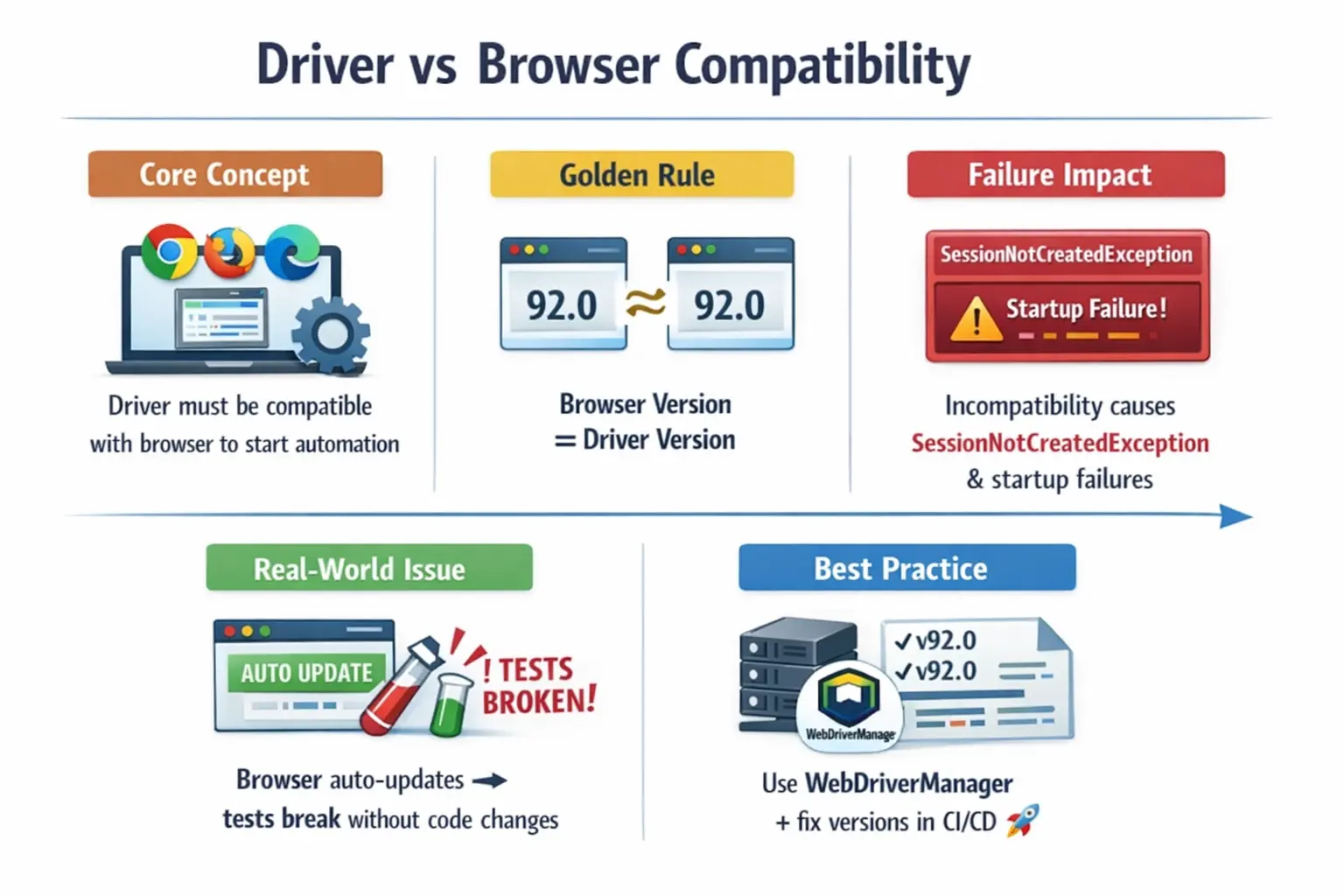
Even perfectly written automation scripts, designed with best practices, robust frameworks, and stable locators, will fail instantly if the driver and browser are incompatible. This is not a rare edge case—it is the most common failure point in real-world WebDriver projects. Understanding this concept deeply is essential for building stable automation, avoiding flaky pipelines, and reducing wasted debugging effort.
Understanding Driver vs Browser Compatibility
Driver–browser compatibility refers to the requirement that the browser driver version must align with the installed browser version for Selenium to successfully create and control a browser session. Selenium itself does not directly interact with the browser. Instead, it sends commands through a driver, which acts as a translator between Selenium and the browser.
For this communication to work correctly, the driver must understand the browser’s internal implementation. If the versions are incompatible, this communication breaks down completely. The result is immediate failure before any test logic executes.
When compatibility is not maintained, several symptoms appear. The browser may fail to launch entirely, or it may open and close instantly. Selenium may throw exceptions during session creation, and tests will stop before even navigating to the application. These failures occur at the infrastructure level, not at the test logic level, which makes them confusing for beginners.
The easiest way to understand the relationship is to separate the three layers involved in a Selenium test. The first layer is your Java test code, where you create a WebDriver object and write commands such as get, click, sendKeys, and quit. The second layer is the browser driver, such as ChromeDriver for Google Chrome, GeckoDriver for Mozilla Firefox, or EdgeDriver for Microsoft Edge. The third layer is the actual browser installed on the machine or running on a remote node. The test code depends on Selenium APIs, the driver depends on the browser's automation interface, and the browser depends on its own vendor implementation. Compatibility problems happen when the second and third layers no longer understand each other correctly.
This is why compatibility is not the same as cross-browser testing. Cross-browser testing asks whether an application behaves correctly in different browsers. Driver-browser compatibility asks whether Selenium can control a specific browser at all. A product may have excellent cross-browser coverage in design, but if the browser driver cannot start the browser session, no test can run. Compatibility is therefore an infrastructure prerequisite. It must be solved before functional validation, UI validation, regression testing, or framework-level assertions can provide any value.
Why Compatibility Is Mandatory
Modern browsers evolve rapidly. Vendors such as Google, Mozilla, and Microsoft release frequent updates that modify internal behavior, security models, and automation hooks. These changes are necessary for performance, security, and standards compliance, but they introduce a moving target for automation tools.
Browser drivers are designed to keep up with these changes. Each driver version is built to understand specific browser versions. When a browser updates, its internal interfaces may change, and older drivers may no longer be able to communicate with it correctly.
If the driver is older than the browser, it may not recognize new commands or structures. If the driver is newer than the browser, it may expect features that the browser does not yet support. In both cases, communication fails, and Selenium cannot establish a session.
This dependency makes compatibility mandatory, not optional. Unlike many other tools where version mismatches may degrade performance, in Selenium they often cause complete failure.
The Golden Rule of Compatibility
A simple rule governs driver–browser compatibility:
Browser Version ≈ Driver Version
This does not mean that the versions must be identical down to the patch level, but they must belong to the same compatibility range. For example, Chrome version 118 requires a ChromeDriver version that supports Chrome 118.x. Similarly, Firefox version 115 requires a compatible GeckoDriver designed for that Firefox version.
This rule applies consistently across all browsers. Ignoring it leads to immediate failures, regardless of how well the test code is written.
The rule is simple, but real environments make it harder than it sounds. Browsers update frequently, machines may not update at the same time, CI agents may be rebuilt from different images, and developers may run tests on different operating systems. A test that passes on one laptop can fail on another laptop even when the codebase is identical. That is not because Selenium is random. It is because the browser-driver pair is part of the test environment, and different environments can contain different versions.
A stable automation team treats browser version, driver version, Selenium version, Java version, and operating system as visible test dependencies. These details should be known, controlled, or at least logged during execution. When a failure happens during driver initialization, the first question should not be "which locator broke?" The first question should be "which browser and driver pair was used?" That shift in thinking saves a significant amount of debugging time.
Browser-Specific Compatibility Considerations
Although the compatibility principle is universal, each browser behaves differently in practice, which affects how compatibility issues manifest.
Chrome and ChromeDriver
Chrome is known for its rapid release cycle. It updates frequently, often automatically, without user intervention. This makes WebDriver compatibility one of the most common challenges in Selenium automation.
When Chrome updates but the driver remains unchanged, Selenium fails to create a session. The most common error seen in this scenario is SessionNotCreatedException. This error indicates that the driver cannot establish communication with the browser due to version mismatch.
Because of Chrome’s aggressive update behavior, managing compatibility becomes an ongoing responsibility rather than a one-time setup task.
Chrome compatibility failures are especially visible because many teams use Chrome as the default browser for automation. Chrome may update silently through the operating system or through enterprise software management. If the project uses a manually downloaded ChromeDriver, the driver may remain at an older major version while Chrome moves ahead. The next test run can fail immediately even though no developer changed the test code. This is one reason modern Selenium projects avoid hard-coded driver binaries whenever possible.
ChromeOptions can also expose compatibility concerns. Some command-line arguments are supported only in certain browser versions. For example, newer headless behavior uses arguments that older browser-driver combinations may not understand. If a team copies options from the internet without checking the browser version, session creation can fail or behave differently between local and CI runs. A practical framework should keep Chrome options centralized so changes can be reviewed and tested in one place.
Firefox and GeckoDriver
Firefox uses the Gecko engine and communicates with Selenium through WebDriver, which leverages the Marionette automation protocol. Compared to Chrome, Firefox updates are slightly less aggressive, and compatibility issues are somewhat more tolerant.
However, this does not mean compatibility can be ignored. Mismatches may still occur, leading to intermittent failures rather than immediate crashes. For example, the browser may launch successfully, but certain commands may fail unpredictably.
This makes Firefox compatibility issues harder to diagnose, as they may not always produce clear errors.
GeckoDriver is important because Firefox is not built on Chromium. It has different browser internals, security behavior, rendering behavior, profile handling, and automation implementation. A Firefox compatibility issue may appear as a startup problem, but it may also appear later as a command-level problem. For example, the session may start but a window command, file upload, certificate setting, or profile configuration may behave differently than expected. That makes runtime logging especially useful when Firefox is part of the supported browser matrix.
Teams should not treat Firefox as an afterthought if their application officially supports it. If Firefox execution is run only once in a while, compatibility drift can remain hidden until a release window. A better strategy is to run a smaller, high-value subset of tests in Firefox regularly. This keeps GeckoDriver, Firefox version, and framework options healthy without requiring every test to run in every browser on every commit.
Edge and EdgeDriver
Modern Microsoft Edge is built on Chromium, making its behavior similar to Chrome. EdgeDriver follows the same broad compatibility principle as ChromeDriver, requiring alignment with the Edge browser version.
Edge is widely used in enterprise environments, particularly on Windows systems. Compatibility issues in Edge often arise in corporate setups where browser updates are managed differently across machines.
Like Chrome, mismatches in WebDriver result in startup failures or unstable execution.
Edge compatibility deserves special attention in enterprise automation because many organizations standardize on Edge through Windows policies. Browser updates may be controlled by IT, delayed by device groups, or rolled out in waves. One team member may have the latest Edge version while a CI agent or virtual desktop still has an older version. If the framework assumes all Edge installations are identical, failures can look inconsistent and hard to reproduce.
EdgeDriver also matters for internal applications that depend on Microsoft identity, single sign-on, certificate prompts, or enterprise policy behavior. A test that passes in Chrome may not fully represent the real user environment if business users access the application in Edge. Compatibility management for Edge is therefore not only a setup concern; it is part of validating the application in the browser that the organization actually uses.
SafariDriver and Platform-Specific Compatibility
SafariDriver is different from ChromeDriver, GeckoDriver, and EdgeDriver because Safari automation is tied closely to Apple's ecosystem. SafariDriver is included with Safari, and using it may require enabling remote automation settings on macOS. The version relationship is still important, but the management model is different from downloading a separate driver executable for Chrome or Edge.
Safari compatibility becomes relevant when a product supports macOS or Safari users. It is common for teams to test heavily in Chrome and later discover Safari-specific behavior around file inputs, date controls, popups, focus, cookies, or security restrictions. If Safari is part of the support matrix, the automation strategy should include SafariDriver planning, platform availability, and clear expectations about what can run locally, in CI, or through a cloud testing provider.
This reinforces a broader principle: compatibility is not only about matching two version numbers. It is about understanding the execution environment. Chrome on Windows, Chrome in a Linux container, Firefox on a developer laptop, Edge on a managed corporate desktop, and Safari on macOS can all require different setup details. Selenium gives a common API, but the environment still matters.
Common Errors Caused by Incompatibility
When driver–browser compatibility is broken, Selenium fails before executing any meaningful test logic. This is an important observation because it helps identify the root cause quickly.
Common errors include SessionNotCreatedException, which indicates failure during session initialization. WebDriverException may occur when the driver cannot communicate with the browser. In some cases, the browser opens and immediately closes, or it does not launch at all. Tests may also hang indefinitely during startup.
These errors often confuse testers because they appear unrelated to the test code. However, they are almost always caused by compatibility issues.
Real-World Scenarios Where Compatibility Fails
In real projects, compatibility issues rarely occur in isolation. They are typically triggered by environmental changes rather than code changes.
On a local machine, a common scenario is automatic browser updates. Chrome, for example, updates silently in the background. The next time tests are executed, the driver may no longer match the updated browser, causing failures without any changes to the test code.
In CI/CD pipelines, the problem becomes more complex. Different build agents may have different browser versions installed. If the driver version is fixed, some agents may run successfully while others fail. This creates flaky pipelines that are difficult to debug.
These scenarios highlight an important insight: compatibility issues are environment-driven, not code-driven.
Another real-world scenario occurs when a team upgrades Selenium but leaves the rest of the environment unchanged. The new Selenium version may use improved protocol behavior, updated defaults, or Selenium Manager integration, while the old project still contains manual driver paths and outdated options. The result can be confusing because the framework partly follows modern setup rules and partly follows legacy setup rules. A clean upgrade should review Selenium version, browser versions, driver management method, browser options, grid configuration, and CI images together.
Compatibility can also fail when a company introduces a new build agent image. The image may contain a different browser version, a missing browser package, a different path, or a restricted executable policy. If the framework logs only "test failed" but not the browser and driver details, the team may waste time investigating application code. Strong automation reports should include browser name, browser version, platform, execution mode, and remote node details. That information turns a vague failure into a diagnosable environment problem.
A third scenario appears during parallel execution. Suppose a Selenium Grid contains several nodes, and only one node has an incompatible ChromeDriver. Most test runs may pass, but the tests routed to that one node fail during session creation. From the outside, the pipeline looks flaky. In reality, the grid is inconsistent. The fix is not to add sleeps, change locators, or rerun blindly. The fix is to inspect grid node configuration and make the environment consistent.
The Problem with Manual Driver Management
Traditionally, driver management was handled manually. Testers would download the appropriate driver version, configure system properties, and update the driver whenever the browser changed.
While this approach works initially, it quickly becomes unsustainable. It requires constant monitoring of browser updates, manual downloads, and configuration changes. Missing even a single update can break the entire automation suite.
Manual management is error-prone and introduces unnecessary maintenance overhead. In modern automation practices, it is considered outdated.
WebDriverManager: The Modern Solution
To address compatibility challenges, tools like WebDriverManager have become standard in Selenium projects. WebDriverManager automatically detects the installed browser version and downloads the corresponding driver.
This eliminates the need for manual downloads and reduces the risk of version mismatch. It also caches drivers, improving performance and reliability.
By automating driver management, WebDriverManager solves the majority of compatibility issues. It allows testers to focus on test logic rather than infrastructure setup.
Selenium Manager and Built-In Driver Resolution
Selenium Manager is another important part of the modern driver management story. Selenium 4.6 and later can automatically locate browsers and resolve compatible driver binaries in many common scenarios. This makes simple examples much easier because a beginner can often write WebDriver driver = new ChromeDriver(); without first downloading ChromeDriver manually or setting webdriver.chrome.driver. The driver still exists, but Selenium helps resolve it.
This built-in behavior is useful, but teams should still understand what is happening behind the scenes. Selenium Manager may need network access to download a driver. Corporate environments may block downloads. CI environments may not allow writing to certain cache locations. Some teams may require all binaries to come from approved internal repositories. In those situations, driver resolution needs to be configured deliberately rather than left to chance.
WebDriverManager and Selenium Manager both reduce manual work, but they do not remove the need for compatibility awareness. They help automate the matching process. The team still owns the automation environment. If a pipeline runs inside a locked-down network, if the browser is not installed, if an operating system package is missing, or if a grid node is misconfigured, Selenium cannot magically make the environment correct. Good engineers know when the tool can help and when they must fix the execution platform.
Compatibility in CI/CD Environments
In CI/CD pipelines, consistency is more important than using the latest browser versions. Fixing browser versions across all environments ensures that tests behave predictably.
Using Docker images with pre-installed browsers and drivers is a common practice. This approach creates a controlled environment where compatibility is guaranteed.
Headless execution is often used in CI to improve performance and reduce resource usage. However, even in headless mode, driver–browser compatibility must be maintained.
Avoiding automatic browser updates in CI environments is critical. Stability should always take precedence over adopting the latest versions.
A strong CI setup usually follows one of two models. The first model pins browser and driver versions through a container image or machine image. The image is updated intentionally, tested, and promoted when stable. The second model allows dynamic driver resolution but still logs and monitors browser versions so unexpected drift is visible. Both models can work. What does not work well is an unmanaged setup where browsers update at random, drivers are downloaded manually, and pipeline agents differ from one another.
Headless mode deserves separate attention because it is common in CI. Running headlessly saves resources and avoids the need for a visible display, but it is still real browser automation. The browser version and driver version must remain compatible. In addition, headless mode may require specific arguments depending on the browser version. If the team uses old headless arguments with a newer browser, or new arguments with an older browser, the failure may look like a compatibility issue even though the root cause is an option mismatch. Keeping browser options centralized makes this easier to control.
CI failures should be diagnosed from logs, not guesswork. At the start of a test run, the framework can print the selected browser, browser version, platform, Selenium version, remote endpoint, and whether the run is local, headless, or grid-based. That small amount of diagnostic information can turn hours of investigation into a quick environment fix. It also helps when comparing local success with pipeline failure.
Compatibility and Selenium Grid
In distributed testing environments such as Selenium Grid, compatibility becomes even more complex. Each node in the grid may have a different operating system, browser, and driver configuration.
If any node has a mismatch, tests executed on that node will fail. This can lead to partial execution, inconsistent results, and difficult debugging scenarios.
Ensuring compatibility across all nodes is essential for grid stability. This requires careful configuration and regular validation of environment consistency.
Grid adds routing to the compatibility discussion. A test requests a browser through capabilities, and Grid routes that request to a node that claims it can provide the requested browser. If the node is inaccurate, stale, or misconfigured, the test can fail even though the test request itself is valid. For example, a node may advertise Chrome but contain an incompatible ChromeDriver. Another node may have the correct driver but an older browser. A third node may run out of resources and fail to start sessions. These are grid health problems, not application problems.
Good grid management includes regular node validation. Teams should verify that each node can start a session for the browsers it advertises. They should also keep node images consistent and avoid mixing untracked versions. When cloud providers are used, the same idea applies through capability selection. The requested browser version, platform, and execution environment should match the project's support matrix. If the request is too vague, the provider may choose a default version that changes over time.
In interviews, mentioning Grid compatibility shows practical experience because it moves beyond the beginner idea of one laptop and one browser. In enterprise automation, failures often come from distributed execution: wrong node, wrong image, wrong browser channel, mismatched capability, or inconsistent driver setup. Understanding that environment design affects test stability is a major step toward senior-level automation thinking.
Identifying Compatibility Issues Quickly
One of the key skills in Selenium automation is the ability to identify compatibility issues quickly. These issues typically occur before the first test step is executed.
If a test fails during driver initialization or before loading the application URL, compatibility should be the first thing to check. Verifying the browser version, driver version, and system configuration can often resolve the issue immediately.
Understanding these symptoms helps avoid unnecessary debugging of test code and speeds up issue resolution.
A practical troubleshooting checklist starts with the failure point. If the test fails before driver.get is called, inspect driver setup first. If the browser opens and closes instantly, inspect version mismatch, unsupported options, and blocked executables. If the test hangs while creating a session, inspect grid availability, remote endpoint connectivity, browser startup logs, and machine resources. If the test starts in one browser but not another, compare the browser-specific driver and options. Each symptom points to a different part of the stack.
The next step is to reproduce with the smallest possible script. A minimal script that only creates the driver, opens a public URL, prints the title, and quits can separate environment problems from framework problems. If the minimal script fails, the issue is likely compatibility or setup. If the minimal script passes but the full framework fails, the issue may be browser options, test framework lifecycle, grid capabilities, proxy settings, or parallel execution handling. This technique prevents unnecessary changes to page objects and locators.
Teams should also avoid hiding compatibility errors behind generic exception handling. Catching WebDriverException and printing only "browser failed" removes the useful details from the original message. The exception text often includes the detected browser version, supported driver version, or session creation failure reason. Good framework logging preserves that information so the root cause remains visible.
Best Practices for Stable Compatibility
The first best practice is to avoid scattering driver setup across many test classes. Create drivers through a central factory or browser manager. That factory can apply browser-specific options, choose local or remote execution, rely on Selenium Manager or WebDriverManager, print capabilities, and manage cleanup consistently. When compatibility handling lives in one place, future browser updates are easier to handle.
The second best practice is to control the execution environment. Local developer machines can use automatic resolution for convenience, but CI should be more predictable. Use known images, known browser channels, or clear update policies. Avoid allowing one build agent to use a different browser version from another unless that difference is intentional and visible. Consistency reduces flakiness.
The third best practice is to log versions. Every automation report should make it easy to identify the browser name, browser version, platform, execution mode, Selenium version, and remote node when applicable. This is not extra decoration. It is production debugging data. Without it, compatibility failures become guesswork.
The fourth best practice is to separate browser compatibility from application compatibility. If the driver cannot start the browser, fix the environment. If the browser starts but a page behaves differently across Chrome, Firefox, Edge, or Safari, then investigate the application, waits, locators, JavaScript behavior, CSS rendering, or real cross-browser defect. Mixing these categories leads to poor fixes.
Interview Perspective
From an interview standpoint, driver–browser compatibility is a fundamental concept. A concise explanation would define it as the requirement that the driver version must match the browser version for Selenium to function correctly.
A more detailed answer would include the role of browser drivers, the W3C WebDriver protocol, and the impact of version mismatch on session creation. Mentioning real-world challenges such as auto-updates and CI/CD inconsistencies demonstrates practical experience.
A strong interview answer should also mention that Selenium does not directly control the browser. It communicates through browser-specific drivers, and those drivers must understand the browser version they control. If Chrome updates but ChromeDriver remains old, Selenium may throw SessionNotCreatedException before test execution begins. Similar ideas apply to GeckoDriver for Firefox and EdgeDriver for Microsoft Edge. Modern Selenium Manager and tools like WebDriverManager reduce manual driver maintenance, while Docker images, Grid node validation, and CI version logging improve stability in larger projects.
If asked how to debug this problem, explain the order clearly. First, check whether the failure happens during driver initialization. Second, verify the browser version and driver version. Third, run a minimal driver launch script. Fourth, check whether the issue appears only locally, only in CI, or only on a specific Grid node. Fifth, review browser options and capabilities. This sequence shows that you can separate infrastructure failures from test logic failures.
Final Takeaway
Driver–browser compatibility is not just a technical detail—it is a critical factor that determines the success or failure of Selenium automation. Selenium cannot function without compatible drivers, and even minor mismatches can break entire test suites.
Browser auto-updates, environment inconsistencies, and manual driver management are the primary causes of compatibility issues. Tools like WebDriverManager provide a reliable solution, but understanding the underlying concept remains essential.
Mastering this topic saves countless hours of debugging, prevents flaky automation, and ensures stable execution across environments. For any serious automation engineer, understanding driver–browser compatibility is not optional—it is foundational.
1. Basic Compatible Setup (Chrome + ChromeDriver)
WebDriver driver = new ChromeDriver();
driver.get("https://example.com");
driver.quit();
Explanation
	• Works when Chrome browser version is compatible with ChromeDriver version.
	• Selenium 4.6+ uses Selenium Manager to auto-resolve compatibility.
2. Explicit Browser Version Check via Capabilities
WebDriver driver = new ChromeDriver();
Capabilities caps = ((HasCapabilities) driver).getCapabilities();
System.out.println(caps.getBrowserName());
System.out.println(caps.getBrowserVersion());
driver.quit();
Explanation
	• Retrieves actual browser name and version.
	• Useful to confirm runtime compatibility during test execution.
3. ChromeDriver with ChromeOptions (Version-Safe)
ChromeOptions options = new ChromeOptions();
options.addArguments("--disable-notifications");
WebDriver driver = new ChromeDriver(options);
driver.get("https://example.com");
driver.quit();
Explanation
	• Options do not affect compatibility, but are safe only when driver and browser versions align.
	• Mismatched versions may fail session creation.
4. Firefox Browser with GeckoDriver Compatibility
WebDriver driver = new FirefoxDriver();
driver.get("https://example.com");
driver.quit();
Explanation
	• FirefoxDriver requires GeckoDriver compatible with installed Firefox.
	• Selenium Manager auto-matches versions when possible.
5. Detecting Firefox Version at Runtime
WebDriver driver = new FirefoxDriver();
Capabilities caps = ((HasCapabilities) driver).getCapabilities();
System.out.println(caps.getBrowserVersion());
driver.quit();
Explanation
• Confirms whether the detected Firefox version matches expected test matrix.6. Edge Browser Compatibility Example
WebDriver driver = new EdgeDriver();
driver.get("https://example.com");
driver.quit();
Explanation
	• Requires EdgeDriver version compatible with Edge Chromium.
	• Edge updates frequently; mismatches are common in enterprise systems.
7. Cross-Browser Compatibility Check (Single Codebase)
String browser = "chrome";
WebDriver driver;
if (browser.equals("chrome")) {
driver = new ChromeDriver();
} else if (browser.equals("firefox")) {
driver = new FirefoxDriver();
} else {
driver = new EdgeDriver();
}
driver.get("https://example.com");
driver.quit();
Explanation
• Same Selenium code works across browsers only if driver-browser pairs are compatible.8. Incompatible Driver Example (Common Failure)
WebDriver driver = new ChromeDriver();Explanation
	• Throws SessionNotCreatedException when:
		○ Chrome auto-updated
		○ ChromeDriver is outdated
	• Root cause: driver-browser version mismatch
9. Handling Compatibility via Selenium Manager (Recommended)
WebDriver driver = new ChromeDriver();Explanation
	• Selenium Manager automatically:
		○ Detects browser version
		○ Downloads matching driver
	• Eliminates manual driver maintenance.
10. Legacy Manual Driver Setup (Risky)
System.setProperty("webdriver.chrome.driver", "C:\\drivers\\chromedriver.exe");
WebDriver driver = new ChromeDriver();
Explanation
	• High risk of incompatibility if browser updates.
	• Used mainly in older Selenium projects.
11. Headless Mode Compatibility Check
ChromeOptions options = new ChromeOptions();
options.addArguments("--headless=new");
WebDriver driver = new ChromeDriver(options);
driver.get("https://example.com");
driver.quit();
Explanation
	• Headless mode requires newer Chrome + driver versions.
	• Older drivers may fail with headless arguments.
12. Printing Driver + Browser Info Together
WebDriver driver = new ChromeDriver();
Capabilities caps = ((HasCapabilities) driver).getCapabilities();
System.out.println("Browser: " + caps.getBrowserName());
System.out.println("Version: " + caps.getBrowserVersion());
System.out.println("Platform: " + caps.getPlatformName());
driver.quit();
Explanation
• Essential for debugging CI failures caused by version drift.13. Compatibility-Safe Driver Factory
public static WebDriver createDriver(String browser) {
switch (browser.toLowerCase()) {
case "chrome":
return new ChromeDriver();
case "firefox":
return new FirefoxDriver();
case "edge":
return new EdgeDriver();
default:
throw new RuntimeException("Unsupported browser");
}
}
Explanation
	• Centralizes browser handling.
	• Easier to update compatibility logic in one place.
14. Using Driver Factory Safely
WebDriver driver = createDriver("chrome");
driver.get("https://example.com");
driver.quit();
Explanation
• Promotes maintainability when browsers update independently.15. CI/CD Compatibility Example (Headless)
ChromeOptions options = new ChromeOptions();
options.addArguments("--headless", "--disable-gpu");
WebDriver driver = new ChromeDriver(options);
driver.get("https://example.com");
driver.quit();
Explanation
	• CI agents must have compatible browser + driver installed.
	• Common failure point in Jenkins pipelines.
16. Defensive Compatibility Validation
WebDriver driver = new ChromeDriver();
String version = ((HasCapabilities) driver)
.getCapabilities()
.getBrowserVersion();
if (version.startsWith("120")) {
System.out.println("Compatible Chrome version");
}
driver.quit();
Explanation
• Allows runtime validation against approved browser versions.17. Browser Auto-Update Risk Scenario
WebDriver driver = new ChromeDriver();Explanation
	• Browser auto-updates overnight.
	• Driver remains old.
	• Morning test execution fails → compatibility issue.
18. Best-Practice Compatibility Pattern
WebDriver driver = new ChromeDriver();
driver.manage().window().maximize();
driver.get("https://example.com");
driver.quit();
Explanation
	• Simple code.
	• Relies on Selenium Manager for compatibility.
	• Recommended for most modern projects.