XPath Functions
XPath functions make locators flexible, dynamic, and resilient. They are essential when dealing with dynamic attributes, changing text, and modern JavaScript-driven UIs.
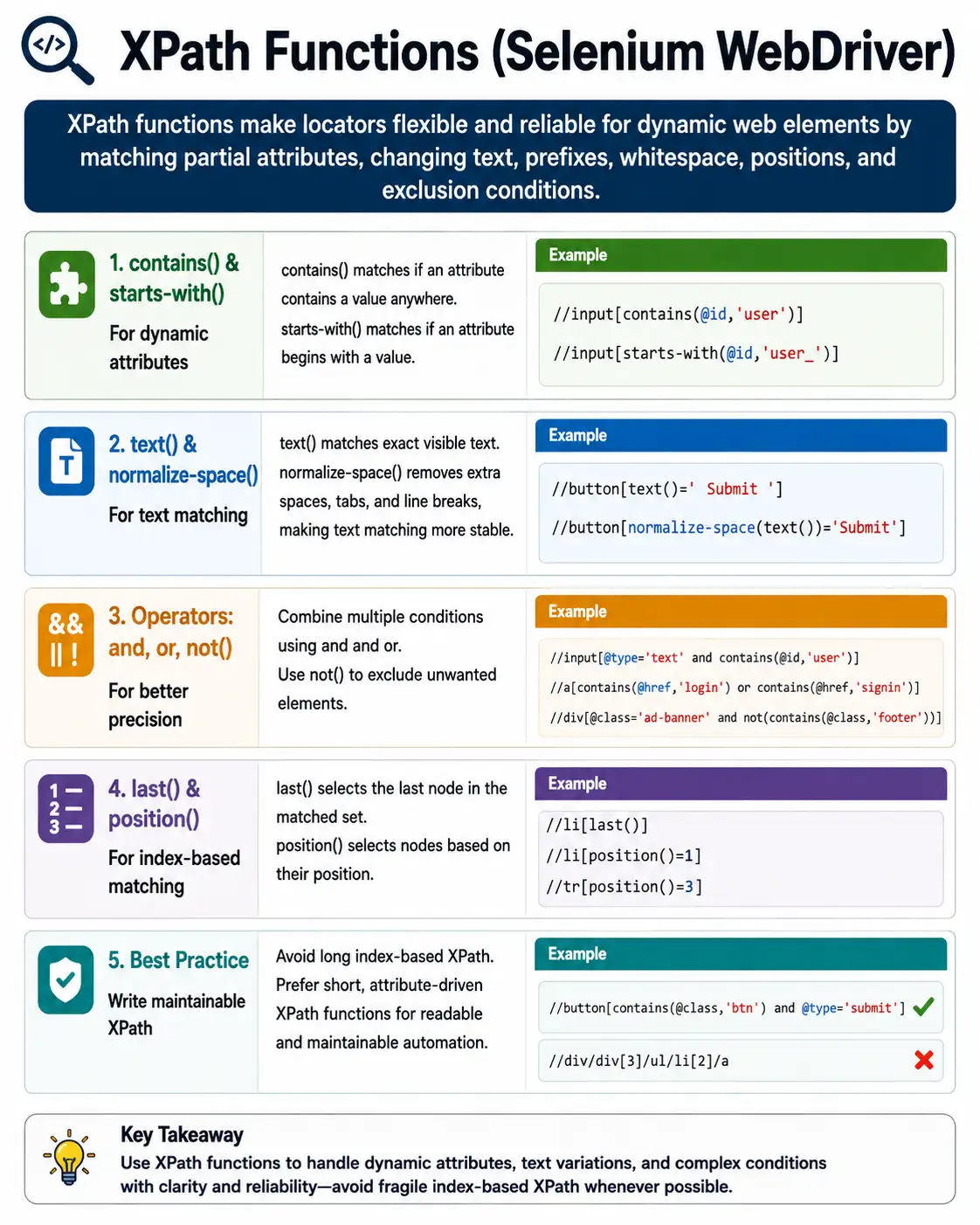
Understanding XPath Functions in Selenium
XPath functions are one of the most useful parts of XPath for Selenium automation because they let testers describe elements in a flexible way instead of depending only on fixed attributes or long DOM paths. In a real web application, the HTML is rarely as simple as a static tutorial page. Attribute values may be generated by a framework, button text may contain extra spaces, error messages may include dynamic values, and the same component may appear many times on the screen. If a locator expects every value to be perfectly static, it will break quickly. XPath functions solve this problem by allowing partial matching, text normalization, condition combinations, exclusions, and position-based selection when there is no better option.
The main purpose of an XPath function is not to make a locator look advanced. Its purpose is to make the locator express the actual identity of the element. For example, a username field may have an id such as user_101 today and user_938 tomorrow. A locator that expects the complete id will fail as soon as the generated portion changes. A locator that uses the stable part of the id can continue to work because it describes the pattern rather than the exact temporary value. This is why functions such as contains and starts-with are so common in Selenium projects. They help automation follow stable clues in the DOM.
XPath functions become especially important in JavaScript-heavy applications. Modern frontends often render components dynamically, reuse templates, attach classes conditionally, and update text after asynchronous API calls. A test may run against a page where the same element exists but its surrounding DOM has changed, or where a label includes line breaks and spaces created by the component markup. A basic XPath may be too strict for these conditions. XPath functions allow the test to remain precise without being unnecessarily brittle. Good Selenium locators are strict enough to avoid the wrong element and flexible enough to survive normal UI changes.
Why Static XPath Is Often Not Enough
A simple XPath such as an exact attribute match works well when the application provides stable attributes. If an input always has id equal to email, then an XPath based on that id is clear and reliable. The problem is that many applications do not provide such clean markup everywhere. Some pages have generated ids, repeated class names, deeply nested controls, icons without text, or labels separated from their input fields. In these cases, a tester needs a richer way to describe the target element. XPath functions provide that richer language.
Without functions, testers often fall back to indexes. They may write expressions that select the first button, the third input, or the last link on the page. Indexes can work temporarily, but they usually describe layout rather than intent. If a new field is added, an index can shift and the test can start clicking the wrong element. Functions reduce the need for indexes by letting the locator use meaningful conditions. Instead of selecting the third input, the XPath can select the input whose name contains user, whose placeholder starts with Enter, or whose nearby label has normalized text equal to Username. That is a major improvement in both readability and stability.
Static XPath also struggles when text contains inconsistent whitespace. Visual text on the page may appear as Submit, but the underlying HTML may include line breaks, indentation, or extra spaces around the word. A strict text comparison can fail even though the user clearly sees the expected button. The normalize-space function is designed for this kind of situation. It allows the locator to compare the meaningful text after whitespace has been cleaned. This small detail prevents many frustrating locator failures in real projects.
The Role of contains in Dynamic Locators
The contains function is probably the most frequently used XPath function in Selenium. It checks whether an attribute or text value includes a particular substring. This makes it useful when part of a value is stable and part of the value changes. For example, an application may generate ids such as user_12345, user_98765, and user_temp_22. If the word user is the stable identifier, contains can locate the element without requiring the full generated id. This is much better than copying an absolute XPath from the browser, because the locator is tied to a recognizable pattern.
contains is also helpful with class attributes, but it must be used carefully. Many HTML elements have multiple classes in one class attribute. A button may have classes such as btn, btn-primary, active, and submit-action. An exact class match would be fragile because class order can change or new classes can be added. A contains condition can select the element based on one important class. However, testers should avoid vague class fragments. A condition such as contains(@class,'btn') may match many elements. A condition based on a more specific class or combined with another condition is usually stronger.
Text-based contains can be useful for links, buttons, alerts, and validation messages. If a success message includes dynamic data such as Order 5321 created successfully, the stable part may be created successfully. An XPath using contains on the visible text can verify that the message appeared without depending on the order number. The same idea applies to links such as Sign In, Sign Up, and Sign Out, but this is also where judgment matters. If the partial text is too broad, the locator can match the wrong link. A good contains expression is specific enough to identify the right element and flexible enough to allow legitimate variation.
Using starts-with for Predictable Prefixes
The starts-with function is more precise than contains when the stable part of a value is known to be at the beginning. Many generated ids and names follow a predictable prefix pattern. For example, fields may start with user_, order_, product_, or menu_. If the prefix is stable, starts-with communicates the intent better than contains. It says that the element should begin with a known pattern, not merely include it somewhere in the value. This additional precision can prevent accidental matches.
starts-with is useful for auto-generated markup where the application creates unique values at runtime. A component library may produce ids such as input-email-1, input-email-2, and input-email-3. If the meaningful prefix remains consistent, starts-with can help locate the element without relying on the generated suffix. This is often cleaner than using indexes because the locator still describes a naming convention instead of a physical position.
Like every XPath function, starts-with should not be used blindly. If many elements share the same prefix, the XPath needs additional conditions. A field whose id starts with user_ may not be unique if the page has username, user role, user status, and user search controls. Combining starts-with with name, type, placeholder, label context, or parent container scope can make the locator reliable. XPath functions are most effective when they are combined thoughtfully rather than used as shortcuts.
Text Matching and normalize-space
Text matching is one of XPath's most readable features because it lets automation locate elements in the same language that users see on the screen. A locator that finds a button with text Login is often easy to understand. It communicates purpose immediately. However, text matching has a few practical complications. Text can change due to product copy updates, translation, personalization, extra whitespace, nested elements, and hidden content. Because of this, testers need to understand the difference between exact text, partial text, and normalized text.
The text function compares the text node of an element. It is useful when the text is simple and stable. For example, a label that always displays Username can be located with an exact text condition. The problem appears when the text contains spaces or when the visible label is composed from nested elements. A button might contain an icon span followed by a text span. A direct text comparison on the button may not behave as expected because the text is split across child nodes. In such cases, normalize-space on the element can be more reliable than a direct text node comparison.
normalize-space removes leading spaces, trailing spaces, and repeated internal whitespace. This is extremely useful because HTML formatting often introduces whitespace that users do not notice. A button that appears as Save may actually have line breaks around the word in the DOM. An XPath using normalize-space can still match the button based on the visible meaning. In many Selenium projects, normalize-space is preferred for text comparisons because it protects the test from formatting noise.
There is also a difference between matching text exactly and matching text partially. Exact text is best when the label is stable and unique, such as Login, Submit, or Cancel. Partial text is better when the message contains variable data, such as Welcome John or Invoice 452 generated successfully. Partial text should still be specific. A locator that contains only the word Save may match Save, Save Draft, Save Changes, and Autosave status text. The goal is always to find the most stable and meaningful part of the text.
Combining Conditions with and and or
XPath becomes much more powerful when functions are combined with logical conditions. The and operator is used when all conditions must be true. This is useful for precision. For example, an input can be located by both type and name, or a message can be located by both class and text. Combining conditions reduces accidental matches because the locator must satisfy multiple clues. In real automation, and is usually more valuable than a single broad contains expression.
The or operator is useful when the UI legitimately varies. For example, a button may display Submit in one flow and Save in another flow, while both represent the same action for the test. An or condition can handle that controlled variation. However, or should not be used to hide uncertainty. If a tester writes a locator that accepts many possible elements because they are not sure which one will appear, the automation can become unclear and risky. The test should still know what behavior it is validating.
Combining conditions is also important when using contains with classes. Because class attributes can contain many values, a single contains condition may be too broad. A stronger locator might require that the element contains both alert and success, or that it contains error and is visible inside a specific form section. These combinations create locators that are flexible but still controlled. This balance is what separates a production-quality XPath from a quick inspection expression.
Excluding Elements with not
The not function is useful when the page contains elements that look similar but should be excluded. A form may contain both enabled and disabled inputs. A grid may contain active and inactive rows. A button may exist in the DOM but be disabled until a required field is completed. The not function can help the locator ignore elements that match an unwanted condition, such as disabled controls or elements with an inactive class.
Exclusion-based locators should be written carefully because the absence of an attribute is not always the same as a visible or clickable state. For example, an element may not have a disabled attribute but may still be covered by an overlay, hidden by CSS, or blocked by JavaScript validation. XPath can help identify structural conditions, but Selenium interactions still require appropriate waits and WebElement checks. not is a locator tool, not a complete replacement for synchronization.
A practical use of not appears in pages that keep old elements in the DOM during transitions. Some applications render both active and hidden versions of a panel. A broad XPath may find the hidden version first, causing click or text retrieval failures. A locator that excludes hidden or inactive classes can reduce this risk. The better long-term solution is usually to combine a good locator with Selenium waits that confirm the element is visible or clickable.
last and position as Controlled Last Resorts
The last and position functions are useful, but they should be treated with caution. They select elements based on order. This can be appropriate when the order itself is part of the behavior being tested. For example, a test may need to verify the last row in an activity log after a new event is created. In that scenario, selecting the last row is meaningful because the latest event is expected at the bottom. The locator expresses the test logic.
Problems occur when position is used only because the tester could not find a better locator. Selecting the second input on a page is fragile if the page may add another field above it. Selecting the fifth button is fragile if a new action is introduced. Index-based locators often continue to find something even after the page changes, but that something may be wrong. This can produce misleading test results. For this reason, position should be used only when the element's position is stable and meaningful to the scenario.
When position is necessary, scope it as tightly as possible. Instead of selecting the third button on the whole page, locate the specific card, table row, form section, or modal first, and then select the button within that context. Scoped position-based XPath is less risky because it reduces the area in which order can change. The combination of parent context and position is much stronger than a global index.
XPath Functions in Page Object Model
XPath functions belong naturally inside Page Object Model classes because page objects centralize locator knowledge. Instead of spreading complex XPath across test methods, the page class can expose clear actions such as enterUsername, clickSubmit, selectProduct, or readErrorMessage. The XPath remains hidden behind a meaningful method name. This makes tests easier to read and makes locator maintenance easier when the UI changes.
A page object should not become a dumping ground for unreadable locators. Even when XPath functions are used, locators should remain as short as practical. If an XPath expression becomes long, it may be a signal that the page needs better attributes or that the test should use a two-step search. For example, locate a product card by product name first, then find the Add to Cart button inside that card. This is often clearer than writing a single huge XPath that tries to describe the entire relationship at once.
Comments can be helpful for complex locators, but a comment should explain the reason for the complexity, not repeat the syntax. For example, a comment might say that the application generates dynamic ids with a stable prefix, or that the locator intentionally excludes disabled rows. This helps future maintainers understand why a function was used. In a strong automation framework, locators are treated as design decisions, not temporary strings.
Debugging XPath Function Failures
When an XPath function locator fails, the first step is to test the expression in browser developer tools. This confirms whether the XPath matches zero elements, one element, or too many elements. A locator that matches zero elements may have a syntax issue, a timing issue, a frame issue, or a mismatch between visible text and DOM text. A locator that matches many elements needs additional conditions or a narrower parent context. Debugging should focus on what the locator actually matches, not only on the Selenium exception.
Whitespace is a common reason for confusion. The page may show a clean label, but the DOM may contain spaces and new lines around it. normalize-space often fixes this. Another common issue is nested text. If a button contains multiple spans, text() may not match the full visible value. In that situation, using normalize-space on the element itself can be better than using text() directly. Understanding how text is represented in the DOM makes XPath debugging much faster.
Timing problems can look like locator problems. A correct XPath may fail if the element has not been rendered yet. Dynamic applications often load content after API calls, animations, or component state updates. Selenium tests should pair XPath functions with explicit waits. A locator can identify the element, but a wait confirms that the element is present, visible, or clickable at the right moment. Reliable automation depends on both good locators and good synchronization.
Interview Perspective on XPath Functions
In interviews, XPath functions are often discussed because they reveal whether a candidate has worked with real web pages or only simple examples. A basic answer says that contains, starts-with, text, and normalize-space are used to locate dynamic elements. A stronger answer explains when each function is useful and what mistakes to avoid. contains is useful for partial matches, starts-with is useful for stable prefixes, text is useful for visible labels, normalize-space handles whitespace, not excludes unwanted elements, and position-based functions should be used carefully.
Interviewers may also ask about unsupported functions. Selenium WebDriver commonly uses XPath 1.0 in browser contexts, so functions such as ends-with are not available in the same way beginners might expect. A candidate who knows this can avoid writing locators that look logical but fail at runtime. The practical workaround is to use contains, starts-with, or a different locator strategy depending on the situation. This detail is small, but it shows real-world familiarity.
The best interview summary is that XPath functions make locators more flexible, but they must still be precise. Overusing contains can create vague locators. Overusing indexes can create fragile locators. Ignoring whitespace can create false failures. A good automation engineer chooses the function based on the application behavior, the stability of the DOM, and the intent of the test case. That practical judgment is more important than memorizing syntax alone.
Practical Rules for Writing XPath Functions
A useful rule is to start with stable attributes when they exist. If the application provides a reliable id, name, aria-label, data-testid, or data-qa attribute, use it. If only part of the attribute is stable, use contains or starts-with. If text is the clearest identity, use normalize-space for exact visible text or contains with normalized text for dynamic messages. If the page has repeated sections, scope the search to a parent container before finding the child element. If position is required, use it only after narrowing the context.
Another rule is to prefer clarity over cleverness. XPath can express very complex relationships, but a locator that is too clever can become hard to maintain. A readable two-step search is often better than a single complicated expression. For example, finding a table row by customer name and then locating the action button inside that row is easier to understand than one deeply nested XPath with several axes and functions. Automation code should be written for future maintenance, not only for immediate execution.
XPath functions are most valuable when they reduce fragility. They should help the test ignore accidental variation while still checking the right behavior. If a function hides a real product issue, it is being used incorrectly. For example, using contains(text(),'Success') may be fine for a general success alert, but it may be too broad if the test must verify a specific success message. Locator flexibility should support the test's purpose, not weaken the assertion.
The key takeaway is that XPath functions are practical tools for real Selenium automation. They help locate elements with dynamic attributes, inconsistent text, repeated structures, and changing UI states. Used well, they make tests readable and resilient. Used carelessly, they can create broad, unclear, or fragile locators. Mastery comes from understanding the page, choosing stable clues, and writing XPath expressions that match the user's intent as closely as possible.
For daily practice, the best approach is to inspect a real page and rewrite every copied XPath into a function based locator. Start by replacing full generated ids with contains or starts-with, then improve text locators with normalize-space, and finally remove unnecessary indexes by adding parent context. This habit trains you to think like a framework maintainer instead of a recorder tool. Over time, XPath functions become less about memorized syntax and more about reading the DOM carefully, identifying stable patterns, and building locators that explain exactly why Selenium should choose one element over another.
In Selenium, mastering XPath functions is a core skill for real-world automation, not an optional one.
1. Why XPath Functions Are Needed
Without functions, XPath:
- Works only with static attributes
- Breaks when values change dynamically
- Becomes overly dependent on indexes
XPath functions allow you to:
- Match partial values
- Handle dynamic IDs/classes
- Locate elements by text patterns
- Build robust locators
2. contains() Function (Most Important)
Purpose: Matches elements where an attribute or text contains a specific value.
Syntax:
contains(attribute_or_text, 'value')Attribute Example:
//input[contains(@id,'user')]Matches:
- user_123
- username
- user-input
Text Example:
//button[contains(text(),'Log')]Matches:
- Login
- Logout
When to Use:
- Dynamic IDs/classes
- Long or partially changing text
- UI labels with prefixes/suffixes
3. starts-with() Function
Purpose: Matches elements where an attribute or text starts with a given value.
Syntax:
starts-with(attribute_or_text, 'value')Example:
//input[starts-with(@id,'user_')]Matches:
- user_101
- user_abc
When to Use:
- Attributes with fixed prefixes
- Auto-generated IDs with consistent starts
4. text() Function
Purpose: Matches elements based on their visible text.
Exact Match:
//span[text()='Error']Partial Match (with contains):
//span[contains(text(),'Error')]When to Use:
- Error messages
- Labels
- Static UI text
Warning: Avoid exact text() match if text is dynamic.
5. normalize-space() Function
Purpose: Removes leading, trailing, and extra spaces from text.
Syntax:
normalize-space(text())Example:
//button[normalize-space(text())='Submit']When to Use:
- UI text contains extra spaces
- Text formatting is inconsistent
This function significantly improves locator stability.
6. and / or Operators
Purpose: Combine multiple conditions for better uniqueness.
and Example:
//input[@type='text' and @name='username']or Example:
//button[text()='Submit' or text()='Save']Best Practice:
- Prefer and for precision
- Use or only when UI varies legitimately
7. not() Function
Purpose: Excludes elements that match a condition.
Example:
//input[not(@disabled)]Selects all enabled inputs.
Use Case:
- Ignore disabled buttons
- Exclude hidden or inactive elements
8. last() and position() Functions
last() Example:
(//li)[last()]Selects the last list item.
position() Example:
(//li)[position()=2]Selects the second item.
Caution:
- Index-based functions are fragile and should be a last resort.
9. XPath Functions vs Index-Based XPath
| Approach | Stability |
|---|---|
| Attribute + contains | High |
| Attribute + starts-with | High |
| text() based | Medium |
| Index ([1], [2]) | Low |
Rule: Prefer functions over indexes.
10. Common Beginner Mistakes
- Overusing indexes instead of functions
- Using exact text() for dynamic text
- Writing very long XPath expressions
- Using or when and is needed
- Ignoring whitespace issues (normalize-space)
11. XPath Functions in Page Object Model (POM)
Best practices:
- Use XPath functions inside page classes
- Keep locators short and readable
- Add comments for complex XPath
- Avoid copying XPath from browser tools blindly
12. Interview Perspective
Short Answer: XPath functions like contains(), starts-with(), and text() are used to locate elements dynamically when attributes or text are not static.
Real-Time Answer: In Selenium, XPath functions help handle dynamic elements by allowing partial matching, text-based selection, and condition combinations. Functions like contains() and normalize-space() are commonly used to build stable locators in real-world automation.
13. Key Takeaway
- XPath functions are essential for dynamic UIs
- contains() is the most widely used
- Prefer functions over indexes
- Keep XPath readable and maintainable
- Strong XPath is not about complexity-it's about precision and resilience.
14. Practical XPath Function Examples (Interview + Real Projects)
1. contains() with Attribute (Most Used)
driver.findElement(
    By.xpath("//input[contains(@id,'user')]")
).sendKeys("admin");
Use Case: Dynamic IDs like user_123, user_456.
2. contains() with Text
driver.findElement(
    By.xpath("//a[contains(text(),'Sign')]")
).click();
Matches: "Sign In", "Sign Up".
3. starts-with() with Attribute
driver.findElement(
    By.xpath("//div[starts-with(@id,'menu')]")
);
Use Case: Auto-generated prefixes.
4. starts-with() with Text
driver.findElement(
    By.xpath("//button[starts-with(text(),'Log')]")
).click();
5. normalize-space() (Interview Gold ⭐)
driver.findElement(
    By.xpath("//button[normalize-space()='Login']")
).click();
Why Important: Removes extra spaces/newlines.
6. normalize-space() with Partial Text
driver.findElement(
    By.xpath("//span[contains(normalize-space(),'Success')]")
);
7. text() Exact Match
driver.findElement(
    By.xpath("//label[text()='Username']")
);
Note: Exact match only.
8. not() Function
driver.findElement(
    By.xpath("//input[not(@disabled)]")
).sendKeys("enabled field");
9. not() with Class
driver.findElement(
    By.xpath("//button[not(contains(@class,'disabled'))]")
).click();
10. and Operator
driver.findElement(
    By.xpath("//input[@type='text' and @name='email']")
).sendKeys("test@example.com");
11. or Operator
driver.findElement(
    By.xpath("//input[@id='user' or @name='user']")
).sendKeys("admin");
12. last() Function
driver.findElement(
    By.xpath("(//button)[last()]")
).click();
13. position() Function
driver.findElement(
    By.xpath("(//li)[position()=3]")
).click();
14. Index Shortcut (Equivalent to position())
driver.findElement(
    By.xpath("(//input[@type='checkbox'])[2]")
).click();
15. contains() with Multiple Conditions
driver.findElement(
    By.xpath("//div[contains(@class,'alert') and contains(@class,'success')]")
);
16. XPath Function Inside Parent Context (.)
WebElement card = driver.findElement(By.className("product"));

card.findElement(
    By.xpath(".//button[contains(text(),'Add')]")
).click();
17. XPath Function for Table Row by Cell Text
driver.findElement(
    By.xpath("//tr[td[contains(text(),'John')]]")
);
18. XPath Function for Specific Column Value
driver.findElement(
    By.xpath("//tr[td[text()='John']]/td[3]")
).getText();
19. XPath Function for Link Validation
String href =
    driver.findElement(
        By.xpath("//a[contains(text(),'Profile')]")
    ).getAttribute("href");
20. XPath Function with findElements()
List<WebElement> errors =
    driver.findElements(
        By.xpath("//span[contains(@class,'error')]")
    );

System.out.println(errors.size());
21. XPath Functions After Page Refresh (Stale Fix)
WebElement btn =
    driver.findElement(
        By.xpath("//button[contains(text(),'Save')]")
    );

driver.navigate().refresh();

btn =
    driver.findElement(
        By.xpath("//button[contains(text(),'Save')]")
    );
btn.click();
22. XPath Function in Page Object Model (POM)
@FindBy(xpath = "//button[contains(text(),'Submit')]")
WebElement submitBtn;
23. Invalid: Common Interview Mistake
// Wrong: ends-with not supported in XPath 1.0
By.xpath("//input[ends-with(@id,'name')]"); // Invalid:
Correct:
By.xpath("//input[contains(@id,'name')]"); // Valid:24. XPath Functions Priority (Interview)
- normalize-space() means text issues
- contains() means dynamic attributes
- starts-with() means dynamic prefixes
- not() means exclusion logic
25. Interview Summary - XPath Functions
- ✔ Handle dynamic elements
- ✔ Reduce brittle locators
- ✔ Improve XPath stability
- ✔ Must-know for real projects
Most Used in Industry:
- contains()
- normalize-space()
- starts-with()
- not()