XPath Basics
XPath (XML Path Language) is a powerful locator strategy used to navigate and locate elements in the DOM tree. It is the most flexible locator in Selenium and can identify any element, even when IDs, names, or classes are unavailable.
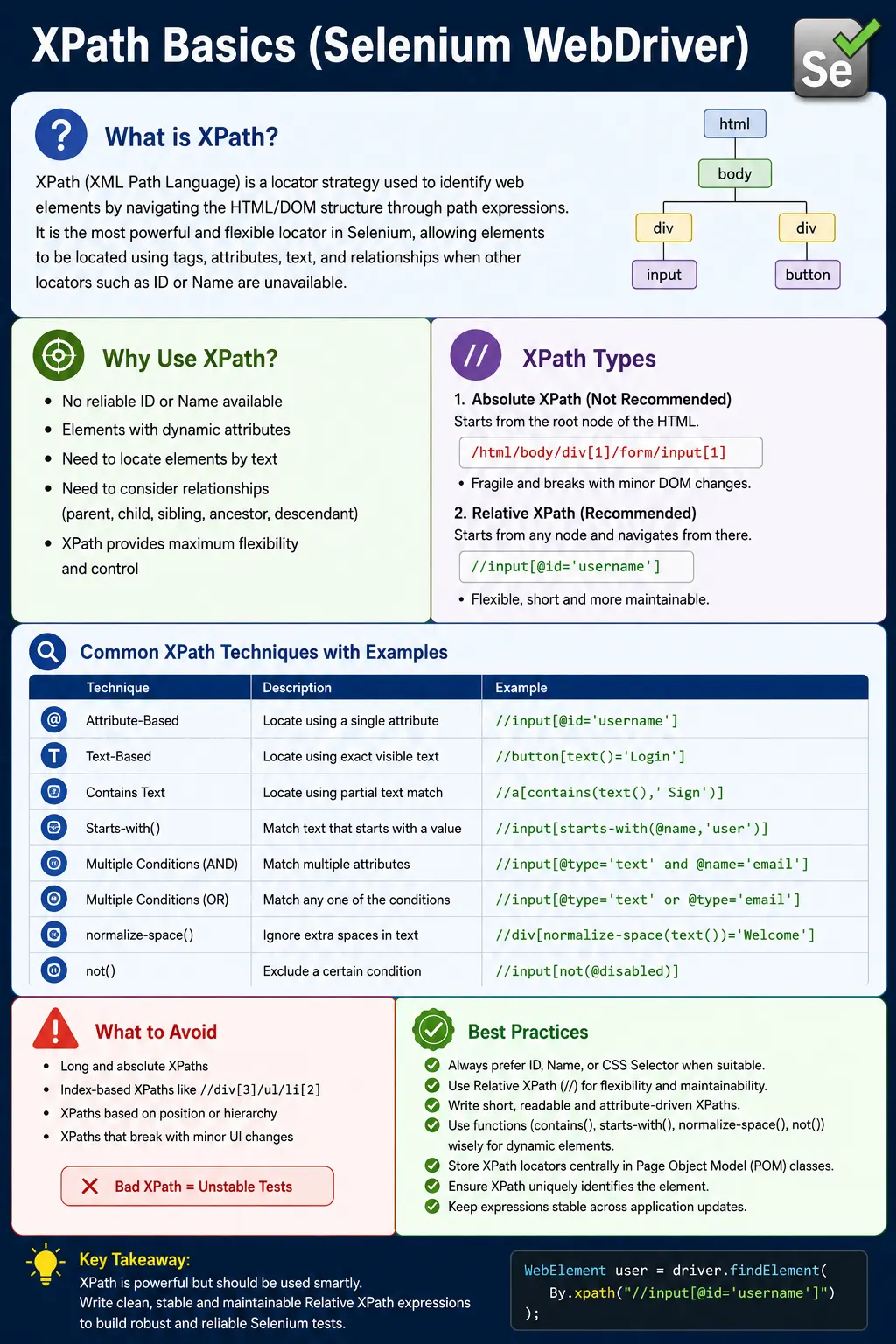
Understanding XPath in Selenium WebDriver
XPath is one of the most powerful locator strategies available in Selenium WebDriver. It allows automation code to navigate through the structure of an HTML document and identify elements based on tags, attributes, visible text, hierarchy, indexes, and relationships. When a web page has stable IDs or clear name attributes, Selenium tests should usually prefer those simpler locators. But real applications are not always that clean. Some elements have generated IDs, repeated classes, missing names, complex nesting, dynamic sections, or labels that must be matched through nearby elements. XPath becomes valuable in those situations because it can describe precisely where an element is and how it relates to the surrounding DOM.
XPath stands for XML Path Language. Although the name comes from XML, Selenium uses XPath against HTML documents rendered in the browser. The DOM is a tree. The html element contains the head and body. The body contains sections, forms, tables, menus, buttons, links, inputs, labels, and many other elements. XPath expressions walk through this tree and return nodes that match the expression. In Selenium, those returned nodes become WebElement objects, and the test can then click them, type into them, read text, inspect attributes, or verify state.
The reason XPath is considered flexible is that it is not limited to one attribute. ID locators use the id attribute. Name locators use the name attribute. linkText locators use exact visible text of anchor tags. className locators use one CSS class. XPath can use all of these ideas and more. It can locate an input by id, a button by text, a table row by the value of one cell, a checkbox near a label, a sibling element after a heading, or a child element inside a specific form. This flexibility is why XPath is heavily used in dynamic and complex UI automation.
Flexibility also creates risk. XPath can be clean and maintainable, or it can be long, brittle, and hard to debug. A good XPath describes the element's purpose or stable relationship. A weak XPath describes every wrapper div between the document root and the target element. The difference matters. A short relative XPath such as //input[@name='email'] is readable and stable when the name is unique. An absolute XPath such as /html/body/div[2]/div[4]/form/div[1]/input breaks easily when the layout changes. XPath is powerful, but it should be used with restraint and intention.
The first major distinction is absolute XPath versus relative XPath. Absolute XPath starts from the root of the document and follows the full hierarchy to the element. It usually begins with a single slash. This makes it very dependent on the exact page structure. If a developer adds one container, rearranges one section, or wraps a form in another div, the absolute XPath may fail. Absolute XPath is easy to generate from browser developer tools, but generated paths are rarely good automation locators. They describe the current physical location of an element, not its stable identity.
Relative XPath is the preferred approach in real Selenium projects. It usually begins with double slash and can search from anywhere in the document or from a specific parent element. A relative XPath can target a stable attribute, visible text, a known form, a table row, or a component relationship. For example, //button[@type='submit'] describes a submit button by attribute. //form[@id='loginForm']//input[@name='username'] describes the username input inside the login form. These expressions are more resilient because they are tied to purpose and context rather than every level of the page layout.
Attribute-based XPath is one of the most common patterns. The general structure is //tagName[@attribute='value']. The tag name narrows the element type, and the attribute condition narrows the target. Examples include //input[@id='username'], //button[@type='submit'], //a[@href='/profile'], and //div[@data-test='toast-message']. Attribute-based XPath is readable when the chosen attribute is stable. It becomes weak when the attribute value is generated, duplicated, or tied only to styling. As with every locator, the quality of the attribute matters.
Multiple attributes can make XPath more specific. If one attribute alone is not unique, XPath can combine conditions with and. For example, //input[@name='email' and @type='text'] requires both the name and type to match. This can reduce accidental matches when a page contains hidden inputs, repeated fields, or similar controls. The goal is not to make XPath unnecessarily long. The goal is to include enough stable information to identify the intended element clearly.
XPath can also use or, but it should be used carefully. An expression such as //input[@id='user' or @name='user'] can support pages where either attribute may appear, but broad or conditions can hide locator problems. If an element changes unexpectedly, the test may keep passing by matching a fallback that was not intended for that version of the page. Use or when there is a real compatibility need, such as supporting two known versions of a UI, not as a way to make vague locators pass.
Text-based XPath is useful when visible text is the most stable clue. For example, //button[text()='Login'] finds a button whose exact text is Login. This is straightforward, but exact text can be sensitive to whitespace, line breaks, nested spans, capitalization, and UI copy changes. A more robust variation is normalize-space(), which trims and normalizes whitespace. An expression like //button[normalize-space()='Login'] is often better than plain text() when button text may include extra spaces from formatting.
The contains() function is useful for partial matching. It can match part of an attribute or part of visible text. For dynamic IDs, //input[contains(@id,'user')] may locate an input whose id includes a stable word. For link text, //a[contains(text(),'Sign')] can match Sign In or Sign Up. The flexibility is useful, but the risk is ambiguity. A substring like Sign may match multiple links. A substring like user may match username, userId, userRole, or userStatus. The partial text should be specific enough to avoid false matches, and the search should be scoped when possible.
The starts-with() function is another common tool for dynamic attributes. Some applications generate IDs with a stable prefix and changing suffix, such as user_12345 or menu_987. An XPath like //input[starts-with(@id,'user_')] can locate those elements when a direct ID locator would be unstable. This is useful, but it should not become a habit for every generated attribute. If the application can provide stable data-test attributes, those are usually better. XPath functions are helpful when you must work with the DOM you have, not an excuse to avoid improving testability.
Indexing in XPath should be treated as a last resort. An expression like (//input[@type='text'])[1] chooses the first matching text input. XPath indexes start at 1, not 0. Indexes can be useful when the page structure is genuinely ordered and the order is part of the requirement. However, index-heavy locators are often fragile. If a new field appears before the target, the index changes. If a hidden input is inserted, the index may point to the wrong element. Prefer attributes, labels, parent context, or table relationships before relying on position.
Relationship-based XPath is where XPath becomes especially powerful. Many pages do not provide a unique attribute on the exact element you need. Instead, the stable clue may be nearby. A label may say Email, and the input may follow it. A table row may contain a user name, and the edit button may be in the same row. A card may contain a product title, and the Add to Cart button may be inside that card. XPath can describe these relationships using parent, child, descendant, ancestor, following-sibling, preceding-sibling, and other axes. Even before learning all axes deeply, beginners should understand that XPath can locate elements through meaningful DOM relationships, not just attributes.
Context is essential for maintainable XPath. A broad expression such as //button[text()='Delete'] may match several delete buttons on a page. A better expression finds the row, card, or section first and then locates the delete button inside it. In Selenium, this can be done with one XPath expression or by chaining WebElement searches. For example, locate a table row by text, then search within that row for a button. This approach makes the locator match the business scenario: delete this user, edit this order, open this product, or select this permission.
XPath and CSS selectors are often compared. CSS selectors are usually shorter and commonly preferred for attribute and class-based matching. XPath is more powerful for text matching and moving through relationships, especially when the target element must be found relative to a label, row, sibling, or ancestor. Neither strategy is always best. Use CSS when it expresses the locator cleanly. Use XPath when the page requires text, hierarchy, or relationship logic that CSS cannot express as clearly. The best locator is not the most powerful one; it is the simplest stable one for the job.
XPath belongs inside page objects or component classes, not scattered directly across test methods. Raw XPath expressions can become difficult to maintain when repeated in many places. A page object can name the locator according to business purpose, such as usernameInput, loginButton, orderRowById, or errorMessageForField. The test then reads like a workflow while the page object handles DOM details. If the XPath changes later, the update happens in one place. This is especially important for XPath because complex expressions can be harder to review than simple ID or name locators.
Readability is a serious XPath quality measure. A locator that works but cannot be understood is expensive. Keep expressions short where possible. Use stable attributes. Avoid unnecessary wildcards. Avoid deep absolute paths. Avoid indexes unless the position is meaningful. Prefer component context over global searches. A clean XPath should explain why it points to the right element. If a future tester cannot understand the locator without spending several minutes in developer tools, it probably needs improvement.
Dynamic web applications require synchronization alongside XPath. A correct XPath can fail if Selenium searches before the element is present or ready. A modal may open after an animation, rows may appear after an API call, or a button may become enabled after validation. Use explicit waits with XPath locators when the page is dynamic. Depending on the situation, wait for presence, visibility, clickability, text, or a custom condition. XPath finds the element; the wait defines when the element is usable.
Stale elements can occur when a page re-renders. If a test finds an element with XPath, stores it, and then the DOM changes, the stored WebElement may become stale. The XPath may still be valid, but the old element reference is not. The fix is to locate the element again after the update or store the By locator and resolve it when the action happens. This issue is common in React, Angular, Vue, and other component-based applications where small interactions can replace DOM nodes.
Frames and shadow DOM also affect XPath. Selenium searches only the current browsing context. If an element is inside an iframe, switch to the frame first. If it is inside a shadow root, normal XPath from the document may not reach it in the expected way. When an XPath works in browser developer tools but fails in Selenium, check whether the element is in the correct frame, window, shadow root, or dynamic state. Locator syntax is only one part of successful element identification.
Debugging XPath should be systematic. First, paste the XPath into browser developer tools and count the matches. A good single-element locator should usually match exactly one element in the intended context. Second, verify that the matched element is the one the test needs, not a hidden duplicate. Third, check whether the element is present at the time Selenium searches. Fourth, check whether attributes are generated or changing. Fifth, simplify the expression if it has become too long. A failing XPath is often a signal to improve locator design, not just to add another condition.
In interviews, a short answer is that XPath is a locator strategy used to find elements by navigating the DOM with path expressions. A stronger answer explains absolute versus relative XPath, attribute-based matching, text-based matching, functions like contains() and starts-with(), and why index-heavy locators are fragile. A practical answer adds that XPath is powerful for dynamic UIs and relationship-based locators, but should be kept readable, scoped, and stored inside page objects.
The key takeaway is that XPath is not simply a backup locator when ID is missing. It is a precise DOM navigation language that can solve difficult locator problems when used well. It can also create brittle tests when used carelessly. Prefer simple locators first, but learn XPath deeply enough to handle dynamic elements, repeated structures, table rows, label relationships, and complex components. Good XPath is short, relative, meaningful, and tied to stable page behavior.
Writing XPath That Survives Real UI Changes
The practical challenge with XPath is not learning the symbols. The real challenge is writing expressions that survive ordinary product changes. A page may gain a new banner, a form may receive a new wrapper, a table may add another column, or a designer may move a button into a different container. A brittle XPath fails when these harmless changes happen. A maintainable XPath continues to work because it is connected to stable element identity, meaningful text, or a reliable relationship in the DOM. This is why XPath quality should be reviewed as carefully as test logic.
A strong XPath usually starts from something stable. That stable clue may be an id, name, data-test attribute, aria-label, role, visible label, heading text, table cell value, or component root. From there, the expression can narrow the search to the actual target. For example, if a checkout form has a stable section identifier, the XPath can search within that section rather than across the entire page. If a table row contains an order number, the XPath can use that row as context before locating the View Details link. Stable context makes XPath safer.
Repeated components are a common reason to use XPath. Product cards, user rows, notification items, address panels, and permission lists often contain repeated buttons with the same text. A page may have many Edit or Delete buttons, but the test needs the one associated with a specific record. XPath can locate the record by its visible text and then locate the button inside the same row or card. This is a natural use of relationship-based locating because it mirrors how a user understands the page: find the correct item first, then choose the action for that item.
Tables are another area where XPath is extremely useful. A table row can be located by one cell value, and a different cell or action button can be read from that same row. For example, a test might locate the row where the customer name is John and then read the status column. This is much stronger than selecting the second row or third column globally, because row order can change after sorting, filtering, or new data insertion. XPath lets the test use business data as the anchor, which makes the locator more meaningful.
Label-based forms also benefit from XPath. Sometimes an input field has no unique ID or name, but its label is stable. A user identifies the field by reading the label, and the test can do something similar by locating the label text and then finding the related input. Depending on the markup, this may use a for attribute, a sibling relationship, or a shared parent container. This pattern is particularly useful in enterprise applications where frontend components generate technical attributes but visible labels remain stable.
XPath should not be used to compensate for every poor markup decision. If an important element has no stable locator and the XPath becomes long or fragile, the better engineering answer may be to request a stable data-test or data-testid attribute. Automation is part of product quality, and testability is a valid requirement. A short data-test selector is often better than a clever XPath that depends on several layout levels. XPath is powerful, but collaboration with developers often produces simpler and more durable tests.
When XPath uses visible text, consider whether that text is stable across locales and copy changes. A link or button label may change from Login to Sign In, or from Save to Save Changes. If the visible text is the behavior being tested, then using text in XPath is reasonable. If the visible text is only a convenient hook for clicking, a stable attribute may be better. For localized applications, text-based XPath can fail when the same page is translated. In those systems, text assertions and action locators are often separated.
Whitespace can also affect text-based XPath. HTML formatting, nested spans, and line breaks can make text() behave differently than expected. normalize-space() is useful because it collapses extra whitespace and trims the result. It is especially helpful for buttons, labels, menu items, and messages where the browser may render clean text but the DOM contains indentation or line breaks. A locator using normalize-space() is often more robust than a direct text() comparison when whitespace is not part of the requirement.
Attribute functions require the same discipline. contains(@class,'active') may look convenient, but class attributes can contain multiple values and styling classes can change. If active is a true semantic state class, it may be acceptable. If it is only a visual styling hook, another attribute such as aria-selected may be more meaningful. contains(@id,'user') may match userName, userRole, userStatus, and userPreferences. The more generic the substring, the higher the risk. Good XPath uses specific stable fragments, not the shortest fragment that happens to pass today.
XPath indexes should be reviewed with skepticism. There are legitimate cases for indexes, but they should not be the default solution. If a test clicks (//button)[3], the reader has no idea which business action is being performed. If a test clicks the button inside the row containing a specific order ID, the intent is clear. Indexes are acceptable when the order itself is the requirement, such as validating the first search result or the last breadcrumb. Even then, a clear method name and assertion message should explain why position matters.
XPath can be chained from a parent WebElement in Selenium. This is an important technique. If a page object already located a form, row, card, or modal, the next XPath can start with .// to search inside that current element. The dot matters because it keeps the search scoped. Without the dot, // searches from the document root again. Scoped XPath improves both performance and correctness because it narrows the search to the component the test is already working with.
Real frameworks often wrap XPath construction in helper methods for repeated patterns. A table component may have a method rowContaining(String text). A menu component may have itemByLabel(String label). A form component may have inputBesideLabel(String label). These helpers should be used carefully, with escaping for quotes in input strings and clear failure messages when matches are missing or ambiguous. Reusable XPath helpers can make tests expressive, but only if they remain readable and predictable.
Security-style thinking is useful when building dynamic XPath strings. If test data is inserted into an XPath expression, quotes and special characters can break the locator. For example, a label containing an apostrophe requires careful escaping or a concat() expression. Many beginners ignore this until a test data value includes a quote. A robust framework either avoids dynamic text XPath when possible or centralizes XPath escaping in one utility method. This prevents fragile string concatenation from spreading through test code.
XPath failures should produce meaningful messages. If a test cannot find an element by XPath, the report should say what business element was expected, not only print the raw locator. For example, "Expected order row for order 10045" is more useful than "No such element //tr[td[text()='10045']]". The raw XPath can still appear in debug logs, but the assertion message should explain the user's intent. This makes CI failures easier to triage.
Code review should ask whether XPath is necessary. If a stable ID exists, use ID. If a stable data-test exists, use CSS. If a short CSS selector can express the locator clearly, use CSS. If the target depends on text or DOM relationships, XPath may be the right choice. This review habit prevents teams from overusing XPath simply because it can locate anything. The goal is not to avoid XPath; the goal is to use it when its strengths matter.
A practical XPath style guide can help a team stay consistent. Prefer relative XPath. Prefer stable attributes. Scope searches to components. Use normalize-space() for visible text with whitespace risk. Avoid absolute paths. Avoid long chains of div indexes. Avoid broad contains() expressions. Avoid indexes unless position is the requirement. Store locators in page objects. Test locators in browser developer tools before committing them. These simple rules reduce flakiness and make XPath easier to maintain.
The deeper lesson is that XPath should reflect how the user or business understands the page. Users do not think "click the third button under the second div." They think "click Edit for John", "open the March report", or "select the checkbox for email notifications." Good XPath can express those relationships in the DOM. When the locator matches the business idea, the test becomes easier to read, debug, and trust.
For beginners, the best learning path is to start with simple attribute XPath, then text XPath, then functions like contains() and starts-with(), then scoping with parent elements, and finally axes for sibling and ancestor relationships. Do not jump immediately to complex expressions. Build the habit of asking why a locator should remain stable. XPath mastery is less about writing the longest expression and more about writing the smallest expression that reliably identifies the intended element.
In Selenium, XPath is widely used for dynamic and complex UIs, but it must be written carefully to avoid flakiness.
1. What Is XPath
Definition: XPath is a query language used to navigate through elements and attributes in an XML/HTML document.
In Selenium:
- XPath is used to locate web elements in the DOM
- It works by traversing the DOM tree structure
Think of XPath as: An address to a node in the DOM tree.
2. Why XPath Is Needed
XPath is used when:
- No reliable id or name exists
- Elements are generated dynamically
- Relationships between elements matter (parent, child, sibling)
- Partial matching is required
XPath provides maximum control compared to other locators.
3. XPath Types
3.1 Absolute XPath
- Starts from the root node
- Uses full DOM hierarchy
- Begins with /
Example (conceptual):
/html/body/div/form/inputDisadvantages:
- Very fragile
- Breaks with any DOM change
- Not used in real projects
3.2 Relative XPath (Recommended)
- Starts from anywhere in the DOM
- Uses //
- More flexible and stable
Example (conceptual):
//input[@id='username']Used in real projects.
4. Basic XPath Syntax
4.1 Tag-Based XPath
//tagNameExample:
//inputFinds all <input> elements.
4.2 Attribute-Based XPath
//tagName[@attribute='value']Example:
//button[@type='submit']This is the most common XPath pattern.
4.3 Using Multiple Attributes
//tagName[@attr1='value1' and @attr2='value2']Used when one attribute is not unique.
5. XPath with Text()
XPath can locate elements using visible text.
5.1 Exact Text Match
//a[text()='Login']5.2 Partial Text Match
//a[contains(text(),'Log')]Used for dynamic or long text.
6. XPath Functions (Basics)
6.1 contains()
Used for partial matching:
//input[contains(@id,'user')]6.2 starts-with()
Used when attribute begins with fixed value:
//input[starts-with(@id,'user_')]6.3 text()
Used to match visible text:
//span[text()='Error']7. Indexing in XPath
When multiple elements match:
(//input[@type='text'])[1]Caution:
- Index-based XPath is fragile
- Use only when no better option exists
8. XPath vs Other Locators (Quick Context)
| Locator | Flexibility | Stability |
|---|---|---|
| ID | Low | Very High |
| Name | Low | High |
| CSS | Medium | High |
| XPath | Very High | Medium |
XPath is powerful, but power must be used responsibly.
9. XPath in Page Object Model (POM)
Best practices:
- Use relative XPath only
- Keep XPath expressions short and readable
- Avoid absolute XPath
- Store XPath locators in page classes only
This reduces maintenance overhead.
10. Common Beginner Mistakes
- Using absolute XPath
- Writing very long XPath expressions
- Overusing index-based XPath
- Depending on dynamic attributes without functions
- Mixing XPath logic inside test code
These lead to brittle automation.
11. Interview Perspective
Short Answer: XPath is a locator strategy used to identify elements in the DOM using path expressions.
Real-Time Answer: In Selenium, XPath is used to locate elements by navigating the DOM structure. It supports attribute-based, text-based, and relationship-based locating, making it powerful for dynamic web applications when used with relative paths.
12. Key Takeaway
- XPath is the most powerful locator
- Always prefer relative XPath
- Use attributes and functions wisely
- Avoid absolute and index-heavy XPath
- Readability = maintainability
- XPath is like a scalpel-precise when used correctly, dangerous when misused.
13. Practical XPath Examples (Interview Ready)
1. Basic XPath with Attribute
driver.findElement(By.xpath("//input[@id='username']"))
      .sendKeys("admin");
Key Point:
- // means search anywhere in DOM
- @ means attribute
2. XPath with Multiple Attributes
driver.findElement(By.xpath("//input[@id='email' and @type='text']"))
      .sendKeys("test@example.com");
3. XPath Using or
driver.findElement(By.xpath("//input[@id='user' or @name='user']"))
      .sendKeys("admin");
4. XPath Using text()
driver.findElement(By.xpath("//button[text()='Login']")).click();Interview Favorite: Matches exact visible text.
5. XPath Using contains() with Text
driver.findElement(By.xpath("//a[contains(text(),'Sign')]"))
      .click();
Matches: "Sign In", "Sign Up".
6. XPath Using contains() with Attribute
driver.findElement(By.xpath("//input[contains(@id,'user')]"))
      .sendKeys("admin");
7. XPath Using starts-with()
driver.findElement(By.xpath("//div[starts-with(@id,'menu')]"));Use Case: Dynamic IDs like menu_123.
8. XPath Using ends-with() (XPath 2.0 - Interview Note)
// Not supported in Selenium XPath 1.0
// Use contains() instead
9. XPath with Index (Position)
driver.findElement(By.xpath("(//input[@type='text'])[1]"))
      .sendKeys("first");
Note: Index starts from 1, not 0.
10. XPath for Last Element
driver.findElement(By.xpath("(//button)[last()]"))
      .click();
11. XPath for First Element
driver.findElement(By.xpath("(//a)[1]")).click();12. XPath with Parent means Child Relationship
driver.findElement(
    By.xpath("//form[@id='loginForm']/input[@name='username']")
).sendKeys("admin");
13. XPath Using Descendant (// inside)
driver.findElement(
    By.xpath("//form[@id='loginForm']//input[@type='password']")
).sendKeys("secret");
14. XPath Using . (Current Node Context)
WebElement form = driver.findElement(By.id("loginForm"));
form.findElement(By.xpath(".//input[@name='username']"))
    .sendKeys("admin");
15. XPath for Checkbox
driver.findElement(By.xpath("//input[@type='checkbox']")).click();16. XPath for Radio Button
driver.findElement(By.xpath("//input[@type='radio' and @value='male']"))
      .click();
17. XPath for Link (<a>)
driver.findElement(By.xpath("//a[@href='/profile']"))
      .click();
18. XPath for Image
driver.findElement(By.xpath("//img[@alt='Company Logo']"));19. XPath with normalize-space() (Interview Gold)
driver.findElement(
    By.xpath("//button[normalize-space()='Login']")
).click();
Why: Ignores extra spaces.
20. XPath Using not()
driver.findElement(
    By.xpath("//input[not(@disabled)]")
).sendKeys("enabled field");
21. XPath for Table Cell
driver.findElement(
    By.xpath("//table//tr[2]/td[3]")
).getText();
22. XPath for Table Row by Text
driver.findElement(
    By.xpath("//tr[td[text()='John']]")
);
23. XPath with findElements() (Multiple Matches)
List<WebElement> rows =
    driver.findElements(By.xpath("//table//tr"));

System.out.println(rows.size());
24. XPath After Page Refresh (Stale Fix)
WebElement btn = driver.findElement(By.xpath("//button[@id='save']"));
driver.navigate().refresh();

// btn.click(); Invalid: stale
btn = driver.findElement(By.xpath("//button[@id='save']"));
btn.click();
25. Absolute XPath (Invalid: Not Recommended)
driver.findElement(
    By.xpath("/html/body/div[2]/form/input[1]")
);
Why Avoid: Very fragile.
26. Relative XPath (Valid: Recommended)
driver.findElement(
    By.xpath("//form[@id='loginForm']//input[@name='username']")
);
27. XPath Stored as By (Framework Style)
By username = By.xpath("//input[@id='username']");
driver.findElement(username).sendKeys("admin");
28. XPath in Page Object Model (POM)
@FindBy(xpath = "//button[text()='Login']")
WebElement loginBtn;
29. Invalid: Common Interview Mistake
By.xpath("input[@id='username']"); // Invalid: missing //Correct:
By.xpath("//input[@id='username']"); // Valid:30. Interview Summary - XPath Basics
driver.findElement(By.xpath("xpathExpression"));Key Points:
- XPath can locate any element
- Powerful for dynamic UI
- Slower than ID/CSS
- Prefer relative XPath
- Avoid absolute XPath