XPath Axes
XPath Axes allow you to locate elements based on their relationship to other elements in the DOM (parent, child, sibling, ancestor, etc.). Axes are indispensable when attributes are missing, duplicated, or dynamic, and when element relationships are stable. In Selenium, XPath axes are widely used to build robust, context-aware locators for complex UIs.
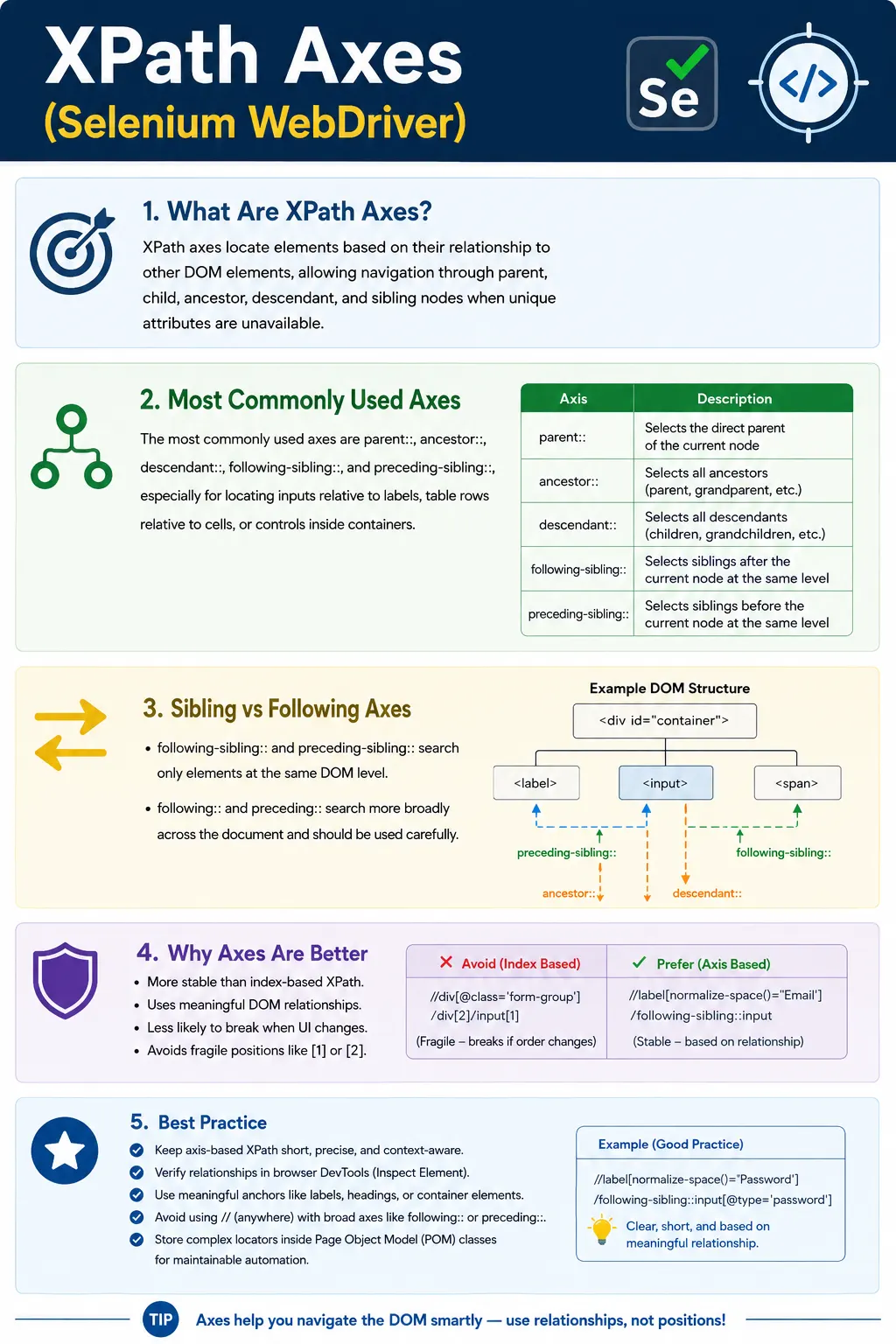
Understanding XPath Axes in Selenium
XPath axes are used when a Selenium locator needs to move through the DOM based on relationships instead of relying only on one element's own attributes. In simple pages, an id, name, class, or visible text may be enough to locate an element directly. In real applications, however, many important elements do not have unique attributes. Some inputs have generated ids, some buttons repeat across rows, some values appear beside labels, and some controls exist inside reusable components. XPath axes help solve these situations by allowing the locator to say, in effect, find this element by starting from a known element and moving to its parent, child, ancestor, descendant, previous sibling, or next sibling.
This relationship-based style is extremely useful in Selenium because user interfaces are often understood by relationships. A tester may not think of a field as the input with a particular generated id. The tester thinks of it as the input next to the Email label, the error message below the Password field, the Delete button in the row for a specific user, or the value under the Status column. XPath axes allow automation code to express these human-readable relationships. When used carefully, axes make locators more meaningful and less dependent on accidental page structure.
XPath axes are not only syntax. They are a locator design technique. A weak XPath describes where an element happens to sit today. A strong XPath describes why that element is the correct target for the test. If a page contains ten Edit buttons, a global locator for the first Edit button is risky. A relationship-based locator can first identify the table row that contains a customer name and then locate the Edit button inside that row. This is a much better match for the actual test intent because the test is not trying to click any Edit button; it is trying to edit a specific customer, order, record, or item.
Why Axes Matter in Complex Web Pages
Modern web pages are built from nested components. A page may contain containers, panels, cards, lists, grids, form groups, modal dialogs, menus, tabs, and repeated sections. The DOM that supports this UI can be deeply nested and may include many wrapper elements used only for styling. A direct XPath can become fragile if it depends on every wrapper. An axis-based XPath can skip the unnecessary details and focus on a stable relationship. For example, the label and input relationship is often more stable than the exact number of divs between the form and the input.
Axes are especially helpful when attributes are duplicated. Many component libraries reuse the same class names on every button or field. A class such as form-control, btn, input, or card may appear dozens of times on a page. If the locator selects by class alone, it may match too many elements. Axes allow the locator to use a nearby unique clue. A label, heading, row text, tab name, or section title can act as the anchor, and the axis can move from that anchor to the target control. This keeps the locator specific without depending on unstable generated values.
Another reason axes matter is that they reduce the need for raw indexes. Indexes are common in beginner XPath expressions because they are easy to write after inspecting the DOM. The problem is that an index usually depends on order. If a new field, row, button, or panel is inserted before the target element, the index can start pointing to the wrong element. Axes let the locator use relationships instead. Rather than selecting the third input, the test can select the input following the Username label or the error span following the email field. That relationship is more meaningful than an element number.
Starting from a Context Node
The most important idea behind XPath axes is the context node. A context node is the current element from which the XPath starts moving. In a full document XPath, the context may be the document root or an element matched by the first part of the expression. In Selenium, the context can also be a WebElement when using a scoped search. This is powerful because a test can first locate a container and then use an axis inside that container. Scoped searches reduce accidental matches and make the locator easier to reason about.
For example, a product listing page may contain many cards, and each card may have a product name, price, rating, and Add to Cart button. A global XPath for an Add to Cart button is not enough because it may find the first card rather than the intended product. A better approach is to locate the card that contains the desired product name and then find the button within that card. XPath axes and descendant searches support this style naturally. The test becomes clearer because it follows the same logical steps as a user: identify the product, then click the button associated with it.
The dot at the beginning of a scoped XPath matters. When searching from an existing WebElement, an XPath that starts with .// searches inside that element's context. Without the dot, Selenium may search from the document root, depending on how the XPath is written. This difference can create subtle bugs. If a page has multiple similar sections, a locator that ignores context can escape the intended section and match something elsewhere on the page. Understanding context is essential for using axes correctly in Page Object Model classes.
Moving Up with parent and ancestor
The parent axis moves from an element to its direct parent. This is useful when a child element has a stable attribute or text but the parent container does not. For example, an input may have a name attribute, while the wrapping div contains validation styling, labels, or messages. By locating the input first and then moving to its parent, the test can access the related form group. This is common when checking whether a field container has an error class after validation.
The ancestor axis is broader. It moves up through all parent levels: parent, grandparent, great-grandparent, and so on. This is valuable when the desired container is several levels above the anchor element. For example, an error text span may be deeply nested inside an alert component, and the test may need the whole alert container. An ancestor expression can move from the known error text to the enclosing alert div. This is often cleaner than writing a long upward path with repeated parent steps.
parent and ancestor are powerful, but they should not be used to climb too broadly without a filter. An expression that moves to any ancestor div may match a container that is too general, such as the entire page content area. A better XPath filters the ancestor by a meaningful class, role, id, form, section, or other stable attribute. The axis moves through the relationship, and the filter confirms that the relationship landed on the correct type of element. This combination creates precision.
Moving Down with child and descendant
The child axis selects direct children of the current node. It is useful when the DOM structure is simple and the target element must be an immediate child. For example, a form may contain direct input fields, or a menu list may contain direct list items. Because child does not search deeper levels, it can make a locator more precise. It says that the target should be exactly one level below the current node.
The descendant axis searches through all levels below the current node. It can find children, grandchildren, and deeper nested elements. This is useful when the page contains wrapper elements or when the target may be nested inside a component. The double slash syntax is a common shorthand for descendant searches. Many Selenium locators use this without explicitly thinking of it as an axis. When a locator says find any input inside this form, it is using descendant-style traversal.
The choice between child and descendant affects both clarity and risk. child is stricter and can fail if a wrapper is added. descendant is more flexible but may match elements deeper in the structure that were not intended. In many real projects, descendant is useful inside a well-scoped container because the container limits the search area. A broad descendant search from the whole document can become vague. A scoped descendant search from a form, card, row, or dialog is usually much safer.
Working with Siblings
The following-sibling and preceding-sibling axes are among the most practical axes in Selenium. They move between elements that share the same parent. This is common in forms where a label and input are placed beside each other or where a field and validation message are adjacent. If the label text is stable but the input has no reliable id, following-sibling can locate the input relative to the label. This pattern is easy to read and closely matches the user's view of the form.
following-sibling selects sibling elements that come after the current node. A locator such as the input following the Email label is a classic example. preceding-sibling does the reverse: it selects sibling elements before the current node. This is useful when a label appears before a value in some layouts and after a value in others, or when an icon, checkbox, or field appears before descriptive text. These axes are more precise than following and preceding because they only move at the same DOM level.
A common beginner mistake is using following when following-sibling is intended. following searches everything that appears later in the document, not only elements at the same level. That can produce broad matches. If the DOM has multiple forms or repeated sections, following may skip outside the intended context and locate an unrelated element. When the relationship is truly sibling-based, following-sibling is usually the better choice. It communicates that both elements belong to the same parent structure.
Using following and preceding Carefully
The following axis selects all nodes that appear after the current node in document order, excluding descendants. The preceding axis selects nodes that appear before the current node. These axes can be useful, especially when a section header is followed by content that is not a direct sibling. For example, a Settings heading may be followed somewhere below by a Save button. A following axis can express that the button belongs after the heading in the page flow.
The risk is that following and preceding can be too broad. If the page has several Save buttons after a heading, following::button[1] may work today but break when a new button is inserted above it. This does not mean following is bad. It means following should be used with filters and context. Combining it with a section container, a button label, a role, or a class can make the expression more reliable. The broad axis should be narrowed by meaningful conditions.
When debugging a broad axis, always check how many nodes the expression matches in developer tools. A locator that matches one element is usually easier to trust than a locator that matches many and then uses an index. If multiple matches are expected, the index should represent real business meaning, such as the first action after a specific heading or the last row in an activity log. If the index is only there to make the locator pass, it is probably fragile.
Axes in Tables, Grids, and Repeated Components
Tables and grids are ideal places to use XPath axes. A common requirement is to find a row by one cell value and then read another cell or click an action button in the same row. Without axes, testers often write brittle index-based locators. With axes, the test can locate a td containing a known name, move to the parent row, and then find a sibling cell or descendant button. This keeps the locator connected to the data being tested.
For example, suppose a user table contains columns for Name, Email, Role, and Status. The test may need the status for John. Selecting the third row and fourth column is weak because row order can change. Selecting the row that contains John and then moving to the related Status cell is stronger. The locator describes the relationship between the row data and the target value. This same pattern works for orders, invoices, tickets, products, and dashboard cards.
Repeated cards follow a similar pattern. A page may show many product cards, each with the same internal classes and buttons. A relationship-based locator can identify the card by product title and then select the button, price, rating, or badge inside that card. This approach avoids accidental interaction with the first matching button on the page. It also makes test failures easier to understand because the locator is tied to the specific product or record involved in the scenario.
Combining Axes with XPath Functions
XPath axes become even more useful when combined with functions such as normalize-space, contains, starts-with, and not. A label may have extra spaces around its text, so normalize-space can identify it cleanly before following-sibling moves to the input. A validation message may have a class that includes error along with other classes, so contains can locate it after moving from the field. A row may contain inactive data that should be excluded, so not can filter out disabled or hidden sections.
This combination is common in production automation because real pages rarely provide one perfect clue. A locator may need a stable label, a parent form context, a descendant input, and a class filter. The goal is not to make the XPath long. The goal is to assemble enough stable information to locate the correct element confidently. If the XPath becomes difficult to read, it may be better to split the search into smaller Page Object Model methods.
For example, a page object might first find a billing address section by heading and then find the postal code input inside that section. This two-step approach can be clearer than one complex XPath expression. Axes are tools for expressing relationships, and sometimes those relationships are easier to express in code through scoped WebElement searches. The best solution is the one that remains readable, stable, and aligned with the user's workflow.
Axes and Page Object Model Design
In Page Object Model design, XPath axes should usually be hidden behind meaningful methods. Test methods should not be filled with long relationship-based XPath strings. Instead, page classes can expose actions such as enterEmail, getErrorForField, clickEditForUser, or readStatusForOrder. The locator logic stays close to the page structure, while the test reads like a business scenario. This makes the automation suite easier to maintain.
Axis-based locators are sometimes more complex than direct id locators, so naming matters. A variable named passwordInput is clearer than a raw XPath repeated across many tests. A helper method named inputBesideLabel may be useful if the same form pattern appears throughout the application. However, abstractions should be added only when they remove real repetition. A project should not hide every XPath behind overly generic utilities if page-specific methods are easier to understand.
When page objects use axes, comments can be useful for unusual relationships. A short comment might explain that the application generates dynamic ids, so the locator uses the visible label and following-sibling relationship. Another comment might explain that the row action button is selected inside the row containing a specific order id. These comments help future maintainers understand that the axis was chosen deliberately, not copied randomly from browser tools.
Common Mistakes with XPath Axes
The most common mistake is using an axis that is broader than necessary. following and preceding search large areas of the document, while following-sibling and preceding-sibling stay at the same parent level. If the relationship is sibling-based, use the sibling axis. If the target is inside a known container, use descendant from that container. The narrower the search, the less likely it is to match the wrong element.
Another mistake is assuming that visual neighbors are always DOM siblings. Two elements may appear beside each other on the screen because of CSS, but in the DOM they may live in different containers. Before writing an axis-based XPath, inspect the DOM relationship in developer tools. XPath follows the HTML tree, not the visual layout. A locator based on a relationship that does not exist in the DOM will fail even if the elements appear close to each other on the page.
A third mistake is mixing axes with fragile indexes too early. Sometimes an axis expression returns several matches, and beginners quickly add [1] or [2] to force uniqueness. That may hide the real issue. A better response is to ask why multiple matches exist and whether another stable condition can narrow the search. Add a parent context, text condition, attribute filter, or section anchor before reaching for an index. Use indexes only when order itself is part of the tested behavior.
Debugging Axis-Based Locators
Debugging axis-based XPath starts with checking the expression in the browser console or Elements search. The key question is not just whether the expression matches, but what it matches. If it matches zero elements, the relationship may be wrong, the text may include whitespace, the element may be inside an iframe, or the content may not have loaded yet. If it matches many elements, the expression needs tighter context or additional conditions. If it matches the wrong element, the axis may be broader than intended.
Selenium errors can sometimes make a locator problem look like a timing problem, or the reverse. A correct axis-based XPath can still fail if the element is not yet present, visible, or clickable. Dynamic pages may render labels first and inputs later, or update a table after an API call. Pair relationship-based locators with explicit waits. The locator identifies the target; the wait confirms that the target is ready for the action or assertion.
Stale element references are another common issue. If a page refreshes or re-renders a component, a previously located WebElement may no longer point to the current DOM node. The solution is usually to locate the element again after the refresh or update. Axis-based locators are still valuable because they can re-find the correct element in the new DOM, but the code must avoid holding old references across DOM changes.
Interview Perspective on XPath Axes
In interviews, XPath axes are often used to test whether a candidate understands DOM relationships. A short answer is that XPath axes locate elements relative to another element, such as parent, child, ancestor, descendant, or sibling. A stronger answer explains why this matters in Selenium: axes are useful when elements do not have unique attributes, when similar controls repeat, and when a stable nearby label or heading can anchor the locator.
A good interview example is label-to-input mapping. If an input has no reliable id but the label text is stable, following-sibling can locate the input from the label. Another strong example is table row selection. If a row contains a specific user name, parent can move from the cell to the row, and descendant or following-sibling can locate another cell or action in that row. These examples show practical use rather than memorized syntax.
Candidates should also mention caution. Axes can make XPath powerful, but broad axes and unnecessary indexes can make locators fragile. following searches much more broadly than following-sibling. ancestor should be filtered to a meaningful container. position-based selection should be used only when order has meaning. This balanced explanation shows that the tester understands both capability and risk.
Practical Guidelines for XPath Axes
A practical guideline is to anchor the XPath on the most stable element available. This might be a label, heading, row value, card title, dialog title, or data attribute. Then move only as far as needed. If the target is a sibling, use a sibling axis. If the target is inside a container, use descendant. If the target container wraps the anchor, use ancestor with a meaningful filter. Avoid climbing or searching across the whole document when a smaller relationship will work.
Another guideline is to keep the expression readable. A long axis chain may technically work but still be a maintenance problem. When the XPath becomes difficult to understand, split it into two steps in the page object: find the section, then find the element inside the section. This mirrors how users understand pages and keeps automation code clean. The purpose of axes is to make relationships clearer, not to create unreadable locator puzzles.
The key takeaway is that XPath axes are essential for complex Selenium automation because they let locators use meaningful DOM relationships. They help testers move from labels to inputs, from cells to rows, from headings to sections, and from child elements to parent containers. Used with proper context, functions, waits, and Page Object Model design, axes can make a test suite much more stable. Used carelessly, they can become broad and fragile. The skill is knowing which relationship matters and expressing only that relationship in the locator.
1. What Are XPath Axes
Definition: XPath axes define the direction of traversal from a current (context) node to locate other nodes in the DOM.
Think of axes as: "How do I reach the element relative to where I am?"
2. Why XPath Axes Are Important
Axes are used when:
- Elements lack unique IDs/names
- Multiple similar elements exist
- UI structure (relationships) is more stable than attributes
- You must locate elements relative to labels or headers
Axes reduce reliance on indexes and increase locator resilience.
3. Most Common XPath Axes (You Must Know)
3.1 parent::
Selects the direct parent of the current node.
Use case: When the child is easy to locate, but the parent is not.
Pattern:
//input[@id='email']/parent::div3.2 child::
Selects direct children of the current node.
Use case: When navigating from a container to its immediate elements.
Pattern:
//form[@id='loginForm']/child::input3.3 ancestor::
Selects all ancestors (parent, grandparent, etc.) of the current node.
Use case: When the desired element is higher up in the hierarchy.
Pattern:
//input[@id='password']/ancestor::form3.4 descendant::
Selects all descendants (children, grandchildren, etc.) of the current node.
Use case: When elements are nested deeply inside a container.
Pattern:
//div[@class='menu']/descendant::aNote: // is shorthand for descendant::.
3.5 following-sibling::
Selects siblings after the current node at the same level.
Use case (very common): When a label is followed by an input or value.
Pattern:
//label[text()='Username']/following-sibling::input3.6 preceding-sibling::
Selects siblings before the current node at the same level.
Use case: When value appears before a label/icon.
Pattern:
//input[@id='email']/preceding-sibling::label4. Other Useful Axes (Know the Names)
4.1 following::
Selects everything after the current node in the DOM (not just siblings).
Pattern:
//h2[text()='Settings']/following::button[1]Note: Use cautiously-can be broad.
4.2 preceding::
Selects everything before the current node in the DOM.
Pattern:
//button[text()='Save']/preceding::input[1]4.3 self::
Refers to the current node itself.
Pattern:
//input[@id='email']/self::inputMostly used for clarity or chaining.
5. Axes vs Index-Based XPath
Stability comparison:
- Axes + attributes means High
- Axes + text means Medium-High
- Index ([1], [2]) means Low
Rule: Prefer axes over indexes whenever possible.
6. Real-World Locator Patterns (Common)
- Label means Input
//label[normalize-space()='Email']/following-sibling::input- Header means Section content
//h3[text()='Billing']/following::div[@class='section'][1]- Input means Error message
//input[@name='email']/following-sibling::span[contains(@class,'error')]These patterns are highly resilient.
7. Common Beginner Mistakes
- Overusing
following::instead offollowing-sibling:: - Writing overly broad axes (performance issues)
- Mixing axes with fragile indexes
- Not verifying DOM relationships in DevTools
8. XPath Axes in Page Object Model (POM)
Best practices:
- Encapsulate axis-based locators in page classes
- Add comments for complex axes
- Prefer readable, intention-revealing XPath
- Avoid duplicating axis logic across tests
9. Interview Perspective
Short Answer: XPath axes are used to locate elements based on their relationship to other elements, such as parent, child, or sibling.
Real-Time Answer: In Selenium, XPath axes like parent, ancestor, and following-sibling help locate elements relative to a known element, making locators more stable when attributes are dynamic or missing.
10. Key Takeaway
- XPath axes enable relationship-based locating
- Essential for complex and dynamic UIs
- Prefer following-sibling and ancestor for precision
- Avoid broad axes and indexes
- When attributes fail, relationships save your locators.
11. XPath Axes Examples (Extended)
11.1 parent Axis
driver.findElement(
    By.xpath("//input[@id='username']/parent::div")
);
Use Case: Move one level up in DOM.
11.2 parent Axis with Action
driver.findElement(
    By.xpath("//input[@id='username']/parent::div//label")
).getText();
11.3 child Axis
driver.findElement(
    By.xpath("//form[@id='loginForm']/child::input")
);
Note: Direct children only.
11.4 child Axis with Index
driver.findElement(
    By.xpath("//ul[@id='menu']/child::li[1]")
).click();
11.5 descendant Axis (Very Common)
driver.findElement(
    By.xpath("//form[@id='loginForm']/descendant::input[@type='password']")
).sendKeys("secret");
Why Used: Finds element at any depth.
11.6 ancestor Axis
driver.findElement(
    By.xpath("//input[@id='password']/ancestor::form")
);
Interview Favorite: Move up multiple levels.
11.7 ancestor with Attribute Filter
driver.findElement(
    By.xpath("//span[text()='Error']/ancestor::div[@class='alert']")
);
11.8 following-sibling Axis (Very Important)
driver.findElement(
    By.xpath("//label[text()='Username']/following-sibling::input")
).sendKeys("admin");
Real-World Use: Label means input mapping.
11.9 following-sibling with Index
driver.findElement(
    By.xpath("//li[text()='Home']/following-sibling::li[1]")
).click();
11.10 preceding-sibling Axis
driver.findElement(
    By.xpath("//input[@id='password']/preceding-sibling::label")
).getText();
11.11 following Axis
driver.findElement(
    By.xpath("//h2[text()='Details']/following::button[1]")
).click();
Difference: Searches anywhere after current node.
11.12 preceding Axis
driver.findElement(
    By.xpath("//button[text()='Submit']/preceding::input[1]")
);
11.13 self Axis
driver.findElement(
    By.xpath("//input[@id='email']/self::input")
).sendKeys("test@example.com");
Mostly Used: With dynamic XPath building.
11.14 Combine Axes + Functions (Interview Gold ⭐)
driver.findElement(
    By.xpath("//label[normalize-space()='Email']/following-sibling::input")
).sendKeys("test@example.com");
11.15 Axes for Table Row by Cell Value
driver.findElement(
    By.xpath("//td[text()='John']/parent::tr")
);
11.16 Axes for Table Column Value
driver.findElement(
    By.xpath("//td[text()='John']/following-sibling::td[2]")
).getText();
11.17 Axes Inside a Specific Section (Context .)
WebElement card = driver.findElement(By.className("product-card"));

card.findElement(
    By.xpath(".//h3/following-sibling::button")
).click();
11.18 Axes with findElements() (Multiple Matches)
List<WebElement> inputs =
    driver.findElements(
        By.xpath("//label/following-sibling::input")
    );

System.out.println(inputs.size());
11.19 Axes After Page Refresh (Stale Fix)
WebElement btn =
    driver.findElement(
        By.xpath("//span[text()='Save']/ancestor::button")
    );

driver.navigate().refresh();

btn =
    driver.findElement(
        By.xpath("//span[text()='Save']/ancestor::button")
    );
btn.click();
11.20 Invalid: Common Interview Mistake
Wrong axis syntax:
// Wrong axis syntax
By.xpath("//input[@id='x']/following"); // Invalid:
Correct:
By.xpath("//input[@id='x']/following::input[1]"); // Valid:11.21 Most Used XPath Axes (Interview)
- ancestor
- descendant
- following-sibling
- preceding-sibling
- parent
11.22 Axes vs Normal XPath (Interview)
- Normal XPath means location based
- XPath Axes means relationship based
11.23 When XPath Axes Are BEST
- ✔ No unique attributes
- ✔ Relative positioning needed
- ✔ Dynamic UI
- ✔ Labels near inputs
11.24 XPath Axes in Page Object Model (POM)
@FindBy(xpath = "//label[text()='Password']/following-sibling::input")
WebElement password;
11.25 Interview Summary - XPath Axes
- ✔ Powerful relative navigation
- ✔ Essential for dynamic DOM
- ✔ Reduces brittle locators
- ✔ Very common in real projects