Window Handles in Selenium Java
1. Introduction
Window handles are used in Selenium to manage and switch between multiple browser windows or tabs opened during test execution. Selenium can interact with only one browser window at a time. When an application opens a new tab, a child window, an OAuth login page, a payment gateway, a PDF viewer, or a report window, Selenium remains focused on the original window until the test explicitly switches to the new one.
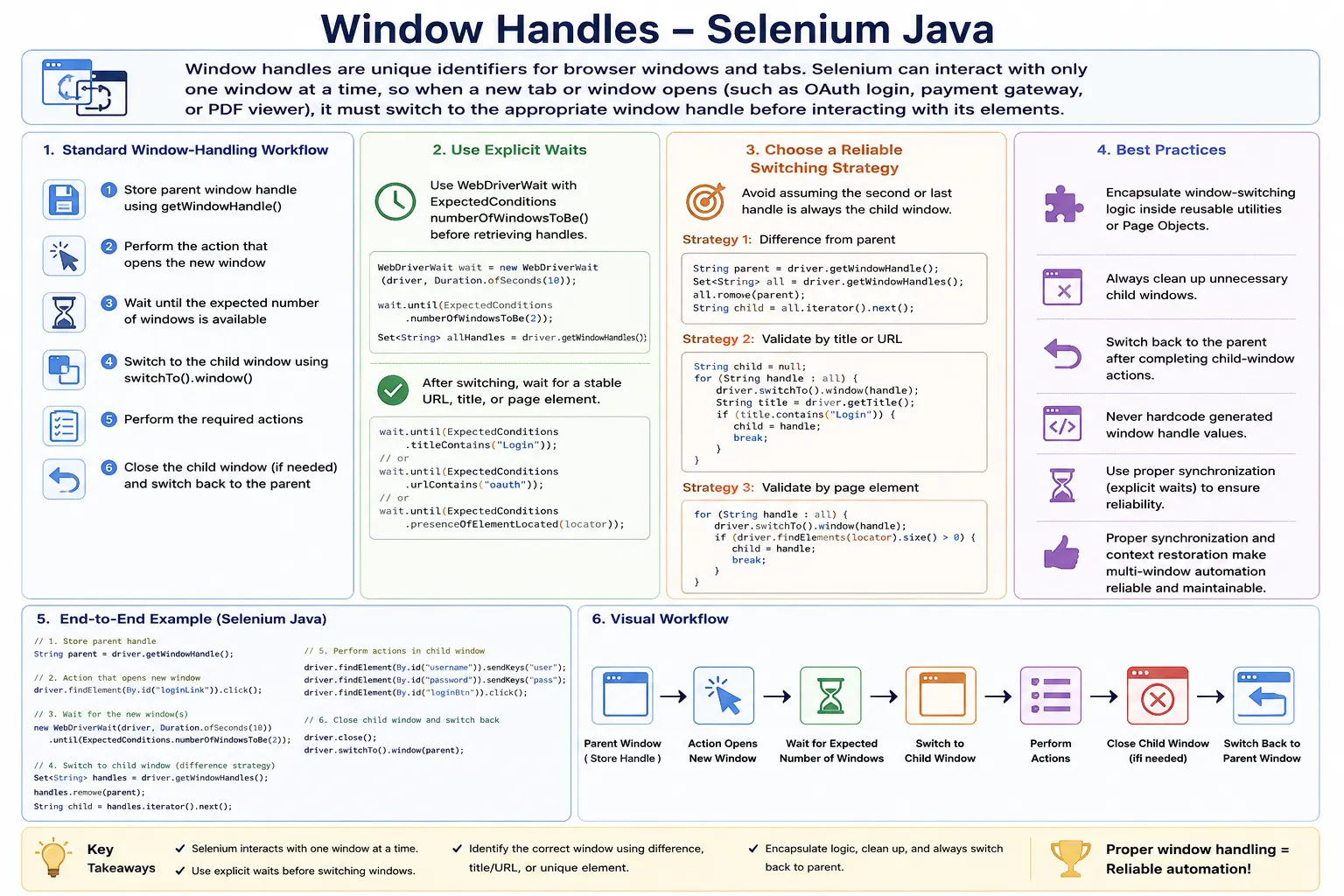
This makes window handling a context-switching problem. The locator for an element may be correct, but Selenium will still fail if the test is focused on the wrong window. A Google login email field cannot be found while Selenium is still in the main application window. A payment gateway button cannot be clicked while Selenium is still focused on the checkout page.
A reliable window-handling flow stores the parent window handle, performs the action that opens the new window, waits until the expected number of windows exists, switches to the correct child window, performs actions, closes the child window if needed, and returns to the parent window. This article explains that workflow in depth.
2. What Is a Window Handle?
A window handle is a unique identifier assigned by the browser driver to every open browser window or tab. Selenium uses this identifier to switch control from one window to another.
Main Window:
CDwindow-123ABC

Child Window:
CDwindow-456XYZ
The exact handle value is generated by the browser driver. Test code should not hardcode it. The handle is useful only during the current browser session.
3. Why Window Handles Are Needed
Consider a login flow where the main application opens a Google sign-in window.
Main Window
      |
      +-- Click Login with Google
              |
              +-- Google Window Opens
If the test tries to enter the email without switching windows, Selenium still searches the main application window.
driver.findElement(By.id("email"));This can throw NoSuchElementException because the email field is in the Google window, not in the main window. The fix is to switch using the correct window handle.
4. Required Imports
import java.time.Duration;
import java.util.ArrayList;
import java.util.List;
import java.util.Set;

import org.openqa.selenium.By;
import org.openqa.selenium.WebDriver;
import org.openqa.selenium.WindowType;
import org.openqa.selenium.support.ui.ExpectedConditions;
import org.openqa.selenium.support.ui.WebDriverWait;
Window handling commonly uses Set for handles, List for ordered access when needed, WebDriverWait for synchronization, and WindowType for Selenium 4 new tab or new window creation.
5. getWindowHandle()
getWindowHandle() returns the handle of the currently focused window.
String mainWindow =
        driver.getWindowHandle();

System.out.println(mainWindow);
This method is usually used to store the parent window before opening a child window. Without storing the parent handle, switching back later becomes harder and more error-prone.
6. getWindowHandles()
getWindowHandles() returns all open browser window and tab handles in the current browser session.
Set<String> windows =
        driver.getWindowHandles();

System.out.println("Total Windows: " + windows.size());
The returned collection is a Set, so you should not assume a guaranteed business order. For quick debugging, converting it to a list is convenient, but production switching should usually be based on title, URL, or a known difference from the parent handle.
7. Single Window Example
When the browser has only one window, getWindowHandles() returns a set with one handle.
String currentWindow =
        driver.getWindowHandle();

Set<String> windows =
        driver.getWindowHandles();

System.out.println(currentWindow);
System.out.println(windows.size());
At this point there is nothing to switch to. Window switching is needed only after another tab or window opens.
8. Opening a New Window
Many applications open a new window after clicking a button or link.
driver.findElement(By.id("newWindowBtn"))
      .click();
After this click, the browser may contain two windows or tabs. Selenium still controls the original one until the test switches to the new handle.
9. Switching to a Child Window
The common parent-child window flow starts by storing the parent handle.
String parentWindow =
        driver.getWindowHandle();

driver.findElement(By.id("openWindow"))
      .click();

Set<String> handles =
        driver.getWindowHandles();

for (String handle : handles) {
    if (!handle.equals(parentWindow)) {
        driver.switchTo().window(handle);
        break;
    }
}
After the loop switches to the child handle, Selenium can interact with elements in the child window. This pattern works well when exactly one new child window opens.
10. Complete Parent-Child Example
String parentWindow =
        driver.getWindowHandle();

driver.findElement(By.id("openWindow"))
      .click();

WebDriverWait wait =
        new WebDriverWait(driver, Duration.ofSeconds(10));

wait.until(
        ExpectedConditions.numberOfWindowsToBe(2)
);

for (String handle : driver.getWindowHandles()) {
    if (!handle.equals(parentWindow)) {
        driver.switchTo().window(handle);
        break;
    }
}

System.out.println(driver.getTitle());
The wait is important. Without it, the test may read window handles before the new window appears.
11. Verify Child Window Title
After switching, verify the title to confirm that Selenium is in the expected window.
System.out.println(driver.getTitle());For example, an OAuth window may have a title containing Google Sign In. A report window may have a report title. A payment window may show the payment provider name.
12. Switch Back to Parent Window
Use the stored parent handle to return to the main application.
driver.switchTo().window(parentWindow);This is why storing the parent handle early is essential. After switching back, Selenium again searches the main application window.
13. Close Child Window
driver.close() closes only the currently focused window.
driver.close();

driver.switchTo().window(parentWindow);
After closing a child window, always switch back to a valid open window. If Selenium remains pointed at a closed window, the next browser command can fail.
14. close() vs quit()
driver.close() closes the current window only. driver.quit() ends the entire browser session and closes all windows.
driver.close(); // current window

driver.quit();  // entire session
Use close() when cleaning up a child window and continuing the test. Use quit() when the test is finished and the browser session should end.
15. Multiple Windows Example
Some flows open more than one child window. You can loop through all handles and print titles.
for (String handle : driver.getWindowHandles()) {
    driver.switchTo().window(handle);
    System.out.println(driver.getTitle());
}
This is useful for debugging and for identifying which title belongs to which handle.
16. Window Count Validation
After clicking an element that should open a new window, validate the count.
int count =
        driver.getWindowHandles().size();

System.out.println("Window Count: " + count);
In test assertions, you can compare this count against the expected value. Count validation gives fast feedback when a popup is blocked or a link fails to open.
17. Wait for New Window
Use numberOfWindowsToBe() to avoid timing issues.
WebDriverWait wait =
        new WebDriverWait(driver, Duration.ofSeconds(10));

wait.until(
        ExpectedConditions.numberOfWindowsToBe(2)
);
This wait is one of the most important best practices for window handling. It prevents the test from switching too early.
18. Switch Using Window Title
When multiple windows exist, title-based switching can be clearer than selecting an arbitrary handle.
for (String handle : driver.getWindowHandles()) {
    driver.switchTo().window(handle);

    if (driver.getTitle().contains("Google")) {
        break;
    }
}
Title-based switching works well when the title is stable. If titles change by language, environment, or application state, URL-based switching may be better.
19. Switch Using URL
URL matching is often more reliable than title matching for authentication and payment pages.
for (String handle : driver.getWindowHandles()) {
    driver.switchTo().window(handle);

    if (driver.getCurrentUrl()
              .contains("accounts.google")) {
        break;
    }
}
Use a stable URL fragment rather than the full URL if the URL contains tokens or environment-specific values.
20. Switch Using List Index
You can convert handles to a list and switch by index.
List<String> windows =
        new ArrayList<>(driver.getWindowHandles());

driver.switchTo().window(windows.get(1));
This is convenient for demos, but it is not the best enterprise practice. A Set does not express business meaning, and relying on position can make tests harder to maintain.
21. Selenium 4 Open New Tab
Selenium 4 can create a new tab directly.
driver.switchTo()
      .newWindow(WindowType.TAB);

driver.get("https://www.google.com");
The new tab becomes active automatically. You can still use window handles to switch back to the original tab.
22. Selenium 4 Open New Window
driver.switchTo()
      .newWindow(WindowType.WINDOW);

driver.get("https://www.google.com");
This opens a separate browser window instead of a tab. The handling concept remains the same: every tab or window has a handle.
23. Real Project Example: Google Login
OAuth flows frequently open a new window or tab.
String parent =
        driver.getWindowHandle();

googleLoginButton.click();

wait.until(
        ExpectedConditions.numberOfWindowsToBe(2)
);

for (String handle : driver.getWindowHandles()) {
    if (!handle.equals(parent)) {
        driver.switchTo().window(handle);
        break;
    }
}

driver.findElement(By.id("identifierId"))
      .sendKeys("user@gmail.com");
After completing the OAuth flow, the child window may close automatically, or the test may need to close it and return to the parent. Always verify the actual application behavior.
24. Real Project Example: Payment Gateway
Some payment providers open a separate payment window.
String parent =
        driver.getWindowHandle();

payButton.click();

wait.until(
        ExpectedConditions.numberOfWindowsToBe(2)
);

for (String handle : driver.getWindowHandles()) {
    if (!handle.equals(parent)) {
        driver.switchTo().window(handle);
        break;
    }
}
After switching, enter payment details in the payment window. After payment completion, return to the application window and verify the order status.
25. Real Project Example: PDF Viewer
Some applications open invoices, reports, or documents in a new tab. The test may need to verify that a PDF viewer opens.
In many cases, the test should verify the URL, title, or download behavior rather than trying to automate the internal PDF viewer UI. Browser PDF viewers can vary across environments.
26. NoSuchWindowException
NoSuchWindowException occurs when Selenium tries to switch to a handle that is not valid or no longer open.
driver.switchTo().window("wrongHandle");It can also happen when the test closes a window and then tries to use its old handle. Always switch to an open valid handle after closing a child window.
27. Window Already Closed
String child = driver.getWindowHandle();

driver.close();

driver.switchTo().window(child);
This fails because child no longer points to an open window. Store the parent handle and switch back to it after closing the child.
28. Reusable Switch to Child Window Utility
public void switchToChildWindow(String parent) {
    for (String handle : driver.getWindowHandles()) {
        if (!handle.equals(parent)) {
            driver.switchTo().window(handle);
            return;
        }
    }

    throw new RuntimeException("Child window not found");
}
This utility works when exactly one child window is expected. For multiple windows, use title or URL matching.
29. Reusable Switch by Title Utility
public void switchToWindowByTitle(String title) {
    for (String handle : driver.getWindowHandles()) {
        driver.switchTo().window(handle);

        if (driver.getTitle().equals(title)) {
            return;
        }
    }

    throw new RuntimeException(
            "Window not found with title: " + title
    );
}
A utility should fail clearly when the expected window is not found. Silent failure leaves Selenium focused on the wrong window.
30. Reusable Switch by URL Utility
public void switchToWindowByUrl(String urlPart) {
    for (String handle : driver.getWindowHandles()) {
        driver.switchTo().window(handle);

        if (driver.getCurrentUrl().contains(urlPart)) {
            return;
        }
    }

    throw new RuntimeException(
            "Window not found with URL: " + urlPart
    );
}
URL-based switching is useful for OAuth, payment, dashboards, and document viewer flows when the URL pattern is stable.
31. Close All Child Windows
String parent =
        driver.getWindowHandle();

for (String handle : driver.getWindowHandles()) {
    if (!handle.equals(parent)) {
        driver.switchTo().window(handle);
        driver.close();
    }
}

driver.switchTo().window(parent);
This is useful for cleanup when a test opens multiple supporting windows and must return to the main application.
32. Page Object Model Usage
Window switching logic can live in a base page, utility class, or workflow object. The test should focus on user behavior rather than raw handle loops.
public void switchToChildWindow() {
    String parent = driver.getWindowHandle();

    for (String handle : driver.getWindowHandles()) {
        if (!handle.equals(parent)) {
            driver.switchTo().window(handle);
            break;
        }
    }
}
For robust page objects, add waiting and meaningful failure messages.
33. Window Handles and Frames
Window context and frame context are separate. If a new window contains frames, switching to the window is only the first step. You must then switch into the correct frame inside that window.
Similarly, if an element inside a frame opens a new window, click the element from the frame context, then switch to the new window handle. Once in the new window, frame context starts from that window's main document.
34. Window Handles and Alerts
If a child window triggers an alert, switch to the child window first and then handle the alert. Alert context belongs to the currently focused window.
After accepting or dismissing the alert, continue in that same window or switch back to the parent depending on the workflow.
35. Why Not Assume the Latest Handle Is the Child?
A common shortcut is to convert window handles to a list and use the last item as the newly opened window. That may work in a simple demo, but it is not a strong assumption for production automation. getWindowHandles() returns a Set, and a set is not designed to represent business order. Even when it appears to behave consistently in one browser, relying on that behavior makes the test fragile.
The safer approach is to store the handles before opening the new window, wait for the count to increase, then find the handle that was not present before. This identifies the newly opened window by difference instead of by assumed position.
Set<String> oldWindows =
        driver.getWindowHandles();

driver.findElement(By.id("openWindow")).click();

wait.until(
        ExpectedConditions.numberOfWindowsToBe(
                oldWindows.size() + 1
        )
);

for (String handle : driver.getWindowHandles()) {
    if (!oldWindows.contains(handle)) {
        driver.switchTo().window(handle);
        break;
    }
}
This pattern is stronger when the test already has multiple windows open before the new action occurs.
36. Switch to Newly Opened Window Utility
A reusable utility can capture the old handles, perform the action that opens the window, wait for a new handle, and switch to it. This keeps test code cleaner and prevents every test from rewriting the same handle comparison logic.
public void switchToNewWindowAfter(
        Runnable openWindowAction) {

    Set<String> oldWindows =
            driver.getWindowHandles();

    openWindowAction.run();

    wait.until(
            ExpectedConditions.numberOfWindowsToBe(
                    oldWindows.size() + 1
            )
    );

    for (String handle : driver.getWindowHandles()) {
        if (!oldWindows.contains(handle)) {
            driver.switchTo().window(handle);
            return;
        }
    }

    throw new RuntimeException("New window not found");
}
In real frameworks, this utility can also log old and new handles, current title, current URL, and screenshots when the new window does not appear.
37. Handling More Than One Child Window
Some workflows open multiple child windows. A report page may open a report viewer and a help document. A payment process may open a provider page and then a bank authentication page. In such cases, switching to any handle that is not the parent is not precise enough.
Use title, URL, or a validation element to identify the correct window. For example, if one child window has a URL containing reports and another contains help, switch by URL. If both URLs are dynamic, switch to each window and check for a known element that proves the page identity.
38. Validating the Active Window
After switching, validate that Selenium is in the expected window before performing important actions. A title, URL, or page-specific element can confirm the active context.
if (!driver.getCurrentUrl().contains("dashboard")) {
    throw new RuntimeException(
            "Expected dashboard window, but got: "
                    + driver.getCurrentUrl()
    );
}
This kind of guard makes failures easier to understand. Without it, the test may continue in the wrong window and fail later with a confusing element-not-found error.
39. Child Window Cleanup Strategy
Good tests clean up child windows. Leaving extra windows open can affect later steps and later tests. A test may accidentally switch to an old report tab instead of the new payment tab. Cleanup becomes especially important in long end-to-end flows.
A practical cleanup rule is: if the child window is no longer needed, close it and return to the parent immediately. If the child window is expected to close automatically, wait until the window count returns to the expected number before continuing.
driver.close();
driver.switchTo().window(parentWindow);

wait.until(
        ExpectedConditions.numberOfWindowsToBe(1)
);
40. Waiting for a Window to Close
Some OAuth and payment flows close the child window automatically after success. Do not assume the close has completed immediately after clicking the final button. Wait for the window count to decrease or switch back to the parent and wait for a success message.
wait.until(
        ExpectedConditions.numberOfWindowsToBe(1)
);

driver.switchTo().window(parentWindow);
This prevents failures where Selenium tries to interact with a closing or already closed window.
41. Window Handles in Page Object Model
Window handling often belongs in workflow-level page objects rather than individual test methods. For example, a login page object can expose a method named loginWithGoogle(), and that method can handle the child window internally.
This keeps tests readable. The test should not need to know every low-level handle operation unless the test is specifically about window behavior. Encapsulating window flow also makes it easier to adjust switching strategy if the application changes from a popup window to a tab or embedded frame.
42. Window Handles and Browser Differences
Different browsers can behave slightly differently with tabs, popups, focus, and titles. Chrome, Edge, and Firefox may expose window titles at different moments during loading. A title may be blank immediately after switching, then update after the page finishes loading. This is why URL or element-based verification can be more stable than immediate title checks.
For cross-browser suites, combine window count waits with page readiness checks. Switch to the correct handle, then wait for a stable title, URL fragment, or unique element in that window.
43. Window Handles in CI
CI environments can reveal window-handling issues that do not appear locally. Popup blockers, browser options, headless mode, slower page loads, and third-party authentication delays can all affect when a new window appears. If the test reads handles too early, it may miss the child window.
When debugging CI failures, log handle count before and after the action, titles and URLs for all handles, browser mode, and screenshots. This evidence shows whether the window failed to open, opened slowly, opened with a different URL, or closed before the test switched to it.
44. Window Handles and Test Data
Some new-window flows depend on test data. A payment window may open only for certain payment methods. An OAuth window may not open if the user is already logged in. A report viewer may open only when report data exists. If the expected window does not appear, validate the data and application state before blaming Selenium.
Reliable test data makes window tests more predictable. Clear setup and cleanup are just as important as the handle-switching code.
45. Security and Third-Party Windows
OAuth providers and payment providers may add security steps, device checks, or bot protections. Automation should use approved test environments and supported flows. Do not depend on unstable consumer login pages for regular CI automation unless the project explicitly supports that approach.
For third-party windows, focus on what your application owns: opening the provider flow, handling return state, showing success or failure, and updating the user journey correctly. Keep provider-specific selectors isolated so changes are easier to maintain.
46. Robust Parent-Child Workflow
A robust parent-child workflow should be predictable from start to finish. First, store the parent handle. Second, store the existing set of handles if other windows may already be open. Third, trigger the action that opens the child. Fourth, wait for the handle count to increase. Fifth, switch to the new or expected child. Sixth, validate that the child window is correct. Seventh, complete the child-window action. Finally, close the child if appropriate and switch back to the parent.
This may sound like many steps, but each step removes a common source of flakiness. The parent handle prevents losing the main application. The wait prevents timing failures. The validation prevents acting in the wrong window. The cleanup prevents later steps from accidentally using an old tab.
47. Window Switching with Expected Page Element
Sometimes title and URL are not stable enough. In that case, switch through each window and look for a page-specific element. For example, an OAuth page may have a unique email field, while a report page may have a unique export button.
for (String handle : driver.getWindowHandles()) {
    driver.switchTo().window(handle);

    if (driver.findElements(By.id("identifierId")).size() > 0) {
        break;
    }
}
This approach should be used carefully because it can be slower than title or URL matching. It is useful when page identity is best proven by the presence of a specific element.
48. Handling Windows That Open Slowly
A new window may open quickly, but its content may load slowly. Waiting for the window count only proves that the window exists. It does not prove that the page inside the window is ready. After switching to the child window, add a second wait for a stable URL, title, or page element.
wait.until(
        ExpectedConditions.numberOfWindowsToBe(2)
);

switchToWindowByUrl("accounts.google");

wait.until(
        ExpectedConditions.visibilityOfElementLocated(
                By.id("identifierId")
        )
);
This two-layer wait is similar to frame handling: first wait for the context, then wait for the element inside that context.
49. Handling Windows That Close Automatically
Some payment and login flows close the child window automatically after success. If the test tries to interact with that window after it closes, Selenium can throw NoSuchWindowException. The test should detect this behavior and switch back to the parent at the right time.
A practical pattern is to complete the child action, wait until the number of windows returns to the expected count, and then switch to the parent handle. If the application redirects the parent page after the child closes, wait for the parent page success message after switching back.
50. Window Handles and Test Isolation
Window cleanup is part of test isolation. A test that leaves extra windows open can affect the next test when the same browser session is reused. Even within a single test, an old child tab can cause a later handle loop to switch to the wrong window.
Good cleanup closes unneeded child windows and returns Selenium to the parent before the test continues. If a test intentionally keeps multiple windows open, it should track the purpose of each handle clearly.
51. Designing Window Utilities
A good window utility should not silently fail. If it cannot find a window by title, URL, or new handle, it should throw a clear exception. The exception should include helpful context such as available titles and URLs. This turns a confusing later failure into an immediate actionable failure.
Utilities should also avoid changing focus unexpectedly. If a method loops through windows and does not find the target, it should either restore the original window or fail clearly. Leaving Selenium focused on the last checked window can create misleading downstream failures.
52. Common Beginner Mistakes
- Forgetting to store the parent window handle.
- Assuming the second handle is always the child window.
- Trying to interact with a child window before switching to it.
- Closing the parent window accidentally.
- Closing a child window and not switching back to an open parent.
- Using
Thread.sleep()instead of waiting for window count. - Using title matching when titles are dynamic.
- Using list index switching in complex multi-window flows.
53. Debugging Checklist
- Print the parent window handle before opening a child window.
- Print all window handles after the action.
- Validate the expected window count.
- Print titles and URLs for every open window.
- Confirm which window Selenium is currently controlling.
- Use explicit waits before switching to a newly opened window.
- Check whether popup blockers or browser settings prevented the window from opening.
- After closing a window, switch to a valid open window.
54. Best Practices
- Store the parent handle before opening a child window.
- Use
getWindowHandles()to retrieve all open windows and tabs. - Use
numberOfWindowsToBe()for synchronization. - Prefer switching by title or URL over list index when multiple windows exist.
- Close unnecessary child windows to keep tests clean.
- Always switch back to the parent after closing a child window.
- Use
driver.close()for the current window anddriver.quit()for the entire session. - Encapsulate window logic in utilities or page objects.
- Make utility failures explicit when the expected window is not found.
- Do not hardcode generated handle values.
55. Interview Perspective
A short interview answer is: window handles are unique IDs assigned to browser windows and tabs. Selenium uses getWindowHandle() for the current window, getWindowHandles() for all open windows, and switchTo().window() to change focus.
A stronger real-time answer is: I store the parent window handle before opening a new window. After the new window opens, I wait for the expected window count, iterate through the handles, switch to the required window based on title or URL, perform actions, close the child window if needed, and switch back to the parent. This avoids timing issues and prevents Selenium from interacting with the wrong browser context.
56. Key Takeaway
Window handling is context switching. Selenium can interact with only one browser window or tab at a time, and window handles are the identifiers that allow Selenium to move between those contexts.
Use getWindowHandle() to store the current window, getWindowHandles() to retrieve all open windows, and switchTo().window() to change focus. Always wait for new windows, switch deliberately, close child windows when appropriate, and return to the parent window before continuing the main workflow.
Reliable window handling keeps multi-window tests stable, readable, and easier to debug in real Selenium automation projects.