What Are Locators
Locators are the mechanism Selenium uses to identify and find elements on a web page so that actions (click, type, read text) can be performed on them. Without locators, no UI automation is possible.
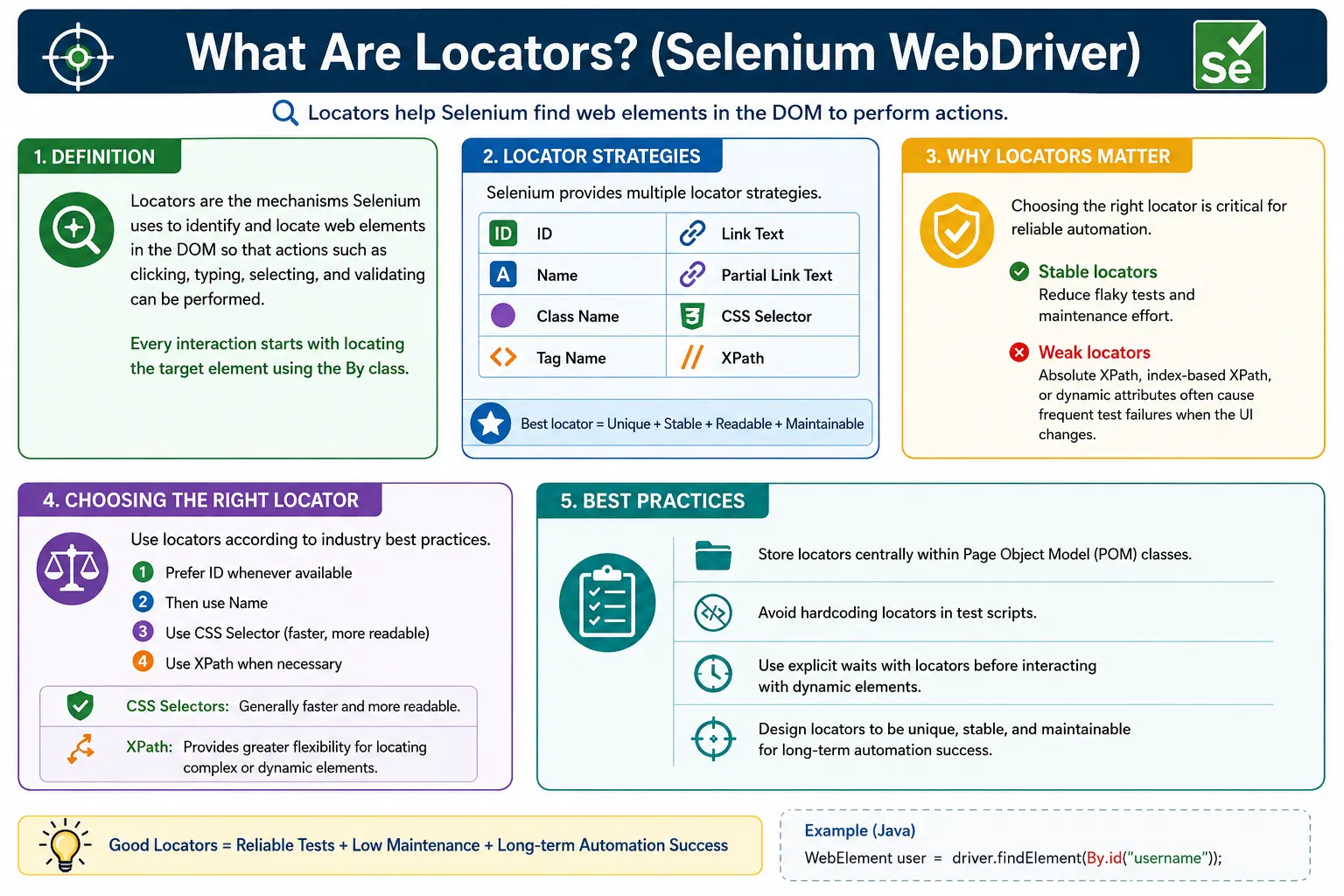
Understanding Locators in Selenium WebDriver
Locators are one of the first Selenium concepts every automation tester learns, but they are also one of the concepts that continue to matter at senior levels. A Selenium test is only useful when it can reliably find the correct element on the page. Before WebDriver can click a button, type into a text box, read a message, verify a checkbox, or choose a dropdown option, it must identify the target element in the browser's Document Object Model. The locator is the instruction that tells Selenium how to search for that element.
In simple terms, a locator is a combination of a strategy and a value. The strategy tells Selenium how to search, and the value tells Selenium what to search for. For example, By.id("username") tells Selenium to use the id strategy and look for an element whose id is username. By.cssSelector("input[type='email']") tells Selenium to use a CSS selector and find an input element with a type attribute equal to email. By.xpath("//button[text()='Login']") tells Selenium to use XPath and find a button whose visible text is Login. Every locator follows this basic idea: choose a search strategy, provide a matching expression, and let WebDriver ask the browser to find the element.
The importance of locators becomes clear as soon as a test suite grows beyond a few examples. In a small demo, almost any locator may appear to work. An absolute XPath might find a login button. A class name might click a menu item. A tag name might return an input field. But in a real application, pages change, elements move, styles are renamed, lists grow, components re-render, and new fields are inserted between existing fields. A locator that was barely good enough on day one can become the source of frequent test failures later. For this reason, locator design is not a minor detail. It is a foundation of stable UI automation.
A good locator should be unique, stable, readable, and meaningful. Unique means it should identify exactly the element the test intends to use, not a random matching element that happens to appear first. Stable means it should not depend on attributes that change on every build, every session, or every render. Readable means another tester should be able to understand the locator without reverse-engineering the whole page. Meaningful means the locator should connect to the element's purpose when possible, such as a data-test attribute named login-submit rather than a long path through nested div elements.
Selenium supports several locator strategies because web pages are built in many different ways. Some applications provide clean IDs for important elements. Some pages rely heavily on form names. Some modern component libraries generate dynamic IDs but provide stable data attributes. Some older pages have weak markup and require careful XPath. The goal is not to memorize one locator strategy and use it everywhere. The goal is to inspect the DOM, understand the available attributes, and choose the simplest locator that is stable enough for the scenario.
The ID locator is often considered the preferred option when the id value is unique and stable. HTML IDs are expected to be unique within a page, and browsers can search them efficiently. A locator such as By.id("email") is short, easy to read, and usually strong. However, not every ID is automatically good. Many frameworks generate IDs such as input-48392, react-select-5-input, or mat-input-17. If those values change whenever the page reloads or the component order changes, then the ID is not stable. A good automation engineer does not blindly trust an attribute because it is named id. They check whether it remains consistent across sessions, environments, and likely UI changes.
Name locators are common in forms because many input fields use the name attribute for form submission. A field such as name="email" or name="password" is usually understandable and often stable. Name is especially useful when IDs are missing but form fields are built with sensible backend names. Like ID, name can still be duplicated or generated dynamically, so uniqueness should be verified. If several elements share the same name, findElement() returns the first matching element, which may not be the one the test intended to use. In those cases, the locator should be made more specific using CSS or XPath within a known form or section.
Class name locators can be useful, but they must be used carefully. In Selenium, By.className() accepts a single class value, not a space-separated class list. If an element has class="btn primary large", then By.className("btn") is valid, but By.className("btn primary") is not. More importantly, CSS classes are often controlled by styling concerns rather than testing concerns. A designer may rename a class, a CSS framework may change utility classes, or a component may have many elements with the same class. Class name locators are acceptable when the class is unique and purposeful, but they are weak when they depend on visual styling or match many elements.
Tag name locators are usually used to find groups of elements rather than one precise element. For example, a test may use By.tagName("a") to count links on a page, By.tagName("input") to inspect form fields, or By.tagName("tr") to read table rows. Tag names are rarely good for clicking a specific control because many elements share the same tag. If a page contains fifteen buttons, By.tagName("button") does not describe which button matters. It only describes the HTML element type. Tag name is useful for broad queries, not for precise business actions.
Link text and partial link text are designed for anchor elements. By.linkText("Home") finds an anchor whose visible text is exactly Home. By.partialLinkText("Sign") may match Sign In, Sign Up, or Sign Out. These strategies are easy to understand and can be useful on simple pages, but they are sensitive to visible text changes, localization, punctuation, and whitespace. If an application supports multiple languages, a link text locator may break when the same test runs in a different locale. Partial link text is even less precise because it can accidentally match more links as the page grows. These strategies are best used when the visible link text is stable and intentionally part of the requirement being tested.
CSS selectors are widely used in professional Selenium frameworks because they are expressive, readable, and usually fast. CSS can locate elements by ID, class, attribute, tag, hierarchy, direct child relationship, and combinations of these. For example, input[name='email'] is concise and meaningful. form#loginForm input[name='username'] is more specific because it restricts the search to a known form. [data-test='submit-login'] is often excellent when the application team provides test-specific attributes. CSS selectors cannot move upward from a child to a parent in the same way XPath can, but for many practical UI automation tasks, CSS is clean and maintainable.
XPath is the most flexible locator strategy. It can locate elements by attributes, text, position, hierarchy, ancestors, descendants, siblings, and complex conditions. This flexibility makes XPath powerful, but it also makes it easy to write fragile locators. Absolute XPath expressions such as /html/body/div[2]/form/input[1] depend heavily on page structure. If a designer adds one wrapper div, the locator may break even though the actual field is still present and working. Relative XPath expressions are better because they describe the element based on meaningful attributes or relationships, such as //form[@id='loginForm']//input[@name='username'].
The difference between absolute and relative XPath is a common interview topic and a practical maintenance issue. Absolute XPath starts from the root of the HTML document and walks through each level. It is brittle because it mirrors the full structure of the page. Relative XPath starts from a meaningful point and searches based on conditions. It is more flexible because it can survive many layout changes. That does not mean every relative XPath is good. An expression based only on index, such as (//button)[5], is still weak. A strong XPath uses attributes, stable text, form context, or relationships that are tied to the element's purpose.
Locator choice should also consider whether the test needs one element or many. driver.findElement() returns a single WebElement and throws NoSuchElementException if no match is found. driver.findElements() returns a list and returns an empty list when no elements match. This behavior influences test design. If an element must exist for the scenario to continue, findElement() is appropriate. If an element is optional, such as a popup that appears only sometimes, findElements() is often safer because the test can check the list size without handling an exception. Locators are not just about syntax; they shape how the test handles expected and optional UI states.
A locator may be syntactically correct but still poor because it matches multiple elements. Selenium does not automatically know which one is intended. findElement() returns the first match according to the browser's search result order. If the first match happens to be hidden, disabled, or unrelated, the test may fail in a way that is confusing. This is why uniqueness checks matter. During locator creation, a tester should inspect the DOM and confirm how many elements match. Browser developer tools make this easy. In Chrome DevTools, CSS selectors can be tested in the Elements panel search, and XPath expressions can also be evaluated. A locator that matches exactly one target element is easier to trust.
Dynamic attributes are another common source of locator instability. Some frameworks generate attributes with random or incremental values. A button ID might be save_107 today and save_221 tomorrow. A locator that depends on the full ID will fail even though the application works. In this situation, CSS attribute selectors or XPath functions may help. If the stable part of the ID is save_, a pattern such as starts-with() in XPath or an attribute-prefix CSS selector can be useful. However, pattern matching should not be overused. If the team can add a stable data-testid, data-test, or data-qa attribute, that is usually cleaner than building clever locators around unstable markup.
Test-friendly attributes are one of the best practices for modern automation. Attributes such as data-test, data-testid, data-qa, or data-cy are not meant for styling or user display. They exist to give tests stable hooks. A selector like [data-test='login-submit'] is usually more stable than .btn-primary or a long XPath through several layout containers. These attributes require collaboration with developers, but the payoff is large. Test suites become less sensitive to CSS refactoring, layout changes, and minor text updates. In teams that care about test stability, adding test hooks is often treated as part of building testable software.
Locator strategy is closely connected to the Page Object Model. In a well-designed framework, test methods should not be filled with raw By.id, By.xpath, or By.cssSelector calls. Locators should live in page classes or component classes near the methods that use them. This centralizes UI knowledge. If a login button locator changes, the team updates the login page object rather than searching through dozens of tests. Page objects also allow names that express intent. A field can be called usernameInput, a button can be called submitLoginButton, and a method can be called loginAs(). This makes the test easier to read and the locator easier to maintain.
Component-based page objects are especially useful for repeated UI patterns. Many applications reuse tables, cards, modals, dropdowns, date pickers, navigation menus, and toast messages. Each of these can have its own locator rules. A table component may locate rows by cell text. A toast component may locate messages by role or data attribute. A dropdown component may first open the menu and then locate options inside the open panel. Treating these as reusable components prevents each test from inventing its own locators for the same UI pattern.
Waits are part of locator reliability. A correct locator can still fail if the element is not yet present, visible, or ready when Selenium searches for it. This is common in pages that load data asynchronously. A locator should identify the element, but a wait should define the condition under which the test can proceed. For example, visibilityOfElementLocated waits until the locator finds an element and the element is visible. elementToBeClickable waits until the element is visible and enabled. presenceOfElementLocated waits only for DOM presence, which may be enough for hidden fields or technical checks but not for user interactions. Choosing the correct wait condition is as important as choosing the locator itself.
A common mistake is to blame locators for timing problems. If a test fails because an element appears after two seconds, the locator may be fine; the wait is missing. Another common mistake is to hide a poor locator behind a longer wait. If the locator matches the wrong element, waiting longer will not make it correct. Stable Selenium tests need both pieces: a locator that identifies the right element and synchronization that waits for the right page state. When both are designed carefully, UI tests become much less flaky.
Locators also need to account for iframe and shadow DOM boundaries. If an element is inside an iframe, WebDriver must switch into that frame before a normal locator can find it. If an element is inside a shadow root, the test may need to access the shadow root before locating the nested element, depending on the Selenium version and browser support. A locator that works in developer tools may fail in Selenium if the driver is searching the wrong document context. Before changing a locator, verify whether the element lives in the main document, an iframe, a new window, or a shadow tree.
Real-world locator debugging follows a practical order. First, confirm the page and browser context are correct. The test may be on the wrong URL, wrong tab, wrong frame, or wrong step. Second, check whether the element is present in the DOM at the time Selenium searches for it. Third, test the locator in browser developer tools and count the matches. Fourth, check whether the element is hidden behind another state, such as a collapsed menu or modal dialog. Fifth, inspect whether the attribute used by the locator is dynamic. This systematic approach is faster than randomly rewriting XPath expressions until one appears to work.
Locator readability matters in code review. A selector like [data-test='checkout-place-order'] communicates purpose immediately. A selector like div:nth-child(4) > div:nth-child(2) > button:nth-child(1) does not. Even if the second selector works today, it gives future maintainers very little confidence. Automation code is read far more often than it is written. When a test fails in a pipeline, the person investigating the failure needs to understand the target element quickly. Clear locators reduce investigation time and lower the long-term cost of the suite.
Performance is sometimes discussed in locator interviews, but it should be kept in perspective. ID and CSS selectors are generally efficient, XPath can be slower in some cases, and browser engines are optimized for CSS. However, for most test suites, maintainability and correctness matter more than tiny differences in lookup speed. A short, stable XPath is better than a fast CSS selector that depends on temporary styling. A stable data attribute is better than either when the team controls the markup. Performance becomes important when locators are used repeatedly inside loops, across large pages, or in helper methods called many times. Even then, the first goal is to locate the correct element reliably.
The relationship between a locator and a WebElement is another concept candidates should explain clearly. A By object is only the instruction for finding an element. It is not the element itself. A WebElement is the object Selenium returns after the browser finds a matching node. This is why By.id("username").sendKeys("admin") is invalid. The test must pass the locator to driver.findElement(), receive a WebElement, and then call actions on that WebElement. Understanding this flow helps testers debug NoSuchElementException, StaleElementReferenceException, and incorrect interaction problems.
StaleElementReferenceException is particularly important in locator discussions. A WebElement reference points to a specific DOM node at a specific time. If the page re-renders and replaces that node, the old WebElement is no longer valid. The locator may still be correct, but the stored element reference is stale. The solution is to locate the element again after the DOM update or use wait logic that relocates the element when needed. This is another reason some teams prefer storing By locators in page objects and locating elements inside action methods instead of storing WebElement references too early.
In interviews, a strong answer about locators should go beyond listing locator types. It should explain that locators are used to find elements in the DOM, that Selenium exposes them through the By class, and that locator quality affects test stability. It should mention common strategies such as ID, name, CSS selector, XPath, class name, tag name, link text, and partial link text. It should also explain why absolute XPath and index-based locators are risky, why data attributes are useful, and why locators belong in page objects rather than directly inside every test method.
For beginners, the most useful habit is to pause before writing the locator. Inspect the element. Check whether it has a stable ID. If not, check whether it has a stable name, role, label relationship, data attribute, or meaningful text. Decide whether CSS can express the target cleanly. Use XPath when you need text matching, complex relationships, or parent traversal. Test the locator in developer tools. Make sure it matches only what you intend. Then put the locator in the correct page object or component class. This habit makes automation code more reliable from the beginning.
Locators are also a collaboration point between testers and developers. If the application markup makes stable automation difficult, the answer is not always to write more complex XPath. Sometimes the better answer is to ask for stable test attributes. This is not a shortcut; it is good engineering. Just as developers design APIs to be consumed reliably, UI teams can design DOM hooks that tests can consume reliably. When teams treat testability as part of quality, Selenium suites become easier to build and less expensive to maintain.
The key takeaway is that locators are the foundation of Selenium automation. They connect test intent to real browser elements. When locators are simple, unique, stable, and well organized, tests are easier to write, easier to review, and easier to debug. When locators are fragile, even a well-designed framework becomes noisy. Mastering locators means learning not only the syntax of By.id, By.name, By.cssSelector, and By.xpath, but also the judgment required to choose the right locator for the page in front of you.
In day-to-day work, the best locator is usually the one that a teammate can understand six months later without opening the browser inspector for a long investigation. If the locator describes the business role of the element, survives normal design changes, and returns one clear match, it is doing its job. If it depends on layout position, generated numbers, or visual classes that have nothing to do with behavior, it should be treated as temporary. This mindset helps testers review locators with the same seriousness used for assertions, test data, waits, and reporting.
A practical locator strategy also creates better conversations with developers. When testers can explain that a stable data-test attribute would replace a fragile XPath, the discussion becomes concrete. The goal is not to make the DOM convenient only for automation. The goal is to make important user actions identifiable, reliable, and testable across releases. Strong locator design is therefore part of quality engineering. It protects the test suite from unnecessary maintenance and helps the team catch real product defects instead of spending time repairing selectors after every small UI adjustment.
In Selenium, locator quality directly determines test stability.
1. Definition of Locators
Locator (Definition):
A locator is a strategy + value used by Selenium to uniquely identify a web element in the DOM.
Example concept:
- Strategy means how to search
- Value means what to search for
Selenium uses locators through the By class.
2. Why Locators Are Critical
Locators enable Selenium to:
- Find elements in the DOM
- Interact with UI components
- Validate application behavior
Poor locators cause:
- Flaky tests
- Frequent failures
- High maintenance cost
Rule: Automation reliability depends more on locator quality than on test logic.
3. How Selenium Uses Locators (Flow)
- Selenium sends a locator request
- Browser driver searches the DOM
- Matching element(s) are returned
- Selenium interacts using WebElement
If the locator fails:
- Element not found
- Test fails immediately
4. Types of Locators in Selenium
Selenium supports the following locator strategies:
4.1 ID
- Fastest and most reliable
- Must be unique in the DOM
4.2 Name
- Uses the name attribute
- Often used in forms
4.3 Class Name
- Uses CSS class
- Must match a single class, not multiple
4.4 Tag Name
- Uses HTML tag
- Mostly for finding groups of elements
4.5 Link Text
- Uses exact visible text of links
- Case-sensitive
4.6 Partial Link Text
- Uses partial visible link text
- Less stable than full link text
4.7 XPath
- Most powerful and flexible
- Can locate any element
- Slower and more brittle if poorly written
4.8 CSS Selector
- Faster than XPath
- Cleaner and more readable
- Cannot traverse up the DOM
5. Locator Uniqueness (Very Important)
A good locator:
- Identifies one and only one element
- Does not change frequently
- Is readable and maintainable
Bad locator:
- Matches multiple elements
- Depends on dynamic values
- Breaks with minor UI changes
6. Static vs Dynamic Locators
Static Locators:
- ID, Name (when stable)
- Preferred choice
Dynamic Locators:
- XPath / CSS with patterns
- Used when static attributes are unavailable
Best practice: Always try static locators first.
7. Locator Priority (Industry Standard Order)
Preferred order:
- ID
- Name
- CSS Selector
- XPath
- Link Text / Partial Link Text
- Tag Name
This order balances performance and stability.
8. Locators in Page Object Model (POM)
In real frameworks:
- Locators are stored in page classes
- Tests never contain locators directly
- Locator changes affect only one place
This design:
- Improves maintainability
- Reduces duplication
- Supports team collaboration
9. Common Beginner Mistakes
- Using absolute XPath everywhere
- Relying on index-based locators
- Using dynamic IDs without handling variability
- Mixing locators inside test logic
- Ignoring locator readability
These mistakes cause unstable automation.
10. Interview Perspective
Short Answer: Locators are used in Selenium to identify and find web elements on a page for automation.
Real-Time Answer: In Selenium, locators are strategies such as ID, name, XPath, and CSS selectors that help WebDriver locate elements in the DOM. Choosing stable and unique locators is critical for reliable automation.
11. Key Takeaway
- Locators are the foundation of Selenium automation
- Stable locators = stable tests
- Prefer simple, unique attributes
- XPath/CSS are powerful but must be used carefully
- If locators are weak, no framework can save the test suite.
12. Practical Locator Examples (Interview Ready)
1. What Is a Locator (Basic Example)
driver.findElement(By.id("username"));Explanation:
- Locator = way to identify a web element
- By.id is one locator strategy
2. Locator + Action (Real Use)
driver.findElement(By.id("username")).sendKeys("admin");Flow:
- Locator means WebElement means Action
3. ID Locator (Most Preferred)
WebElement password = driver.findElement(By.id("password"));
password.sendKeys("secret");
Interview Point: Fastest & most reliable.
4. Name Locator
driver.findElement(By.name("email")).sendKeys("test@example.com");5. className Locator
driver.findElement(By.className("login-btn")).click();Note:
- Use single class only
- Space-separated classes Invalid:
6. tagName Locator
List<WebElement> inputs =
    driver.findElements(By.tagName("input"));

System.out.println(inputs.size());
7. linkText Locator
driver.findElement(By.linkText("Home")).click();Works Only For: <a> tags.
8. partialLinkText Locator
driver.findElement(By.partialLinkText("Sign")).click();Example: Matches "Sign In", "Sign Up".
9. CSS Selector Locator (Basic)
driver.findElement(By.cssSelector("#username")).sendKeys("admin");Equivalent To: By.id("username").
10. CSS Selector Using Class
driver.findElement(By.cssSelector(".login-btn")).click();11. CSS Selector with Attribute
driver.findElement(By.cssSelector("input[type='email']"))
      .sendKeys("test@example.com");
12. XPath Locator (Basic)
driver.findElement(By.xpath("//input[@id='username']"))
      .sendKeys("admin");
13. XPath Using text()
driver.findElement(By.xpath("//button[text()='Login']"))
      .click();
14. XPath Using contains()
driver.findElement(
    By.xpath("//input[contains(@id,'user')]")
).sendKeys("admin");
15. XPath Using starts-with()
driver.findElement(
    By.xpath("//div[starts-with(@id,'menu')]")
);
16. Absolute XPath (Invalid: Not Recommended)
driver.findElement(
    By.xpath("/html/body/div[2]/form/input[1]")
);
Why Avoid: Breaks if UI changes.
17. Relative XPath (Valid: Recommended)
driver.findElement(
    By.xpath("//form[@id='loginForm']//input[@name='username']")
);
18. Locator with findElements()
List<WebElement> links =
    driver.findElements(By.tagName("a"));

System.out.println(links.size());
19. Safe Locator Check (Element May Exist)
if (driver.findElements(By.id("popup")).size() > 0) {
    driver.findElement(By.id("popup")).click();
}
20. Locator Inside WebElement (Chaining)
WebElement form = driver.findElement(By.id("loginForm"));
form.findElement(By.name("username")).sendKeys("admin");
21. Locator with Explicit Wait (Best Practice)
WebDriverWait wait =
    new WebDriverWait(driver, Duration.ofSeconds(10));

WebElement loginBtn =
    wait.until(ExpectedConditions.visibilityOfElementLocated(
        By.id("login")
    ));

loginBtn.click();
22. Locator in Page Object Model (POM)
@FindBy(id = "username")
WebElement username;
23. Locator Using Data Attribute
driver.findElement(By.cssSelector("[data-test='login']"))
      .click();
Best For: Test-friendly attributes.
24. Invalid: Common Interview Mistake
By.id("username").sendKeys("admin"); // Invalid:Correct:
driver.findElement(By.id("username")).sendKeys("admin"); // Valid:25. Locator Priority Order (Interview Question)
- id
- name
- cssSelector
- xpath
- className
- tagName
- linkText / partialLinkText
26. Locator vs WebElement (Interview)
By locator = By.id("username");
WebElement element = driver.findElement(locator);
Difference:
- By means identification
- WebElement means interaction
27. Locator Reuse (Framework Style)
By username = By.id("username");
driver.findElement(username).sendKeys("admin");
28. Locator for Dynamic Elements
driver.findElement(
    By.xpath("//div[contains(@class,'alert')]")
);
29. Locator Validation Example
Assert.assertTrue(
    driver.findElement(By.id("logo")).isDisplayed()
);
30. Interview Summary - What Are Locators?
driver.findElement(By.locatorType("value"));Key Points:
- Locators identify elements
- By class provides locator strategies
- Good locator = unique, stable, readable
- Poor locator = absolute XPath, index-based