WebElement Interface
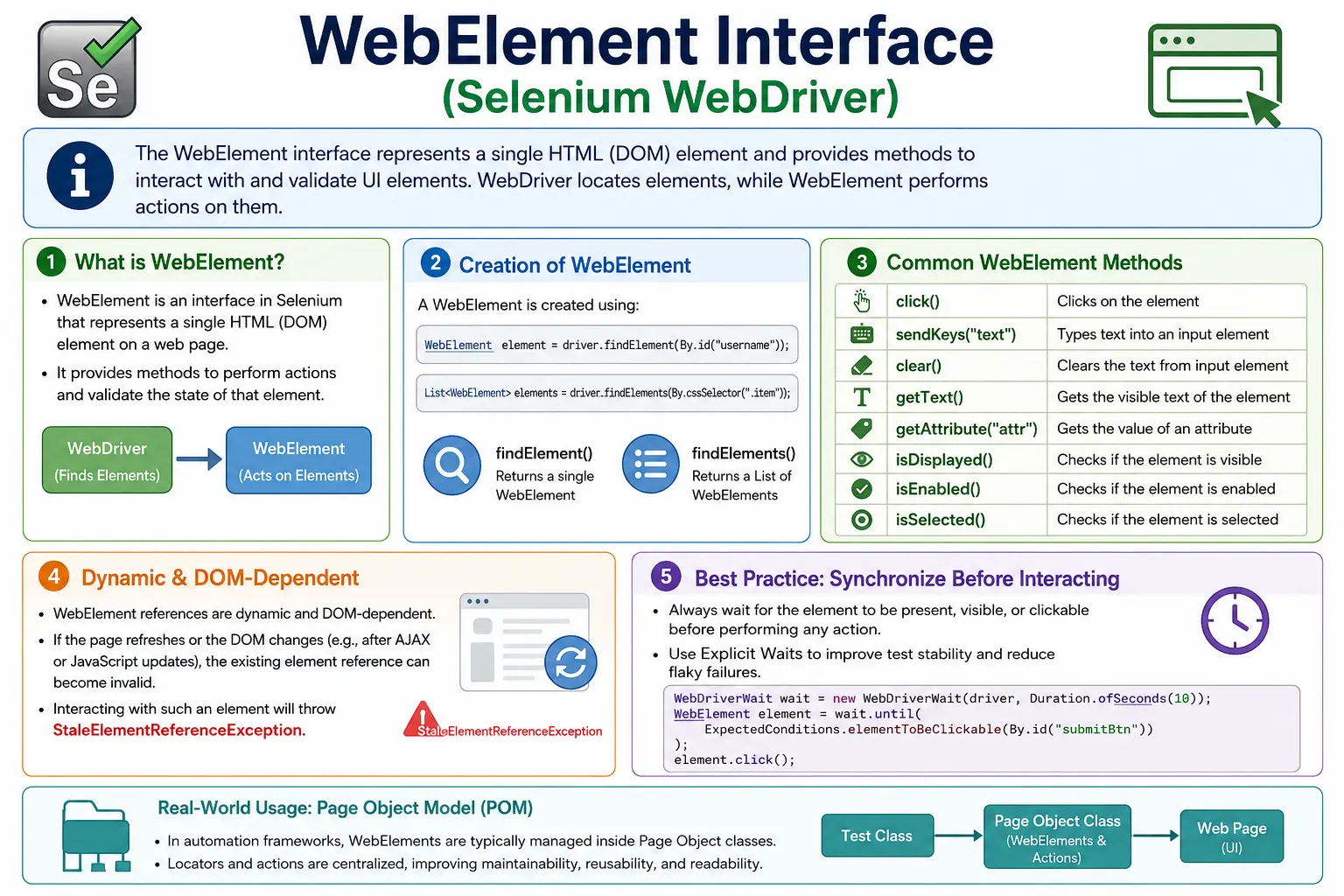
The WebElement interface represents a single HTML element on a web page and provides all operations needed to interact with and validate UI elements. While WebDriver controls the browser, WebElement controls the elements inside the page.
In Selenium automation, WebDriver and WebElement work together but solve different
problems. WebDriver represents the browser session. It opens URLs, navigates pages, switches
windows, manages timeouts, and locates elements. WebElement represents one element found inside
the current page context. Once Selenium finds an input box, button, link, checkbox, table row, heading, or
any other DOM node, Selenium exposes that node through a WebElement reference. Most real user
actions in Selenium happen through WebElement methods.
Understanding WebElement is essential because a large percentage of Selenium test failures happen at the element interaction layer. A test may find the wrong element, click too early, type into a disabled field, read text before it is rendered, reuse an element after the DOM changes, or interact while the browser is in the wrong frame or window. These problems are not solved by memorizing method names. They are solved by understanding what a WebElement reference means, when it is valid, and how it relates to the live DOM.
A practical tester treats WebElement as a short-lived handle to a specific element in a specific browser context. It is not permanent test data. It is not a locator. It is not the browser itself. It is a reference returned by Selenium after locating an element. That reference can be used for actions and validations only while the underlying DOM node remains attached and usable. This idea is the foundation for stable Selenium code, especially in modern dynamic web applications.
1. What Is the WebElement Interface
Definition:
A WebElement is an object that represents a DOM element (input, button, link, dropdown, etc.) located by Selenium using a locator strategy.
In Selenium:
- WebDriver finds elements
- WebElement interacts with elements
- WebDriver finds
- WebElement acts
A WebElement is Selenium's object representation of an HTML element. If the page contains
<input id="username">, Selenium can locate that input using a locator such as
By.id("username") and return a WebElement. The returned object then exposes methods such as
sendKeys(), clear(), getAttribute(), and isDisplayed().
The test does not directly manipulate raw HTML. It sends commands through WebElement, and Selenium converts
those commands into browser automation instructions.
This separation is important. Locators describe how to find an element. WebElement represents the element
after it has been found. A page object may store locators as By values and locate elements when
needed, or it may use PageFactory-style WebElement fields. In either case, the WebElement exists only in
relation to the current DOM. If the page reloads or a JavaScript framework replaces the element, the old
WebElement reference may become stale.
2. How WebElement Is Created
A WebElement is obtained using WebDriver’s locating methods:
findElement(By locator)returns one WebElementfindElements(By locator)returnsList<WebElement>
Until an element is found, no WebElement exists.
findElement() is used when the test expects exactly one target element or at least needs the
first matching element. If no matching element is found, Selenium throws NoSuchElementException.
findElements() is used when zero, one, or many elements may match. It returns a list, and if no
elements match, the list is empty. Both methods can create WebElement references, but they communicate
different expectations.
A WebElement can also be used as a search context. If a table is found as one WebElement, Selenium can search
for rows within that table using table.findElements(By.tagName("tr")). This is useful because
it narrows the search to a specific DOM region and avoids accidentally matching elements elsewhere on the
page. Page objects often use this pattern for tables, menus, cards, forms, and reusable components.
The moment of creation matters. If a test locates an element before a page update and then tries to use it after the update, the reference may no longer point to a valid attached node. In dynamic applications, it is often better to locate elements close to the moment they are used, or to use explicit waits that return a fresh WebElement once the desired condition is true.
3. Responsibilities of WebElement
The WebElement interface allows you to:
- Perform actions (click, type)
- Read values (text, attributes)
- Validate state (visible, enabled, selected)
- Submit forms
- Traverse the DOM context (relative searches)
It does not:
- Navigate pages
- Manage windows
- Handle alerts
- Control browser lifecycle
WebElement responsibilities align with user interaction at the element level. A user clicks buttons, types
into inputs, reads labels, checks checkboxes, selects radio buttons, and observes whether controls are
enabled or disabled. WebElement methods model these behaviors. When a test calls click(), it is
acting on the element. When it calls getText(), it is reading visible text from that element.
When it calls isEnabled(), it is checking whether the element can be interacted with.
Browser-level responsibilities remain with WebDriver. Opening a URL, refreshing a page, switching windows, switching frames, accepting alerts, or quitting the browser are not element operations. Mixing these responsibilities creates confusing code. A page object method that clicks a button may return a new page object, but it should not secretly quit the browser. A WebElement reference can submit a form, but it cannot decide the browser lifecycle.
4. Core WebElement Methods (Categorized)
4.1 Interaction Methods
click()clicks the elementsendKeys(String)types into input fieldsclear()clears text fieldssubmit()submits a form (rarely used now)
Used for: user actions.
Interaction methods are the most visible part of WebElement. click() is used for buttons,
links, checkboxes, radio buttons, icons, menu items, and other clickable controls. sendKeys()
simulates typing into text boxes, text areas, and compatible editable elements. clear() removes
text from inputs before typing a new value. submit() submits a form, though many modern
applications rely on explicit button clicks and JavaScript handlers rather than traditional form submission.
These methods require the element to be usable. An element that exists in the DOM is not always ready for interaction. It may be hidden, disabled, covered by a loader, outside the viewport, inside a closed menu, or replaced by JavaScript. Stable automation usually waits for the correct interaction condition. For clicks, that often means waiting for the element to be clickable. For typing, it may mean waiting for the input to be visible and enabled.
4.2 Text & Attribute Methods
getText()reads visible text of elementgetAttribute(String)reads value of an attributegetCssValue(String)reads CSS property value
Used for: validations and assertions.
Reading methods are central to validation. getText() returns visible text, which makes it useful
for headings, labels, messages, table cells, links, and buttons. It does not always return input values
because text typed into an input is usually stored in the value attribute or property. For input
fields, getAttribute("value") is often the correct choice.
getAttribute() helps validate HTML attributes such as href, src,
placeholder, value, type, class, and accessibility
attributes like aria-label. getCssValue() can help with limited style validation,
such as checking color, display, font size, or visibility-related CSS. Functional tests should not overuse
CSS checks, but they can be helpful when style is part of the requirement.
4.3 State Validation Methods
isDisplayed()checks visibilityisEnabled()checks enabled or disabled stateisSelected()checks checkbox or radio selection state
Used for: conditional logic and assertions.
State methods help tests make decisions and assertions. isDisplayed() verifies whether the
element is visible to the user according to Selenium's visibility rules. isEnabled() tells
whether the element is enabled for interaction. isSelected() is mainly used with checkboxes,
radio buttons, and option elements. These methods are simple, but they should still be used with awareness
of timing. Calling isDisplayed() on an element that has not been found still requires locating
that element first.
A common pattern is to wait for an element to be visible before reading text or wait for it to be clickable before clicking. Another pattern is to check whether a checkbox is already selected before clicking it. This avoids toggling a checkbox into the wrong state. State checks are most valuable when they are tied to clear business expectations.
4.4 Size & Location (Advanced)
getSize()reads element dimensionsgetLocation()reads element positiongetRect()reads size and location together
Used for: layout/debugging (not common in functional tests).
Size and location methods are less common in ordinary functional tests, but they are useful for debugging and layout-sensitive scenarios. If an element is not clickable because another element overlaps it, location and rectangle information can help reveal the problem. If a responsive layout must place an element in a specific region, these methods can support a focused assertion. They should be used carefully because pixel positions can vary across browsers, devices, zoom levels, and operating systems.
5. WebDriver vs WebElement (Clear Difference)
| Aspect | WebDriver | WebElement |
|---|---|---|
| Scope | Browser | Single element |
| Finds elements | Yes | No |
| Click/type | No | Yes |
| Navigation | Yes | No |
| Quantity | One per session | Many per page |
Rule: WebDriver locates; WebElement operates.
The difference between WebDriver and WebElement is one of the clearest ways to understand Selenium design. WebDriver is the browser controller. It knows the current URL, browser title, window handles, alerts, frames, cookies, timeouts, and navigation state. WebElement is a handle to one part of the page. It knows how to click, type, read text, read attributes, and report element state. Treating these roles separately keeps test code cleaner.
For example, if a test needs to open the login page, it should use WebDriver. If it needs to type a username into the username field, it should use WebElement. If it needs to switch to an iframe, it should use WebDriver. If it needs to click a checkbox inside that iframe, it should use WebElement after switching to the correct frame. Most Selenium confusion becomes easier to solve when you ask whether the operation belongs to the browser or to a specific element.
6. WebElement Is Dynamic (Very Important)
WebElement references are not permanent.
When the DOM changes (page reload, AJAX update):
- The old WebElement becomes invalid
- Using it throws
StaleElementReferenceException
Implication: Elements should be re-located after DOM changes.
A WebElement reference is dynamic because it points to a specific element instance in the browser's current
DOM. Modern applications frequently replace DOM nodes. A button may look the same to the user after an AJAX
update, but the old node may have been removed and a new node inserted. Selenium still holds the old
reference, and using that reference causes StaleElementReferenceException. The exception means
the reference is no longer attached to the current DOM.
Page refresh is the easiest stale element example. If a test finds a save button, refreshes the browser, and then clicks the old button reference, the click may fail because the old page document is gone. Single-page applications create the same problem without a full refresh. React, Angular, Vue, and other frameworks can re-render components after state changes. The visible button remains, but the DOM node behind it may be new.
The practical fix is to re-locate elements after DOM-changing actions. If clicking a filter reloads a table, re-locate the table rows after the reload. If submitting a form shows a new confirmation panel, locate the confirmation message after submission. If a stale element exception appears repeatedly, inspect whether the test stores WebElements too early. In many cases, storing locators and finding fresh elements at action time is more stable than storing WebElement references for a long time.
7. Synchronization with WebElement
WebElement methods:
- Do not wait automatically
- Assume the element is ready
Best practice:
- Ensure presence/visibility/clickability before interaction
- Use explicit waits around WebElement usage
Ignoring this causes flaky tests.
WebElement methods are not magic waits. If an element is found but not ready, Selenium may throw
ElementNotInteractableException, ElementClickInterceptedException, stale element
errors, or assertion failures. Presence means the element exists in the DOM. Visibility means the user can
see it. Clickability means Selenium believes it is visible and enabled for clicking. These are different
states, and tests should wait for the state that matches the next action.
For reading text, wait for visibility or wait until the text is present. For clicking, wait for clickability. For typing, wait for the input to be visible and enabled. For dynamic lists, wait until the list has the expected size or until at least one row appears. Explicit waits improve WebElement reliability because they align test execution with application behavior. Hard sleeps may appear to work, but they slow suites and still fail when the application is slower than expected.
A good wait returns the WebElement that is ready to use. For example,
ExpectedConditions.elementToBeClickable(By.id("login")) waits for the element and returns it.
This avoids locating an element early and then waiting separately on an old reference. The closer the
locating and interaction happen to the actual user action, the fewer stale and timing problems the test will
have.
8. WebElement in Page Object Model (POM)
In real frameworks:
- WebElements are defined in page classes
- Actions are wrapped in page methods
- Tests never call
findElement()directly
Why:
- Better readability
- Centralized locator management
- Lower maintenance
The Page Object Model gives WebElement usage a clean home. A login page class can know how to find the
username field, password field, and login button. The test should not care whether the username field uses
id, name, CSS selector, or XPath. The test should call a meaningful method such as
loginAs(user). Inside that method, the page object locates WebElements, waits for them, types
values, and clicks controls.
Mature page objects usually expose behavior, not raw elements. A method named getLoginButton()
that returns a WebElement pushes element handling back into the test. A method named clickLogin()
or submitLogin() keeps the interaction inside the page object. This improves readability and
reduces duplication. If the login button locator changes, only the page object changes.
There is a healthy debate about whether page objects should store WebElement fields or store By
locators. For dynamic applications, storing locators and locating elements when needed often avoids stale
references. PageFactory can be useful, but teams should understand how lazy lookup works and how it behaves
when the DOM changes. The best pattern is the one that makes waits, locators, and interactions clear and
maintainable.
9. Common Beginner Mistakes
- Storing WebElement as static
- Reusing WebElement after page refresh
- Using WebElement without waits
- Performing assertions inside page classes
- Mixing locators in test classes
Storing WebElements as static is a serious mistake because WebElement references belong to a
specific browser session and page state. A static field can outlive the session that created it, and in
parallel execution it can be shared across tests accidentally. This leads to stale references, wrong-session
interactions, and hard-to-debug failures. Locators may be constants, but WebElement instances should not be
global shared state.
Reusing a WebElement after refresh, navigation, or AJAX update is another common issue. If the page changed, assume the old reference may no longer be valid. Re-locate it or use an explicit wait that returns a fresh reference. This is especially important after clicking buttons that update sections of the page, after selecting dropdown filters, after pagination, and after submitting forms.
Mixing locators in test classes creates long-term maintenance problems. If every test has its own
driver.findElement() calls for the same page, a simple UI change can break many files. Page
objects centralize that knowledge. Tests should describe user behavior; page classes should know element
details. Assertions can live in tests or assertion helpers, while page objects provide the data and actions
needed for those assertions.
10. Interview Perspective
Short Answer:
The WebElement interface represents an HTML element and provides methods to interact with it, such as click, sendKeys, and getText.
Real-Time Answer:
In Selenium, WebElement represents a DOM element found by WebDriver. It provides APIs for interaction, state validation, and data retrieval. WebDriver controls the browser, while WebElement controls individual elements.
A stronger interview answer mentions lifecycle and synchronization. You can explain that a WebElement is a reference to a DOM element at a point in time. If the DOM changes, that reference can become stale, so stable automation uses explicit waits and re-locates elements after page updates. You can also mention that WebDriver finds elements while WebElement performs element-level actions such as click, type, read text, check state, and search within a parent element.
Interviewers may ask whether WebElement can navigate to a URL or switch windows. The answer is no. Those are
WebDriver responsibilities. They may ask whether getText() returns input field values. Usually
it does not; input values are commonly read with getAttribute("value"). They may ask why stale
element exceptions happen. The practical answer is that the element reference no longer matches a live DOM
node because the page changed.
11. Key Takeaway
- WebElement is the core UI interaction interface
- It represents one element at a time
- It is state-sensitive and DOM-dependent
- Proper waits and re-location are essential
Mastering WebElement usage is the key to writing stable and maintainable Selenium tests.
The key to using WebElement well is to respect its scope. It represents one current element, not a permanent locator and not a browser session. Locate elements when they are needed, wait for the correct state, avoid sharing element references across tests, and keep element interactions inside maintainable page or component classes. With those habits, WebElement becomes a reliable abstraction instead of a common source of flaky failures.
12. WebElement and Frames, Windows, and Shadow DOM
A WebElement is always tied to the current browser context. If the element is inside an iframe, WebDriver must switch to that frame before locating the element. If the element is inside another browser tab or window, WebDriver must switch to the correct window first. If the element is inside shadow DOM, normal locating rules may not be enough and the test may need shadow-root access. Many element-not-found problems are actually context problems.
This context rule is important in real applications. Payment forms, embedded widgets, captcha areas, document viewers, and third-party components often use iframes. Help links and reports may open in new tabs. Modern component libraries may use shadow DOM. In each case, WebElement interaction succeeds only after WebDriver is focused on the correct context. WebElement does not switch context by itself.
13. Practical WebElement Design Checklist
A reliable WebElement strategy starts with good locators. Prefer stable IDs, names, test IDs, accessible labels, and meaningful CSS selectors over brittle absolute XPath. Locate elements near the action that uses them. Wait for visibility, clickability, selection, or text depending on the operation. Re-locate after navigation, refresh, and DOM updates. Keep raw element logic inside page or component classes.
The checklist should also include failure diagnostics. When a WebElement action fails, capture the current URL, page title, screenshot, and useful page state. If the failure is stale, identify what changed the DOM. If the click is intercepted, inspect overlays, fixed headers, loaders, and viewport size. If text is empty, check whether the text is visible, loaded asynchronously, or stored in an attribute. Clear diagnostics turn WebElement failures into fixable problems.
14. WebElement State vs Application State
A WebElement state check tells you something about the element, but it does not always tell you the full
application state. For example, isDisplayed() may confirm that a submit button is visible, but
it does not prove that the form is ready to submit. isEnabled() may confirm that a button is
enabled, but it does not prove that the backend has accepted all required data. isSelected()
may confirm that a checkbox is checked, but it does not prove that the preference was saved. Element state is
useful, but it should be connected to business meaning.
This difference matters in real testing. A login button may be visible and enabled while an invisible captcha requirement blocks submission. A table row may be displayed while data is still loading in another column. A success message may be visible before the server has finished processing a request. The WebElement check is one layer of confidence, not the whole assertion. Strong tests combine element checks with page state, URL checks, API state, database state, or business assertions when the risk requires it.
The practical rule is to use WebElement state for UI readiness and UI validation, then add higher-level
checks for business outcomes. If the requirement says a disabled button should become enabled after all
mandatory fields are completed, isEnabled() is directly meaningful. If the requirement says the
user profile should be updated, reading a success message is helpful, but the test may also need to verify
that the updated value appears after reload.
15. Component-Scoped WebElement Searches
Searching within a WebElement is a useful pattern for complex pages. A page may contain many cards, rows, menus, or repeated components with similar markup. If the test searches globally, it may accidentally match the wrong element. By first locating the parent component and then searching inside it, the test becomes more precise. For example, locate the user table first, then find rows inside that table. Locate a product card, then find its price and add-to-cart button inside the card.
Component-scoped searches also make page objects easier to model. A page object can represent the full page, while a component object can represent one repeated card, row, dialog, or menu. The component object may hold a root WebElement and find child elements relative to that root. This keeps locators shorter and reduces the risk of interacting with matching elements elsewhere on the page.
There is one caution: a component root WebElement can also become stale if the component re-renders. If the application updates a table, all row component objects based on old row elements may become invalid. In highly dynamic sections, it may be better for component objects to store a locator or a stable identifier and re-find their root element when needed.
16. JavaScript Fallbacks and WebElement
Selenium allows WebElement references to be passed into JavaScript execution. This is commonly used for
debugging, highlighting elements, scrolling elements into view, or as a fallback click when a normal click is
blocked by unusual UI behavior. JavaScript fallback can be useful, but it should not be the default solution
for ordinary interaction problems. A JavaScript click may bypass the same user-level checks that Selenium's
normal click() performs.
Before using JavaScript click, investigate why normal click fails. Is the element covered by a loader? Is the page still animating? Is the browser at the wrong viewport size? Is another element intercepting the click? Is the element inside a frame? If the issue is synchronization, fix the wait. If the issue is viewport, fix window management or scrolling. Use JavaScript only when the product behavior and test goal justify it.
JavaScript is valuable for diagnostics. Highlighting an element with a red border before screenshot capture can make debugging easier. Reading complex DOM properties can help understand application behavior. Still, user-facing functional tests should prefer real WebElement interactions because they better represent how a user interacts with the browser.
17. Maintainability Rules for WebElement Code
Maintainable WebElement code is readable, localized, and purposeful. Locators should live close to the page
or component they describe. WebElement actions should be wrapped in meaningful page methods. Tests should
avoid long chains of raw findElement() calls because they make tests brittle and difficult to
read. A test that says loginPage.loginAs(user) communicates intent better than a test that
repeats username, password, and button locators every time.
Naming also matters. A WebElement variable named button is vague. A variable named
saveButton, emailInput, or errorMessage communicates the element's
role. Page methods should also name behavior, such as enterEmail(), clickSave(),
getErrorMessage(), or isRememberMeSelected(). Good names make WebElement usage
self-documenting.
Finally, avoid turning page objects into assertion-heavy test classes. Page objects should expose actions and readable state. Tests or assertion helpers should decide what is expected. This separation keeps WebElement code reusable across positive tests, negative tests, smoke tests, and data-driven tests. It also makes failures easier to interpret because page objects perform actions while tests express expectations.
18. WebElement Examples (Quick Reference)
1. Creating a WebElement Object
WebElement username =
    driver.findElement(By.id("username"));
Key Point: WebElement represents one UI element and is returned by findElement().
2. Typing Text - sendKeys()
WebElement input = driver.findElement(By.name("email"));
input.sendKeys("test@example.com");
3. Clicking an Element - click()
WebElement loginBtn = driver.findElement(By.id("login"));
loginBtn.click();
4. Clearing Text Field - clear()
WebElement search = driver.findElement(By.id("search"));
search.clear();
search.sendKeys("Selenium");
5. Getting Visible Text - getText()
WebElement heading = driver.findElement(By.tagName("h1"));
System.out.println(heading.getText());
Interview Favorite: Works only on visible text.
6. Getting Attribute Value - getAttribute()
WebElement input = driver.findElement(By.id("email"));
System.out.println(input.getAttribute("value"));
7. Getting CSS Property - getCssValue()
WebElement button = driver.findElement(By.id("submit"));
System.out.println(button.getCssValue("color"));
8. Check if Element Is Displayed - isDisplayed()
WebElement logo = driver.findElement(By.id("logo"));
System.out.println(logo.isDisplayed());
9. Check if Element Is Enabled - isEnabled()
WebElement submit = driver.findElement(By.id("submit"));
System.out.println(submit.isEnabled());
10. Check if Element Is Selected - isSelected()
WebElement checkbox = driver.findElement(By.id("agree"));
System.out.println(checkbox.isSelected());
11. Submitting a Form - submit()
WebElement form = driver.findElement(By.id("loginForm"));
form.submit();
Note: Works only for form elements.
12. Getting Tag Name - getTagName()
WebElement element = driver.findElement(By.id("submit"));
System.out.println(element.getTagName());
13. Getting Element Size - getSize()
Dimension size = element.getSize();
System.out.println(size.getHeight());
System.out.println(size.getWidth());
14. Getting Element Location - getLocation()
Point point = element.getLocation();
System.out.println(point.getX());
System.out.println(point.getY());
15. Finding Child Elements (Chaining)
WebElement table = driver.findElement(By.id("users"));
List<WebElement> rows =
    table.findElements(By.tagName("tr"));

System.out.println(rows.size());
16. findElements() on WebElement
WebElement menu = driver.findElement(By.id("menu"));
List<WebElement> items =
    menu.findElements(By.tagName("li"));
17. Clicking Using JavaScript (When click() Fails)
WebElement btn = driver.findElement(By.id("submit"));
JavascriptExecutor js = (JavascriptExecutor) driver;
js.executeScript("arguments[0].click();", btn);
18. Sending Keys Using JavaScript
js.executeScript(
    "arguments[0].value='admin';", input);
19. Highlighting Element (Debugging)
js.executeScript(
 "arguments[0].style.border='3px solid red'", element);
20. Handling Stale Element Reference
WebElement btn = driver.findElement(By.id("save"));
driver.navigate().refresh();
// btn.click(); // StaleElementReferenceException

btn = driver.findElement(By.id("save")); // re-locate
btn.click();
21. WebElement with Explicit Wait (Best Practice)
WebDriverWait wait =
    new WebDriverWait(driver, Duration.ofSeconds(10));

WebElement loginBtn =
    wait.until(ExpectedConditions.elementToBeClickable(By.id("login")));
loginBtn.click();
22. Loop Through Multiple WebElements
List<WebElement> links =
    driver.findElements(By.tagName("a"));

for (WebElement link : links) {
    System.out.println(link.getText());
}
23. WebElement in Page Object Model (POM)
@FindBy(id = "username")
WebElement username;

public void enterUsername(String name) {
    username.sendKeys(name);
}
24. Common Interview Mistake
WebElement el = driver.findElement(By.id("x"));
el.getText("abc"); // invalid
Correct:
el.getText(); // correct
25. WebElement vs WebDriver (Interview)
driver.findElement(); // finds elements
element.click();      // performs action
Difference:
- WebDriver means browser-level control
- WebElement means element-level control
26. WebElement Interface Hierarchy (Interview)
SearchContext
   ↑
WebElement
27. WebElement State Validation Example
Assert.assertTrue(loginBtn.isDisplayed());
Assert.assertTrue(loginBtn.isEnabled());
28. Real-World Login Example
driver.findElement(By.id("username")).sendKeys("admin");
driver.findElement(By.id("password")).sendKeys("secret");
driver.findElement(By.id("login")).click();
29. Avoid Hard Sleeps (WebElement Stability)
// Avoid Thread.sleep(5000);

// Use wait
wait.until(ExpectedConditions.visibilityOf(element));
30. Interview Summary - WebElement Interface
WebElement element = driver.findElement(By.locator);
Key Methods:
- click(), sendKeys(), clear()
- getText(), getAttribute()
- isDisplayed(), isEnabled(), isSelected()
- findElement() / findElements()