WebDriver Interface in Selenium
The WebDriver interface is the foundational abstraction that powers Selenium automation. It is not merely a set of methods; it is the contract that defines how test code communicates with real browsers in a consistent, standardized, and browser-independent manner. Any serious Selenium practitioner—whether building small scripts or enterprise-grade automation frameworks—must understand WebDriver deeply, not just at the API level but also in terms of architecture, design philosophy, and runtime behavior.
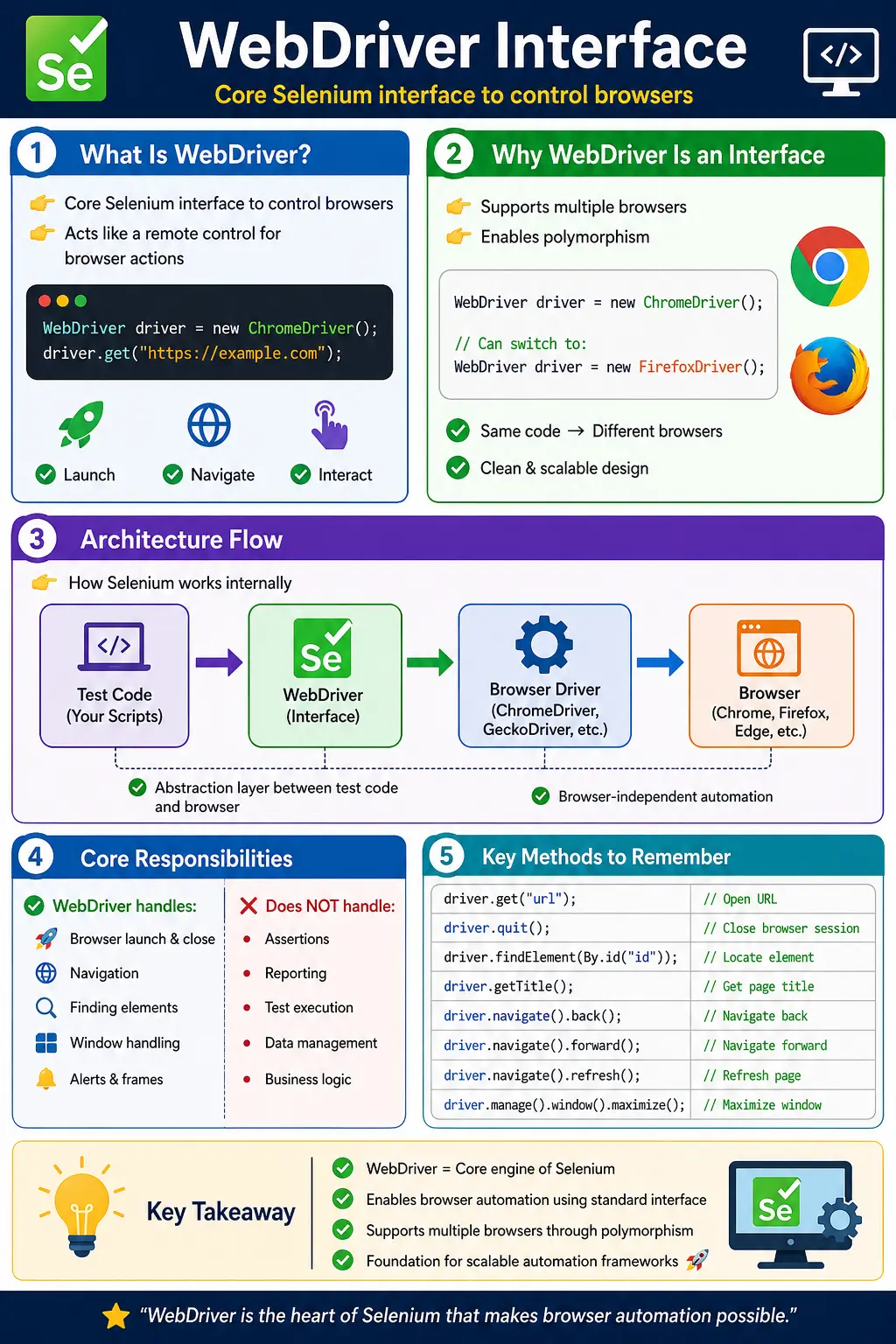
At its core, WebDriver acts as a remote control for the browser, translating high-level automation commands into low-level browser actions. This abstraction is what enables Selenium to support multiple browsers while allowing test code to remain unchanged.
Understanding WebDriver properly changes how you write Selenium code. Beginners often see WebDriver only as a variable type used before driver.get() or driver.findElement(). In real frameworks, WebDriver is much more important than that. It defines the boundary between test code and browser automation. It helps test classes remain browser-independent, makes driver factories possible, supports local and remote execution, and allows one framework to switch between Chrome, Firefox, Edge, Safari, Selenium Grid, or cloud browsers with minimal changes.
The interface also teaches an important engineering habit: depend on behavior, not on one concrete implementation. If the test code is written against ChromeDriver everywhere, the framework becomes tightly coupled to Chrome. If the test code is written against WebDriver, the browser choice can be moved into configuration. That design difference is small in syntax but large in maintainability.
What Is the WebDriver Interface?
The WebDriver interface is a top-level interface in Selenium that represents a browser session. It provides a comprehensive set of methods to control browser behavior, including navigation, element discovery, window management, and session handling.
Conceptually, when you write:
WebDriver driver = new ChromeDriver();
you are not working directly with Chrome. Instead, you are interacting with the WebDriver interface, which delegates commands to a browser-specific implementation. This indirection is what makes Selenium flexible and extensible.
From a design standpoint, WebDriver encapsulates:
- Browser lifecycle control (open, close, quit)
- Navigation (URLs, history)
- Element discovery
- Context switching (frames, alerts)
- Session-level operations
It deliberately avoids responsibilities like assertions, reporting, or test orchestration—those belong to frameworks like TestNG or JUnit.
This separation of responsibilities is a key part of Selenium design. WebDriver knows how to control a browser session. It does not know whether a business rule passed or failed. It does not decide which test should run first. It does not create an HTML report. It does not retry a failed test. Those responsibilities belong to the automation framework around Selenium. When this boundary is respected, the framework remains clean. When it is ignored, test classes become messy and difficult to maintain.
A browser session represented by WebDriver is also temporary. It begins when a concrete driver creates a session and ends when quit() is called or the session is otherwise terminated. During that session, every command is sent to the browser through the driver. This session-based model explains why proper setup and teardown are so important. If sessions are not closed, browsers remain open in the background. If sessions are shared incorrectly, tests interfere with each other.
Why WebDriver Is an Interface (Not a Class)
One of the most important design decisions in Selenium is that WebDriver is an interface rather than a concrete class. This decision enables polymorphism, loose coupling, and extensibility.
Different browsers have different internal implementations. Chrome, Firefox, Edge, and Safari all behave differently at the protocol and engine level. Instead of forcing a single implementation, Selenium defines a contract (the interface) and allows each browser driver to implement it.
Concrete implementations include:
- ChromeDriver
- FirefoxDriver
- EdgeDriver
- SafariDriver
Because all these classes implement WebDriver, you can write:
WebDriver driver = new ChromeDriver();
and later switch to:
WebDriver driver = new FirefoxDriver();
without changing the rest of your test code. This is classic polymorphism—coding to an interface rather than an implementation.
This is not only an object-oriented programming concept for interviews. It is a practical framework design decision. A test method that accepts WebDriver can work with ChromeDriver locally, FirefoxDriver for cross-browser validation, EdgeDriver in an enterprise environment, or RemoteWebDriver on Selenium Grid. The test method does not need to know which implementation is active. That flexibility comes directly from using the interface type.
Loose coupling also helps with future changes. Suppose a team begins with local Chrome execution and later moves to Selenium Grid. If tests are written against WebDriver, the main change belongs in the driver factory. If tests are written directly against ChromeDriver-specific APIs, the migration becomes harder. Good Selenium frameworks avoid unnecessary concrete-driver usage unless a browser-specific capability is genuinely required.
Position of WebDriver in Selenium Architecture
To understand WebDriver fully, you must see where it sits in the Selenium ecosystem. It acts as a bridge between test code and the browser.
The flow looks like this:
Test Code - WebDriver Interface - Browser Driver - Browser
Here’s what happens step by step:
- Test code invokes a WebDriver method (e.g., get())
- WebDriver forwards the command to the browser driver
- The driver converts it into a W3C WebDriver protocol request
- The browser executes the command and returns a response
This layered architecture ensures:
- Browser independence
- Standardized communication
- Scalability across environments
The WebDriver interface is part of the Selenium client library used by your Java code. The browser driver, such as ChromeDriver or GeckoDriver, is the component that communicates with the actual browser. Communication follows the W3C WebDriver protocol, which standardizes how automation commands are represented. This standardization is why Selenium can use a similar API for different browsers even though their internal engines are different.
When a command fails, the failure can come from different layers. If Java cannot compile, the issue is dependency or code related. If the driver cannot create a session, the issue may be browser-driver compatibility. If a command reaches the browser but the element is missing, the issue may be locator, timing, or application state. Understanding where WebDriver sits in the architecture helps diagnose failures logically instead of guessing.
This architecture also enables remote execution. With RemoteWebDriver, the WebDriver reference can represent a browser session running on another machine. The test code still calls driver.get(), driver.findElement(), and driver.quit(), but the browser may be running on Selenium Grid or a cloud platform. This is one of the strongest reasons to code to the WebDriver interface.
WebDriver and RemoteWebDriver
RemoteWebDriver is an important implementation to understand because it shows why WebDriver is more than a local browser object. ChromeDriver, FirefoxDriver, EdgeDriver, and SafariDriver are common local implementations, but RemoteWebDriver represents a browser session created somewhere else. That "somewhere else" may be a Selenium Grid node, a Docker container, a virtual machine, or a cloud browser provider.
The test code does not need to change dramatically when execution moves from local to remote. The reference can still be WebDriver. The driver factory decides whether to return new ChromeDriver() for local execution or new RemoteWebDriver(...) for remote execution. This design keeps test classes stable while the execution environment changes. In enterprise automation, that separation is essential because frameworks often begin locally and later move into CI, Grid, or cloud execution.
RemoteWebDriver also introduces the idea of capabilities and options. When a remote session is requested, the framework must describe the desired browser, version, platform, and browser-specific settings. The remote server then creates a matching session if one is available. WebDriver remains the common contract after the session is created, but the setup layer must know how to request the right environment.
This is why WebDriver belongs in a driver factory rather than directly inside every test. If the framework is designed well, switching from local execution to remote execution is mostly a configuration change and a factory change. If tests create ChromeDriver directly everywhere, remote execution becomes a painful refactor.
Core Responsibilities of WebDriver
WebDriver is responsible for controlling the browser session and enabling interaction with web applications. Its responsibilities include:
- Launching and closing browsers
- Navigating to URLs
- Locating elements
- Managing windows and tabs
- Handling frames and alerts
- Managing cookies and timeouts
It is important to understand what WebDriver does not do:
- It does not perform assertions
- It does not manage test execution
- It does not generate reports
These responsibilities are handled by testing frameworks and supporting libraries.
In daily automation work, this distinction prevents confusion. If you write Assert.assertTrue(driver.getTitle().contains("Home")), the assertion comes from TestNG or JUnit, not from WebDriver. WebDriver retrieves the title. The test framework decides whether the title is acceptable. Similarly, WebDriver may take a screenshot through an additional interface such as TakesScreenshot, but reporting tools decide how that screenshot is attached to a report.
WebDriver also does not understand application business intent. It can click a login button, but it does not know whether login should succeed. It can read an error message, but it does not know whether that error message is correct. The framework and test logic provide that meaning. WebDriver supplies the browser-control capability.
WebDriver Session Lifecycle
A WebDriver session has a lifecycle, and understanding that lifecycle helps prevent many framework problems. The lifecycle begins when a concrete driver creates a browser session. At that moment, the browser opens, a session ID is created, and Selenium can start sending commands. During the test, WebDriver sends navigation, element lookup, window, cookie, alert, and frame commands to that session. The lifecycle ends when quit() is called or when the session is otherwise terminated.
Lifecycle management should be predictable. In TestNG, browser creation may happen in @BeforeMethod, @BeforeClass, or @BeforeTest depending on the desired isolation. For most UI tests, creating a fresh browser per test method gives better reliability because each test starts from a clean state. Reusing one browser for many tests can be faster, but it increases the risk of state leakage through cookies, local storage, windows, and application data.
Teardown is just as important as setup. Calling quit() releases the browser session and closes associated windows. If teardown is skipped when a test fails, the machine may accumulate orphan browser processes. Over time, that causes memory pressure, port conflicts, and unstable future runs. A strong framework always places quit() in a reliable teardown path and checks that the driver exists before trying to close it.
Session lifecycle also matters for screenshots and logs. If the framework quits the driver before capturing failure evidence, the screenshot is lost. If it captures evidence before the failure state is visible, the report may be unhelpful. Good frameworks handle failure listeners carefully so WebDriver is still alive when screenshots, current URL, browser logs, and page source are collected.
Key WebDriver Methods
WebDriver exposes a rich API that can be grouped into functional categories.
Browser Control
Methods like get(), close(), and quit() control the browser lifecycle.
- get(String url) loads a web page
- close() closes the current window
- quit() terminates the entire session
The distinction between close() and quit() is critical. Failing to call quit() can leave orphan browser processes.
Navigation
Navigation methods simulate browser history operations.
driver.navigate().to("https://example.com");
driver.navigate().back();
driver.navigate().forward();
driver.navigate().refresh();
These are essential for workflows involving multi-step navigation.
Information Retrieval
WebDriver provides methods to retrieve browser state:
- getTitle()
- getCurrentUrl()
- getPageSource()
These are commonly used for validation and debugging.
Element Location
Element discovery is performed using:
driver.findElement(By.id("username"));
driver.findElements(By.className("item"));
These methods return WebElement objects, which are then used for interaction. WebDriver itself does not interact with elements directly.
Window and Context Management
WebDriver supports advanced interactions such as:
- Switching between windows/tabs
- Handling alerts
- Managing frames
- Working with cookies
Methods like switchTo() and manage() enable these operations.
These method groups reveal a useful pattern. WebDriver controls browser-level behavior, while related objects handle specialized behavior. The navigate() method returns a navigation object. The manage() method exposes options for cookies, timeouts, and window management. The switchTo() method gives access to frames, windows, alerts, and active elements. This design keeps the WebDriver interface broad enough to control a browser but organized enough that related actions are grouped together.
The getPageSource() method is sometimes misunderstood. It returns the current page source known to the browser, but it should not be overused for validation when a normal element check is more direct. Similarly, getTitle() and getCurrentUrl() are useful for quick checks and debugging, but serious validation usually combines them with visible element assertions and application-specific outcomes.
The difference between findElement and findElements is another important practical detail. findElement returns one WebElement and throws NoSuchElementException if nothing matches. findElements returns a list and returns an empty list if nothing matches. This difference affects how you write checks for optional elements, dynamic lists, and negative validations.
SearchContext and Interface Hierarchy
WebDriver is part of a larger Selenium interface hierarchy. SearchContext is the parent interface that defines element-search behavior. WebDriver extends SearchContext, which is why driver.findElement and driver.findElements are available at the browser level. WebElement also extends SearchContext, which is why you can search for child elements inside a specific element. This hierarchy is frequently discussed in interviews because it explains why both browser sessions and elements can locate elements.
Understanding this hierarchy helps when writing cleaner locators. Instead of always searching the entire page with driver.findElement, a page object can first locate a container element and then search inside that container. This can make locators more specific and reduce accidental matches. For example, a table component can search for rows inside the table element instead of searching the entire DOM for every row.
The hierarchy also explains why Selenium code should use the most appropriate level of search. WebDriver-level search is useful for page-wide elements. WebElement-level search is useful for scoped elements inside cards, menus, rows, sections, or components. Good page objects use both patterns where appropriate.
WebDriver vs WebElement
A common confusion among beginners is the difference between WebDriver and WebElement.
WebDriver controls the browser, while WebElement controls individual elements.
- WebDriver launches pages and manages sessions
- WebElement performs actions like click, sendKeys, and getText
The rule is simple:
WebDriver finds elements; WebElement interacts with them.
For example, driver.findElement(By.id("username")) asks the browser session to locate an element. The returned WebElement then performs sendKeys, click, getText, isDisplayed, or other element-level operations. This split keeps browser-level and element-level responsibilities separate. WebDriver is like the controller of the entire browser session. WebElement is a handle to a specific DOM element inside that session.
This distinction also matters for stale element errors. A WebElement reference points to an element found at a specific moment. If the page refreshes, the DOM changes, or the element is re-rendered, that reference can become stale. WebDriver is still valid, but the WebElement is no longer connected to the current DOM. The fix is usually to locate the element again after the page changes, not to recreate the whole browser session.
Stateless Nature of WebDriver
WebDriver operates in a stateless manner. Each command is independent and sent separately to the browser.
This has important implications:
- WebDriver does not maintain synchronization
- It does not wait for elements automatically
- Timing issues must be handled explicitly
This is why synchronization strategies like explicit waits are critical in Selenium automation.
Many beginners expect WebDriver to wait automatically until the page is ready for every action. That is not how Selenium works. A command is sent, the browser responds, and the next command is sent. If the application uses JavaScript, Ajax calls, animations, or delayed rendering, the element may not be ready when the next command runs. Explicit waits tell the framework which condition must become true before continuing.
This stateless command model is also why Thread.sleep is a weak synchronization strategy. Sleeping pauses for a fixed time whether the application is ready or not. If the application is faster, time is wasted. If the application is slower, the test still fails. Explicit waits are tied to browser state and therefore fit WebDriver's command model better.
WebDriver and Synchronization Strategy
Synchronization is one of the biggest differences between a simple Selenium script and a reliable Selenium framework. WebDriver sends commands to the browser, but it does not understand the business readiness of a page. A page may be loaded from the browser's perspective while an application panel is still waiting for API data. A button may exist in the DOM but still be disabled. A modal may be visible but not yet ready for interaction. WebDriver needs help from waits to handle these conditions correctly.
Explicit waits are the preferred strategy for most dynamic UI behavior. A WebDriverWait waits for a specific condition, such as visibility of an element, clickability of a button, presence of text, URL change, or disappearance of a loading indicator. This is more precise than sleeping because the test moves forward as soon as the condition is true and fails with a clear timeout if the condition never occurs.
Implicit waits are configured through WebDriver.manage().timeouts(), but they should be used carefully. A large implicit wait can hide locator problems and interact poorly with explicit waits. Many mature frameworks use explicit waits as the main synchronization mechanism and keep timeout values centralized. The important idea is that WebDriver gives access to timing controls, but the framework must define a consistent waiting policy.
Good synchronization improves both reliability and speed. It reduces flaky failures caused by timing while avoiding unnecessary fixed delays. In practical Selenium work, mastering waits is as important as mastering locators because modern web applications are highly asynchronous.
Exception Handling in WebDriver
WebDriver methods throw runtime exceptions when operations fail. Common exceptions include:
- NoSuchElementException
- TimeoutException
- StaleElementReferenceException
WebDriver does not retry failed actions automatically. It is the responsibility of the framework to implement:
- Retry logic
- Wait strategies
- Error handling
This separation keeps WebDriver lightweight but requires robust framework design.
Exception handling should be designed around likely causes. NoSuchElementException usually means the locator did not match any element at that moment. TimeoutException usually means a wait condition did not become true within the configured time. StaleElementReferenceException usually means the DOM changed after an element was located. ElementClickInterceptedException often means another element is covering the target. These exceptions should not be hidden behind vague catch blocks because their messages are useful for diagnosis.
A framework can add better failure handling around WebDriver by capturing screenshots, logging the current URL, recording browser capabilities, and attaching page source when appropriate. WebDriver provides the raw browser access. The framework turns failures into useful evidence.
WebDriver in Framework Design
In real-world automation frameworks, WebDriver is not instantiated inside test methods. Instead, it is managed centrally.
Typical patterns include:
- Base test classes
- Driver factory classes
- ThreadLocal for parallel execution
This ensures:
- Reusability
- Maintainability
- Thread safety
Tests should focus on business logic, not driver management.
A driver factory is the usual place where concrete browser decisions are made. It can read configuration, decide whether to create ChromeDriver, FirefoxDriver, EdgeDriver, SafariDriver, or RemoteWebDriver, apply browser options, and return the result as WebDriver. Test classes do not need to know the implementation details. This design keeps browser setup flexible and test logic readable.
For parallel execution, WebDriver must be handled carefully. Sharing one WebDriver instance across threads is unsafe because commands from different tests can collide. Each test thread should have its own browser session. Many frameworks use ThreadLocal WebDriver to associate one driver with one test thread. This is a framework-level concern, but it depends on understanding the WebDriver session lifecycle.
Page objects should usually receive WebDriver through a constructor. This makes them operate on the same browser session as the test and avoids hidden driver creation inside page classes. A page object that creates its own driver is a design smell because it breaks session flow and makes tests harder to control.
WebDriver in Page Object Model
The Page Object Model depends heavily on proper WebDriver usage. A page object represents a page or component in the application. It uses WebDriver to locate elements and uses WebElement methods to interact with them. The page object should not create a new WebDriver instance because it must operate inside the browser session already created for the test.
A clean page object receives WebDriver through its constructor and stores it as a private field. Its methods then perform user-level actions such as login, search, addToCart, submitForm, or openMenu. The test calls those methods and asserts outcomes. This creates a readable separation: WebDriver setup stays in the framework layer, UI interaction stays in page objects, and validation stays in tests.
Passing WebDriver into page objects also supports remote and cross-browser execution. The page object does not care whether the driver is ChromeDriver, FirefoxDriver, EdgeDriver, or RemoteWebDriver. It only cares that the object follows the WebDriver contract. This is another practical benefit of coding to the interface.
Common Beginner Mistakes
Many beginners misuse WebDriver due to lack of architectural understanding.
Frequent mistakes include:
- Using concrete drivers everywhere instead of the interface
- Not calling quit()
- Writing driver setup inside test methods
- Using WebDriver for assertions
- Ignoring synchronization
Correct usage of WebDriver is a design discipline, not just syntax knowledge.
Another frequent mistake is confusing close() and quit(). close() closes only the current browser window. If multiple windows are open or if the browser process remains active, the session may still exist. quit() ends the whole WebDriver session and closes all associated windows. In test teardown, quit() is usually the correct method because it releases resources fully.
Beginners also sometimes use implicit waits everywhere and then combine them with explicit waits without understanding the interaction. This can make timing behavior harder to predict. A mature framework usually standardizes on explicit waits for most dynamic interactions and keeps timeout values centralized. WebDriver gives access to timeout settings, but the framework decides the synchronization policy.
A third mistake is using WebDriver directly in every test step when a page object would make the test clearer. Raw WebDriver code belongs in the framework or page layer. Tests should describe behavior. This keeps the suite readable as it grows.
WebDriver Best Practices
The first best practice is to use WebDriver as the reference type unless there is a clear browser-specific reason not to. This keeps test code flexible. The second best practice is to centralize driver creation in a factory or base setup layer. This prevents duplicated setup logic and makes browser configuration easier to change. The third best practice is to call quit() reliably during teardown so browser sessions do not remain open.
The fourth best practice is to pass WebDriver into page objects instead of creating drivers inside them. The fifth is to avoid using WebDriver for responsibilities that belong elsewhere, such as assertions, reporting, retry control, and data setup. The sixth is to standardize waits so every page object handles dynamic UI behavior consistently.
Another practical best practice is to log session details during setup. Browser name, browser version, platform, execution mode, and remote endpoint are useful when failures occur in CI. WebDriver can expose capabilities through implementations that support them, and frameworks can record that information in logs or reports. This turns WebDriver from a hidden object into a visible part of execution diagnostics.
Real-World Importance
In modern test automation, WebDriver is the entry point for all browser interactions. Whether you are testing a simple login page or a complex microservices UI, every action ultimately flows through this interface.
Its design enables:
- Cross-browser testing
- Scalable frameworks
- Integration with CI/CD pipelines
Without WebDriver, Selenium would not achieve its primary goal of browser-independent automation.
In CI/CD pipelines, WebDriver is the object through which every browser command is executed, whether the browser is local, headless, grid-based, or cloud-hosted. The same test code can run in different execution environments because WebDriver abstracts the browser session. This is why framework design should avoid unnecessary assumptions about local browsers, screen size, file paths, or one specific driver implementation.
In cross-browser testing, WebDriver's value becomes even clearer. The test can express a business workflow once, while the driver factory supplies Chrome, Firefox, Edge, or Safari based on configuration. If the application behaves differently across browsers, the framework can reveal that difference without duplicating the entire test suite for each browser.
Interview Perspective
A concise answer would be:
The WebDriver interface represents a browser instance and provides methods to automate browser actions such as navigation, element interaction, and window management.
A more detailed answer:
WebDriver is a top-level Selenium interface implemented by browser-specific drivers like ChromeDriver and FirefoxDriver. It enables browser-independent automation by defining a standard set of methods to control real browsers using the W3C WebDriver protocol.
Interviewers often expect you to explain:
- Why it is an interface
- How polymorphism is used
- Its role in architecture
- Difference between WebDriver and WebElement
A strong interview answer should also mention RemoteWebDriver and framework design. WebDriver is the reference type that allows the same code to point to a local browser driver or a remote browser session. It supports browser-independent design because tests depend on the WebDriver contract rather than a concrete class. In real projects, WebDriver is usually created by a driver factory, passed to page objects, and cleaned up in test teardown.
If asked about common methods, mention get, navigate, findElement, findElements, manage, switchTo, close, and quit. If asked about limitations, explain that WebDriver does not perform assertions, does not automatically synchronize with dynamic pages, and does not generate reports. These responsibilities belong to the surrounding framework.
Key Takeaway
The WebDriver interface is the heart of Selenium automation. It defines how test code interacts with browsers, enables cross-browser compatibility, and forms the foundation of scalable automation frameworks.
One-Line Insight
WebDriver is the contract that turns automation code into real browser actions.
1. WebDriver Interface vs Implementation
WebDriver driver = new ChromeDriver();
Key Point
- WebDriver - interface
- ChromeDriver - implementation
- Enables polymorphism & browser switching
2. Basic Browser Control Methods
driver.get("https://example.com");
driver.getTitle();
driver.getCurrentUrl();
driver.getPageSource();
3. get() vs navigate().to()
driver.get("https://google.com");
driver.navigate().to("https://example.com");
Interview Note
- Both load URL
- navigate() supports back / forward / refresh
4. Navigation Methods
driver.navigate().back();
driver.navigate().forward();
driver.navigate().refresh();
5. Browser Window Control
driver.manage().window().maximize();
driver.manage().window().minimize();
driver.manage().window().fullscreen();
6. Getting Window Size & Position
Dimension size = driver.manage().window().getSize();
Point position = driver.manage().window().getPosition();
System.out.println(size);
System.out.println(position);
7. Setting Custom Window Size
driver.manage().window().setSize(new Dimension(1200, 800));
8. Closing Browser – close() vs quit()
driver.close(); // closes current window
driver.quit();  // closes all windows + ends session
Very Common Interview Question
9. Finding a Single Element
WebElement search =
    driver.findElement(By.name("q"));
search.sendKeys("Selenium");
10. Finding Multiple Elements
Listlinks = driver.findElements(By.tagName("a")); System.out.println(links.size());
11. Handling Multiple Windows
String parent = driver.getWindowHandle(); Setwindows = driver.getWindowHandles(); for (String win : windows) { driver.switchTo().window(win); }
12. Switching Back to Parent Window
driver.switchTo().window(parent);
13. Handling Frames Using WebDriver
driver.switchTo().frame("frameName");
// or
driver.switchTo().frame(0);
// or
driver.switchTo().frame(WebElement);

driver.switchTo().defaultContent();
14. Alert Handling via WebDriver
Alert alert = driver.switchTo().alert();
alert.accept();     // OK
alert.dismiss();    // Cancel
alert.getText();
15. Cookies Management
driver.manage().addCookie(
    new Cookie("test", "123")
);
driver.manage().getCookies();
driver.manage().deleteAllCookies();
16. Timeouts Using WebDriver
driver.manage().timeouts()
      .implicitlyWait(Duration.ofSeconds(10));
driver.manage().timeouts()
      .pageLoadTimeout(Duration.ofSeconds(30));
17. Explicit Wait (via WebDriver)
WebDriverWait wait =
    new WebDriverWait(driver, Duration.ofSeconds(10));
WebElement btn =
    wait.until(ExpectedConditions.elementToBeClickable(By.id("login")));
18. Executing JavaScript via WebDriver
JavascriptExecutor js =
    (JavascriptExecutor) driver;
js.executeScript("window.scrollBy(0,500)");
19. Taking Screenshot Using WebDriver
TakesScreenshot ts = (TakesScreenshot) driver;
File src = ts.getScreenshotAs(OutputType.FILE);
20. Switching to Active Element
driver.switchTo().activeElement().sendKeys("Text");
21. Handling Authentication Popup (Basic Auth)
driver.get("https://user:pass@example.com");
22. Getting Page Title for Assertion
String title = driver.getTitle();
Assert.assertTrue(title.contains("Example"));
23. WebDriver as Method Parameter (Framework Style)
void openHomePage(WebDriver driver) {
    driver.get("https://example.com");
}
24. WebDriver with Browser Factory
WebDriver driver = DriverFactory.getDriver("chrome");
driver.get("https://example.com");
25. WebDriver Interface Hierarchy (Interview)
SearchContext
   |
WebDriver
   |
RemoteWebDriver
   |
ChromeDriver / FirefoxDriver
26. RemoteWebDriver with WebDriver Interface
WebDriver driver =
    new RemoteWebDriver(new URL("http://localhost:4444"),
                        new ChromeOptions());
27. Common Interview Trap
ChromeDriver driver = new ChromeDriver(); // avoid tight coupling
WebDriver driver = new ChromeDriver();    // preferred
28. Thread Safety Tip
// Never share WebDriver across threads
// Use one WebDriver per test
29. WebDriver Lifecycle (Real Projects)
@BeforeMethod  - driver initialization
@Test          - test steps
@AfterMethod   - driver.quit()
30. Interview Summary – WebDriver Interface
WebDriver = core Selenium interface
Key Points
- Browser-independent
- Supports polymorphism
- Controls browser lifecycle
- Parent of all driver implementations
- Central to Selenium framework design