Verifying Downloaded Files in Selenium Java
Verifying downloaded files is one of the practical areas where Selenium and Java must work together. Selenium can click the download button, open the export menu, select the report type, or trigger the browser action that starts a download. After that point, the actual download is handled by the browser and the operating system. Selenium does not expose a direct method such as driver.verifyDownloadedFile(), because WebDriver is designed to automate browser interactions, not inspect the local file system.
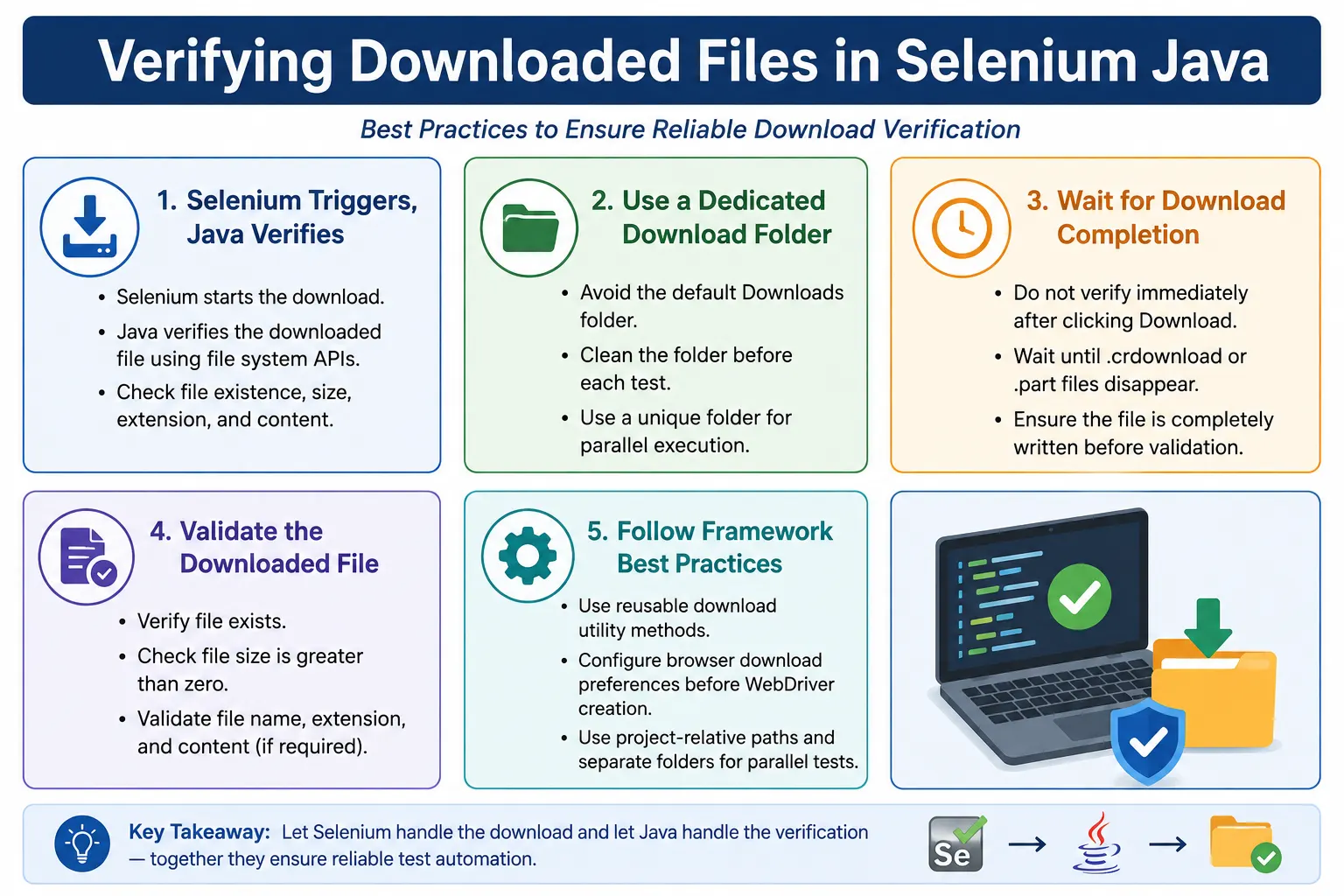
For that reason, download verification is usually done with Java file handling. The test clicks the download button with Selenium, waits for the browser to finish writing the file, and then uses Java APIs such as File, Path, Files, and directory scanning logic to verify the downloaded file. A reliable test does not stop at checking that a file name appears. It usually verifies that the file exists, the size is greater than zero, the file extension is correct, the expected file name or partial name is present, temporary download files are gone, and sometimes the file content itself is valid.
This topic is important in real projects because downloads are common in enterprise applications. Banking applications download statements and invoices. HR applications export employee reports. E-commerce admin portals export orders, refunds, and inventory files. Healthcare systems export patient reports. Analytics dashboards export CSV, Excel, and PDF files. If automation only clicks the download button and does not verify the final file, the test is incomplete. The user expects a usable file, so the automation should prove that the file was actually created and is not empty or corrupted.
1. What Should Be Verified?
A downloaded file can be verified at different levels. The minimum level is file existence. This confirms that a file with the expected name is present in the download directory. The next level is size verification, which confirms that the file is not empty. After that, extension verification checks whether the file type is what the user requested, such as .pdf, .csv, .xlsx, .txt, or .zip. If the business flow expects a specific report, the file name can be checked exactly or partially.
In stronger automation, the test also verifies that the download is fully completed. Browsers often create temporary files while a download is still in progress. Chrome commonly uses .crdownload, while Firefox can use .part. If a test checks the folder too early, it may find a temporary file or a file whose size is still changing. That creates false failures and flaky behavior. A robust download test waits until temporary files disappear and the final file is stable.
- Verify that the expected file exists.
- Verify that file size is greater than zero.
- Verify that the extension matches the expected format.
- Verify exact file name when the application uses predictable names.
- Verify partial file name when timestamps or IDs are appended.
- Verify that temporary browser download files are gone.
- Verify file content when the business value depends on the content.
2. Why Selenium Alone Is Not Enough
Selenium works through the WebDriver protocol. It knows how to locate elements, click buttons, type values, switch windows, handle alerts, and execute JavaScript in the browser context. A downloaded file, however, lives outside the page DOM. Once the browser starts downloading a file to disk, the file is no longer part of the HTML page. It is stored in a folder on the local machine or CI agent. Selenium cannot directly inspect that folder.
This separation is useful to understand because it prevents unrealistic expectations. Selenium triggers the download. The browser performs the download. Java verifies the downloaded file from the file system. These three responsibilities should be kept clear in the framework. When a test fails, this separation also helps debugging. If the button was not clicked, the issue is Selenium interaction. If the browser saved the file to the wrong folder, the issue is browser preference configuration. If the file was saved but empty, the issue may be application-side export logic or incomplete download handling.
3. Use a Dedicated Download Folder
The most important setup rule is to use a dedicated download folder for automation. Avoid relying on the default operating system Downloads folder. Default folders contain old files, user files, browser files, and unrelated downloads. If the test scans that folder, it may pick the wrong file and pass incorrectly. A dedicated folder makes verification predictable.
In a real framework, the download folder is often created inside the project workspace, build directory, or test output folder. For parallel execution, each test or thread should have its own folder. This avoids conflicts where one test finds a file downloaded by another test. The folder can be cleaned before the test starts and deleted or archived after the test finishes.
String downloadPath =
        System.getProperty("user.dir") + File.separator + "downloads";
After deciding the download path, configure browser download preferences before creating the WebDriver instance. That setup was covered in the previous topic. This page focuses on what to do after the file is downloaded.
4. Basic File Exists Verification
The simplest download verification is checking whether the file exists. This is useful when the expected file name is fixed and the application always downloads the same name. For example, a help guide may always download as guide.pdf, or a template may always download as employee-template.xlsx.
File file = new File("C:\\Downloads\\report.pdf");

Assert.assertTrue(file.exists());
This confirms that a file exists at the given path. However, existence alone is not enough for strong verification. A file may exist but still be empty. A partially downloaded file may also appear before the browser has completely finished writing. So file existence should usually be combined with file size and download completion checks.
5. Verify File Exists Using Java NIO
Modern Java code often uses Path and Files from the NIO API. This approach is cleaner for many file operations and works well when you need to read file content later.
Path path = Paths.get("C:\\Downloads\\report.pdf");

Assert.assertTrue(Files.exists(path));
Both File and Files are acceptable in Selenium frameworks. Many legacy frameworks use File, while newer utilities prefer Path. The key point is not the API choice, but the timing and completeness of the verification.
6. Verify File Size
File size verification confirms that the downloaded file is not empty. This catches cases where the application created a zero-byte file or where the download failed after the file name was created. A file with size greater than zero is not automatically correct, but it is a stronger check than existence alone.
File file = new File("C:\\Downloads\\report.pdf");

Assert.assertTrue(file.length() > 0);
In production frameworks, this is usually combined with existence verification.
File file = new File("C:\\Downloads\\report.pdf");

Assert.assertTrue(file.exists());
Assert.assertTrue(file.length() > 0);
If the file is expected to contain meaningful data, you can also assert a minimum size. For example, a PDF invoice may normally be several kilobytes. A report that is only ten bytes may technically be greater than zero but still invalid. Use minimum size checks only when the size expectation is stable enough to avoid unnecessary failures.
7. Verify File Extension
Extension verification confirms that the downloaded file type matches the expected format. If the user clicked an export PDF button, the test should not accept a CSV or HTML error file. If the application has a dropdown with CSV, Excel, and PDF options, extension checks are essential.
File file = new File("C:\\Downloads\\report.pdf");

Assert.assertTrue(file.getName().endsWith(".pdf"));
For Excel downloads, the expected extension may be .xlsx. For older Excel files, it may be .xls. For text exports, it may be .txt or .csv. Extension checks are simple, but they catch many practical mistakes in report generation and file export flows.
8. Verify Exact File Name
Exact file name verification is useful when the application always downloads a predictable file name. For example, a sample template may always be named Employee_Template.xlsx. In that case, the test can assert the complete file name.
File file = new File("C:\\Downloads\\Employee_Report.pdf");

Assert.assertEquals(file.getName(), "Employee_Report.pdf");
Exact name assertions are easy to read, but they should not be used blindly. Many modern applications append timestamps, report IDs, customer names, dates, or random tokens to downloaded files. If the file name is dynamic, exact matching will create brittle tests. In such cases, use partial name or pattern verification.
9. Verify Partial File Name
Partial file name verification is common in real projects. Suppose an employee report downloads as Employee_Report_2026_07_04_102030.pdf. The timestamp changes every run, but the core report name remains stable. The test can verify that the file name contains Employee_Report and ends with the expected extension.
File file = new File("C:\\Downloads\\Employee_Report_2026.pdf");

Assert.assertTrue(file.getName().contains("Employee_Report"));
Assert.assertTrue(file.getName().endsWith(".pdf"));
This approach is more flexible than exact matching while still proving that the downloaded file is likely the correct business file. For stronger validation, combine partial name, extension, size, and content checks.
10. Wait Until File Is Downloaded
One of the biggest beginner mistakes is verifying immediately after clicking the download button. Downloads are asynchronous. The click returns quickly, but the file may take seconds to appear. Network speed, server response time, browser behavior, antivirus scanning, and CI machine performance can all affect the timing. A fixed sleep may work on your laptop and fail in CI. A wait method is better.
public boolean waitForFile(String downloadDir, String fileName, int timeoutSeconds) {

    File file = new File(downloadDir, fileName);
    long endTime = System.currentTimeMillis() + timeoutSeconds * 1000L;

    while (System.currentTimeMillis() < endTime) {

        if (file.exists() && file.length() > 0) {
            return true;
        }

        try {
            Thread.sleep(500);
        } catch (InterruptedException e) {
            Thread.currentThread().interrupt();
            return false;
        }
    }

    return false;
}
The method repeatedly checks whether the file exists and has a size greater than zero. It returns true when the condition is satisfied and false when the timeout is reached. This is much more stable than checking once immediately after the click.
boolean downloaded =
        waitForFile(downloadPath, "report.pdf", 30);

Assert.assertTrue(downloaded);
11. Check Temporary Download Files
Browsers often create temporary files while downloading. Chrome may create a file ending with .crdownload. Firefox may create a file ending with .part. If these files are present, the download may still be in progress. A reliable verification should not inspect the final file too early.
public boolean isDownloadInProgress(String downloadDir) {

    File dir = new File(downloadDir);
    File[] files = dir.listFiles();

    if (files == null) {
        return false;
    }

    for (File file : files) {
        if (file.getName().endsWith(".crdownload") ||
            file.getName().endsWith(".part")) {
            return true;
        }
    }

    return false;
}
This method scans the download folder and returns true if a temporary download file is found. It is useful when file names are dynamic or when you only care that all downloads in the folder have completed.
12. Wait Until Download Completes
After detecting temporary files, you can create a wait method that waits until those files disappear. This is especially useful for Chrome and Firefox automation. The final file may exist before the temporary file disappears, so waiting for temporary files to clear gives better confidence that the browser has finished writing.
public boolean waitUntilDownloadComplete(String downloadDir, int timeoutSeconds) {

    long endTime = System.currentTimeMillis() + timeoutSeconds * 1000L;

    while (System.currentTimeMillis() < endTime) {

        if (!isDownloadInProgress(downloadDir)) {
            return true;
        }

        try {
            Thread.sleep(500);
        } catch (InterruptedException e) {
            Thread.currentThread().interrupt();
            return false;
        }
    }

    return false;
}
Assert.assertTrue(
waitUntilDownloadComplete(downloadPath, 30)
);This method should normally be used after the click that starts the download. After the wait completes, the test can find the expected file and validate name, extension, size, or content.
13. Wait Until File Size Is Stable
Another practical approach is to wait until the file size stops changing. During an active download, the file size may increase as bytes are written. If the size remains the same across two checks and is greater than zero, the download is likely complete. This is useful when the browser does not expose predictable temporary files or when file behavior differs across environments.
File file = new File("C:\\Downloads\\report.pdf");
long size1 = file.length();
Thread.sleep(1000);
long size2 = file.length();
if (size1 == size2 && size2 > 0) {
System.out.println("Download completed");
}In a framework, this should be wrapped inside a timeout loop rather than used as a one-time check. The idea is useful, but a single sleep is not enough for all environments. Use this as part of a reusable utility if your application downloads large files.
14. Get Latest Downloaded File
When file names are dynamic, it is often easier to get the latest file from the download directory. This works well if you clean the folder before the test starts. If the folder is clean, the latest file after the click is very likely the file created by the test.
public File getLatestFile(String downloadDir) {
File dir = new File(downloadDir);
File[] files = dir.listFiles();
if (files == null || files.length == 0) {
return null;
}
File latest = files[0];
for (File file : files) {
if (file.lastModified() > latest.lastModified()) {
latest = file;
}
}
return latest;
}File latestFile = getLatestFile(downloadPath);
Assert.assertNotNull(latestFile);
Assert.assertTrue(latestFile.length() > 0);This method depends on folder cleanliness. If old files remain in the folder, the latest file may still be wrong if another process writes to the same folder. For parallel tests, use separate download folders to avoid this issue.
15. Verify Latest File by Extension
Once the latest file is identified, extension verification confirms whether the downloaded file has the expected format. This is common for export tests where the user selects PDF, Excel, or CSV.
File latestFile = getLatestFile(downloadPath);
Assert.assertNotNull(latestFile);
Assert.assertTrue(latestFile.getName().endsWith(".xlsx"));The same pattern works for .pdf, .csv, .zip, or any other file type. In a reusable utility, you can pass the expected extension as a parameter.
16. Verify Latest File by Partial Name
Partial name verification gives a practical balance between flexibility and confidence. It is useful when a report has a stable business prefix and a dynamic suffix. For example, Invoice_12345_20260704.pdf changes every run, but Invoice remains stable.
File latestFile = getLatestFile(downloadPath);
Assert.assertNotNull(latestFile);
Assert.assertTrue(latestFile.getName().contains("Employee_Report"));
Assert.assertTrue(latestFile.length() > 0);This is often the best first-level verification for dynamic downloads. If the report content is critical, continue with content validation after the file is found.
17. Clean Download Folder Before Test
Cleaning the download folder before each test reduces false positives. If an old report.pdf exists in the folder, a test may pass even though the current click did not download anything. Cleaning removes this risk. It also makes latest-file logic more reliable.
public void cleanDownloadFolder(String downloadDir) {
File dir = new File(downloadDir);
File[] files = dir.listFiles();
if (files != null) {
for (File file : files) {
file.delete();
}
}
}cleanDownloadFolder(downloadPath);In a strong framework, cleanup can happen in a setup method before the test starts. Some teams also clean after the test, but pre-test cleanup is more important because it protects the assertion.
18. Complete Download Verification Example
The complete flow combines setup, action, waiting, and verification. The test creates or uses a dedicated download path, cleans it, clicks the download button, waits until the browser finishes downloading, gets the latest file, and validates the result.
String downloadPath =
System.getProperty("user.dir") + File.separator + "downloads";
cleanDownloadFolder(downloadPath);
driver.findElement(By.id("downloadReport")).click();
Assert.assertTrue(
        waitUntilDownloadComplete(downloadPath, 30)
);
File file = getLatestFile(downloadPath);
Assert.assertNotNull(file);
Assert.assertTrue(file.getName().endsWith(".pdf"));
Assert.assertTrue(file.length() > 0);This is a practical baseline for many projects. If the application downloads multiple files at once, the utility needs to be adjusted to identify the correct file. If the file name is known, waiting for that exact file is usually better than using the latest file.
19. Verify CSV File Content
CSV files are easier to validate than PDFs or Excel files because they are plain text. After confirming that the CSV file exists, you can read the file and assert that expected headers or data values are present. This is valuable for export features because the file may download successfully but contain the wrong columns or missing data.
Path path = Paths.get(downloadPath, "employees.csv");

List<String> lines = Files.readAllLines(path);

Assert.assertTrue(
        lines.get(0).contains("Employee")
);
For deeper validation, parse the CSV using a CSV library or split rows carefully based on your data format. For simple checks, verifying the header and one expected value may be enough.
20. Verify Text File Content
Text files can be validated with Files.readString(). This is useful for logs, generated messages, sample files, or simple export files.
Path path = Paths.get(downloadPath, "log.txt");

String content = Files.readString(path);

Assert.assertTrue(
        content.contains("Success")
);
Content validation should be business-driven. Do not validate every character unless the requirement needs exact output. Usually, the test checks important headers, identifiers, totals, customer names, or status values.
21. Verify PDF File
For many test cases, verifying that the PDF exists, has a .pdf extension, and has a non-zero size is enough. This confirms that the application generated a downloadable PDF file. If the business requirement demands text validation inside the PDF, use an external library such as PDFBox.
File pdf = new File(downloadPath, "invoice.pdf");

Assert.assertTrue(pdf.exists());
Assert.assertTrue(pdf.getName().endsWith(".pdf"));
Assert.assertTrue(pdf.length() > 0);
PDF content validation can be slower and more complex because PDF text extraction depends on how the PDF is generated. Some PDFs contain selectable text, while scanned PDFs may contain images. Keep PDF content validation focused on high-value assertions such as invoice number, customer name, or total amount.
22. Verify Excel File
Excel files are commonly used for reports and admin exports. At a basic level, verify that the Excel file exists, has the expected extension, and is not empty. For deeper validation, use Apache POI to read workbook sheets, rows, and cells.
File excel = new File(downloadPath, "employees.xlsx");

Assert.assertTrue(excel.exists());
Assert.assertTrue(excel.getName().endsWith(".xlsx"));
Assert.assertTrue(excel.length() > 0);
Apache POI validation is useful when exported data is important. For example, you may verify that the first sheet contains a header named Employee Name, or that a downloaded finance report contains the expected account number. Keep these checks clear and maintainable.
23. Real Project Example: Invoice PDF
In an invoice workflow, the user opens an order or billing record and clicks a download invoice button. A good automation test should confirm that the PDF is generated and saved. If the file name includes invoice number, the test can verify the invoice prefix and PDF extension.
driver.findElement(By.id("downloadInvoice")).click();

Assert.assertTrue(
        waitUntilDownloadComplete(downloadPath, 30)
);

File invoice = getLatestFile(downloadPath);

Assert.assertNotNull(invoice);
Assert.assertTrue(invoice.getName().contains("Invoice"));
Assert.assertTrue(invoice.getName().endsWith(".pdf"));
Assert.assertTrue(invoice.length() > 0);
This example validates the user-visible outcome. The user did not just click a button. The user received an invoice file. That is what the test proves.
24. Real Project Example: Employee CSV
CSV exports are common in HR and admin applications. A test may apply a filter, click export, and verify that the downloaded CSV contains employee data. The first level verifies file type and name. The second level reads the CSV header or content.
driver.findElement(By.id("exportCsv")).click();

Assert.assertTrue(
        waitUntilDownloadComplete(downloadPath, 30)
);

File csv = getLatestFile(downloadPath);

Assert.assertNotNull(csv);
Assert.assertTrue(csv.getName().endsWith(".csv"));
Assert.assertTrue(csv.getName().contains("Employee"));
Assert.assertTrue(csv.length() > 0);
When the export result is business-critical, read the CSV and validate the header or expected row values. This catches cases where the server returns an empty report or wrong report type.
25. Real Project Example: Audit Log ZIP
Some applications download compressed files such as ZIP archives. In that case, the test can verify the ZIP extension and size. If needed, Java can open the ZIP file and inspect entries using standard ZIP APIs. For many smoke-level tests, extension and size are enough.
File zip = getLatestFile(downloadPath);

Assert.assertNotNull(zip);
Assert.assertTrue(zip.getName().endsWith(".zip"));
Assert.assertTrue(zip.length() > 0);
ZIP verification is useful for bulk exports, document packages, and backup downloads. If the ZIP content matters, validate expected entry names inside the archive.
26. Negative Case: File Should Not Download
Sometimes the expected behavior is that no file should download. For example, a user without permission clicks an export button and should see an authorization message instead of receiving a file. In that case, the test can clean the folder, perform the action, wait briefly for possible download activity, and then assert that the folder is empty.
cleanDownloadFolder(downloadPath);

driver.findElement(By.id("exportRestrictedReport")).click();

Assert.assertTrue(
        new File(downloadPath).listFiles().length == 0
);
Use this carefully. If the application shows an error message asynchronously, also assert the UI message. Negative download tests should verify both sides: no file was created, and the application displayed the correct message.
27. Parallel Execution Considerations
Parallel execution creates a common download verification problem. If multiple tests use the same download folder, one test may delete another test's file, pick another test's latest file, or fail because a temporary file from another test is still present. This is why each test thread should use a unique folder.
A simple strategy is to create a folder name using test method name, thread ID, or a UUID. The folder can be passed to browser preferences before driver creation. The same path is then passed to the download verification utility. This keeps tests isolated and makes failures easier to debug because each test has its own downloaded artifacts.
String downloadPath =
        System.getProperty("user.dir")
        + File.separator
        + "downloads"
        + File.separator
        + Thread.currentThread().getId();
Do not share one global download directory across all tests when running in parallel. It may look simple at first, but it becomes unstable as the framework grows.
28. CI/CD Download Verification
Download verification must also work in CI/CD environments such as Jenkins, GitHub Actions, Azure DevOps, GitLab CI, or TeamCity. CI machines may run in headless mode, use Linux paths, and have restricted folder permissions. Hardcoded Windows paths such as C:\Downloads may fail immediately in CI.
Use project-relative paths or paths provided by build configuration. Always create the folder before the browser starts. Confirm the CI user has write permission. If running in Docker, make sure the folder exists inside the container, not only on the host machine. When a download test fails in CI, print the resolved download path and list the folder contents for troubleshooting.
Path downloadDir = Paths.get(
        System.getProperty("user.dir"),
        "target",
        "downloads"
);

Files.createDirectories(downloadDir);
CI reliability depends on predictable paths, clean folders, sufficient timeouts, and browser preferences that are compatible with headless execution.
29. Reusable Download Utility Design
Download verification should not be repeated inside every test. A better design is to create a utility class such as DownloadUtils. This class can contain methods to clean the folder, wait for completion, find the latest file, check temporary files, verify extension, and read content. Tests become shorter and easier to understand.
public boolean isFileDownloaded(String folderPath, String fileName) {

    File file = new File(folderPath + File.separator + fileName);

    return file.exists() && file.length() > 0;
}
Reusable utilities also standardize behavior across the team. Everyone uses the same timeout logic, the same temporary file handling, and the same folder cleanup rules. That reduces inconsistent test behavior.
30. Reusable Wait Method with WebDriverWait
Some teams prefer to use WebDriverWait for download waiting, even though the condition checks the file system rather than the DOM. This is acceptable because WebDriverWait repeatedly evaluates a condition until it returns true or times out.
public boolean waitForDownload(String folderPath, String fileName, int timeoutSeconds) {

    File file = new File(folderPath + File.separator + fileName);

    WebDriverWait wait = new WebDriverWait(driver, Duration.ofSeconds(timeoutSeconds));

    return wait.until(d -> file.exists() && file.length() > 0);
}
This method is useful when the expected file name is known. For dynamic names, a folder-scanning condition is better. Do not use implicit waits for file downloads. Implicit waits affect element lookup, not file system operations.
31. Verify Download Folder Is Not Empty
In some smoke tests, the only requirement is that a download happened. If the file name and type are not important, checking that the folder is not empty may be enough. This is weaker than checking a specific file, but it can be useful for very generic download buttons.
File folder = new File("C:\\Downloads");

if (folder.listFiles().length > 0) {
    System.out.println("Download folder contains files");
}
Use this only when the folder is cleaned before the test. Otherwise, old files can make the test pass even when the current download failed.
32. Common Beginner Mistakes
- Verifying the file immediately after clicking the download button.
- Using
Thread.sleep()as the only waiting strategy. - Using the default operating system Downloads folder.
- Not cleaning old files before the test starts.
- Ignoring Chrome
.crdownloadfiles and Firefox.partfiles. - Checking only file name but not file size.
- Hardcoding user-specific paths such as desktop or personal download folders.
- Using one shared folder for all parallel tests.
- Validating only the click action and not the downloaded file.
- Forgetting that PDFs may open in the browser instead of downloading unless preferences are configured.
33. Best Practices
- Use a dedicated download folder for automation.
- Configure browser download preferences before creating WebDriver.
- Clean the download folder before every download test.
- Use project-relative paths instead of machine-specific paths.
- Wait until temporary download files disappear.
- Verify file existence and file size together.
- Verify extension and partial file name for dynamic downloads.
- Validate content when the downloaded data is business-critical.
- Use a separate download folder for each parallel test.
- Print folder contents when download verification fails.
34. Debugging Checklist
- Print the resolved download path before clicking the download button.
- Confirm the browser is configured to download into that folder.
- Confirm the folder exists and is writable.
- Check whether the file opened in the browser instead of downloading.
- Check whether a save dialog appeared and blocked automation.
- List all files in the download folder after the click.
- Check for
.crdownloador.partfiles. - Increase timeout only after confirming the logic is correct.
- Verify that old files are cleaned before the test.
- Check CI permissions and headless browser settings.
35. Interview Perspective
A short interview answer is: downloaded files are verified in Selenium using Java file handling. Selenium triggers the download, and Java checks the file system to verify file existence, file size, file extension, file name, and sometimes file content.
A stronger real-time answer is: in my framework, I configure the browser with a dedicated download directory, clean that directory before the test, click the download button using Selenium, wait until temporary download files such as .crdownload or .part disappear, and then verify the latest or expected file using Java APIs. I check that the file exists, size is greater than zero, extension is correct, and content is valid when the business flow requires it. For parallel execution, each test gets its own download directory to avoid conflicts.
36. Key Takeaway
Download verification is not only a Selenium problem. It is a combination of browser configuration, Selenium action, Java file-system validation, and good test design. Selenium clicks the download control. The browser downloads the file. Java verifies the result.
The most reliable pattern is to use a dedicated folder, clean it before the test, trigger the download, wait for completion, and then verify the downloaded file. At minimum, check existence, size, and extension. For important business reports, validate file content as well.
Reliable download automation proves the real user outcome: the expected file was generated, saved, completed, and is usable. A test that only clicks the download button is incomplete; a test that verifies the final file gives real confidence.