Tooltips
Tooltips are small popup hints shown when you hover, focus, or sometimes click an element. In Selenium, tooltip automation usually means validating tooltip text and ensuring it appears for the correct user interaction.
Tooltips can be implemented as:
- Native HTML tooltip (
titleattribute) - Custom tooltip (JS/CSS overlays such as Bootstrap/Material UI)
- Tooltip rendered via shadow DOM or portal patterns
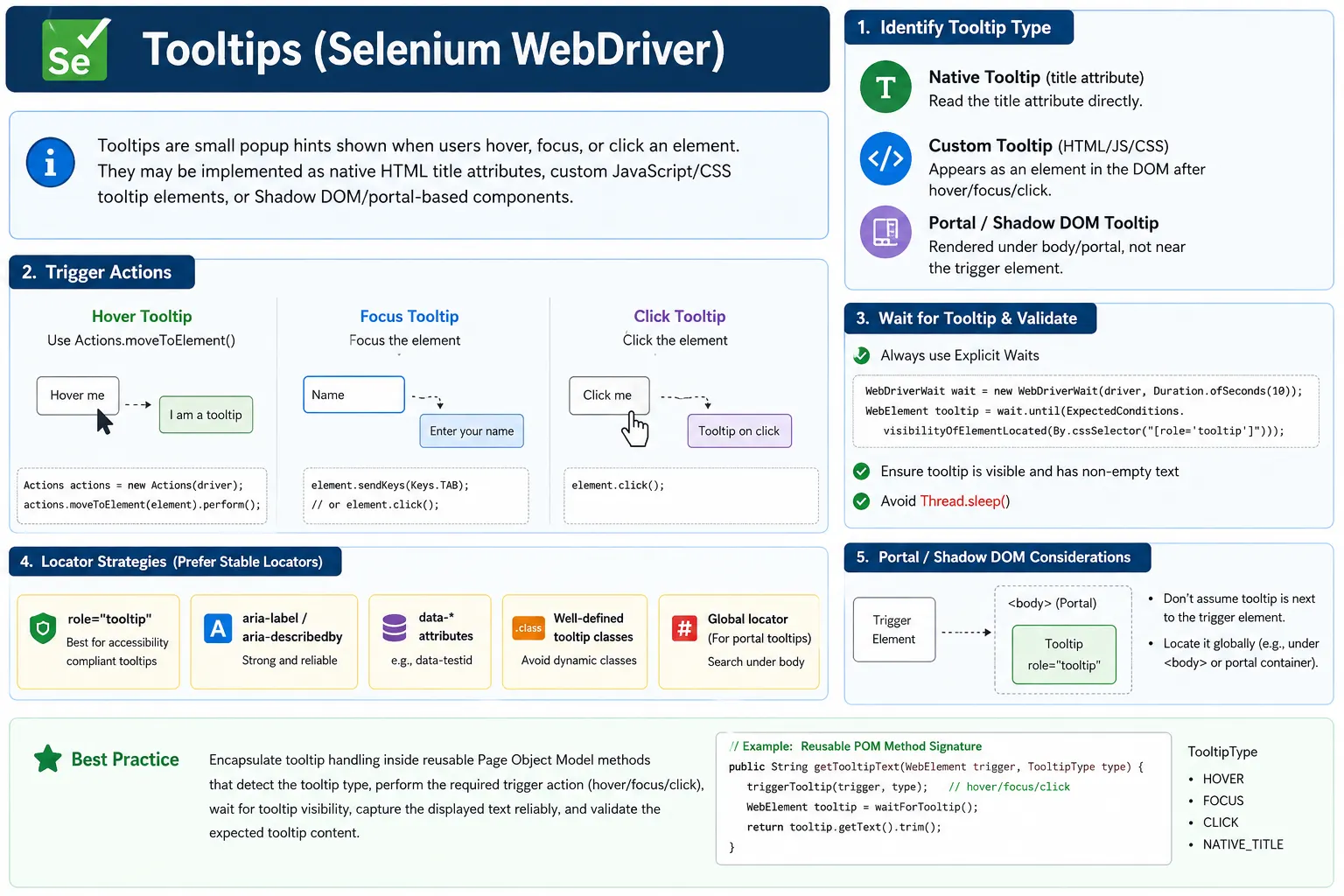
Understanding Tooltips in Selenium
Tooltips are small pieces of helper text that appear when a user hovers over, focuses on, or sometimes clicks an element. They are used to explain icons, describe form fields, clarify disabled actions, show validation guidance, or provide extra context without permanently taking space on the page. In Selenium automation, tooltip handling usually means proving that the correct tooltip appears for the correct interaction and that the tooltip text matches the expected business message.
Tooltips are deceptively simple. A user sees a small popup and reads the text. Selenium has to understand
how that popup is implemented. Some tooltips are native browser tooltips created through the
title attribute. These are easy to validate because the text is already present on the element.
Other tooltips are custom overlays created by JavaScript and CSS. These may appear as separate DOM elements
only after hover, focus, or click. In modern frameworks, the tooltip may be rendered in a portal near the
end of the body or inside a shadow root, not next to the trigger element.
This implementation difference controls the automation strategy. If the tooltip text is stored in the
title attribute, Selenium can read it with getAttribute("title") without hovering.
If the tooltip is custom, Selenium must perform the trigger action, wait for the tooltip element to become
visible, capture the text quickly, and validate it. If accessibility attributes such as
aria-label or aria-describedby are used, the automation may validate those
attributes directly or use them to locate the rendered tooltip.
Why Tooltip Automation Requires Implementation Awareness
Tooltip automation fails when tests assume all tooltips behave the same way. Native browser tooltips are not
normal DOM popups. The browser displays them visually, but Selenium does not capture the browser's native
hover bubble as a regular element. The reliable way to validate a native tooltip is to read the
title attribute. For custom tooltips, the tooltip text usually appears in an element such as
div role="tooltip", .tooltip, .tooltip-inner, or a framework class
such as .MuiTooltip-tooltip. That element can be located and asserted after the trigger.
Modern component libraries make tooltip handling more complex. Bootstrap may place tooltip content in a generated element under the body. Material UI often renders tooltips in a portal. React components may create and destroy tooltip nodes as the mouse enters and leaves. Shadow DOM components may hide tooltip markup behind a shadow root. A locator that searches only near the trigger can fail even though the tooltip is visible to the user. A strong Selenium strategy inspects the DOM after the tooltip appears and chooses a locator that matches the actual rendered structure.
Timing is also important. Tooltips often have a show delay and a hide delay. Some appear only after the pointer remains over an element for a moment. Others disappear immediately when the mouse moves away or when focus changes. If the test triggers the tooltip and then searches too early, it may fail. If it waits too broadly, the tooltip may disappear before the assertion. Precise explicit waits are the correct answer.
Native Title Attribute Tooltips
The simplest tooltip implementation uses the HTML title attribute. For example, a button might
be written as <button title="Save changes">Save</button>. When a user hovers over
the button, the browser shows the title text as a native tooltip. Selenium does not need to hover in order
to validate this text. The value is already available in the DOM and can be retrieved with
getAttribute("title").
This approach is stable because it avoids timing and visual popup behavior. It is useful for simple
controls where the tooltip text is static. However, it works only when the tooltip is actually implemented
with the title attribute. Many modern applications avoid native title tooltips because they
have limited styling, inconsistent mobile behavior, and weaker control over timing and placement.
When validating native tooltips, the assertion should still be meaningful. It should verify the exact text when the message is a requirement, or partial text when the message may include dynamic values. If the application uses localization, tests should account for the expected language. Reading the title attribute is easy, but the quality of the assertion still matters.
Custom Tooltip Overlays
Custom tooltips are the most common type in modern web applications. They are built with normal DOM elements and controlled by JavaScript or CSS. A user hovers over an icon, focuses an input, or clicks a help button, and the application renders a tooltip element. Selenium can validate these tooltips by performing the user action and waiting for the tooltip element to become visible.
The most common hover approach uses the Selenium Actions class. The test locates the trigger
element, calls moveToElement(), and then waits for the tooltip locator. The locator should
target the actual tooltip content, not only the wrapper. Bootstrap, for example, often stores visible text in
.tooltip-inner. Material UI stores it in a generated tooltip class. Some applications use
role="tooltip", which is often a good and meaningful locator.
Custom tooltip validation should normally include both visibility and text. A tooltip element may exist in the DOM while hidden. A test should wait until it is visible and, when necessary, wait until its text is not empty. Animations can create a short period where the tooltip element exists but has not fully rendered. Waiting for non-empty text is a practical way to reduce flakiness.
Hover, Focus, and Click Trigger Patterns
Hover Tooltips
Hover tooltips appear when the mouse pointer moves over a trigger element. Selenium handles this with the
Actions class. The test should move to the element and then wait for the tooltip. If the page
has sticky headers, modals, or overlays, make sure the trigger is visible and not covered before moving the
pointer. If the trigger is off-screen, scroll it into view first.
Focus Tooltips
Focus tooltips appear when an input or control receives keyboard focus. These are common in forms where the tooltip explains expected input, such as password rules or email format. Selenium can trigger focus by clicking the input or using keyboard navigation. Focus-based tooltips are important because they support keyboard users, not only mouse users. A strong test can validate that the tooltip appears when the field is focused and disappears or updates when focus moves away.
Click Tooltips
Click-triggered tooltips are common on mobile-friendly interfaces and help icons. A user taps or clicks an icon, and the tooltip stays visible until the user clicks elsewhere or closes it. Selenium can automate this with a normal click followed by an explicit wait. These tooltips are usually easier to capture than hover-only tooltips because they remain visible longer, but the test should still validate that the tooltip closes when expected if closing behavior is part of the requirement.
Accessibility Attributes and Tooltip Text
Accessibility attributes are often useful when validating tooltip behavior. Some controls store descriptive
text in aria-label. Others use aria-describedby to point to a tooltip or helper
text element. If aria-describedby contains an id, Selenium can read that id, locate the
described element, and assert the text. This method can be more stable than relying on generated visual
classes.
Accessibility-aware tooltip validation gives better coverage. A tooltip that is visible but not connected
to the trigger may help mouse users but not screen reader users. A trigger with a correct
aria-describedby relationship is more likely to be accessible. Selenium is not a complete
accessibility testing tool, but it can verify important relationships that affect real users.
When both visual tooltip text and accessibility text exist, decide what the test should prove. A visual UI test may assert the displayed tooltip. An accessibility-focused test may assert the ARIA relationship. A robust form test may validate both if the tooltip message is important for user guidance.
Tooltips Rendered in Portals and Shadow DOM
Portal-rendered tooltips are common in React and component libraries. The tooltip appears visually near the
trigger, but the DOM element may be appended near the end of the body. If the test searches for the tooltip
as a sibling or child of the trigger, it will not find it. The correct strategy is to locate the tooltip
globally, often with a selector such as body [role='tooltip'] or a library-specific class.
Shadow DOM tooltips require a different strategy. If the trigger or tooltip is inside a shadow root, Selenium must access the shadow root before locating elements inside it. JavaScript may be used in older Selenium versions or for complex nested shadow roots. The key point is that the tooltip is still a DOM element, but it is hidden behind a boundary that normal locators may not cross automatically.
When dealing with portals or shadow DOM, inspection is essential. Open browser developer tools, trigger the tooltip, and observe where the tooltip node appears. Do not rely on visual position. Selenium needs the DOM path, not the screen relationship.
Handling Tooltips That Disappear Quickly
Some tooltips disappear quickly when the pointer moves, when focus changes, or when an animation ends. This makes validation timing-sensitive. A good technique is to trigger the tooltip and use a wait function that immediately returns the tooltip text once it becomes non-empty. This avoids a separate locate step followed by a delayed text read. The test captures the value while the tooltip is present.
Another technique is to keep the mouse over the trigger while reading the tooltip. Avoid clicking elsewhere or moving the mouse before the assertion. If the tooltip closes on blur, do not send Tab or interact with another field before capturing the text. For click-triggered tooltips, validate the text before clicking outside to close the tooltip.
Fast-disappearing tooltips should not be handled with large sleeps. A sleep can make the problem worse by allowing the tooltip to vanish before the assertion. Condition-based waits that capture text as soon as it appears are more reliable.
Validation Strategies for Tooltip Automation
Tooltip validation should focus on user-facing meaning. The most direct assertion checks the exact tooltip
text. This is appropriate when the message is a requirement, such as Password must be 8+ characters.
Partial matching is useful when the tooltip includes dynamic values or when the test only needs to confirm
that a key phrase is present. The assertion should be strict enough to catch real mistakes but flexible
enough to avoid failing for irrelevant formatting changes.
Sometimes tooltip validation should include behavior, not just text. A test can verify that a tooltip appears on hover, disappears when the mouse leaves, appears on focus, or remains visible after click. If the application requirement includes placement, a UI-level test may check relative position, but position checks should be used carefully because they are more brittle than text and visibility checks.
Tooltips inside modals and frames require context handling. If the trigger is inside an iframe, switch to the frame before interacting with it. If the tooltip is inside a modal, wait for the modal first, then trigger the tooltip. If the tooltip is rendered outside the modal in a portal, the locator may need to search globally after the trigger action.
Page Object Model Design for Tooltips
Tooltip logic should be wrapped in page objects or component helpers when it appears repeatedly. A page
object method such as getPasswordHelpTooltip() is easier to read than a test that repeats
hover, wait, locate, and assert logic. For a common tooltip component, a reusable helper can support
getTitleTooltip, getHoverTooltipText, getFocusTooltipText, and
assertTooltipDisappears.
A good helper should accept both the trigger locator and the tooltip locator. This avoids hardcoding one tooltip selector for every page. It should also use explicit waits and return clear error messages when the tooltip does not appear. For dynamic tooltips, the helper can wait for non-empty text and trim whitespace before returning the value.
Common Mistakes with Tooltip Automation
One common mistake is trying to locate a native browser tooltip as a DOM element. If the tooltip is a
title attribute, read the attribute instead. Another mistake is hovering over the wrong element,
such as an inner icon instead of the actual trigger. A third mistake is searching for a custom tooltip near
the trigger when the framework renders it under the body. A fourth mistake is using fixed sleeps instead of
waiting for visibility and text.
Another subtle mistake is assuming tooltip text is always visible text. In accessible components, the useful
description may be stored in aria-label or referenced by aria-describedby. In
custom components, the visible tooltip may be split across nested elements. Use the implementation details
to decide whether getText(), getAttribute(), or a referenced element is the right
source.
Real-World Tooltip Scenarios
Form Guidance
Forms often use tooltips to explain validation rules. Password fields, tax ids, email fields, and optional business fields may show helper text on focus or hover. Automation should validate that the correct guidance appears where the user needs it, especially when the message prevents common input mistakes.
Disabled Buttons and Icons
Applications often show tooltips on disabled buttons to explain why an action is unavailable. For example, a Save button may be disabled until required fields are complete. A good test can verify that the tooltip explains the reason clearly. This is valuable because a disabled button without explanation creates a poor user experience.
Dashboards and Data Visualizations
Charts and dashboards use tooltips to show details for points, bars, or metrics. These tooltips may be generated by chart libraries and may require moving to a specific coordinate or chart element. These are more advanced scenarios, but the same principle applies: trigger the tooltip, wait for the rendered content, capture the text, and validate the expected data.
Interview Perspective on Tooltips
In interviews, tooltip questions usually test whether you can distinguish native and custom tooltips. A
short answer is that native tooltips can be validated by reading the title attribute, while
custom tooltips require triggering hover, focus, or click and then waiting for the tooltip element to become
visible before validating the text.
A stronger real-time answer adds that modern frameworks often render tooltips in portals under the body, so
the locator may need to be global. It also mentions accessibility attributes such as
aria-label and aria-describedby, explicit waits for visibility and non-empty text,
and special handling for modals, frames, disappearing tooltips, and shadow DOM.
Troubleshooting Tooltip Failures
Tooltip failures should be debugged in a clear sequence. First, confirm that the trigger element is the
correct element and that it is visible. If the wrong part of an icon is used, the mouse may move over an
element that does not actually own the tooltip. Next, confirm the tooltip implementation. If the text is in
the title attribute, there may be no visible DOM element to locate. If the tooltip is custom,
trigger it and inspect where the tooltip element appears in the DOM.
If the tooltip does not appear after hover, check whether another action is required. Some tooltips appear
on focus, some on click, and some only after a delay. If the tooltip appears manually but not in Selenium,
the trigger may be outside the viewport, covered by a sticky header, or hidden behind an overlay. Scrolling
the element into view and waiting for clickability or visibility before using Actions often
resolves this class of failure.
If the tooltip appears but the captured text is empty, the test may be reading too early. Wait for non-empty
text rather than only element visibility. If the tooltip appears and disappears too quickly, use a wait
lambda that returns the text immediately when it becomes available. If the tooltip is not found at all, look
for portal rendering under body, shadow DOM boundaries, iframe context, or modal-specific
containers.
CI Stability for Tooltip Tests
Tooltip tests can be sensitive in CI because browsers often run headless, screen sizes may differ, and UI animations may behave differently from local runs. A hover target that is visible on a local desktop may be hidden below the fold in a pipeline. A tooltip that appears instantly locally may take longer in CI because of CPU load. Stable tooltip tests set a predictable viewport, scroll the trigger into view when needed, and use explicit waits tied to tooltip visibility and text.
Avoid adding large fixed sleeps to tooltip tests. Sleeps slow down the suite and do not guarantee stability. A tooltip may disappear during the sleep, especially if the mouse moved or focus changed. A better approach is to perform the trigger action and immediately wait for the expected condition. If the tooltip should disappear after clicking elsewhere, wait for invisibility after that action. This gives the test a clear before-and-after state.
Failure diagnostics also matter in CI. A screenshot at failure time can show whether the tooltip was visible, hidden behind another element, or never triggered. Logging the trigger locator and tooltip locator helps identify whether the failure came from the interaction or the assertion. In a reusable helper, clear failure messages save a lot of investigation time.
Locator Design for Tooltip Automation
Tooltip locators should be designed around stable meaning rather than visual styling alone. For triggers,
prefer ids, test attributes, accessible labels, button text, or meaningful container relationships. For
tooltip content, prefer role="tooltip", stable component classes, or accessibility references
when available. Avoid absolute XPath because tooltip markup often changes when component libraries update.
If the application has multiple tooltips, a broad locator such as .tooltip may find the wrong
tooltip. Some frameworks keep old tooltip elements in the DOM while hiding them. In those cases, locate only
visible tooltips or scope the locator to the active overlay. If the trigger has aria-describedby,
using that id is usually the most accurate way to connect the trigger and its tooltip text.
In portal-based tooltips, the locator may need to search under the whole body. That does not mean the
locator should be vague. A good global locator can still use role="tooltip", generated ids,
or library-specific stable classes. The goal is to acknowledge where the tooltip is rendered while still
selecting the intended tooltip.
Accessibility Checks for Tooltip Behavior
Tooltips often contain information that users need to understand a control. If that information is available only on mouse hover, keyboard and screen reader users may miss it. A high-quality application exposes the tooltip through focus behavior or accessibility attributes. Selenium can help verify that focus-triggered tooltips appear and that ARIA attributes connect controls to descriptions.
For example, if an input has aria-describedby="email-help", the test can locate the element
with id email-help and confirm the helper text. If an icon has aria-label, the
test can read that label and verify the accessible name. These checks are simple, but they improve
confidence that the tooltip is not only visually present but also programmatically understandable.
Accessibility-related tooltip tests should be practical. They do not replace specialized accessibility audits, but they are useful for critical forms and important workflows. If a tooltip explains why a button is disabled or how a user should fill a required field, the message should be reachable through keyboard and assistive technologies. Selenium can validate some of that behavior as part of the UI suite.
Testing Tooltip Hide Behavior
Many tests validate that a tooltip appears, but fewer validate that it disappears correctly. Hide behavior matters because lingering tooltip overlays can block clicks, cover content, or confuse users. A hover tooltip should usually disappear when the mouse moves away. A focus tooltip may disappear when focus leaves the field. A click tooltip may disappear when the user clicks outside or presses Escape, depending on the design.
Selenium can test this by triggering the tooltip, waiting for visibility, performing the closing action, and waiting for invisibility. Use the same tooltip locator that was used for appearance. If the application removes the tooltip from the DOM, invisibility wait handles that. If it keeps the tooltip hidden in the DOM, the same wait can still pass when the element becomes invisible.
Tooltips in Frames, Modals, and Complex Layouts
Tooltips inside iframes require switching into the frame before interacting with the trigger. If the tooltip itself is rendered inside the same frame, it can be located there. If a framework renders a tooltip outside the frame, the behavior becomes more complex and depends on the application. Always inspect the DOM in the active context before writing locators.
Tooltips inside modals require waiting for the modal first. The trigger may not exist until the modal opens, and overlay animations may cover the trigger briefly. After the modal is visible, hover or focus the target control and locate the tooltip. If the tooltip is appended to the body outside the modal, a global locator may be required. If the modal traps focus, focus-triggered tooltip tests should use keyboard behavior that matches the modal design.
When Not to Automate Tooltip Position
Tooltip position can be tested, but it should not be part of every functional test. Position checks are fragile because small changes in viewport size, font rendering, responsive layout, or library placement logic can change coordinates while the tooltip remains acceptable to users. Functional tooltip tests should usually focus on presence, text, trigger behavior, and hide behavior.
Position validation is useful when placement itself is a requirement, such as ensuring a tooltip does not go off-screen or does not cover a critical control. In those cases, compare relative locations or bounding boxes with reasonable tolerance instead of relying on exact pixels. Keep visual placement checks separate from basic tooltip text validation so ordinary content tests do not become unnecessarily brittle.
Practical Takeaway
Tooltip automation is reliable when the implementation is identified first. Read the title
attribute for native tooltips. For custom tooltips, trigger the correct user interaction, wait for the
visible tooltip, capture the text promptly, and validate the message. Use accessibility attributes when
they describe the tooltip relationship. With clear locators, explicit waits, and page object helpers,
tooltip validation becomes stable and meaningful instead of flaky.
1. How to Identify Tooltip Type (Fast Check)
Valid: Type A: title attribute tooltip
- Hover shows tooltip
- Text comes from
title="..."
Check in DOM:
<button title="Save changes">Save</button>
Valid: Type B: Custom tooltip element
- Tooltip appears as a separate DOM element
- Examples:
<div role="tooltip">...</div>,<div class="tooltip">...</div>
Valid: Type C: Shadow DOM / Portal
- Tooltip not near trigger element in DOM
- Rendered near end of
bodyor inside a shadow root
TYPE A: title Attribute Tooltip (Simplest)
2. Read Tooltip Text via getAttribute("title")
WebElement infoIcon = driver.findElement(By.id("infoIcon"));
String tooltip = infoIcon.getAttribute("title");
Assert.assertEquals(tooltip, "This field is mandatory");
- Valid: Most stable
- Valid: No hover required
- Warning: Works only if tooltip uses
title
TYPE B: Custom Tooltip (Most Common)
3. Hover and Validate Tooltip Text
Example DOM:
<span id="help">?</span>
<div class="tooltip">Enter valid email</div>
Selenium code:
WebDriverWait wait = new WebDriverWait(driver, Duration.ofSeconds(10));
WebElement helpIcon = driver.findElement(By.id("help"));
Actions actions = new Actions(driver);
actions.moveToElement(helpIcon).perform();

By tooltipLocator = By.cssSelector(".tooltip");
WebElement tooltip = wait.until(ExpectedConditions.visibilityOfElementLocated(tooltipLocator));
Assert.assertEquals(tooltip.getText().trim(), "Enter valid email");
4. Tooltip Appears on Focus (Keyboard Tab)
WebDriverWait wait = new WebDriverWait(driver, Duration.ofSeconds(10));
WebElement input = driver.findElement(By.id("email"));
input.click(); // focus

By tooltipLocator = By.cssSelector("[role='tooltip']");
WebElement tooltip = wait.until(ExpectedConditions.visibilityOfElementLocated(tooltipLocator));
Assert.assertTrue(tooltip.getText().contains("Enter a valid email"));
5. Tooltip Appears on Click (Common on Mobile)
WebDriverWait wait = new WebDriverWait(driver, Duration.ofSeconds(10));
WebElement icon = driver.findElement(By.id("helpIcon"));
icon.click();

By tooltipLocator = By.cssSelector(".tooltip-content");
WebElement tooltip = wait.until(ExpectedConditions.visibilityOfElementLocated(tooltipLocator));
Assert.assertEquals(tooltip.getText().trim(), "Password must be 8+ characters");
6. Handling Tooltip Inside a Portal (Rendered at End of Body)
WebDriverWait wait = new WebDriverWait(driver, Duration.ofSeconds(10));
WebElement element = driver.findElement(By.cssSelector(".info"));
new Actions(driver).moveToElement(element).perform();

By tooltipLocator = By.cssSelector("body [role='tooltip']");
WebElement tooltip = wait.until(ExpectedConditions.visibilityOfElementLocated(tooltipLocator));
Assert.assertEquals(tooltip.getText().trim(), "More information");
Valid: Key idea: locate tooltip globally, not just as a sibling.
7. Tooltips That Disappear Quickly (Stability Technique)
WebDriverWait wait = new WebDriverWait(driver, Duration.ofSeconds(10));
WebElement icon = driver.findElement(By.id("help"));
new Actions(driver).moveToElement(icon).perform();

String tooltipText = wait.until(driver -> {
    List<WebElement> tips = driver.findElements(By.cssSelector("[role='tooltip'], .tooltip"));
    return tips.isEmpty() ? null : tips.get(0).getText().trim();
});
Assert.assertEquals(tooltipText, "Enter valid email");
8. Tooltip Text Stored in aria-label / aria-describedby
If tooltip is in aria-label:
WebElement icon = driver.findElement(By.id("info"));
String text = icon.getAttribute("aria-label");
Assert.assertEquals(text, "More details");
If tooltip uses aria-describedby:
WebElement icon = driver.findElement(By.id("info"));
String describedById = icon.getAttribute("aria-describedby");
WebElement tooltip = driver.findElement(By.id(describedById));
Assert.assertEquals(tooltip.getText().trim(), "More details");
9. Best Practices (Enterprise)
- First check
titleattribute (easiest validation) - For custom tooltips, trigger correctly (hover/focus/click)
- Always use explicit waits for visibility
- Prefer robust locators:
role='tooltip', stable classes,aria-describedby - Avoid
Thread.sleep()
10. Common Issues + Fixes
| Issue | Cause | Fix |
|---|---|---|
| Tooltip not appearing | Hover not triggered | Use Actions.moveToElement() |
| Tooltip text empty | Animation delay | Wait for visibility + non-empty text |
| Tooltip not found | Tooltip in portal | Locate from body |
| Click intercepted | Overlay active | Wait overlay invisibility |
| Tooltip disappears | Transient UI | Capture text quickly via wait lambda |
11. Interview Perspective
Short Answer
Tooltips can be validated by reading the title attribute for native tooltips, or by
hovering/focusing and verifying tooltip element text for custom tooltips using explicit waits.
Real-Time Answer
In Selenium, tooltip automation depends on implementation. If it is native, read title
directly. For custom tooltips, trigger hover/focus/click, wait for tooltip visibility, then validate text.
In React/Material UI, tooltips are often rendered in portals under body, so locate globally.
12. Key Takeaway
- Valid: Identify tooltip type first (title, custom DOM, aria)
- Valid: Trigger correctly (hover/focus/click)
- Valid: Wait for visibility and capture text reliably
- Valid: Use accessibility attributes when available
20 Selenium Java Tooltip Examples
1. Get Tooltip from title Attribute
WebElement element = driver.findElement(By.id("infoIcon"));
String tooltip = element.getAttribute("title");
System.out.println("Tooltip: " + tooltip);
2. Verify Tooltip Text (title attribute)
WebElement element = driver.findElement(By.id("infoIcon"));
String tooltip = element.getAttribute("title");
assert tooltip.equals("Enter your full name");
3. Hover to Display Tooltip (Actions Class)
WebElement element = driver.findElement(By.id("infoIcon"));
Actions actions = new Actions(driver);
actions.moveToElement(element).perform();
4. Hover and Capture Dynamic Tooltip Text
WebElement element = driver.findElement(By.id("infoIcon"));
Actions actions = new Actions(driver);
actions.moveToElement(element).perform();
WebElement tooltip = driver.findElement(By.cssSelector(".tooltip-inner"));
System.out.println(tooltip.getText());
5. Wait for Tooltip to Be Visible
WebElement element = driver.findElement(By.id("infoIcon"));
Actions actions = new Actions(driver);
actions.moveToElement(element).perform();
WebDriverWait wait = new WebDriverWait(driver, Duration.ofSeconds(10));
WebElement tooltip = wait.until(
        ExpectedConditions.visibilityOfElementLocated(By.cssSelector(".tooltip-inner"))
);
System.out.println(tooltip.getText());
6. Verify Tooltip Contains Partial Text
WebElement element = driver.findElement(By.id("infoIcon"));
Actions actions = new Actions(driver);
actions.moveToElement(element).perform();
WebElement tooltip = driver.findElement(By.cssSelector(".tooltip-inner"));
assert tooltip.getText().contains("Enter");
7. Handle Bootstrap Tooltip
WebElement element = driver.findElement(By.cssSelector("[data-bs-toggle='tooltip']"));
Actions actions = new Actions(driver);
actions.moveToElement(element).perform();
String tooltipText = driver.findElement(By.className("tooltip-inner")).getText();
System.out.println(tooltipText);
8. Handle Material UI Tooltip
WebElement element = driver.findElement(By.cssSelector("[aria-label='Info']"));
Actions actions = new Actions(driver);
actions.moveToElement(element).perform();
WebDriverWait wait = new WebDriverWait(driver, Duration.ofSeconds(10));
WebElement tooltip = wait.until(
        ExpectedConditions.visibilityOfElementLocated(By.cssSelector(".MuiTooltip-tooltip"))
);
System.out.println(tooltip.getText());
9. Validate Tooltip Using aria-label
WebElement element = driver.findElement(By.id("infoIcon"));
String ariaLabel = element.getAttribute("aria-label");
System.out.println("Tooltip: " + ariaLabel);
10. Verify Tooltip Disappears After Mouse Move
WebElement element = driver.findElement(By.id("infoIcon"));
Actions actions = new Actions(driver);
actions.moveToElement(element).perform();
driver.findElement(By.tagName("body")).click();
WebDriverWait wait = new WebDriverWait(driver, Duration.ofSeconds(10));
wait.until(ExpectedConditions.invisibilityOfElementLocated(By.cssSelector(".tooltip-inner")));
11. Get Tooltip from Custom Attribute
WebElement element = driver.findElement(By.id("infoIcon"));
String tooltip = element.getAttribute("data-original-title");
System.out.println(tooltip);
12. Tooltip Inside Modal
driver.findElement(By.id("openModal")).click();
WebElement element = driver.findElement(By.id("modalTooltipIcon"));
Actions actions = new Actions(driver);
actions.moveToElement(element).perform();
WebElement tooltip = driver.findElement(By.cssSelector(".tooltip-inner"));
System.out.println(tooltip.getText());
13. Tooltip Inside Frame
driver.switchTo().frame("frame1");
WebElement element = driver.findElement(By.id("tooltipIcon"));
Actions actions = new Actions(driver);
actions.moveToElement(element).perform();
WebElement tooltip = driver.findElement(By.cssSelector(".tooltip-inner"));
System.out.println(tooltip.getText());
driver.switchTo().defaultContent();
14. Use JavaScript to Get Tooltip Text
WebElement element = driver.findElement(By.id("infoIcon"));
JavascriptExecutor js = (JavascriptExecutor) driver;
String tooltip = (String) js.executeScript("return arguments[0].getAttribute('title');", element);
System.out.println(tooltip);
15. Validate Tooltip Appears After Delay
WebElement element = driver.findElement(By.id("infoIcon"));
Actions actions = new Actions(driver);
actions.moveToElement(element).perform();
WebDriverWait wait = new WebDriverWait(driver, Duration.ofSeconds(10));
wait.until(ExpectedConditions.visibilityOfElementLocated(By.cssSelector(".tooltip-inner")));
16. Validate Tooltip Position (Optional UI Validation)
WebElement tooltip = driver.findElement(By.cssSelector(".tooltip-inner"));
Point location = tooltip.getLocation();
System.out.println("Tooltip location: " + location);
17. Handle Multiple Tooltips on Page
List<WebElement> icons = driver.findElements(By.cssSelector(".tooltip-icon"));
Actions actions = new Actions(driver);
for (WebElement icon : icons) {
    actions.moveToElement(icon).perform();
    String tooltip = driver.findElement(By.cssSelector(".tooltip-inner")).getText();
    System.out.println(tooltip);
}
18. Validate Tooltip Using Contains in XPath
WebElement element = driver.findElement(By.id("infoIcon"));
Actions actions = new Actions(driver);
actions.moveToElement(element).perform();
WebElement tooltip = driver.findElement(By.xpath("//div[contains(@class,'tooltip') and contains(text(),'Enter')]"));
System.out.println(tooltip.getText());
19. Wait for Tooltip to Appear and Disappear
WebElement element = driver.findElement(By.id("infoIcon"));
Actions actions = new Actions(driver);
actions.moveToElement(element).perform();
WebDriverWait wait = new WebDriverWait(driver, Duration.ofSeconds(10));
wait.until(ExpectedConditions.visibilityOfElementLocated(By.cssSelector(".tooltip-inner")));
driver.findElement(By.tagName("body")).click();
wait.until(ExpectedConditions.invisibilityOfElementLocated(By.cssSelector(".tooltip-inner")));
20. Tooltip Handling in Page Object Model (POM)
public class InfoPage {
    private WebDriver driver;
    private WebDriverWait wait;
    private By infoIcon = By.id("infoIcon");
    private By tooltip = By.cssSelector(".tooltip-inner");

    public InfoPage(WebDriver driver) {
        this.driver = driver;
        this.wait = new WebDriverWait(driver, Duration.ofSeconds(10));
    }

    public String getTooltipText() {
        WebElement element = driver.findElement(infoIcon);
        new Actions(driver).moveToElement(element).perform();
        return wait.until(ExpectedConditions.visibilityOfElementLocated(tooltip)).getText();
    }
}
Tooltip Automation Best Practices
- First check if tooltip uses
titleattribute (simplest case) - Use
Actions.moveToElement()for hover tooltips - Always use explicit wait for dynamic tooltips
- Validate using
aria-labelwhere available - Avoid
Thread.sleep() - Handle modals and frames properly