TimeoutException in Selenium Java
TimeoutException is one of the most frequently encountered exceptions in Selenium WebDriver. It occurs when Selenium waits for a specific operation or condition to complete within a defined time limit, but that condition is not satisfied before the timeout expires. This exception is common in dynamic applications because modern pages often depend on JavaScript rendering, API responses, animations, lazy loading, and background network calls.
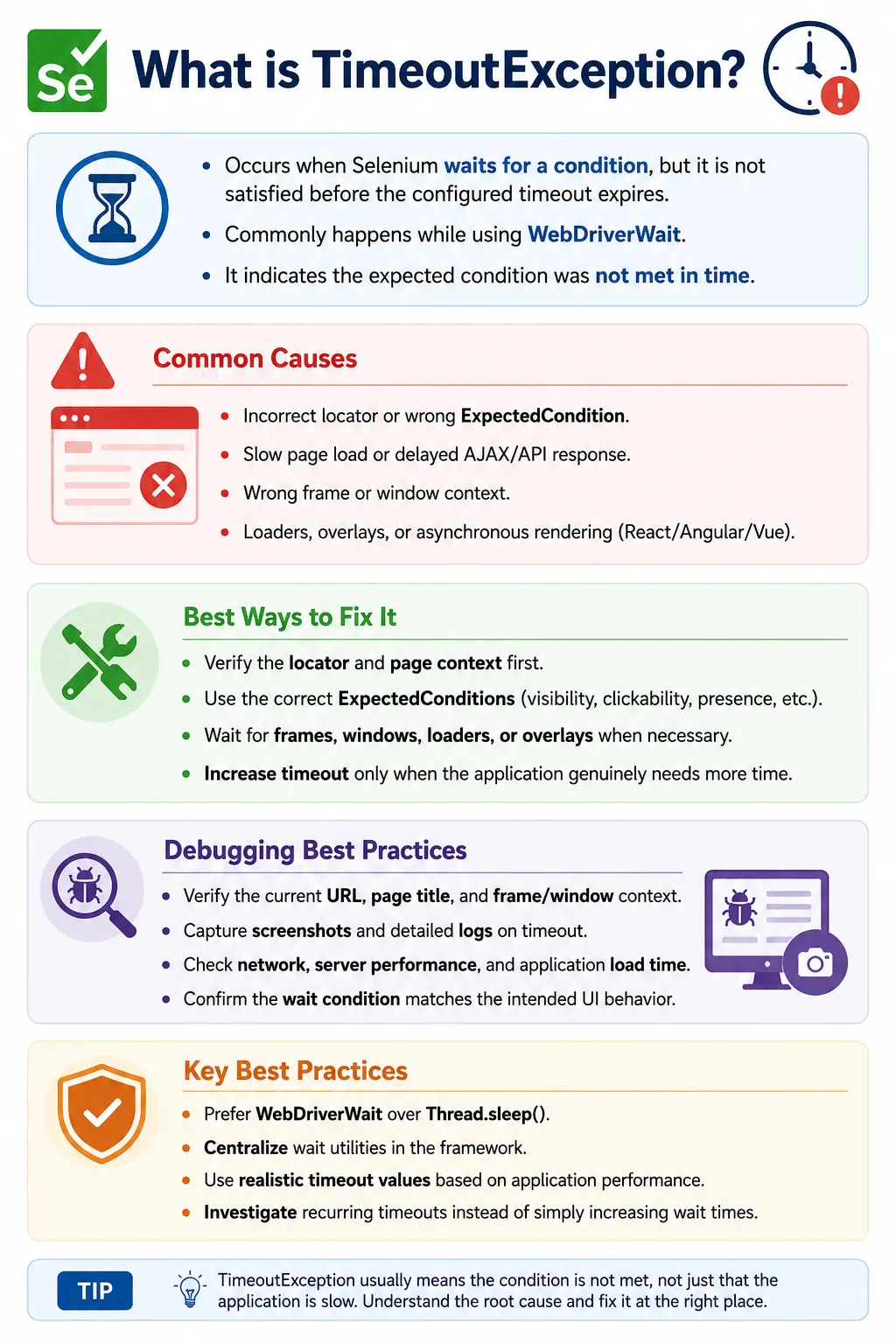
Unlike NoSuchElementException, which can occur immediately when Selenium cannot find an element, TimeoutException usually means Selenium did wait, but the expected condition did not become true in time. That difference is important. The test may have a wrong locator, the element may be hidden, the test may be in the wrong frame, the page may be slow, or the wait condition itself may be inappropriate. Increasing the timeout is not always the correct fix.
This article explains what TimeoutException means, why it occurs, how it differs from other Selenium exceptions, and how to handle it with explicit waits, FluentWait, page load timeout, script timeout, correct expected conditions, logging, screenshots, and reusable framework helpers.
1. What Is TimeoutException?
TimeoutException is thrown when Selenium cannot complete a wait operation or browser command within the configured timeout period. Most Selenium engineers see it when using WebDriverWait. If the expected condition does not become true before the timeout, Selenium throws the exception.
WebDriverWait wait =
        new WebDriverWait(
                driver,
                Duration.ofSeconds(10)
        );

wait.until(
        ExpectedConditions
                .visibilityOfElementLocated(
                        By.id("dashboard")
                )
);
If the dashboard element does not become visible within ten seconds, Selenium throws TimeoutException. The element may not exist, may be hidden, may be inside a frame, may be on another page, or may simply load too slowly.
2. How TimeoutException Happens
A wait operation starts with a condition. Selenium repeatedly checks that condition until it becomes true or the timeout expires. If the condition becomes true, execution continues. If the timeout expires first, Selenium fails with TimeoutException.
This means the exception is not only about time. It is about a condition that did not become true within time. The condition may be wrong. The locator may be wrong. The page context may be wrong. The application may be slow. The correct fix depends on the real reason the condition failed.
3. Common Causes
The most common causes include slow page loading, elements that never appear, incorrect locators, wrong frames, wrong windows, slow AJAX requests, application performance issues, incorrect wait conditions, network latency, server delays, and CI machines running slower than local machines.
- The element takes longer to appear than the configured timeout.
- The locator is incorrect and the element will never be found.
- The wait condition does not match the desired state.
- The element exists inside an iframe but Selenium has not switched to it.
- The element exists in a child window but Selenium is still on the parent window.
- An AJAX request or API response is delayed.
- A React, Angular, or Vue component renders asynchronously.
- A loader or overlay blocks the expected state.
- Network or server delays slow the application.
4. Basic Example
The following wait gives the login element five seconds to become visible. If it remains hidden or absent after five seconds, the wait fails.
WebDriverWait wait =
        new WebDriverWait(
                driver,
                Duration.ofSeconds(5)
        );

wait.until(
        ExpectedConditions
                .visibilityOfElementLocated(
                        By.id("login")
                )
);
If the element is visible after six seconds, this wait still fails because the configured timeout is five seconds. If the locator is wrong, this wait also fails after five seconds. The timeout message may look similar, but the root cause is different.
5. Difference from NoSuchElementException
Without an explicit wait, Selenium may throw NoSuchElementException immediately when it cannot locate an element. With an explicit wait, Selenium keeps trying until the timeout expires, then throws TimeoutException.
// Can fail quickly with NoSuchElementException
driver.findElement(By.id("login"));

// Waits first, then can fail with TimeoutException
wait.until(
        ExpectedConditions
                .presenceOfElementLocated(
                        By.id("login")
                )
);
This is why a timeout should not be interpreted automatically as slow application behavior. It may still be caused by a wrong locator or wrong page context.
6. Cause: Slow Page Loading
If a page or important element loads slower than expected, the wait can expire. For example, the dashboard may take fifteen seconds to load while the wait is configured for ten seconds.
driver.get(url);

wait.until(
        ExpectedConditions
                .titleContains("Dashboard")
);
If the application normally needs more time, increasing the timeout may be reasonable. But first confirm that the page is actually loading and that the expected title is correct.
WebDriverWait wait =
        new WebDriverWait(
                driver,
                Duration.ofSeconds(20)
        );
7. Cause: Incorrect Locator
A wrong locator is a frequent cause of timeouts. Selenium waits for the condition, but the condition can never become true because the locator matches nothing.
<button id="submit">Submit</button>// Wrong
wait.until(
ExpectedConditions
.visibilityOfElementLocated(
By.id("submitBtn")
)
);
// Correct
wait.until(
ExpectedConditions
.visibilityOfElementLocated(
By.id("submit")
)
);Before increasing timeout values, verify the locator in browser developer tools. A longer wait does not fix a wrong locator.
8. Cause: Wrong Wait Condition
Choosing the wrong expected condition can produce unnecessary timeouts. For example, an element may exist in the DOM but be hidden. If you wait for visibility, the wait times out. If your requirement is only to confirm DOM presence, presenceOfElementLocated() is more appropriate.
- Use
presenceOfElementLocated()when the element only needs to exist in the DOM. - Use
visibilityOfElementLocated()when the element must be visible. - Use
elementToBeClickable()when the element must be clickable. - Use
invisibilityOfElementLocated()when waiting for loaders or overlays to disappear. - Use
frameToBeAvailableAndSwitchToIt()when waiting for frames.
9. Cause: Wrong Frame
If an element is inside an iframe and Selenium is still focused on the main document, waits for that element can time out. Selenium only searches in the current frame context.
<iframe id="loginFrame">
    <button id="submit">Submit</button>
</iframe>
driver.switchTo().frame(0);
wait.until(
ExpectedConditions
.visibilityOfElementLocated(
By.id("submit")
)
);A better pattern is to wait for the frame and switch to it in one step.
wait.until(
        ExpectedConditions
                .frameToBeAvailableAndSwitchToIt(
                        "loginFrame"
                )
);
10. Cause: Wrong Window
If a popup or new tab opens and the expected element exists there, Selenium must switch to that window first. Waiting in the parent window will time out because the element is not in that window's DOM.
wait.until(
        ExpectedConditions.numberOfWindowsToBe(2)
);

driver.switchTo().window(childWindow);
After switching, wait for the element in the child window. Window handling and waits often need to work together.
11. Cause: AJAX Delay
AJAX-driven pages often show loading states while waiting for server responses. A search page may send a request, wait for data, and then render results. If the server is slow, the results may not appear before the timeout.
driver.findElement(By.id("search"))
      .sendKeys("Laptop");

driver.findElement(By.id("searchBtn"))
      .click();

wait.until(
        ExpectedConditions
                .visibilityOfElementLocated(
                        By.id("results")
                )
);
For AJAX flows, it is often better to wait for a loader to disappear and then wait for the result element. This confirms that the application finished the request cycle.
12. Cause: React and Angular Rendering
Modern frameworks render asynchronously. A component may be mounted after state changes, API calls, route changes, or virtual DOM updates. Selenium may start waiting before the final element exists or becomes visible.
The solution is to wait for a meaningful UI state. Instead of waiting only for any element, wait for the specific component marker, title, button, result section, status message, or loader disappearance that proves the page is ready.
13. Cause: Network Latency
Network latency can make remote applications slower than local expectations. This is especially common in cloud environments, staging systems, cross-region testing, remote grids, and CI/CD agents. If timeouts happen only in CI, compare execution speed, network conditions, browser mode, and server performance.
Do not blindly increase every wait. Identify the operations that are slow and choose targeted waits. A search results wait may need fifteen seconds, while a local menu click may need only five seconds.
14. Page Load Timeout
Page load timeout controls how long Selenium waits for a page load operation to complete. If the page takes longer, Selenium can throw a timeout exception.
driver.manage()
      .timeouts()
      .pageLoadTimeout(
              Duration.ofSeconds(30)
      );
This timeout applies to page navigation operations such as driver.get(). It is different from explicit waits for individual elements.
15. Script Timeout
Script timeout controls how long Selenium waits for asynchronous JavaScript execution. If a script takes too long, Selenium can fail with a timeout.
driver.manage()
      .timeouts()
      .scriptTimeout(
              Duration.ofSeconds(20)
      );
This is relevant when using JavaScript execution, especially asynchronous scripts or custom browser-side checks.
16. Explicit Wait Example
Explicit wait is the most common way to handle dynamic elements. It waits for a specific condition before proceeding.
WebDriverWait wait =
        new WebDriverWait(
                driver,
                Duration.ofSeconds(10)
        );

WebElement login =
        wait.until(
                ExpectedConditions
                        .elementToBeClickable(
                                By.id("login")
                        )
        );

login.click();
This is better than immediately clicking the element because Selenium waits until the button is ready to be clicked.
17. FluentWait Example
FluentWait gives control over total timeout, polling interval, and ignored exceptions. It is useful for custom wait behavior.
Wait<WebDriver> wait =
        new FluentWait<>(driver)
                .withTimeout(Duration.ofSeconds(20))
                .pollingEvery(Duration.ofSeconds(1))
                .ignoring(NoSuchElementException.class);

WebElement button =
        wait.until(
                d -> d.findElement(By.id("submit"))
        );

button.click();
Use FluentWait when you need custom polling or ignored exceptions. For most normal conditions, WebDriverWait is enough.
18. Wait for Alert
If an alert appears after an action, wait for it explicitly. Otherwise, switching to the alert too early can fail.
WebDriverWait wait =
        new WebDriverWait(driver, Duration.ofSeconds(10));

wait.until(ExpectedConditions.alertIsPresent());
After the alert is present, switch to it and handle it.
19. Wait for Page Title
Title waits are useful after login or navigation. They confirm that the browser reached the expected page.
WebDriverWait wait =
        new WebDriverWait(driver, Duration.ofSeconds(10));

wait.until(
        ExpectedConditions.titleContains("Dashboard")
);
If this times out, check whether navigation happened, whether the title text is correct, and whether the application is still loading.
20. Wait for URL
URL waits are useful after redirects, login, routing, and navigation.
WebDriverWait wait =
        new WebDriverWait(driver, Duration.ofSeconds(10));

wait.until(
        ExpectedConditions.urlContains("dashboard")
);
URL waits can reveal authentication or routing problems. If the URL never changes, the application may not have submitted the action successfully.
21. Wait for Element to Disappear
Many applications show loaders, spinners, overlays, and progress bars. Before interacting with the next element, wait for the blocking element to disappear.
WebDriverWait wait =
        new WebDriverWait(driver, Duration.ofSeconds(10));

wait.until(
        ExpectedConditions.invisibilityOfElementLocated(
                By.id("loader"))
);
This is often more reliable than waiting only for the final element. It confirms that the loading phase ended.
22. Wait for Text
Sometimes the element is visible, but its text updates later. Wait for the expected text when validating status messages or process completion.
wait.until(
        ExpectedConditions.textToBePresentInElementLocated(
                By.id("status"),
                "Completed")
);
This is useful for workflows like upload complete, payment success, export ready, or approval submitted.
23. Wait for Attribute
Some UI states are represented by CSS classes or attributes. For example, a submit button may receive an enabled class after validation passes.
wait.until(
        ExpectedConditions.attributeContains(
                By.id("submit"),
                "class",
                "enabled")
);
Attribute waits are useful in component-based UIs where visual state is controlled by classes.
24. Wait for Page Ready State
Sometimes teams wait for the browser document ready state. This only confirms that the document loading state is complete. It does not guarantee that all AJAX calls or framework rendering have finished.
WebDriverWait wait =
        new WebDriverWait(driver, Duration.ofSeconds(15));

wait.until(driver ->

    ((String)((JavascriptExecutor) driver)
            .executeScript("return document.readyState"))
            .equals("complete")

);
Use ready state as one signal, not the only signal. Many modern applications continue rendering after document ready is complete.
25. Exception Handling
You can catch TimeoutException to log a meaningful message, capture a screenshot, and rethrow the exception. Do not silently ignore a timeout for mandatory conditions.
try {

    wait.until(
            ExpectedConditions
                    .visibilityOfElementLocated(
                            By.id("login")
                    )
    );

} catch (TimeoutException e) {

    System.out.println(
            "Login page did not load within timeout."
    );

    throw e;
}
26. Logging TimeoutException
Timeout logs should include the condition that failed. A log that says timeout happened is not enough. State what Selenium was waiting for.
try {

    wait.until(
            ExpectedConditions
                    .elementToBeClickable(
                            By.id("submit")
                    )
    );

} catch (TimeoutException e) {

    logger.error(
            "Timed out waiting for Submit button.",
            e
    );
}
Include current URL and page title when debugging difficult timeouts.
27. Screenshot on Timeout
A screenshot is very useful when a timeout happens. It shows whether the browser is on the wrong page, still loading, blocked by an overlay, showing an error, or missing the expected element.
catch (TimeoutException e) {

    ScreenshotUtil.captureScreenshot(
            driver,
            "TimeoutException"
    );

    throw e;
}
In a framework, timeout failures should usually be logged and screenshotted automatically.
28. Reusable Wait Method
Reusable wait methods keep test code clean and ensure consistent timeout behavior.
public WebElement waitForVisible(By locator) {

    WebDriverWait wait =
            new WebDriverWait(
                    driver,
                    Duration.ofSeconds(10)
            );

    return wait.until(
            ExpectedConditions
                    .visibilityOfElementLocated(locator)
    );
}waitForVisible(By.id("login")).click();Create separate helpers for visibility, clickability, presence, text, and invisibility. One generic wait method cannot express every situation clearly.
29. Generic Click Helper
A click helper can wait for clickability before clicking. This reduces repeated wait code across test classes.
public void click(By locator) {

    WebDriverWait wait =
            new WebDriverWait(driver, Duration.ofSeconds(10));

    wait.until(
            ExpectedConditions.elementToBeClickable(locator)
    ).click();
}
This is a practical baseline for Page Object actions.
30. Framework Helper with Exception Handling
A stronger helper logs the timeout, captures a screenshot, and rethrows the exception.
public WebElement findElement(By locator) {

    try {

        WebDriverWait wait =
                new WebDriverWait(driver, Duration.ofSeconds(10));

        return wait.until(
                ExpectedConditions.visibilityOfElementLocated(locator)
        );

    } catch (TimeoutException e) {

        logger.error("Timeout while locating: " + locator, e);

        ScreenshotUtil.capture(driver, "Timeout");

        throw e;
    }
}findElement(By.id("username")).sendKeys("admin");31. Retry After Timeout
Retry logic can help with intermittent timing issues, but it should be limited and logged. Do not use endless retries.
for (int i = 0; i < 3; i++) {

    try {

        WebDriverWait wait =
                new WebDriverWait(driver, Duration.ofSeconds(5));

        wait.until(
                ExpectedConditions.visibilityOfElementLocated(
                        By.id("username"))
        );

        break;

    } catch (TimeoutException e) {

        System.out.println("Retry " + (i + 1));
    }
}
If the same timeout happens repeatedly, investigate the root cause instead of adding more retries.
32. Increasing Wait Time Carefully
Increasing timeout values is sometimes valid, but it should be done carefully. If the application normally takes fifteen seconds to load a report, a five-second wait is unrealistic. But if the locator is wrong, increasing the wait only makes the test slower.
Before increasing the wait, verify the locator, page state, frame/window context, and expected condition. Then choose a timeout that reflects realistic application performance.
33. Real Project Example: Login Page
Login pages often load fields after scripts initialize. Wait for the username field before typing.
driver.get(loginUrl);

wait.until(
        ExpectedConditions
                .visibilityOfElementLocated(
                        By.id("username")
                )
);

driver.findElement(By.id("username"))
      .sendKeys("admin");
34. Real Project Example: Search Results
Search results may depend on API calls. Wait for the results section after clicking search.
driver.findElement(By.id("search"))
      .sendKeys("Laptop");

driver.findElement(By.id("searchBtn"))
      .click();

wait.until(
        ExpectedConditions
                .visibilityOfElementLocated(
                        By.id("results")
                )
);
35. TimeoutException vs NoSuchElementException
TimeoutException usually means Selenium waited and the expected condition did not become true. NoSuchElementException usually means Selenium could not find an element during a direct lookup. A timeout often involves WebDriverWait; a no-such-element failure often involves immediate findElement().
TimeoutExceptionwaits before failing.NoSuchElementExceptioncan fail immediately.TimeoutExceptionmay mean wrong condition, slow page, wrong frame, or wrong locator.NoSuchElementExceptionoften means incorrect locator or missing element in current context.
36. TimeoutException vs StaleElementReferenceException
TimeoutException and StaleElementReferenceException can appear in the same dynamic pages, but they describe different problems. A timeout means the expected condition did not become true before the timeout expired. A stale element means Selenium had an element reference, but that reference became invalid because the DOM changed.
For example, if a table reloads and the test waits for a new row that never becomes visible, the result may be TimeoutException. If the test stored an old row before the table reload and clicked it afterward, the result may be StaleElementReferenceException. Both issues are related to dynamic DOM behavior, but the fixes differ. Timeout handling focuses on correct waits and conditions. Stale element handling focuses on locating fresh elements after DOM updates.
37. Choosing Timeout Values
Timeout values should be realistic and intentional. Very short timeouts create flaky tests in normal environments. Very long timeouts make real failures slow to detect. A good framework usually defines standard timeout values such as short, medium, and long waits.
For example, a short wait may be used for quick UI checks, a medium wait for normal page components, and a long wait for report generation, downloads, or slow external integrations. The values depend on application behavior. A highly responsive internal app may use ten seconds as a common wait. A slow reporting app may need twenty or thirty seconds for specific operations.
public static final Duration SHORT_WAIT =
        Duration.ofSeconds(5);

public static final Duration DEFAULT_WAIT =
        Duration.ofSeconds(10);

public static final Duration LONG_WAIT =
        Duration.ofSeconds(30);
Centralizing timeout values prevents random numbers from spreading across the framework. It also makes tuning easier when application performance changes.
38. Page Object Wait Strategy
Page Objects should hide synchronization details from tests. A test should call loginPage.clickLogin(), while the page object waits for the login button to be clickable internally. This keeps test methods readable and makes wait behavior consistent.
public class LoginPage {

    private By loginButton = By.id("loginBtn");

    public void clickLogin() {
        wait.until(
                ExpectedConditions
                        .elementToBeClickable(loginButton)
        ).click();
    }
}
This design also makes timeout failures easier to interpret. If clickLogin() fails, the page object can log that the login button was not clickable, capture a screenshot, and throw a meaningful failure.
39. Waiting for Loaders and Overlays
Many timeout problems are caused by loaders and overlays. The target button may be present and visible, but an overlay may block interaction. In such cases, waiting only for the button is not enough. Wait for the loader to disappear before clicking the button.
wait.until(
        ExpectedConditions.invisibilityOfElementLocated(
                By.id("loadingOverlay")
        )
);

wait.until(
        ExpectedConditions.elementToBeClickable(
                By.id("submit")
        )
).click();
This is common after saving forms, loading dashboards, processing payments, or refreshing search results. The correct wait sequence should match the actual user experience.
40. Waiting for Application-Specific Signals
Generic waits are useful, but application-specific signals are often better. For example, instead of waiting for any result card, wait for the results count to update, the loading spinner to disappear, and the expected result section to become visible. Instead of waiting for page ready state only, wait for the app's main content marker.
Application-specific waits are more reliable because they reflect real business readiness. A document may be technically loaded, but the app may still be fetching data. A component may be visible, but the values inside it may not be updated yet. The wait should target the state that the test actually needs.
41. TimeoutException in CI/CD
Timeouts are often more visible in CI/CD than on local machines. CI agents may be slower, headless browsers may render differently, remote grids may add network latency, and test environments may be under load. A wait that always passes locally may fail in CI if the timeout is too aggressive or the condition is not precise.
When a timeout appears only in CI, collect evidence before changing the timeout. Check logs, screenshots, current URL, page title, browser version, environment, and network conditions. If the screenshot shows a loader still running, the application may genuinely be slower. If the screenshot shows the wrong page, the issue is not the timeout value.
42. Logging Useful Timeout Evidence
Good timeout logs should include the locator, condition, timeout value, current URL, page title, and screenshot path. This helps the next person understand what Selenium was waiting for and what the browser looked like when the wait failed.
logger.error("Timeout waiting for: " + locator);
logger.error("Current URL: " + driver.getCurrentUrl());
logger.error("Page title: " + driver.getTitle());
Timeout errors are much easier to debug when the log message says Timed out waiting for dashboard header to be visible instead of a vague Wait failed.
43. Timeout Anti-Patterns
Several anti-patterns make timeout problems worse. One is increasing all waits globally whenever one test fails. This slows the entire suite and hides the real issue. Another is using Thread.sleep() as a replacement for conditions. Another is catching TimeoutException and continuing the test as if the expected state was optional.
A timeout usually indicates that the expected state did not happen. If that state is mandatory, the test should fail. If the state is optional, the code should be designed as an optional check using a clear helper method rather than relying on broad exception handling.
44. Optional Element Timeout Handling
Sometimes a timeout is acceptable because the element is optional. For example, a promotional popup may appear only for some users. In that case, the framework can use a short optional wait and return false if the element does not appear.
public boolean isOptionalVisible(By locator) {

    try {
        WebDriverWait shortWait =
                new WebDriverWait(
                        driver,
                        Duration.ofSeconds(3)
                );

        shortWait.until(
                ExpectedConditions
                        .visibilityOfElementLocated(locator)
        );

        return true;

    } catch (TimeoutException e) {
        return false;
    }
}
This pattern should be used only for genuinely optional UI. Do not use it to hide failures for required elements.
45. Centralized Wait Utility Design
A reliable Selenium framework should centralize wait logic. If every test creates its own wait with different timeout values and different exception handling, timeout behavior becomes inconsistent. One test may wait five seconds, another may wait thirty seconds, and another may use a sleep. This makes failures harder to compare.
A wait utility can expose clear methods such as waitForVisible(), waitForClickable(), waitForInvisible(), waitForText(), and waitForFrame(). Each method can use standard timeout values, log meaningful messages, and capture screenshots on failure when appropriate. This keeps Page Object methods readable and makes timeout failures easier to diagnose.
Centralization also helps future maintenance. If the application becomes slower in a specific environment, timeout constants can be adjusted in one place. If logging needs to improve, the wait utility can be enhanced without editing every test class.
46. Debugging Checklist
- Verify the locator in browser developer tools.
- Check whether Selenium is on the correct page.
- Check current URL and page title.
- Check whether the element is inside an iframe.
- Check whether a child window or tab should be selected.
- Check whether a loader or overlay is blocking the page.
- Check whether the selected expected condition matches the requirement.
- Check network or server performance when timeouts are frequent.
- Capture screenshots and logs at timeout failure.
47. Common Mistakes
- Setting very short wait times such as one second for dynamic pages.
- Increasing timeout values without verifying locators.
- Waiting for visibility when only presence is required.
- Waiting in the wrong frame or wrong window.
- Using
Thread.sleep()instead of proper explicit waits. - Ignoring loaders, overlays, and AJAX completion indicators.
- Catching timeout exceptions and continuing as if the test passed.
- Not logging the condition that timed out.
48. Best Practices
- Use explicit waits for dynamic elements.
- Choose the correct
ExpectedConditionfor each situation. - Verify locators before increasing timeout values.
- Keep timeout values realistic based on application performance.
- Wait for loaders to disappear when they block interaction.
- Use frame and window waits when context changes.
- Log timeout failures with meaningful messages.
- Capture screenshots when a timeout occurs.
- Create reusable wait helper methods.
- Investigate frequent timeouts as performance or synchronization problems.
49. Interview Perspective
A short interview answer is: TimeoutException occurs when Selenium waits for a condition to become true within a specified timeout period, but the condition is not met before the timeout expires.
A stronger real-time answer is: in automation projects, I usually encounter TimeoutException when pages load slowly, AJAX requests take longer than expected, the locator is wrong, the frame or window context is incorrect, or the wrong expected condition is used. I first verify the locator and page state, then check frame or window context, choose the correct expected condition, and review application performance. I adjust timeouts only when the timeout value is genuinely unrealistic.
50. Key Takeaway
TimeoutException means Selenium waited for a condition, but the condition never became true before the configured timeout expired. It does not always mean the timeout is too short. The real cause may be wrong locator, wrong condition, wrong frame, wrong window, slow page, loader overlay, or application performance.
The best solution is systematic debugging: verify locator, verify page state, choose the correct expected condition, use realistic timeouts, and capture logs and screenshots on failure. Do not blindly increase timeout values. Fix the real synchronization issue.
Well-designed Selenium frameworks centralize wait logic, use meaningful helper methods, and produce clear evidence when timeouts occur. This makes dynamic web applications much easier to automate reliably.