Text Boxes
Text boxes are among the most frequently automated UI elements in Selenium. They accept user input and often trigger validation, formatting, and asynchronous behavior, making them a common source of flakiness if handled incorrectly.
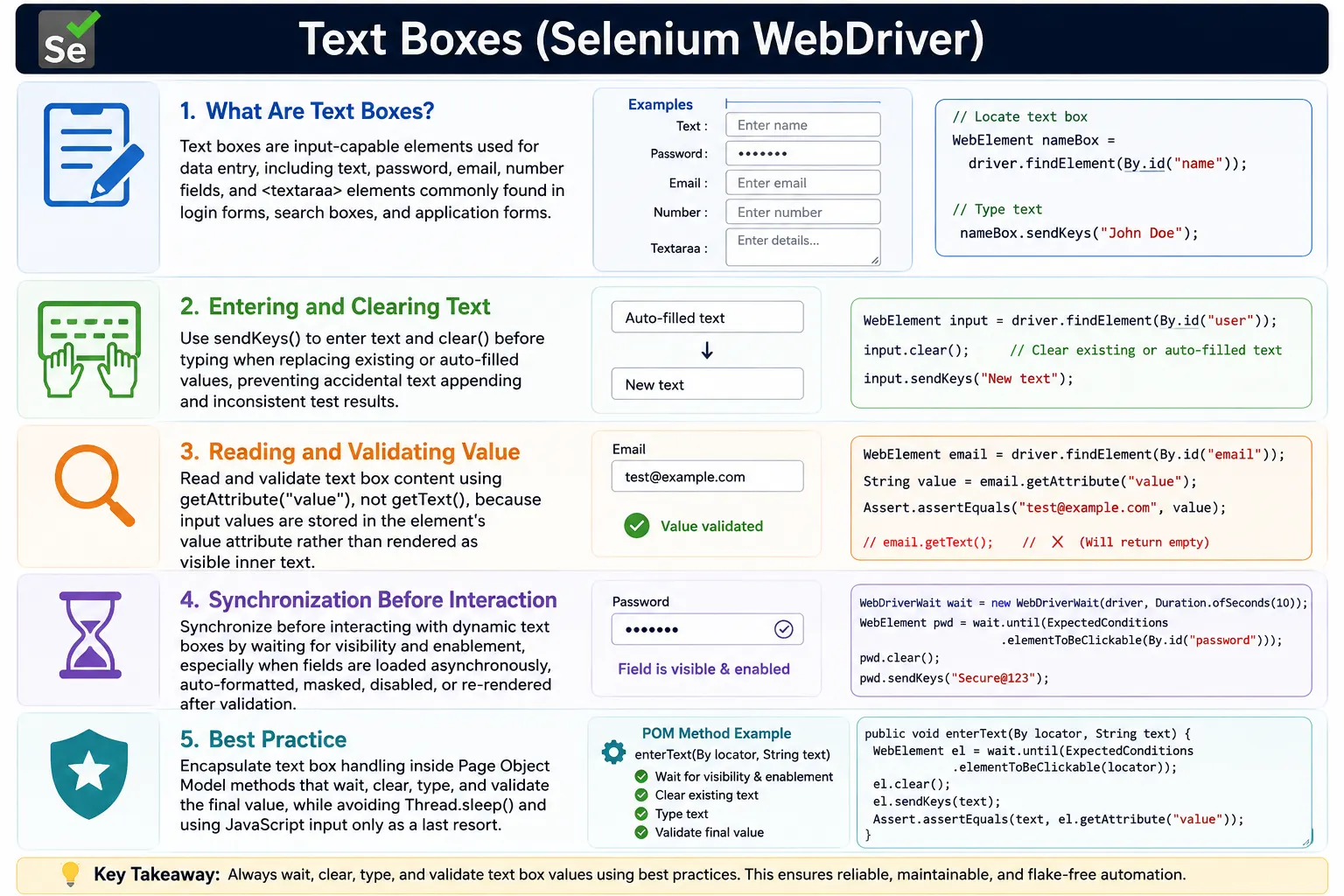
Understanding Text Boxes in Selenium
Text boxes are among the most common elements in web applications, and they are also among the most important elements to automate correctly. Login forms, registration pages, search bars, filters, checkout forms, profile pages, address screens, feedback forms, and admin panels all depend on text input. At first, automating a text box looks simple: locate the element and use sendKeys(). In real projects, text boxes are more complex because they often trigger validation, formatting, JavaScript events, auto-suggestions, masking, and dynamic updates.
A reliable Selenium test does not simply type into a field. It waits until the field is ready, clears any existing value when appropriate, enters the value in a way that triggers the application behavior, and validates the final value or resulting message. This pattern matters because text boxes are not passive containers. Many applications listen for key events, validate field values as the user types, format numbers or dates, enable or disable buttons based on input, and update dependent fields. Selenium automation must respect that behavior.
In a professional framework, text box handling is usually hidden inside page object methods. A test should say enterUsername, searchForProduct, fillBillingAddress, or enterOtp. The test should not repeat low-level steps such as waiting, clearing, typing, and reading attributes on every page. When text box handling is centralized, the framework becomes easier to maintain and the suite becomes more stable.
What Is a Text Box in Web Automation?
Input-Capable Elements
A text box is any input-capable element that allows a user to enter text, numbers, or other typed values. In HTML, common examples include input type text, password, email, number, search, tel, url, and textarea. These elements may look similar to users, but they can behave differently. A password field masks the characters. An email field may apply browser-level validation. A number field may reject non-numeric input. A textarea accepts multi-line text. Selenium must interact with each field according to its behavior.
Text boxes can also be enhanced by JavaScript frameworks. A simple input may become an auto-suggest field, a masked phone number field, a currency input, a date entry box, or an OTP component made of multiple small input boxes. The HTML may still contain input elements, but the user experience is controlled by application logic. This is why robust automation requires more than basic sendKeys usage.
Text Boxes Are Connected to Business Workflows
Text boxes often drive business behavior. A search text box triggers results. A username and password field controls authentication. An amount field may calculate tax or totals. An address field may call a location service. An email field may validate uniqueness. A coupon field may enable a discount. Because text input changes application state, tests must validate not only that typing happened but also that the application responded correctly.
This means a text box action usually has two parts. First, the automation enters the value correctly. Second, it waits for and verifies the expected result. The result may be a message, enabled button, formatted value, suggestion list, updated table, or submitted data. Treating text boxes as workflow triggers makes tests more meaningful.
Core Selenium Operations on Text Boxes
Entering Text with sendKeys()
The primary Selenium method for entering text is sendKeys(). It simulates keyboard input and usually triggers the same key-related events that a real user would trigger. This is important because many applications listen for input, keyup, keydown, change, or blur events. Directly setting a value through JavaScript may change the field visually but fail to trigger the application's event handlers. For normal text boxes, sendKeys() is the preferred method.
Before using sendKeys(), the field should be ready. At minimum, it should be visible. In many cases, it should also be enabled. If a field is present in the DOM but hidden, sendKeys() may fail. If the field is disabled, sendKeys() cannot type into it. If the field is covered by an overlay or re-rendering, the interaction may be unstable. Waiting for the correct state before typing is part of reliable text box automation.
Clearing Existing Text
Many fields contain default values, remembered browser values, profile data, or values from earlier actions. If a test enters text without clearing the field, Selenium appends the new value to the old value. This can cause confusing failures. A login test may type admin into a field that already contains olduser, producing olduseradmin. A search test may append a new keyword to an existing search. A form test may submit a combined value that the tester did not intend.
The usual pattern is to clear the field before typing when the test intends to replace the value. The clear() method works for many inputs, but not all applications react to clear() the same way. Some JavaScript frameworks need keyboard-based selection and replacement to trigger input events. In those cases, sending Control+A followed by the new value may behave more like a real user. The framework should choose a consistent replacement strategy based on the application.
Reading the Value of a Text Box
A common beginner mistake is using getText() to read an input field. For most input elements, getText() returns empty because the visible value is stored in the value attribute, not as inner text between opening and closing tags. To validate what was typed into an input field, use getAttribute("value") or the equivalent DOM property retrieval supported by the Selenium version and framework style.
This distinction matters in assertions. If a test types a username and then uses getText(), it may falsely report that the field is empty. Reading the value attribute is the correct approach for input fields and textareas. For labels, paragraphs, buttons, and other normal visible text elements, getText() is appropriate. Understanding the HTML structure helps choose the correct Selenium method.
Recommended Text Box Interaction Pattern
Wait, Clear, Type, and Validate
A stable text box interaction follows a clear sequence. First, wait until the field is visible. Second, confirm that it is enabled if the test needs to type. Third, clear any existing value when replacing text. Fourth, enter the new value using sendKeys(). Fifth, validate the final value or resulting state. This sequence prevents many common failures because it treats input as a complete interaction rather than a single command.
Validation is especially important when the field has formatting or JavaScript behavior. If a test enters a phone number, the application may format it with parentheses or hyphens. If a test enters currency, the application may add commas or decimals. If a test enters a date, the application may convert it to a standard format. The assertion should match the expected final value, not necessarily the raw characters sent to the field.
Use Page Methods for Reuse
Instead of repeating the same sequence in every test, place it inside page object methods. A login page can have enterUsername and enterPassword methods. A search page can have searchFor. A checkout page can have enterCardNumber, enterBillingName, and enterAddress. These page methods can wait, clear, type, and optionally validate the value. The test remains focused on business behavior.
Page methods also make maintenance easier. If the username field changes from a plain input to a custom input component, only the page object needs to change. If the application starts requiring Control+A replacement instead of clear(), that logic can be updated centrally. Good page objects protect tests from UI implementation details.
Synchronization Challenges with Text Boxes
Fields May Appear Before They Are Ready
An input field may exist in the DOM before it is visible or enabled. This happens in dynamic forms, modals, wizard screens, and validation-driven pages. If Selenium finds the element too early, sendKeys() may fail or produce inconsistent behavior. Waiting only for presence is often not enough. The field should be visible and, when required, enabled.
Explicit waits help here. visibilityOfElementLocated is useful before typing into a visible field. elementToBeClickable can be useful when the field must be visible and enabled, although the name is more common for clickable controls. Custom waits can check both display and enabled state when the framework needs a clear input-ready helper.
Validation Can Trigger While Typing
Many fields validate as the user types. An email field may show an error until the full email address is entered. A password field may update strength indicators. A username field may call an API to check availability. A coupon field may trigger validation after the last character or after focus leaves the field. Selenium tests must account for this dynamic behavior.
The correct validation point is usually after the final input state, not during intermediate typing. If the test expects an error message for invalid email, it may need to type the value and then move focus or wait for the validation message. If the test expects the Submit button to become enabled after valid fields, it should wait for that enabled state after entering all required values. Timing and validation are connected.
Fields Can Re-Render and Become Stale
In front-end frameworks such as React, Angular, and Vue, typing may cause the component to re-render. Selenium may hold a reference to an input element that is replaced by a new DOM node. When this happens, the old reference becomes stale. StaleElementReferenceException is common in dynamic forms, especially when validation or conditional fields are involved.
A robust framework avoids storing input WebElement references too early. It can locate the field when needed using a By locator, perform the action, and re-locate the element when validating. If re-rendering is expected, a wait helper can ignore stale elements during polling and return the stable field. The solution is not random sleeps; it is fresh locating and state-based waiting.
Handling Special Text Box Scenarios
Read-Only Text Boxes
A read-only field may display a value but not allow user editing. Selenium should not attempt to type into it because a real user cannot edit it either. Instead, the test should validate the displayed value using the value attribute and verify that the field is read-only if that is part of the requirement. Read-only fields often appear in review screens, generated IDs, calculated totals, and protected profile data.
It is important to distinguish read-only from disabled. A read-only input may still be focusable and submitted with the form, while a disabled field may not be submitted and is not enabled for interaction. Selenium automation should respect these differences because they can reflect important business rules.
Disabled Text Boxes
Disabled fields cannot accept input. isEnabled() returns false for disabled elements. Tests should not force values into disabled fields with JavaScript unless the purpose is a very specific technical investigation. From a user workflow perspective, a disabled field should be validated as disabled or waited on until it becomes enabled based on business rules.
For example, a State field may remain disabled until a Country field is selected. A Promo Code field may be disabled until a checkbox is selected. A Submit Reason field may be disabled until a status changes. The test should perform the prerequisite action and then wait for the field to become enabled. This validates the workflow more accurately than bypassing the UI.
Auto-Formatted Inputs
Auto-formatted inputs change the value as the user types. Phone numbers may become (123) 456-7890. Currency values may receive commas and decimals. Dates may be normalized into a different format. Credit card fields may add spaces between groups. These fields require careful validation because the final value may differ from the raw string sent through sendKeys().
For these fields, tests should validate the final formatted value or the underlying model value, depending on the requirement. If the UI requirement says the phone number should display with formatting, assert the formatted value. If the backend stores raw digits and the UI only formats visually, validate at the correct layer. Selenium should test what the user sees unless the test is explicitly checking backend behavior.
Masked and OTP Inputs
Masked inputs and OTP fields often have special behavior. A password field masks characters. An OTP component may use multiple small fields and automatically move focus after each digit. A credit card field may prevent certain characters. These components need sequencing and waits. The test may need to type one character at a time, wait for focus to move, or locate each field separately.
OTP handling should match the component design. If the component accepts the whole code in the first field and distributes it automatically, sendKeys() with the full code may work. If each digit must be entered separately, the page object should handle that sequence. Tests should not duplicate this logic. A method like enterOtpCode should hide the mechanics.
Auto-Suggestions and Search Text Boxes
Typing Is Only the First Step
Search and auto-suggest fields are common in real applications. Typing into the field may trigger an API call and display a dropdown of suggestions. The test should not type and immediately click a suggestion without waiting. It should wait for the suggestion list, verify the expected option is present, and then click the correct item. If the list can return no results, the wait should handle that valid state as well.
Auto-suggest fields are a common source of flaky tests because the suggestion list timing depends on network speed. A fixed sleep may pass locally and fail in CI. A better approach is to wait for a suggestion locator that includes the expected text, or wait until the list count is greater than zero and then choose the matching option.
Keyboard Actions Matter
Some text boxes respond to special keys. Pressing Enter may submit a search. Pressing Tab may trigger blur validation. Pressing Backspace may update a live filter. Selenium's sendKeys() can send these keys through the Keys class. This is useful because it simulates real user behavior more accurately than setting a value through JavaScript.
Special-key behavior should be tested intentionally. If the application requirement says pressing Enter should submit search, the test should send Enter and wait for results. If moving focus should trigger validation, the test can send Tab or click elsewhere and wait for the validation message. This makes the test more realistic.
Validating Text Box Behavior
Validate Value, Placeholder, and Defaults
Text box validation often includes more than entered text. A field may have placeholder text that guides users. It may have a default value or pre-filled profile value. It may have maxlength, readonly, required, or pattern attributes. Selenium can read these attributes and verify that the UI matches requirements. This is useful for form testing and regression coverage.
Placeholder validation should use the placeholder attribute. Entered value validation should use the value attribute. Read-only validation should inspect the readonly attribute or related state. Required validation may involve both the required attribute and the visible validation message. The assertion should match the actual behavior being tested.
Validate Error Messages Separately
Error messages are not the same as text box values. If a test enters invalid email, the field value is one part of the test and the validation message is another. The test should enter the value, trigger validation if needed, wait for the error message, and assert the message. This separates input behavior from validation behavior and makes failures easier to understand.
The same approach applies to positive validation. After entering valid values, the test may wait for error messages to disappear, the Submit button to become enabled, or a success flow to proceed. Text box automation is often the starting point for a larger form workflow.
Text Boxes in Page Object Model
Encapsulate Input Mechanics
Page Object Model improves text box automation by keeping input mechanics inside page classes. A test should not know whether the username field needs clear(), Control+A replacement, visibility wait, or value validation. The page method should handle those details. This keeps test cases readable and prevents repeated low-level code.
For example, a LoginPage can expose enterUsername and enterPassword. A SearchPage can expose searchForProduct. A RegistrationPage can expose fillPersonalDetails. These methods can use shared input helpers internally. If the application changes, the page method can change without rewriting every test.
Create Reusable Input Helpers
Large frameworks benefit from reusable helpers such as typeInto, clearAndType, replaceText, getInputValue, verifyInputValue, waitForInputReady, and typeAndSelectSuggestion. These helpers standardize waits, clearing behavior, logging, and validation. They also reduce mistakes such as using getText() for input fields or typing before enablement.
Helper methods should use clear names. clearAndType explains that the old value will be removed. appendText explains that the old value will remain. typeAndPressEnter explains the keyboard behavior. Good helper names make tests and page objects easier to review.
Common Mistakes with Text Boxes
Skipping clear() Before Typing
Skipping clear() is one of the most common input mistakes. It causes appended text, especially when fields are pre-filled, remembered by the browser, or reused after validation. The fix is simple: decide whether the test is replacing or appending. If replacing, clear first or use a controlled replacement strategy.
There are cases where appending is correct, such as testing incremental search or adding text to an existing comment. But appending should be intentional. It should not happen accidentally because the test forgot to clear the field.
Using getText() for Input Values
getText() is useful for normal visible text elements, but not for most input values. Input values are stored in attributes or properties. Tests should use value retrieval for text boxes. This is a frequent interview point and a frequent beginner bug. If an assertion says an input is empty after sendKeys(), check whether the test is using getText() incorrectly.
Typing Before the Field Is Ready
Typing too early causes failures such as element not interactable, stale element reference, or missing input events. The field should be visible, enabled, and stable enough for input. When forms are dynamic, waiting for the field is not optional. It is part of the interaction.
Thread.sleep() is not the right solution. Use explicit waits and page-specific readiness methods. If the field re-renders after typing, re-locate it before validation. If validation happens after blur, trigger blur and wait for the final message. Strong text box automation follows the UI behavior closely.
Interview Perspective on Text Boxes
Short Interview Answer
Text boxes are input fields automated in Selenium using sendKeys() to enter text, clear() to remove existing values, and getAttribute("value") to validate the entered value.
Detailed Interview Answer
In Selenium, text boxes should be handled by waiting for the field to be visible and enabled, clearing existing text when replacing a value, entering text with sendKeys(), and validating the final value using the value attribute rather than getText(). Dynamic fields may require waits for validation, formatting, suggestions, or re-rendering. In real frameworks, text box logic should be encapsulated inside page object methods.
Real Project Explanation
In a real project, I would create reusable input helpers for common patterns such as clearAndType, getInputValue, typeAndPressEnter, and typeAndSelectSuggestion. For auto-formatted fields, I would validate the final formatted value. For disabled or read-only fields, I would validate the state instead of forcing input. For OTP or masked inputs, I would encapsulate the sequence in a page method so tests remain readable.
The key takeaway is that text box automation is not just typing. Stable Selenium tests wait for input readiness, enter values in a user-like way, handle special field behavior, and validate the final state correctly. When this logic is centralized in page objects and helper methods, form automation becomes faster, cleaner, and much less flaky.
Text Box Stability in CI Pipelines
Text box tests often expose timing differences in CI because forms may render, validate, and re-render more slowly on shared runners than on a local laptop. A stable framework should avoid fixed sleeps and instead wait for input readiness, validation completion, suggestion visibility, or final field value. This keeps the same test reliable across local runs, headless browsers, remote grids, and parallel execution.
CI diagnostics should also capture useful evidence when text box tests fail. Logs can include the locator, attempted value, final value attribute, enabled state, displayed state, current URL, and screenshot. These details make it easier to identify whether the failure came from a locator change, a disabled field, a validation rule, a stale re-render, or a real application defect.
In Selenium, robust text box handling combines correct element identification, synchronization, clean input patterns, and validation.
1. What Is a Text Box
Definition:
A text box is an input-capable UI element that allows users to enter text or numbers.
Common HTML types:
- <input type="text">
- <input type="password">
- <input type="email">
- <input type="number">
- <textarea>
2. Common Use Cases in Automation
Text boxes are used for:
- Login credentials
- Search inputs
- Forms (name, email, address)
- Filters
- OTP / verification codes
- Dynamic fields with validation
3. Core Operations on Text Boxes
3.1 Entering Text
- Use sendKeys() to simulate real typing
- Mimics keyboard events and triggers JS listeners
3.2 Clearing Existing Text
- Use clear() before typing
- Prevents appending to existing or auto-filled values
3.3 Reading Text Box Value
- Use attribute-based retrieval (value)
- getText() does not work for inputs
4. Recommended Interaction Pattern (Best Practice)
A stable, reusable pattern:
- Wait until the text box is visible
- Ensure it is enabled
- Clear existing value
- Enter new value
- Validate the entered value
This pattern avoids most input-related issues.
5. Synchronization Challenges with Text Boxes
Common problems:
- Field appears before it is enabled
- Auto-focus steals cursor
- Validation triggers mid-typing
- Field is re-rendered after input (stale element)
Solutions:
- Use explicit waits (visibility + enablement)
- Re-locate element if DOM refreshes
- Validate final state, not intermediate typing
6. Handling Special Text Box Scenarios
6.1 Read-Only Fields
- Cannot be typed into
- Validate value using attribute retrieval
- Do not attempt sendKeys()
6.2 Disabled Fields
- isEnabled() returns false
- Wait for enablement before typing
- Validate business rules (why disabled)
6.3 Auto-Formatted Inputs
Examples:
- Phone numbers
- Currency
- Dates
Implication:
- Input may change while typing
- Validate final formatted value, not raw input
6.4 Masked / OTP Inputs
- May use multiple small inputs
- May auto-move focus
- Requires careful sequencing and waits
7. Common Validation Scenarios
- Verify placeholder text
- Validate default/pre-filled value
- Validate cleared state
- Validate entered value
- Validate error messages tied to the field
Always separate:
- Wait (ensure readiness)
- Validate (assert correctness)
8. Text Boxes in Page Object Model (POM)
Best practice:
- Encapsulate all text box logic inside page methods
(e.g., enterUsername(String value))
Page method responsibility:
- Wait
- Clear
- Type
- (Optionally) validate
Tests should express intent, not mechanics.
9. Common Beginner Mistakes
- Skipping clear() before typing
- Using getText() to read input values
- Typing before element is enabled
- Using Thread.sleep() instead of waits
- Ignoring auto-formatting behavior
10. Interview Perspective
Short Answer:
Text boxes are input fields that accept user text, and in Selenium they are handled using methods like clear(), sendKeys(), and attribute-based validation.
Real-Time Answer:
In Selenium automation, text boxes are interacted with by waiting for visibility and enablement, clearing existing values, entering text using sendKeys(), and validating the final value using attributes like value. Proper synchronization is critical due to dynamic validations and DOM refreshes.
11. Key Takeaway
- Text boxes are simple in appearance but complex in behavior
- Always synchronize before interaction
- Clear before typing
- Validate using attributes, not getText()
- Encapsulate logic in page objects
Stable text box automation depends more on timing and validation than on typing itself.
12. Practical Text Box Code Snippets
12.1 Valid: Enter Text Using sendKeys()
driver.findElement(By.id("username")).sendKeys("admin");12.2 Valid: Clear Existing Text
WebElement email = driver.findElement(By.id("email"));
email.clear();
email.sendKeys("newemail@test.com");
12.3 Valid: Append Text (Without Clearing)
driver.findElement(By.id("search")).sendKeys(" Selenium");12.4 Valid: Get Text from Input Field (getAttribute("value"))
String value = driver.findElement(By.id("username"))
                     .getAttribute("value");
System.out.println(value);
12.5 Valid: Verify Placeholder Text
String placeholder = driver.findElement(By.id("email"))
                           .getAttribute("placeholder");
System.out.println(placeholder);
12.6 Valid: Check If Text Box Is Enabled
WebElement password = driver.findElement(By.id("password"));

if (password.isEnabled()) {
    password.sendKeys("admin123");
}
12.7 Valid: Check If Text Box Is Displayed
WebElement address = driver.findElement(By.id("address"));

if (address.isDisplayed()) {
    address.sendKeys("Chicago");
}
12.8 Valid: Send Special Keys (ENTER)
driver.findElement(By.id("search"))
      .sendKeys("Selenium", Keys.ENTER);
12.9 Valid: Send TAB Key
driver.findElement(By.id("username"))
      .sendKeys("admin", Keys.TAB);
12.10 🔟 Send BACKSPACE
driver.findElement(By.id("username"))
      .sendKeys(Keys.BACK_SPACE);
12.11 1⃣1⃣ Select All Text + Replace
WebElement field = driver.findElement(By.id("username"));
field.sendKeys(Keys.CONTROL + "a");
field.sendKeys("newuser");
12.12 1⃣2⃣ Enter Text Using JavaScript (If sendKeys Fails)
WebElement field = driver.findElement(By.id("username"));

JavascriptExecutor js = (JavascriptExecutor) driver;
js.executeScript("arguments[0].value='admin';", field);
12.13 1⃣3⃣ Read Max Length Attribute
String maxLength = driver.findElement(By.id("mobile"))
                         .getAttribute("maxlength");
System.out.println("Max length: " + maxLength);
12.14 1⃣4⃣ Validate Readonly Text Box
WebElement field = driver.findElement(By.id("readonlyField"));

String readonly = field.getAttribute("readonly");
System.out.println("Readonly: " + readonly);
12.15 1⃣5⃣ Wait and Enter Text
WebDriverWait wait = new WebDriverWait(driver, Duration.ofSeconds(10));

WebElement username = wait.until(
        ExpectedConditions.visibilityOfElementLocated(By.id("username"))
);
username.sendKeys("admin");
12.16 1⃣6⃣ Handle Auto-Suggestion Text Box
driver.findElement(By.id("city")).sendKeys("Chi");

WebDriverWait wait = new WebDriverWait(driver, Duration.ofSeconds(10));
wait.until(ExpectedConditions.visibilityOfElementLocated(
        By.xpath("//li[contains(text(),'Chicago')]")
)).click();
12.17 1⃣7⃣ Verify Input Value After Submission
String enteredValue = driver.findElement(By.id("username"))
                            .getAttribute("value");

assert enteredValue.equals("admin");
12.18 1⃣8⃣ Enter Large Text in Textarea
driver.findElement(By.id("comments"))
      .sendKeys("This is a long feedback message for testing textarea field.");
12.19 1⃣9⃣ Handle Disabled Text Box
WebElement field = driver.findElement(By.id("disabledField"));

if (!field.isEnabled()) {
    System.out.println("Field is disabled");
}
12.20 2⃣0⃣ Text Box in Page Object Model (POM)
public class LoginPage {

    WebDriver driver;

    By username = By.id("username");
    By password = By.id("password");

    public LoginPage(WebDriver driver) {
        this.driver = driver;
    }

    public void enterUsername(String user) {
        driver.findElement(username).clear();
        driver.findElement(username).sendKeys(user);
    }

    public void enterPassword(String pass) {
        driver.findElement(password).sendKeys(pass);
    }
}
13. 🚀 Real-World Text Box Validation Checklist
- ✔ Use
clear()beforesendKeys() - ✔ Use
getAttribute("value")(notgetText()) - ✔ Handle auto-suggestions properly
- ✔ Use waits for dynamic forms
- ✔ Validate
maxlengthandreadonly - ✔ Avoid
Thread.sleep