TestNG Default Reports
When TestNG executes test cases, it automatically generates built-in HTML and XML reports without requiring additional reporting libraries or special framework code. These reports provide execution details such as passed tests, failed tests, skipped tests, execution time, suites, classes, methods, groups, exceptions, and stack traces. In Selenium automation frameworks, TestNG default reports are often the first reporting mechanism used because they work immediately after execution.
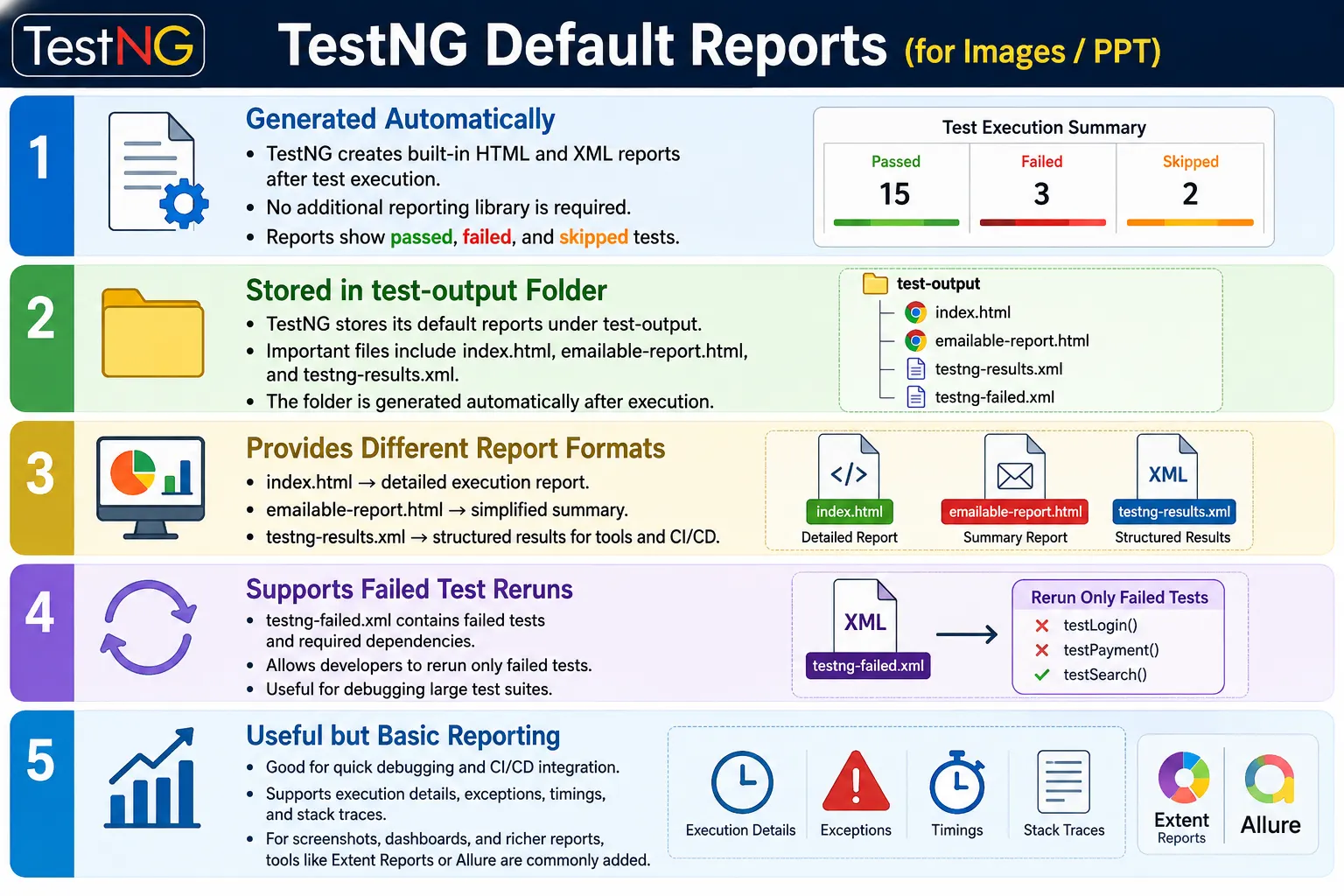
Default reports are useful for quick analysis, debugging, and CI/CD integration. They are not as visually rich as Extent Reports or Allure Reports, but they are reliable and available by default. A good Selenium engineer should know where TestNG stores these reports, what each file means, how to rerun failed tests using testng-failed.xml, and when to move beyond default reports into advanced reporting tools.
1. What Are TestNG Default Reports?
TestNG Default Reports are automatically generated reports created by TestNG after test execution completes. They summarize the outcome of a suite and provide details about each test method. No extra dependency is required beyond TestNG itself. If a TestNG suite runs successfully, TestNG creates report files in the default output folder.
These reports include information about passed tests, failed tests, skipped tests, execution duration, suite names, test names, class names, method names, exception details, and reporter output. For a small framework, these reports may be enough for daily debugging. For larger enterprise frameworks, they usually become a foundation that is supplemented by richer reporting tools.
2. Why Default Reports Are Needed
When a suite contains hundreds of test cases, console output alone is not enough. Console logs scroll quickly, and it is difficult to understand the full execution result from terminal text. Reports give a persistent summary that can be opened after execution. They help identify how many tests passed, how many failed, which tests skipped, and which exception caused a failure.
Without Reports
  Run Tests
    Console Logs Only
      Difficult Analysis

With TestNG Reports
  Run Tests
    HTML and XML Reports
      Easier Result Analysis
Default reports are especially useful during framework development because they require no setup. A new automation engineer can run tests and immediately inspect the generated report.
3. When Reports Are Generated
TestNG generates default reports after suite execution completes. During execution, TestNG collects results from test methods. After the suite finishes, it writes the collected data into HTML and XML files. This means reports usually appear only after execution completes, not while the suite is still running.
TestNG Execution
  Suite Completion
    Result Collection
      Report Generation
No coding is required for basic report generation. If TestNG runs through Maven, IDE, or command line, the default report output is generated automatically unless the configuration disables it or changes the output directory.
4. Default Report Location
By default, TestNG stores reports inside the test-output folder in the project directory. This folder is created after execution. It contains HTML reports, XML result files, failed suite files, JUnit-style reports, and older historical report folders.
Project
  test-output
    index.html
    emailable-report.html
    testng-results.xml
    testng-failed.xml
    junitreports
    old
  src
Beginners often look inside the src folder or target folder first. The standard TestNG report location is test-output unless the framework or build tool customizes it.
5. Important Default Report Files
TestNG creates several important files. The most commonly used are index.html, emailable-report.html, testng-results.xml, testng-failed.xml, junitreports, and old. Each file serves a different purpose. Understanding these files helps with debugging and CI/CD integration.
index.htmlis the main TestNG report.emailable-report.htmlis a simplified HTML summary.testng-results.xmlstores detailed XML results.testng-failed.xmlcontains failed tests for rerun.junitreportscontains JUnit-style XML reports.oldcontains older suite report data.
6. index.html
The index.html file is the main TestNG default report. It gives a structured view of suites, tests, classes, methods, passed tests, failed tests, skipped tests, execution duration, groups, and reporter output. This is usually the first file an automation engineer opens after execution.
Suite Name
  Passed: 45
  Failed: 2
  Skipped: 1
  Total: 48
The index report is useful because it provides both summary and drill-down detail. If a test failed, the report can show the failing method and stack trace. For quick local debugging, index.html is often enough.
7. emailable-report.html
The emailable-report.html file is a simplified HTML report. It is designed to be lightweight and easy to share. It contains a summary of passed, failed, and skipped tests. It is easier to read than the full index report when someone only needs a high-level result.
Despite its name, many teams do not directly email this file anymore. Instead, CI/CD tools publish reports or send links. Still, emailable-report.html remains useful because it gives a compact summary without the full report navigation.
8. testng-results.xml
The testng-results.xml file contains execution details in XML format. It includes suites, tests, classes, methods, statuses, timings, and failure information. XML is useful for tools because it can be parsed programmatically.
<testng-results>
  <suite>
    <test>
      <class>
        <test-method status="PASS"/>
      </class>
    </test>
  </suite>
</testng-results>
This file is useful for CI tools, custom reporting scripts, dashboards, or integrations that need structured execution data.
9. testng-failed.xml
The testng-failed.xml file is generated when failures occur. It contains only the failed test methods and the dependencies needed to rerun them. This is one of the most useful TestNG default report artifacts for debugging large suites.
testng test-output/testng-failed.xmlIf a suite contains five hundred tests and only three failed, rerunning the entire suite may waste time. The failed XML file lets the engineer rerun only failed tests. This is useful during local debugging, especially when failures are caused by application or environment issues that need quick verification.
10. junitreports Folder
The junitreports folder contains JUnit-style XML reports. Many CI/CD tools understand JUnit XML format. Jenkins, GitHub Actions, Azure DevOps, Bamboo, TeamCity, and other build systems can read JUnit XML files and publish test result summaries.
This makes TestNG default reports useful beyond local debugging. Even if a team later adds Extent Reports or Allure Reports, CI tools may still use JUnit XML results for build status, trends, and test analytics.
11. old Folder
The old folder contains previous execution-style report data. It can hold older suite reports and historical artifacts generated by TestNG. In practice, many teams archive reports through CI tools instead of relying heavily on the old folder. Still, it is part of the default TestNG output structure.
Historical reporting is important in enterprise automation. Teams often need to know whether failures are new, repeated, environment-specific, or related to recent changes. Default reports provide basic history, while CI tools and advanced reports usually handle long-term trends better.
12. Report Generation Flow
The report generation flow is straightforward. TestNG executes tests, collects results, generates HTML and XML reports, and stores everything in the test-output folder. The framework does not need to explicitly call report generation APIs for basic reporting.
Execute Tests
  TestNG
    Collect Results
      Generate HTML
        Generate XML
          Store in test-output
This automatic flow is one reason TestNG is popular in Selenium Java frameworks.
13. Information Available in Default Reports
Default reports contain practical execution details. They show suite name, test name, class name, method name, pass count, fail count, skip count, start time, end time, execution duration, exception details, and stack traces. This information is enough for basic triage.
- Suite, test, class, and method names.
- Pass, fail, and skip counts.
- Start time, end time, and duration.
- Groups and method dependencies.
- Assertion failures and exceptions.
- Stack traces for failed tests.
- Reporter output when used.
14. Example Execution
Suppose a suite contains LoginTest, SearchTest, and CheckoutTest. Login and search pass, but checkout fails because payment does not complete. The TestNG report summarizes the result and shows details for the failed method.
LoginTest      PASS
SearchTest     PASS
CheckoutTest   FAIL

Passed: 2
Failed: 1
Skipped: 0
The failure details help the engineer identify whether the failure was caused by an assertion, element issue, timeout, or application error.
15. Failed Test Details
For failed tests, TestNG default reports include exception details and stack trace. If an assertion fails, the report shows expected and actual values if the assertion message provides them. If Selenium throws an exception, the report shows the exception type and stack trace.
CheckoutTest FAILED
  AssertionError
    Expected: Order Placed
    Actual: Payment Failed
Good assertion messages make default reports much more useful. A vague failure is hard to debug. A clear assertion message helps the report explain the failure.
16. Report Hierarchy
TestNG reports follow the same hierarchy used by TestNG execution. A suite contains tests. A test contains classes. A class contains methods. Each method has a status such as pass, fail, or skip.
Suite
  Test
    Class
      Method
        Status
Understanding this hierarchy helps when reading large reports. If the framework uses meaningful suite names, test names, class names, and method names, the report becomes easier to understand.
17. Report Status Types
TestNG default reports commonly show PASS, FAIL, and SKIP. PASS means the test completed successfully. FAIL means an assertion or exception occurred. SKIP means TestNG did not execute the test or skipped it because of dependency failure, disabled status, or runtime skip logic.
Skipped tests deserve attention. A skipped test may be expected because a dependency failed, but too many skipped tests can hide coverage gaps. Reports help identify this quickly.
18. Running testng-failed.xml
Rerunning failed tests is a practical debugging feature. After a large suite run, open test-output and look for testng-failed.xml. If it exists, it can be run as a TestNG suite file. This avoids rerunning tests that already passed.
Run Full Suite
  500 Tests
    3 Failed

Run testng-failed.xml
  Only Failed Tests Execute
This is useful, but it should not be abused to hide flaky tests. If tests pass only after rerun, the team should investigate root cause.
19. Example Folder Structure
A Selenium framework using TestNG default reports will typically show the test-output folder after execution. This folder should not usually be treated as source code. It is generated output.
AutomationFramework
  src
  test-output
    index.html
    emailable-report.html
    testng-results.xml
    testng-failed.xml
    junitreports
    old
  pages
  tests
Many teams add test-output to gitignore because reports are generated artifacts. CI systems can archive them separately.
20. Advantages
TestNG default reports have several advantages. They are generated automatically, require no additional library, provide HTML and XML output, support quick debugging, integrate with CI tools, support failed test reruns, and remain lightweight.
- Automatic generation after execution.
- No extra reporting library needed.
- HTML reports for local review.
- XML reports for tool integration.
- Easy debugging with failure stack traces.
- CI integration through XML outputs.
- Failed test rerun support.
- Lightweight and available by default.
21. Limitations
Default reports are useful, but they are basic. The UI is simple. Customization is limited. Screenshots are not automatically embedded. Charts and dashboards are limited. Filtering is not as powerful as advanced tools. Management-level reporting is weak compared with Extent Reports or Allure Reports.
- Basic report user interface.
- Limited customization.
- No built-in screenshot attachment.
- No rich charts or dashboards.
- Limited filtering and categorization.
- Less suitable for stakeholder reporting.
Because of these limitations, enterprise frameworks often add Extent Reports, Allure Reports, or custom reporting layers while still keeping TestNG default outputs for CI compatibility.
22. TestNG Default Reports vs Extent Reports
TestNG default reports are built in and simple. Extent Reports are external, richer, and more customizable. Default reports are good for quick debugging. Extent Reports are better for stakeholders, screenshots, dashboards, and detailed visual reporting.
| TestNG Default Reports | Extent Reports |
|---|---|
| Built into TestNG. | External library. |
| Basic HTML output. | Rich interactive HTML output. |
| Simple summary. | Graphs, dashboards, and categories. |
| No automatic screenshots. | Screenshot attachment support. |
| Good for quick debugging. | Better for stakeholder reporting. |
23. Common Beginner Mistakes
Beginners often look in the wrong folder. Reports are inside test-output, not usually inside src. Another mistake is deleting test-output before viewing reports. Running a new suite may overwrite previous reports unless they are archived. Some beginners ignore testng-failed.xml and rerun the full suite every time. Others expect screenshots to appear automatically in default reports.
- Looking for reports in the wrong folder.
- Deleting reports before reviewing them.
- Ignoring testng-failed.xml.
- Expecting automatic screenshots.
- Confusing console output with HTML reports.
- Not archiving reports in CI/CD.
24. Best Practices
Review index.html after execution for quick analysis. Use testng-failed.xml to rerun failed tests during debugging. Publish JUnit XML results in CI/CD pipelines. Archive reports for historical analysis. Use clear test names and assertion messages. Integrate Extent Reports or Allure Reports when richer reporting is needed. Keep console logs, screenshots, and reports together for troubleshooting.
- Open index.html after local runs.
- Use testng-failed.xml for focused reruns.
- Publish XML reports in CI/CD tools.
- Archive reports for past execution review.
- Use meaningful class and method names.
- Add assertion messages for clearer failures.
- Combine default reports with richer reporting when needed.
25. Reports in CI/CD
CI/CD tools can consume TestNG and JUnit XML outputs. Jenkins can publish JUnit XML results from the junitreports folder. GitHub Actions and Azure DevOps can also publish test results using XML files. This makes TestNG default reports valuable even when the team uses advanced HTML reports for humans.
In pipelines, reports should be archived after execution. If the workspace is cleaned after every build, unarchived reports may disappear. Archiving helps compare failures across builds and supports debugging after the pipeline finishes.
26. Screenshot Integration
TestNG default reports do not automatically capture screenshots. Selenium frameworks usually capture screenshots through TestNG listeners, BaseTest teardown, or ScreenshotUtil. The screenshot path may be logged or attached to an advanced report. Default reports can show Reporter output if the framework writes useful messages, but screenshot embedding is limited compared with Extent or Allure.
This is one reason enterprise frameworks often use default reports for basic execution results and Extent or Allure for detailed evidence.
27. Report Naming and Archiving
When reports are generated repeatedly, old results may be overwritten. CI tools usually solve this by archiving reports under build numbers. Local frameworks may add timestamped report folders when using advanced reporting. TestNG default output is simple, so teams should decide how to preserve reports when historical analysis matters.
For local debugging, overwriting may be acceptable. For enterprise reporting, preserving build-level artifacts is better.
28. Test Naming Impact
Report quality depends heavily on naming. A method named test1 is not helpful. A method named verifyValidUserCanLogin is much better. Class names such as LoginTest, CheckoutTest, and PaymentTest make reports readable. Suite names such as Smoke Suite or Regression Suite make report hierarchy meaningful.
Good names improve default reports without any extra library. This is a simple but important reporting practice.
29. Real Enterprise Workflow
In an enterprise workflow, TestNG executes the suite, generates default reports, stores them in test-output, and CI/CD publishes test results. Advanced reports may also be generated in parallel. The team reviews failures, reruns failed tests if needed, and archives results for history.
TestNG Suite
  Execute Tests
    Default Reports
      index.html
      emailable-report.html
      testng-results.xml
      testng-failed.xml
      junitreports
        CI/CD Server
          Published Test Results
30. Publishing Reports in Jenkins
Jenkins is commonly used with Selenium TestNG frameworks. After a Maven or TestNG suite runs, Jenkins can publish XML test results so the build page shows passed, failed, and skipped tests. The junitreports folder is useful because Jenkins understands JUnit XML format. Even when the team uses Extent Reports for visual reporting, publishing XML results gives Jenkins a structured view of test health.
In a Jenkins pipeline, the team may archive the full test-output folder and publish JUnit XML files separately. Archiving helps engineers download index.html, emailable-report.html, and other report files after the build. Publishing JUnit results helps Jenkins show test trends, failure counts, and build status. These two actions solve different needs and are often used together.
31. Reports in GitHub Actions and Azure DevOps
Modern CI tools such as GitHub Actions and Azure DevOps can also work with XML test results. The exact publishing command depends on the platform, but the idea is the same: the pipeline collects TestNG or JUnit-style output and displays test results in the build interface. This makes default reports useful even outside local execution.
For teams that run tests on every pull request, published reports help reviewers see whether failures are caused by application changes, automation issues, or environment instability. Without published test results, engineers may need to inspect raw logs manually, which is slower and less reliable.
32. Using Reporter Output
TestNG supports reporter output through the Reporter class. Messages written through Reporter can appear in TestNG reports. This can be useful for adding small execution notes, such as test data used, important checkpoints, or business step descriptions. However, reporter output should be used with discipline. Too much text can make reports noisy.
Useful reporter messages explain meaningful milestones. For example, "Logged in as admin user", "Added product to cart", or "Verified order confirmation message" is more useful than logging every low-level click. Reports should help debugging, not become cluttered with unnecessary implementation details.
33. Rerun Strategy with testng-failed.xml
The testng-failed.xml file is useful, but it should be part of a thoughtful rerun strategy. During local debugging, rerunning failed tests can save time. In CI/CD, automatic reruns may help identify flaky tests, but they can also hide real instability if used carelessly. If a test fails on the first attempt and passes on rerun, the team should still investigate why the first run failed.
A practical strategy is to use testng-failed.xml during debugging, not as a permanent excuse for unstable tests. Flaky tests should be tracked, fixed, and reduced. Rerun support is a tool for diagnosis, not a replacement for reliable automation.
34. Default Reports and Screenshots
TestNG default reports do not automatically take screenshots. Selenium can capture screenshots, but the framework must implement that behavior through listeners, BaseTest teardown, or screenshot utilities. The default report may show text output or failure stack traces, but screenshot attachment is limited compared with advanced reporting tools.
Because screenshots are essential for UI automation debugging, many teams combine TestNG default reports with Extent Reports or Allure. The default TestNG reports remain useful for XML output and failed test reruns, while advanced reports provide screenshots, step logs, and dashboards.
35. Report Retention
Report retention means deciding how long reports should be kept. Local reports may be overwritten after each run. CI reports may be stored for a fixed number of builds or days. Release validation reports may be archived longer because they can support audit, defect analysis, or release decisions.
The test-output folder is generated output, so it is usually not committed to Git. Instead, CI tools should archive reports as build artifacts. This keeps the repository clean while still preserving execution evidence where it belongs.
36. Troubleshooting Missing Reports
If TestNG reports are missing, first confirm that TestNG actually executed. If tests were run as plain Java methods or through a different runner, reports may not be created. Next, check the project working directory because test-output is created relative to where execution runs. Also check whether a build plugin or cleanup step deleted the folder after execution.
In Maven projects, reports may be affected by Surefire or Failsafe configuration. Some teams customize output directories. If the default folder is not present, search the project for generated XML or HTML report files. The issue is often execution path or build configuration, not TestNG itself.
37. Improving Default Report Quality
Default reports become more useful when the test suite is named clearly. Meaningful suite names, test names, class names, and method names improve readability. Assertion messages also matter. A report that says "expected true but found false" is less helpful than a report that says "Order confirmation message should be displayed after successful payment."
Even without advanced reporting tools, teams can improve default report quality through naming, grouping, assertions, and reporter output. Reporting quality starts in test design. A well-named test method produces a better report than a vague method name.
38. Default Reports and TestNG Groups
TestNG groups can appear in report views and help organize results. Groups such as smoke, regression, payment, login, checkout, critical, and sanity make it easier to understand what type of test failed. In large suites, group information helps triage failures by feature area or execution priority.
Groups should be used consistently. If half the framework uses smoke and another half uses SmokeTest or sanity-smoke for the same concept, reports become confusing. Consistent grouping improves both execution control and report analysis.
39. Default Reports and Dependencies
When TestNG dependencies are used, skipped tests may appear because a dependent method failed. This is important to understand when reading reports. A skipped test is not always an ignored test. It may have been skipped because a required method failed earlier.
For example, if login fails and checkout depends on login, checkout may be skipped. The report helps identify the root failure and the dependent skipped tests. During triage, fix the original failure first before focusing on dependent skips.
40. Default Reports in Framework Evolution
Many Selenium frameworks start with TestNG default reports and later add Extent Reports or Allure Reports. This is a natural evolution. Default reports are good for early framework development because they need no setup. As the framework grows and stakeholders need screenshots, charts, dashboards, and historical views, advanced reports become useful.
Adding advanced reports does not mean default reports become useless. XML outputs, failed test rerun files, and simple local HTML reports remain helpful. A mature framework can use both: TestNG default artifacts for core execution output and advanced reports for richer presentation.
41. Security and Report Content
Reports should not expose sensitive information. If tests use passwords, tokens, personal data, payment data, or private URLs, be careful about what gets logged or written into reports. Default reports can show method parameters, exception messages, and reporter output depending on usage. Avoid printing secrets in assertions, logs, or Reporter messages.
This matters in CI/CD because reports may be archived and accessible to many users. A report is an execution artifact, but it can still leak data if the framework writes sensitive values carelessly.
A safe reporting habit is to mask credentials and avoid logging full tokens, card numbers, or personally identifiable values. Reports should explain failures without exposing private data. This becomes especially important when reports are archived automatically and shared with wider project teams after pipeline execution.
42. Interview Perspective
A short interview answer is: TestNG automatically generates default HTML and XML reports after every test execution. These reports are stored in the test-output folder and include files such as index.html, emailable-report.html, testng-results.xml, and testng-failed.xml.
A stronger real-time answer is: in my Selenium automation framework, I use TestNG default reports for quick execution analysis and debugging. After every test run, TestNG generates reports under the test-output directory. I use index.html to review overall execution results, testng-results.xml and JUnit XML files for CI/CD integrations, and testng-failed.xml to rerun only failed test cases during debugging. For stakeholder-friendly reporting with screenshots and dashboards, I integrate Extent Reports or Allure alongside the default TestNG reports.
It is also useful to mention the practical limitation: default reports are excellent for basic result analysis, but they are not enough when stakeholders expect screenshots, charts, categorized dashboards, historical trends, or polished release reports.
43. TestNG Report Generation Workflow
The report generation workflow starts when TestNG execution begins. TestNG collects method results, builds status summaries, generates HTML and XML output, and stores everything under test-output.
TestNG Execution
  Collect Test Results
    Generate Reports
      index.html
      emailable-report.html
      testng-results.xml
      testng-failed.xml
      junitreports
        test-output Folder
44. Key Takeaway
TestNG Default Reports provide an immediate overview of test execution without additional setup. They are generated automatically, stored in the test-output folder, and include important artifacts such as index.html, emailable-report.html, testng-results.xml, testng-failed.xml, and junitreports. They are ideal for quick debugging, failed test reruns, XML-based CI/CD integration, and basic result analysis.
Execute Tests
  TestNG
    Default Reports
      index.html
      emailable-report.html
      testng-results.xml
      testng-failed.xml
      junitreports
The main limitation is that default reports are basic. They do not provide rich dashboards, automatic screenshots, or advanced stakeholder-friendly visualization. In enterprise Selenium frameworks, TestNG default reports are often used together with Extent Reports or Allure Reports to combine reliable execution output with richer reporting, clearer debugging context, stronger failure analysis, and evidence overall.