Taking Screenshots in Selenium Java
Screenshots are one of the most useful debugging and reporting features in Selenium automation. A failed test message can tell you what assertion failed, but it usually cannot show what the browser looked like at that exact moment. A screenshot fills that gap. It captures the current browser state so the tester, developer, or reviewer can see whether the page was still loading, whether an error message appeared, whether a popup blocked the page, whether the wrong window was active, or whether the expected element was missing from the screen.
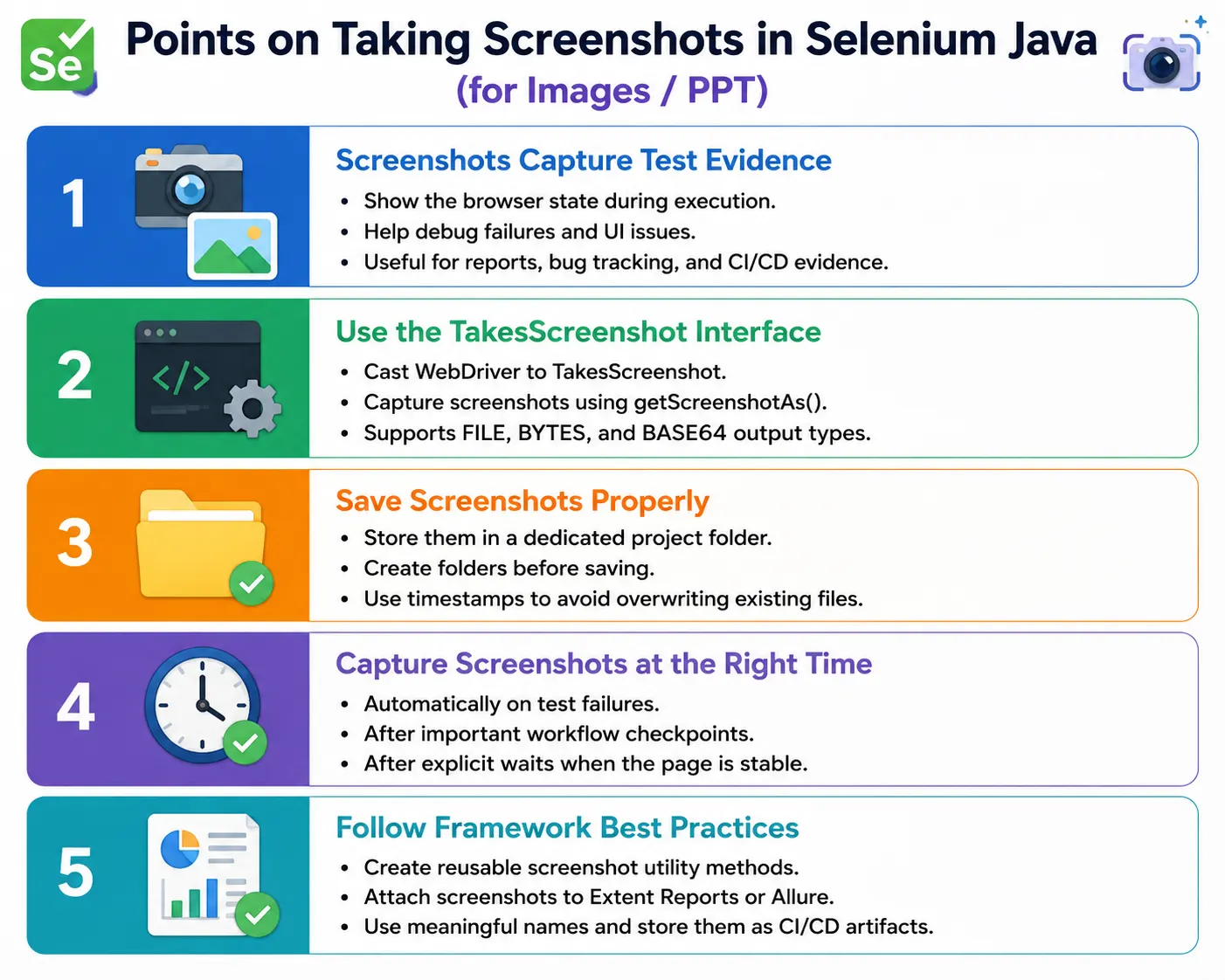
In Selenium WebDriver, screenshots are captured through the TakesScreenshot interface. Most common WebDriver implementations, including ChromeDriver, FirefoxDriver, and EdgeDriver, support this interface. The usual workflow is simple: cast the driver to TakesScreenshot, call getScreenshotAs(), choose an output type, and save or attach the result. In real frameworks, the same idea is wrapped inside a reusable utility so screenshots are captured consistently across all tests.
Screenshots should be treated as test evidence, not decoration. They are most valuable when they explain a failure, preserve important UI checkpoints, or support a test report. Capturing too few screenshots makes failures hard to debug. Capturing too many screenshots creates storage noise and slows down long-running suites. A good automation framework uses screenshots deliberately: on failures, after major workflow milestones, before risky actions, and when a specific visual state must be preserved.
1. What Is a Screenshot?
A screenshot is an image captured during test execution. In Selenium, it can represent the visible browser viewport, a specific web element, and in some browser-specific cases, a full page. The screenshot becomes a visual record of the application state at the time the command was executed.
Screenshots are commonly used for test failure evidence, bug reporting, test execution reports, UI verification, debugging automation failures, and CI/CD build artifacts. In manual testing, testers often attach screenshots to bug reports. In automation, screenshots serve the same purpose, but they are generated automatically and can be linked to test reports.
- Failure screenshots show the browser state when a test failed.
- Checkpoint screenshots preserve important workflow states.
- Element screenshots capture a focused part of the UI.
- Report screenshots help reviewers understand failures without rerunning tests.
- CI screenshots provide evidence from machines where testers cannot watch execution live.
2. Why Screenshots Matter
Suppose a test fails with an assertion message such as expected true but found false. That message may be technically correct, but it is not enough for fast debugging. The element may be hidden behind a loader. The user may not be logged in. The page may have navigated to an error screen. A cookie popup may be covering the button. The browser may still be on the previous page. Without a screenshot, you must rerun the test or inspect logs to guess what happened.
With a screenshot, the failure becomes easier to understand. A screenshot can reveal visible UI errors that logs do not show. It also helps teams communicate. Instead of saying "the test failed on checkout," the tester can show a screenshot where the payment iframe did not load. This shortens defect analysis and reduces back-and-forth between QA and development teams.
3. TakesScreenshot Interface
Selenium provides the TakesScreenshot interface for capturing screenshots. WebDriver itself is a general interface for browser automation. Browser-specific drivers implement additional capabilities, and screenshot capture is one of them. Because the driver object is usually referenced as WebDriver, it is commonly cast to TakesScreenshot.
TakesScreenshot ts =
        (TakesScreenshot) driver;

File source =
        ts.getScreenshotAs(
                OutputType.FILE
        );
The method getScreenshotAs() accepts an output type. The most common output type is OutputType.FILE, which creates a temporary screenshot file. The test then copies that temporary file into a project folder or report folder.
4. Required Imports
A screenshot utility usually needs Java file handling imports and Selenium screenshot imports. The exact imports depend on whether you use timestamps, reports, or element screenshots, but the following set covers most basic examples.
import java.io.File;
import java.io.IOException;
import java.nio.file.Files;
import java.nio.file.Path;
import java.nio.file.Paths;
import java.nio.file.StandardCopyOption;
import java.time.LocalDateTime;
import java.time.format.DateTimeFormatter;

import org.openqa.selenium.By;
import org.openqa.selenium.OutputType;
import org.openqa.selenium.TakesScreenshot;
import org.openqa.selenium.WebDriver;
import org.openqa.selenium.WebElement;
In TestNG listener examples, you may also import ITestListener and ITestResult. If you are attaching screenshots to Extent Reports or Allure, additional reporting imports will be required.
5. Basic Screenshot Syntax
The basic syntax is short. Cast the driver, capture the file, and then save the file to a useful location. Selenium creates the source file, but your framework controls where the final screenshot is stored.
TakesScreenshot ts =
        (TakesScreenshot) driver;

File source =
        ts.getScreenshotAs(
                OutputType.FILE
        );
At this point, the screenshot exists as a temporary file. To keep it, copy it to a destination path. If you do not copy it, the screenshot is not organized as part of your test evidence.
6. Complete Screenshot Example
The following example opens a page, captures a screenshot, creates the screenshot folder if required, and copies the image to the folder. This is the simplest complete pattern for a Selenium Java screenshot.
WebDriver driver = new ChromeDriver();

driver.get("https://example.com");

TakesScreenshot ts =
        (TakesScreenshot) driver;

File source =
        ts.getScreenshotAs(
                OutputType.FILE
        );

Path destination =
        Paths.get("screenshots", "HomePage.png");

Files.createDirectories(destination.getParent());

Files.copy(
        source.toPath(),
        destination,
        StandardCopyOption.REPLACE_EXISTING
);
The use of Files.createDirectories() is important. If the folder does not exist and you try to copy the screenshot, Java will throw an exception. A reusable screenshot utility should always make sure the target folder exists.
7. Screenshot Output Types
Selenium supports different screenshot output types. The three common options are FILE, BYTES, and BASE64. Each one is useful in a different situation. Most beginner examples use FILE, but reporting integrations often use BASE64.
OutputType.FILEreturns a screenshot as a file and is the most common option for saving images.OutputType.BYTESreturns the screenshot as a byte array and is useful for custom storage or APIs.OutputType.BASE64returns a Base64 string and is useful for embedding screenshots in reports.
File file =
        ts.getScreenshotAs(
                OutputType.FILE
        );

byte[] image =
        ts.getScreenshotAs(
                OutputType.BYTES
        );

String base64 =
        ts.getScreenshotAs(
                OutputType.BASE64
        );
The best output type depends on how the screenshot will be used. For local folders and CI artifacts, files are convenient. For HTML reports, Base64 can be convenient because the image can be embedded directly into the report.
8. Saving Screenshots
Saving a screenshot means copying Selenium's source screenshot file into a destination path. Java NIO provides a clean way to do this using Files.copy(). The destination path should be predictable and should usually be inside the project workspace, not a personal desktop path.
Files.copy(
        source.toPath(),
        Paths.get("screenshots", "Login.png"),
        StandardCopyOption.REPLACE_EXISTING
);
StandardCopyOption.REPLACE_EXISTING allows the destination file to be replaced if it already exists. This is fine for named checkpoint screenshots, but for failure screenshots it is usually better to use unique names so previous screenshots are not overwritten.
9. Create Screenshot Folder
A screenshot capture can fail if the destination folder does not exist. Therefore, folder creation should be part of the screenshot utility. You can use the older File API or the newer Files.createDirectories() API.
File folder =
        new File("screenshots");

if (!folder.exists()) {
    folder.mkdirs();
}
The modern NIO approach is concise and handles nested folders well.
Path destination =
        Paths.get("screenshots", "Login.png");

Files.createDirectories(destination.getParent());
In a framework, this logic should live in one utility method. Tests should not repeat folder creation code everywhere.
10. Screenshot with Timestamp
If every screenshot uses the same file name, previous screenshots will be overwritten. This is a common beginner mistake. Adding a timestamp makes each screenshot unique and preserves historical evidence.
String fileName =
        "Failure_"
        + System.currentTimeMillis()
        + ".png";

Files.copy(
        source.toPath(),
        Paths.get("screenshots", fileName),
        StandardCopyOption.REPLACE_EXISTING
);
A timestamp based on milliseconds is simple and usually unique enough. For readable names, date-time formatting is better.
11. Screenshot Using Date and Time
Date-time based names are easier to understand when browsing screenshot folders. A file named Login_20260701_104522.png immediately tells you when it was captured and what scenario it belongs to.
DateTimeFormatter formatter =
        DateTimeFormatter.ofPattern(
                "yyyyMMdd_HHmmss"
        );

String fileName =
        "Login_"
        + LocalDateTime.now().format(formatter)
        + ".png";
In larger frameworks, screenshot names often include test class name, test method name, browser name, environment, and timestamp. That makes screenshots easier to locate when analyzing reports from CI builds.
12. Generic Screenshot Utility
A reusable utility keeps screenshot logic consistent. Instead of writing screenshot code in every test, create a method that accepts the driver and file name. The method handles casting, folder creation, screenshot capture, and file copy.
public static void takeScreenshot(
        WebDriver driver,
        String fileName)
        throws IOException {

    TakesScreenshot ts =
            (TakesScreenshot) driver;

    File source =
            ts.getScreenshotAs(
                    OutputType.FILE
            );

    Path destination =
            Paths.get(
                    "screenshots",
                    fileName + ".png"
            );

    Files.createDirectories(destination.getParent());

    Files.copy(
            source.toPath(),
            destination,
            StandardCopyOption.REPLACE_EXISTING
    );
}
takeScreenshot(driver, "HomePage");This utility is the foundation. Later, it can be enhanced with timestamps, browser names, test names, and reporting attachments.
13. Screenshot After Test Failure
Failure screenshots are the most common use of screenshots in Selenium frameworks. When an assertion fails, the screenshot captures the actual state before the error is thrown back to the test runner. The key is to capture the screenshot before the browser is closed.
try {

    Assert.assertEquals(
            driver.getTitle(),
            "Dashboard"
    );

} catch (AssertionError e) {

    takeScreenshot(driver, "Failure");

    throw e;
}
This approach works, but repeating try-catch blocks in every test is not ideal. TestNG listeners or framework hooks are better because they automatically capture screenshots when a test fails.
14. Screenshot on Exception
Sometimes a screenshot is useful when an unexpected exception occurs, such as NoSuchElementException, TimeoutException, or ElementClickInterceptedException. A catch block can capture the browser state before rethrowing the exception.
try {

    driver.findElement(By.id("submit"))
          .click();

} catch (Exception e) {

    takeScreenshot(driver, "SubmitError");

    throw e;
}
The screenshot may reveal a popup, disabled button, validation message, or wrong page. Always rethrow the exception after capturing the screenshot. Otherwise, the test may continue after a real failure.
15. Screenshot in TestNG Listener
In TestNG projects, listeners are commonly used to capture screenshots automatically on failure. The listener method onTestFailure() is called when a test fails. From there, the framework can get the driver and capture a screenshot named after the failed test.
@Override
public void onTestFailure(ITestResult result) {

    takeScreenshot(
            driver,
            result.getName()
    );
}
In a real framework, the driver may be stored in a base test class, thread-local driver manager, or test context. If tests run in parallel, listener screenshot logic must use the correct driver for the current thread. Otherwise, the screenshot may be captured from the wrong browser session.
16. Screenshot in Page Object Model
In the Page Object Model, screenshot logic should not be scattered across page classes. A page object should model user actions and page behavior. Screenshot capture is usually a utility or framework service. However, page methods may call the utility at important checkpoints when the framework design requires it.
public class ScreenshotUtil {

    public static void capture(
            WebDriver driver,
            String name)
            throws IOException {

        TakesScreenshot ts =
                (TakesScreenshot) driver;

        File source =
                ts.getScreenshotAs(
                        OutputType.FILE
                );

        Path destination =
                Paths.get(
                        "screenshots",
                        name + ".png"
                );

        Files.createDirectories(destination.getParent());

        Files.copy(
                source.toPath(),
                destination,
                StandardCopyOption.REPLACE_EXISTING
        );
    }
}
Using a separate utility keeps the Page Object Model clean. It also allows you to change screenshot naming, folder paths, or report attachment logic in one place.
17. Screenshot Before Clicking
Sometimes it is helpful to capture a screenshot before clicking a risky button. For example, before submitting a payment, placing an order, deleting a record, or approving a workflow, a screenshot can preserve the pre-action state.
takeScreenshot(driver, "BeforeLogin");

driver.findElement(By.id("login"))
      .click();
This can be useful in regulated or audit-heavy applications. However, avoid capturing before every click. Use this pattern where the screenshot has clear diagnostic or evidence value.
18. Screenshot After Clicking
Capturing after an action is common when you want to preserve the resulting page state. For example, after login, after form submission, after placing an order, or after confirming a modal, a screenshot can show the output state.
driver.findElement(By.id("login"))
      .click();

takeScreenshot(driver, "AfterLogin");
Make sure the page is stable before capturing the screenshot. If the screenshot is taken too early, it may show a loading spinner instead of the final result. Use explicit waits before important screenshots.
19. Screenshot Before Assertion
A screenshot before an assertion can help explain why the assertion passed or failed. This is useful when validating visual states, confirmation messages, dashboard widgets, or complex pages.
takeScreenshot(driver, "BeforeValidation");

Assert.assertTrue(
        driver.findElement(By.id("welcome"))
              .isDisplayed()
);
In many frameworks, failure screenshots are enough. But for selected critical flows, pre-assertion screenshots can improve traceability.
20. Screenshot After Explicit Wait
When an application is dynamic, wait for the expected UI state before taking a screenshot. A screenshot captured before the wait completes may not represent the final state.
WebDriverWait wait =
        new WebDriverWait(driver, Duration.ofSeconds(10));

wait.until(
        ExpectedConditions.visibilityOfElementLocated(
                By.id("profile")
        )
);

takeScreenshot(driver, "ProfilePage");
This pattern is especially useful for pages with AJAX loading, animations, skeleton screens, and delayed widgets. Wait first, then capture evidence.
21. Element Screenshot
Selenium 4 supports element-level screenshots. Instead of capturing the whole viewport, you can capture only a specific element such as a logo, chart, QR code, captcha image for display verification, button, card, or dashboard widget.
WebElement logo =
        driver.findElement(By.id("logo"));

File source =
        logo.getScreenshotAs(
                OutputType.FILE
        );

Files.copy(
        source.toPath(),
        Paths.get("screenshots", "Logo.png"),
        StandardCopyOption.REPLACE_EXISTING
);
Element screenshots are useful when a full page screenshot contains too much noise. If the test is about a specific chart or image, capturing only that element makes debugging easier.
22. Screenshot of a Button or Component
Component screenshots are useful when validating specific UI pieces. For example, if a submit button changes state after a form is completed, capturing the button can show whether it was enabled, disabled, styled correctly, or covered by another element.
WebElement button =
        driver.findElement(By.id("submit"));

File source =
        button.getScreenshotAs(OutputType.FILE);

Files.copy(
        source.toPath(),
        Paths.get("screenshots", "SubmitButton.png"),
        StandardCopyOption.REPLACE_EXISTING
);
Element screenshots are not a replacement for proper assertions. They support debugging, while assertions decide whether the test passes or fails.
23. Full Page Screenshot
Standard Selenium screenshots usually capture the visible viewport. A full page screenshot captures the entire page, including content below the fold. Full page support is browser-dependent. Firefox has supported full page screenshots through browser-specific APIs in many Selenium setups. Third-party libraries such as AShot have also been used historically for full page captures.
File source =
        ((FirefoxDriver) driver)
                .getFullPageScreenshotAs(
                        OutputType.FILE
                );

Files.copy(
        source.toPath(),
        Paths.get("screenshots", "FullPage.png"),
        StandardCopyOption.REPLACE_EXISTING
);
Use full page screenshots carefully. They can be large, slower to create, and harder to review. They are useful for layout checks and documentation, but failure screenshots usually only need the current viewport.
24. Viewport vs Full Page vs Element Screenshot
Different screenshot types solve different problems. A viewport screenshot captures what the user currently sees. A full page screenshot captures the entire document. An element screenshot focuses on one component. Choosing the right type keeps evidence useful.
- Viewport screenshots are best for normal failure debugging.
- Full page screenshots are useful when below-the-fold layout matters.
- Element screenshots are useful for charts, images, buttons, QR codes, and focused UI components.
- Viewport screenshots are usually fastest and easiest to attach to reports.
- Full page behavior may differ by browser and driver implementation.
25. Screenshot After Login
A login flow is a simple practical example. After clicking login and waiting for the dashboard, a screenshot can show whether the user landed on the correct page.
driver.findElement(By.id("login")).click();

takeScreenshot(driver, "AfterLogin");

Assert.assertEquals(
        driver.getTitle(),
        "Dashboard"
);
In a stable test, wait for a dashboard element before taking the screenshot. Otherwise, the screenshot may show an intermediate loading state.
26. Screenshot After Form Submission
Form submission is another common checkpoint. After submitting a form, a screenshot can capture success messages, validation errors, confirmation pages, or field-level messages.
driver.findElement(By.id("submit")).click();

takeScreenshot(driver, "AfterSubmit");
This is especially useful when forms have multiple possible outcomes. Screenshots make it easier to see whether the expected message appeared or whether validation blocked the submission.
27. Screenshot After Alert
If the test handles a JavaScript alert, capture the screenshot after accepting or dismissing the alert to confirm the resulting browser state. Selenium cannot capture the native alert UI in the same way across all environments, but it can capture the page state after alert handling.
driver.switchTo().alert().accept();

takeScreenshot(driver, "AlertHandled");
If the alert text is important, assert the text before accepting the alert. The screenshot should support the assertion, not replace it.
28. Screenshot After Window Switch
Multiple windows and tabs can cause confusing failures. A screenshot after switching to a child window can confirm that the test is operating in the intended browser context.
driver.switchTo().window(childWindow);

takeScreenshot(driver, "ChildWindow");
This is useful when tests fail because they are still focused on the parent window. The screenshot can reveal which page is active.
29. Screenshot After Scrolling
Some elements appear only after scrolling. A screenshot after scrolling can show whether the element is visible in the viewport before clicking or validating it.
JavascriptExecutor js =
        (JavascriptExecutor) driver;

js.executeScript("window.scrollTo(0,500)");

takeScreenshot(driver, "AfterScroll");
For better reliability, scrolling should usually target an element rather than a hardcoded pixel value. But for screenshot evidence, this example shows the basic idea.
30. Screenshot Inside Frame
Frames and iframes can also affect screenshot debugging. If the test switches into a frame and interacts with elements inside it, a screenshot can show the visible page state. The screenshot is still captured from the browser viewport, not only from the frame, unless you capture a specific element inside the frame.
driver.switchTo().frame("loginFrame");

takeScreenshot(driver, "FrameState");
If a frame test fails, screenshots can reveal whether the frame loaded, whether the expected fields are visible, or whether a different frame was active.
31. Screenshots and Reports
Screenshots become more valuable when they are attached to reports. A folder full of PNG files is useful, but a report that links each failed test to its screenshot is much easier to review. Tools such as Extent Reports and Allure commonly support screenshot attachments. TestNG reports can also link to screenshot files if customized.
For report integration, many frameworks capture screenshots as files and attach the file path to the report. Others capture screenshots as Base64 and embed them directly into HTML reports. Base64 can make reports portable, but it can also increase report size. File-based screenshots keep the report lighter but require the screenshot folder to be preserved with the report.
32. Screenshot Storage Strategy
A good storage strategy prevents screenshots from becoming messy. Store screenshots in a dedicated folder such as screenshots, test-output/screenshots, or target/screenshots. Inside that folder, you can organize by date, suite name, test class, browser, or build number.
For CI/CD, screenshots should be archived as build artifacts. If a test fails in Jenkins or another CI tool, the screenshot should be available after the build finishes. Without artifact archiving, screenshots may be created during execution but lost after the workspace is cleaned.
33. Common Exceptions
IOException can occur when copying screenshot files. Common causes include missing folders, invalid paths, locked files, or insufficient write permissions. Creating directories before copying and using project-relative paths reduces these failures.
WebDriverException can occur if the browser is already closed, the driver session has ended, or the browser cannot provide a screenshot at that moment. This usually happens when screenshot capture runs after driver.quit() or when listener cleanup order is wrong. Capture the screenshot before closing the browser.
34. Base64 Screenshots for Reports
Base64 screenshots are useful when a reporting tool can embed the image directly inside the report. Instead of saving an image and linking to a file path, the screenshot is converted into a text string. The report can then display the image from that string. This avoids broken image links when reports are moved between machines, but it can increase report size if many screenshots are embedded.
String base64 =
        ((TakesScreenshot) driver)
                .getScreenshotAs(OutputType.BASE64);
Base64 is especially useful for failure screenshots in HTML-based reports. For long-running suites, use it selectively. If every step embeds a large Base64 image, the report can become slow to open. For most teams, the best strategy is to attach Base64 screenshots only for failed tests and important checkpoints.
35. CI/CD Screenshot Handling
In CI/CD execution, screenshots are more important because nobody is watching the browser. The test may run in headless Chrome on a Linux build agent, fail at midnight, and leave only logs behind. A screenshot gives the team a visual clue about what happened. It may show an expired test account, a slow-loading page, an unexpected browser permission message, or a deployment error page.
To make screenshots useful in CI, store them inside the build workspace and configure the CI tool to archive the screenshot folder as an artifact. If screenshots are saved to a temporary folder that is deleted after the build, the evidence is lost. Also avoid machine-specific paths such as C:\Screenshots in shared pipelines. Use project-relative paths such as target/screenshots or test-output/screenshots.
Path screenshotDir =
        Paths.get(
                System.getProperty("user.dir"),
                "target",
                "screenshots"
        );

Files.createDirectories(screenshotDir);
For parallel CI execution, include browser name, thread ID, test name, or timestamp in the screenshot path. This prevents tests from overwriting each other's evidence and makes it easier to trace a screenshot back to the failed test.
36. Real Project Screenshot Flow
A practical screenshot flow in a Selenium Java framework usually starts in the base test setup. The framework creates the driver, initializes reporting, and prepares output folders. During the test, page objects perform actions and assertions validate behavior. If the test fails, the listener captures a screenshot before teardown closes the browser. The screenshot path or Base64 string is then attached to the test report.
This design keeps test methods clean. A test should not be filled with screenshot code after every line. Instead, the framework should capture screenshots automatically when they matter. Manual screenshot calls can still be used for important business checkpoints, such as a successful payment page, generated invoice page, or final confirmation screen.
public void captureCheckpoint(String checkpointName)
        throws IOException {

    ScreenshotUtil.capture(
            driver,
            checkpointName + "_" + System.currentTimeMillis()
    );
}
This type of helper gives tests a readable way to capture meaningful checkpoints without duplicating low-level screenshot logic. The test says what it wants to preserve, while the utility decides how and where to save it.
37. Screenshot Naming Strategy
Screenshot naming is not a small detail. Poor names make evidence hard to use. A folder containing files named image1.png, image2.png, and error.png does not tell you which test failed or when the screenshot was taken. Good names include context.
A useful screenshot name may include the test method, page name, checkpoint name, browser, and timestamp. For example, LoginTest_InvalidPassword_chrome_20260704_103055.png is much more useful than failure.png. In reporting tools, the visible label can be shorter, but the stored file name should remain traceable.
- Include the test method name for failure screenshots.
- Include a checkpoint name for manual checkpoint screenshots.
- Include a timestamp to avoid overwriting files.
- Include browser name when running cross-browser tests.
- Avoid spaces and special characters that can break file paths in CI.
38. When Not to Take Screenshots
Screenshots are valuable, but excessive screenshots can hurt maintainability. Capturing every click, every field entry, and every scroll creates thousands of images in large suites. Reports become heavy, CI artifacts consume storage, and reviewers struggle to identify the important evidence. Screenshots should support debugging and reporting, not replace clear assertions and logs.
Avoid screenshot capture for routine actions that do not provide diagnostic value. For example, capturing a screenshot after typing every character into a text field is unnecessary. It is better to capture on failure, after major workflow completion, before destructive actions, and at points where the UI state itself is important evidence.
39. Common Beginner Mistakes
- Saving all screenshots with the same filename and overwriting previous evidence.
- Forgetting to create the screenshot folder before copying the file.
- Capturing screenshots after closing the browser.
- Taking screenshots for every step without a clear purpose.
- Using machine-specific absolute paths such as a personal desktop folder.
- Not attaching failure screenshots to test reports.
- Capturing screenshots too early before the page becomes stable.
- Ignoring cleanup or retention for long-running CI projects.
40. Best Practices
- Capture screenshots automatically on test failures.
- Use descriptive names such as
LoginFailureorCheckoutSuccess. - Add timestamps to avoid overwriting previous screenshots.
- Store screenshots in a dedicated project folder.
- Use relative paths based on
System.getProperty("user.dir"). - Create folders before copying screenshot files.
- Capture element screenshots for focused UI debugging.
- Attach screenshots to Extent Reports, Allure, or CI artifacts.
- Capture screenshots before quitting the browser.
- Clean or archive old screenshots periodically.
41. Interview Perspective
A short interview answer is: screenshots in Selenium are captured using the TakesScreenshot interface. The driver is cast to TakesScreenshot, getScreenshotAs() is called with an output type such as OutputType.FILE, and the generated file is copied to a screenshot folder.
A stronger real-time answer is: in my automation framework, I capture screenshots automatically on test failure using a TestNG listener. I save screenshots with meaningful names and timestamps so they do not overwrite each other. I store them in a dedicated project folder and attach them to reports such as Extent Reports or Allure. For specific UI validations, I use Selenium 4 element screenshots. I also make sure screenshots are captured before the browser is closed and that screenshot folders are available in CI build artifacts.
42. Key Takeaway
Screenshots are visual evidence of Selenium execution. They help explain failures, support bug reports, improve test reports, and make CI failures easier to analyze. The core Selenium API is simple: use TakesScreenshot, call getScreenshotAs(), and save or attach the result.
The quality of screenshot handling depends on framework design. Use dedicated folders, meaningful names, timestamps, automatic failure capture, and report integration. Capture screenshots at useful moments, not randomly. Use viewport screenshots for general debugging, element screenshots for focused component evidence, and full page screenshots only when they add real value.
A good screenshot strategy turns failures from vague error messages into clear evidence. It shows what the browser displayed at the moment the test executed, which makes debugging faster and communication easier.