tagName Locator
The tagName locator identifies elements using the HTML tag name (such as input, button, a, div). It is not intended for locating a single specific element, but rather for finding groups of similar elements.
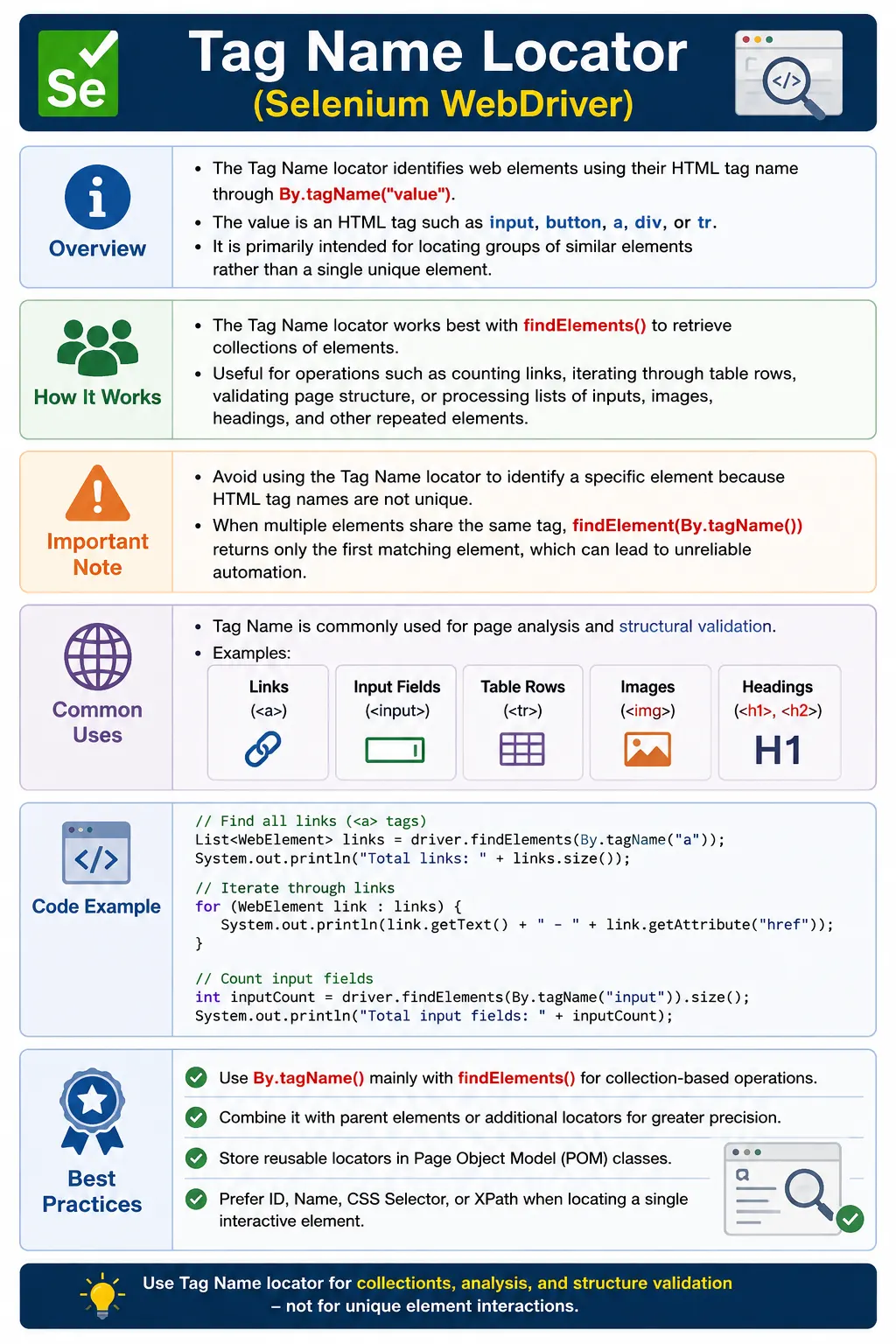
Understanding the tagName Locator in Selenium WebDriver
The tagName locator is one of the simplest Selenium locator strategies, but it is often misunderstood. It identifies elements by their HTML tag name, such as input, button, a, img, h1, table, tr, td, div, span, or iframe. Unlike ID or name locators, tagName usually does not point to one specific element. It is better understood as a collection-oriented locator. When a tester wants to count all links on a page, inspect all input fields inside a form, validate that a table has rows, read all section headings, or check that image elements contain source attributes, By.tagName() can be useful.
Selenium tests work by locating elements in the browser's Document Object Model and then interacting with or validating those elements. The locator is the instruction that tells WebDriver how to search. With By.tagName("a"), Selenium searches for anchor elements. With By.tagName("input"), it searches for input elements. With By.tagName("tr"), it searches for table row elements. The syntax is simple, but the design judgment behind it matters. Since most pages contain many elements with the same tag, tagName should rarely be used as the only locator for a critical click or data entry action.
The most important point is that HTML tag names are not unique. A page may contain dozens of div elements, several buttons, many links, multiple inputs, and many table cells. If a test uses driver.findElement(By.tagName("button")), Selenium returns the first button it finds in the current search context. That may work accidentally on a small page, but it is not a reliable way to express intent. The first button can change when the UI adds a banner, cookie popup, hidden modal, new toolbar, or responsive menu. A locator that depends on "the first button on the page" is fragile because it describes structure, not business purpose.
This is why tagName is usually paired with findElements() rather than findElement(). findElements() returns a list of all matching elements, which fits the natural purpose of tagName. A test can find all links and count them. It can find all images and verify that each image has a src attribute. It can find all rows in a table and loop through their text. It can find all input elements inside a form and verify the expected number of fields. In these cases, tagName is doing exactly what it is good at: collecting elements of the same structural type.
A useful way to think about the tagName locator is to ask whether the test is trying to analyze a group or control one specific element. If the test is analyzing a group, tagName may be appropriate. If the test is controlling one specific element, another locator is usually better. For example, counting all links uses tagName well. Clicking the "Forgot password" link should use link text, CSS, XPath, ID, data attribute, or a scoped locator that identifies that exact link. Counting all inputs in a registration form can use tagName. Typing into the email field should use ID, name, CSS, or XPath that specifically identifies the email field.
The tagName locator is particularly useful for structural validation. Many teams use Selenium not only for business workflows but also for page-level checks. A content page may be expected to have exactly one h1. A product listing page may be expected to show a certain number of product cards. A table may be expected to have at least one row after search results load. A footer may be expected to contain several links. A form may be expected to include a fixed number of input controls. These validations are not always about clicking a single element; they are about verifying that the page has the expected structure. tagName is a natural fit for these checks.
Links are one of the most common uses. In HTML, links are represented by anchor tags, written as a. A test can call driver.findElements(By.tagName("a")) to collect all anchors on the page. From there, it can read each link's visible text, inspect the href attribute, check whether important navigation links exist, or validate that no link has an empty destination. This kind of test is useful for navigation smoke checks, content pages, sitemap-related pages, and footer or header validation. However, the same strategy should not be used blindly to click a particular link unless the list is filtered to the correct item.
Input fields are another common use. A form may contain text boxes, password fields, hidden fields, checkboxes, radio buttons, date inputs, file inputs, and search inputs. All of these can be represented by the input tag, but they behave differently depending on the type attribute. A test that uses By.tagName("input") can count or inspect all input elements, but it should not assume all inputs accept text. Before interacting with a specific input, the test should identify it by ID, name, CSS selector, XPath, placeholder, label relationship, or another stable attribute. tagName tells you the element category, not the element's exact purpose.
Tables also demonstrate the value of tagName. Traditional HTML tables use table, thead, tbody, tr, th, and td tags. A test can locate a table by ID or CSS selector and then find rows inside that table using table.findElements(By.tagName("tr")). This is much safer than finding all tr elements globally, because a page may contain several tables or hidden template rows. Scoped tagName searches are powerful because they combine a precise parent locator with a broad child collection. The parent gives context; the tagName gives a clean way to gather similar child elements.
This idea of scoping is central to professional usage. A global tagName search looks across the current document. A scoped tagName search starts from a specific WebElement. For example, footer.findElements(By.tagName("a")) collects links only inside the footer. loginForm.findElements(By.tagName("input")) collects inputs only inside the login form. resultsTable.findElements(By.tagName("tr")) collects rows only inside the results table. Scoped searches make tagName much more useful because they reduce noise and connect the collection to a meaningful page area.
The tagName locator can also support SEO and content validation. A basic page-quality test may verify that each article page contains one h1, several h2 headings, paragraph content, and images with alt text. Selenium can collect h1, h2, p, and img elements by tagName and then validate counts or attributes. This does not replace specialized SEO tools, but it can catch obvious page regressions during automated checks. For tutorial websites, documentation pages, and marketing pages, structural tests like these can be useful because they verify that content is rendered as expected.
Image validation is another practical example. A page may contain several img tags. A Selenium test can collect them with By.tagName("img"), loop through each image, and verify that the src attribute is not empty. It can also check that important images have alt attributes for accessibility. If the test needs to validate that an image actually loads successfully, Selenium alone may not be enough; additional JavaScript checks or network validation may be needed. Still, tagName gives a simple way to begin image inspection across the page.
The tagName locator should be used carefully with buttons. Many pages contain several button elements: menu buttons, submit buttons, cancel buttons, close buttons, filter buttons, pagination buttons, and hidden buttons. Clicking buttons.get(0) may work in a small example, but it is rarely a good production locator. If a test must click a specific button, use a more meaningful locator. The button may have an ID, a data-test attribute, a clear accessible label, or text that can be targeted with XPath. tagName can collect buttons for validation, but a specific user action needs a specific locator.
The same warning applies to div and span elements. Modern applications use many div and span elements for layout, icons, labels, wrappers, custom controls, and component structure. By.tagName("div") is usually too broad to be useful for direct interaction. It may return hundreds of elements. If a custom dropdown, toggle, or card is built with divs, the test should locate it by a stable class, role, text, data attribute, or relation to a labeled section. tagName alone does not contain enough information to identify intent.
One advantage of tagName is that it maps directly to HTML fundamentals. It helps testers understand page structure rather than treating Selenium as a list of magic commands. When you collect all a tags, you are collecting links. When you collect all input tags, you are collecting input controls. When you collect all h2 tags, you are collecting second-level headings. This can improve a tester's ability to inspect and reason about the DOM. Strong Selenium engineers are usually comfortable reading HTML because locator design depends on understanding the page's actual structure.
In Page Object Model design, tagName locators often belong inside helper methods rather than individual test cases. A page object might expose getFooterLinkCount(), getAllArticleHeadings(), getVisibleTableRows(), or getImageSources(). The test calls these readable methods, while the page object handles the details of locating the section and collecting elements by tagName. This keeps tests focused on expected behavior and keeps structural DOM knowledge centralized. If the page layout changes, the page object can be updated without spreading locator changes through many tests.
Component objects make this even cleaner. A reusable table component can locate rows by tagName("tr") and cells by tagName("td") inside each row. A navigation component can collect anchor tags inside the menu. A form component can collect input fields and validate required fields. A content component can collect headings and paragraphs. In each case, tagName is not acting as a vague global locator. It is operating inside a meaningful component boundary, which makes it more predictable and maintainable.
Waits are still important with tagName. A table may not have rows until data loads. Images may be inserted after a lazy-loading trigger. Links may appear only after a menu expands. A form may render after a modal opens. If a test calls findElements(By.tagName("tr")) too early, it may receive an empty list even though rows appear a moment later. An explicit wait should be used when the test expects a collection to appear or reach a minimum size. The locator gathers the elements; the wait describes the timing condition.
The behavior of findElements() is useful for optional collections. If no elements match, Selenium returns an empty list rather than throwing NoSuchElementException. This makes tagName useful for safe checks. A test can ask whether any iframe tags exist, whether a page contains video tags, whether a modal contains buttons, or whether a result table has rows. The test can then branch based on the list size. This is cleaner than using exception handling for expected optional content.
Stale element references can occur with tagName results just like any other WebElement. If a test collects a list of rows and the table refreshes, the old row elements may become stale. If a test collects all buttons and a component re-renders, those button references may no longer be valid. The fix is to collect the elements again after the DOM update. In dynamic applications, it is usually better to keep locators reusable and retrieve fresh lists when needed rather than storing element lists for too long.
Frames and shadow DOM can affect tagName searches. By.tagName("input") searches only the current document context. If inputs are inside an iframe, the driver must switch into the frame first. If elements are inside a shadow root, the test may need to access that shadow root before searching inside it. When a broad tagName search returns fewer elements than expected, the issue may not be the tag name. The elements may simply be in a different DOM context. Debugging should always include context checks before changing locator strategy.
In interviews, the tagName locator is usually discussed as a locator for multiple elements. A short answer is that By.tagName() finds elements by HTML tag and is commonly used with findElements() for counts, iteration, and structural validation. A stronger answer adds that tag names are not unique, so tagName is not suitable for identifying a critical single element unless the search is scoped and the result is filtered. A practical answer mentions links, inputs, table rows, headings, images, iframes, and page object helper methods.
A common interview trap is using tagName with a compound selector. By.tagName("div span") is not valid because tagName expects one HTML tag name, not a CSS selector or XPath expression. If the test needs to find span elements inside a div, it can first find the div and then search by tagName("span"), or it can use a CSS selector such as div span. Understanding the boundary between locator strategies matters. tagName is for one tag name; CSS and XPath are for more complex expressions.
Another beginner mistake is using tagName when a better locator exists. If a login button has id="loginBtn", By.id("loginBtn") is better than finding all buttons and clicking the first one. If an email field has name="email", By.name("email") is better than finding all inputs and selecting an index. tagName should not be used just because it is easy to type. It should be used because the test truly needs a collection or structural analysis. Clear locator intent is part of clear test design.
A practical locator priority often places tagName near the bottom for single-element actions, but that does not mean it is unimportant. It simply has a different purpose. ID, name, CSS selector, and XPath are usually better for precise element targeting. tagName is better for broad discovery and validation. A mature automation suite uses both categories well. It uses specific locators for important user actions and collection locators for page structure, counts, lists, and bulk checks.
The key takeaway is that By.tagName() is a collection-oriented Selenium locator. It is excellent for finding groups of links, inputs, rows, cells, headings, images, frames, scripts, or other HTML elements. It is weak when used alone for critical clicks or typing because tag names are almost never unique. Use it with findElements(), scope it to a parent element when possible, filter the results when needed, and combine it with explicit waits on dynamic pages. Used this way, tagName becomes a useful tool for analysis and validation rather than a source of unpredictable automation behavior.
Real-World Patterns for tagName Locator Usage
In real automation work, tagName is often most useful when the test is not trying to complete a single user action, but trying to inspect a page as a structured document. A smoke test for a content page may verify that the page has one h1 heading, multiple paragraphs, a set of navigation links, and images with valid source attributes. A regression test for a search results page may verify that the result table has rows after a query is submitted. A dashboard test may verify that a widget section contains several buttons or links. In these situations, the test is asking a collection question, and tagName is a natural way to collect the relevant elements.
The key to making these tests reliable is to avoid global searches when the page contains repeated structures. If the test needs footer links, locate the footer first and then call footer.findElements(By.tagName("a")). If the test needs table rows from a search result, locate the result table first and then collect tr elements inside that table. If the test needs input fields in a registration form, locate the registration form first and then collect input tags inside it. This pattern keeps the locator broad enough to gather a collection, but scoped enough to avoid unrelated elements elsewhere on the page.
Filtering is the next important pattern. After collecting elements by tagName, the test often needs to filter the list by visible text, attribute value, displayed state, enabled state, or another condition. For links, the test may filter by href or visible text. For inputs, it may filter by type, name, placeholder, or checked state. For images, it may filter by alt text or source path. For table rows, it may filter by row text or specific column values. tagName gives the initial collection; filtering turns that collection into a meaningful test target.
This pattern is safer than relying on indexes. Selecting buttons.get(0) or links.get(3) can be acceptable in a controlled demo, but it is fragile in a production test suite. Indexes describe position, not intent. If a new button is added before the expected button, the index changes. If a hidden responsive element appears in the DOM, the index can shift. If a feature flag adds another link, the test may click the wrong item. Filtering by meaningful conditions is more stable because it describes the element's purpose rather than its accidental location in a list.
tagName is also helpful for health checks across a page. For example, a page object can provide a method that returns all broken-looking links by collecting anchor tags and checking whether href is missing, empty, or uses an unexpected placeholder. Another method can collect all images and report those without alt attributes. A table component can collect rows and verify that every visible row has the expected number of cells. These checks are not replacements for deeper API or accessibility testing, but they catch simple rendering and markup problems early.
When working with dynamic content, tagName checks should be tied to meaningful wait conditions. If a result table loads after an API call, wait until the table is visible and until the row count is greater than zero. If a menu expands after a click, wait until the menu container is visible before collecting its links. If images lazy-load as the user scrolls, scroll or trigger the relevant viewport state before collecting image tags. A tagName locator cannot solve timing by itself. It needs synchronization that matches the user behavior and page loading model.
Framework design can make these patterns reusable. Instead of writing link-count logic in many tests, create a navigation or footer component with methods such as getLinkTexts(), getLinkTargets(), hasLink(String text), and clickLink(String text). Internally, the component can use tagName("a") and filter the result. Instead of writing table row collection in every test, create a table component with getRows(), getRowCount(), getCellText(), and findRowContaining(). Internally, the component can use tr and td tag searches within the table root. The tests become cleaner, and the tagName usage stays controlled.
tagName can also be useful while developing locators. When a tester is exploring a new page, collecting all buttons, links, inputs, headings, or frames can reveal how the page is structured. This exploratory use helps identify better final locators. For example, after collecting all inputs, the tester may notice that the email field has a stable name attribute. After collecting all buttons, the tester may notice that important actions have data-test attributes. In this sense, tagName is both an automation tool and a diagnostic tool.
The method should still be used with caution in assertions. A test that expects exactly five links may fail for harmless reasons if a new support link is added to the footer. A better assertion might check that required links exist rather than demanding an exact total, unless the exact count is truly a requirement. Similarly, a test that expects exactly ten input elements may become brittle if a hidden anti-spam field or tracking field is added. Collection assertions should reflect business meaning, not arbitrary DOM counts.
A strong approach is to combine tagName with clear assertion messages. If an image validation fails, the report should explain which image was missing src or alt text. If a table row count fails, the report should identify the table and expected condition. If a required link is missing, the message should name the link. Good messages matter because tagName-based tests often work with groups. Without clear reporting, a collection failure can be hard to diagnose from a CI log.
For interview preparation, remember that tagName is not "bad"; it is just specialized. It is bad when used to click a random first element. It is good when used to collect a meaningful group inside a known context. It is bad when a test depends on index positions without a reason. It is good when the code filters a collection by text, attribute, or state. It is bad when a broad global search hides page ambiguity. It is good when scoped to a form, table, footer, menu, or content section. This balanced explanation shows practical Selenium judgment.
The simplest rule is this: use tagName when the HTML tag itself is the thing you care about. If you care about all links, use a. If you care about all input controls in a form, use input inside that form. If you care about table rows, use tr inside the table. If you care about one specific login button, one specific username field, or one specific delete icon, choose a more precise locator. That separation keeps your automation readable, stable, and aligned with the real purpose of each test.
In Selenium, tagName is primarily used for collections, counts, and structural validations, not direct interactions.
1. What Is a tagName Locator
Definition: The tagName locator locates elements by their HTML tag.
Example HTML:
<input type="text">
<button>Submit</button>
<a href="/home">Home</a>
Conceptually:
- Strategy means tagName
- Value means HTML tag name (e.g., input, button, a)
2. When tagName Locator Is Used
Use tagName when you need to:
- Find multiple elements of the same type
- Count elements on a page
- Validate page structure
- Iterate through elements (tables, links, inputs)
Common Use Cases:
- Count number of links (a)
- Count input fields (input)
- Validate number of rows (tr)
- Read all headers (h1, h2, etc.)
3. What tagName Locator Is NOT For
Avoid tagName when:
- You need a specific element
- Uniqueness is required
- Direct interaction is needed (click/type)
Reason: HTML tags are never unique in real applications.
4. tagName Locator Behavior
- Usually used with findElements()
- Returns a list of elements
- Rarely used with findElement() (unsafe)
Example logic: findElements(By.tagName("a")) means list of all links
5. tagName vs Other Locators
| Locator | Purpose | Uniqueness |
|---|---|---|
| id | Single element | Guaranteed |
| name | Single element (forms) | Not guaranteed |
| className | Styling-based | Not guaranteed |
| tagName | Group of elements | Invalid: Never |
| XPath/CSS | Flexible | Depends on locator |
tagName is a collection locator, not an interaction locator.
6. tagName in Page Object Model (POM)
In real frameworks:
- Used inside utility or page methods
- Returned as a list
- Tests validate size or iterate
Example intent:
- getAllLinksCount()
- getAllInputFields()
7. Common Beginner Mistakes
- Using tagName to locate a single element
- Clicking elements directly from a tag-based list without filtering
- Expecting uniqueness from tagName
- Overusing tagName instead of better locators
These mistakes cause unpredictable behavior.
8. Real-Project Best Practices
- Use tagName only for bulk operations
-
Always combine with:
- findElements()
- Iteration or filtering logic
- Never rely on tagName alone for critical actions
- Prefer CSS/XPath if specificity is needed
9. Interview Perspective
Short Answer: The tagName locator finds elements using their HTML tag name and is mainly used to locate multiple elements.
Real-Time Answer: In Selenium, the tagName locator is used to identify groups of elements like links, inputs, or table rows. Since tag names are never unique, it is typically used with findElements() for counting or iteration, not for single-element interaction.
10. Key Takeaway
- tagName locates groups, not individuals
- Never unique
- Best for counting and iteration
- Not suitable for direct actions
- Use tagName to analyze structure-not to control behavior.
11. Practical tagName Examples
1. Basic tagName Locator
driver.findElement(By.tagName("h1"));Key Point: Locates elements by HTML tag (e.g., input, a, div).
2. Count All Inputs on a Page
List<WebElement> inputs =
    driver.findElements(By.tagName("input"));

System.out.println(inputs.size());
3. Click the First Button Using tagName
List<WebElement> buttons =
    driver.findElements(By.tagName("button"));

buttons.get(0).click();
Note: Always check size before get(0).
4. Get Text from All Headings
List<WebElement> headings =
    driver.findElements(By.tagName("h2"));

for (WebElement h : headings) {
    System.out.println(h.getText());
}
5. Validate Presence of Links (<a>)
List<WebElement> links =
    driver.findElements(By.tagName("a"));

Assert.assertTrue(links.size() > 0);
6. Print All Hyperlink URLs
List<WebElement> links =
    driver.findElements(By.tagName("a"));

for (WebElement link : links) {
    System.out.println(link.getAttribute("href"));
}
7. tagName with getText() on Paragraphs
List<WebElement> paras =
    driver.findElements(By.tagName("p"));

for (WebElement p : paras) {
    System.out.println(p.getText());
}
8. tagName with isDisplayed()
List<WebElement> images =
    driver.findElements(By.tagName("img"));

for (WebElement img : images) {
    System.out.println(img.isDisplayed());
}
9. tagName Inside a Specific Section (Chaining)
WebElement footer = driver.findElement(By.id("footer"));
List<WebElement> footerLinks =
    footer.findElements(By.tagName("a"));

System.out.println(footerLinks.size());
Best Practice: Combine tagName with a parent locator.
10. tagName Inside a Form
WebElement form = driver.findElement(By.id("loginForm"));
List<WebElement> fields =
    form.findElements(By.tagName("input"));

System.out.println(fields.size());
11. tagName with Explicit Wait
WebDriverWait wait =
    new WebDriverWait(driver, Duration.ofSeconds(10));

List<WebElement> rows =
    wait.until(ExpectedConditions
        .visibilityOfAllElementsLocatedBy(By.tagName("tr")));
12. tagName for Table Rows
List<WebElement> rows =
    driver.findElements(By.tagName("tr"));

for (WebElement row : rows) {
    System.out.println(row.getText());
}
13. tagName for Table Columns
List<WebElement> cols =
    driver.findElements(By.tagName("td"));

System.out.println(cols.size());
14. tagName with findElements() (Safe Pattern)
List<WebElement> videos =
    driver.findElements(By.tagName("video"));

if (!videos.isEmpty()) {
    System.out.println("Video present");
}
15. tagName After Page Refresh (Stale Fix)
List<WebElement> buttons =
    driver.findElements(By.tagName("button"));

driver.navigate().refresh();

// re-locate after refresh
buttons = driver.findElements(By.tagName("button"));
16. tagName Inside Frame
driver.switchTo().frame("contentFrame");
List<WebElement> inputs =
    driver.findElements(By.tagName("input"));
driver.switchTo().defaultContent();
17. tagName Stored as By (Framework Style)
By allLinks = By.tagName("a");
driver.findElements(allLinks);
18. tagName in Page Object Model (POM)
@FindBy(tagName = "h1")
WebElement mainHeading;

public String getHeadingText() {
    return mainHeading.getText();
}
19. Invalid: Common Interview Mistake
By.tagName("div span"); // Invalid: invalidCorrect:
By.tagName("div"); // Valid: single tag only20. When to Use tagName (Interview)
- Valid: Counting elements
- Valid: Validating presence
- Valid: Iterating lists
- Invalid: Clicking a specific unique element
21. tagName vs ID / Name / className
ID        means best for unique element
Name      means good for forms
className means OK if single & stable
tagName   means best for collections
22. tagName with Assertions
Assert.assertFalse(
    driver.findElements(By.tagName("iframe")).isEmpty()
);
23. tagName for SEO / Content Validation
List<WebElement> h1 =
    driver.findElements(By.tagName("h1"));

Assert.assertEquals(h1.size(), 1);
24. tagName for Image Validation
List<WebElement> imgs =
    driver.findElements(By.tagName("img"));

for (WebElement img : imgs) {
    Assert.assertNotNull(img.getAttribute("src"));
}
25. Interview Summary - tagName Locator
driver.findElements(By.tagName("tag"));Key Points:
- Locates by HTML tag
- Usually returns multiple elements
- Best for counting, iteration, validation
- Not suitable for unique element actions alone
- Combine with parent for precision