Synchronization Issues in Selenium
Synchronization issues occur when Selenium attempts to interact with a web element before the application is ready. This is one of the most common and critical causes of flaky automation tests.
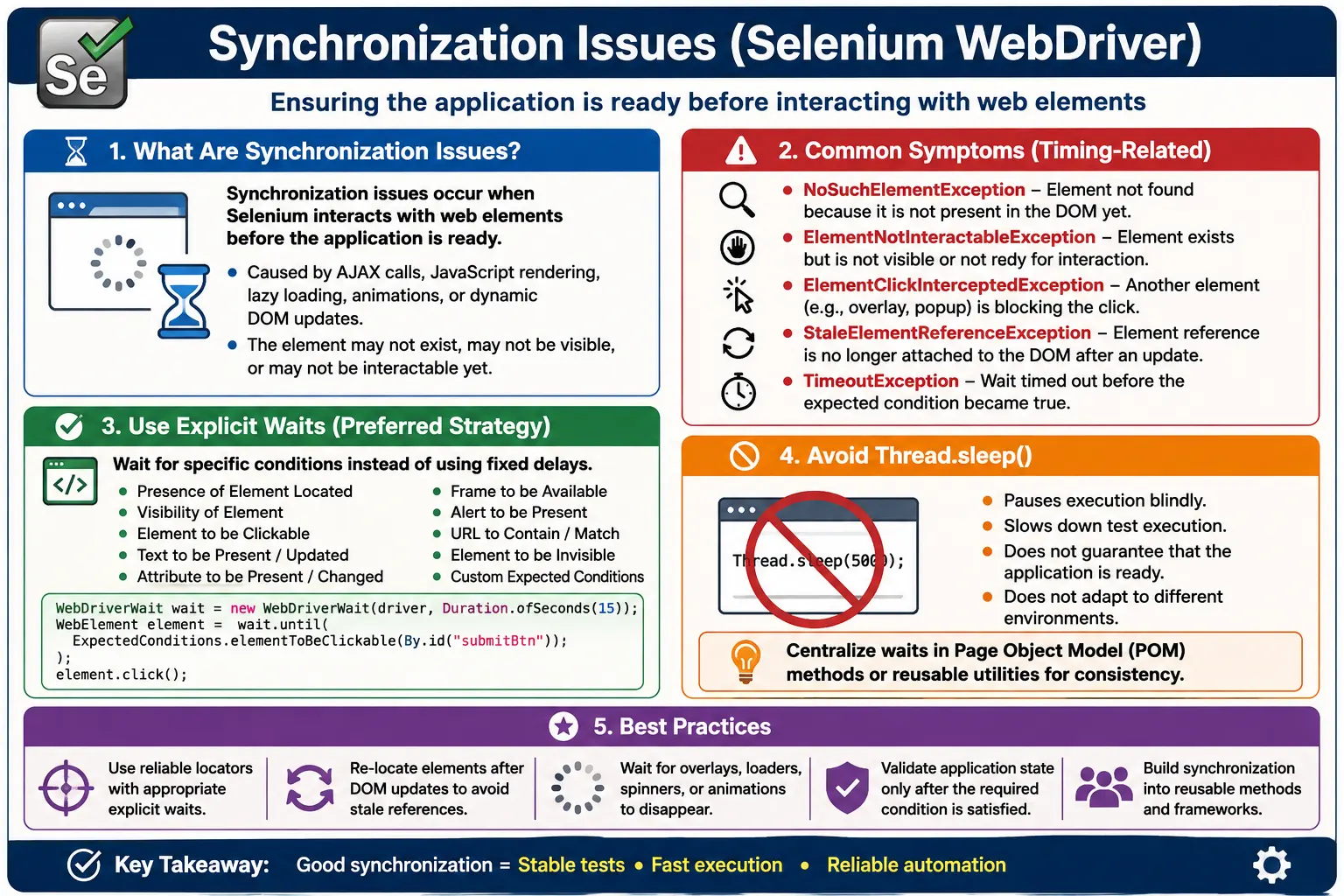
Understanding Synchronization Issues in Selenium
Synchronization issues in Selenium happen when the test execution speed and the application response time are not aligned. Selenium can execute commands very quickly. A modern web application, on the other hand, may need time to load data, render components, run JavaScript, complete animations, enable buttons, update text, or remove overlays. When Selenium tries to click, type, read text, or assert a value before the page is ready, the test may fail even though the application is working correctly. This timing mismatch is one of the most common causes of flaky Selenium automation.
A synchronization issue is different from a pure locator issue. If the locator is wrong, Selenium cannot find the correct element even after the page is fully ready. If synchronization is wrong, the locator may be correct, but Selenium reaches the element too early or keeps an old reference after the DOM changes. This distinction is important because adding a longer XPath will not fix a page that has not finished rendering. Likewise, adding a wait will not fix a selector that points to the wrong element. Reliable automation requires both strong locators and correct synchronization.
In older static web pages, synchronization was often simpler because the page loaded once and the elements were available together. Modern applications behave differently. A page can load first, then request data from an API, then render a grid, then enable a button after validation, then replace a component after a state change. This means the browser may look ready while a specific element is not ready. Selenium automation must wait for the condition that matters to the next action, not merely wait for the page to appear.
Why Synchronization Problems Occur
Selenium Is Faster Than the Application
Selenium sends commands to the browser as soon as the test code reaches them. It does not automatically know that a spinner is still blocking the screen, that an API call is still pending, or that a component will re-render in a moment. If the script clicks a button immediately after navigating to a page, Selenium may try to interact before the button is visible or clickable. The result can be NoSuchElementException, ElementNotInteractableException, or ElementClickInterceptedException.
This does not mean Selenium is unreliable. It means Selenium is deterministic and the application is asynchronous. Selenium does exactly what the test instructs it to do. If the test does not instruct Selenium to wait for the right condition, Selenium may act too early. Synchronization is the tester's responsibility. A stable framework tells Selenium when to proceed based on application state, not on blind time delays.
Modern Web Applications Are Asynchronous
Modern applications frequently use AJAX, fetch calls, lazy loading, client-side routing, animations, and frontend frameworks such as React, Angular, and Vue. These technologies improve user experience, but they also mean the DOM changes over time. An element can be absent, then present but hidden, then visible but disabled, then clickable, then replaced by a new DOM node after a re-render. Each state requires a different synchronization approach.
A common example is a dashboard. The browser may finish loading the page document, but the dashboard cards may still be waiting for API data. If Selenium immediately tries to read a card value, the element may not exist yet. Another example is a checkout button that remains disabled until validation and price calculation finish. Waiting for presence is not enough in that case; the test must wait until the button is enabled or clickable.
UI Transitions and Overlays Block Interaction
Synchronization issues are not limited to missing elements. Sometimes the element exists and is visible, but another element blocks it. Loading overlays, modal backdrops, toast animations, sticky headers, cookie banners, and spinners can intercept clicks. Selenium may report ElementClickInterceptedException because the target is not the topmost clickable element at that moment. The fix is not to click harder or add JavaScript clicks by default. The correct fix is usually to wait until the blocking overlay disappears or the target becomes clickable.
Animations can create similar problems. A dropdown may be in the DOM but still opening. A modal may be visible but not yet stable. A menu item may be present but moving. If Selenium acts during the transition, the click can fail or hit the wrong place. Good synchronization waits for the UI state that the action requires.
Common Symptoms of Synchronization Issues
NoSuchElementException
NoSuchElementException can mean the locator is wrong, but it can also mean the element has not appeared yet. If the same locator works in developer tools after the page settles, the issue is likely timing. Waiting for presenceOfElementLocated can solve cases where the element is added to the DOM later. However, presence only means the element exists in the DOM. It does not guarantee that the element is visible or ready for interaction.
ElementNotInteractableException
ElementNotInteractableException often occurs when the element exists but cannot be used. It may be hidden, collapsed, disabled, outside the visible area, or not ready due to frontend state. Waiting for visibility may help when the element is hidden. Waiting for clickability may help when the next action is a click. The important point is to wait for the condition that matches the intended operation.
ElementClickInterceptedException
ElementClickInterceptedException usually means Selenium found the target but another element received or blocked the click. This is common with overlays, spinners, modals, banners, and animations. Waiting for the target to be clickable is useful, but sometimes the framework also needs to wait for a known overlay to disappear. In enterprise applications, overlay handling often becomes a shared wait utility because the same blocker appears across many pages.
StaleElementReferenceException
StaleElementReferenceException happens when Selenium holds a WebElement reference that no longer belongs to the current DOM. React, Angular, and other frameworks can replace elements during re-rendering. The element may look the same to the user, but internally it is a new DOM node. The solution is usually to store a By locator, wait for the condition, and re-find the element after the DOM update rather than reusing an old WebElement.
Why Thread.sleep Is Not a Strategy
Hard Waits Are Blind
Thread.sleep pauses the test for a fixed amount of time. It does not check whether the application is ready. If the sleep is too short, the test still fails. If the sleep is too long, the test wastes time on every run. On a fast local machine, two seconds may be enough. On a slower CI environment, the same two seconds may fail. On a fast run, those two seconds are unnecessary. This makes hard waits both unreliable and inefficient.
Hard waits also hide the real condition. A line such as sleep five seconds does not tell the reader what the test is waiting for. Is it waiting for a spinner to disappear, a button to enable, a table to load, an alert to appear, or navigation to finish? Explicit waits document the intention because they name the condition. A test that waits for visibility of the dashboard communicates far more than a test that sleeps for a random duration.
When a Hard Wait May Still Appear
There are rare edge cases where a short hard wait may be used temporarily, such as debugging, waiting around an unavoidable animation with no reliable state hook, or working around a third-party component that exposes no detectable readiness signal. Even then, it should be treated as a last resort and documented. A mature framework should not scatter Thread.sleep across page methods and tests. Repeated sleeps are a sign that the synchronization strategy needs improvement.
Types of Synchronization in Selenium
Implicit Wait
Implicit wait is a global setting that tells Selenium to wait up to a specified time while searching for elements before throwing NoSuchElementException. It is simple, but limited. It waits for element presence, not visibility, clickability, text updates, attribute changes, overlay disappearance, or DOM stability. Because it is global, it can also make timing behavior harder to reason about when combined with explicit waits.
Implicit wait may help simple applications, but it is not enough for modern dynamic UIs. A button can be present but disabled. A field can be in the DOM but hidden. A click target can be visible but blocked by an overlay. These cases need explicit conditions. For this reason, many robust Selenium frameworks either avoid implicit waits entirely or keep them minimal and rely primarily on explicit waits.
Explicit Wait
Explicit wait is the industry-standard synchronization approach in Selenium. It waits for a specific condition before continuing. Common conditions include presence, visibility, clickability, text presence, URL changes, alert presence, frame availability, and invisibility of elements. Explicit waits are applied where they are needed, so they are more precise than a global implicit wait.
The strength of explicit waits is that they align with intent. If the test needs to click a button, wait for clickability. If the test needs to read text, wait for visibility or textToBe. If the test needs an overlay to stop blocking the UI, wait for invisibility. Waiting for the correct condition reduces flakiness and makes the test easier to understand.
Fluent Wait
Fluent Wait gives more control over polling interval, timeout, and ignored exceptions. It is useful when an element appears irregularly, when stale elements are expected during re-rendering, or when a custom condition must be evaluated repeatedly. Fluent Wait is not needed for every test, but it is valuable for advanced synchronization cases. It allows a framework to wait intelligently instead of repeatedly failing on temporary states.
Synchronization vs Validation
Wait First, Assert Next
Synchronization and validation are related, but they are not the same. Synchronization prepares the test to interact with or observe the application. Validation checks whether the application behaved correctly. For example, waiting until a status label is visible is synchronization. Asserting that the status equals Completed is validation. Mixing these ideas can make tests unclear and flaky.
A useful pattern is to wait for the application to reach an observable state, then perform the assertion. If a test submits a form and expects a success message, first wait for the message element or success state to appear. Then assert the actual text, icon, URL, or data value. This separates readiness from correctness and makes failures easier to diagnose.
Avoid Assertions as Waits
Some tests repeatedly assert values while the page is still updating, or they assert immediately after an action and fail because the UI has not caught up. Assertions should not be used as a substitute for proper waits. If a value is expected to update after an API call, wait for the value or state to change, then assert. This keeps the assertion meaningful and avoids timing noise.
Synchronization in Page Object Model
Hide Timing Details Behind Page Methods
Page Object Model is a natural place to manage synchronization. Tests should not contain scattered wait logic for every button, field, and page transition. Instead, page methods should wait for the page state required by their actions. A login method can wait for username visibility, enter credentials, click login, and wait for dashboard readiness. The test can simply call login and then continue with business assertions.
Centralizing waits improves consistency. If every tester writes their own wait logic, the framework becomes inconsistent and hard to maintain. Some tests may wait for presence, some for visibility, some for clickability, and some may use sleeps. Shared wait utilities and page-level methods create predictable behavior. They also make it easier to improve synchronization across the suite by changing one helper instead of many tests.
Use By Locators for Re-Finding Dynamic Elements
For dynamic pages, it is often better to store By locators instead of long-lived WebElement references. A By locator can be used repeatedly to find the current element after a refresh or re-render. A WebElement reference can become stale. Page object methods should locate elements close to the time they are used, especially after actions that update the DOM. This design reduces stale element failures.
Common Synchronization Mistakes
Using the Wrong Wait Condition
Waiting for presence when the element must be clickable is a common mistake. Presence only means the element is in the DOM. It may still be hidden or disabled. Waiting for visibility when a click is required may still fail if another element blocks the click. The wait condition should match the next operation. Type into fields after visibility and enablement. Click buttons after clickability and overlay disappearance. Read text after visibility or text presence.
Ignoring Frames, Windows, and Alerts
Some timing failures happen because the context is not ready. A frame may load late, an alert may appear after a delay, or a new tab may open after a click. Selenium must switch to the correct context before interacting with elements inside it. Explicit waits such as frameToBeAvailableAndSwitchToIt, alertIsPresent, and window count checks help handle these cases. Without context synchronization, locators can appear broken even when they are correct.
Mixing Implicit and Explicit Waits
Mixing implicit and explicit waits can make timeout behavior confusing because the implicit wait may affect each element lookup inside an explicit wait. This can cause waits to take longer than expected and make failures harder to diagnose. Many teams avoid mixing them and rely on explicit waits for clarity. If implicit wait is used, it should be done intentionally and consistently.
Debugging Synchronization Failures
Separate Locator, Timing, and Context
Debugging should begin by separating three questions. Does the locator match the intended element after the page is ready? Is the element in the correct browser context, such as the main page, frame, or new window? Is the element in the required state for the action, such as visible, enabled, clickable, or updated with the expected text? Answering these questions prevents random fixes.
If the locator is correct in DevTools after the page settles, the failure is likely timing or context. If the locator matches multiple elements, locator quality needs improvement. If the element is inside an iframe, switching context is required. If the element exists but is covered, overlay waits are needed. The best debugging approach is concrete and state-based, not trial and error.
Use Logs and Screenshots Wisely
Framework logs can show which condition was being waited for and how long it took. Screenshots at failure can reveal spinners, overlays, modal backdrops, hidden panels, or incomplete page states. These details help distinguish product defects from automation timing issues. A screenshot showing a loading overlay is strong evidence that the test acted too early. A screenshot showing the target absent may indicate a locator, data, or navigation issue.
Interview Perspective on Synchronization Issues
Short Interview Answer
Synchronization issues occur when Selenium interacts with a web element before the application is ready. They are usually handled with explicit waits that wait for conditions such as presence, visibility, clickability, text updates, frame availability, alert presence, or overlay disappearance.
Detailed Interview Answer
In Selenium, synchronization issues happen because test execution is faster than asynchronous web application behavior. Modern applications use AJAX, JavaScript rendering, lazy loading, API calls, animations, overlays, and DOM re-rendering. This can cause NoSuchElementException, ElementNotInteractableException, ElementClickInterceptedException, StaleElementReferenceException, and TimeoutException. The best solution is to use explicit waits and Fluent Wait where needed, avoid Thread.sleep, re-find stale elements, and centralize synchronization inside Page Object Model methods.
Real Project Explanation
In a real framework, I would avoid hard waits, keep locators and wait utilities centralized, wait for the exact condition required by the next action, and handle overlays, frames, alerts, windows, and stale elements with dedicated helper methods. I would also separate synchronization from validation: wait for the UI state first, then assert the expected result. This approach reduces flaky failures and makes test results more trustworthy.
Practical Synchronization Guidelines
Choose the Wait Based on the Action
If the test only needs to know that an element exists, wait for presence. If the test needs to read text, wait for visibility or text presence. If the test needs to click, wait for clickability and consider overlay invisibility. If the test expects navigation, wait for URL change or a stable element on the next page. If a component re-renders, re-locate the element after the update. The wait should always match the actual requirement.
Make Synchronization Reusable
Reusable wait helpers improve framework consistency. Common helpers include waitForVisible, waitForClickable, waitForInvisible, waitForText, waitForUrlContains, waitForFrame, waitForAlert, and waitForElementCount. These helpers can add logging, standard timeouts, polling rules, and ignored exceptions. This prevents every test class from inventing its own synchronization style.
Do Not Hide Product Problems
Synchronization should make tests stable, but it should not hide real product performance problems. If a page takes unusually long to load, a long timeout may make the test pass while the user experience remains poor. Frameworks should use reasonable timeouts and report slow conditions. Sometimes a timeout failure is a valid product signal. Good synchronization distinguishes normal asynchronous behavior from unacceptable slowness.
The key takeaway is that synchronization is a core Selenium skill, not an optional improvement. Most flaky tests are caused by acting before the UI is ready, holding stale element references, ignoring overlays, or using the wrong wait condition. Strong automation waits for meaningful application states, centralizes wait logic, avoids blind sleeps, and keeps validation separate from readiness. When synchronization is designed well, Selenium tests become faster, clearer, and much more reliable.
Synchronization in CI and Real Test Environments
Why CI Reveals Hidden Timing Problems
Many synchronization issues appear first in continuous integration because CI machines are often slower, more variable, and less predictable than a local developer laptop. Browser startup may take longer, network calls may respond more slowly, and parallel jobs may compete for CPU and memory. A test that passes locally because the page happens to load quickly can fail in CI if it relies on timing assumptions. This is why local success is not enough proof of synchronization quality.
A stable CI suite should not depend on fixed sleeps tuned to one machine. It should wait for application states that are true in every environment. If a grid loads after an API call, wait for rows or a loaded marker. If a dashboard opens after login, wait for a dashboard-specific element or URL. If a spinner blocks the page, wait for the spinner to disappear. Condition-based waits adapt to fast and slow environments better than hard-coded pauses.
Capturing Evidence for Timing Failures
Good frameworks capture useful evidence when synchronization fails. Screenshots, browser logs, current URL, page title, failed locator, wait condition, and timeout duration can make root cause analysis much faster. A screenshot that shows a loading overlay immediately points to a missing overlay wait. A screenshot that shows a login page when the test expected a dashboard points to navigation or authentication readiness. Evidence turns flaky failures into actionable engineering work.
Timing failures should also be categorized. If the same wait condition fails repeatedly on one page, the page object may need a better readiness method. If failures happen randomly across many pages, the environment may be unstable or the global timeout may be unrealistic. If stale element failures happen after specific actions, the framework may be storing WebElement references too long. Categorization prevents random patches and helps the team improve the framework systematically.
Designing Page Readiness Methods
A useful enterprise practice is to create page readiness methods. Instead of every test guessing when a page is ready, each page object can define what readiness means for that page. The login page may be ready when the username field is visible. The dashboard may be ready when the main widget area is visible and the loading overlay is gone. A search results page may be ready when the result container is visible and the item count has settled. These methods make synchronization explicit and reusable.
Page readiness should be based on meaningful indicators, not arbitrary delays. The indicator can be a stable heading, a data-test marker, an enabled action button, a disappearing spinner, a URL pattern, or a minimum number of loaded records. The best readiness signal depends on the application. When developers and testers collaborate, the application can expose clean readiness hooks that make automation simpler and more reliable.
This is the practical maturity point for Selenium synchronization: do not wait because a test is flaky; wait because the application has a known state transition. Once the framework models those state transitions, tests become easier to read and more stable across environments. Synchronization stops being a collection of scattered fixes and becomes part of the automation architecture.
In Selenium, synchronization is not optional-it is a core automation skill.
1. What Is Synchronization in Selenium
Definition:
Synchronization is the process of aligning Selenium test execution speed with the application's response time, ensuring that elements are ready before interaction.
Selenium is:
- Fast
- Execution-driven
Web applications are:
- Asynchronous
- Event-driven
- Network-dependent
This mismatch causes failures.
2. Why Synchronization Issues Occur
Modern web applications use:
- AJAX calls
- JavaScript rendering
- Lazy loading
- Animations and transitions
- API-driven UI updates
As a result:
- Elements may exist but not be visible
- Elements may be visible but not clickable
- Elements may refresh after being located
3. Common Symptoms of Synchronization Issues
Frequent exceptions caused by poor synchronization:
- NoSuchElementException
- ElementNotInteractableException
- ElementClickInterceptedException
- StaleElementReferenceException
- TimeoutException
These errors are timing-related, not locator-related in most cases.
4. Typical Real-World Scenarios
4.1 Page Load vs Element Load
- Page loads, but elements load later via JS
- Selenium tries to interact too early
4.2 Dynamic Enablement
- Button appears disabled initially
- Becomes enabled after validation or API response
4.3 Loading Spinners & Overlays
- Spinner blocks UI
- Element exists but is not clickable
4.4 DOM Refresh
- React/Angular re-renders DOM
- Previously located element becomes stale
5. Why Thread.sleep() Is NOT a Solution
Using Thread.sleep():
- Pauses execution blindly
- Does not guarantee readiness
- Slows down test execution
- Fails on slow or fast environments
Industry rule:
Thread.sleep() is a last resort, not a synchronization strategy.
6. Types of Synchronization in Selenium (Overview)
Selenium provides:
- Implicit Wait
- Explicit Wait
- Fluent Wait
- Custom wait logic (framework level)
Each serves a different purpose.
7. Implicit Synchronization (Conceptual)
- Applied globally
- Selenium waits before throwing NoSuchElementException
- Does not wait for visibility or clickability
Limitation:
Not sufficient for modern dynamic UIs.
8. Explicit Synchronization (Industry Standard)
- Waits for specific conditions
- Applied per element or scenario
- Most reliable approach
Common wait conditions:
- Presence
- Visibility
- Clickability
- Text presence
- Attribute state
Rule:
Explicit waits solve 80-90% of synchronization problems.
9. Synchronization vs Validation (Important Distinction)
- Wait means ensures readiness
- Validation means asserts correctness
Do not mix them:
- Wait first
- Validate next
10. Synchronization and Page Object Model (POM)
Best practices:
- Embed waits inside page methods
- Do not scatter waits across test cases
- Centralize wait utilities
This ensures:
- Cleaner tests
- Consistent behavior
- Easier maintenance
11. Common Beginner Mistakes
- Using only implicit wait
- Mixing implicit and explicit waits
- Using Thread.sleep() everywhere
- Waiting for visibility when clickability is required
- Ignoring overlays and spinners
These lead to unstable suites.
12. Interview Perspective
Short Answer
Synchronization issues occur when Selenium interacts with elements before the application is ready, causing timing-related failures.
Real-Time Answer
In Selenium, synchronization issues arise due to asynchronous web behavior like AJAX and dynamic rendering. We handle them using explicit waits to align test execution with application readiness instead of relying on hard waits.
13. Key Takeaway
- Selenium is faster than the UI
- Modern apps are asynchronous
- Synchronization is mandatory
- Explicit waits are the primary solution
- Poor synchronization = flaky tests
Most Selenium failures are not locator problems-they are synchronization problems.
14. Practical Synchronization Fixes (20 Common Cases)
1) Element not yet in DOM (NoSuchElementException)
Valid: Fix: wait for presence
WebDriverWait wait = new WebDriverWait(driver, Duration.ofSeconds(10));
WebElement el = wait.until(ExpectedConditions.presenceOfElementLocated(By.id("username")));
el.sendKeys("admin");
2) Element in DOM but not visible (ElementNotInteractableException)
Valid: Fix: wait for visibility
WebDriverWait wait = new WebDriverWait(driver, Duration.ofSeconds(10));
WebElement el = wait.until(ExpectedConditions.visibilityOfElementLocated(By.id("promoBanner")));
System.out.println(el.getText());
3) Element visible but not clickable (ElementClickInterceptedException)
Valid: Fix: wait for clickable
WebDriverWait wait = new WebDriverWait(driver, Duration.ofSeconds(10));
wait.until(ExpectedConditions.elementToBeClickable(By.id("submit"))).click();
4) Spinner/overlay blocking clicks
Valid: Fix: wait for overlay invisibility
WebDriverWait wait = new WebDriverWait(driver, Duration.ofSeconds(15));
wait.until(ExpectedConditions.invisibilityOfElementLocated(By.cssSelector(".loading-overlay")));
driver.findElement(By.cssSelector("[data-test='save']")).click();
5) Page navigation not finished (actions too early)
Valid: Fix: wait for document ready
WebDriverWait wait = new WebDriverWait(driver, Duration.ofSeconds(10));
wait.until(d -> ((JavascriptExecutor)d).executeScript("return document.readyState").equals("complete"));
6) Ajax request still running (UI not updated)
Valid: Fix: wait for jQuery active = 0 (only if jQuery app)
WebDriverWait wait = new WebDriverWait(driver, Duration.ofSeconds(10));
wait.until(d -> (Boolean)((JavascriptExecutor)d)
        .executeScript("return window.jQuery!=null && jQuery.active===0"));
7) Stale element after DOM refresh (StaleElementReferenceException)
Valid: Fix: wait + re-find (use By, not WebElement stored)
By row = By.cssSelector("tr[data-id='101']");
WebDriverWait wait = new WebDriverWait(driver, Duration.ofSeconds(10));
wait.until(ExpectedConditions.presenceOfElementLocated(row));
driver.findElement(row).click();
8) Text updates late (assertion fails)
Valid: Fix: wait for textToBe
WebDriverWait wait = new WebDriverWait(driver, Duration.ofSeconds(10));
wait.until(ExpectedConditions.textToBe(By.id("status"), "Completed"));
9) Attribute changes late (disabled means enabled)
Valid: Fix: custom wait on attribute
WebDriverWait wait = new WebDriverWait(driver, Duration.ofSeconds(10));
By btn = By.id("checkoutBtn");
wait.until(d -> d.findElement(btn).isEnabled());
driver.findElement(btn).click();
10) Element count changes after load (list/grid loads later)
Valid: Fix: wait until list size > 0
By cards = By.cssSelector(".product-card");
WebDriverWait wait = new WebDriverWait(driver, Duration.ofSeconds(10));
wait.until(d -> d.findElements(cards).size() > 0);
System.out.println(driver.findElements(cards).size());
11) Wait for element to disappear (toast/spinner)
Valid: Fix: wait for invisibility
WebDriverWait wait = new WebDriverWait(driver, Duration.ofSeconds(10));
wait.until(ExpectedConditions.invisibilityOfElementLocated(By.id("progressBar")));
12) Alert appears late (NoAlertPresentException)
Valid: Fix: wait for alertIsPresent
driver.findElement(By.id("delete")).click();

WebDriverWait wait = new WebDriverWait(driver, Duration.ofSeconds(10));
Alert alert = wait.until(ExpectedConditions.alertIsPresent());
alert.accept();
13) Frame loads late (NoSuchFrameException)
Valid: Fix: wait for frame + switch
WebDriverWait wait = new WebDriverWait(driver, Duration.ofSeconds(10));
wait.until(ExpectedConditions.frameToBeAvailableAndSwitchToIt(By.id("payFrame")));
driver.findElement(By.id("card")).sendKeys("4111111111111111");
driver.switchTo().defaultContent();
14) New window/tab opens late
Valid: Fix: wait for window count
String parent = driver.getWindowHandle();
driver.findElement(By.id("openTab")).click();

WebDriverWait wait = new WebDriverWait(driver, Duration.ofSeconds(10));
wait.until(d -> d.getWindowHandles().size() > 1);

for (String w : driver.getWindowHandles()) {
    if (!w.equals(parent)) driver.switchTo().window(w);
}
15) Infinite scroll loads items gradually
Valid: Fix: wait until count increases
By items = By.cssSelector(".result-item");
WebDriverWait wait = new WebDriverWait(driver, Duration.ofSeconds(10));

int before = driver.findElements(items).size();
((JavascriptExecutor) driver).executeScript("window.scrollTo(0, document.body.scrollHeight);");

wait.until(d -> d.findElements(items).size() > before);
16) Lazy-loaded image not ready (src changes later)
Valid: Fix: wait for src to contain real URL
By img = By.cssSelector("img#profilePic");
WebDriverWait wait = new WebDriverWait(driver, Duration.ofSeconds(10));
wait.until(d -> d.findElement(img).getAttribute("src").contains("cdn"));
17) Autocomplete suggestions appear late
Valid: Fix: wait for dropdown list visibility
driver.findElement(By.id("city")).sendKeys("Chi");

WebDriverWait wait = new WebDriverWait(driver, Duration.ofSeconds(10));
wait.until(ExpectedConditions.visibilityOfElementLocated(By.cssSelector(".suggestions li")));
driver.findElement(By.cssSelector(".suggestions li")).click();
18) Dependent dropdown loads via API
Valid: Fix: wait for options > 1
driver.findElement(By.id("country")).click();
driver.findElement(By.xpath("//option[text()='USA']")).click();

By stateOptions = By.cssSelector("#state option");
WebDriverWait wait = new WebDriverWait(driver, Duration.ofSeconds(10));
wait.until(d -> d.findElements(stateOptions).size() > 1);
19) Wait for URL change after click (navigation)
Valid: Fix: wait for urlContains
driver.findElement(By.cssSelector("[data-test='go-dashboard']")).click();

WebDriverWait wait = new WebDriverWait(driver, Duration.ofSeconds(10));
wait.until(ExpectedConditions.urlContains("/dashboard"));
20) Wait for DOM stability (React re-render flakiness)
Valid: Fix: FluentWait with polling + ignore stale
Wait<WebDriver> wait = new FluentWait<>(driver)
        .withTimeout(Duration.ofSeconds(15))
        .pollingEvery(Duration.ofMillis(300))
        .ignoring(StaleElementReferenceException.class)
        .ignoring(NoSuchElementException.class);

WebElement btn = wait.until(d -> d.findElement(By.cssSelector("[data-test='confirm']")));
btn.click();