Switching Frames by Name/ID in Selenium Java
1. Introduction
Switching frames by name or ID is one of the most common ways to access elements inside frames and iFrames in Selenium Java. A frame creates a separate browser document context. Selenium starts in the main page context, so elements inside a frame are invisible to normal element searches until the test switches into that frame. The name or ID approach lets the test enter the frame using a meaningful string instead of relying on the frame's numeric order.
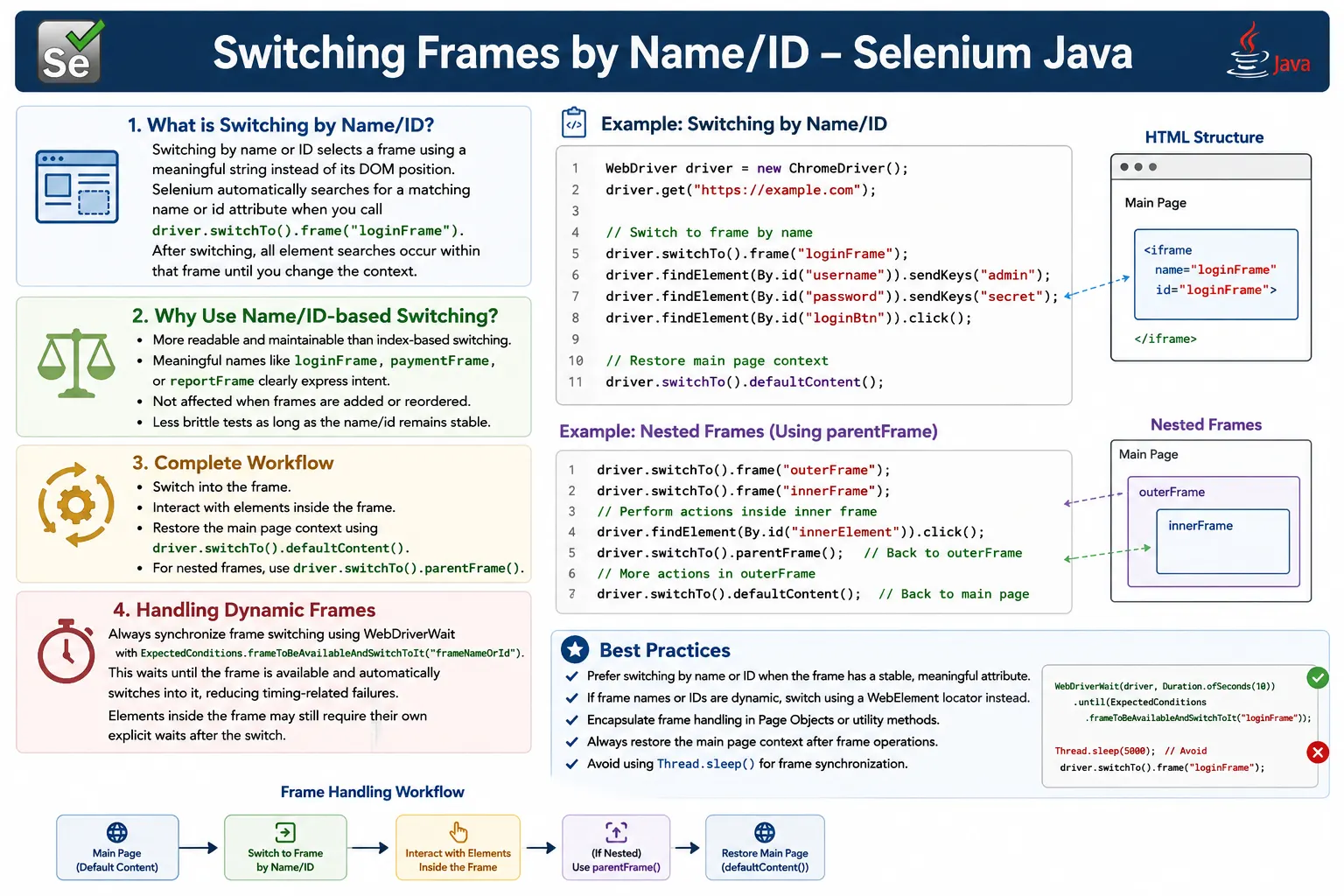
This approach is usually better than index-based switching because it is more readable, easier to maintain, and less affected by DOM order changes. Code such as driver.switchTo().frame("loginFrame") immediately tells the reader that the test is entering the login frame. Code such as driver.switchTo().frame(1) only tells the reader that the test is entering the second frame, which may not explain the purpose of the frame at all.
In real automation projects, frames appear in payment gateways, embedded reports, rich text editors, identity widgets, support chat tools, document viewers, and legacy enterprise pages. A tester who understands frame switching by name or ID can write cleaner tests and debug frame-related failures more quickly.
2. What Is Frame Name or ID?
HTML frames and iFrames can have attributes such as id and name. Selenium can use either value when switching frames with a string argument.
<iframe id="loginFrame"></iframe><iframe name="loginFrame"></iframe>In both cases, Selenium can switch to the frame using the same string.
driver.switchTo().frame("loginFrame");This is convenient because the test does not need to know whether the page used a frame name or frame ID. Selenium searches for a matching frame name or ID and switches into it when found.
3. Basic Syntax
The syntax is simple. Pass the frame name or ID as a string to driver.switchTo().frame().
driver.switchTo().frame("frameName");or:
driver.switchTo().frame("frameId");After the switch succeeds, Selenium's current search context becomes that frame. Any subsequent findElement() call searches inside the selected frame, not in the main document. This remains true until the test switches back using defaultContent() or moves upward using parentFrame().
4. Required Imports
Frame switching itself does not require many special imports, but real Selenium code usually needs element classes, waits, dropdown support, and duration handling.
import org.openqa.selenium.By;
import org.openqa.selenium.WebDriver;
import org.openqa.selenium.WebElement;
import org.openqa.selenium.support.ui.ExpectedConditions;
import org.openqa.selenium.support.ui.Select;
import org.openqa.selenium.support.ui.WebDriverWait;
import java.time.Duration;
import java.util.List;
The most important imports here are WebDriverWait and ExpectedConditions. Frames often load dynamically, and explicit waits make frame handling more reliable than raw switching commands.
5. Switching Using Frame ID
If the frame has an ID, Selenium can switch using that ID value.
<iframe id="loginFrame"></iframe>driver.switchTo().frame("loginFrame");Once inside the frame, you can access elements that belong to that frame.
driver.switchTo().frame("loginFrame");

driver.findElement(By.id("username"))
      .sendKeys("admin");
This code is much clearer than switching by index. The frame name in the test communicates the purpose of the context change.
6. Switching Using Frame Name
If the frame uses the name attribute instead of id, the syntax remains the same.
<iframe name="paymentFrame"></iframe>driver.switchTo().frame("paymentFrame");After switching, elements inside the payment frame can be accessed normally.
driver.switchTo().frame("paymentFrame");

driver.findElement(By.id("cardNumber"))
      .sendKeys("4111111111111111");
This is a common pattern in payment gateway automation when the provider exposes a stable frame name or ID.
7. Complete Login Example
Consider a login form embedded inside a frame.
<iframe id="loginFrame">
    <input id="username">
    <input id="password">
</iframe>
The Selenium code first switches into the login frame and then interacts with the username and password fields.
driver.switchTo().frame("loginFrame");

driver.findElement(By.id("username"))
      .sendKeys("admin");

driver.findElement(By.id("password"))
      .sendKeys("admin123");
If you try to locate username before switching, Selenium searches the main page and fails. The frame switch is not optional; it is required because the element lives inside a separate document context.
8. Switching Back to Main Page
After completing frame operations, return to the main page using defaultContent(). This resets Selenium's current context to the top-level document.
driver.switchTo().frame("loginFrame");

driver.findElement(By.id("username"))
      .sendKeys("admin");

driver.switchTo().defaultContent();

driver.findElement(By.id("logout"))
      .click();
If you forget defaultContent(), Selenium remains inside loginFrame. A locator for a main-page element such as logout will fail even if the locator is correct. Many frame failures are actually context failures.
9. Parent Frame vs Default Content
parentFrame() and defaultContent() both move Selenium out of the current frame, but they do not mean the same thing. parentFrame() moves one level up. defaultContent() returns directly to the main page.
driver.switchTo().parentFrame();driver.switchTo().defaultContent();For a single top-level frame, both may appear similar because the parent is the main page. For nested frames, the difference matters. If you are inside a child frame and call parentFrame(), Selenium moves to the outer frame, not the main page.
10. Nested Frames Using Name or ID
Nested frames are frames placed inside other frames. To reach an element inside a nested frame, switch through each level in order.
<iframe id="frame1">
    <iframe id="frame2">
        <input id="username">
    </iframe>
</iframe>
driver.switchTo().frame("frame1");
driver.switchTo().frame("frame2");
driver.findElement(By.id("username"))
.sendKeys("admin");The second switch happens inside the first frame context. Selenium cannot switch directly to a nested frame from the main page unless that nested frame is visible from the current context. This step-by-step movement is essential for nested frame automation.
11. Moving Back from Nested Frames
After working inside a child frame, use parentFrame() to move back to the outer frame or defaultContent() to return to the main page.
driver.switchTo().frame("frame1");
driver.switchTo().frame("frame2");

driver.findElement(By.id("username"))
      .sendKeys("admin");
driver.switchTo().parentFrame();
driver.switchTo().defaultContent();This pattern keeps navigation explicit. In real code, avoid leaving the test inside a child frame unless the next step intentionally continues there.
12. Verify Frame Exists Before Switching
When debugging frame issues, count frames and print attributes before switching. This confirms whether the expected frame is present in the current context.
List<WebElement> frames =
        driver.findElements(By.tagName("iframe"));

System.out.println("Total Frames = " + frames.size());
If the frame count is zero, the frame may not have loaded yet, it may be nested inside another frame, or the page may use legacy <frame> tags. Counting frames is not the final solution, but it gives useful diagnostic information.
13. Wait and Switch by Name or ID
The best practice is to wait until the frame is available and switch automatically using frameToBeAvailableAndSwitchToIt().
WebDriverWait wait =
        new WebDriverWait(driver, Duration.ofSeconds(10));

wait.until(
        ExpectedConditions.frameToBeAvailableAndSwitchToIt(
                "loginFrame"
        )
);
This approach is better than immediately calling driver.switchTo().frame("loginFrame") on dynamic pages. It handles the timing problem where the page loads first and the frame appears a moment later.
After this wait succeeds, Selenium is already inside the frame. The next locator should target elements inside loginFrame.
14. Reusable Utility Method
A reusable utility keeps frame switching consistent across the framework.
public static void switchToFrame(
        WebDriver driver,
        String frameNameOrId) {

    new WebDriverWait(driver, Duration.ofSeconds(10))
            .until(
                    ExpectedConditions
                            .frameToBeAvailableAndSwitchToIt(
                                    frameNameOrId
                            )
            );
}
Using a utility avoids repeated raw switching calls and gives one place to adjust wait duration, logging, and error handling. It also improves readability when used with meaningful frame names.
15. Switch to Frame by Name
Here is a direct example using a frame name.
driver.switchTo().frame("loginFrame");

driver.findElement(By.id("username"))
      .sendKeys("admin");
This is acceptable when the frame is already loaded and the frame name is stable. For dynamic pages, prefer the explicit wait version.
16. Switch to Frame by ID
The same method can use a frame ID.
driver.switchTo().frame("paymentFrame");

driver.findElement(By.id("cardNumber"))
      .sendKeys("123456789");
From Selenium's method call, name and ID look the same. The important thing is that the string must match a frame name or ID available from the current document context.
17. Read Text from a Frame
After switching into a frame, reading text works like normal element interaction.
driver.switchTo().frame("profileFrame");

String text =
        driver.findElement(By.tagName("h1")).getText();

System.out.println(text);

driver.switchTo().defaultContent();
This is useful for embedded profile panels, help content, document previews, and report headers.
18. Checkbox and Radio Button Inside a Frame
Controls inside a frame need frame switching first. After that, the click logic is normal.
driver.switchTo().frame("settingsFrame");
driver.findElement(By.id("agree")).click();
driver.switchTo().defaultContent();

driver.switchTo().frame("registrationFrame");
driver.findElement(By.id("male")).click();
driver.switchTo().defaultContent();
Returning to default content between unrelated frames prevents context confusion. It also makes each frame action independent and easier to debug.
19. Dropdown Inside a Frame
For a standard HTML dropdown inside a frame, switch into the frame and then use the Select class.
driver.switchTo().frame("countryFrame");

Select select =
        new Select(driver.findElement(By.id("country")));

select.selectByVisibleText("India");

driver.switchTo().defaultContent();
If the dropdown is a custom component, the Select class will not work, but frame switching is still required before interacting with the custom elements.
20. Verify Element Exists Inside Frame
To check whether an element exists inside a frame without throwing an immediate exception, use findElements().
driver.switchTo().frame("loginFrame");

boolean found =
        driver.findElements(By.id("submit")).size() > 0;

System.out.println(found);

driver.switchTo().defaultContent();
This is useful for optional UI states. For mandatory elements, an explicit wait with an assertion is usually better because it produces clearer test failure messages.
21. Alert Triggered Inside a Frame
A button inside a frame can trigger a JavaScript alert. The element click requires frame context. The alert itself is browser-level.
driver.switchTo().frame("alertFrame");

driver.findElement(By.id("alertButton")).click();

driver.switchTo().alert().accept();

driver.switchTo().defaultContent();
After accepting the alert, return to the main page if the next step is outside the frame. Keep alert context and frame context conceptually separate.
22. Search Different Named Frames
If a legacy page has known frame names, a test can loop through them while searching for a target element. This is mostly a troubleshooting technique.
String[] frames = {
        "menuFrame",
        "contentFrame",
        "footerFrame"
};

for (String frame : frames) {
    driver.switchTo().defaultContent();
    driver.switchTo().frame(frame);

    if (driver.findElements(By.id("submit")).size() > 0) {
        driver.findElement(By.id("submit")).click();
        break;
    }
}
For maintainable automation, once the correct frame is known, call it directly by its name or ID instead of searching every frame repeatedly.
23. Real Project Example: Payment Gateway
Many payment gateways isolate card fields inside iFrames for security reasons. If the provider gives a stable frame ID, name-based switching is clear and reliable.
driver.switchTo().frame("paymentFrame");

driver.findElement(By.id("cardNumber"))
      .sendKeys("4111111111111111");

driver.findElement(By.id("cvv"))
      .sendKeys("123");

driver.switchTo().defaultContent();
In real payment automation, use the provider's official test environment and test card numbers. Do not test against live payment flows unless the project has a controlled, approved setup.
24. Real Project Example: Rich Text Editor
Some rich text editors place the editable area inside an iFrame. The toolbar may be on the main page, while the document body is inside the editor frame.
driver.switchTo().frame("editorFrame");

driver.findElement(By.tagName("body"))
      .sendKeys("Automation Notes");

driver.switchTo().defaultContent();
When a test needs to click toolbar buttons after typing, it must return to default content because the toolbar may not be inside the editor frame.
25. Real Project Example: Embedded Reports
Report viewers are commonly embedded in frames. A report may load slowly after filters are applied, so waits are important.
wait.until(
        ExpectedConditions.frameToBeAvailableAndSwitchToIt(
                "reportFrame"
        )
);

driver.findElement(By.id("export"))
      .click();

driver.switchTo().defaultContent();
After clicking export, the result may appear outside the frame, as a download, or as a browser-level event. Frame context should be restored before checking main-page confirmation messages.
26. Name/ID vs Index
Index switching uses frame position. Name or ID switching uses a meaningful attribute. This makes name or ID easier to read and maintain.
driver.switchTo().frame(0);The reader must ask: which frame is index zero?
driver.switchTo().frame("loginFrame");Here the answer is obvious: the test enters the login frame. If a hidden frame is inserted before the login frame, index switching may break. Name or ID switching continues to work as long as the frame attribute remains stable.
27. Name/ID vs WebElement
Name or ID switching is simple and readable, but WebElement switching is often the most flexible. WebElement switching lets you locate the frame using any Selenium locator strategy.
WebElement frame =
        driver.findElement(By.id("loginFrame"));

driver.switchTo().frame(frame);
Use name or ID when the frame has a stable name or ID. Use WebElement switching when you need CSS selectors, XPath, parent-child relationships, title attributes, or other locator strategies.
28. Dynamic Frame Names and IDs
Sometimes frame names or IDs are generated dynamically. A frame may be called payment-frame-48291 on one run and payment-frame-59310 on another. In that case, direct name or ID switching becomes fragile.
For dynamic attributes, prefer WebElement switching with a partial locator, stable parent container, or data attribute. If the application team can add a stable test attribute to the frame, that is usually the best solution for long-term automation.
29. NoSuchFrameException
NoSuchFrameException occurs when Selenium cannot find a frame with the provided name or ID in the current context.
driver.switchTo().frame("wrongFrame");The frame may not exist, may not have loaded yet, may be nested inside another frame, or may use a different attribute value. The fix is to inspect the frame markup, use an explicit wait, or switch into the correct parent frame first.
30. NoSuchElementException After Switching
If Selenium switches successfully but cannot find the element, the issue is no longer frame existence. It may be the wrong frame, a wrong locator, or timing inside the frame.
driver.switchTo().frame("loginFrame");

driver.findElement(By.id("username"));
If username loads after a delay, use an explicit wait inside the frame. If the element belongs to another frame, switch to the correct one.
31. Stale Frame Problems
Frames can reload after actions. A payment frame may refresh after entering a card number. An editor frame may rebuild after changing modes. A report frame may reload after filters are applied. If the frame node is recreated, previous frame or element references can become stale.
When this happens, return to default content, wait for the frame again, switch back, and re-locate the target element. Avoid keeping old references across frame reloads.
32. Page Object Model Example
In the Page Object Model, frame handling should be hidden behind meaningful page methods.
public class LoginPage {

    private WebDriver driver;

    public LoginPage(WebDriver driver) {
        this.driver = driver;
    }

    public void switchToLoginFrame() {
        driver.switchTo().frame("loginFrame");
    }
}
A stronger page object would also wait for the frame and restore context after actions. Tests should not be forced to manage low-level frame switching unless that is the behavior being tested.
33. Safer Page Object Action
Instead of exposing frame switching directly, expose the business action.
public void login(String username, String password) {
    wait.until(
            ExpectedConditions
                    .frameToBeAvailableAndSwitchToIt(
                            "loginFrame"
                    )
    );

    driver.findElement(By.id("username"))
          .sendKeys(username);

    driver.findElement(By.id("password"))
          .sendKeys(password);

    driver.switchTo().defaultContent();
}
This method expresses the user goal. The test calls login() and does not need to know that the login form is inside a frame.
34. Safe Context Restoration
Frame utilities should restore context even when an action fails. Otherwise, a failed step may leave Selenium inside a frame and cause the next step to fail in a misleading way.
public void insideFrame(
        String frameNameOrId,
        Runnable action) {

    try {
        switchToFrame(driver, frameNameOrId);
        action.run();
    } finally {
        driver.switchTo().defaultContent();
    }
}
This pattern keeps frame context predictable. It also centralizes frame wait behavior and makes framework code easier to review.
35. Debugging Checklist
- Check whether the element is inside a frame.
- Confirm the frame has the expected name or ID.
- Verify that the frame is visible from the current context.
- Count frames and print frame attributes while debugging.
- Use
frameToBeAvailableAndSwitchToIt()for dynamic frames. - Check whether the frame is nested inside another frame.
- Return to default content before switching to another top-level frame.
- Re-locate frame content after frame reloads.
36. Common Beginner Mistakes
- Trying to find frame elements before switching into the frame.
- Using the wrong frame name or ID string.
- Forgetting
defaultContent()after frame actions. - Ignoring nested frame levels.
- Using
Thread.sleep()instead of explicit waits. - Assuming name or ID switching works when the frame attribute is dynamic.
- Switching to the frame successfully but forgetting to wait for elements inside it.
- Putting raw frame switching logic in every test instead of page objects or utilities.
37. Common Issues and Fixes
If NoSuchFrameException occurs, inspect the frame markup and confirm the exact name or ID. If the frame loads dynamically, use a wait. If the frame is nested, switch to the parent frame first.
If NoSuchElementException occurs after switching, verify that you are inside the correct frame and that the element locator is correct. Then add an element-specific wait inside the frame.
If a frame test passes locally but fails in CI, check browser size, third-party content loading, network access, headless behavior, and whether ads or security widgets are adding frames differently in the CI environment.
38. When Name or ID Switching Is Best
Name or ID switching is best when the frame has a stable, meaningful value. A frame named loginFrame, paymentFrame, editorFrame, or reportFrame gives automation code a clear and maintainable target.
It is also a good choice for legacy pages where frames are intentionally named and the frame structure is stable. In those pages, frame names are often part of the application design and remain unchanged for years.
39. When Name or ID Switching Is Not Enough
Name or ID switching is not enough when frame attributes are missing, duplicated, generated dynamically, or changed by third-party scripts. It is also limited when you need to identify a frame by its parent container, title, source URL, or other custom attribute.
In those situations, use WebElement switching. Locate the frame with a stable CSS selector or XPath, then pass that frame element to driver.switchTo().frame(frameElement).
40. Duplicate Frame Names or IDs
Good HTML should not use duplicate IDs, but real applications do not always follow perfect standards. Duplicate frame names are also possible in old pages or generated layouts. If two frames expose the same name, the behavior becomes confusing because the test may enter the first matching frame and not the frame the tester intended.
When duplicate frame attributes exist, do not depend on the string-based switch. Inspect the page and use a more precise WebElement locator. For example, locate the frame under a specific parent section, or locate it by a combination of attributes. This makes the automation match the page structure more accurately.
WebElement reportFrame =
        driver.findElement(
                By.cssSelector(
                        "section.reports iframe[name='contentFrame']"
                )
        );

driver.switchTo().frame(reportFrame);
Duplicate IDs should also be reported as a product quality issue when your team owns the page. Invalid or confusing HTML does not only affect Selenium. It can affect accessibility, browser behavior, maintainability, and JavaScript code.
41. Frame Naming Standards for Testability
A stable name or ID is a testability feature. When developers give frames meaningful attributes, automation becomes simpler and less fragile. A frame named paymentFrame or reportViewerFrame is easier to automate than a frame with a generated value such as frame_932847.
For teams building automation-friendly applications, frame naming should be part of the frontend convention. Important embedded areas should have predictable identifiers. If the application uses component frameworks that generate dynamic IDs, the team can add a stable data attribute and switch by WebElement instead.
Testers should not silently accept poor frame markup forever. A good SDET gives feedback that improves the application and the test suite. Asking for a stable frame ID is often cheaper than maintaining brittle workarounds for years.
42. Cross-Origin Frames
Many iFrames load content from another domain. Payment providers, authentication providers, document viewers, embedded maps, video players, and third-party support widgets often use cross-origin frames. Selenium can switch into many frames as a user would interact with them, but browser security can still limit what scripts and applications can access.
From a testing perspective, the important point is to automate supported user interactions, not to bypass security boundaries. If a payment provider exposes test fields inside a frame, Selenium can enter test card details. If a provider blocks automation or changes its markup frequently, rely on official test modes, documented selectors, or integration-level validation instead of fragile DOM assumptions.
Cross-origin frames are also one reason to keep provider-specific selectors isolated in one page object. If the provider changes its field names, the fix should be local to the payment integration class rather than spread across many tests.
43. Frames in CI and Headless Runs
A frame test that passes locally can fail in CI for several reasons. The embedded frame may load more slowly. Network access to a third-party provider may be restricted. Browser settings may block mixed content or insecure resources. A smaller headless viewport may cause the application to render a different layout.
When debugging CI frame failures, capture screenshots, page source, browser logs, and frame attribute logs. It is useful to print the number of frames and their name, id, title, and src values at the moment of failure. That information quickly shows whether the expected frame was missing, renamed, delayed, blocked, or nested differently.
For headless execution, set a consistent browser window size. Some embedded widgets behave differently on small screens. A stable viewport reduces layout-specific failures and makes local reproduction easier.
44. Assertions After Frame Actions
Frame switching is only a setup step. A test should not stop at proving that it can enter a frame. The goal is to verify user behavior. After entering payment details inside a frame, assert that the Pay button becomes enabled or that the application receives a payment token. After typing inside an editor frame, assert that the saved content appears correctly. After clicking export inside a report frame, assert that the download or confirmation occurs.
Many frame workflows cross boundaries. The action happens inside the frame, while the result appears on the main page. This makes context restoration important. Switch back to default content before asserting main-page behavior. Otherwise, the assertion may fail because Selenium is still searching inside the frame.
45. Choosing the Right Frame Switching Strategy
The best strategy depends on the page. If the frame has a stable name or ID, string-based switching is simple and clear. If the frame order is the only available clue and the page is a controlled sample, index switching may be acceptable. If the frame needs to be located by a complex selector, WebElement switching is the better choice.
In production automation, the usual preference order is WebElement or stable name/ID first, index last. Index is quick, but it hides intent. Name or ID is readable, but it depends on stable attributes. WebElement switching is flexible, but it requires a good locator. A strong tester chooses deliberately instead of using the first example found online.
The decision should also consider who will maintain the test later. A locator that clearly communicates the frame purpose reduces onboarding time, code review effort, and debugging noise. Frame handling is a small part of the test, but unclear frame context can make the whole test suite feel unreliable.
46. Best Practices for Switching Frames by Name/ID
- Prefer name or ID over index when the frame attribute is stable.
- Use meaningful frame names whenever application code can support them.
- Use explicit waits before switching to dynamically loaded frames.
- Always call
defaultContent()before accessing main page elements. - Use
parentFrame()when navigating one level up in nested frames. - Use WebElement switching for highly dynamic frame attributes.
- Avoid hardcoding frame names if they change between sessions.
- Verify that required elements exist after switching.
- Keep frame logic inside utilities or page objects.
- Do not replace proper waits with fixed sleeps.
47. Interview Perspective
A short interview answer is: Selenium can switch to a frame by name or ID using driver.switchTo().frame("frameNameOrId"). Selenium uses the supplied string to find a matching frame name or ID and then changes the current context to that frame.
A stronger real-time answer is: I usually prefer frame name or ID over frame index because it is more readable and less affected by DOM order changes. For dynamic frames, I use ExpectedConditions.frameToBeAvailableAndSwitchToIt(), which waits and switches automatically. After completing frame work, I return to the main page using defaultContent(). If the frame name or ID is dynamic, I switch using a WebElement locator instead.
48. Key Takeaway
Switching frames by name or ID provides a strong balance between simplicity and maintainability. It is easy to read, easy to teach, and safer than index switching when the frame attribute is stable. The command works for both frames and iFrames because Selenium's concern is the document context, not the specific tag style.
The most reliable workflow is to wait for the frame, switch into it, interact with elements inside it, and restore context afterward. For nested frames, move through each level carefully. For dynamic attributes, prefer WebElement switching.
The practical rule is clear: use name or ID when it is stable and meaningful, use explicit waits for timing, and keep frame handling out of test clutter by placing it in page objects or reusable utilities. This keeps the test readable, predictable, and easier to repair when the page evolves.