Switching Frames by Index in Selenium Java
1. Introduction
Switching frames by index is one of the frame-handling techniques available in Selenium Java. A frame or iFrame creates a separate document context inside the current browser page. Selenium starts in the main page context by default. If the target element is inside a frame, Selenium cannot interact with it until the test switches into that frame. The index-based approach tells Selenium to choose a frame according to its numeric position in the page.
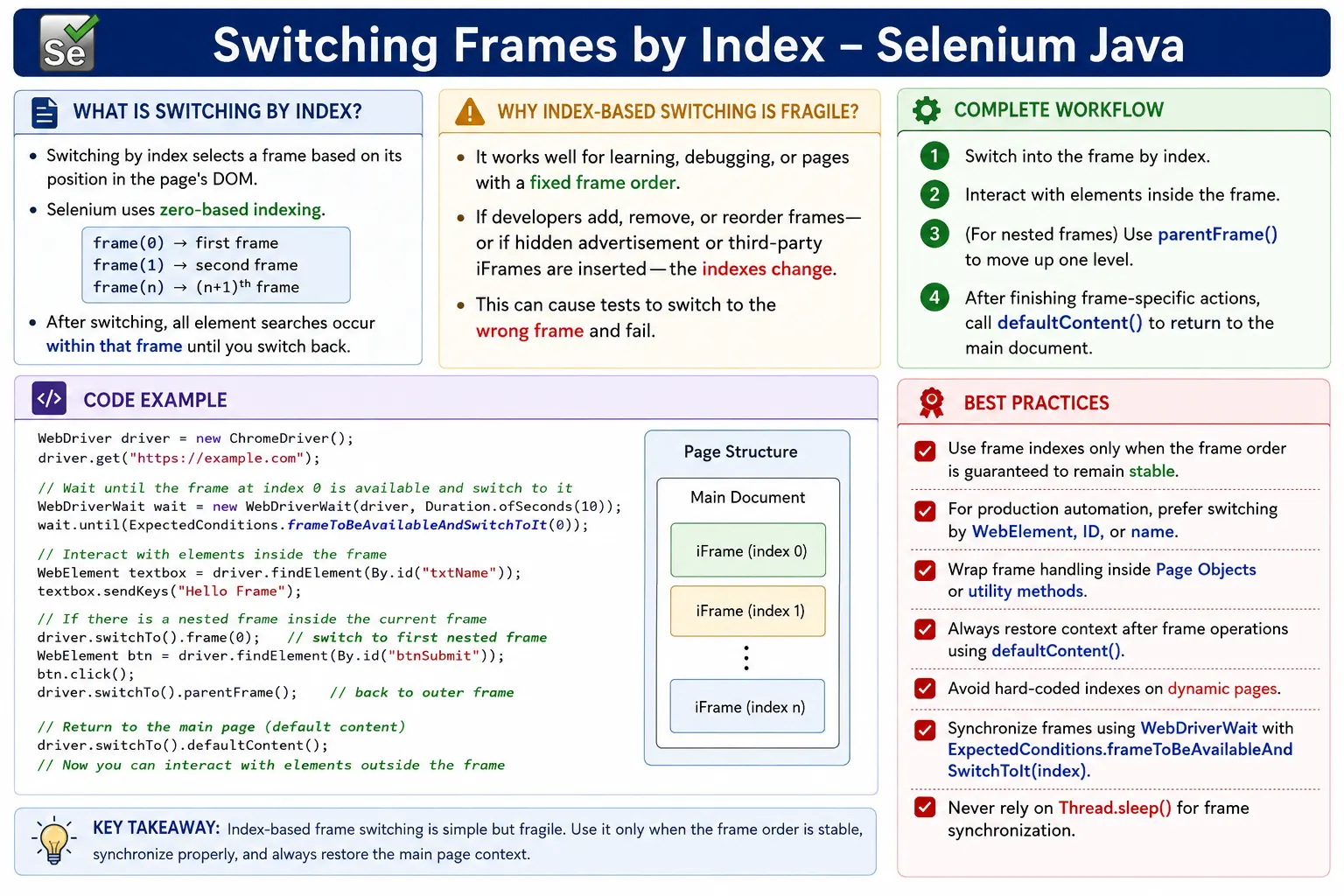
Selenium supports three common ways to switch into a frame: by index, by name or id, and by WebElement. Index switching is easy to write and useful for quick debugging, but it is usually the least preferred option in production automation. The reason is simple: frame indexes depend on DOM order. If a developer adds, removes, hides, or moves a frame, the index can change even though the visible page looks almost the same.
This topic is important because many beginners use driver.switchTo().frame(0) without understanding what the zero means. The code may work on a sample page, but fail later in a real application with advertisements, payment widgets, report viewers, hidden analytics frames, or nested frame structures. A strong automation engineer understands both how index switching works and when to avoid it.
2. What Is Frame Index?
Every frame or iFrame on a page has a position based on its order in the DOM. Selenium treats the first frame as index 0, the second frame as index 1, the third frame as index 2, and so on. The numbering starts from zero, not one. This is the first rule every tester must remember when using frame index.
<iframe id="frame1"></iframe>
<iframe id="frame2"></iframe>
<iframe id="frame3"></iframe>
In this example, frame1 is index 0, frame2 is index 1, and frame3 is index 2. If you write driver.switchTo().frame(1), Selenium enters the second frame, not the first. This zero-based indexing is consistent with many programming concepts, but it still causes mistakes when testers think in normal human counting.
3. Basic Syntax
The syntax for switching to a frame by index is direct. You call driver.switchTo().frame(index) and pass the numeric frame position.
driver.switchTo().frame(0);This command switches Selenium into the first frame on the page. After this line runs successfully, all normal element searches happen inside that frame context. If you call driver.findElement(), Selenium does not search the main page anymore. It searches the DOM inside the selected frame.
This context change is stateful. Selenium remains inside that frame until you explicitly switch somewhere else. That is why frame code usually has a matching defaultContent() or parentFrame() call after frame-specific work is completed.
4. Required Imports
For simple index switching, you may not need many imports beyond the normal Selenium classes. For practical code, explicit waits, lists, elements, and duration are commonly used.
import org.openqa.selenium.By;
import org.openqa.selenium.WebDriver;
import org.openqa.selenium.WebElement;
import org.openqa.selenium.support.ui.ExpectedConditions;
import org.openqa.selenium.support.ui.Select;
import org.openqa.selenium.support.ui.WebDriverWait;
import java.time.Duration;
import java.util.List;
The WebDriverWait and ExpectedConditions imports are especially important because real frames often load asynchronously. Switching by index before the frame is available can produce a NoSuchFrameException even when the frame appears a moment later.
5. Simple Frame Index Example
Consider a page with one login frame. The username field is not in the main page DOM. It is inside the first iFrame.
<iframe id="loginFrame">
    <input id="username">
</iframe>
The Selenium code can switch to index 0 and then type into the field.
driver.switchTo().frame(0);

driver.findElement(By.id("username"))
      .sendKeys("admin");
This works because there is only one frame, and its position is predictable. In such a small example, index switching looks clean. The problem appears when the page grows, when hidden frames are added, or when third-party components insert their own iFrames above the expected frame.
6. Multiple Frames Example
A page may contain multiple frames for different areas. For example, an older enterprise page may have a menu frame, a content frame, and a footer frame.
<iframe id="menuFrame"></iframe>
<iframe id="contentFrame"></iframe>
<iframe id="footerFrame"></iframe>
In DOM order, menuFrame is index 0, contentFrame is index 1, and footerFrame is index 2. To work with the content frame, you can switch to index 1.
driver.switchTo().frame(1);

driver.findElement(By.id("search"))
      .sendKeys("Selenium");
The code is short, but it does not explain intent clearly. A new tester reading this test must know which frame index 1 represents. This is one reason index-based switching is harder to maintain than name, id, or WebElement switching.
7. Count Frames Before Switching
Before using a frame index, it is helpful to count the frames on the page. This is especially useful when debugging an unfamiliar application.
List<WebElement> frames =
        driver.findElements(By.tagName("iframe"));

System.out.println("Total Frames = " + frames.size());
If the count is zero, the page may not have loaded the frame yet, the frame may use a different tag such as legacy <frame>, or the frame may be inside another frame. If the count is higher than expected, hidden or third-party frames may be affecting index order.
Counting frames does not make index switching safe by itself. It only gives visibility. The test still needs a stable strategy for choosing the correct frame.
8. Print All Frame Indexes
When troubleshooting, printing frame indexes and attributes can quickly reveal which frame is at which position.
List<WebElement> frames =
        driver.findElements(By.tagName("iframe"));

for (int i = 0; i < frames.size(); i++) {
    WebElement frame = frames.get(i);

    System.out.println("Frame Index = " + i);
    System.out.println("id = " + frame.getAttribute("id"));
    System.out.println("name = " + frame.getAttribute("name"));
    System.out.println("src = " + frame.getAttribute("src"));
}
This output helps connect the numeric index to something meaningful. If you see that index 2 has id=paymentFrame, you know why the payment test works. If a new hidden frame appears above it, you will also see why the old index no longer points to the same frame.
9. Switching Through All Frames
Sometimes you do not know which frame contains an element. A common debugging technique is to loop through all frames, switch into each one by index, and search for the element. This is useful for investigation, but it should not become the normal strategy for every test.
List<WebElement> frames =
        driver.findElements(By.tagName("iframe"));

for (int i = 0; i < frames.size(); i++) {
    driver.switchTo().frame(i);

    try {
        driver.findElement(By.id("username"));
        System.out.println("Found in frame index: " + i);
        break;
    } catch (Exception e) {
        driver.switchTo().defaultContent();
    }
}
This pattern can help you discover where an element lives. However, for stable tests, once the correct frame is known, prefer a clearer locator-based switch. Searching every frame can hide application design issues and make tests slower than necessary.
10. Switch Back to Main Page
After working inside a frame, use defaultContent() to return to the main page. This is one of the most important frame-handling habits.
driver.switchTo().frame(0);

driver.findElement(By.id("username"))
      .sendKeys("admin");

driver.switchTo().defaultContent();

driver.findElement(By.id("logout"))
      .click();
Without defaultContent(), Selenium continues searching inside the frame. If the logout button is on the main page, Selenium will not find it while still inside the login frame. This causes confusing failures because the locator may be correct, but the current context is wrong.
11. Switch Between Multiple Frames
When moving from one top-level frame to another, return to the main page first. Selenium cannot directly switch from one sibling frame to another unless it is currently in the correct parent context.
driver.switchTo().frame(0);
driver.findElement(By.id("menu")).click();

driver.switchTo().defaultContent();

driver.switchTo().frame(1);
driver.findElement(By.id("contentSearch")).sendKeys("Report");
The important step is the return to default content between the two frame switches. This resets Selenium to the main document, where both top-level frames are visible.
12. Nested Frames with Index
Nested frames are frames inside frames. In this situation, indexes are relative to the current context. The first frame(0) may enter the first top-level frame. The second frame(0) then enters the first frame inside that outer frame.
<iframe id="outerFrame">
    <iframe id="innerFrame">
        <input id="username">
    </iframe>
</iframe>
driver.switchTo().frame(0);
driver.switchTo().frame(0);
driver.findElement(By.id("username"))
.sendKeys("admin");This can be hard to read because both calls use index 0, but they do not refer to the same list of frames. The first list belongs to the main page. The second list belongs to the outer frame. For nested frames, WebElement-based switching or clearly named helper methods are usually much easier to maintain.
13. Parent Frame Navigation
parentFrame() moves one level up from the current frame. It is useful when working with nested frames and you want to return to the immediate parent rather than the main document.
driver.switchTo().frame(0);
driver.switchTo().frame(1);

driver.switchTo().parentFrame();
After this code, Selenium is back inside the outer frame. It is not back in the main page. To return fully to the main page, use defaultContent(). The distinction matters in pages with deeply nested frame structures.
14. Wait Before Switching by Index
Real frames often load after the initial page load. If you switch too early, Selenium may fail because the frame does not exist yet. Use an explicit wait when the frame may be dynamic.
WebDriverWait wait =
        new WebDriverWait(driver, Duration.ofSeconds(10));

wait.until(
        ExpectedConditions.frameToBeAvailableAndSwitchToIt(0)
);
This wait does two things. It waits until the frame at index 0 is available, and then it switches into that frame automatically. After this wait succeeds, the next element lookup should target content inside the frame.
Even after the frame switch succeeds, elements inside the frame may still need their own waits. Frame availability means Selenium can enter the frame. It does not guarantee every inner element has completed rendering.
15. Reusable Utility Method
If a project still needs index-based switching, wrap it in a small utility method that uses an explicit wait. This keeps timing behavior consistent.
public static void switchToFrameByIndex(
        WebDriver driver,
        int index) {

    new WebDriverWait(driver, Duration.ofSeconds(10))
            .until(
                    ExpectedConditions
                            .frameToBeAvailableAndSwitchToIt(index)
            );
}
The method is simple, but it is better than scattering raw driver.switchTo().frame(index) calls throughout the suite. If the wait timeout changes later, or if logging is needed, the change can happen in one place.
16. Read Text from an Indexed Frame
After switching into a frame, Selenium can read text normally from elements inside that frame.
driver.switchTo().frame(0);

String text =
        driver.findElement(By.tagName("h1")).getText();

System.out.println(text);

driver.switchTo().defaultContent();
This pattern is common for embedded documents, help panels, report viewers, and content previews. The key is to switch back afterward so the next test step starts from a predictable context.
17. Click a Button Inside a Frame
Buttons inside frames are handled like normal buttons after the frame switch.
driver.switchTo().frame(0);

driver.findElement(By.id("loginButton")).click();

driver.switchTo().defaultContent();
If the click changes the main page after submission, returning to default content is required before validating main-page messages. If the click reloads the frame, old element references inside that frame may become stale.
18. Enter Text Inside a Frame
Text fields in embedded login forms, payment widgets, editors, and support tools often live inside iFrames.
driver.switchTo().frame(1);

driver.findElement(By.id("email"))
      .sendKeys("test@test.com");

driver.switchTo().defaultContent();
In real test code, it is better to wait for the input inside the frame before typing. Dynamic widgets may create the frame first and then load fields inside it.
19. Checkbox and Radio Button Inside a Frame
Checkboxes and radio buttons do not require special handling beyond switching into the correct frame.
driver.switchTo().frame(0);

driver.findElement(By.id("agree")).click();
driver.findElement(By.id("male")).click();

driver.switchTo().defaultContent();
If the checkbox or radio button controls main-page state, validate the result after returning to the main page. Frame actions often produce results outside the frame.
20. Dropdown Inside a Frame
Standard HTML dropdowns inside frames can be handled using Selenium's Select class after the frame switch.
driver.switchTo().frame(0);

Select select =
        new Select(driver.findElement(By.id("country")));

select.selectByVisibleText("India");

driver.switchTo().defaultContent();
If the dropdown is a custom JavaScript component, the Select class will not work. You still switch into the frame first, but you interact with the custom dropdown using normal click and locator strategies.
21. Verify an Element Exists Inside an Indexed Frame
When checking for optional elements inside a frame, use findElements() to avoid immediate exceptions.
driver.switchTo().frame(0);

boolean exists =
        driver.findElements(By.id("submit")).size() > 0;

System.out.println(exists);

driver.switchTo().defaultContent();
This is useful for conditional flows, but do not use it to hide real failures. If the element is required for the test, a clear explicit wait or assertion is better.
22. Find an Element by Searching Every Frame
A more defensive troubleshooting pattern is to loop through all frame indexes and check whether a target element exists.
int totalFrames =
        driver.findElements(By.tagName("iframe")).size();

for (int i = 0; i < totalFrames; i++) {
    driver.switchTo().defaultContent();
    driver.switchTo().frame(i);

    if (driver.findElements(By.id("submit")).size() > 0) {
        driver.findElement(By.id("submit")).click();
        break;
    }
}
This works as a diagnostic tool. In framework code, use it carefully. A test that searches every frame every time can become slow and can click an unintended element if multiple frames contain similar ids.
23. Dynamic Frame Problem
Index-based switching is risky because frame order can change. Imagine a page with two frames.
<iframe id="frameA"></iframe>
<iframe id="frameB"></iframe>
Here, frameA is index 0 and frameB is index 1. If a developer later adds a new frame above them, the indexes change.
<iframe id="newFrame"></iframe>
<iframe id="frameA"></iframe>
<iframe id="frameB"></iframe>
Now newFrame is index 0, frameA is index 1, and frameB is index 2. A test that previously used frame(1) to reach frameB will now enter frameA. The test may fail immediately, or worse, it may interact with the wrong area.
24. Hidden Frames Affect Index
Frame indexes are based on DOM order, not what the tester visually notices. Hidden frames can still count. Analytics tools, invisible security widgets, tracking pixels, advertisement containers, and third-party scripts may insert hidden iFrames into the page.
This is one of the most common real-world surprises. A page may appear to have one visible payment frame, but the DOM may contain several hidden frames above it. In that case, frame(0) does not necessarily mean the visible payment frame. It means the first frame in DOM order.
25. Why Index-Based Switching Is Hard to Read
Code like driver.switchTo().frame(2) does not explain what frame is being selected. Is it a payment frame, report frame, editor frame, or advertisement frame? The reader has to inspect the page or remember the DOM order.
Readable automation should explain business intent. switchToPaymentFrame() is clearer than frame(2). driver.switchTo().frame(paymentFrame) is clearer than a hardcoded numeric index. Maintainability matters more than saving a few characters.
26. Better Alternative: WebElement
For production tests, switching by WebElement is usually better. Locate the frame using a stable id, name, CSS selector, XPath, or data attribute, then switch to the located frame element.
WebElement frame =
        driver.findElement(By.id("contentFrame"));

driver.switchTo().frame(frame);
This code is more readable and less dependent on frame order. If another frame is added above contentFrame, the code still points to the correct frame as long as the locator remains stable.
27. Better Alternative with Explicit Wait
A stronger WebElement-based approach waits for the frame before switching.
WebDriverWait wait =
        new WebDriverWait(driver, Duration.ofSeconds(10));

wait.until(
        ExpectedConditions.frameToBeAvailableAndSwitchToIt(
                By.id("contentFrame")
        )
);
This pattern is both readable and reliable. It tells the reader which frame is expected, handles timing, and switches automatically after the frame becomes available.
28. NoSuchFrameException
NoSuchFrameException occurs when Selenium cannot find the frame for the provided index.
driver.switchTo().frame(10);If the page has only three frames, index 10 is invalid. The fix is to count frames, wait for dynamic frames, or use a clearer frame locator.
List<WebElement> frames =
        driver.findElements(By.tagName("iframe"));

System.out.println("Frames: " + frames.size());
29. NoSuchElementException After Switching
NoSuchElementException after a frame switch usually means one of three things: the locator is wrong, the element is not loaded yet, or the test switched into the wrong frame. With index-based switching, the wrong-frame scenario is common.
driver.switchTo().frame(1);

driver.findElement(By.id("username"));
If username is actually inside frame index 0, the locator will fail even though the element exists somewhere on the page. Always verify both the locator and the frame context.
30. StaleElementReferenceException with Frames
Frames can reload. If you store a WebElement from inside a frame and then the frame refreshes, that element reference can become stale. The same can happen to a frame WebElement itself when the page rebuilds the iFrame node.
For index switching, the bigger issue is that a reload may temporarily remove and recreate frames. A raw switch may fail during that gap. Use waits and re-locate after reloads. Avoid holding element references across actions that reload the frame.
31. Real Project Example: Payment Page
Payment pages often place card fields inside secure iFrames. A quick test might use frame index.
driver.switchTo().frame(0);

driver.findElement(By.id("cardNumber"))
      .sendKeys("4111111111111111");
This may work in a test environment where the payment field is the first frame. In production-like pages, advertisement frames, fraud detection frames, or security frames may appear before the payment frame. A better approach is to switch by a stable payment frame locator when the provider supports it.
wait.until(
        ExpectedConditions.frameToBeAvailableAndSwitchToIt(
                By.id("paymentFrame")
        )
);
32. Real Project Example: Report Viewer
Report viewers are commonly embedded inside iFrames. A report page may contain a filter panel in the main page and the generated report inside a frame.
driver.switchTo().frame(1);

driver.findElement(By.id("export"))
      .click();

driver.switchTo().defaultContent();
This is acceptable only if the frame order is stable. In a framework, a method such as exportReport() should hide frame handling and use a locator-based switch if possible.
33. Real Project Example: Rich Text Editor
Some rich text editors place the editable document area inside an iFrame. Index switching is common in quick demos, but editor pages often contain multiple frames for toolbar previews, hidden templates, or plugin areas.
driver.switchTo().frame(0);

driver.findElement(By.cssSelector("body"))
      .sendKeys("Automation content");

driver.switchTo().defaultContent();
For stable editor tests, identify the editor frame using an id, title, class, or parent container relationship. Then switch using that frame element.
34. Frame Index in Page Object Model
If you must use index switching in a Page Object Model, do not expose raw indexes in test methods. Hide them behind page-specific behavior.
public void enterUsername(String username) {
    switchToFrameByIndex(driver, 0);

    driver.findElement(By.id("username"))
          .sendKeys(username);

    driver.switchTo().defaultContent();
}
This is better than putting frame index logic in every test. However, the best version would still prefer a stable frame locator when one exists.
35. Safe Context Restoration
A reliable helper should restore context even when an action fails. Otherwise, a failed step may leave Selenium inside a frame and cause the next step to fail for the wrong reason.
public void insideFrameByIndex(
        int index,
        Runnable action) {

    try {
        switchToFrameByIndex(driver, index);
        action.run();
    } finally {
        driver.switchTo().defaultContent();
    }
}
This pattern keeps tests cleaner and prevents context leakage. In larger frameworks, similar helpers can also add logging, screenshots, and better exception messages.
36. Debugging Checklist
- Confirm the element is actually inside a frame.
- Count the frames visible from the current context.
- Print frame id, name, title, and src attributes.
- Confirm whether the frame is nested inside another frame.
- Use an explicit wait before switching.
- Verify that hidden frames are not changing the expected index.
- Return to default content before switching to another top-level frame.
- Check whether the frame reloads after an action.
37. Common Beginner Mistakes
- Assuming frame indexes start from one instead of zero.
- Using
frame(1)when the target is actually the first frame. - Forgetting to call
defaultContent()after frame work. - Using hardcoded indexes on dynamic pages.
- Ignoring hidden iFrames that affect DOM order.
- Trying to locate elements inside a frame from the main page context.
- Trying to switch directly between sibling frames without returning to the parent context.
- Using index switching in reusable framework code without logging or waits.
38. Common Issues and Fixes
If NoSuchFrameException occurs, first confirm the frame count and timing. If the frame is dynamic, wait for it. If the index is out of range, use the correct index or a frame locator.
If NoSuchElementException occurs after switching, confirm that Selenium is in the correct frame. Print frame attributes and compare with the expected target. Then check whether the inner element needs its own wait.
If the test passes locally but fails in CI, check viewport size, third-party frame loading, ad blockers, network conditions, and headless browser behavior. CI environments can load embedded content differently from a developer laptop.
39. When Frame Index Is Acceptable
Frame index is not always wrong. It can be acceptable for quick demos, learning examples, controlled test pages, legacy pages with fixed frame order, and debugging scripts. It is also useful when the page has exactly one frame and there is no stable id or name.
Even in those cases, document the assumption. If the test depends on there being exactly one frame, count the frames and fail clearly when the count changes. A clear failure message is better than a confusing element lookup failure later.
40. When Frame Index Should Be Avoided
Avoid frame index when the page is dynamic, when third-party scripts add frames, when advertisements are present, when hidden frames exist, when the page structure changes frequently, or when the test belongs to a long-term automation framework.
Also avoid index switching when the frame has a stable id, name, title, src pattern, or nearby parent element. A meaningful locator is almost always easier to maintain than a number.
41. Index vs Name or ID
Switching by name or id is more readable than index switching when the frame exposes a stable attribute.
driver.switchTo().frame("contentFrame");This line explains intent better than frame(1). However, name or id switching only works when the frame has a suitable name or id. If not, WebElement switching with a CSS selector or XPath provides more flexibility.
42. Index vs WebElement
WebElement switching is usually the safest general approach. It can use any locator strategy that identifies the frame element.
WebElement reportFrame =
        driver.findElement(By.cssSelector("iframe.report-viewer"));

driver.switchTo().frame(reportFrame);
This is more resilient to frame order changes. It also makes code review easier because the frame purpose is visible in the locator or variable name.
43. Automation Framework Guidance
In an enterprise framework, raw index switching should be rare. If used, it should be wrapped with explicit wait, logging, and context restoration. Tests should not contain scattered numeric frame indexes because those values become hidden dependencies.
A good framework can expose methods such as switchToFirstFrame(), switchToFrameByIndex(int index), and insideFrameByIndex(int index, Runnable action). A better page object can expose business actions such as enterPaymentDetails() or exportReport(), hiding the frame details entirely.
If index switching is kept for a legacy page, add clear comments or method names that explain the frame purpose. The maintenance problem is not only technical failure; it is also reader confusion. When the next tester opens the test after six months, the code should make it obvious why that specific index is being used and what page area it represents.
44. Best Practices for Switching Frames by Index
- Remember that frame index starts from
0. - Use frame index only when frame order is stable.
- Prefer name, id, or WebElement switching in production applications.
- Use
ExpectedConditions.frameToBeAvailableAndSwitchToIt()for dynamic frames. - Call
defaultContent()before accessing main page elements. - Use
parentFrame()when moving one level up from nested frames. - Count frames and log attributes while debugging.
- Avoid hardcoded indexes when the page layout changes frequently.
- Verify that you are inside the correct frame before interacting with elements.
- Keep frame-switching code inside page objects or utilities.
45. Interview Perspective
A short interview answer is: switching by index uses the frame's position in the DOM, and Selenium uses driver.switchTo().frame(index). Indexing starts from 0, so frame(0) means the first frame.
A stronger real-time answer is: Selenium can switch to frames by index, name or id, or WebElement. Index-based switching selects the frame according to DOM order. It works for both frames and iFrames, but I avoid it in production automation because new, hidden, or third-party frames can change the order. I prefer WebElement-based switching with an explicit wait, and I always switch back using defaultContent() after finishing frame actions.
46. Final Summary
Switching frames by index is simple, but it must be used carefully. The index is the numeric position of the frame in the current document context, starting from zero. Once Selenium switches into that frame, all element searches happen inside the frame until the test switches back.
The technique is useful for learning, debugging, and simple pages with stable frame order. It becomes fragile in dynamic applications because frame order can change when developers add new frames, hidden widgets, advertisements, third-party integrations, or nested content.
The practical rule is clear: know how index switching works, but prefer more stable approaches in real automation. Use explicit waits, restore context after frame actions, avoid unexplained hardcoded indexes, and use WebElement-based frame switching whenever possible.