Sliders in Selenium Java
1. Introduction
Sliders are one of the trickier UI controls to automate in Selenium Java because they are often built with drag behavior, animation, dynamic value updates, snapping rules, custom handles, and JavaScript event listeners. A normal text box can be cleared and typed into. A button can usually be clicked after it becomes clickable. A slider is different because the test must move a handle, click a track, send keyboard keys, or set a value programmatically while still validating that the application accepted the change.
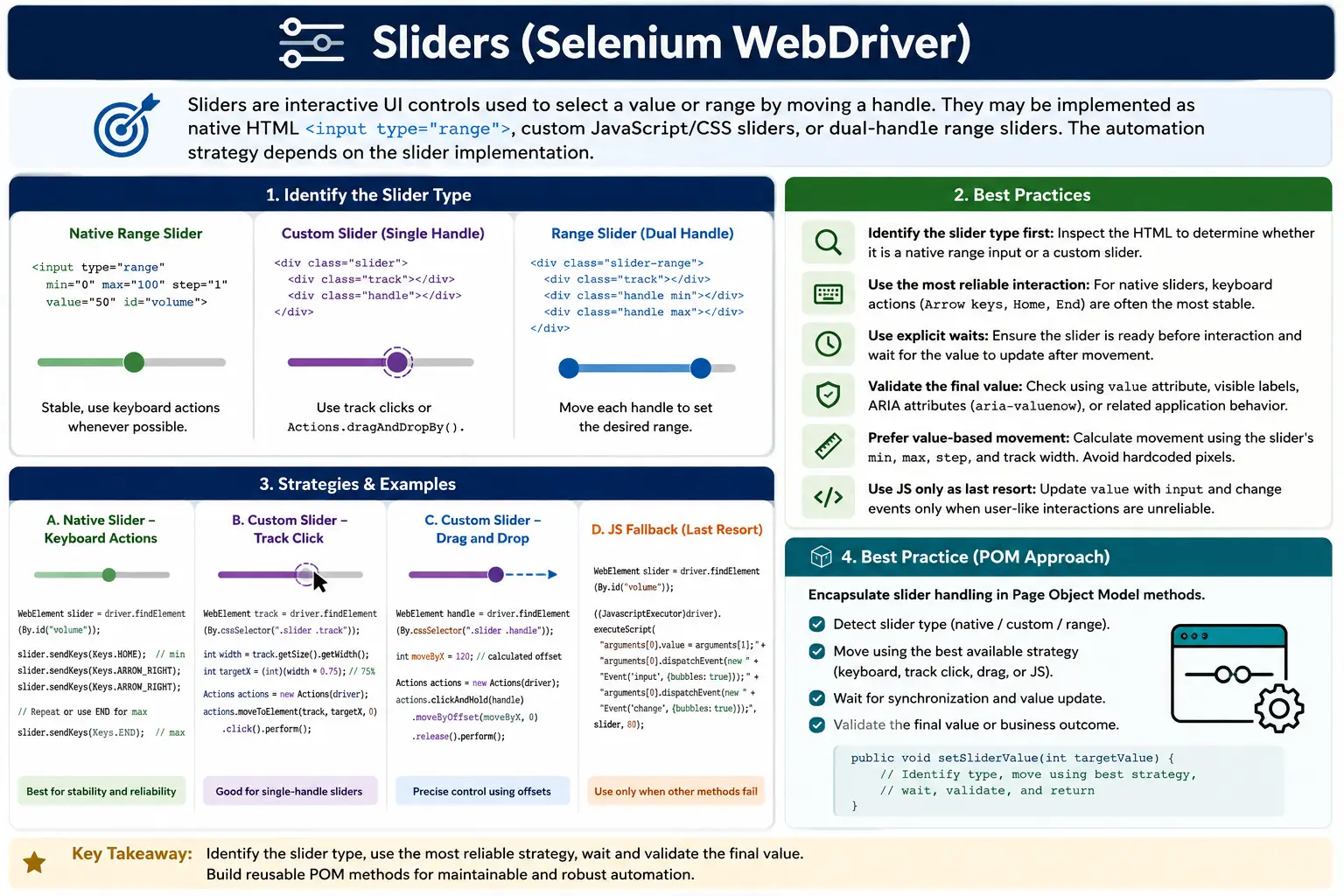
In real projects, slider automation depends heavily on the implementation. Some applications use a native HTML range input, such as <input type="range">. Other applications use a custom slider created from <div>, <span>, ARIA attributes, CSS transforms, and framework state. Many React, Angular, Bootstrap, Material UI, jQuery UI, and custom design-system sliders are not native range elements. A few applications use dual-handle sliders where one handle controls the minimum value and another controls the maximum value.
Because of these differences, there is no single universal command for every slider. A good Selenium engineer first identifies the slider type, then chooses the safest interaction strategy. For native sliders, keyboard movement is often stable. For custom sliders, clicking the track can be more reliable than dragging. For unstable controls, JavaScript value setting with event dispatch may be used as a last resort. In all cases, the final value must be validated through visible text, attribute values, hidden fields, or application state.
2. What Slider Automation Usually Means
In Selenium, slider automation usually has two goals. The first goal is to set the slider to a target value. The second goal is to validate that the value shown in the UI or stored in the element state matches the expected value. Moving the handle without validation is not enough because the browser action may appear to work visually while the application state remains unchanged.
A good slider test should answer three questions: did Selenium interact with the correct slider, did the slider move to the intended value, and did the application respond correctly after the movement? For example, if a volume slider is moved to 70, the test should verify that the value is 70, the label shows 70, or the resulting application behavior reflects the new volume. If a price range slider is moved from 100 to 500, the test should verify the displayed range and filtered results.
Sliders become more complex when the UI uses animation, snapping, steps, minimum and maximum values, mouse-only drag handlers, framework re-rendering, or hidden inputs. This is why slider automation should usually be wrapped in helper methods or page object components instead of repeated inline code across many tests.
3. Identify the Slider Type First
The most important first step is identifying the slider type. Inspect the element in browser DevTools. If the slider is a native range input, the HTML may look like this:
<input
  type="range"
  id="volume"
  min="0"
  max="100"
  step="1"
  value="20">
A native range input exposes useful attributes such as min, max, step, and value. These attributes make it easier to calculate movement and validate the final value. Native sliders often support keyboard controls such as Arrow Left, Arrow Right, Home, End, Page Up, and Page Down.
A custom slider usually looks different. It may contain a track element, a handle element, and separate label text. It may use CSS classes such as slider-track, slider-handle, ui-slider-handle, or framework-specific class names. A dual-handle range slider may contain separate minimum and maximum handles. Once you understand the structure, you can choose the correct automation strategy.
4. Type A: Native HTML Range Slider
A native range slider is usually the most automation-friendly option. It is built with <input type="range">, and the browser understands its value, limits, and step behavior. Selenium can interact with it using click, keyboard keys, attributes, or JavaScript. The most stable approach often depends on whether the application listens correctly to keyboard events and value changes.
Native sliders should be tested like real user controls when possible. If a user can focus the slider and press Arrow Right, Selenium can often do the same. This keeps the test close to user behavior and avoids bypassing application logic. JavaScript should be used carefully because setting the value directly may skip some UI behavior if the correct events are not dispatched.
5. Read Native Slider Values
Before moving a native slider, read its current configuration. The min, max, step, and value attributes explain how far the slider can move and how it increments.
WebElement slider = driver.findElement(By.id("volume"));

int min = Integer.parseInt(slider.getAttribute("min"));
int max = Integer.parseInt(slider.getAttribute("max"));
int step = Integer.parseInt(slider.getAttribute("step"));
int current = Integer.parseInt(slider.getAttribute("value"));

System.out.println(min + " " + max + " " + step + " " + current);
This is useful for reusable methods because the method can calculate how many steps are required to reach the target. It also lets the test fail early if the requested target value is outside the allowed slider range. Reading attributes is simple, stable, and gives the test more control over the slider interaction.
6. Set Native Slider Value Using Keyboard
Keyboard movement is often the most reliable method for native range sliders. After clicking or focusing the slider, send arrow keys to move by one step. This approach is slower than JavaScript, but it follows real browser behavior.
WebElement slider = driver.findElement(By.id("volume"));

slider.click();
slider.sendKeys(Keys.ARROW_RIGHT);
slider.sendKeys(Keys.ARROW_RIGHT);
slider.sendKeys(Keys.ARROW_RIGHT);
The limitation is that arrow keys move by step, not by an absolute value. If the slider starts at 20 and the step is 1, pressing Arrow Right three times moves it to 23. If the step is 5, the same three key presses may move it to 35. This is why reusable methods should read the step value and calculate movement.
7. Reusable Method for Native Range Slider
A reusable method can move a native range slider to a target value by calculating how many arrow key presses are needed. This keeps test code clean and avoids repeating slider logic in multiple classes.
public void setRangeSliderToValue(By sliderLocator, int target) {
    WebElement slider = driver.findElement(sliderLocator);

    int min = Integer.parseInt(slider.getAttribute("min"));
    int max = Integer.parseInt(slider.getAttribute("max"));
    int step = Integer.parseInt(slider.getAttribute("step"));
    int current = Integer.parseInt(slider.getAttribute("value"));

    if (target < min || target > max) {
        throw new IllegalArgumentException("Target out of range: " + target);
    }

    int moves = Math.abs((target - current) / step);
    Keys key = target > current ? Keys.ARROW_RIGHT : Keys.ARROW_LEFT;

    slider.click();
    for (int i = 0; i < moves; i++) {
        slider.sendKeys(key);
    }
}
The method can be used like this:
setRangeSliderToValue(By.id("volume"), 70);This approach is stable for many native range sliders because it works through keyboard interaction. It is also easier to reason about than arbitrary pixel movement. After calling the method, always validate that the slider reached the target.
8. Set Native Slider Using JavaScript
JavaScript value setting is useful when keyboard and drag behavior fail, but it should usually be treated as a last resort. Setting the value property alone may not notify the application. Many applications listen for input or change events, so those events should be dispatched after setting the value.
WebElement slider = driver.findElement(By.id("volume"));
JavascriptExecutor js = (JavascriptExecutor) driver;

js.executeScript(
    "arguments[0].value='70';" +
    "arguments[0].dispatchEvent(new Event('change'));",
    slider
);
Some sliders listen to the input event instead:
js.executeScript(
    "arguments[0].value='70';" +
    "arguments[0].dispatchEvent(new Event('input'));",
    slider
);
For broader compatibility, dispatch both events when appropriate:
js.executeScript(
    "arguments[0].value='70';" +
    "arguments[0].dispatchEvent(new Event('input'));" +
    "arguments[0].dispatchEvent(new Event('change'));",
    slider
);
JavaScript is powerful, but it can bypass user-like behavior. Use it when the application control is difficult to automate through normal interaction, and always validate that the UI and application state changed as expected.
9. Type B: Custom Slider
Custom sliders are common in modern applications. Instead of a native <input type="range">, the UI may contain a track element and a handle element. The handle is dragged along the track, and JavaScript updates the value. These widgets may be built with React, Angular, Vue, Bootstrap, Material UI, jQuery UI, or an internal design system.
The challenge is that Selenium cannot read standard min, max, step, and value attributes unless the developers expose them. Custom sliders may use ARIA attributes such as aria-valuemin, aria-valuemax, and aria-valuenow, which can help both accessibility and automation. If those attributes exist, use them for validation.
10. Drag and Drop Slider Handle
The basic custom slider approach is to drag the handle horizontally by a pixel offset. This works for many sliders, but it is pixel-based rather than value-based.
WebElement handle = driver.findElement(By.cssSelector(".slider-handle"));

Actions actions = new Actions(driver);
actions.dragAndDropBy(handle, 50, 0).perform();
This moves the handle 50 pixels to the right. To move left, use a negative offset:
WebElement handle = driver.findElement(By.cssSelector(".slider-handle"));

new Actions(driver)
    .dragAndDropBy(handle, -30, 0)
    .perform();
Drag-and-drop can be flaky depending on browser, operating system scaling, slider library, animations, and pointer event handling. If drag is unreliable, try clicking the track or using JavaScript only after confirming how the widget works.
11. Move Custom Slider Based on Track Width
For real projects, it is better to convert the target value into a position based on the slider track width. If the slider range is 0 to 100 and the target is 70, the handle should move to about 70 percent of the track width.
public void moveSliderToValue(
        By trackLocator,
        By handleLocator,
        int min,
        int max,
        int target) {

    WebElement track = driver.findElement(trackLocator);
    WebElement handle = driver.findElement(handleLocator);

    int width = track.getSize().getWidth();
    double percent = (double) (target - min) / (max - min);
    int xOffset = (int) (width * percent);

    Actions actions = new Actions(driver);
    actions.clickAndHold(handle)
           .moveByOffset(-width / 2, 0)
           .moveByOffset(xOffset, 0)
           .release()
           .perform();
}
Usage:
moveSliderToValue(
    By.cssSelector(".slider-track"),
    By.cssSelector(".slider-handle"),
    0,
    100,
    70
);
This method is more systematic than arbitrary offsets, but exact behavior still depends on the slider implementation. Some sliders calculate from the track center, some from the handle center, and some snap to defined steps. Minor tuning may be required.
12. Click on Slider Track
Many custom sliders move the handle when the user clicks the track. This can be more stable than drag-and-drop because it avoids long pointer movement.
WebElement track = driver.findElement(By.cssSelector(".slider-track"));

int width = track.getSize().getWidth();
int clickX = (int) (width * 0.7);
int y = track.getSize().getHeight() / 2;

new Actions(driver)
    .moveToElement(track, -width / 2 + clickX, y)
    .click()
    .perform();
This example clicks around 70 percent of the track. Track clicking works well for many slider libraries, especially when dragging is affected by animation or pointer event handling. After clicking, validate the value because some sliders snap to the nearest step.
13. Type C: Dual-Handle Range Slider
A dual-handle range slider allows users to select a minimum and maximum value. Price filters are a common example. One handle controls the lower value, and another handle controls the upper value. Automating these sliders requires locating the correct handle and moving each one separately.
WebElement leftHandle =
    driver.findElement(By.cssSelector(".range-handle.min"));

WebElement rightHandle =
    driver.findElement(By.cssSelector(".range-handle.max"));

Actions actions = new Actions(driver);

actions.dragAndDropBy(leftHandle, 30, 0).perform();
actions.dragAndDropBy(rightHandle, -20, 0).perform();
Dual-handle sliders may prevent handles from crossing each other. They may also enforce minimum gaps. Tests should validate both final values, not just the handle positions. If the UI shows a label such as $100 - $500, assert that label after moving both handles.
14. Validate After Moving Slider
Validation is mandatory. A slider movement without validation is weak because the test may not prove that the application accepted the value. If the value is displayed in text, read that text:
String valueText =
    driver.findElement(By.id("volumeValue")).getText();

Assert.assertEquals(valueText, "70");
If the value is stored in a native input attribute, read the attribute:
String val =
    driver.findElement(By.id("volume")).getAttribute("value");

Assert.assertEquals(val, "70");
For custom sliders, validation may come from visible labels, hidden inputs, ARIA attributes, filtered results, or application behavior. Choose the validation that best reflects the user-facing outcome.
15. Common Slider Issues and Fixes
| Issue | Cause | Fix |
|---|---|---|
| Drag not working | Custom JavaScript or pointer handling blocks drag | Click the track or set value with JavaScript |
| Wrong value | Pixel mapping is inaccurate | Calculate width and percentage, then validate |
| Handle not clickable | Overlay, animation, or disabled state | Wait for clickability and remove blockers |
| Stale element | React or framework re-render | Re-locate the handle after movement |
| Slider jumps | Snapping or step behavior | Use keyboard movement or step-based logic |
16. Wait for Slider Value Update
Sliders may update asynchronously. After movement, wait until the expected value is reflected in the DOM. Do not rely on Thread.sleep(). Use an explicit wait.
By sliderBy = By.id("volume");

WebElement slider = driver.findElement(sliderBy);
slider.sendKeys(Keys.END);

WebDriverWait wait =
    new WebDriverWait(driver, Duration.ofSeconds(5));

wait.until(d ->
    "100".equals(
        d.findElement(sliderBy).getAttribute("value")
    )
);
This wait checks the actual value rather than waiting for an arbitrary amount of time. It is faster when the UI updates quickly and more reliable when the UI is temporarily slow.
17. Keyboard Shortcuts for Native Sliders
Native range sliders often support more than arrow keys. Home can move to the minimum value, and End can move to the maximum value. Page Up and Page Down may move by larger increments depending on browser behavior and slider configuration.
WebElement range = driver.findElement(By.id("volume"));

range.click();
range.sendKeys(Keys.HOME);
range.sendKeys(Keys.END);
Page Up and Page Down example:
WebElement range = driver.findElement(By.id("volume"));

range.click();
range.sendKeys(Keys.PAGE_UP);
range.sendKeys(Keys.PAGE_DOWN);
These keys can be useful when setting sliders to boundaries or when larger increments are acceptable. Always validate the final value because browser and application behavior may differ.
18. Move Slider Until Target Value Is Reached
A loop can move a native slider until the target value is reached. This method is useful when the current value is unknown or may vary between tests.
WebElement range = driver.findElement(By.id("volume"));
range.click();

int target = 70;

while (Integer.parseInt(range.getAttribute("value")) < target) {
    range.sendKeys(Keys.ARROW_RIGHT);
}
To move down:
WebElement range = driver.findElement(By.id("volume"));
range.click();

int target = 30;

while (Integer.parseInt(range.getAttribute("value")) > target) {
    range.sendKeys(Keys.ARROW_LEFT);
}
Loops should be written carefully to avoid infinite loops. In production utilities, include range checks, maximum iteration guards, and final assertions.
19. jQuery UI Slider
Some older applications use jQuery UI sliders. If jQuery is available on the page and the widget exposes a slider API, JavaScript can set the value directly:
WebElement slider = driver.findElement(By.id("priceSlider"));

JavascriptExecutor js = (JavascriptExecutor) driver;
js.executeScript(
    "$('#priceSlider').slider('value', 50);",
    slider
);
This works only if jQuery and the jQuery UI slider plugin are available on the page. A more user-like method is dragging the jQuery UI handle:
WebElement handle =
    driver.findElement(By.cssSelector("#priceSlider .ui-slider-handle"));

new Actions(driver)
    .clickAndHold(handle)
    .moveByOffset(80, 0)
    .release()
    .perform();
As always, validate the resulting value or visible label after interacting with the widget.
20. Slider Inside Frame
If the slider is inside an iframe, Selenium must switch into the frame before locating the slider. After interacting with it, switch back to the default content.
driver.switchTo().frame("frame1");

WebElement handle = driver.findElement(By.id("sliderHandle"));

new Actions(driver)
    .dragAndDropBy(handle, 60, 0)
    .perform();

driver.switchTo().defaultContent();
Frame handling is a common reason slider tests fail. If Selenium cannot find an element that is visible in the browser, inspect whether the element is inside a frame, iframe, Shadow DOM, or dynamically loaded component.
21. Page Object Utility for HTML5 Range Slider
Slider logic should often be placed in a component or page object. This keeps tests readable and centralizes the tricky movement logic.
public class SliderComponent {

    private WebDriver driver;
    private WebDriverWait wait;

    public SliderComponent(WebDriver driver) {
        this.driver = driver;
        this.wait = new WebDriverWait(driver, Duration.ofSeconds(5));
    }

    public void setRangeValue(By sliderBy, int target) {
        WebElement slider = driver.findElement(sliderBy);
        slider.click();

        int current = Integer.parseInt(slider.getAttribute("value"));

        while (current < target) {
            slider.sendKeys(Keys.ARROW_RIGHT);
            current = Integer.parseInt(slider.getAttribute("value"));
        }

        while (current > target) {
            slider.sendKeys(Keys.ARROW_LEFT);
            current = Integer.parseInt(slider.getAttribute("value"));
        }

        wait.until(d ->
            Integer.parseInt(
                d.findElement(sliderBy).getAttribute("value")
            ) == target
        );
    }
}
Usage:
new SliderComponent(driver)
    .setRangeValue(By.id("volume"), 70);
This pattern improves maintainability. If the slider implementation changes, you update one component instead of many tests.
22. ARIA Slider Attributes
Many custom sliders expose accessibility attributes even when they are not native range inputs. A custom slider may use role="slider" along with aria-valuemin, aria-valuemax, and aria-valuenow. These attributes are useful for screen readers, but they can also help automation validate slider state.
WebElement slider =
    driver.findElement(By.cssSelector("[role='slider']"));

String min = slider.getAttribute("aria-valuemin");
String max = slider.getAttribute("aria-valuemax");
String now = slider.getAttribute("aria-valuenow");

System.out.println(min + " " + max + " " + now);
If a custom slider exposes ARIA values correctly, automation can validate the current value without relying only on visual labels. This is useful when the displayed label is formatted, translated, or separated from the handle. However, ARIA values must be accurate. If the application updates the visual value but forgets to update aria-valuenow, that is both an accessibility issue and a possible automation signal problem.
When testing custom sliders, inspect whether accessibility attributes are present. If they are missing, report it as a potential accessibility concern. A slider should be understandable and operable for keyboard and assistive technology users, not only mouse users.
23. W3C Actions and Pointer Movement
Modern Selenium uses the W3C WebDriver actions model for advanced user interactions. The Actions class can simulate pointer movement, click-and-hold, move offsets, and release. For sliders, this is useful because the interaction is usually a pointer gesture rather than a simple click.
Still, pointer movement can be sensitive. Browser zoom, operating system scaling, responsive layout, animation, and element position can affect results. A drag offset that works on one machine may produce a different value on another machine if the slider width changes. This is why hardcoded offsets should be avoided for value-based tests.
A better approach is to calculate the target position from the track width and desired value. Even then, always validate after movement because slider libraries may snap to steps. In enterprise suites, pointer-based slider automation should be treated as a component-level utility, not scattered across many tests.
24. Choosing the Best Strategy
The best slider strategy depends on the application. If the element is a native range input and supports keyboard input, use keyboard keys. This is stable and close to user behavior. If the element is a custom slider and clicking the track moves the handle, clicking the track is often more stable than dragging. If neither works, drag the handle using calculated offsets. If all user-like interactions are unreliable, use JavaScript as a controlled last resort.
| Slider Type | Preferred Strategy | Fallback |
|---|---|---|
| Native range input | Keyboard keys | JavaScript value plus events |
| Custom single handle | Click track or calculated drag | Library-specific JavaScript |
| Dual-handle range | Move handles separately | Set backing values if available |
| jQuery UI slider | Drag handle or widget API | JavaScript slider method |
This decision table is useful in interviews because it shows that slider handling is not a memorized one-line command. It is an implementation-dependent testing problem.
25. Debugging Flaky Slider Tests
Slider tests can become flaky when they depend on timing, pixels, animation, or dynamic DOM updates. If a slider test fails intermittently, do not immediately add Thread.sleep(). First inspect what failed. Did Selenium fail to find the handle? Was the handle covered by an overlay? Did the drag happen but produce the wrong value? Did the framework re-render the handle after the first movement? Did the value update later than expected?
Use screenshots, browser logs, and DOM inspection to understand the failure. If the handle is stale, re-locate it after updates. If the value is wrong, improve the pixel calculation or switch to keyboard movement. If dragging is unreliable, try clicking the track. If animations interfere, wait for the slider to be stable before interacting. If browser zoom changes the result, normalize the test environment.
The best fix depends on the cause. A wait fixes timing. A better locator fixes element selection. A calculated offset fixes hardcoded pixel problems. A value assertion catches failed movement. A page object utility prevents repeated mistakes. Debugging sliders carefully improves the whole automation framework.
26. Accessibility Checks for Sliders
Sliders should be accessible, especially when they are custom controls. A native range input generally provides built-in keyboard and accessibility behavior. A custom slider must provide equivalent behavior through roles, values, labels, focus handling, and keyboard support.
Automation can verify some accessibility-related properties. For example, a custom slider should have an accessible name, a role, and current value attributes where appropriate. It should be focusable and operable with the keyboard. Arrow keys should move the value when the slider is focused. If a custom slider works only with a mouse, it is an accessibility defect.
This matters for Selenium because accessible sliders are usually easier to automate. Controls that support keyboard behavior can be tested with keys. Controls that expose current values can be validated through attributes. Accessibility and testability often improve together.
27. Validating Business Impact
For real projects, validating only the slider value may not be enough. A price slider should filter products. A volume slider should affect audio behavior. A distance slider should change search results. A loan amount slider should update calculated payments. The final assertion should match the business purpose of the slider.
For example, after setting a price slider to 500, validate that the displayed filter reads the expected value and that product results fall within the selected range. After changing a rating slider, validate the label and the filtered result count. This makes the test meaningful instead of only checking that a UI control moved.
Use layered assertions when practical. First validate the slider value, then validate the dependent UI. This helps debugging. If the slider value is wrong, the movement failed. If the slider value is correct but results are wrong, the application logic may be defective.
28. Enterprise Best Practices
- Prefer keyboard arrows for native sliders because they are stable and user-like.
- For custom sliders, prefer clicking the track when the library supports it.
- Always validate the final value using text, attributes, ARIA values, or application results.
- Avoid hardcoded pixel offsets when value-based calculation is possible.
- Use explicit waits for handle clickability and value updates.
- Re-locate slider handles after framework re-rendering.
- Wrap slider logic in page objects or reusable utility classes.
- Use JavaScript only when normal user-like interactions are unreliable.
- Avoid
Thread.sleep(); wait for real conditions.
Enterprise automation should be readable, deterministic, and easy to debug. Slider interactions are naturally more fragile than simple clicks, so they deserve careful utilities and strong validation.
29. Interview Perspective
A short interview answer is that sliders can be automated by moving the handle using the Selenium Actions class, using keyboard keys for native range inputs, clicking the slider track, or setting the value with JavaScript when required. The final value should always be validated.
A stronger real-time answer is more precise. In Selenium, slider handling depends on implementation. For native <input type="range">, prefer keyboard-based movement and validate using the value attribute. For custom sliders, drag the handle by calculated pixel offsets or click the track to set the position, then validate the displayed value. For unstable widgets, JavaScript value-setting with input and change events can be used as a last resort.
30. Quick Code Patterns
30.1 Drag Slider Handle by Offset
WebElement slider = driver.findElement(By.id("sliderHandle"));

new Actions(driver)
    .dragAndDropBy(slider, 50, 0)
    .perform();
30.2 Drag Slider Left by Offset
WebElement slider = driver.findElement(By.id("sliderHandle"));

new Actions(driver)
    .dragAndDropBy(slider, -30, 0)
    .perform();
30.3 Click Specific Percentage on Track
WebElement track = driver.findElement(By.cssSelector(".slider-track"));

int width = track.getSize().getWidth();
int xOffset = (int) (width * 0.60);

new Actions(driver)
    .moveToElement(track, -width / 2 + xOffset, 0)
    .click()
    .perform();
30.4 Read Current Range Value
WebElement range = driver.findElement(By.id("volume"));

String value = range.getAttribute("value");
System.out.println("Current value: " + value);
30.5 Validate Displayed Slider Label
String displayed =
    driver.findElement(By.id("volumeValue")).getText();

System.out.println("Displayed value: " + displayed);
31. Final Summary
Slider automation in Selenium Java is not a single technique. It is a decision process. First identify whether the slider is a native range input, a custom slider, or a dual-handle range slider. Then choose the safest interaction method. For native sliders, keyboard actions are often the most stable. For custom sliders, clicking the track or calculating offsets from track width is usually better than hardcoded movement. For difficult widgets, JavaScript value setting can help, but only when the correct events are dispatched and the final value is validated.
The most important rule is validation. A slider test should not stop after moving the handle. It should confirm the visible label, value attribute, ARIA value, hidden field, filtered result, or application behavior. Reliable slider automation combines correct identification, stable interaction, explicit waits, and meaningful assertions.