Setting Values Using JavaScript in Selenium Java
1. Introduction
In Selenium automation, entering text into a field is normally done with sendKeys(). That is the preferred approach because it behaves like a real user typing through the browser. It triggers keyboard-related behavior, respects element state, and gives the application a realistic interaction. In clean, accessible, standard HTML forms, sendKeys() should be the first choice.
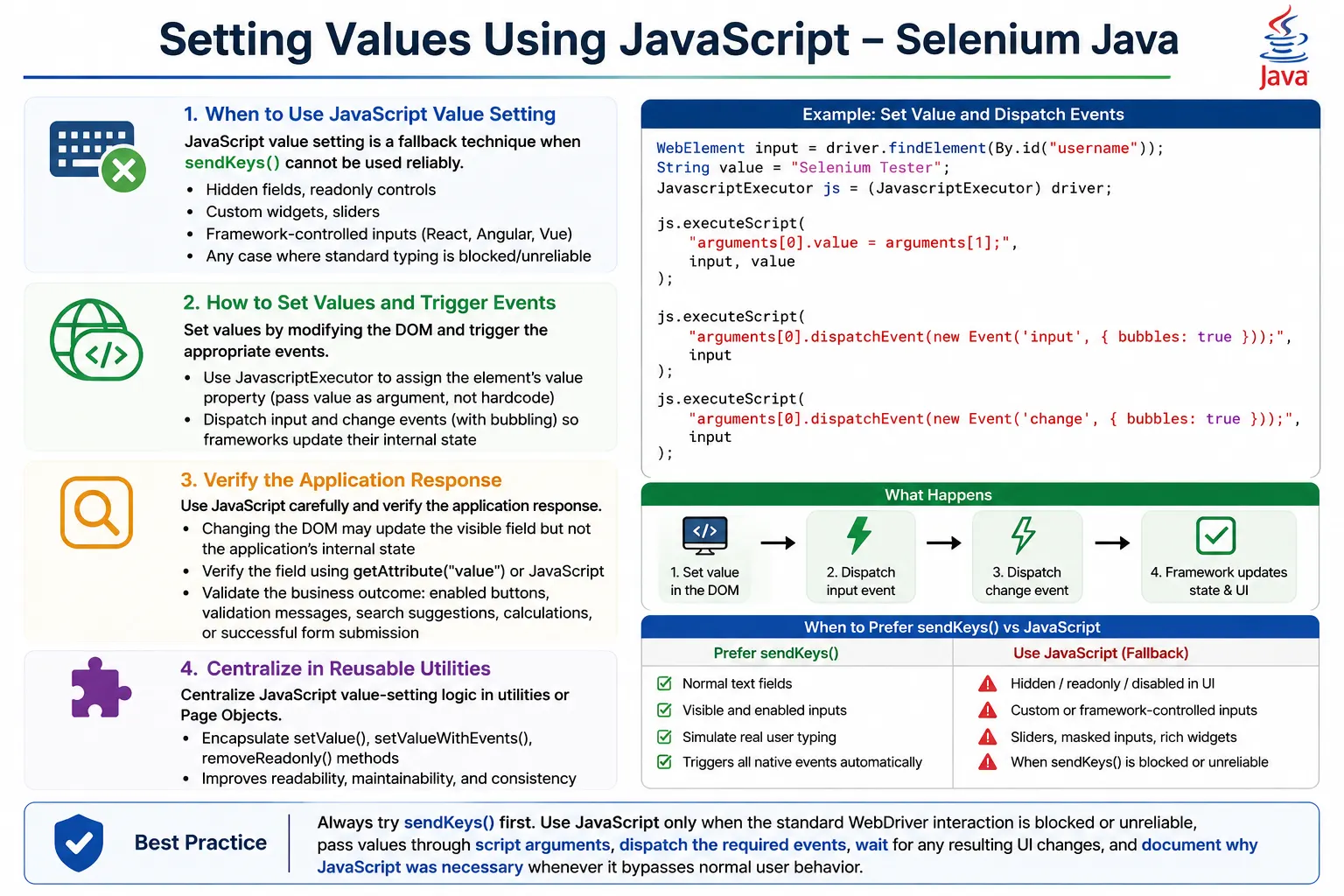
However, real web applications are not always simple. Some fields are hidden, readonly, controlled by JavaScript frameworks, wrapped inside custom components, or updated only through internal event handlers. A normal Selenium command may fail with ElementNotInteractableException, may type into the wrong visible layer, or may set the visible value without updating the application state. In those cases, JavascriptExecutor can be used to set values directly on DOM elements.
Setting values using JavaScript is a powerful fallback technique. It should not replace normal user-style automation, but it is extremely useful when the application design blocks direct typing or when a component requires a precise DOM update. A strong automation engineer knows when to use it, how to trigger the correct events, and how to verify that the application really accepted the value.
2. What Setting Values Using JavaScript Means
Setting values using JavaScript means assigning a value directly to an HTML element through the browser's JavaScript engine. Instead of Selenium sending keyboard input to the browser, Selenium asks the browser to run a script that modifies the DOM property of the element.
Selenium -> JavaScript Engine -> DOM ElementFor a normal input field, the key property is usually value. When this property changes, the displayed text inside the field changes. The basic idea is simple: locate the element with Selenium, pass it into JavaScript as an argument, and assign the value.
js.executeScript(
        "arguments[0].value='admin';",
        textbox
);
This directly changes the element value. But direct assignment alone may not be enough for modern applications. Many applications listen for input or change events. If those events are not fired, the screen may show the new value while the framework state still contains the old value. That is why event dispatching is an important part of this topic.
3. Why Use JavaScript Instead of sendKeys()
Normal Selenium typing looks like this:
driver.findElement(By.id("username"))
      .sendKeys("admin");
This may fail or behave inconsistently in several real-world situations. A hidden field is not interactable, so Selenium cannot type into it. A readonly date field may block keyboard input because the application expects users to select from a calendar widget. A custom UI component may show a styled input while storing the real value in another hidden field. A React, Angular, or Vue component may ignore direct DOM value changes unless the proper events are triggered.
JavaScript can bypass some of these limitations because it modifies the DOM directly. It can set values on hidden fields, readonly fields, sliders, dropdowns, and framework-controlled inputs. This power must be used carefully. If a real user cannot perform the action, the test may no longer represent real behavior. Use JavaScript when the test objective is to prepare state, handle a known component limitation, or validate a field that cannot be controlled through normal Selenium commands.
4. Required Imports
import org.openqa.selenium.By;
import org.openqa.selenium.JavascriptExecutor;
import org.openqa.selenium.WebDriver;
import org.openqa.selenium.WebElement;
import org.openqa.selenium.chrome.ChromeDriver;
import org.openqa.selenium.support.ui.ExpectedConditions;
import org.openqa.selenium.support.ui.WebDriverWait;
import java.time.Duration;
The main interface is JavascriptExecutor. Wait imports are also useful because setting a value is often followed by validation, auto-suggestions, framework updates, or submit button state changes.
5. Creating JavaScriptExecutor Object
WebDriver driver = new ChromeDriver();

JavascriptExecutor js =
        (JavascriptExecutor) driver;
Every major Selenium WebDriver implementation supports JavaScript execution. Once the driver is cast to JavascriptExecutor, scripts can be executed in the current page context. If the element is inside a frame, switch to that frame before executing the script.
6. Basic Value Setting
Consider this input field:
<input id="username">The Selenium Java code can set the value directly:
WebElement textbox =
        driver.findElement(By.id("username"));

js.executeScript(
        "arguments[0].value='admin';",
        textbox
);
The field now displays admin. This is the simplest form of JavaScript value setting. It is useful for understanding the concept, but production code should usually pass the value as a JavaScript argument rather than hardcoding it inside the script string.
7. Passing Dynamic Values Safely
Hardcoding values inside JavaScript strings becomes messy when values contain quotes, spaces, symbols, or data from test files. A cleaner approach is to pass the value as another argument.
String username = "Suresh";

js.executeScript(
        "arguments[0].value=arguments[1];",
        textbox,
        username
);
Here, arguments[0] is the WebElement and arguments[1] is the Java string value. This pattern is safer and more reusable. It avoids script string concatenation and supports data-driven testing cleanly.
8. Complete Example
WebElement username =
        driver.findElement(By.id("username"));

JavascriptExecutor js =
        (JavascriptExecutor) driver;

js.executeScript(
        "arguments[0].value=arguments[1];",
        username,
        "admin"
);
This complete example shows the normal flow: locate the element, create the JavaScript executor, and set the value. In a framework, the cast is often hidden inside a utility class so tests and page objects do not repeat it.
9. Setting Multiple Fields
Multiple fields can be set with separate JavaScript calls.
WebElement username =
        driver.findElement(By.id("username"));

WebElement password =
        driver.findElement(By.id("password"));

js.executeScript(
        "arguments[0].value=arguments[1];",
        username,
        "admin"
);

js.executeScript(
        "arguments[0].value=arguments[1];",
        password,
        "admin123"
);
This is readable and easy to debug. If the username update fails, the failing statement is clear. Separate calls are often preferred when each field has different behavior or requires different events.
10. Setting Multiple Fields with One Script
js.executeScript(
        "arguments[0].value=arguments[2];" +
        "arguments[1].value=arguments[3];",
        username,
        password,
        "admin",
        "admin123"
);
A single script can update multiple fields. This can be useful for quick setup, but it is less readable if the script becomes long. In most test frameworks, clarity matters more than saving one JavaScript call.
11. Clearing Existing Value
JavaScript can clear a field by assigning an empty string.
js.executeScript(
        "arguments[0].value='';",
        textbox
);
This is similar in result to clear(), but not identical in behavior. clear() is a WebDriver interaction. Direct JavaScript assignment does not automatically behave like user selection and deletion. If the application listens for events after clearing, dispatch events after setting the empty value.
12. Replacing Existing Value
If the field contains Old User, JavaScript can replace it directly.
js.executeScript(
        "arguments[0].value=arguments[1];",
        textbox,
        "New User"
);
The field value becomes New User. This is helpful for test data preparation, but the test should still validate that the application recognized the updated value. The visible field value alone may not be enough in JavaScript-heavy applications.
13. Setting Hidden Field Values
Hidden inputs are common in forms. They may hold tokens, IDs, flags, or data generated by the application.
<input type="hidden" id="token">Normal typing fails because hidden fields are not interactable. JavaScript can set the value directly.
WebElement token =
        driver.findElement(By.id("token"));

js.executeScript(
        "arguments[0].value=arguments[1];",
        token,
        "ABC123"
);
Use this carefully. Setting hidden fields may bypass real user behavior. It is most appropriate for controlled test setup or for validating application flows where hidden field state is part of the scenario.
14. Setting Readonly Field Values
Readonly fields often appear in date pickers and generated fields.
<input id="date" readonly>Typing with sendKeys() may fail because the field blocks keyboard input.
WebElement dateField =
        driver.findElement(By.id("date"));

js.executeScript(
        "arguments[0].value=arguments[1];",
        dateField,
        "2026-01-01"
);
This sets the value directly. If the application requires users to select dates from a calendar, using the calendar widget may be the better functional test. JavaScript value setting is useful when the date picker is unreliable in automation or when the test is focused on downstream behavior after date selection.
15. Removing Readonly Attribute First
Another approach is to remove the readonly attribute and then use sendKeys().
js.executeScript(
        "arguments[0].removeAttribute('readonly');",
        dateField
);

dateField.sendKeys("2026-01-01");
This keeps text entry closer to a WebDriver interaction after modifying the element. It is still a workaround, so document why it is required. If the product intentionally prevents typing, be sure the test is not validating a behavior that real users cannot perform.
16. Setting Textarea Values
<textarea id="comments"></textarea>WebElement comments =
driver.findElement(By.id("comments"));
js.executeScript(
"arguments[0].value=arguments[1];",
comments,
"Automation Notes"
);Textareas also use the value property. For comments, descriptions, notes, and messages, direct value assignment works the same way as input fields. If character counters or validation messages depend on typing events, dispatch input after setting the value.
17. Setting Search Box Values
WebElement search =
        driver.findElement(By.id("search"));

js.executeScript(
        "arguments[0].value=arguments[1];",
        search,
        "Selenium"
);
Search boxes often trigger suggestions or filtering as the user types. If JavaScript sets the value but no search results appear, the missing piece is usually an event. Trigger an input event or press Enter depending on how the application search works.
18. Why Events Matter
Directly setting value changes the DOM property, but it does not automatically tell the application that a user changed the field. Many applications listen for events. A plain value assignment may update the field visually, while the internal model remains unchanged.
This problem is very common in React, Angular, Vue, and other framework-based applications. The field may show the expected text, but when the form is submitted, the application may send the old value or treat the field as empty. Triggering events after setting the value makes the update closer to how the application expects to receive changes.
19. Triggering Change Event
js.executeScript(
        "arguments[0].value=arguments[1];" +
        "arguments[0].dispatchEvent(new Event('change'));",
        textbox,
        "admin"
);
The change event is useful when the application updates after the user leaves a field or selects a new value. Dropdowns and date fields commonly respond to change events.
20. Triggering Input Event
js.executeScript(
        "arguments[0].value=arguments[1];" +
        "arguments[0].dispatchEvent(new Event('input'));",
        textbox,
        "admin"
);
The input event is useful for fields that respond while the user is typing. Search boxes, live validation, character counters, and framework-controlled text fields often need this event.
21. Triggering Both Input and Change Events
js.executeScript(
        "arguments[0].value=arguments[1];" +
        "arguments[0].dispatchEvent(new Event('input',{bubbles:true}));" +
        "arguments[0].dispatchEvent(new Event('change',{bubbles:true}));",
        textbox,
        "admin"
);
This is one of the most reliable patterns. The bubbles:true option allows the event to bubble through the DOM, which helps frameworks and parent components hear the update. When working with modern UI frameworks, this version is usually better than basic value assignment.
22. Setting Value and Clicking Submit
js.executeScript(
        "arguments[0].value=arguments[1];" +
        "arguments[0].dispatchEvent(new Event('input',{bubbles:true}));" +
        "arguments[0].dispatchEvent(new Event('change',{bubbles:true}));",
        username,
        "admin"
);

submitButton.click();
After setting a value, submit the form using the normal Selenium click when possible. That keeps the final action close to real user behavior. If the submit button is disabled until the application state updates, wait for it to become clickable after dispatching events.
23. Retrieving Value After Setting
String value =
        (String) js.executeScript(
                "return arguments[0].value;",
                textbox
        );

System.out.println(value);
You can also use Selenium:
String value =
        textbox.getAttribute("value");
Verification is important. It confirms that the field value changed. For framework-heavy pages, also verify the resulting UI behavior, such as enabled buttons, validation messages, filtered results, or submitted data.
24. Real Project Example: Date Picker
Many date picker fields are readonly. The expected user behavior is to open a calendar and select a date. In some projects, the calendar component may be flaky because months animate, hidden panels overlap, or custom controls behave differently across browsers. JavaScript can set the date directly when the test objective is not to validate the calendar itself.
WebElement dateField =
        driver.findElement(By.id("date"));

js.executeScript(
        "arguments[0].value=arguments[1];" +
        "arguments[0].dispatchEvent(new Event('change',{bubbles:true}));",
        dateField,
        "2026-01-01"
);
This sets the date and triggers a change event so dependent fields, price calculations, or validation logic can react.
25. Real Project Example: Hidden Security Token
WebElement token =
        driver.findElement(By.id("csrf"));

js.executeScript(
        "arguments[0].value=arguments[1];",
        token,
        "TOKEN123"
);
Hidden security tokens should generally be created by the application, not by the test. But in controlled test environments, setting hidden test flags or generated tokens may be part of setup. Make sure this does not hide a real production defect.
26. Real Project Example: React Input
React-controlled inputs can be tricky because React maintains component state. A direct DOM value assignment may not update that state. Dispatching input events with bubbling gives React a better chance to process the value.
js.executeScript(
        "arguments[0].value=arguments[1];" +
        "arguments[0].dispatchEvent(new Event('input',{bubbles:true}));",
        textbox,
        "Selenium"
);
Some React versions and custom components may require more specialized handling. If the value appears but submission still fails, inspect the component behavior and confirm which events the application listens for.
27. Setting Password Field
WebElement password =
        driver.findElement(By.id("password"));

js.executeScript(
        "arguments[0].value=arguments[1];",
        password,
        "admin123"
);
Password fields also use the value property. Prefer sendKeys() for login tests because login should mimic real user behavior. JavaScript setting is more appropriate for special setup screens or custom password widgets that do not respond to normal typing.
28. Setting Email Field
String email = "test@example.com";

WebElement emailField =
        driver.findElement(By.id("email"));

js.executeScript(
        "arguments[0].value=arguments[1];" +
        "arguments[0].dispatchEvent(new Event('input',{bubbles:true}));",
        emailField,
        email
);
Email fields may trigger HTML5 validation or application-level validation. After setting the value, verify validation messages or submit readiness if the test depends on them.
29. Setting Time and DateTime Fields
WebElement time =
        driver.findElement(By.id("meetingTime"));

js.executeScript(
        "arguments[0].value=arguments[1];",
        time,
        "10:30"
);

WebElement dateTime =
        driver.findElement(By.id("appointment"));

js.executeScript(
        "arguments[0].value=arguments[1];",
        dateTime,
        "2026-07-15T09:30"
);
HTML5 date, time, and datetime fields expect specific value formats. If the format is wrong, the browser may reject the value or the application may treat it as invalid.
30. Setting Range Slider Values
WebElement slider =
        driver.findElement(By.id("volume"));

js.executeScript(
        "arguments[0].value=arguments[1];" +
        "arguments[0].dispatchEvent(new Event('input',{bubbles:true}));" +
        "arguments[0].dispatchEvent(new Event('change',{bubbles:true}));",
        slider,
        "80"
);
Sliders often update labels or calculated values through input events. Setting only the value may move the slider internally but leave the displayed label unchanged. Trigger events and verify the visible result.
31. Selecting Checkbox Using JavaScript
WebElement checkbox =
        driver.findElement(By.id("agree"));

js.executeScript(
        "arguments[0].checked=true;" +
        "arguments[0].dispatchEvent(new Event('change',{bubbles:true}));",
        checkbox
);
Checkboxes use the checked property, not the value property for selected state. Prefer normal click() for real user behavior, but JavaScript can be useful when a styled checkbox wrapper blocks direct interaction.
32. Selecting Radio Button Using JavaScript
WebElement radio =
        driver.findElement(By.id("male"));

js.executeScript(
        "arguments[0].checked=true;" +
        "arguments[0].dispatchEvent(new Event('change',{bubbles:true}));",
        radio
);
Radio buttons also use checked. If several radio buttons belong to the same group, make sure the application and browser state remain consistent after selection.
33. Selecting Dropdown Value
WebElement dropdown =
        driver.findElement(By.id("country"));

js.executeScript(
        "arguments[0].value=arguments[1];" +
        "arguments[0].dispatchEvent(new Event('change',{bubbles:true}));",
        dropdown,
        "India"
);
For standard HTML dropdowns, Selenium's Select class is usually better. JavaScript is useful when the dropdown is hidden, customized, or hard to interact with. For custom dropdowns that are not real select elements, the correct solution may involve clicking the visible option rather than setting a hidden value.
34. Setting Values by CSS Selector
js.executeScript(
        "document.querySelector('#username').value='admin';"
);
This works, but it is usually less clean than passing a WebElement. If the selector fails, the JavaScript error may be less readable than a Selenium locator failure. Passing WebElements keeps locator responsibility in Selenium and JavaScript responsibility in the script.
35. Reusable Basic Utility Method
public static void setValueJS(
        WebDriver driver,
        WebElement element,
        String value) {

    JavascriptExecutor js =
            (JavascriptExecutor) driver;

    js.executeScript(
            "arguments[0].value=arguments[1];",
            element,
            value
    );
}
A reusable method keeps page objects cleaner. It also gives the framework one place to improve behavior later, such as adding event dispatching or logging.
36. Advanced Utility with Events
public static void setValueWithEvents(
        WebDriver driver,
        WebElement element,
        String value) {

    JavascriptExecutor js =
            (JavascriptExecutor) driver;

    js.executeScript(
            "arguments[0].value=arguments[1];" +
            "arguments[0].dispatchEvent(new Event('input',{bubbles:true}));" +
            "arguments[0].dispatchEvent(new Event('change',{bubbles:true}));",
            element,
            value
    );
}
This utility is stronger for modern applications. It sets the value and notifies listeners. In many real frameworks, this becomes the standard fallback when normal typing fails.
37. Locator-Based Utility
public void setValue(
        By locator,
        String value) {

    WebElement element =
            driver.findElement(locator);

    setValueWithEvents(
            driver,
            element,
            value
    );
}
Locator-based helpers are convenient, but do not hide waits. If the element appears dynamically, wait for presence or visibility before calling the utility.
38. Waiting After Setting Values
Setting a value can trigger validation, button enablement, auto-save, suggestions, filters, or calculations. Do not immediately assert if the application needs time to respond. Wait for the observable result.
setValueWithEvents(
        driver,
        username,
        "admin"
);

wait.until(
        ExpectedConditions.elementToBeClickable(
                By.id("submit")
        )
);
The wait should describe what the application should do after the value is set. This is better than adding a fixed sleep.
39. JavaScript Value vs sendKeys()
sendKeys() simulates user typing. It triggers keyboard behavior and is closer to real user interaction. JavaScript value setting directly modifies the DOM. It can work with hidden or readonly fields, but it bypasses normal browser interaction.
For normal functional tests, use sendKeys() first. Use JavaScript when the standard approach is blocked by application design, when a field is not interactable, when a framework component needs event dispatching, or when test setup requires direct DOM state preparation.
40. Common Exceptions Solved by JavaScript Value Setting
ElementNotInteractableException may occur when an input exists but is hidden or not visible. JavaScript can set the value directly if that is appropriate for the test. Readonly fields block typing, but JavaScript can assign the value or remove the attribute first. Custom widgets may ignore sendKeys(), but value assignment with input and change events may update them.
JavaScript will not solve every problem. It will not fix a wrong locator, wrong frame, stale element, disabled business rule, or server-side validation failure. Always identify the real cause before applying a JavaScript workaround.
41. Framework Impact: React, Angular, and Vue
Frameworks manage state differently from plain HTML pages. A field value may be controlled by component state. When JavaScript changes the DOM value directly, the framework may overwrite it during the next render if it did not receive the expected event. That is why event dispatching is not optional in many modern applications.
In React and similar frameworks, after setting the value, trigger at least an input event with bubbling. For dropdowns and date fields, trigger change. If the application still does not recognize the value, inspect the component behavior with DevTools and discuss a testable locator or supported test hook with the development team.
42. Real-Time Framework Design
In a mature automation framework, JavaScript value setting should be centralized. Do not scatter raw JavaScript strings across dozens of page objects. Create a utility such as JavaScriptActions or BrowserScripts with clear methods like setValue(), setValueWithEvents(), removeReadonly(), and getValue().
This makes the test code readable and maintainable. It also makes code review easier because reviewers can see when the framework bypasses normal user behavior. A short comment in the page object explaining why JavaScript is needed can prevent confusion later.
43. Real Project Example: Form Preparation
Suppose a test must validate a downstream calculation after multiple fields are filled. Most fields work with sendKeys(), but the date picker is readonly and hard to automate reliably. The page object can use normal Selenium input for standard fields and JavaScript only for the date.
firstName.sendKeys("John");
lastName.sendKeys("Smith");

setValueWithEvents(
        driver,
        dateOfBirth,
        "1995-06-10"
);

submitButton.click();
This balanced approach is better than replacing all form input with JavaScript. Use the fallback only where it is justified.
44. Real Project Example: Auto-Suggestion Search
Auto-suggestion boxes often depend on input events. If JavaScript sets the visible text but suggestions do not appear, the application did not receive the same signal it gets during typing.
setValueWithEvents(
        driver,
        searchBox,
        "Selenium"
);

wait.until(
        ExpectedConditions.visibilityOfElementLocated(
                By.cssSelector(".suggestion-list")
        )
);
The assertion is not just that the search box contains the word. The real validation is that the suggestion list appears or the results update. Always verify the business effect.
45. Security and Test Integrity
JavaScriptExecutor can modify fields that real users cannot touch. This is useful, but it can also make tests misleading. A test that sets disabled, hidden, or readonly values may pass even though the real user journey is broken. Before using JavaScript, ask whether the test is trying to simulate a user action or prepare a controlled internal state.
For end-to-end user journey tests, avoid bypassing core interactions. For setup helpers, admin-only data preparation, or workaround handling of automation-hostile widgets, JavaScript can be acceptable. The key is to keep the intent clear.
46. Setting Values in Frames
JavaScript executes in the current browsing context. If the field is inside an iframe, Selenium must switch into that frame before locating the element and before running the script. If the driver is still focused on the main document, JavaScript will not reach the field inside the frame.
driver.switchTo().frame("profileFrame");

WebElement email =
        driver.findElement(By.id("email"));

setValueWithEvents(
        driver,
        email,
        "user@example.com"
);

driver.switchTo().defaultContent();
This is a common source of confusion. The value-setting code may be correct, but the wrong frame context makes the test fail. Always solve frame context first, then solve field interaction.
47. Handling Stale Elements After Value Updates
Some applications re-render a field after an input event. That means the WebElement reference used to set the value may become stale immediately after the script executes. This is common in framework-driven forms where validation changes the component tree.
If a field becomes stale after setting a value, do not keep using the old WebElement. Re-locate the element or wait for the next expected UI state. For example, after setting a search value, wait for the result list instead of reading the same input element again. If you must verify the input value, locate the field again after the framework finishes rendering.
setValueWithEvents(
        driver,
        searchBox,
        "Selenium"
);

wait.until(
        ExpectedConditions.visibilityOfElementLocated(
                By.cssSelector(".result-row")
        )
);
This keeps the test focused on the application result rather than on a fragile DOM reference.
48. When JavaScript Setting Should Fail the Review
During code review, JavaScript value setting should raise a useful question: why is this needed? If the answer is "because the locator is wrong", "because we did not wait", or "because the element is covered by a spinner", the correct fix is not JavaScript. The correct fix is a better locator, better wait, or proper synchronization.
JavaScript value setting is reasonable when the application intentionally blocks typing, when a readonly widget needs controlled setup, when a framework component requires event dispatching, or when the test explicitly prepares internal state. It is suspicious when it is used to avoid understanding the page. A short comment in the utility call or page object can make the intent clear for future maintainers.
49. Common Beginner Mistakes
- Using JavaScript for every textbox instead of trying
sendKeys()first. - Forgetting to trigger
inputorchangeevents. - Hardcoding values directly inside JavaScript strings.
- Changing hidden fields without understanding the business impact.
- Assuming visible value means application state is updated.
- Using JavaScript to bypass a real product defect.
- Not verifying the value after setting it.
- Scattering duplicate JavaScript snippets across page objects.
50. Best Practices
- Prefer
sendKeys()for normal user interactions. - Use JavaScript value setting only when the standard approach is blocked or unreliable.
- Pass values through
argumentsinstead of hardcoding them into script strings. - Trigger
inputandchangeevents for modern frameworks. - Verify the field value with
getAttribute("value")or JavaScript return values. - Validate the business result after setting the value.
- Keep JavaScript operations in reusable utility methods.
- Document why JavaScript was required when it bypasses normal user behavior.
51. Debugging Checklist
- Check whether the element is visible, hidden, readonly, disabled, or inside a frame.
- Confirm that the locator points to the real input, not only a styled wrapper.
- Read the value after setting it.
- Trigger events and verify that framework state changes.
- Wait for validation, suggestions, or button enablement after setting the value.
- Use DevTools to identify whether the component listens for
input,change, or custom events. - Prefer standard Selenium interactions when the test is validating real user behavior.
52. Interview Perspective
A short interview answer is: Selenium can set field values using JavascriptExecutor by assigning to the element's value property, for example arguments[0].value='admin'. This is useful for hidden fields, readonly fields, date pickers, sliders, and framework-controlled inputs when sendKeys() does not work.
A stronger real-time answer is: I prefer sendKeys() because it simulates real user typing. When it fails due to readonly fields, hidden controls, custom widgets, or React and Angular behavior, I use JavascriptExecutor to set the value and dispatch input and change events with bubbling. After that, I verify both the field value and the expected application behavior.
53. Key Takeaway
Setting values using JavaScript in Selenium is a practical fallback technique for situations where normal typing is blocked or unreliable. The basic syntax is simple: locate the element, cast the driver to JavascriptExecutor, and assign a value to arguments[0].value.
The real skill is knowing when direct assignment is not enough. Modern applications often need input and change events so framework state, validation, and dependent UI updates occur correctly. Use JavaScript carefully, keep it centralized in utilities, and verify the business result after the value is set.
Used with discipline, JavaScript value setting can make Selenium tests more reliable for readonly fields, hidden inputs, custom widgets, sliders, dropdowns, and framework-driven controls without turning the entire test suite into unrealistic browser manipulation.