sendKeys()
The sendKeys() method is used to enter text or keyboard sequences into an input-capable
element in Selenium WebDriver. It is most commonly used with text fields, password fields, email inputs,
search boxes, textareas, and file upload controls. Because most real web applications depend heavily on
forms, search fields, filters, login screens, registration pages, profile pages, checkout pages, and admin
data-entry workflows, sendKeys() is one of the most important WebElement methods for practical
automation.
At first glance, sendKeys() appears simple: locate a field and type text into it. In real test
automation, however, reliable input handling requires more care. The field must be present in the current
DOM, visible to the browser, enabled for interaction, focused correctly, and capable of receiving keyboard
input. The test must also decide whether existing text should be cleared, whether special keys are needed,
whether the input is masked or auto-formatted, and how to verify that the final value was accepted by the
application.
Strong Selenium engineers treat text entry as a user interaction, not as a direct data assignment. A real
user clicks or focuses a field, types characters, triggers keyboard events, sees validation messages, and
expects the application to process input as it is typed. Selenium's normal sendKeys() follows
that model more closely than JavaScript value assignment. This is why it is the preferred way to fill fields
unless there is a clear and documented reason to use a fallback.
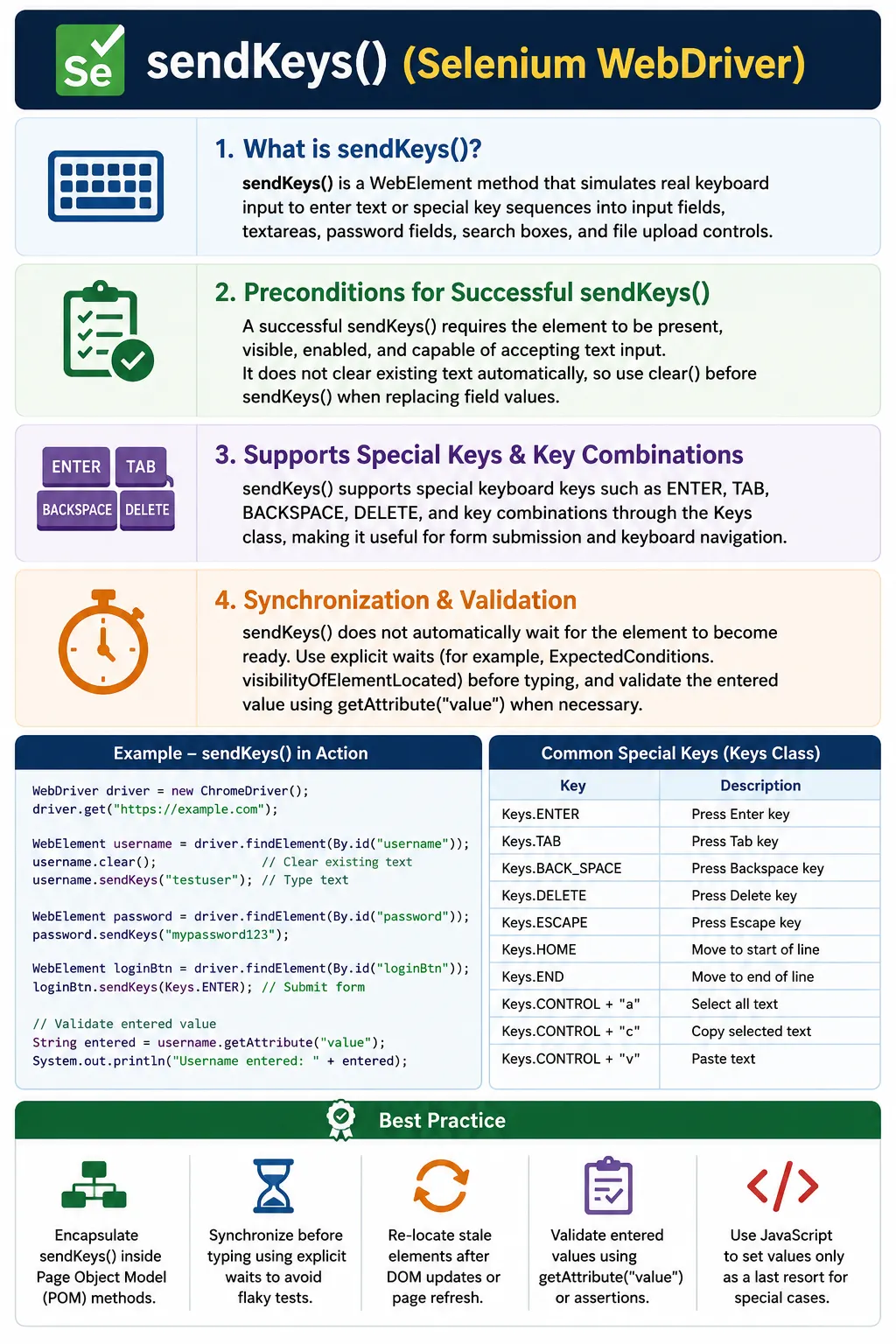
1. What sendKeys() Does
Definition:
sendKeys() types characters as if a user is pressing keys on the keyboard into the target
WebElement.
Internally, Selenium:
- Verifies the element is present and interactable
- Focuses the element
- Dispatches keyboard events to the browser
When a Selenium script calls sendKeys(), the Java client sends a command through WebDriver to
the browser driver. The browser driver then asks the browser to deliver keyboard input to the target
element. This matters because many applications react to real keyboard events such as keydown, input,
keyup, change, focus, and blur. If the application validates input while the user types, filters suggestions,
applies masks, or enables buttons after text entry, a normal sendKeys() call is usually the
most accurate automation approach.
The method can send plain text as well as special keys from Selenium's Keys class. That means
the same method can type a username, press ENTER to submit a search, press TAB to move focus, use BACKSPACE
to remove characters, or use keyboard shortcuts such as CTRL+A and DELETE to clear a field. This flexibility
makes sendKeys() useful for both simple forms and more complex keyboard-driven flows.
2. Preconditions for Successful sendKeys()
For reliable input, all must be true:
- Element is present in the DOM
- Element is visible
- Element is enabled
- Element accepts text input
- Correct window/frame context is active
If any condition fails, Selenium throws an exception.
These preconditions explain why finding a field is not the same as typing successfully into it. A hidden
input may exist in the DOM but be unavailable to users. A field may be visible but disabled until another
checkbox is selected. A search box may be inside an iframe while the driver is still focused on the parent
page. A custom widget may display a styled control while the real input is hidden elsewhere. In these cases,
the locator may be correct but sendKeys() can still fail because the element is not ready for
user-like keyboard input.
A stable test should wait for the input condition it actually needs. For a normal text field, visibility and enabled state are usually enough. For an auto-suggest field, the test may also need to wait for suggestions after typing. For a form where the submit button becomes enabled after valid input, the test should wait for the button state after text entry. The typing action and the resulting application state should be handled together.
3. Common Elements Used with sendKeys()
- Text inputs (<input type="text">)
- Password fields
- Email/number inputs
- Textareas
- Search fields
- File inputs (special case - file upload)
The most common use is ordinary text entry: usernames, passwords, email addresses, search terms, names, addresses, comments, and numeric values. Textareas work similarly to text inputs, except they usually accept longer multi-line content. Password fields accept input the same way, even though the browser masks the visible characters. Email and number inputs may apply browser-level validation rules, so the test should verify final behavior rather than assuming every string is accepted.
File inputs are a special and important case. Selenium does not automate the operating system's file picker
dialog. Instead, it sends the absolute file path directly to an <input type="file">
element. This is reliable and preferred because it works without AutoIT, Robot class, or manual dialog
interaction. The limitation is that the file must exist on the machine where the test runs, including CI
agents and remote grid nodes.
4. What sendKeys() Does NOT Do
- Does not clear existing text automatically
- Does not wait for the element to be ready
- Does not validate the entered value
- Does not submit forms (unless combined with ENTER)
Synchronization and validation are your responsibility.
sendKeys() does not erase previous content. If a field already contains text, the new value is
appended to the existing value unless the field's behavior says otherwise. This is one of the most common
causes of bad test data. A search box that already contains "Selenium" may become "SeleniumJava" if the test
types "Java" without clearing. A profile form with default values may receive duplicated input. A browser
with autofill enabled may insert data before the test begins typing.
The method also does not guarantee that the application accepted the value. The text may be typed, but input
masks, validation rules, JavaScript formatting, or browser constraints may transform it. A phone number may
be reformatted. A currency field may add commas. A date picker may reject an invalid format. A maximum
length rule may truncate characters. Because of this, good tests validate the field's final value using
getAttribute("value") or by checking the resulting page behavior.
5. Clearing Text Before Typing (Best Practice)
Most real inputs already contain text (defaults, autofill, cached values).
Recommended pattern:
- Ensure visibility
- Clear the field
- Then type
This avoids concatenated or corrupted input.
Clearing before typing should be a deliberate choice, not a blind habit. For most single-value fields, the
expected behavior is to replace the existing value, so clear() followed by
sendKeys() is appropriate. For fields that intentionally append text, such as comments or rich
editors, clearing may be wrong. For fields with masks, clear() may not always trigger the same
events as keyboard deletion, so a keyboard shortcut such as CTRL+A followed by DELETE may be more realistic.
Some applications listen for input changes and validation events. If clear() does not trigger
the behavior the application expects, the test may need to click the field, select all text, delete it, type
the new value, and then tab out. The correct clearing strategy depends on the control. A framework can offer
helper methods such as replaceText() or typeIntoField(), but those methods should
still be tested against the actual UI widgets used by the application.
6. Sending Special Keys (Keyboard Actions)
sendKeys() can send keyboard keys such as:
- ENTER / RETURN (submit forms)
- TAB (move focus)
- BACKSPACE / DELETE
- CTRL / ALT combinations (platform dependent)
Special keys make sendKeys() useful beyond simple text entry. Pressing ENTER can submit a
search field without clicking the search button. Pressing TAB can move focus to the next field and trigger
blur validation. Pressing ESCAPE can close certain popups. Pressing ARROW_DOWN and ENTER can select an
auto-suggest option. These flows are valuable because many users interact with applications through the
keyboard, not only through the mouse.
Platform-specific shortcuts need care. CTRL+A is common on Windows and Linux, while COMMAND+A is common on macOS. If tests run on different operating systems, shortcut helpers should account for the platform. For cross-platform suites, avoid hardcoding keyboard combinations unless the execution environment is fixed or the framework abstracts the difference.
Use cases:
- Submitting forms without clicking
- Navigating between fields
- Clearing content with shortcuts
7. Handling Dynamic Inputs & Masks
Modern UIs often use:
- Input masks (phone, currency)
- Auto-formatting
- Validation on keypress
Implications:
- Typing speed and sequence matter
- Sometimes requires pauses or explicit waits
- Validation may trigger mid-typing
Best practice: Validate final value after input.
Dynamic inputs are where sendKeys() becomes more interesting. A phone field may automatically
insert parentheses and hyphens. A credit card field may split digits into groups. A currency field may add
commas or decimal places. A date field may reject incomplete text until blur. A search field may make API
calls after each character. If the test types too quickly or validates too early, it may read the field
before the application finishes formatting or validating.
The solution is to validate the state that matters after typing. If the field formats the value, assert the formatted value. If typing opens suggestions, wait for the suggestion list. If typing enables the submit button, wait for the button to become enabled. If typing triggers an error message, wait for the message. This turns the test into a user-flow validation instead of a blind typing script.
8. Common Exceptions with sendKeys()
ElementNotInteractableException
- Field exists but is hidden/disabled
- Fix: Wait for visibility and enabled state.
ElementNotInteractableException usually means the element exists but cannot receive input. It
may be hidden, disabled, covered by another component, or not the visible field the user interacts with.
InvalidElementStateException often appears when the element cannot be edited, such as a disabled
field, read-only field, or non-input element. StaleElementReferenceException indicates that the
DOM changed after the element was located. TimeoutException indicates that a wait condition was
never satisfied.
Exception diagnosis should be systematic. Check the locator, screenshot, page URL, frame context, window
context, enabled state, visibility, and whether the DOM re-rendered. Do not immediately replace
sendKeys() with JavaScript. The normal method is often failing for a useful reason. Fixing the
timing or target element usually produces a better test than bypassing the browser interaction layer.
InvalidElementStateException
- Element does not accept text
- Fix: Verify element type and state.
StaleElementReferenceException
- DOM refreshed after locating element
- Fix: Re-locate element before typing.
TimeoutException
- Element never becomes ready
- Fix: Verify locator and waits.
9. File Upload with sendKeys() (Special Case)
For file inputs:
- sendKeys() sets the absolute file path
- No OS dialog interaction required
Constraints:
- Works only with <input type="file">
- Path must exist on the execution machine (CI included)
This is the preferred file upload approach in Selenium.
File upload is one of the most interview-friendly uses of sendKeys() because it avoids the
common misconception that Selenium must control the operating system file dialog. Selenium cannot reliably
automate native OS dialogs through WebDriver. Instead, it sets the file path on the file input element. This
approach is simple, fast, and suitable for CI when the file path is controlled.
In real projects, file upload tests should avoid absolute paths that exist only on one developer machine. Keep test files inside the project resources, build paths dynamically, and verify that the file exists before sending it. In Selenium Grid or remote execution, make sure the file is available to the environment where the browser is running. A file upload that passes locally and fails remotely often points to a path or file availability problem, not a Selenium input problem.
10. sendKeys() vs JavaScript Value Set (Conceptual)
- sendKeys(): Triggers real keyboard events (preferred)
- JavaScript set value: Bypasses events (use only as fallback)
Rule: Use sendKeys() first to mimic user behavior accurately.
JavaScript value assignment can be useful in rare cases, but it is not equivalent to
sendKeys(). Setting element.value directly may not trigger the same keyboard,
input, change, validation, or framework events that a real user triggers. Some applications will display the
value but not update internal component state. This is common in front-end frameworks that track input
through event handlers rather than reading the DOM value directly.
If JavaScript value setting is used, it should be treated as a fallback with clear reasoning. The framework
may need to dispatch input or change events after setting the value, but even that can be application
specific. A normal sendKeys() call is usually safer because it exercises the same path a real
user uses. Tests should not pass by bypassing important UI behavior unless the goal is specifically to set
internal state.
11. Page Object Model (POM) Usage
In frameworks:
- sendKeys() is wrapped inside page methods
- Tests call semantic actions (e.g., enterUsername())
In Page Object Model, raw calls to sendKeys() should usually live inside page methods, not
directly inside test methods. A test should say loginPage.enterUsername("admin") or
profilePage.updateEmail(value). The page object can decide whether to wait, clear, type, tab
out, and validate. This keeps tests readable and centralizes input behavior in one maintainable place.
Page methods should be named after user intent. enterUsername() is clearer than a generic
type() call because it explains which field is affected. Higher-level methods such as
login() or completeShippingAddress() can combine multiple input actions and waits.
This helps tests describe business workflows instead of low-level Selenium mechanics.
This improves:
- Readability
- Reusability
- Maintenance
The most common beginner mistake is typing into fields without clearing existing data. The next mistake is
using Thread.sleep() before typing instead of waiting for visibility or enabled state. Another
frequent issue is typing into a hidden internal input when the visible control is actually a styled wrapper.
Beginners also overlook input masks and assume the value they typed is the value the application stored.
A more subtle mistake is not verifying the final value. A test that types an email address and immediately clicks Save may fail later, but the real issue might be that the field rejected or transformed the input. Reading the field value after typing can catch problems earlier. For important forms, validation after input makes failures easier to diagnose.
12. Common Beginner Mistakes
- Typing without clearing existing text
- Using Thread.sleep() instead of waits
- Typing into hidden fields
- Ignoring input masks and validations
- Using JavaScript input prematurely
13. Interview Perspective
Short Answer:
sendKeys() is used to enter text or keyboard inputs into a WebElement, simulating real user typing.
Real-Time Answer:
In Selenium, sendKeys() sends keyboard input to a visible and enabled element, triggering native key events. It does not clear existing text or wait automatically, so proper synchronization and validation are required.
In an interview, a complete answer should mention that sendKeys() belongs to
WebElement, not WebDriver. It works on input-capable elements and can send normal
text as well as special keys from the Keys class. It is also the standard Selenium approach for
file uploads when used with <input type="file">. The method does not clear existing text
and does not wait automatically, so waits, clear strategy, and final value validation are part of reliable
usage.
14. Key Takeaway
- sendKeys() simulates real typing
- Clear fields explicitly when needed
- Synchronize before typing
- Validate the final value
- Prefer sendKeys() over JavaScript input
Stable input automation depends more on timing and validation than on typing itself.
15. Designing Reliable Text Entry Flows
Reliable text entry starts before the first character is typed. The test should know which field is being
edited, what initial value is expected, whether the field should be cleared, what value should be entered,
and what result should appear after typing. This may sound obvious, but many automation scripts skip these
decisions and simply call sendKeys(). The result is brittle tests that depend on hidden state,
cached browser values, or previous test execution.
A strong pattern is to make input methods explicit. A method named replaceEmail(value) can
wait for the email field, clear it, type the new value, and verify the final value. A method named
appendComment(text) can intentionally avoid clearing and add content to an existing textarea. A
method named searchFor(term) can type into the search box and press ENTER or click the search
button. The method name should reveal whether the field is being replaced, appended, submitted, or selected.
This approach also improves debugging. If a test fails in replaceEmail(), the failure is about
a specific user action. If every test calls element.sendKeys() directly, failure context is
scattered. Page-level methods can add screenshots, logs, locator names, and validation messages that make CI
failures much easier to understand.
16. Synchronization Before and After Typing
Synchronization before typing ensures the field can receive input. A common explicit wait is visibility of the element located by a locator. If the field must also be enabled, the framework can wait until both visibility and enabled state are true. For complex widgets, the wait may need to target the visible wrapper, the actual input, or a state attribute that indicates readiness. The right wait is the one that matches how the application makes the field usable.
Synchronization after typing is equally important. If typing triggers validation, wait for the validation message or the absence of an error. If typing triggers auto-suggest, wait for the suggestion list. If typing enables a button, wait for that button to become enabled. If typing formats the input, wait until the value becomes the expected formatted value. Without this second wait, the next test step may run too early.
Avoid using fixed sleeps for input behavior. A one-second sleep may pass today and fail tomorrow when the CI server is slower. It may also waste time when the page is already ready. Explicit waits are more efficient and more meaningful because they connect the test to application state.
17. Validating Values After sendKeys()
After typing into a standard input, the current value is usually available through
getAttribute("value"). This is different from getText(), which generally does not
return the typed value for input fields. A common validation pattern is to type into the field and then
assert that the value attribute matches the expected text. For masked fields, the expected value should be
the displayed formatted value, not necessarily the raw input string.
Validation is especially useful for fields with restrictions. A maximum length field may truncate text. A numeric field may reject letters. A date field may normalize the date. A currency field may add formatting. A controlled React input may not update if events were bypassed. By checking the final value after typing, the test verifies that the application accepted the input, not merely that Selenium attempted to type it.
In broader workflows, field value validation can be combined with business outcome validation. For example, after entering shipping information, a checkout test may verify field values and then verify the order summary. After entering a search term, a search test may verify the input value and then verify the result list. This gives failures a clearer location.
18. Data-Driven Usage
sendKeys() is central to data-driven testing because many scenarios differ only by input data.
Login tests use different usernames and passwords. Registration tests use different names, email formats,
and password strengths. Search tests use different terms. Form validation tests use boundary values, invalid
characters, blank values, and long strings. A clean framework separates test data from input mechanics so the
same page methods can be reused across many data sets.
Dynamic test data should be generated carefully. Using timestamps for usernames or email aliases can avoid duplicate-data conflicts. However, generated values should still be logged because they are needed for debugging. If a test creates a user with a generated email and fails later, the report should show the exact value that was typed. Input helpers can log field names and values while masking sensitive data such as passwords.
Sensitive input requires discipline. Do not print passwords, tokens, or personal data into logs. Page methods can accept a flag or use field metadata to mask values in reports. This keeps diagnostics useful without exposing secrets.
19. Auto-Suggest and Search Fields
Auto-suggest fields are a common source of flaky sendKeys() tests. The test types a value, the
application calls an API, suggestions appear, and the user selects an option. If the test presses ARROW_DOWN
or ENTER before suggestions are ready, it may select nothing or select the wrong item. The correct pattern is
to type the search text, wait for the suggestion container, wait for the expected option, and then select it.
Some auto-suggest controls debounce input, meaning they wait briefly after typing before sending a request. Others update suggestions after every character. A test should not assume a fixed delay. It should wait for the actual suggestion list or target option. If the option text depends on back-end data, make sure the test data is stable or seeded before the test runs.
Keyboard-based selection can be valid, especially if the application supports keyboard navigation. Still,
mouse selection may be clearer if the test needs a specific option by visible text. The best choice depends
on the behavior being tested. If keyboard accessibility matters, using sendKeys(Keys.ARROW_DOWN,
Keys.ENTER) is meaningful. If the goal is simply to choose an item, locating and clicking the exact
option may be more deterministic.
20. Stale Elements, Re-Rendering, and Input Stability
Modern front-end frameworks can replace input elements during rendering. A field may be located, then the
component re-renders, and the old reference becomes stale before sendKeys() runs. This is common
after route changes, modal openings, validation updates, and table refreshes. The fix is to locate the field
as close as possible to the typing action and to re-locate it after any operation that changes the DOM.
Storing WebElement fields with PageFactory can be convenient, but it can also hide stale reference behavior
if elements are cached or reused after page updates. Many teams prefer storing By locators and
resolving elements at action time. This approach makes the framework more resilient to dynamic DOM updates.
Whether using PageFactory or explicit locators, the key is not to assume an old element reference remains
valid forever.
If stale element failures occur during typing, inspect when the page updates. Sometimes typing itself causes the component to re-render after each character. In that case, the framework may need a more specialized input strategy, such as typing into the stable visible input, waiting for value completion, or using a component-specific helper that matches how the UI behaves.
21. Interview-Ready Summary
sendKeys() is a WebElement method used to send text and keyboard input to an element. It is used
mainly with input fields, textareas, password fields, search boxes, and file upload controls. It simulates
user keyboard input and triggers browser events, so it is preferred over directly setting values with
JavaScript. It does not clear existing text, does not wait automatically, and does not prove that the
application accepted the value. Reliable usage requires waits, clearing strategy, and final value
validation.
In real frameworks, sendKeys() should be wrapped inside meaningful page object methods. Those
methods should wait for readiness, clear or preserve existing text intentionally, type the value, handle
dynamic controls, and verify the result when needed. For interviews, remember the short version:
sendKeys() enters text or special keyboard keys into a WebElement, supports file upload through
file inputs, and requires synchronization for stable automation.
22. Practical sendKeys() Examples (Interview Ready)
1. Basic sendKeys() Usage
WebElement username = driver.findElement(By.id("username"));
username.sendKeys("admin");
Key Point: Types text into input or textarea.
2. sendKeys() with clear()
WebElement input = driver.findElement(By.name("search"));
input.clear();
input.sendKeys("Selenium WebDriver");
Best Practice: Always clear before typing.
3. sendKeys() with Multiple Values
WebElement input = driver.findElement(By.id("firstName"));
input.sendKeys("John", " ", "Doe");
Note: Accepts varargs.
4. sendKeys() with Keyboard Keys
import org.openqa.selenium.Keys;

WebElement input = driver.findElement(By.id("search"));
input.sendKeys("Selenium", Keys.ENTER);
5. Using Special Keys (TAB)
input.sendKeys("admin", Keys.TAB, "password");Use Case: Simulate real keyboard navigation.
6. sendKeys() to Upload a File
WebElement upload = driver.findElement(By.id("fileUpload"));
upload.sendKeys("C:\\files\\resume.pdf");
Interview Favorite: No AutoIT required.
7. sendKeys() with Explicit Wait
WebDriverWait wait = new WebDriverWait(driver, Duration.ofSeconds(10));
WebElement email =
    wait.until(ExpectedConditions.visibilityOfElementLocated(By.id("email")));

email.sendKeys("test@example.com");
8. sendKeys() After Scrolling Into View
WebElement input = driver.findElement(By.id("comments"));
JavascriptExecutor js = (JavascriptExecutor) driver;
js.executeScript("arguments[0].scrollIntoView(true);", input);
input.sendKeys("Feedback text");
9. sendKeys() on Disabled Element (Fails)
driver.findElement(By.id("disabledField"))
      .sendKeys("text"); // fails when disabled
Fix:
- Enable element first
- Or remove disabled via JS (if allowed)
10. sendKeys() Using JavaScript (Last Resort)
WebElement input = driver.findElement(By.id("username"));
JavascriptExecutor js = (JavascriptExecutor) driver;
js.executeScript("arguments[0].value='admin';", input);
11. sendKeys() with Dynamic Input
String value = "User_" + System.currentTimeMillis();
driver.findElement(By.id("user")).sendKeys(value);
12. sendKeys() After Page Refresh (Stale Fix)
WebElement input = driver.findElement(By.id("email"));
driver.navigate().refresh();

// input.sendKeys("x"); would throw StaleElementReferenceException
input = driver.findElement(By.id("email"));
input.sendKeys("test@example.com");
13. sendKeys() Inside Frame
driver.switchTo().frame("loginFrame");
driver.findElement(By.id("user")).sendKeys("admin");
driver.switchTo().defaultContent();
14. sendKeys() with Actions Class
Actions actions = new Actions(driver);
WebElement input = driver.findElement(By.id("search"));
actions.sendKeys(input, "Selenium").perform();
Use Case: Complex keyboard interactions.
15. sendKeys() with CTRL + A (Select All)
input.sendKeys(Keys.CONTROL, "a");16. Clear Using Keyboard
input.sendKeys(Keys.CONTROL, "a", Keys.DELETE);Alternative to: input.clear().
17. sendKeys() Validation Using getAttribute()
WebElement input = driver.findElement(By.id("email"));
input.sendKeys("test@example.com");

Assert.assertEquals(
    input.getAttribute("value"),
    "test@example.com"
);
18. Loop with sendKeys() (Data Driven)
String[] users = {"admin", "guest", "test"};

for (String user : users) {
    driver.findElement(By.id("username")).clear();
    driver.findElement(By.id("username")).sendKeys(user);
}
19. Common Interview Mistake
driver.sendKeys("text"); // invalidCorrect:
driver.findElement(By.id("x")).sendKeys("text"); // valid20. sendKeys() in Page Object Model (POM)
@FindBy(id = "username")
WebElement username;

public void enterUsername(String value) {
    username.clear();
    username.sendKeys(value);
}
21. sendKeys() with Soft Assertions
SoftAssert soft = new SoftAssert();
input.sendKeys("data");
soft.assertEquals(input.getAttribute("value"), "data");
soft.assertAll();
22. sendKeys() After Element Enabled Check
WebElement input = driver.findElement(By.id("email"));
if (input.isEnabled()) {
    input.sendKeys("test@example.com");
}
23. Handling Auto-Suggest Input
WebElement search = driver.findElement(By.id("search"));
search.sendKeys("Selenium");
Thread.sleep(1000);
search.sendKeys(Keys.ARROW_DOWN, Keys.ENTER);
24. sendKeys() vs setValue() (Interview)
- sendKeys() simulates real typing
- JS value set bypasses UI events
25. Interview Summary - sendKeys() in Selenium
element.sendKeys();Key Points:
- Works on input & textarea
- Supports special keys
- Used for file upload
- Use waits for stability
- JS sendKeys is last resort