Scrolling Using JavaScript in Selenium Java
1. Introduction
Scrolling is one of the most common operations in Selenium automation. Many pages are longer than the visible browser viewport, and important controls may appear below the fold, inside scrollable panels, inside tables, or after lazy loading. Selenium 4 provides Actions-based scrolling, but JavaScriptExecutor scrolling is still widely used because it is precise, flexible, and effective across many real-world layouts.
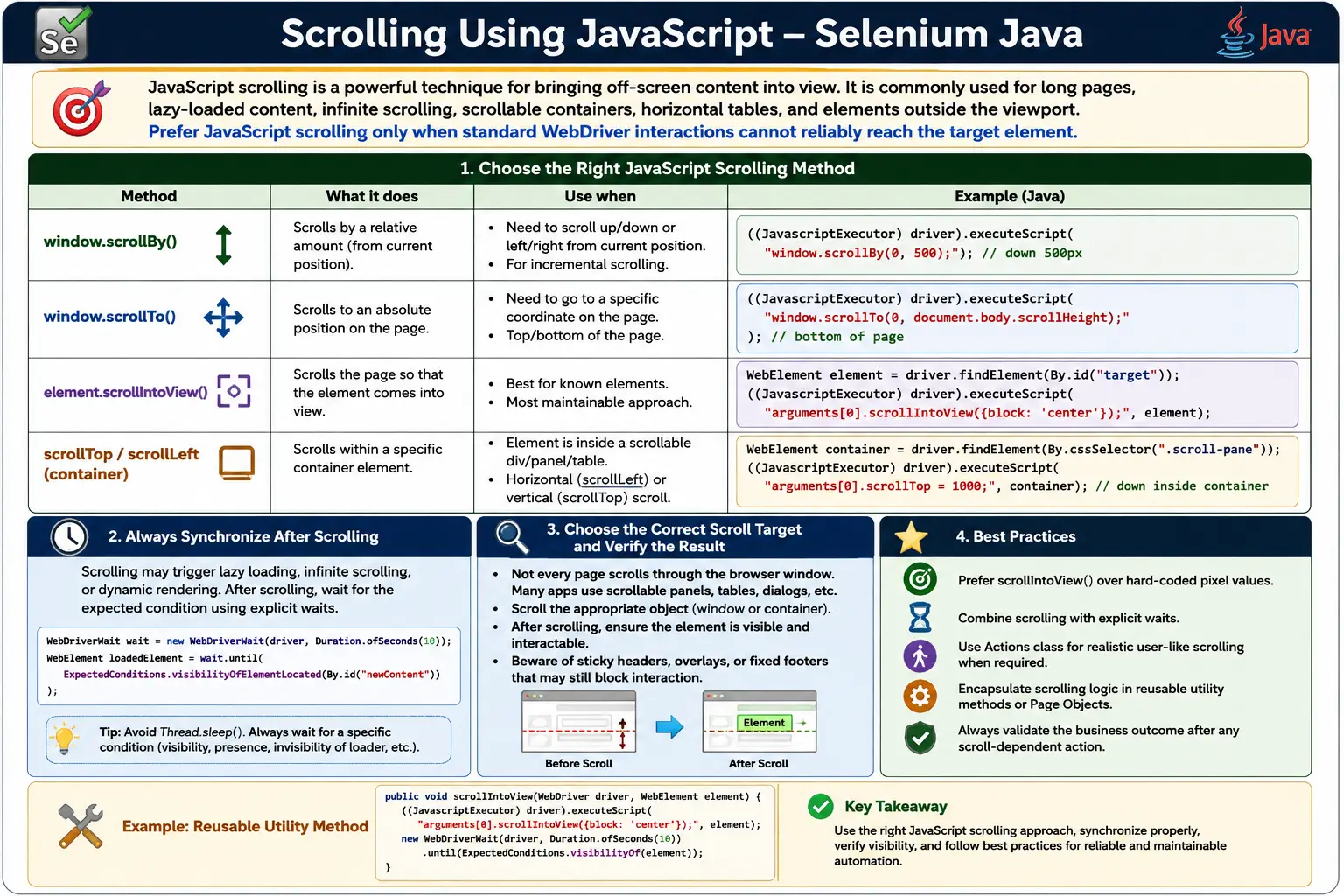
JavaScript scrolling is commonly used for long pages, hidden elements, lazy-loaded content, infinite scrolling, scrollable containers, horizontal tables, sticky layouts, and dynamic applications. It gives direct control over the browser window or a specific scrollable element. This makes it useful when ordinary WebDriver interactions do not automatically bring an element into view.
Like every JavaScriptExecutor technique, scrolling with JavaScript should be used thoughtfully. It is powerful, but it is not always the most user-like approach. Use it when it improves reliability, and always verify that the target element is visible or the expected content is loaded after scrolling.
2. Why Use JavaScript for Scrolling?
A normal Selenium action may fail if the target element is outside the visible viewport or if a scrollable container hides the element. For example, a Save button may exist in the DOM but be positioned far below the current screen.
WebElement button =
        driver.findElement(By.id("save"));

button.click();
If the button is not interactable because of its position, JavaScript can move the page or container directly to make it visible. After scrolling, a normal click may work. If click interception still occurs, JavaScript click may be used as a separate fallback.
3. Required Imports
import org.openqa.selenium.By;
import org.openqa.selenium.JavascriptExecutor;
import org.openqa.selenium.WebDriver;
import org.openqa.selenium.WebElement;
import org.openqa.selenium.support.ui.ExpectedConditions;
import org.openqa.selenium.support.ui.WebDriverWait;
import java.time.Duration;
The core import is JavascriptExecutor. Waits are also important because scrolling often triggers lazy loading or asynchronous rendering.
4. Creating JavaScriptExecutor Object
WebDriver driver = new ChromeDriver();

JavascriptExecutor js =
        (JavascriptExecutor) driver;
Once the driver is cast, JavaScript can be executed in the current page, frame, or window context. If the target element is inside a frame, switch to that frame before executing frame-related scroll scripts.
5. Scroll Down by Pixels
window.scrollBy() scrolls relative to the current position. The first value is horizontal movement and the second value is vertical movement.
js.executeScript(
        "window.scrollBy(0,500);"
);
This scrolls down by 500 pixels. Pixel-based scrolling is useful for simple debugging, but it is less maintainable than scrolling directly to an element.
6. Scroll Up by Pixels
js.executeScript(
        "window.scrollBy(0,-500);"
);
A negative vertical value scrolls upward. This can be useful when a sticky footer or dynamic control appears after moving down the page.
7. Scroll to Bottom of Page
Scrolling to the bottom is one of the most common JavaScript scrolling examples.
js.executeScript(
        "window.scrollTo(0, document.body.scrollHeight);"
);
This is useful for footer validation, infinite scroll, lazy-loaded products, long forms, and pages that load more content near the bottom.
8. Scroll to Top of Page
js.executeScript(
        "window.scrollTo(0,0);"
);
This returns to the top of the page. It is useful after validating footer content or after a workflow moves the viewport down.
9. Scroll to a Specific Position
js.executeScript(
        "window.scrollTo(0,1000);"
);
This scrolls directly to Y position 1000. Hardcoded positions can be fragile because content height changes across screen sizes, languages, ads, and responsive layouts. Prefer element-based scrolling when possible.
10. Scroll to Element
scrollIntoView() is the most maintainable JavaScript scrolling technique when the target element is known.
WebElement footer =
        driver.findElement(By.id("footer"));

js.executeScript(
        "arguments[0].scrollIntoView(true);",
        footer
);
This scrolls directly to the footer element. It avoids guessing pixel values and remains stable when page length changes.
11. Understanding scrollIntoView()
scrollIntoView(true) aligns the element near the top of the viewport. scrollIntoView(false) aligns it near the bottom.
js.executeScript(
        "arguments[0].scrollIntoView(false);",
        footer
);
The alignment matters when sticky headers or footers cover elements. If top alignment places the element under a sticky header, bottom alignment or a custom offset may work better.
12. Scroll to Element and Click
WebElement saveButton =
        driver.findElement(By.id("save"));

js.executeScript(
        "arguments[0].scrollIntoView(true);",
        saveButton
);

saveButton.click();
This is a strong pattern because JavaScript is used only for scrolling, while Selenium still performs a real click. It is often better than immediately using JavaScript click.
13. Scroll to Element and JavaScript Click
WebElement button =
        driver.findElement(By.id("submit"));

js.executeScript(
        "arguments[0].scrollIntoView(true);",
        button
);

js.executeScript(
        "arguments[0].click();",
        button
);
This is useful when scrolling solves viewport position but native click is still intercepted. Use it as a fallback, not the default clicking strategy.
14. Horizontal Scrolling
Horizontal scrolling is useful for wide tables, grids, timelines, and report panels.
js.executeScript(
        "window.scrollBy(500,0);"
);

js.executeScript(
        "window.scrollBy(-500,0);"
);
The first script scrolls right. The second scrolls left. For tables inside containers, scroll the container instead of the whole window.
15. Scroll Inside a Scrollable Container
Not every scroll happens on the browser window. Many applications use scrollable panels, chat boxes, tables, and report containers.
WebElement container =
        driver.findElement(By.className("results"));

js.executeScript(
        "arguments[0].scrollTop=500;",
        container
);
This scrolls the internal container rather than the page. It is essential for components where the browser page does not move but the panel content does.
16. Scroll to Bottom of Container
js.executeScript(
        "arguments[0].scrollTop=arguments[0].scrollHeight;",
        container
);
This is common for chat windows, scrollable tables, audit logs, result lists, and reports. After scrolling, wait for any content that should load inside the container.
17. Scroll Container Horizontally
WebElement table =
        driver.findElement(By.id("tableContainer"));

js.executeScript(
        "arguments[0].scrollLeft = 500;",
        table
);
This is useful when a table has columns off-screen to the right. After horizontal scrolling, locate or verify the column that became visible.
18. Infinite Scrolling Pages
Infinite scrolling pages load new content as the user reaches the bottom. Social feeds, product catalogs, news sites, and image galleries often use this pattern.
for (int i = 0; i < 5; i++) {
    js.executeScript(
            "window.scrollTo(0, document.body.scrollHeight);"
    );

    Thread.sleep(2000);
}
This simple example is easy to understand, but production code should avoid fixed sleeps when possible. Prefer polling for content growth or a specific target element.
19. Infinite Scroll Until No New Content
long lastHeight =
        (Long) js.executeScript(
                "return document.body.scrollHeight;"
        );

while (true) {
    js.executeScript(
            "window.scrollTo(0, document.body.scrollHeight);"
    );

    Thread.sleep(2000);

    long newHeight =
            (Long) js.executeScript(
                    "return document.body.scrollHeight;"
            );

    if (lastHeight == newHeight) {
        break;
    }

    lastHeight = newHeight;
}
This detects when page height stops increasing. It is useful for simple infinite-scroll pages. For complex apps, wait for specific content, loading indicators, or API-backed page state.
20. Get Page Height
Long pageHeight =
        (Long) js.executeScript(
                "return document.body.scrollHeight;"
        );

System.out.println(pageHeight);
Page height helps with debugging and scroll calculations. It also helps confirm whether lazy loading added more content.
21. Get Viewport Height
Long viewportHeight =
        (Long) js.executeScript(
                "return window.innerHeight;"
        );

System.out.println(viewportHeight);
Viewport height is useful for responsive pages and for scrolling by viewport-sized chunks rather than arbitrary pixels.
22. Smooth Scrolling
js.executeScript(
        "window.scrollTo({top:1000,behavior:'smooth'});"
);
Smooth scrolling looks more user-like in demos, but it can introduce timing. For tests, instant scrolling is usually more predictable unless the smooth behavior itself is being tested.
23. Scroll Until Element Appears
If the element already exists in the DOM, scrollIntoView() is enough.
WebElement target =
        driver.findElement(By.id("product50"));

js.executeScript(
        "arguments[0].scrollIntoView();",
        target
);
If the element is not in the DOM until after scrolling, you need a loop that scrolls and waits until the element appears.
24. Real Project Example: Footer Validation
WebElement footer =
        driver.findElement(By.id("footer"));

js.executeScript(
        "arguments[0].scrollIntoView();",
        footer
);

Assert.assertTrue(footer.isDisplayed());
This verifies that the page footer is reachable and visible. It is common in layout and content validation tests.
25. Real Project Example: Lazy Loaded Products
WebElement product =
        driver.findElement(By.id("product99"));

js.executeScript(
        "arguments[0].scrollIntoView();",
        product
);

Assert.assertTrue(product.isDisplayed());
For lazy-loaded products, the element may not exist until earlier scrolls trigger loading. Use explicit waits or a controlled scroll loop.
26. Real Project Example: Scrollable Table
WebElement table =
        driver.findElement(By.id("results"));

js.executeScript(
        "arguments[0].scrollTop=1000;",
        table
);
Scrollable tables often have frozen headers and internal scrollbars. Scrolling the window will not expose hidden rows; the table container itself must be scrolled.
27. Scroll and Sticky Headers
Sticky headers can cover elements after scrollIntoView(true). If a button aligns at the top of the viewport under a fixed header, Selenium may still report click interception. Use bottom alignment, a custom offset, or scroll slightly upward after alignment.
js.executeScript(
        "arguments[0].scrollIntoView(false);",
        button
);
Always verify whether the element is actually clickable after scrolling.
28. JavaScript Scroll vs Actions Scroll
JavaScript scroll is precise and fast. Actions scroll is more user-like and may be preferable when testing realistic user behavior. JavaScript is excellent for container scrolling, pixel scrolling, and element targeting. Actions are useful when the test should simulate wheel input.
Choose based on the test goal. If the goal is to reach a section reliably, JavaScript scroll is often fine. If the goal is to test user interaction with a scrollable widget, Actions may be more appropriate.
29. Common Exceptions Solved by Scrolling
Scrolling can help with ElementNotInteractableException when an element is outside the viewport. It can help with MoveTargetOutOfBoundsException when WebDriver cannot move to the element. It can reduce click interception caused by poor viewport positioning.
Scrolling will not fix a wrong locator, wrong frame, wrong window, missing element, or disabled control. Diagnose context and element state before assuming scroll is the answer.
30. Reusable Scroll Utility
public static void scrollToElement(
        WebDriver driver,
        WebElement element) {

    JavascriptExecutor js =
            (JavascriptExecutor) driver;

    js.executeScript(
            "arguments[0].scrollIntoView(true);",
            element
    );
}
A reusable utility keeps scrolling code consistent. In a framework, utilities can also log the element being scrolled and support top, bottom, or center alignment.
31. Locator-Based Scroll Utility
public void scrollToElement(By locator) {
    WebElement element =
            driver.findElement(locator);

    JavascriptExecutor js =
            (JavascriptExecutor) driver;

    js.executeScript(
            "arguments[0].scrollIntoView(true);",
            element
    );
}
In real code, add waits before locating dynamic elements. A utility should not hide timing problems.
32. Scroll and Wait Pattern
After scrolling, wait for the expected result. This is especially important with lazy loading and infinite scrolling.
js.executeScript(
        "window.scrollTo(0, document.body.scrollHeight);"
);

wait.until(
        ExpectedConditions.visibilityOfElementLocated(
                By.id("loadedItem")
        )
);
The scroll triggers the load. The wait confirms that the application responded.
33. Avoiding Hardcoded Pixel Overuse
Hardcoded pixel values are fragile. A value that works on a desktop viewport may fail on a smaller browser. Ads, translated text, responsive breakpoints, and dynamic content can change element positions. Use pixel scrolls for coarse movement and debugging, but prefer scrollIntoView() for element targeting.
34. Scrolling in Frames
If the scroll target is inside a frame, switch into the frame first. JavaScript executes in the current browsing context. If Selenium is still in the main document, the script scrolls the main page, not the frame content.
driver.switchTo().frame("reportFrame");

js.executeScript(
        "window.scrollTo(0, document.body.scrollHeight);"
);

driver.switchTo().defaultContent();
35. Scrolling in CI and Headless Mode
Headless browsers can use different viewport sizes unless configured. A test that scrolls by pixels may behave differently in CI. Set a stable window size and prefer element-based scrolling. Capture screenshots when scroll-related failures happen because they quickly show whether the element was covered, missing, or outside the viewport.
36. Centering an Element in the Viewport
One practical problem with scrollIntoView(true) is that it aligns the element near the top of the viewport. On many modern websites, the top part of the screen is occupied by a sticky header, fixed navigation bar, cookie banner, or advertisement container. The element may technically be in view, but it can still be covered by another layer. When this happens, Selenium may throw ElementClickInterceptedException or the click may hit a different element.
A safer approach is to center the element in the viewport. Modern browsers support an object form of scrollIntoView() where the block option can be set to center. This reduces overlap problems because the element is moved away from the top and bottom edges.
WebElement button =
        driver.findElement(By.id("submitOrder"));

js.executeScript(
        "arguments[0].scrollIntoView({block: 'center'});",
        button
);
This is one of the most useful patterns in real automation frameworks. It works well for buttons, links, fields, cards, table rows, and validation messages. After centering the element, still verify that the element is visible and enabled before clicking. Scrolling solves positioning; it does not prove readiness.
37. Scrollable Containers vs Window Scrolling
A common reason scroll scripts fail is that the tester scrolls the wrong object. Not every visible scroll bar belongs to the browser window. Many enterprise applications place content inside scrollable panels, tables, modal dialogs, sidebars, dashboards, and dropdown lists. In those cases, window.scrollTo() may do nothing useful because the page itself is not the scrolling area.
Before choosing a scroll command, inspect the DOM and identify which element owns the scroll. If the browser page scrolls, use window.scrollBy() or window.scrollTo(). If a panel scrolls, locate that panel and modify its scrollTop. If a horizontal grid scrolls, use scrollLeft. This distinction makes a major difference in applications built with component libraries.
WebElement panel =
        driver.findElement(By.cssSelector(".activity-panel"));

js.executeScript(
        "arguments[0].scrollTop = arguments[0].scrollHeight;",
        panel
);
In a real project, a good scroll helper often accepts both a container and a target element. If the container is null, it scrolls the window. If the container is provided, it scrolls inside that container. This keeps the test code readable while still handling complex layouts.
38. Waiting for Lazy Loading Without Thread.sleep()
Lazy loading is one of the main reasons testers use JavaScript scrolling. Product images, search results, messages, comments, reports, and feed items may load only after the user reaches a certain part of the page. The mistake is to scroll and immediately assert. The browser may still be waiting for network responses, rendering new DOM nodes, or replacing placeholder elements with real content.
The better pattern is to scroll first and wait for a measurable change. That change may be a new element becoming visible, an item count increasing, a loading spinner disappearing, or page height growing. The wait should describe what the application is expected to do after the scroll.
int before =
        driver.findElements(By.cssSelector(".product-card")).size();

js.executeScript(
        "window.scrollTo(0, document.body.scrollHeight);"
);

wait.until(driverInstance ->
        driverInstance.findElements(
                By.cssSelector(".product-card")
        ).size() > before
);
This approach is more reliable than sleeping for two or five seconds. It adapts to fast and slow environments. If content appears quickly, the test continues quickly. If content is slow, the wait gives the application time up to the configured timeout. If content never appears, the failure message points to the actual condition that was not satisfied.
39. Virtualized Lists and Dynamic Grids
Some modern applications use virtualized lists. A virtualized list may display thousands of rows to the user, but it does not keep all rows in the DOM at the same time. It renders only the visible rows and a small buffer. As the user scrolls, old rows are removed and new rows are inserted. This is common in large tables, logs, transaction histories, dashboards, chat views, and admin grids.
Virtualized lists change how scrolling should be tested. A row may not be findable until the list has been scrolled near its position. Page height may not grow in the normal way. Counting DOM rows may not represent total data. In this kind of UI, the test should scroll the grid container and wait for the specific row text or cell value to become present.
WebElement grid =
        driver.findElement(By.cssSelector(".virtual-grid"));

for (int i = 0; i < 20; i++) {
    if (!driver.findElements(
            By.xpath("//div[text()='Invoice 1045']")
    ).isEmpty()) {
        break;
    }

    js.executeScript(
            "arguments[0].scrollTop += 400;",
            grid
    );
}
For stable automation, avoid assuming that a virtualized table behaves like a normal table. Work with the component behavior. Scroll the correct container, search for the target item after each scroll, and stop when the item appears or when the maximum practical scroll attempts are reached.
40. Scroll Position Verification
Sometimes it is useful to verify that scrolling actually happened. This is especially helpful when debugging headless failures or complex containers. JavaScript can return the current scroll position of the window or a container. If the position remains zero after a scroll command, the script may have targeted the wrong scrollable object.
Long yPosition =
        (Long) js.executeScript(
                "return Math.round(window.pageYOffset);"
        );

System.out.println("Current Y position: " + yPosition);
For a container, read scrollTop from the element.
Long containerTop =
        (Long) js.executeScript(
                "return arguments[0].scrollTop;",
                panel
        );
Scroll position verification should not be overused in functional tests. The user usually cares about the result, not the numeric scroll value. But it is useful inside utility tests, debugging logs, and framework-level helpers. It helps prove whether a failure is caused by scrolling, timing, overlay coverage, locator mismatch, or application behavior.
41. Scroll Restoration Between Steps
Long tests sometimes become flaky because one step leaves the page at the bottom and the next step assumes the page starts at the top. Real users can be anywhere on the page, but automated tests should avoid hidden dependencies between steps. If a test section needs a predictable viewport, explicitly scroll to the correct area before acting.
js.executeScript("window.scrollTo(0, 0);");This is useful after footer checks, infinite-scroll checks, long form submissions, and report validations. It is also helpful before taking screenshots intended for documentation or evidence. A predictable viewport makes screenshots easier to compare and test failures easier to understand.
Do not reset scroll position after every single command. That creates unnecessary movement and slows the suite. Use restoration at logical boundaries: before beginning a new workflow, before interacting with header controls, or before validating content that is expected near the top of the page.
42. Scrolling and Screenshots
Screenshots are often used as evidence when a Selenium test fails. Scroll position directly affects screenshot usefulness. If the page is at the wrong location, the screenshot may show an unrelated area and make the failure harder to diagnose. For scroll-heavy flows, capture a screenshot after scrolling to the target element and before the action if the failure is intermittent.
For example, if a click sometimes fails because a sticky banner covers the button, a screenshot after centering the button can reveal the actual visual state. If a lazy-loaded item is not appearing, a screenshot can show whether the page reached the loading trigger area, whether a spinner is stuck, or whether an error message appeared.
In mature frameworks, scroll utilities can optionally log the target locator, current page height, current scroll offset, and screenshot path when a scroll-related action fails. This does not need to be part of every test assertion, but it is extremely helpful for diagnosing failures in CI where the tester cannot manually inspect the browser.
43. Real-Time Framework Design
In a real Selenium Java framework, scrolling should not be scattered randomly across test methods. Test methods should describe business behavior. Page objects or helper classes should handle scrolling when it is necessary to interact with the page reliably. For example, a page object method named submitOrder() can scroll the submit button into view internally before clicking it.
This keeps the test readable:
checkoutPage.enterShippingAddress(address);
checkoutPage.selectPaymentMethod("Credit Card");
checkoutPage.submitOrder();
The test does not need to know whether the submit button is below the fold. That detail belongs to the page object. However, avoid hiding too much behavior. If a method scrolls, waits, and clicks, it should still fail clearly when the element is missing or blocked. A framework should make common actions reliable without masking real application defects.
44. When Not to Use JavaScript Scrolling
JavaScript scrolling is useful, but it should not become the default answer to every interaction problem. If an element is not visible because the application intentionally hides it until the user performs another action, scrolling is not the right fix. If an element is disabled, scrolling will not make it valid. If the locator points to a hidden template element instead of the visible control, scrolling may move the wrong object into view or do nothing at all.
Also be careful when the purpose of the test is to validate true user behavior. JavaScript can move the page instantly in a way that does not fully simulate mouse wheel behavior. If the application listens specifically to wheel events, drag gestures, or touch scrolling, Actions or lower-level interaction methods may be more realistic. Use JavaScript scrolling as a precise tool, not as a substitute for understanding the UI.
45. Real Project Example: Checkout Page
Consider an e-commerce checkout page where the final place-order button appears after shipping address, payment method, coupon details, and order summary sections. On a large monitor, the button may be visible without scrolling. On a laptop or CI browser, it may be below the fold. If the test directly clicks the button, the result may vary by screen size. A reliable page object should scroll the button to the center, wait until it is clickable, click it, and then validate that the confirmation step appears.
public void placeOrder() {
    WebElement placeOrderButton =
            wait.until(
                    ExpectedConditions.presenceOfElementLocated(
                            By.id("placeOrder")
                    )
            );

    js.executeScript(
            "arguments[0].scrollIntoView({block: 'center'});",
            placeOrderButton
    );

    wait.until(
            ExpectedConditions.elementToBeClickable(
                    placeOrderButton
            )
    ).click();

    wait.until(
            ExpectedConditions.visibilityOfElementLocated(
                    By.id("orderConfirmation")
            )
    );
}
This example shows the correct balance. The test does not scroll randomly. It scrolls for a specific reason: the target control may be outside the viewport. It does not rely on sleep. It waits for presence before scrolling, clickability before clicking, and confirmation after the action. The business assertion remains the final proof that the scroll-supported action worked.
46. Real Project Example: Admin Report Grid
Admin dashboards often contain report grids with both vertical and horizontal scrolling. A column such as "Audit Status" or "Final Approval" may be far to the right, while the desired row may be far down the grid. In this situation, scrolling the browser window is not enough. The test must locate the grid body, scroll vertically until the row is visible, and then scroll horizontally until the required column is visible.
When automating this kind of grid, keep the logic close to the page object. A method such as openAuditStatusForInvoice(String invoiceNumber) can hide the details of vertical and horizontal scrolling from the test case. The test should express the business intent, while the page object handles the component mechanics. This approach also makes future UI library changes easier to manage because the scroll logic is centralized.
47. Common Beginner Mistakes
- Hardcoding pixel values everywhere.
- Using excessive
Thread.sleep()after scrolling. - Forgetting to wait for lazy-loaded content.
- Scrolling the window when the target is inside a container.
- Scrolling before switching into the correct frame.
- Using JavaScript scrolling as the default for every action.
- Not verifying visibility after scrolling.
- Ignoring sticky headers that cover scrolled elements.
48. Debugging Checklist
- Confirm whether the target is in the main page, a frame, or a scrollable container.
- Prefer
scrollIntoView()for known elements. - Check whether a sticky header covers the element after scrolling.
- Wait for lazy-loaded content after scrolling.
- Use page height and viewport height for debugging.
- Use container
scrollToporscrollLeftfor internal panels. - Avoid fixed sleeps in infinite-scroll flows.
- Validate the element is displayed or interactable after scrolling.
49. Best Practices
- Use JavaScript scrolling when Selenium cannot bring the element into view reliably.
- Prefer
scrollIntoView()over hardcoded pixel values. - Use
window.scrollBy()for relative movement. - Use
window.scrollTo()for absolute page movement. - Use
scrollTopandscrollLeftfor scrollable containers. - Combine scrolling with explicit waits for lazy-loaded content.
- Use Actions scrolling when realistic wheel behavior matters.
- Keep scrolling logic in reusable utilities.
- Set stable browser size in CI.
- Verify the business result after scroll-dependent actions.
50. Interview Perspective
A short interview answer is: JavaScript scrolling in Selenium is performed using JavascriptExecutor with methods such as window.scrollBy(), window.scrollTo(), and arguments[0].scrollIntoView(). It is useful for long pages, hidden elements, lazy loading, infinite scrolling, and scrollable containers.
A stronger real-time answer is: I prefer scrollIntoView() when I know the target element because it avoids hardcoded pixel values. For infinite scrolling, I scroll to the bottom and wait for new content or page height changes. For scrollable panels, I scroll the container using scrollTop or scrollLeft. I combine scrolling with explicit waits and verify that the expected element or content is visible after scrolling.
51. Key Takeaway
JavaScript scrolling is a powerful Selenium technique for reaching elements and content that are outside the current viewport. It supports relative scrolling with scrollBy(), absolute scrolling with scrollTo(), element targeting with scrollIntoView(), and internal panel scrolling with scrollTop and scrollLeft.
The most maintainable strategy is usually element-based scrolling. Avoid hardcoded pixels unless they are truly appropriate, use waits after scroll-triggered loading, and remember that scrolling does not fix wrong locators, wrong frames, or missing elements.
Used carefully, JavaScript scrolling makes Selenium tests more reliable on long pages, dynamic layouts, infinite feeds, lazy-loaded catalogs, and scrollable enterprise UI components.