Scrolling Using Actions Class in Selenium Java
1. Introduction
Scrolling is a common requirement in Selenium automation because many elements are not immediately visible when a page loads. A button may be below the fold, a product may appear only after lazy loading, a table row may be inside a scrollable grid, or a form field may be hidden inside a modal body. If the user must scroll to reach the element, the automation should usually handle that scroll in a controlled and realistic way.
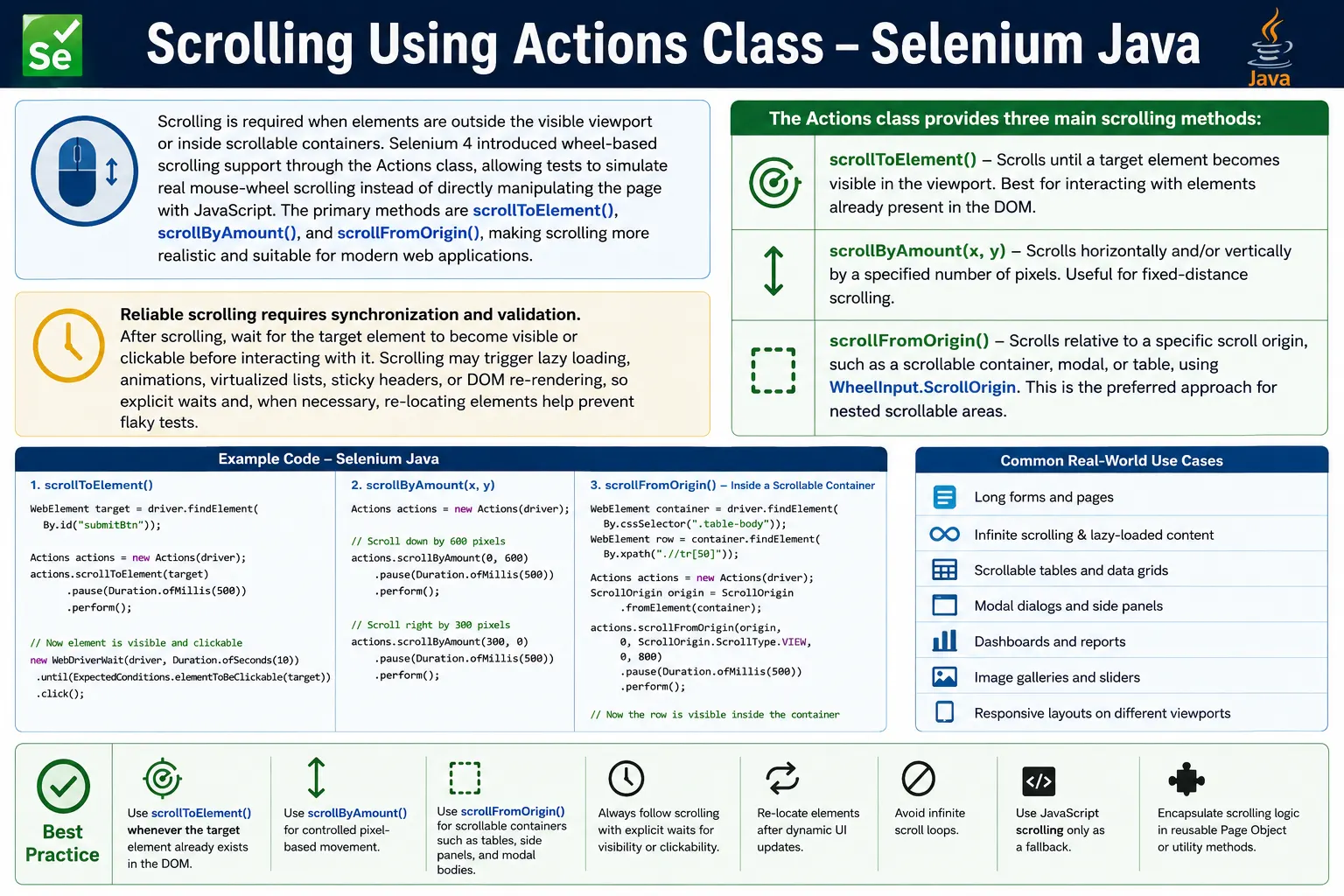
In Selenium Java, scrolling can be performed with JavaScript, keyboard keys, Selenium 4 wheel actions, or the Actions class. This article focuses on scrolling using the Actions class, especially the Selenium 4 wheel-action methods: scrollToElement(), scrollByAmount(), and scrollFromOrigin(). These methods are useful because they simulate browser-level wheel scrolling more closely than direct JavaScript manipulation.
Reliable scrolling is not just about moving the page. A strong test scrolls to the correct place, waits for dynamic content if needed, confirms that the target element is visible or clickable, and then performs the next action. This matters in modern applications where scrolling may trigger lazy loading, sticky headers, animations, virtualized rows, and nested containers.
2. Why Use Actions for Scrolling?
The Actions class is designed to model user-like interactions. When scrolling is performed through Actions, Selenium communicates an intent similar to a user turning the mouse wheel. This can be more realistic than forcing the page position through JavaScript. It is especially useful in applications that respond to wheel events, infinite scrolling, virtualized lists, and scrollable panels.
- It mimics real mouse wheel scrolling.
- It works well with modern web applications that react to wheel events.
- It supports scrollable containers and modal bodies.
- It can be chained with click, hover, double click, right click, and drag actions.
- It is more user-like than directly changing scroll position through JavaScript.
This does not mean JavaScript scrolling is bad. JavaScript is still useful as a fallback or for specific page positioning. But in Selenium 4 compatible projects, Actions-based scrolling should usually be considered before jumping directly to JavaScript.
3. Selenium 4 Scrolling Support
Selenium 4 introduced wheel-based scrolling support in the Actions API. The commonly used methods are scrollToElement(), scrollByAmount(), and scrollFromOrigin().
Actions actions = new Actions(driver);| Method | Purpose |
|---|---|
| scrollToElement() | Scrolls until a target element is in view |
| scrollByAmount() | Scrolls by a fixed horizontal and vertical pixel amount |
| scrollFromOrigin() | Scrolls from a specific origin such as an element or viewport |
These APIs are available in Selenium 4. They are not available in Selenium 3. If a project still uses Selenium 3, JavaScript scrolling or keyboard scrolling may be required until the framework is upgraded.
4. Required Imports
The basic import for Actions scrolling is the Actions class. For scroll origins, use WheelInput.
import org.openqa.selenium.interactions.Actions;
import org.openqa.selenium.interactions.WheelInput;
Practical tests also commonly use WebElement, By, WebDriverWait, ExpectedConditions, and Duration because scrolling often triggers dynamic UI behavior that needs synchronization.
5. Scroll to Element
scrollToElement() is the most common Actions scrolling method. It scrolls the page until the target element becomes visible in the viewport.
WebElement footer = driver.findElement(By.id("footer"));

new Actions(driver)
    .scrollToElement(footer)
    .perform();
Before the scroll, the footer may be below the visible area. After the scroll, Selenium brings it into view. This is a strong default choice when the target element already exists in the DOM but is outside the viewport.
6. Scroll to Button and Click
A common real-world scenario is scrolling to a button before clicking it. This happens in registration forms, checkout pages, long dashboards, survey pages, and settings pages.
WebElement loginButton =
    driver.findElement(By.id("loginBtn"));

new Actions(driver)
    .scrollToElement(loginButton)
    .perform();

loginButton.click();
For production-quality tests, wait for the element to be clickable after scrolling. A sticky footer, overlay, validation panel, or animation may still block the click.
7. Scroll and Click in One Actions Chain
Actions can combine scrolling and clicking in one chain.
WebElement button = driver.findElement(By.id("submitBtn"));

new Actions(driver)
    .scrollToElement(button)
    .click(button)
    .perform();
This is concise and useful when the element is stable. If the application is dynamic, splitting the scroll and click can make debugging easier because you can wait and validate between steps.
8. Scroll by Fixed Amount
scrollByAmount() scrolls by a specific number of pixels. The first parameter is horizontal movement, and the second parameter is vertical movement.
new Actions(driver)
    .scrollByAmount(0, 500)
    .perform();
This scrolls 500 pixels downward. A positive vertical value scrolls down. A negative vertical value scrolls up. A positive horizontal value scrolls right, and a negative horizontal value scrolls left.
9. Scroll Up
Use a negative vertical value to scroll up.
new Actions(driver)
    .scrollByAmount(0, -500)
    .perform();
Scrolling upward is useful after interacting with lower content and returning to a header, summary, filter, or top-level control. However, if the target element is known, scrollToElement() is usually clearer than fixed pixel scrolling.
10. Scroll Multiple Times
Multiple scroll actions can be chained. This can be useful for feeds, long pages, and incremental lazy loading.
Actions actions = new Actions(driver);

actions.scrollByAmount(0, 500)
       .scrollByAmount(0, 500)
       .scrollByAmount(0, 500)
       .perform();
The total vertical movement is 1500 pixels. Use this carefully. Fixed amounts can become brittle if layout, viewport size, browser zoom, or responsive design changes.
11. Scroll to Bottom of Page
For long or infinite-scroll pages, a loop can scroll repeatedly.
Actions actions = new Actions(driver);

for (int i = 0; i < 10; i++) {
    actions.scrollByAmount(0, 1000).perform();
}
This is useful for feeds and product listings, but it should have a stopping condition in real frameworks. Avoid endless loops. Stop when the target is visible, when the item count stops increasing, or when a maximum number of attempts is reached.
12. Scroll Inside Scrollable Container
Many applications contain scrollable panels inside the page. Examples include data grids, sidebars, chat windows, code editors, modal bodies, and result panes. Scrolling the whole page will not move content inside these containers. Use scrollFromOrigin() with a container origin.
WebElement container =
    driver.findElement(By.className("table-container"));

WheelInput.ScrollOrigin origin =
    WheelInput.ScrollOrigin.fromElement(container);

new Actions(driver)
    .scrollFromOrigin(origin, 0, 500)
    .perform();
This tells Selenium to scroll starting from the container. It is the correct strategy when the element is inside a scrollable region rather than the main document.
13. Scroll Inside Modal Popup
Modal bodies are a very common enterprise scenario. A long terms-and-conditions modal, settings modal, or details panel may have its own scrollbar.
WebElement modal =
    driver.findElement(By.className("modal-body"));

WheelInput.ScrollOrigin origin =
    WheelInput.ScrollOrigin.fromElement(modal);

new Actions(driver)
    .scrollFromOrigin(origin, 0, 400)
    .perform();
If the page behind the modal scrolls instead of the modal body, the wrong origin is being used or the modal body does not have focusable scroll behavior. Inspect the DOM and identify the element that actually owns the scrollbar.
14. Scroll Inside Table or Grid
Data grids often use internal scrolling, virtualization, sticky headers, and recycled rows. Use a grid or table container as the scroll origin.
WebElement table =
    driver.findElement(By.id("resultsTable"));

WheelInput.ScrollOrigin origin =
    WheelInput.ScrollOrigin.fromElement(table);

new Actions(driver)
    .scrollFromOrigin(origin, 0, 700)
    .perform();
After scrolling a virtualized grid, re-locate the row or cell. The old WebElement reference may point to an element that has been recycled or removed by the framework.
15. Scroll to Lazy Loaded Element
Lazy-loaded content appears after scrolling. A product card, image, feed item, or list row may be added only when the page reaches a certain area.
WebDriverWait wait =
    new WebDriverWait(driver, Duration.ofSeconds(10));

WebElement item =
    driver.findElement(By.id("product50"));

new Actions(driver)
    .scrollToElement(item)
    .perform();

wait.until(ExpectedConditions.visibilityOf(item));

item.click();
If the element is not yet in the DOM before scrolling, locate it after triggering the scroll. Some lazy loading systems create elements only after the scroll event fires.
16. Scroll and Validate Visibility
After scrolling to an element, verify that the element is displayed when the workflow depends on visibility.
WebElement footer =
    driver.findElement(By.id("footer"));

new Actions(driver)
    .scrollToElement(footer)
    .perform();

Assert.assertTrue(footer.isDisplayed());
Visibility is not always the same as clickability. An element may be displayed but covered by a sticky header, cookie banner, spinner, or floating toolbar. Use clickability checks before interacting.
17. Horizontal Scrolling
Horizontal scrolling is useful in wide tables, timeline widgets, kanban boards, and overflow containers.
new Actions(driver)
    .scrollByAmount(500, 0)
    .perform();
This scrolls to the right. To scroll left, use a negative horizontal value.
new Actions(driver)
    .scrollByAmount(-500, 0)
    .perform();
For a horizontal scroll inside a container, use scrollFromOrigin() with the container as the origin.
18. Scroll Until Element Found
Sometimes the target appears only after several scrolls. A limited loop can scroll until the element is found or a maximum attempt count is reached.
public WebElement scrollUntilVisible(By locator) {
    for (int i = 0; i < 10; i++) {
        List<WebElement> elements = driver.findElements(locator);

        if (!elements.isEmpty() && elements.get(0).isDisplayed()) {
            return elements.get(0);
        }

        new Actions(driver)
            .scrollByAmount(0, 500)
            .perform();
    }

    throw new NoSuchElementException(
        "Element not visible after scrolling: " + locator
    );
}
This is safer than an unlimited while loop. It fails clearly when the target never appears.
19. Scroll Before Hover
Some hover menus or tooltips require the element to be visible first.
WebElement menu = driver.findElement(By.id("menu"));

new Actions(driver)
    .scrollToElement(menu)
    .moveToElement(menu)
    .perform();
This pattern is useful when the hover target is below the viewport. After moving to the element, wait for the menu, tooltip, or hover state before continuing.
20. Scroll Before Double Click
Double-click targets should be visible and stable before the action.
WebElement button =
    driver.findElement(By.id("doubleClickBtn"));

new Actions(driver)
    .scrollToElement(button)
    .doubleClick(button)
    .perform();
After double click, validate the expected application behavior, such as edit mode, navigation, alert, or popup visibility.
21. Scroll Before Right Click
Context click actions often fail if the target is outside the viewport or partially covered.
WebElement file =
    driver.findElement(By.id("fileItem"));

new Actions(driver)
    .scrollToElement(file)
    .contextClick(file)
    .perform();
After right click, wait for the context menu and assert that the correct menu options are visible.
22. Scroll Before Drag and Drop
Drag-and-drop workflows may require scrolling to the source, target, or both. If the target is outside the viewport, Selenium may not be able to complete the drag reliably.
WebElement source = driver.findElement(By.id("drag"));
WebElement target = driver.findElement(By.id("drop"));

new Actions(driver)
    .scrollToElement(source)
    .dragAndDrop(source, target)
    .perform();
In real projects, you may need to scroll to the source, locate it, scroll to the target, locate it again, and then perform a custom drag sequence. Dynamic pages can re-render between these actions.
23. Common Scrolling Issues
| Issue | Cause | Fix |
|---|---|---|
| Element still not clickable | Overlay or sticky header is covering it | Wait for overlay invisibility and clickability |
| Scroll ignored | Wrong scroll container | Use ScrollOrigin from the correct container |
| Element hidden after scroll | Lazy loading or animation | Wait for visibility after scrolling |
| Stale element | DOM refreshed after scroll | Re-locate the element |
| Headless failure | Different viewport or responsive layout | Set a consistent window size |
24. Headless Mode Best Practice
Headless browser execution can behave differently if the viewport is small or inconsistent. Always set a predictable window size for scroll-heavy tests.
ChromeOptions options = new ChromeOptions();

options.addArguments("--headless=new");
options.addArguments("--window-size=1920,1080");
Without a stable viewport, the page may switch to a mobile layout, hide elements, change scroll positions, or display different sticky headers. Screenshots on failure are very useful for debugging scroll problems in CI.
25. Actions Scrolling vs JavaScript Scrolling
Actions scrolling and JavaScript scrolling solve similar problems but behave differently. Actions scrolling simulates a user wheel action. JavaScript scrolling directly changes the page position. Actions is more realistic. JavaScript can be more direct and is sometimes useful as a fallback.
| Approach | Best Use |
|---|---|
| Actions scrolling | User-like page and container scrolling |
| JavaScript scrolling | Precise fallback when Actions is not enough |
| Keyboard scrolling | Accessibility or keyboard-navigation testing |
Prefer Actions when you want to represent real user behavior. Use JavaScript when the test needs exact positioning or when the browser and application combination does not respond well to wheel actions.
26. Reusable Scroll Utility
Repeated scroll behavior belongs in utility methods or page objects. This keeps test cases readable and makes scroll strategy consistent.
public void scrollTo(By locator) {
    WebElement element = driver.findElement(locator);

    new Actions(driver)
        .scrollToElement(element)
        .perform();
}
Usage:
scrollTo(By.id("footer"));
scrollTo(By.id("submitBtn"));
A stronger utility can wait for the element, scroll to it, and then wait for clickability or visibility depending on the next action.
27. Scroll to Element and Wait for Clickability
Scrolling to an element does not guarantee that it is clickable. Use a wait after scrolling when the next action is a click.
public WebElement scrollToClickable(By locator) {
    WebDriverWait wait =
        new WebDriverWait(driver, Duration.ofSeconds(10));

    WebElement element = wait.until(
        ExpectedConditions.presenceOfElementLocated(locator)
    );

    new Actions(driver)
        .scrollToElement(element)
        .perform();

    return wait.until(
        ExpectedConditions.elementToBeClickable(locator)
    );
}
This utility is practical for buttons and links on long forms or checkout pages.
28. Scroll Container Utility
Scrollable containers need a separate helper because page scrolling and container scrolling are different.
public void scrollContainer(By containerLocator, int x, int y) {
    WebElement container = driver.findElement(containerLocator);

    WheelInput.ScrollOrigin origin =
        WheelInput.ScrollOrigin.fromElement(container);

    new Actions(driver)
        .scrollFromOrigin(origin, x, y)
        .perform();
}
Usage:
scrollContainer(By.id("scrollPanel"), 0, 400);29. Infinite Scroll Strategy
Infinite scrolling pages load more content as the user scrolls. A good test should not scroll blindly forever. It should track whether new content appears and stop when the desired condition is reached.
For example, a product listing test can count product cards before scrolling, scroll down, wait for the count to increase, and repeat until the target product appears or the maximum number of attempts is reached. This approach is more reliable than sleeping after each scroll.
If the page has a loading spinner, wait for the spinner to appear and disappear. If the page loads via network calls, wait for visible content rather than trying to inspect network state from Selenium.
30. Scroll and Sticky Headers
Sticky headers can cover elements after scrolling. An element may be visible but not clickable because the header overlaps it. This is common in dashboards, ecommerce sites, admin pages, and mobile layouts.
If a sticky header blocks the target, use a different scroll position, wait for clickability, or scroll slightly more. Do not hide the header with JavaScript unless the test is explicitly using a fallback and the reason is documented. A real user may also be blocked by the same sticky header, so the test can reveal a real UX issue.
31. Scroll and Lazy Images
Images often use lazy loading. Scrolling to an image may trigger the browser to load its source. If the test validates image display, wait for the image to be loaded, not just visible.
Boolean loaded = (Boolean) ((JavascriptExecutor) driver)
    .executeScript(
        "return arguments[0].complete && arguments[0].naturalWidth > 0;",
        image
    );
Actions scrolling can trigger the lazy load, while JavaScript checks can verify that the image actually loaded. This is a good example of using Actions for user behavior and JavaScript for verification.
32. Scroll and Re-Locate Dynamic Elements
Scrolling can cause DOM updates. Virtualized lists may reuse row elements. Lazy-loaded pages may append new elements. Sticky components may move. If the page changes after scrolling, old WebElement references may become stale.
A safe pattern is to locate the element, scroll, wait for the condition, and re-locate before interaction when the application is dynamic. This avoids stale references and reduces flaky failures in CI.
33. Quick Code Patterns
33.1 Scroll Down by 500 Pixels
new Actions(driver)
    .scrollByAmount(0, 500)
    .perform();
33.2 Scroll Up by 300 Pixels
new Actions(driver)
    .scrollByAmount(0, -300)
    .perform();
33.3 Scroll to Image
WebElement image = driver.findElement(By.id("profileImage"));

new Actions(driver)
    .scrollToElement(image)
    .perform();
33.4 Scroll to Checkbox
WebElement checkbox = driver.findElement(By.id("agree"));

new Actions(driver)
    .scrollToElement(checkbox)
    .perform();
33.5 Scroll from Specific Origin
WebElement panel = driver.findElement(By.id("content"));

WheelInput.ScrollOrigin origin =
    WheelInput.ScrollOrigin.fromElement(panel);

new Actions(driver)
    .scrollFromOrigin(origin, 0, 600)
    .perform();
34. Scrolling in Virtualized Lists
Virtualized lists are common in modern applications because they improve performance by rendering only the visible rows. A grid may contain ten thousand records, but the DOM may contain only twenty visible rows at a time. As the user scrolls, the framework reuses the same DOM nodes and changes their content. This makes scrolling tests different from normal page tests.
In a virtualized list, you should not capture a row once and expect it to remain stable after scrolling. The row may be recycled. Instead, scroll in controlled steps, wait for the target text or row identifier to appear, and then locate the element fresh. This pattern reduces stale element failures and prevents the test from interacting with a row that no longer represents the original data.
A good virtualized-grid test also uses predictable data. If the target record can appear in different positions based on sorting or filtering, apply the filter first. Then scroll until the target row appears. When the row becomes visible, validate the row text or identifier before clicking or editing.
35. Scrolling in Mobile and Responsive Layouts
Responsive layouts can change scroll behavior significantly. On desktop, a button may be visible beside a form. On mobile, the same button may move below the form and require scrolling. Sticky headers and bottom bars can also cover content differently. Even when tests run in a desktop browser, headless CI may use a smaller viewport and trigger a different layout.
For stable automation, set the viewport deliberately and know which layout the test expects. If the test is a desktop test, use a desktop-sized window. If it is a mobile-layout test, explicitly configure the browser for that viewport and write assertions for the mobile behavior. Ambiguous viewport setup is one of the main reasons scroll tests pass locally and fail in CI.
After scrolling in responsive layouts, check whether the target is covered by fixed headers, cookie banners, chat widgets, or bottom navigation. If the element is displayed but not clickable, a screenshot usually reveals the cause quickly.
36. Scrolling and Page Load Timing
Scrolling can happen too early if the page is still building layout. A Selenium test may find an element in the DOM, scroll to it, and then the page shifts because fonts, images, ads, or async components finish loading. The target may move away from the expected position, or another element may cover it.
Use explicit waits for page-specific readiness signals. This might be a loaded dashboard title, a disappeared spinner, a stable table container, or a visible form section. For pages with lazy images, be aware that scrolling itself may cause layout shifts as images load. Adding width and height attributes to images is an application-side fix, but tests still need to wait for the page state they depend on.
A robust scroll flow is: wait for the page section, scroll to the target, wait for the target state, then interact. This is slower than blindly scrolling, but it is far more reliable in real applications.
37. Scrolling and Ads or Floating Widgets
Production pages may contain advertisements, chat widgets, sticky banners, cookie notices, and floating help buttons. These elements can change the available viewport and may intercept clicks after scrolling. A test environment usually avoids third-party content, but if tests run against production-like pages, these floating elements must be considered.
The correct fix depends on the purpose of the test. If the widget is part of the product, handle it like a user would. If it is unrelated test noise, disable it in the test environment when possible. If it cannot be disabled, wait for overlays to finish rendering and use clickability checks after scrolling. Do not assume that a visible element is safe to click when floating UI is present.
When a click fails after scrolling, capture a screenshot. It will usually show whether the target is hidden behind a header, advertisement, or floating panel.
38. Choosing Between Scroll Methods
The best scroll method depends on what you are trying to do. If a known element is already in the DOM, scrollToElement() is usually the cleanest option. If you need a small adjustment, scrollByAmount() is useful. If the content is inside a panel, modal, grid, or sidebar, scrollFromOrigin() is the correct approach. If none of these works because of browser or application limitations, JavaScript scrolling can be used as a fallback.
Do not use pixel scrolling as the first choice when you know the target element. Pixel values are layout-dependent. A 500-pixel scroll may work on one monitor and fail on another viewport. Element-based scrolling communicates intent more clearly and is less sensitive to layout changes.
At the same time, do not force scrollToElement() into every situation. It cannot scroll to an element that is not yet in the DOM. For infinite scrolling, you may need incremental scrolls until the element appears. For nested panels, you need the correct scroll origin. Good scrolling automation chooses the method that matches the page structure.
39. Debugging Scroll Failures
Scroll failures should be debugged with evidence. Start with a screenshot, current URL, viewport size, target locator, and whether the target exists in the DOM. Then check whether the target is displayed, enabled, and clickable. If a click is intercepted, identify which element is intercepting it. If the scroll appears ignored, verify whether the page or a container owns the scrollbar.
For container scrolling, inspect the DOM and find the element with overflow behavior. It may not be the visible panel itself; it may be an inner wrapper. Using the wrong origin is a common cause of failed container scrolling. For virtualized lists, confirm that rows are re-rendering and re-locate the target after each scroll step.
Debugging becomes easier when scroll utilities log their target locator, scroll strategy, and retry count. This turns a vague failure into a clear statement such as "target was not visible after ten container scroll attempts."
40. Designing Scroll Utilities for Frameworks
A mature Selenium framework should avoid repeating raw scroll calls in every test. Centralized utilities make scrolling behavior consistent and easier to improve. A utility can wait for the element, scroll to it, wait for visibility, optionally wait for clickability, and log useful details if the scroll fails. Another utility can scroll containers using ScrollOrigin.
Page objects should expose intent-based methods whenever possible. Instead of writing scroll logic inside a test, a checkout page object can provide clickPlaceOrder(), and internally it can scroll to the button, wait for clickability, and click. This keeps tests focused on behavior rather than mechanics.
Do not hide every detail, though. If a test specifically verifies lazy loading, infinite scroll, or a scrollable modal, the test should make that intent visible. The framework should reduce duplication without making the test purpose unclear.
41. Real Project Scenarios
In ecommerce applications, Actions scrolling is useful for product listings, filter panels, image galleries, checkout forms, and lazy-loaded recommendations. In admin applications, it helps with long settings pages, data grids, modals, and audit logs. In learning platforms, it helps with course outlines, lesson pages, quizzes, and embedded panels. In banking or insurance applications, it helps with long forms, terms documents, and approval workflows.
Each of these areas has a different risk. Product listings may load lazily. Data grids may virtualize rows. Terms modals may require internal scrolling. Long forms may have sticky save buttons. The scrolling strategy should reflect the actual component. A single generic scroll-down call may work in a demo, but real projects need method selection, waits, and validation.
42. Enterprise Best Practices
- Use
scrollToElement()when the target element already exists in the DOM. - Use
scrollByAmount()for controlled pixel-based movement. - Use
scrollFromOrigin()for scrollable panels, tables, modals, and nested containers. - Wait for lazy-loaded content after scrolling.
- Re-locate elements after scrolling dynamic or virtualized UIs.
- Validate visibility or clickability before interaction.
- Set a stable viewport in headless execution.
- Avoid unlimited scroll loops.
- Use JavaScript scrolling only as a deliberate fallback.
- Keep repeated scroll logic inside utilities or page objects.
43. Interview Perspective
A short interview answer is: scrolling using the Actions class in Selenium Java is performed with Selenium 4 wheel actions such as scrollToElement(), scrollByAmount(), and scrollFromOrigin().
A stronger real-time answer is: In Selenium 4, I use the Actions class for user-like scrolling. For normal page scrolling to a known element, I use scrollToElement(). For fixed movement, I use scrollByAmount(). For scrollable containers, modal bodies, and grids, I create a WheelInput.ScrollOrigin from the container and use scrollFromOrigin(). After scrolling, I wait for visibility or clickability and handle lazy loading or stale elements when the UI is dynamic.
44. Final Summary
Scrolling using Actions in Selenium Java is a practical and user-like way to handle elements outside the visible area, lazy-loaded content, scrollable containers, modal dialogs, wide tables, and dynamic pages. Selenium 4 provides wheel-action methods such as scrollToElement(), scrollByAmount(), and scrollFromOrigin(), making scrolling cleaner and more realistic than many older workarounds.
The best approach depends on the situation. Use scrollToElement() for known elements, scrollByAmount() for fixed pixel movement, and scrollFromOrigin() for containers and nested scroll areas. After scrolling, always validate the expected state. The element should be visible, clickable, loaded, or selected depending on the workflow.
The key takeaway is that scrolling is not just movement. It is part of the interaction flow. A reliable Selenium test scrolls like a user, synchronizes with the application, and then proves that the intended element or content is ready for the next action.