Screenshot on Test Failure in Selenium Java
Screenshot capture on test failure is one of the core features expected from a serious Selenium automation framework. A normal failure message tells you which assertion failed or which exception was thrown, but it does not always explain why the browser reached that state. A screenshot captures the application exactly as it appeared when the failure happened. That visual evidence can show an unexpected popup, a validation message, a loader that never disappeared, a login page instead of a dashboard, a broken layout, a missing element, or a browser error page.
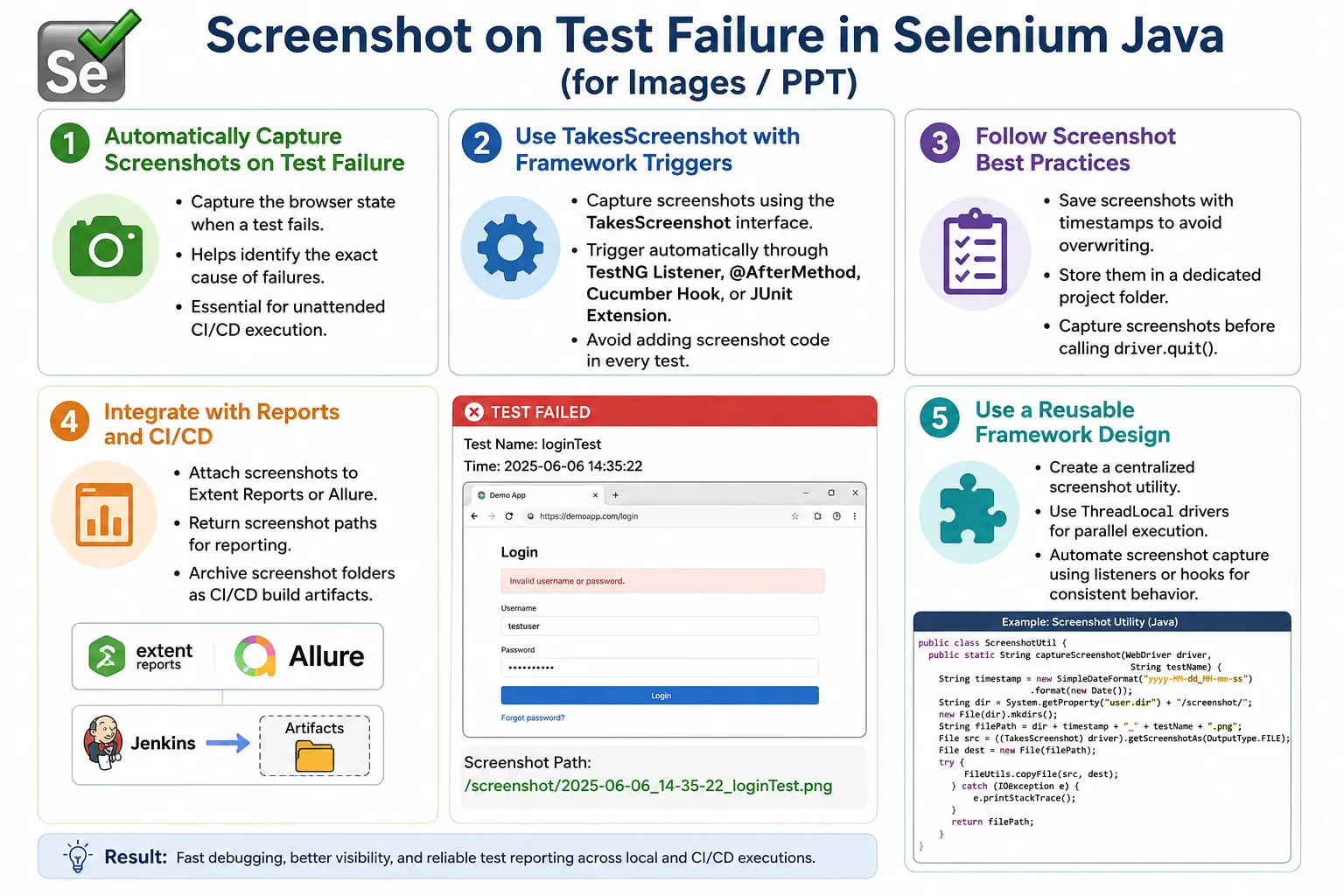
In Selenium Java, screenshots on failure are usually implemented with TakesScreenshot and a framework-level trigger. The trigger may be a TestNG listener, a TestNG @AfterMethod, a Cucumber @After hook, a JUnit extension, or a custom reporting layer. The important design idea is that screenshots should be captured automatically. Test authors should not need to remember to write screenshot code manually in every test method.
In enterprise automation, automatic failure screenshots are considered a best practice because they reduce debugging time and improve communication. When a failed test is reviewed in a report, the screenshot gives immediate context. Instead of rerunning the test to see what happened, the reviewer can open the screenshot, inspect the page state, and understand the failure faster. This is especially valuable in CI/CD pipelines where tests run unattended on remote machines.
1. What Is Screenshot on Test Failure?
A screenshot on test failure is an automatic browser image captured when a test case fails. The test may fail because of an assertion failure, exception, timeout, missing element, wrong page, broken workflow, or unexpected browser state. At that moment, the framework captures the visible browser state and stores the screenshot as evidence.
Without screenshots, a failed test may only show an error message such as Expected Dashboard but found Login Page. That message confirms the mismatch but does not explain why the application remained on the login page. With a screenshot, you may see that credentials were invalid, a captcha appeared, a server error message was displayed, or the login button was disabled. The screenshot turns a vague failure into a diagnosable failure.
2. Why Capture Screenshots on Failure?
Failure screenshots help identify the root cause faster. Automation failures can come from application defects, test data issues, environment problems, timing issues, browser rendering differences, locator problems, or framework bugs. A screenshot gives visual evidence that helps separate these causes.
For example, a timeout exception may occur because the expected element never appeared. The screenshot can show whether the page was still loading, whether the user was redirected to an error page, whether a modal blocked the UI, or whether the element appeared in a different location. This is information that logs alone may not reveal.
- They provide visual proof of the browser state at failure time.
- They reduce the need to rerun failed tests for investigation.
- They improve bug reports and test execution reports.
- They help debug CI failures where execution cannot be watched live.
- They expose UI problems that stack traces do not explain.
3. Common Failure Scenarios
Screenshots are useful for many common failure types. Assertion failures are the most obvious case, but screenshots are also helpful for element lookup failures, timeout exceptions, login failures, unexpected popups, validation failures, JavaScript errors, browser rendering issues, and page navigation problems.
Consider a checkout test that fails because the success message is not displayed. A screenshot may show that the payment gateway iframe failed to load. It may show that the user is still on the cart page. It may show an error banner at the top of the page. The exception alone says what the test could not find; the screenshot often explains why it could not be found.
4. Basic Screenshot Method
The core screenshot method uses TakesScreenshot. The driver is cast to TakesScreenshot, the screenshot is captured as a file, the destination folder is created, and the file is copied to the chosen location.
public static void captureScreenshot(
        WebDriver driver,
        String fileName)
        throws IOException {

    TakesScreenshot ts =
            (TakesScreenshot) driver;

    File source =
            ts.getScreenshotAs(
                    OutputType.FILE
            );

    Path destination =
            Paths.get(
                    "screenshots",
                    fileName + ".png"
            );

    Files.createDirectories(destination.getParent());

    Files.copy(
            source.toPath(),
            destination,
            StandardCopyOption.REPLACE_EXISTING
    );
}
This method is simple, but it should be centralized. If every test class contains its own screenshot code, the framework becomes inconsistent. A utility class ensures that screenshots are saved using the same folder, naming style, and copy behavior.
5. Manual Screenshot on Failure
The simplest way to capture a screenshot on failure is to wrap test logic in a try-catch block. If an assertion fails, capture the screenshot and rethrow the error. This pattern demonstrates the concept, but it is not scalable for large test suites.
try {

    Assert.assertEquals(
            driver.getTitle(),
            "Dashboard"
    );

} catch (AssertionError e) {

    captureScreenshot(
            driver,
            "LoginFailure"
    );

    throw e;
}
The important detail is throw e. The screenshot should not hide the failure. It should only add evidence. If the catch block captures a screenshot and does not rethrow the exception or assertion error, the test may pass incorrectly.
6. Why Manual Screenshot Code Is Not Recommended
Manual screenshot code creates repeated code. It is easy to forget in new tests. It makes test methods noisy. It does not scale well when the suite grows to hundreds or thousands of tests. It also becomes difficult to change screenshot behavior later because the logic is scattered.
A better approach is automatic capture through listeners or hooks. The test runner already knows when a test failed. The framework should respond to that event and capture the screenshot. This keeps test methods focused on business actions and assertions, while the framework handles evidence capture.
7. TestNG Listener Overview
TestNG provides listener interfaces that allow custom code to run during test lifecycle events. The most common interface for failure screenshots is ITestListener. It provides methods such as onTestStart(), onTestSuccess(), onTestFailure(), onTestSkipped(), and onFinish().
For screenshot-on-failure logic, onTestFailure() is the key method. When a test fails, TestNG calls this method and provides an ITestResult object. The result object contains useful information such as test name, status, throwable, class name, and method details.
8. Screenshot Using TestNG Listener
A basic TestNG listener can capture a screenshot whenever a test fails. The listener gets the current driver from a base test class or driver factory and passes it to the screenshot utility.
public class ScreenshotListener
        implements ITestListener {

    @Override
    public void onTestFailure(
            ITestResult result) {

        WebDriver driver =
                BaseTest.getDriver();

        try {

            ScreenshotUtil.captureScreenshot(
                    driver,
                    result.getName()
            );

        } catch (IOException e) {
            e.printStackTrace();
        }
    }
}
This design is much cleaner than adding try-catch blocks to every test. The listener automatically handles failures consistently across the suite.
9. Registering a TestNG Listener
A listener must be registered before TestNG can call it. There are two common registration options: annotation-based registration and testng.xml registration. Annotation-based registration is simple for small projects. XML-based registration is usually preferred for larger frameworks because it centralizes configuration.
@Listeners(ScreenshotListener.class)
public class LoginTest {

}
<listeners>
<listener
class-name="listeners.ScreenshotListener"/>
</listeners>If screenshots are not being captured, one of the first things to check is whether the listener is actually registered. Forgetting to register the listener is a common beginner mistake.
10. Screenshot with Timestamp
If the screenshot file name is only the test name, repeated failures can overwrite previous screenshots. Adding a timestamp prevents overwriting and preserves historical evidence.
String fileName =
        result.getName()
        + "_"
        + System.currentTimeMillis()
        + ".png";
A timestamp is especially important in CI/CD where the same test may run multiple times across builds. It also helps compare failures from different test runs.
11. Screenshot with Date and Time
Date-time formatted names are easier to read than millisecond timestamps. They make it clear when the screenshot was captured. A common pattern is yyyyMMdd_HHmmss.
DateTimeFormatter formatter =
        DateTimeFormatter.ofPattern(
                "yyyyMMdd_HHmmss"
        );

String fileName =
        result.getName()
        + "_"
        + LocalDateTime.now().format(formatter)
        + ".png";
For large frameworks, include test name, browser name, environment, and timestamp. Good naming makes screenshots easier to find and connect to failures.
12. Capture Screenshot Only for Failed Tests
The usual enterprise practice is to capture screenshots only for failed tests. This keeps reports and artifact folders smaller while still preserving the most valuable evidence.
@Override
public void onTestFailure(
        ITestResult result) {

    ScreenshotUtil.captureScreenshot(
            BaseTest.getDriver(),
            result.getName()
    );
}
Successful tests normally do not need screenshots because they already proved the expected behavior through assertions. Some teams capture screenshots for critical checkpoints, but failure screenshots should always be the first priority.
13. Capture Screenshot for Skipped Tests
Skipped tests can also be useful to capture in some frameworks. A test may be skipped because setup failed, dependency failed, or environment preconditions were not met. If a browser exists at the skipped moment, a screenshot may help explain the state.
@Override
public void onTestSkipped(
        ITestResult result) {

    ScreenshotUtil.captureScreenshot(
            BaseTest.getDriver(),
            result.getName()
    );
}
This is optional. In some projects, skipped tests happen before browser launch, so screenshot capture may not be possible. Always check that the driver is not null before capturing.
14. Capture Screenshot for Every Test
Capturing screenshots for every successful test is possible but usually not recommended. It creates a large number of images, increases storage usage, slows report generation, and makes reports harder to review. Use this only when the project has a clear audit requirement.
@Override
public void onTestSuccess(
        ITestResult result) {

    ScreenshotUtil.captureScreenshot(
            BaseTest.getDriver(),
            result.getName()
    );
}
For most automation suites, capture screenshots on failures and selected business checkpoints. That gives a better balance between evidence and maintainability.
15. Screenshot Utility Class
A utility class makes screenshot handling reusable. It can return the screenshot path so listeners and reporting tools can attach it to the report. Returning the path is more useful than only saving the file silently.
public class ScreenshotUtil {

    public static String capture(
            WebDriver driver,
            String testName)
            throws IOException {

        String time =
                DateTimeFormatter
                        .ofPattern("yyyyMMdd_HHmmss")
                        .format(LocalDateTime.now());

        Path destination =
                Paths.get(
                        "screenshots",
                        testName + "_" + time + ".png"
                );

        Files.createDirectories(destination.getParent());

        File source =
                ((TakesScreenshot) driver)
                        .getScreenshotAs(OutputType.FILE);

        Files.copy(
                source.toPath(),
                destination,
                StandardCopyOption.REPLACE_EXISTING
        );

        return destination.toString();
    }
}
Returning the path lets the framework log it, print it to the console, attach it to Extent Reports, or archive it in CI.
16. Using ThreadLocal Driver
Parallel execution changes screenshot handling. If multiple tests run at the same time, a single static driver reference can cause the listener to capture the wrong browser. A ThreadLocal driver manager ensures each test thread uses its own WebDriver instance.
WebDriver driver =
        DriverFactory.getDriver();

ScreenshotUtil.capture(
        DriverFactory.getDriver(),
        result.getName()
);
ThreadLocal usage is important in enterprise TestNG suites where tests run in parallel by class, method, or suite. Without it, screenshot evidence can become misleading.
17. Screenshot in Cucumber Hook
In Cucumber frameworks, screenshots are commonly captured inside an @After hook. The hook runs after every scenario and can check whether the scenario failed. If it failed, capture a screenshot using the current driver.
@After
public void tearDown(Scenario scenario)
        throws IOException {

    if (scenario.isFailed()) {

        ScreenshotUtil.capture(
                DriverFactory.getDriver(),
                scenario.getName()
        );
    }
}
Cucumber also allows screenshots to be attached directly to scenario reports. In that case, OutputType.BYTES is often convenient because the screenshot can be passed as a byte array.
18. Screenshot in JUnit
JUnit projects can implement screenshot-on-failure through extensions, rules, or controlled try-catch patterns depending on the JUnit version and framework structure. The concept remains the same: when the test fails, capture the browser state before cleanup.
@Test
void loginTest() {

    try {

        Assertions.assertEquals(
                "Dashboard",
                driver.getTitle()
        );

    } catch (AssertionError e) {

        ScreenshotUtil.capture(
                driver,
                "LoginFailure"
        );

        throw e;
    }
}
For large JUnit frameworks, prefer extension-based handling so screenshot capture is automatic and centralized.
19. Attach Screenshot to Extent Report
Saving a screenshot is useful, but attaching it to the report is better. Extent Reports can attach screenshots by file path. The listener can capture the screenshot, receive the path, and attach it to the failed test node.
test.fail("Test Failed")
    .addScreenCaptureFromPath(
            screenshotPath
    );
This gives report readers a direct screenshot preview near the failure message. They do not need to open the screenshot folder manually.
20. Attach Screenshot to Allure Report
Allure commonly uses attachments. A screenshot can be returned as a byte array and annotated as a PNG attachment. The report then displays the image directly.
@Attachment(
        value = "Failure Screenshot",
        type = "image/png"
)
public byte[] captureScreenshot() {

    return ((TakesScreenshot) driver)
            .getScreenshotAs(
                    OutputType.BYTES
            );
}
Allure attachment style is clean because the screenshot becomes part of the report artifact. It is especially helpful in CI pipelines where report artifacts are reviewed after the build finishes.
21. Screenshot Folder Structure
A clean folder structure keeps screenshots usable. Place screenshots in a dedicated folder rather than mixing them with source files or random project output. For Maven projects, target/screenshots is a common choice. For TestNG output, test-output/screenshots is also common.
AutomationProject
|
|-- screenshots
|   |-- LoginTest_20260701.png
|   |-- SearchTest_20260701.png
|   |-- CheckoutTest_20260701.png
|
|-- reports
|-- src
In CI/CD, configure the screenshot folder as a build artifact. Otherwise, screenshots may be created during the run and deleted when the workspace is cleaned.
22. Screenshot Before Browser Quit
The screenshot must be captured before driver.quit(). Once the browser session is closed, Selenium cannot capture the browser state. This is one of the most common ordering mistakes in teardown logic.
@AfterMethod
public void tearDown(ITestResult result)
        throws IOException {

    if (result.getStatus() == ITestResult.FAILURE) {
        ScreenshotUtil.capture(
                driver,
                result.getName()
        );
    }

    driver.quit();
}
The order matters: capture first, quit second. If you reverse it, screenshot capture may throw a WebDriverException because the session no longer exists.
23. Screenshot in AfterMethod
@AfterMethod is a simpler alternative to a full listener. It runs after each test method and receives ITestResult. This is useful for smaller TestNG projects or for teams that want failure handling inside the base test class.
@AfterMethod
public void afterMethod(ITestResult result)
        throws IOException {

    if (result.getStatus() == ITestResult.FAILURE) {
        String path =
                ScreenshotUtil.capture(
                        driver,
                        result.getName()
                );

        System.out.println(
                "Failure screenshot: " + path
        );
    }
}
For large frameworks, listeners are usually cleaner. For smaller frameworks, @AfterMethod can be perfectly acceptable if it is centralized in a base class.
24. Screenshot for Assertion Failure
Assertion failures are common screenshot triggers. The test expected one result and received another. A screenshot can show the wrong state clearly.
try {
    Assert.assertEquals(
            driver.getTitle(),
            "Dashboard"
    );
} catch (AssertionError e) {
    ScreenshotUtil.capture(
            driver,
            "assertion_failure"
    );
    throw e;
}
Even when a listener exists, explicit assertion screenshots can be useful for special cases where you want a named checkpoint before rethrowing.
25. Screenshot for NoSuchElementException
When Selenium cannot find an element, the screenshot can show whether the element is really missing, hidden behind another layer, below the fold, or on a different page. This is much faster than guessing from the exception alone.
try {
    driver.findElement(
            By.id("missingElement")
    ).click();
} catch (NoSuchElementException e) {
    ScreenshotUtil.capture(
            driver,
            "element_not_found"
    );
    throw e;
}
If this failure happens often, do not only collect screenshots. Fix the locator, wait condition, test data, or application behavior causing the instability.
26. Screenshot for TimeoutException
Timeout failures are among the most useful cases for screenshots. The wait expected a condition, but the condition did not happen in time. The screenshot can show what state the page was stuck in.
try {
    WebDriverWait wait =
            new WebDriverWait(
                    driver,
                    Duration.ofSeconds(10)
            );

    wait.until(
            ExpectedConditions
                    .visibilityOfElementLocated(
                            By.id("profile")
                    )
    );
} catch (TimeoutException e) {
    ScreenshotUtil.capture(
            driver,
            "timeout_failure"
    );
    throw e;
}
A timeout screenshot may reveal a slow loader, server error, permission issue, or wrong navigation route. It is one of the best debugging aids for flaky tests.
27. Screenshot as Base64 on Failure
Base64 screenshots are useful when reports support embedded images. Instead of saving a separate file and linking to it, the screenshot is represented as a string. This can make reports portable, but it can also increase report size.
String base64 =
        ((TakesScreenshot) driver)
                .getScreenshotAs(
                        OutputType.BASE64
                );
Use Base64 when your reporting tool handles it well. For very large suites, file-based screenshots may be easier to manage.
28. Screenshot as Bytes on Failure
Byte array screenshots are useful for APIs and report attachments. Cucumber and Allure integrations often use bytes because the image can be attached directly without manually creating a file first.
byte[] screenshot =
        ((TakesScreenshot) driver)
                .getScreenshotAs(
                        OutputType.BYTES
                );
This approach is clean when you do not need a physical screenshot file. If your CI process archives screenshot folders, file output may still be preferable.
29. Real Project Example: Login Failure
In a login test, the user enters credentials, clicks login, and expects the dashboard. If the assertion fails, the listener captures the screenshot automatically. The screenshot may show an invalid password message, account lock message, captcha, server issue, or slow loading page.
driver.findElement(By.id("login"))
      .click();

Assert.assertEquals(
        driver.getTitle(),
        "Dashboard"
);
The test code does not need screenshot logic if the listener is active. The failure event triggers the screenshot.
30. Real Project Example: Checkout Failure
In a checkout test, a failure screenshot can be extremely useful because many things can go wrong: payment iframe, shipping validation, tax service, inventory validation, or order confirmation. The screenshot can reveal the visible business error.
Assert.assertTrue(
        driver.findElement(By.id("success"))
              .isDisplayed()
);
If this assertion fails, the screenshot may show that payment was declined, the order button remained disabled, or a backend error appeared on the page.
31. Manual vs Automatic Screenshot
Manual screenshot capture requires test authors to call screenshot methods explicitly. Automatic screenshot capture uses listeners, hooks, extensions, or base framework methods. Automatic capture is the industry-preferred approach for large automation suites.
- Manual capture creates repeated code in test methods.
- Manual capture can be forgotten easily.
- Automatic capture is consistent across the suite.
- Automatic capture is easier to maintain in large frameworks.
- Automatic capture integrates better with test reports.
32. Common Exceptions
IOException can occur while saving the screenshot. The usual causes are missing folders, invalid paths, file permission problems, or locked files. Creating the destination folder before copying usually solves the most common issue.
WebDriverException can occur if the browser has already been closed, the driver session expired, or the remote browser cannot provide a screenshot. This is why teardown order matters. Capture the screenshot before closing the driver.
33. Framework Architecture
A clean framework architecture separates test logic from failure evidence handling. Test methods perform actions and assertions. The test runner detects failure. The listener or hook receives the failure event. The screenshot utility captures the image. The reporting layer attaches the screenshot. The teardown then closes the browser.
Test Execution
    |
    v
Test Fails
    |
    v
Listener or Hook Runs
    |
    v
Screenshot Utility Captures Image
    |
    v
Report Attaches Screenshot
    |
    v
Browser Closes
This order is reliable because the browser is still alive when evidence is captured. It also keeps the responsibility of each framework layer clear.
34. Getting the Correct Driver in a Listener
One practical challenge with TestNG listeners is driver access. The listener is not always inside the same class where the driver was created. If the framework stores the driver as an instance variable inside each test class, the listener needs a safe way to get that instance. Small frameworks sometimes expose the driver through a base test method such as BaseTest.getDriver(). Larger parallel frameworks usually use a driver manager backed by ThreadLocal.
The listener should never create a new driver just to capture a screenshot. It must use the browser session that actually failed. Creating a new driver would capture a blank or unrelated browser and make the evidence useless. The screenshot must come from the same WebDriver instance that executed the failed test.
public class DriverFactory {

    private static ThreadLocal<WebDriver> driver =
            new ThreadLocal<>();

    public static WebDriver getDriver() {
        return driver.get();
    }

    public static void setDriver(WebDriver webDriver) {
        driver.set(webDriver);
    }
}
With this pattern, the listener can call DriverFactory.getDriver() and receive the driver for the current test thread. This keeps screenshot capture correct even when tests run in parallel.
35. Returning Screenshot Path for Reporting
A screenshot utility should usually return the saved file path. If the method only saves the image and returns nothing, the report layer has to guess where the screenshot is located. Returning the path creates a clean handoff between screenshot capture and report attachment.
String screenshotPath =
        ScreenshotUtil.capture(
                DriverFactory.getDriver(),
                result.getName()
        );

System.out.println(
        "Screenshot saved at: " + screenshotPath
);
The same path can be sent to Extent Reports, printed in console logs, included in a failure message, or archived by CI. This is a small design choice, but it makes the utility far more useful in real projects.
36. CI/CD Retention and Cleanup
In local execution, screenshots stay on the developer machine. In CI/CD execution, screenshots may disappear unless the build tool archives them. Jenkins, GitHub Actions, Azure DevOps, GitLab CI, and similar tools all have ways to preserve files generated during a build. The screenshot folder should be included in that artifact configuration.
Retention also matters. If a suite runs several times a day and captures many screenshots, the artifact storage can grow quickly. Teams usually keep screenshots for failed builds, recent builds, or a fixed number of days. This is not only a storage concern. It also keeps reports easier to review because old evidence does not clutter current investigation.
A practical CI setup saves screenshots under a build output folder such as target/screenshots or test-output/screenshots. The pipeline archives that folder when the test stage finishes. If a build fails, the tester can open the build artifacts, view the report, and inspect the linked screenshots without rerunning the suite.
37. Screenshots and Logs Together
A screenshot is powerful, but it should not replace logs. The best failure evidence combines screenshot, exception message, stack trace, browser name, URL, test data, and execution logs. The screenshot shows what the browser displayed. The logs show what the framework was doing. Together, they provide a stronger investigation trail.
For example, a screenshot may show a login error message, while logs show which environment was used and which user role was selected. A screenshot may show a blank page, while browser console logs reveal a JavaScript error. When possible, attach screenshot paths and current page URL to the failure report. These details save time during triage.
System.out.println(
        "Failed URL: " + driver.getCurrentUrl()
);

System.out.println(
        "Screenshot: " + screenshotPath
);
This type of simple logging is very useful in CI output. Even if the HTML report fails to load, the console log still tells the team where the screenshot was saved.
38. Common Beginner Mistakes
- Calling
driver.quit()before taking the screenshot. - Using the same file name for every failure screenshot.
- Capturing screenshots for every successful test without a clear need.
- Not creating the screenshots folder before saving images.
- Forgetting to register the TestNG listener.
- Not rethrowing exceptions after manual screenshot capture.
- Using a single static driver in parallel execution.
- Saving screenshots outside the project workspace, making CI artifacts hard to collect.
39. Best Practices
- Capture screenshots automatically on failures.
- Use TestNG listeners, Cucumber hooks, or JUnit extensions.
- Add timestamps to screenshot file names.
- Store screenshots in a dedicated folder.
- Attach screenshots to reports whenever possible.
- Use
ThreadLocaldrivers for parallel execution. - Capture the screenshot before closing the browser.
- Return the screenshot path from utilities for reporting.
- Use project-relative paths for portability.
- Archive screenshot folders in CI/CD builds.
40. Interview Perspective
A short interview answer is: screenshots on test failure are commonly captured using Selenium's TakesScreenshot interface inside a TestNG ITestListener, Cucumber @After hook, JUnit extension, or framework teardown method. The screenshot is saved before the browser is closed.
A stronger real-time answer is: in my framework, I use a centralized screenshot utility with a TestNG listener. When onTestFailure() is triggered, the listener gets the current WebDriver instance, captures a timestamped screenshot, stores it in a dedicated screenshots folder, and attaches the path to Extent Reports or Allure. For parallel execution, I use a ThreadLocal driver so each failed test captures the correct browser session. Screenshots are captured before driver.quit() so the browser state is still available.
41. Key Takeaway
Automatic screenshot capture on test failure is a hallmark of a well-designed Selenium framework. It provides visual evidence of failures, reduces debugging time, improves reports, and helps teams understand CI failures without rerunning tests.
The best approach is automatic, centralized, and report-friendly. Use listeners or hooks, capture before browser quit, use meaningful timestamped names, store screenshots in a dedicated folder, and attach them to test reports. Manual try-catch screenshot code is useful for learning, but framework-level automation is the maintainable solution.
Selenium triggers the screenshot through TakesScreenshot, but the framework decides when, where, and how the screenshot is preserved. Good screenshot-on-failure design turns test failures into clear, reviewable evidence.