Screenshot Integration in Reports (Selenium + TestNG + Extent Reports)
Screenshot integration in reports is the process of automatically capturing the browser state during Selenium test execution and attaching that visual evidence to the automation report. It is one of the most practical improvements an automation framework can provide, because a failure message alone rarely explains the full story. A stack trace may say that an element was not clickable, but a screenshot can show whether a popup covered the button, the page was still loading, the user was redirected to a different screen, the session expired, or the application displayed an unexpected validation message.
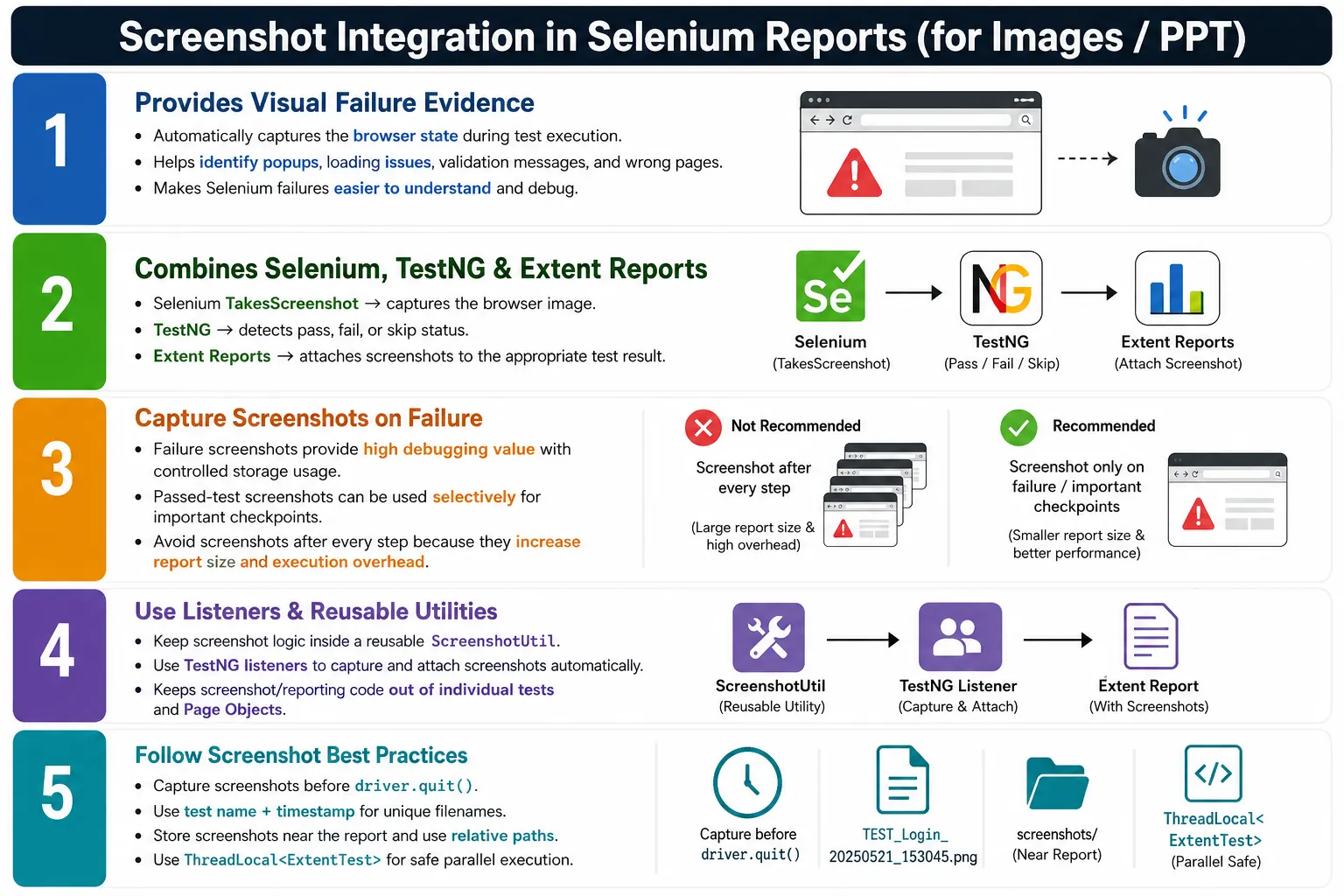
In enterprise Selenium frameworks, screenshots are usually connected with TestNG and reporting tools such as Extent Reports. TestNG tells the framework whether a test passed, failed, or skipped. Selenium captures the browser image through the TakesScreenshot interface. Extent Reports attaches the image to the correct test entry. When these pieces work together, every important failure becomes easier to understand without immediately rerunning the test.
1. What Screenshot Integration Means
Screenshot integration means more than simply taking a screenshot. A tester can manually capture the browser screen during debugging, but framework-level integration is automated, repeatable, and connected to the report. The framework detects an event, such as test failure, assertion failure, Selenium exception, or important checkpoint, captures the current browser state, stores the image or converts it to Base64, and attaches it to the reporting entry for that test.
The final result is a report that combines text and visual evidence. Instead of seeing only NoSuchElementException or AssertionError, the reader can open the report, view the failed test, read the exception, and inspect the screenshot from the exact moment of failure. This is extremely helpful for testers, developers, leads, and CI/CD reviewers because it reduces guesswork.
2. Why Screenshot Integration Is Needed
Selenium failures often depend on UI state. A locator may fail because the element is missing, but it may also fail because the wrong page loaded. A click may fail because the element is disabled, but it may also fail because a cookie banner, ad, spinner, modal dialog, or sticky header is covering the button. Without screenshots, the team has to infer the visual state from logs and exception messages.
A screenshot answers questions quickly. Was the page loaded? Was the expected button visible? Was the user logged in? Did the application show an error banner? Was the browser on the expected URL? Was there a validation message? Was the layout broken? These questions matter because a Selenium failure can be caused by application defects, automation timing issues, bad test data, environment instability, or browser-specific rendering problems.
3. Failure Without Screenshots
Consider a login test that fails after clicking the login button. The console says that the dashboard heading was not found. Without a screenshot, several possibilities remain open. The login may have failed because of invalid credentials. The dashboard may have loaded slowly. A captcha may have appeared. The session may have expired. The environment may have shown a maintenance page. The locator may be wrong. Each possibility requires more investigation.
With a screenshot, the tester may immediately see a red validation message saying Invalid password, or a loading spinner still displayed, or a server error page. That one visual artifact can save several minutes or hours of debugging, especially when the failure happened in a CI/CD pipeline and the browser session no longer exists.
4. Core Idea
The core idea is straightforward: run the test, detect the result, capture a screenshot when needed, save or embed the screenshot, attach it to the report, and then generate the final HTML output. The screenshot should be captured before browser cleanup because once driver.quit() runs, the browser session is gone and screenshot capture is no longer possible.
Run Test
  Detect Pass, Fail, or Skip
    Capture Screenshot When Required
      Save File or Generate Base64
        Attach Screenshot to Extent Report
          Generate HTML Report
This process should be automatic. Test authors should not manually write screenshot capture code in every test method. A framework should provide reusable utilities, listener integration, and consistent naming so screenshots are available whenever they are useful.
5. When Screenshots Should Be Taken
The most common strategy is to capture screenshots on test failure. This gives maximum debugging value with controlled storage usage. Screenshots can also be captured on assertion failures, Selenium exceptions, skipped tests, important checkpoints, successful completion of critical flows, or before and after risky actions. However, capturing screenshots after every single step usually creates large reports, slower execution, and unnecessary storage consumption.
Most enterprise projects start with failure screenshots. Later, they may add checkpoint screenshots for highly important workflows such as payment confirmation, order submission, account creation, or audit-sensitive processes. Successful screenshots are useful for demo reports and compliance evidence, but they should be used carefully because large regression suites can generate thousands of images.
6. Screenshot Integration Flow
A clean screenshot flow begins when TestNG starts the test. The listener creates an Extent test entry. Selenium executes browser actions. If the test fails, TestNG triggers a failure callback or teardown method. The framework retrieves the active WebDriver instance, captures the screenshot, saves it in a known folder, attaches it to the current Extent test, logs the exception, and then closes the browser.
Test Starts
  ExtentTest Created
    Selenium Executes
      Failure Detected
        Screenshot Captured
          Screenshot Attached to Report
            Browser Closed
              Report Flushed
The order is important. Screenshot capture must happen while the driver is still alive. Report flushing usually happens after all tests complete. Screenshot files should remain available at the path used in the report, otherwise the report may show broken image links.
7. Basic Screenshot Utility
A screenshot utility should accept a WebDriver instance and a test name, create a screenshot folder if needed, generate a filename, capture the screenshot, copy it to the destination, and return the path. Returning the path is essential because Extent Reports needs that path to attach the screenshot.
public class ScreenshotUtil {

    public static String capture(
            WebDriver driver,
            String fileName)
            throws IOException {

        File source =
                ((TakesScreenshot) driver)
                        .getScreenshotAs(
                                OutputType.FILE
                        );

        String path =
                "screenshots/" + fileName + ".png";

        Files.copy(
                source.toPath(),
                Paths.get(path)
        );

        return path;
    }
}
This example explains the idea, but production frameworks should improve it with directory creation, timestamped filenames, replacement rules, relative paths, and exception handling. The utility should also avoid hardcoded desktop paths because reports must work on local machines, CI/CD agents, and remote execution environments.
8. Capturing a Screenshot
Once the utility exists, test code or listener code can call it and receive the screenshot path. That path can then be attached to Extent Reports.
String path =
        ScreenshotUtil.capture(
                driver,
                "LoginTest"
        );
The returned value may look like screenshots/LoginTest.png. This path should point to an image that exists when the report is opened. If the report is moved or archived, the screenshot should move with it.
9. Attaching Screenshot to Extent Reports
Extent Reports provides methods to attach screenshots from a file path. The screenshot can be attached to a failed step, passed step, skipped step, or informational log. For failure screenshots, the attachment is usually connected to the failure log.
test.fail("Login failed");
test.addScreenCaptureFromPath(path);
A more common fluent style attaches the screenshot directly to the failed log entry.
test.fail("Login test failed")
    .addScreenCaptureFromPath(path);
In the generated Extent report, this appears as a screenshot thumbnail or attachment link. The user can click it and see the browser state from the failure moment.
10. Base64 Screenshot Integration
Instead of saving screenshots as image files, Selenium can capture screenshots as Base64 strings. Extent Reports can attach the Base64 value directly. This approach makes the report more self-contained because it does not depend on separate image files.
String base64Screenshot =
        ((TakesScreenshot) driver)
                .getScreenshotAs(OutputType.BASE64);

test.fail("Test failed")
    .addScreenCaptureFromBase64String(
            base64Screenshot
    );
Base64 screenshots are useful when reports are shared as single files or when artifact path management is difficult. The tradeoff is report size. If many screenshots are embedded as Base64, the HTML report can become large. File-path screenshots are better when report size matters, while Base64 screenshots are better when portability matters.
11. Base64 Screenshot with Title
Extent Reports also allows a screenshot title. This makes the report clearer when multiple screenshots are attached to one test.
String screenshot =
        ((TakesScreenshot) driver)
                .getScreenshotAs(OutputType.BASE64);

test.fail("Checkout failed")
    .addScreenCaptureFromBase64String(
            screenshot,
            "Checkout Failure"
    );
A title is useful when a test has screenshots for multiple checkpoints, such as after login, after cart update, after payment submission, and after failure. Clear labels prevent confusion during review.
12. Timestamp-Based Screenshot Names
Duplicate screenshot names cause overwriting. If every login failure writes to LoginTest.png, one execution can replace another. A timestamp-based naming strategy avoids this problem and makes screenshots easier to trace.
public String captureScreenshot(String testName)
        throws IOException {

    String timestamp = LocalDateTime.now()
            .format(DateTimeFormatter.ofPattern(
                    "yyyyMMdd_HHmmss_SSS"
            ));

    Path folder = Paths.get(
            "test-output",
            "screenshots"
    );
    Files.createDirectories(folder);

    Path destination = folder.resolve(
            testName + "_" + timestamp + ".png"
    );

    File source = ((TakesScreenshot) driver)
            .getScreenshotAs(OutputType.FILE);

    Files.copy(
            source.toPath(),
            destination,
            StandardCopyOption.REPLACE_EXISTING
    );

    return destination.toString();
}
A good filename includes the test name and time. For example, LoginTest_20260710_101530_215.png is much better than image1.png. It is searchable, traceable, and unlikely to be overwritten.
13. Reusable Screenshot Utility Class
A framework-style utility should be final, should hide its constructor if it only provides static methods, should create directories automatically, and should return a reliable path. The utility should not depend on one test class. It should work from listeners, base tests, and helper code.
public final class ScreenshotUtil {

    private ScreenshotUtil() {
    }

    public static String capture(
            WebDriver driver,
            String testName) throws IOException {

        Path folder = Paths.get(
                "test-output",
                "screenshots"
        );
        Files.createDirectories(folder);

        String timestamp = LocalDateTime.now()
                .format(DateTimeFormatter.ofPattern(
                        "yyyyMMdd_HHmmss_SSS"
                ));

        Path destination = folder.resolve(
                testName + "_" + timestamp + ".png"
        );

        File source = ((TakesScreenshot) driver)
                .getScreenshotAs(OutputType.FILE);

        Files.copy(
                source.toPath(),
                destination,
                StandardCopyOption.REPLACE_EXISTING
        );

        return destination.toString();
    }
}
This utility can now be called from @AfterMethod, a TestNG listener, or a framework exception handler. The rest of the framework does not need to know the screenshot storage details.
14. Capturing Screenshot in TestNG AfterMethod
The easiest TestNG integration is to use @AfterMethod with ITestResult. The result object tells whether the test passed, failed, or skipped. On failure, the framework captures a screenshot and attaches it to the report.
@AfterMethod
public void afterMethod(ITestResult result)
        throws IOException {

    if (result.getStatus() == ITestResult.FAILURE) {
        String path =
                ScreenshotUtil.capture(
                        driver,
                        result.getName()
                );

        extentTest.fail(result.getThrowable());
        extentTest.addScreenCaptureFromPath(path);
    }
}
This works well for small frameworks. For larger frameworks, listeners are usually cleaner because reporting behavior becomes centralized and automatic.
15. Capture Before Browser Quit
The browser must still be open when the screenshot is captured. A common mistake is to call driver.quit() first and then attempt to capture the screenshot. That fails because the browser session no longer exists.
@AfterMethod(alwaysRun = true)
public void tearDown(ITestResult result)
        throws IOException {

    try {
        if (result.getStatus() == ITestResult.FAILURE) {
            String path =
                    ScreenshotUtil.capture(
                            driver,
                            result.getName()
                    );

            extentTest.fail(result.getThrowable())
                      .addScreenCaptureFromPath(path);
        }
    } finally {
        if (driver != null) {
            driver.quit();
        }
    }
}
The try and finally structure is useful because it attempts to collect failure evidence first and then guarantees browser cleanup afterward. This order protects both debugging quality and resource cleanup.
16. Screenshot for Passed Tests
Screenshots can be attached to passed tests, but this should be a deliberate choice. Passed screenshots are useful for demo reports, audit evidence, visual checkpoints, and business-critical flows. They are usually avoided for every test because they increase report size and storage usage.
if (result.getStatus() == ITestResult.SUCCESS) {
    String path =
            ScreenshotUtil.capture(
                    driver,
                    result.getName()
            );

    extentTest.pass("Test passed")
              .addScreenCaptureFromPath(path);
}
A balanced approach is to capture passed screenshots only for selected workflows. For example, a team may capture a screenshot after successful payment confirmation but not after every simple search test.
17. Screenshot for Skipped Tests
Skipped tests may or may not need screenshots. If a test is skipped before browser launch because of dependency failure or configuration rules, a screenshot is not useful. If a test is skipped during runtime because of environment conditions, a screenshot may help. The framework should handle skipped screenshots carefully and avoid assuming the driver is always available.
if (result.getStatus() == ITestResult.SKIP) {
    extentTest.skip(result.getThrowable());
}
For most projects, screenshots on failures are mandatory, screenshots on skips are optional, and screenshots on passes are selective.
18. Screenshot on Assertion Failure
When an assertion fails inside a test, TestNG will mark the test as failed. Usually the listener or teardown method captures the screenshot automatically. However, in some special cases, a test may capture a screenshot immediately around a high-value assertion and then rethrow the assertion error.
@Test
public void verifyDashboardTitle()
        throws IOException {

    try {
        Assert.assertEquals(
                driver.getTitle(),
                "Dashboard"
        );
    } catch (AssertionError error) {
        String path =
                ScreenshotUtil.capture(
                        driver,
                        "DashboardTitleFailure"
                );

        extentTest.fail(error)
                  .addScreenCaptureFromPath(path);

        throw error;
    }
}
The important point is to rethrow the error. If the test catches the assertion failure and does not throw it again, TestNG may treat the test as passed even though validation failed. That creates false reporting and must be avoided.
19. Screenshot on Selenium Exception
A screenshot can also be captured when a Selenium exception occurs around a specific action. This can be useful inside reusable components when a critical UI operation fails.
try {
    driver.findElement(By.id("submit"))
          .click();
} catch (WebDriverException exception) {
    String path =
            ScreenshotUtil.capture(
                    driver,
                    "SubmitClickFailure"
            );

    extentTest.fail(exception)
              .addScreenCaptureFromPath(path);

    throw exception;
}
This pattern should not be overused everywhere. If every method catches exceptions and captures screenshots, the framework can become noisy. Centralized listener capture is usually enough, and local capture should be reserved for important custom handling.
20. Element Screenshot
Selenium also supports capturing screenshots of individual elements. This is useful when the full page is large but the report needs evidence of a specific validation message, chart, table, or component.
WebElement errorMessage =
        driver.findElement(By.id("errorMessage"));

File source =
        errorMessage.getScreenshotAs(OutputType.FILE);

Path destination = Paths.get(
        "test-output",
        "screenshots",
        "errorMessage.png"
);

Files.createDirectories(
        destination.getParent()
);

Files.copy(
        source.toPath(),
        destination,
        StandardCopyOption.REPLACE_EXISTING
);

extentTest.fail("Error message displayed")
          .addScreenCaptureFromPath(
                  destination.toString()
          );
Element screenshots are useful, but full-page browser screenshots are more common for failures because they show broader context. Use element screenshots when focused component evidence is more helpful than the entire screen.
21. Relative Path Strategy
Relative screenshot paths are usually better than absolute paths. A report that references C:\Users\Suresh\Desktop\login.png may work only on one machine. It will break on another developer laptop or CI server. A relative path such as screenshots/login.png is more portable when the screenshot folder is stored near the report.
return "screenshots/" + fileName;If the report is stored under test-output and screenshots are under test-output/screenshots, returning the path relative to the report can keep image links stable. This is especially important when reports are archived and opened outside the project workspace.
22. TestNG Listener Integration
Listener-based screenshot integration is the preferred enterprise approach. The listener responds to TestNG callbacks such as onTestStart, onTestSuccess, onTestFailure, and onTestSkipped. On failure, it retrieves the WebDriver from the test instance, captures a screenshot, and attaches it to the current Extent test.
public class TestListener
        implements ITestListener {

    @Override
    public void onTestFailure(
            ITestResult result) {

        BaseTest baseTest =
                (BaseTest) result.getInstance();

        WebDriver driver =
                baseTest.getDriver();

        try {
            String path =
                    ScreenshotUtil.capture(
                            driver,
                            result.getName()
                    );

            ExtentTestManager.getTest()
                    .fail(result.getThrowable())
                    .addScreenCaptureFromPath(path);
        } catch (IOException exception) {
            ExtentTestManager.getTest()
                    .fail(
                            "Screenshot capture failed: "
                            + exception.getMessage()
                    );
        }
    }
}
This keeps screenshot capture outside the test method. The test remains focused on business validation, while the listener handles failure evidence automatically.
23. ThreadLocal for Parallel Execution
Parallel execution requires careful reporting. If tests run in parallel and share one ExtentTest variable, screenshots may attach to the wrong test. A thread-local manager gives each thread its own current Extent test entry.
public final class ExtentTestManager {
    private static final ThreadLocal<ExtentTest>
            extentTest = new ThreadLocal<>();

    private ExtentTestManager() {
    }

    public static void setTest(
            ExtentTest test) {
        extentTest.set(test);
    }

    public static ExtentTest getTest() {
        return extentTest.get();
    }

    public static void removeTest() {
        extentTest.remove();
    }
}
When using Selenium Grid, cloud browsers, or TestNG parallel execution, thread-safe screenshot and reporting logic is essential. Otherwise, the report may become unreliable, which defeats the purpose of evidence-based reporting.
24. Complete Listener Flow
A complete listener creates a test entry when the test starts, logs pass status on success, captures screenshots on failure, records skipped status, and leaves report flushing to a suite-level cleanup method or report manager.
public class ExtentListener
        implements ITestListener {

    @Override
    public void onTestStart(
            ITestResult result) {

        ExtentTest test =
                ExtentManager.getInstance()
                        .createTest(
                                result.getName()
                        );

        ExtentTestManager.setTest(test);
    }

    @Override
    public void onTestSuccess(
            ITestResult result) {

        ExtentTestManager.getTest()
                .pass("Test passed");
    }

    @Override
    public void onTestFailure(
            ITestResult result) {

        BaseTest baseTest =
                (BaseTest) result.getInstance();

        try {
            String path =
                    ScreenshotUtil.capture(
                            baseTest.getDriver(),
                            result.getName()
                    );

            ExtentTestManager.getTest()
                    .fail(result.getThrowable())
                    .addScreenCaptureFromPath(path);
        } catch (IOException exception) {
            ExtentTestManager.getTest()
                    .fail(exception);
        }
    }

    @Override
    public void onTestSkipped(
            ITestResult result) {

        ExtentTestManager.getTest()
                .skip(result.getThrowable());
    }
}
This structure is much cleaner than adding reporting statements to every test. The listener can be registered through TestNG XML, annotations, or service loader configuration depending on the framework style.
25. Integration with Page Object Model
In Page Object Model, page classes should not usually capture screenshots. A page object represents page behavior, not test reporting policy. If a login page method fails, the test or listener can capture the screenshot. Keeping screenshots out of page objects prevents reporting logic from spreading across the framework.
LoginTest
  LoginPage performs action
    Failure occurs
      TestNG listener detects failure
        ScreenshotUtil captures browser state
          Extent Report receives screenshot
This separation keeps page objects reusable. The same page object can be used with Extent Reports, Allure, console logging, or another reporting system without rewriting page methods.
26. Integration with Hybrid Framework
In a hybrid framework, screenshot integration usually involves the base test class, driver manager, listener, screenshot utility, Extent manager, and Extent test manager. The base test controls driver lifecycle. The listener controls report status. The screenshot utility captures images. The report manager writes output. Each part has one clear responsibility.
TestNG Tests
  Page Objects
    BaseTest
      Driver Manager
        TestNG Listener
          ScreenshotUtil
            Extent Reports
              HTML Report
This design makes the framework scalable. If the team changes screenshot path strategy, only the utility changes. If the team changes reporting tool, the listener and report manager change. Test methods and page objects remain stable.
27. CI/CD Integration
Screenshot integration becomes even more valuable in CI/CD because failures happen on remote build agents where testers cannot see the browser directly. Jenkins, GitHub Actions, Azure DevOps, and other CI systems should archive the Extent report and screenshot folder after execution. Developers can then open the report from the pipeline and inspect the failure screenshot.
CI Pipeline
  Run Selenium Tests
    Generate Extent Report
      Save Screenshots
        Archive Report Folder
          Publish HTML Report
The archive should include both the HTML report and screenshot images. If screenshots are stored outside the archived folder, report links may break. This is one reason relative path strategy and organized folder structure are important.
28. Folder Structure
A common folder structure stores reports and screenshots together under test-output or a dedicated reports directory. Screenshots can be grouped by date or execution timestamp.
AutomationFramework
  reports
    2026-07-10_10-30-15
      ExtentReport.html
      screenshots
        LoginTest_20260710_103015_125.png
        SearchTest_20260710_103025_451.png
  src/test/java
    listeners
    utilities
    tests
    pages
This structure keeps every execution self-contained. When the report folder is shared or archived, screenshots remain available. It also helps cleanup scripts remove old reports without touching source code or configuration files.
29. Advantages
The main advantage of screenshot integration is faster debugging. Screenshots provide visual proof of what happened at the time of failure. They improve defect reports, reduce reproduction effort, support CI/CD analysis, and make automation reports easier for non-technical stakeholders to understand.
Screenshots also help identify patterns. If multiple tests fail with the same maintenance page, the issue is likely environmental. If failures show a blocking popup, the framework may need popup handling. If screenshots show blank pages, there may be page load or deployment problems. Visual evidence helps the team classify failures more accurately.
30. Limitations
Screenshots are useful, but they are not free. They take storage space, increase report size, and add a small execution overhead. Very large suites can generate many images if screenshots are captured too often. Old screenshots may accumulate and consume disk space if cleanup is not implemented.
Screenshots also do not replace logs. A screenshot shows visual state, but logs show technical context such as exception messages, stack traces, API responses, configuration values, and timing information. Good reporting combines screenshots with meaningful logs rather than relying only on images.
31. Screenshot Integration vs Console Logs
Console logs and screenshots serve different purposes. Console logs provide text-based technical details. Screenshots provide visual browser state. A stack trace can show where the code failed, but the screenshot can show what the user would have seen. Both are needed for strong failure analysis.
Console Logs
  Exception message
  Stack trace
  Technical flow

Screenshots
  Actual UI state
  Visible errors
  Popups and overlays
  Page load condition
When reports contain both logs and screenshots, the team can analyze failures from multiple angles. This reduces time spent reproducing issues and increases confidence in the test evidence.
32. Common Beginner Mistakes
A common mistake is not returning the screenshot path from the capture method. If the path is not returned, the framework has nothing to attach to the report. Another mistake is taking the screenshot after closing the browser. The screenshot must be captured before driver.quit(). Duplicate filenames are another problem because each run can overwrite the previous screenshot.
Beginners also save screenshots outside the project, such as on a local desktop. That breaks portability. Some frameworks capture screenshots after every small action, which creates huge reports and slower execution. A better strategy is to capture screenshots on failure and selected checkpoints only.
33. Best Practices
Capture screenshots automatically on failures. Use TestNG listeners or a centralized teardown method. Generate unique names using the test name and timestamp. Store screenshots near the report. Use relative paths when attaching file-based screenshots. Consider Base64 screenshots when reports must be self-contained. Archive screenshots along with the report in CI/CD. Clean old screenshots periodically.
For parallel execution, use ThreadLocal<ExtentTest> to attach screenshots to the correct test. Capture screenshots before quitting WebDriver. Avoid logging sensitive data in screenshot names or report messages. Keep screenshot logic in a utility class, not in every test method. Attach screenshots to the correct failure entry so the report remains clear.
34. Interview Perspective
A short interview answer is: Screenshot integration is the process of automatically capturing browser screenshots during Selenium test execution and attaching them to reports such as Extent Reports. It provides visual evidence for failures and makes debugging easier.
A stronger real-time answer is: in my Selenium hybrid framework, I use a reusable ScreenshotUtil class and TestNG listeners. When a test fails, the listener gets the active WebDriver instance, captures the screenshot using TakesScreenshot, saves the image with a test-name and timestamp-based filename, and attaches it to the Extent Report using addScreenCaptureFromPath(). For portable reports, I can also attach screenshots as Base64. In CI/CD, I archive both the report and screenshot folder so developers can inspect failures directly from the pipeline.
35. Key Takeaway
Screenshot integration makes Selenium reports more useful by adding visual evidence to execution logs. It helps testers and developers understand failures without immediately rerunning tests. The most common enterprise setup uses Selenium's TakesScreenshot, TestNG's result callbacks or listeners, a reusable screenshot utility, and Extent Reports for attachment and presentation.
Test Execution
  Failure
    TestNG Listener
      ScreenshotUtil
        File Path or Base64
          Extent Report
            Visual Evidence
The best implementation captures screenshots before browser cleanup, uses unique names, stores screenshots near the report, attaches them to the correct Extent test entry, supports parallel execution safely, and archives report artifacts in CI/CD. When implemented well, screenshot integration turns a basic automation report into a practical debugging asset that improves collaboration, defect reporting, and release confidence.