Right Click (Context Click) in Selenium Java
1. Introduction
A right click, also called a context click, is used when an application displays a custom context menu after the user presses the right mouse button on an element. In Selenium Java, right-click automation is handled with the Actions class using the contextClick() method. This is useful for applications that expose row actions, file actions, edit menus, delete menus, admin controls, or custom options through a web-based context menu.
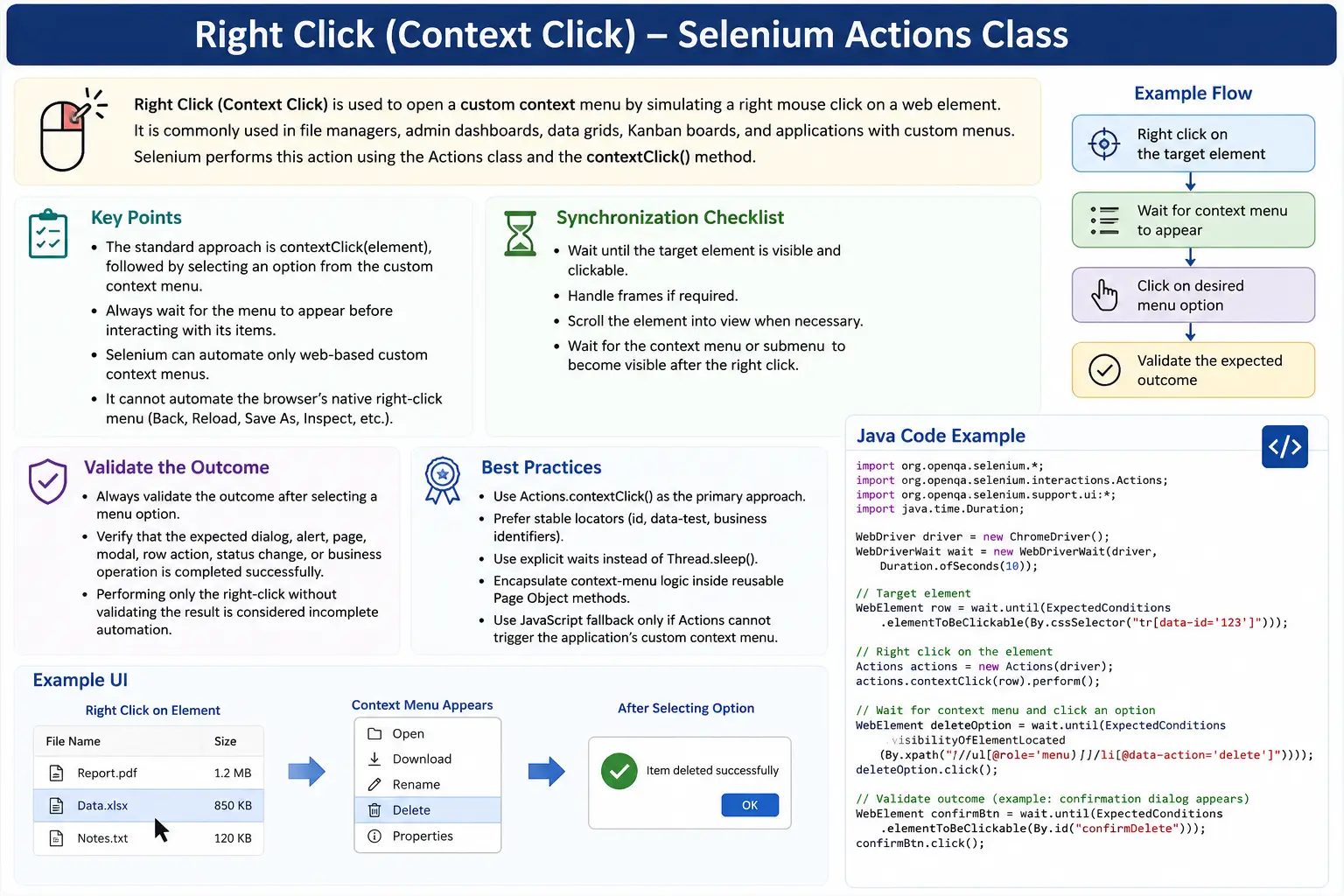
Right-click automation is different from a normal click because the expected result is usually not navigation or a button action. The expected result is that a menu appears, an option becomes available, an alert opens, or a custom UI state changes. A good Selenium test must therefore right-click the correct element, wait for the context menu, select the correct menu item, and validate the final result.
This topic is common in Selenium interviews because it checks knowledge of the Actions class, dynamic menus, explicit waits, custom UI behavior, frames, alerts, keyboard alternatives, and the limitation that Selenium cannot automate the browser's own native context menu. Selenium can automate web-based context menus built inside the page, but it cannot directly control Chrome's or Edge's default right-click menu such as Back, Reload, Save As, or Inspect.
2. When Right Click Is Used
Right-click is commonly required in applications that behave like desktop tools. File managers may show copy, rename, download, and delete options. Admin dashboards may show row-level actions. Data grids may show edit, view, export, or archive options. Diagram tools, image editors, and project boards may use context menus for object-specific actions.
- Context menus with Copy, Delete, Edit, Rename, or Open actions
- File managers and document libraries
- Table row actions in admin dashboards
- Project boards and workflow tools
- Image, chart, canvas, or diagram applications
- Custom UI menus built with JavaScript frameworks
Before writing automation, inspect whether the menu is part of the web page. If right-click only opens the browser-native menu, Selenium cannot directly automate that menu. If the application creates a custom menu inside the DOM, Selenium can interact with it like any other web element.
3. Required Import
The required Actions import is:
import org.openqa.selenium.interactions.Actions;Keyboard alternatives may need:
import org.openqa.selenium.Keys;Most real examples also use WebDriverWait, ExpectedConditions, Duration, Alert, JavascriptExecutor, and assertion imports depending on the test framework.
4. Basic Right Click Example
The simplest context click locates an element and performs contextClick().
WebElement element = driver.findElement(By.id("rightClickArea"));

Actions actions = new Actions(driver);
actions.contextClick(element).perform();
This simulates a right mouse click on the element. If the application is designed to show a custom context menu, the menu should appear after this action. The test should then wait for the menu or validate that it is visible.
5. Right Click and Select a Menu Option
The most common right-click flow is: right click, wait for the menu, click an option.
WebDriverWait wait =
    new WebDriverWait(driver, Duration.ofSeconds(10));

WebElement element =
    driver.findElement(By.id("rightClickArea"));

new Actions(driver)
    .contextClick(element)
    .perform();

WebElement deleteOption = wait.until(
    ExpectedConditions.visibilityOfElementLocated(By.id("deleteOption"))
);

deleteOption.click();
The wait is important because many context menus are created dynamically after right-click. Clicking the option immediately can fail if the menu is still rendering or animating.
6. Right Click Using CSS Selector and XPath
Context click works with any locator strategy that returns the correct WebElement. CSS selector example:
WebElement element =
    driver.findElement(By.cssSelector(".context-menu-area"));

new Actions(driver)
    .contextClick(element)
    .perform();
XPath example:
WebElement element =
    driver.findElement(By.xpath("//div[@id='rightClickArea']"));

new Actions(driver)
    .contextClick(element)
    .perform();
Choose stable locators. For table rows, using business text or row identifiers is often clearer than locating by position. For dynamic menus, wait for the menu option after opening the menu.
7. Right Click Using Offset
Sometimes you must right-click a specific position inside an element, such as a canvas, chart, map, image, or large grid cell. Use moveToElement(element, x, y) followed by contextClick().
WebElement box = driver.findElement(By.id("canvas"));

new Actions(driver)
    .moveToElement(box, 50, 30)
    .contextClick()
    .perform();
Here, 50 is the X offset and 30 is the Y offset. Offset-based right-click is more fragile than element-based right-click because it depends on layout, browser size, zoom, and rendering. Use it only when the location inside the element matters.
8. Right Click on Dynamic Element
For dynamic UIs, wait for the element to be ready before right-clicking. This is common for table rows and framework-rendered cards.
WebDriverWait wait =
    new WebDriverWait(driver, Duration.ofSeconds(10));

WebElement row = wait.until(
    ExpectedConditions.elementToBeClickable(
        By.cssSelector(".table-row")
    )
);

new Actions(driver)
    .contextClick(row)
    .perform();
Waiting for clickability is useful when the row may be delayed by API loading, animation, or rendering. After right-clicking, wait for the context menu separately.
9. Validate Context Menu Appears
A right-click test should validate that the menu appears. One simple validation is checking display state:
WebElement menu =
    driver.findElement(By.cssSelector(".context-menu"));

Assert.assertTrue(menu.isDisplayed());
You can also validate menu option text:
String optionText =
    driver.findElement(By.cssSelector(".context-menu li"))
          .getText();

Assert.assertEquals(optionText, "Delete");
Validation proves that the right-click triggered the application behavior. Without it, the test only proves that Selenium attempted a right-click.
10. Browser Native Context Menu Limitation
Selenium cannot directly control the browser's native context menu. If right-click opens Chrome's default menu with options such as Back, Reload, Save As, Print, or Inspect, that menu is outside the web page DOM. Selenium WebDriver is designed to automate web content, not browser UI menus.
This limitation is important. Selenium works with custom web-based context menus that the application renders inside the page. If your application requirement depends on the browser's default context menu, Selenium is not the right tool to automate those native menu options directly.
In interviews, this is a key point. A strong answer says that contextClick() can trigger right-click, but Selenium can automate only the web application's custom menu, not the browser-native menu.
11. Keyboard Alternative: Shift + F10
Some applications support keyboard-based context menus. On many systems, Shift+F10 opens a context menu for the focused element.
WebElement element = driver.findElement(By.id("rightClickArea"));

element.sendKeys(Keys.SHIFT, Keys.F10);
This can be useful for accessibility testing. If a context menu is important, keyboard users should have a way to access it. If Shift+F10 or an application-specific shortcut works, automation can test the keyboard path too.
12. Right Click and Keyboard Selection
If the context menu supports keyboard navigation, you can right-click and then use arrow keys and Enter.
WebElement element = driver.findElement(By.id("rightClickArea"));

Actions actions = new Actions(driver);

actions.contextClick(element)
       .sendKeys(Keys.ARROW_DOWN)
       .sendKeys(Keys.ENTER)
       .perform();
This approach is useful when menu items are keyboard-accessible. It can also reveal accessibility issues if the menu appears visually but cannot be operated with the keyboard.
13. Right Click Inside Frame
If the right-click target is inside an iframe, switch into the frame first.
driver.switchTo().frame("frame1");

WebElement element = driver.findElement(By.id("rightClickArea"));

new Actions(driver)
    .contextClick(element)
    .perform();

driver.switchTo().defaultContent();
If Selenium cannot find a visible right-click element, check whether it is inside a frame. Frame context must be correct before locating and interacting with the element.
14. Right Click and Validate Alert
Some demo applications show an alert after right-click. Handle it with the Alert API.
WebElement element = driver.findElement(By.id("rightClickArea"));

new Actions(driver)
    .contextClick(element)
    .perform();

Alert alert = driver.switchTo().alert();
System.out.println(alert.getText());
alert.accept();
For real applications, custom modal dialogs are more common than browser alerts. Use the appropriate handling based on what the application displays.
15. Right Click and Close Menu
Some tests need to verify that a context menu closes when clicking outside.
WebElement element = driver.findElement(By.id("rightClickArea"));

new Actions(driver)
    .contextClick(element)
    .perform();

driver.findElement(By.tagName("body")).click();
A stronger test waits until the menu disappears after the outside click. This validates menu close behavior instead of only performing the outside click.
16. Right Click Multiple Elements
You may need to right-click multiple files, rows, or cards. Be careful if the context menu or state changes after each right-click.
List<WebElement> elements =
    driver.findElements(By.className("file-item"));

Actions actions = new Actions(driver);

for (WebElement el : elements) {
    actions.contextClick(el).perform();
}
If each right-click opens a menu, close the menu before moving to the next element. If the DOM re-renders, re-locate elements inside the loop.
17. Right Click on Table Row
Context menus are common in tables and grids. For example, right-click the row where the name is John:
WebElement row =
    driver.findElement(By.xpath("//tr[td[text()='John']]"));

new Actions(driver)
    .contextClick(row)
    .perform();
After the menu appears, select the required action and validate the result. For example, if you choose Rename, verify that an edit dialog appears for John.
18. Select Menu Option Using Loop
When a menu contains multiple options, you can loop through them by visible text.
WebElement element = driver.findElement(By.id("rightClickArea"));

new Actions(driver)
    .contextClick(element)
    .perform();

List<WebElement> options =
    driver.findElements(By.cssSelector(".context-menu li"));

for (WebElement option : options) {
    if (option.getText().equals("Rename")) {
        option.click();
        break;
    }
}
In production tests, prefer a direct locator for the menu option when possible. Looping is useful when the menu is dynamic or when text matching is the clearest way to select an item.
19. Right Click and Hover Over Submenu
Some context menus contain nested submenus. The flow is right-click, hover over a menu item, then click a child option.
WebElement element = driver.findElement(By.id("rightClickArea"));

Actions actions = new Actions(driver);
actions.contextClick(element).perform();

WebElement submenu = driver.findElement(By.id("moreOptions"));
actions.moveToElement(submenu).perform();
For reliable tests, wait for the submenu and child options. Nested menus can close quickly if the pointer moves incorrectly, so use controlled Actions chains and explicit waits.
20. JavaScript Context Menu Fallback
If Actions fails because of framework behavior, JavaScript can dispatch a contextmenu event. Use this only as a fallback.
WebElement element = driver.findElement(By.id("rightClickArea"));

JavascriptExecutor js = (JavascriptExecutor) driver;

js.executeScript(
    "var ev = new MouseEvent('contextmenu', {bubbles:true});" +
    "arguments[0].dispatchEvent(ev);",
    element
);
JavaScript event dispatch may bypass real pointer behavior. Prefer Actions first, and validate that the application state changes correctly when fallback is used.
21. Right Click with Retry
React and Angular applications may re-render elements between locating and right-clicking. Limited retry logic can help when stale elements are expected.
public void rightClickWithRetry(By locator) {
    WebDriverWait wait =
        new WebDriverWait(driver, Duration.ofSeconds(10));

    for (int i = 0; i < 3; i++) {
        try {
            WebElement element = wait.until(
                ExpectedConditions.elementToBeClickable(locator)
            );
            new Actions(driver).contextClick(element).perform();
            return;
        } catch (StaleElementReferenceException ignored) {
        }
    }

    throw new RuntimeException(
        "Right click failed due to stale element."
    );
}
Retries should be limited and should not hide real defects. After a successful retry, still validate that the menu appears.
22. Headless Mode Fix
Context menus can behave differently in headless mode if the window size is too small or the responsive layout changes. Configure the browser size explicitly.
ChromeOptions options = new ChromeOptions();

options.addArguments("--headless=new");
options.addArguments("--window-size=1920,1080");
Without a predictable window size, the application may render a mobile layout or hide the context-click target. If a right-click test fails only in CI, inspect the screenshot and viewport size.
23. Common Issues and Fixes
| Problem | Cause | Fix |
|---|---|---|
| Context menu not appearing | Wrong target or hover required first | Move to element first and use correct target |
| Click intercepted | Overlay present | Wait for overlay invisibility |
| Browser menu appears | Native browser context menu | Cannot automate directly with Selenium |
| Menu disappears quickly | Auto-close behavior | Wait immediately and interact quickly |
| Headless mode issue | Rendering or viewport difference | Set a stable window size |
24. Debugging Right Click Failures
When right-click fails, first verify whether the application actually has a web-based context menu. If the browser-native menu appears, Selenium cannot automate that menu. If no menu appears, confirm that the right-click target is correct, visible, and not covered by another element.
Use screenshots on failure. A screenshot can reveal overlays, responsive layout changes, missing table rows, or an open menu from a previous step. Inspect the DOM to see whether the context menu is created after right-click and where it is inserted. Some applications append menus at the document body level rather than inside the clicked element.
Also check timing. Some context menus animate or render asynchronously. Use explicit waits for menu visibility or option clickability. Avoid fixed sleeps unless the UI specifically requires a short action pause, and even then prefer condition-based waits.
25. Accessibility Perspective
Context menus should not be mouse-only when they expose important actions. Keyboard users often expect Shift+F10, a menu button, or an accessible action menu. If an application hides critical actions only behind right-click, it may be difficult for keyboard or assistive technology users.
Automation can test both the pointer path and keyboard path. Use contextClick() to verify right-click behavior, then test keyboard access where supported. This gives better coverage and reveals accessibility issues earlier.
26. Page Object Utility
Repeated context-click logic should be wrapped in utility or page object methods.
public void rightClick(By locator) {
    WebElement element = driver.findElement(locator);
    new Actions(driver).contextClick(element).perform();
}
Usage:
rightClick(By.id("rightClickArea"));For real page objects, prefer intent-based methods such as openRowContextMenu("John") or deleteFileFromContextMenu("file1"). These names describe the business action rather than only the Selenium operation.
27. Understanding Web Context Menus
A web context menu is different from the browser's native context menu. A custom web context menu is created by the application using HTML, CSS, and JavaScript. It may be a <ul>, a group of buttons, a floating panel, a menu component, or a framework-rendered overlay. Because it exists in the DOM, Selenium can locate and interact with it after it appears.
Many context menus are rendered outside the clicked element. For example, a table row may be right-clicked, but the menu may be appended near the end of the document body. This is common in React, Angular, Vue, Bootstrap, Material UI, and other component libraries. If you search only inside the clicked row, you may not find the menu. Inspect the live DOM after right-click to understand where the menu is inserted.
Custom context menus also often use absolute positioning. They may appear near the pointer location, but the DOM structure may not be near the source element. This means your locator strategy should target the menu itself, not assume it is a child of the right-clicked element.
28. Context Menu Trigger and Target
Right-click testing has two important elements: the trigger and the target option. The trigger is the element that receives the context click. The target option is the menu item selected after the menu appears. Both need stable locators. If the trigger is a table row, locate it by meaningful data such as customer name, order number, or file name. If the target option is Delete, Rename, or Edit, locate it by visible text or stable test attribute.
A weak trigger locator can open the menu for the wrong row. A weak option locator can click the wrong action. This is especially risky for destructive actions such as Delete or Archive. A reliable test should clearly identify which item is being acted on and which menu option is selected.
For example, a test named "delete invoice from context menu" should right-click the specific invoice row, choose the Delete menu item, confirm the dialog if needed, and validate that the invoice is removed. That is much stronger than a test that simply right-clicks the first row and clicks the first menu option.
29. Dynamic Menus in Framework Applications
Modern applications often render context menus dynamically. The menu may not exist before right-click. After the right-click, the framework updates state, inserts a menu component, positions it, and attaches menu item handlers. This can introduce timing issues. A test that tries to click a menu item immediately after contextClick() may fail because the menu is not visible or clickable yet.
Framework applications can also re-render the source element after right-click. A row may receive a selected class, a context menu may be mounted, or the table may update state. If you keep old WebElement references across this transition, stale element errors may occur. The safer approach is to right-click, wait for the menu, and then locate the menu item fresh.
When a context menu is built with a component library, it may use animation. The menu may be present in the DOM before it is fully visible or clickable. In that case, wait for elementToBeClickable() on the menu option rather than only checking presence.
30. Validating the Action After Selection
Right-click automation should validate the business result after selecting a menu option. If the option is Edit, verify that the edit form opens for the correct record. If the option is Delete, verify that the confirmation dialog appears and that the row is removed after confirmation. If the option is Rename, verify that the rename field is active and the name changes after saving.
Do not stop after clicking the menu option. The click may happen, but the action may fail silently. The context menu item may be disabled. A confirmation dialog may block the workflow. The backend request may fail. The row may look removed temporarily but reappear after refresh. A meaningful assertion catches these issues.
Layered validation is useful. First validate the menu appears. Then validate the option is visible and clickable. Then select it. Then validate the resulting UI state. For critical workflows, validate persistence after refresh or navigation if the requirement demands it.
31. Handling Confirmation Dialogs
Context menu actions often open confirmation dialogs, especially for delete, archive, duplicate, or permission changes. These dialogs may be browser alerts or custom modals. Browser alerts should be handled with Selenium's Alert API. Custom modals should be handled like normal web elements with waits and locators.
For browser alerts, switch to the alert, validate text when useful, and accept or dismiss it. For custom dialogs, wait for the modal to become visible, click the confirm or cancel button, and validate the result. Do not assume the context menu action completes immediately after clicking the menu item.
In page objects, this flow is often best represented as a single business method. For example, deleteFileFromContextMenu("report.pdf") can right-click the file, choose Delete, confirm the modal, and validate that the file is gone. This keeps tests readable while hiding the Selenium details.
32. Keyboard Accessibility for Context Menus
A context menu should ideally be accessible without a mouse. Keyboard users may use Shift+F10 or an application-provided menu button. Menu items should be reachable with arrow keys, and Enter should activate the selected option. If a menu is important for completing a workflow, testing only the mouse right-click path is not enough for accessibility confidence.
Selenium can test keyboard behavior by focusing the element and sending keyboard shortcuts. It can then use arrow keys and Enter to choose menu items. If the application does not support keyboard access for critical context actions, report it as an accessibility concern.
This is also useful in interviews. A basic Selenium answer explains contextClick(). A mature answer adds that Selenium can automate custom web context menus and that important actions should also be keyboard accessible.
33. Right Click in Data Grids
Data grids often provide context menus for rows, cells, or columns. A row context menu may include View, Edit, Delete, Export, Duplicate, or Assign. A column context menu may include Sort, Filter, Pin, Hide, or Resize. Before automating, identify whether the right-click should happen on the row, a specific cell, or a header.
For row-level actions, locate the row by business data. For example, use a row containing the customer name or order ID. Then right-click that row and choose the action. For column-level actions, locate the column header. For cell-level actions, locate the specific cell. This prevents tests from accidentally operating on the wrong item.
Data grids can virtualize rows, meaning only visible rows exist in the DOM. If the target row is off-screen, scroll the grid or search/filter first. Right-click automation will fail if the row is not actually rendered.
34. Context Menus and Overlays
Overlays can interfere with right-click actions. Loading masks, sticky headers, modals, banners, chat widgets, and advertisements can cover the target. Selenium may throw a click interception error or the context click may not open the expected menu. Before right-clicking, make sure the page is in a stable state and blocking overlays are gone.
After the context menu appears, the menu itself may be an overlay. Clicking outside may close it. Moving focus away may close it. Selecting a menu item may close it before the next assertion. Tests should account for this behavior. If you need to assert menu content, assert it before clicking away.
Screenshots are helpful for overlay-related failures. They reveal whether the target was covered, the menu opened in the wrong place, or the page rendered differently than expected.
35. Test Data for Context Menu Scenarios
Context menu tests often act on specific data items. If a test deletes, renames, edits, or archives a record, the test data must be controlled. Use unique data where possible. Create the record as part of setup, perform the context menu action, validate the result, and clean up afterward if needed.
Shared data can make right-click tests flaky. If one test deletes a file that another test expects, failures become order-dependent. If a row is renamed by a previous test, the locator may no longer find it. Stable data setup is just as important as stable Selenium code.
For destructive actions, use safe test records. Avoid running delete actions against shared production-like records unless the environment is designed for it. Reliable automation depends on predictable state.
36. JavaScript Fallback Risks
JavaScript fallback can dispatch a contextmenu event, but it is not always equivalent to a real right-click. A real user action involves pointer position, browser event sequence, focus behavior, and potentially default-prevention logic. A synthetic event may trigger some handlers but skip others. It may also work in the test while a real user would still experience a problem.
Use JavaScript fallback only after trying normal Actions behavior and understanding why it fails. If JavaScript is used, document it in the utility method or test comments. Also validate the resulting UI carefully. If the fallback opens the menu but the real right-click path is broken, that may be a product issue worth reporting.
In enterprise suites, JavaScript fallback is best isolated in a utility method so its usage is visible and controlled.
37. CI and Headless Debugging
Right-click tests may pass locally but fail in CI because of headless mode, different browser size, slower rendering, or responsive layout changes. Set a fixed window size in headless mode and capture screenshots on failure. Check whether the target element is visible and whether the context menu appears in the screenshot.
If the right-click target is outside the viewport, scroll to it first. If the page is in mobile layout, the context menu may be replaced by a long-press or action button pattern. If an ad, banner, or modal covers the page in CI, handle that setup before running the context-click test.
Do not assume that CI failures are random. Most are caused by environment differences, timing, overlays, or data state. Systematic debugging will usually reveal the cause.
38. Choosing the Right Context Click Strategy
Start with Actions.contextClick(element). If the menu is dynamic, add explicit waits. If the target is inside a frame, switch first. If the target is off-screen, scroll first. If the element becomes stale, re-locate and retry carefully. If the application supports keyboard context menu access, test that path too. If Actions does not trigger a custom JavaScript handler, use JavaScript fallback only as a last resort.
The best strategy is the smallest reliable strategy that behaves like a real user. This keeps the test maintainable and meaningful. Right-click automation should not become a collection of workarounds unless the application genuinely requires them.
39. Best Practices
- Always call
perform(). - Use explicit waits for dynamic context menus.
- Prefer selecting menu options by visible text or stable attributes.
- Handle frames and alerts properly.
- Use JavaScript fallback only if Actions fails.
- Validate the result after right-click.
- Do not attempt to automate browser-native context menus.
- Use retry logic carefully for dynamic UIs.
- Set a stable window size in headless execution.
- Wrap repeated context-click logic in page objects.
40. Quick Code Patterns
40.1 Basic Right Click
WebElement element = driver.findElement(By.id("rightClickArea"));

Actions actions = new Actions(driver);
actions.contextClick(element).perform();
40.2 Right Click and Click Option
WebElement element = driver.findElement(By.id("rightClickArea"));

Actions actions = new Actions(driver);
actions.contextClick(element).perform();

driver.findElement(By.xpath("//li[text()='Edit']")).click();
40.3 Right Click and Validate Menu
WebElement element = driver.findElement(By.id("rightClickArea"));

new Actions(driver)
    .contextClick(element)
    .perform();

WebElement menu = driver.findElement(By.id("contextMenu"));
System.out.println("Menu visible: " + menu.isDisplayed());
40.4 Right Click and Select First Option
WebElement element = driver.findElement(By.id("rightClickArea"));

new Actions(driver)
    .contextClick(element)
    .perform();

List<WebElement> options =
    driver.findElements(By.cssSelector(".context-menu li"));

options.get(0).click();
40.5 Right Click on Image
WebElement image = driver.findElement(By.id("profileImage"));

new Actions(driver)
    .contextClick(image)
    .perform();
41. Interview Perspective
A short interview answer is: right-click in Selenium is performed using the Actions class with the contextClick() method.
A stronger real-time answer is: In Selenium automation, I use the Actions class to simulate right-click interactions using contextClick(). After triggering the context menu, I wait for the menu options to appear and then interact with them. Selenium can automate only web-based custom context menus, not native browser menus. I validate the result after selecting an option, such as text changes, alerts, dialog display, or row updates.
42. Final Summary
Right click, or context click, is automated in Selenium Java with Actions.contextClick(). It is used for custom web-based context menus in file managers, tables, dashboards, admin tools, and rich web applications. The correct flow is to wait for the target element, perform the context click, wait for the custom menu, choose the option, and validate the final outcome.
The key limitation is that Selenium cannot directly automate the browser's native context menu. For web-based menus, use explicit waits, stable locators, proper frame handling, limited retry logic for dynamic UIs, and JavaScript fallback only when Actions fails. Reliable context-click tests prove the application behavior, not just the mouse action.