Reporting Best Practices in Selenium Automation Framework (In Depth)
Reporting best practices in a Selenium automation framework are the guidelines used to design, generate, organize, publish, and maintain reports so they remain accurate, readable, actionable, and useful for every audience. A report should not be treated as a decorative output that appears after execution. It is one of the most important communication tools in an automation project because it explains what was executed, what passed, what failed, why it failed, where it failed, which environment was used, and how much confidence the team can have in the execution result.
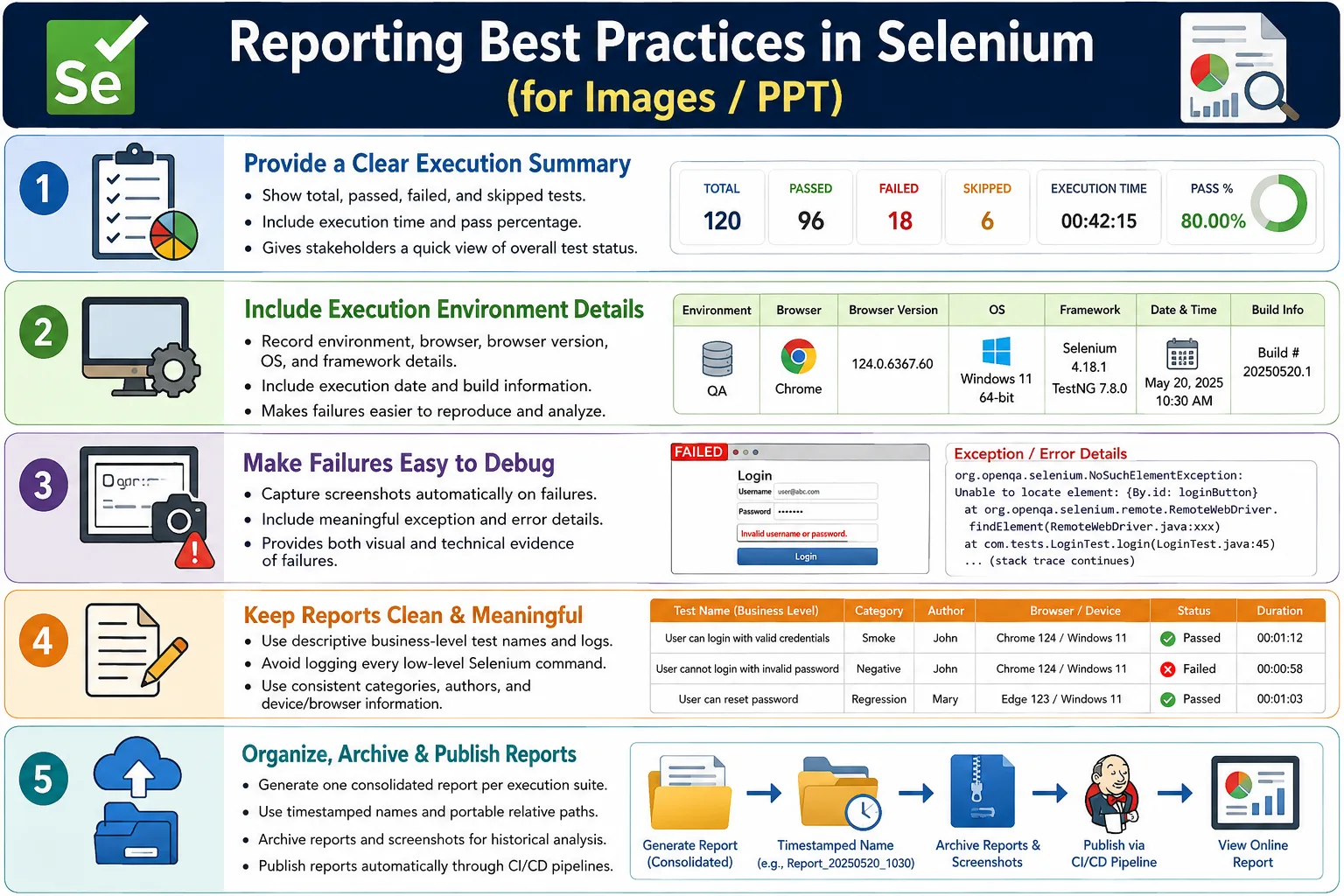
A poor report says only PASS or FAIL. A strong report provides an execution summary, business-level logs, screenshots, exception details, environment information, browser details, execution time, categories, authors, and CI/CD links. Modern Selenium frameworks commonly use Extent Reports, Allure Reports, TestNG output, or custom reporting layers to implement these practices. The reporting tool matters, but the design principles matter more. A badly designed report remains weak even if it uses a popular reporting library.
1. What Reporting Best Practices Mean
Reporting best practices are standardized rules for producing high-quality automation reports. They define what information should be captured, how results should be presented, how failures should be explained, how reports should be stored, and how stakeholders should access them. These rules keep reports consistent across suites, teams, environments, and releases.
In a Selenium framework, reporting is connected to many components. TestNG or another test runner controls execution. Selenium interacts with the browser. Listeners detect pass, fail, and skip events. Screenshot utilities capture visual evidence. Report managers generate HTML output. CI/CD pipelines publish and archive reports. Reporting best practices make these components work together cleanly.
2. Why Reporting Best Practices Are Important
Automation reports are used by different people for different reasons. Test engineers use reports to verify execution and debug failures. Developers use reports to understand failure evidence. QA leads use reports to evaluate suite health and release risk. Project managers use reports to understand progress. Clients and stakeholders use reports to get confidence in quality. DevOps teams use reports to inspect pipeline health.
If the report is unclear, every audience loses time. A developer may need to reproduce a failure manually. A tester may need to explain the same result repeatedly. A lead may not know whether a release is blocked. A manager may see failed counts without understanding the impact. Good reports reduce this confusion by presenting execution data in a structured and useful format.
3. Goals of a Good Automation Report
A good automation report should be accurate, readable, complete, visually clear, easy to debug, and traceable over time. Accuracy means the report reflects real execution, not guessed or manually adjusted results. Readability means test names, logs, and summaries can be understood without opening source code. Completeness means important context such as environment, browser, screenshots, and exceptions is available.
Visual clarity matters because large suites produce many results. A dashboard, status colors, and filters help readers focus quickly. Debugging support matters because failed tests need evidence. Historical traceability matters because teams often compare results between builds, releases, branches, and environments. A report should support immediate troubleshooting and long-term quality review.
4. Core Reporting Idea
The core idea is to collect complete execution information and turn it into a professional report. Instead of running tests and generating a simple list of results, the framework should capture logs, screenshots, metadata, environment details, exception traces, execution time, and category information.
Run Tests
  Collect Complete Information
    Capture Logs
      Capture Screenshots
        Add Environment Details
          Generate Professional Report
This does not mean the report should become overloaded. A good report is complete but not noisy. It includes information that helps analysis and avoids information that distracts from the result.
5. Include Execution Summary
Every report should start with a clear execution summary. The summary should show total tests, passed tests, failed tests, skipped tests, execution time, and pass percentage. This gives readers an immediate overview before they inspect details.
Total Tests: 250
Passed: 240
Failed: 7
Skipped: 3
Execution Time: 42 minutes
Pass Percentage: 96%
The summary is especially useful for leads and managers. They may not need to inspect every test step, but they need to know whether the suite is healthy. A missing summary forces readers to manually calculate status from detailed results.
6. Include Environment Information
Environment information is essential for reproducing and analyzing failures. A report should record environment name, browser, browser version, operating system, Java version, Selenium version, execution date, framework version, build number, and possibly application version.
Environment: QA
Browser: Chrome
Browser Version: 150
OS: Windows 11
Java: 21
Selenium: 4.x
Framework: Selenium Java TestNG
Execution Date: 10-Jul-2026
Without this information, a failure is harder to reproduce. A bug that appears in UAT on Firefox may not appear in QA on Chrome. If the report does not show environment and browser details, the team wastes time asking basic questions after every failure.
7. Use Meaningful Test Names
Test names should describe the behavior being verified. Names such as Test1, SampleTest, and verify are not useful in reports. Better names include Verify Valid Login, Verify Product Search Results, and Verify Checkout Payment Success.
Meaningful names reduce the need to open source code. When a report says Verify Checkout Payment Success failed, readers immediately know the business area. When it says test5 failed, no one knows what failed without investigation. Clear names are one of the simplest and most valuable reporting improvements.
8. Log Business Steps
Reports should log business actions, not every low-level Selenium command. Logging findElement(), click(), and sendKeys() repeatedly creates noise. Business-level logs are easier to read and more useful for understanding the test journey.
Open Login Page
Enter Username
Enter Password
Click Login
Verify Dashboard
These logs explain what the user scenario did. A report should tell the story of the test. It should not be a raw dump of automation implementation details. Low-level debug logs can be stored separately in a logging file if needed.
9. Capture Screenshots on Failures
Failure screenshots are one of the strongest reporting practices in Selenium. They provide visual evidence of the browser state at the time of failure. This is important because UI failures often depend on what was visible on the screen.
Failure
  Exception
    Screenshot
      Stack Trace
        Debugging Context
A screenshot can show whether the page loaded, whether a popup appeared, whether an element was hidden, whether a button was disabled, or whether the application displayed an unexpected error. Reports without screenshots often force developers or testers to rerun the test just to see what happened.
10. Include Exception Details
A report should not only say that a test failed. It should include the exception type and meaningful error details. For example, ElementClickInterceptedException tells a different story from NoSuchElementException or TimeoutException. The exception helps identify whether the issue is related to locator stability, timing, UI overlay, browser state, or application behavior.
Exception details should be readable but not excessive. A full stack trace may be useful for technical debugging, while a short failure message may be better for summary views. A good report can show both: a concise failure reason in the summary and deeper stack trace details inside the failed test entry.
11. Use Categories
Categories help organize tests in reports. Common categories include smoke, sanity, regression, UI, API, integration, login, checkout, payment, search, critical, and cross-browser. Categories make large reports easier to filter and analyze.
test.assignCategory("Smoke");
test.assignCategory("Regression");
Category names should be consistent. If one test uses Smoke and another uses smoke-test, filtering becomes messy. Use project-defined category names and reuse them across the suite.
12. Assign Authors
Author information is useful in large teams. It shows test ownership or maintenance responsibility. It does not mean the author caused the failure; it simply helps the team route investigation and maintenance.
test.assignAuthor("Suresh");Author assignment can be static, annotation-driven, or based on external ownership mapping. For large automation suites, ownership visibility helps reduce confusion when failures need follow-up.
13. Assign Devices and Browsers
Device or browser information is useful when tests run across multiple browsers, mobile devices, operating systems, or Selenium Grid nodes. A failure on one browser may not occur on another browser.
test.assignDevice("Chrome");For cross-browser testing, report entries should show Chrome, Firefox, Edge, Safari, Android, iPhone, or the relevant device name. This makes platform-specific failures easier to identify.
14. Keep Reports Clean
A report should be detailed enough to debug but concise enough to read. Excessive logging is a common problem. If every click, mouse move, wait, and locator lookup is logged, the report becomes difficult to scan. The reader must search through noise to find useful information.
Focus on meaningful events: user logged in, product added to cart, payment submitted, dashboard verified, validation message displayed, order created, and logout completed. Low-level technical logs should go into a separate logging system rather than the main report.
15. Use Relative Paths
Reports and screenshots should use project-relative paths wherever possible. Absolute local paths make reports fragile. A path such as C:\Users\Test\Reports may work on one machine but fail on another machine or CI agent.
reports/ExtentReport.html
reports/screenshots/LoginTest.png
Relative paths make reports portable. If the report folder is archived and shared, screenshot links are more likely to work. This is especially important when reports are published from Jenkins or downloaded as pipeline artifacts.
16. Use Timestamped Reports
Reports should not overwrite each other unless that is a deliberate local debugging choice. Timestamped report names preserve history and allow teams to compare executions.
ExtentReport_20260710_104530.html
RegressionReport_Build_108.html
SmokeReport_QA_20260710.html
Timestamped reports are useful for nightly runs, release regression cycles, and defect investigation. If a failure appeared yesterday and disappeared today, historical reports can help compare evidence.
17. Organize Screenshots
Screenshots should be stored in an organized folder structure. A flat folder with thousands of images becomes difficult to manage. Screenshots can be grouped by date, build number, suite name, or report folder.
reports
  2026-07-10
    ExtentReport.html
    screenshots
      LoginTest_101530.png
      CheckoutTest_102115.png
Keep screenshots near the report so links remain valid. If screenshots are stored far away from the report, publishing and archiving become harder.
18. Generate One Report Per Suite
A common best practice is to generate one consolidated report per execution suite rather than one report per test. A single report gives an overall view of the execution. Multiple tiny reports make it hard to understand total pass percentage, failed counts, and suite-level health.
There are exceptions. A large distributed system may produce separate reports per module or browser and then combine them in a dashboard. But for most Selenium TestNG frameworks, one report per suite execution is simpler and more useful.
19. Archive Reports
Reports should be archived instead of overwritten. Historical reports help with trend analysis, release comparison, defect investigation, and audit needs. A team may need to know whether a failure started after a specific build or whether a module has been unstable for several days.
Build 101
  Report
Build 102
  Report
Build 103
  Report
Archiving does not mean keeping everything forever. Teams should define retention policies. Recent reports may be stored longer during release testing, while older reports can be deleted after a defined period.
20. Integrate with CI/CD
Reports are most valuable when they are automatically published after each pipeline execution. A typical pipeline pulls code, executes tests, generates reports, archives artifacts, and publishes the report link.
Git
  Jenkins
    Execute Tests
      Generate Report
        Archive Screenshots
          Publish Report
CI/CD integration makes reports accessible to the whole team. Developers do not need access to the test machine. They can open the report directly from the build result and inspect failures.
21. Include Execution Time
Execution time is a useful quality and framework metric. Reports should show start time, end time, duration, and possibly average test time. Slow tests can indicate application performance problems, bad waits, unstable environments, or inefficient automation design.
Execution duration also matters for CI/CD planning. A smoke suite should finish quickly. A regression suite may take longer, but if it grows too much, teams may need parallel execution, better test selection, or suite optimization.
22. Use Report Themes and Branding
Themes and branding improve readability and make reports look professional. Extent Reports supports standard and dark themes. Teams may also add project names, department names, or company branding. The goal should be clarity, not decoration.
A branded report can be useful for client-facing or management-facing summaries. However, avoid excessive CSS or JavaScript customization that makes reports fragile. Reporting should remain easy to maintain as tools and library versions change.
23. Recommended Folder Structure
A clean folder structure helps keep reports, screenshots, logs, listeners, and tests organized. It also makes CI/CD artifact publishing easier.
AutomationFramework
  reports
    2026-07-10
      ExtentReport.html
  screenshots
  logs
  listeners
  utilities
  tests
  pages
The exact structure can vary by project, but generated artifacts should be separated from source code. Reports, screenshots, and logs should not be mixed with page objects or test classes.
24. Reporting Workflow
A good reporting workflow starts before test execution and ends after report publication. The framework initializes the report, runs tests, captures logs, captures screenshots, records metadata, flushes the report, archives artifacts, and publishes the output.
Initialize Report
  Execute Tests
    Capture Logs
      Capture Screenshots
        Collect Results
          Generate Report
            Publish Report
When this workflow is automated, every execution produces consistent evidence. This consistency is one of the major signs of a mature automation framework.
25. Report Content Checklist
A professional report should include a test summary, pass and fail counts, skipped count, execution duration, screenshots, exception details, browser information, environment information, categories, authors, logs, build information, and report generation time. For CI/CD, it should also include or link to the build number and branch name.
The checklist should be reviewed periodically. If stakeholders repeatedly ask for information that is missing from the report, add it. If information is never used and makes the report noisy, remove it or move it to debug logs.
26. Separate Debug Logs from Test Reports
Framework debug logs and business-level test reports serve different purposes. Debug logs can include technical details such as waits, locator retries, API calls, configuration loading, and driver creation. Test reports should focus on execution result, business steps, evidence, and failure reasons.
Mixing both creates unreadable reports. A better design uses a logging framework for technical logs and Extent Reports or Allure for human-readable execution reporting. When debugging is needed, both artifacts can be reviewed together.
27. Avoid Sensitive Information
Reports may be archived and shared widely. They should not expose passwords, tokens, personal data, payment information, private customer details, or internal secrets. Screenshots can also expose sensitive data, so be careful when testing real or production-like data.
Mask sensitive values in logs. Avoid printing credentials. Do not include full tokens in report messages. If screenshots contain private information, consider using test data, masking, or limiting report access. A report is useful only when it is safe to share with the intended audience.
28. Common Beginner Mistakes
Common mistakes include logging every Selenium command, missing screenshots, overwriting reports, ignoring environment information, mixing debug logs with reports, forgetting to archive reports, using meaningless test names, and hardcoding local paths. These mistakes make reports harder to use even when tests execute correctly.
Another common mistake is trusting a report without checking whether it accurately reflects execution. If listeners are wrong, skipped tests may be logged incorrectly. If parallel execution is not thread-safe, logs and screenshots may attach to the wrong test. Reporting logic should be tested just like framework code.
29. Enterprise Best Practices
Generate one consolidated report per execution suite. Include environment and system information. Capture screenshots for failed tests. Log meaningful business actions. Assign categories, authors, and devices. Use timestamp-based report names. Store reports in dedicated folders. Publish reports in CI/CD pipelines. Archive reports for historical analysis. Keep reports concise, readable, and professional.
Use listeners to centralize reporting. Use ThreadLocal<ExtentTest> for parallel execution. Keep report paths portable. Flush reports once at the end of execution. Review reports after real failures and improve them based on team feedback.
30. Real Enterprise Architecture
A mature Selenium framework usually connects reporting with TestNG listeners, screenshot utilities, logging utilities, configuration readers, and CI/CD publishing. The test method should not manually manage every reporting detail. It should focus on scenario validation while the framework handles reporting consistently.
TestNG Suite
  Extent Listener
    Collect Logs
      Capture Screenshots
        Attach Metadata
          Generate Report
            Archive Report
              Publish in Jenkins
This architecture allows changes to reporting behavior without changing every test case. If the team changes screenshot naming, report path, category assignment, or CI/CD publishing rules, those changes happen in framework utilities and listeners.
31. Interview Perspective
A short interview answer is: reporting best practices involve generating clear, professional, and actionable automation reports by including execution summaries, environment details, meaningful logs, screenshots, exception information, categories, authors, execution time, and CI/CD publishing.
A stronger real-time answer is: in my Selenium hybrid framework, I generate a single Extent Report for each execution suite. The report includes execution statistics, browser and environment information, categories, authors, timestamps, and screenshots for failed tests. TestNG listeners automatically capture failures and attach screenshots, while reports are archived with timestamp-based names and published through Jenkins. I keep logs focused on business actions rather than low-level Selenium commands, making the reports useful for both technical and non-technical stakeholders.
32. Reporting Best Practices Workflow
The complete reporting workflow starts with test execution and continues through log capture, screenshot capture, metadata collection, report generation, archiving, and CI/CD publishing.
Test Execution
  Capture Logs
    Capture Screenshots
      Collect Metadata
        Generate Report
          Archive Report
            Publish in CI/CD
This workflow ensures that every automation execution leaves behind a useful artifact. The report becomes evidence of what happened, not just a list of method results.
33. Report Quality Criteria
A report should be judged by how quickly it helps the team understand the execution. A report is not good just because it has a dashboard or attractive colors. It is good when a developer can open a failed test and understand the likely cause, when a tester can confirm the scenario and evidence, when a lead can identify release risk, and when a manager can understand the overall result without asking for a separate explanation.
Good report quality can be measured with simple questions. Can the reader identify the test scenario from the name? Can the reader see the environment and browser? Is there a screenshot for a UI failure? Is the exception visible? Are logs written in business language? Is the report easy to open from CI/CD? Are screenshots still visible after archiving? Can failed tests be grouped by category or module? If the answer to these questions is yes, the report is serving the team well.
Report quality should be reviewed after real failures, not only during framework setup. When a production-like regression fails, observe what the team asks for. If developers ask for browser version, add it. If testers ask which data set was used, add masked test data context. If leads ask which module is most unstable, improve categories. A report should evolve based on debugging needs.
34. Reporting and Flaky Test Analysis
Reports are also useful for identifying flaky tests. A flaky test is a test that passes and fails inconsistently without a clear application change. If reports are archived over time, the team can see whether the same tests fail repeatedly across builds. This is more useful than looking only at the latest report.
To support flaky-test analysis, reports should include timestamps, environment information, browser details, categories, and clear failure reasons. If the same test repeatedly fails with TimeoutException on one environment, the problem may be performance or synchronization. If the screenshot repeatedly shows a loading spinner, the test may need better waits or the application may have slow responses. If failures occur only on one browser, cross-browser behavior may be involved.
Flaky tests damage trust in automation. Reporting cannot fix flaky tests by itself, but it can reveal patterns. Once patterns are visible, the team can improve waits, stabilize locators, isolate test data, fix environment issues, or redesign fragile scenarios. A good report helps convert random-looking failures into diagnosable problems.
35. Historical Trend Review
Historical reports help teams understand whether quality is improving or declining. A single report shows one execution. A set of reports across builds shows trends. If pass percentage gradually drops, the suite may be detecting increasing product instability or the framework may need maintenance. If execution time increases every week, the team may need suite optimization, parallel execution, or test pruning.
Trend review requires consistent report naming and archiving. Reports should be stored with build numbers, dates, branch names, or suite names. Without consistent naming, historical comparison becomes manual and unreliable. Even if the team does not build a full analytics dashboard, archived reports can still answer important questions during release reviews.
Historical reporting also supports audit and compliance needs. Some organizations need evidence that regression testing was performed before release. A report with execution date, environment, test results, screenshots, and build information becomes a useful artifact. For this reason, report retention should be defined clearly instead of left to individual testers.
36. Report Retention and Cleanup
Reports and screenshots consume disk space. A framework that captures screenshots for every failure and runs daily can generate a large number of artifacts over time. Teams should define a retention policy. For example, keep all reports for the current release cycle, keep nightly reports for a fixed number of days, and keep release candidate reports longer.
Cleanup can be handled manually, by scripts, or by CI/CD retention settings. Jenkins and other build tools usually allow artifact retention rules. Local framework folders can also be cleaned by deleting old timestamped report folders. The key point is to preserve useful history without letting old artifacts consume uncontrolled storage.
Cleanup should not remove active report dependencies. If an HTML report references screenshots in a sibling folder, deleting the screenshot folder makes the report incomplete. For this reason, it is better to store each execution's report and screenshots together. Then an old execution folder can be removed safely as one unit.
37. Report Governance
In larger teams, reporting needs governance. Governance means the team agrees on report standards and applies them consistently. This includes naming conventions, required system information, screenshot rules, category names, author usage, report folder structure, CI/CD publishing rules, and sensitive data handling. Without governance, each tester may add different logging styles and categories, making reports inconsistent.
Governance does not need to be heavy. A short checklist is enough for many teams. Every new test should have a meaningful name. Every failure should have a screenshot if the browser is available. Every report should include environment and browser details. Every report should be archived in CI/CD. Every log should describe business behavior. Sensitive values should be masked. These simple rules make reporting predictable.
Consistent reporting also helps onboarding. New automation engineers can open existing reports and understand how the framework communicates results. They can follow the same patterns when adding tests. This consistency is one of the signs of a mature Selenium automation framework.
38. Key Takeaway
A well-designed automation report is more than a record of test execution. It is a communication tool that accelerates debugging, supports release decisions, improves collaboration, and provides historical insight into application quality. The report should explain what ran, what passed, what failed, why it failed, where it ran, and where the evidence can be found.
Professional Report
  Execution Summary
  Environment Details
  Business Logs
  Screenshots
  Exception Details
  Categories
  Authors
  Execution Time
  CI/CD Integration
  Historical Archive
The best Selenium reporting practices are practical and consistent: generate one consolidated report per suite, include execution and environment summaries, capture screenshots on failures, log business actions instead of every Selenium command, use timestamped report and screenshot names, archive reports for future reference, publish reports in CI/CD, and keep reports clean enough that every stakeholder can understand them. When reporting is designed well, automation results become easier to trust, easier to debug, and easier to use for real quality decisions.