Reading Data from Excel in Selenium Java
Reading test data from Microsoft Excel is one of the most common practices in Selenium Data-Driven Testing. Instead of hardcoding usernames, passwords, product names, search keywords, and expected results inside test scripts, the data is stored in an Excel workbook and read dynamically during execution. This allows one reusable test to run against many data rows without changing the automation code.
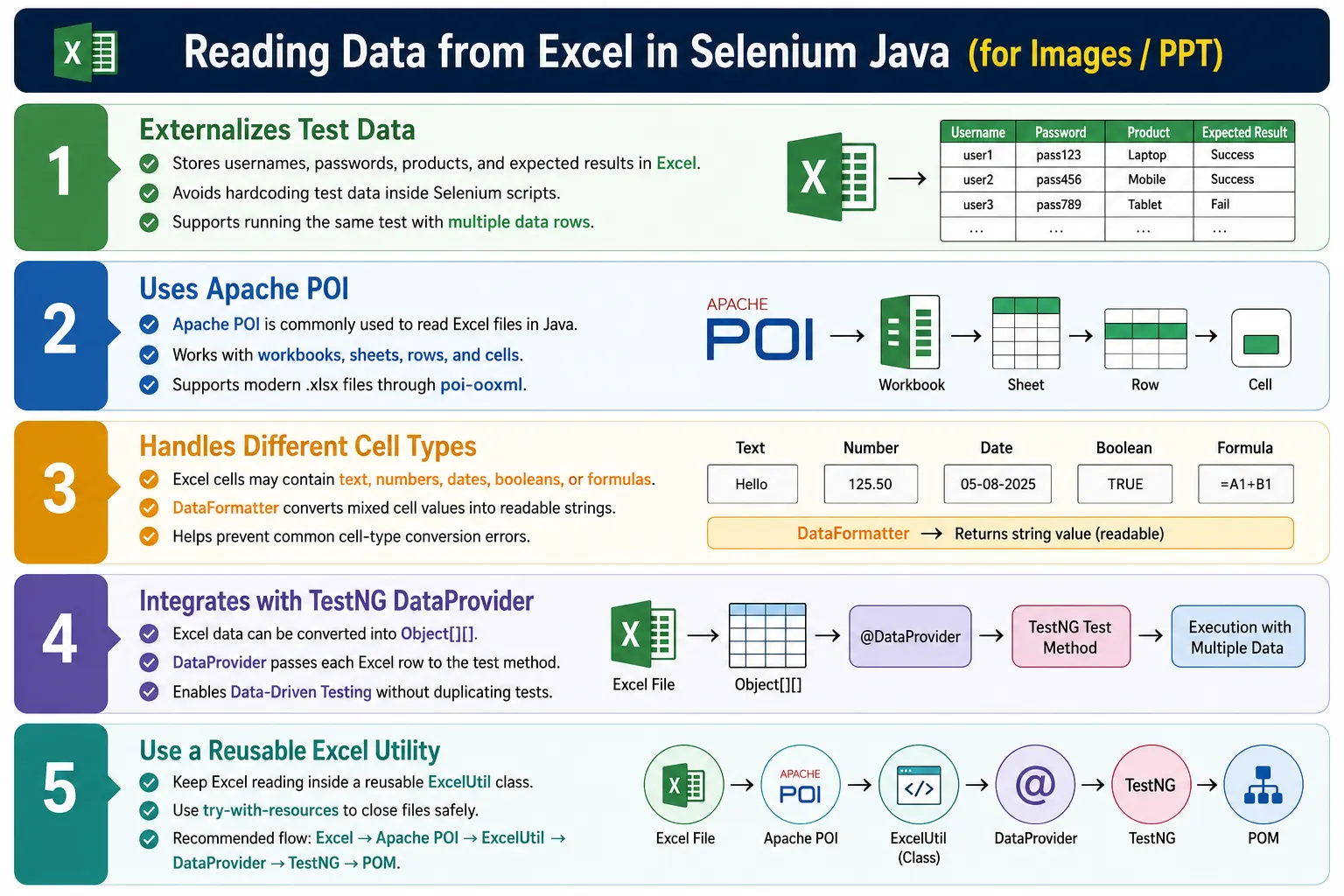
In Java-based Selenium frameworks, Apache POI is the most widely used library for working with Excel files. It allows automation engineers to open a workbook, select a sheet, read rows and cells, format cell values, and convert spreadsheet data into a structure that TestNG DataProvider can pass to tests. When used properly, Excel-based testing helps separate test logic from test data and makes large datasets easier for teams to review.
1. What Is Reading Data from Excel?
Reading data from Excel means retrieving values stored in an Excel file and supplying those values to Selenium tests. A login test, for example, may require a username and password. Instead of writing login("admin", "admin123") directly in the test, the values can be stored in LoginData.xlsx.
LoginData.xlsx

Username     Password       ExpectedResult
admin        admin123       Dashboard
user         user123        Dashboard
guest        guest123       Dashboard
invalid      wrong123       Invalid credentials
The automation framework reads each row and sends the values to the test method. The same test then executes repeatedly with different input data. This is the foundation of Excel-driven automation.
2. Why Read Data from Excel?
Excel is useful when a project has many combinations of test data. An application may support hundreds of users, dozens of products, multiple roles, different payment methods, and many validation messages. Hardcoding all of those values inside test scripts makes automation difficult to maintain.
Excel makes test data easy to update, easy to review, and easy to organize. Testers and business users are often comfortable with spreadsheets, so they can inspect or prepare data without editing Java code. When a new login user must be tested, a new row can be added. When an expected message changes, the Excel value can be updated without changing the test logic.
This does not mean Excel is always the best data source. Small datasets may be simpler with TestNG DataProvider. JSON may be better for structured objects. Databases or APIs may be better for dynamic enterprise data. But Excel remains very common because it is familiar, tabular, and business-readable.
3. Why Apache POI?
Apache POI is a Java library used to read and write Microsoft Office documents. For Selenium automation, its most common use is reading Excel files. It supports older .xls files and newer .xlsx files. Most modern projects use .xlsx and the poi-ooxml dependency.
Apache POI gives Java code access to Excel concepts such as workbook, sheet, row, and cell. It can read strings, numbers, booleans, dates, formulas, and blank cells. It also provides DataFormatter, which is very useful for converting mixed Excel cell types into readable text values.
4. Apache POI Maven Dependency
For a Maven project, add the Apache POI dependency in pom.xml. Version numbers may change over time, but the dependency structure is usually the same.
<dependency>
    <groupId>org.apache.poi</groupId>
    <artifactId>poi-ooxml</artifactId>
    <version>5.4.1</version>
</dependency>
The poi-ooxml artifact supports modern Excel workbooks. After adding the dependency, Maven downloads the required libraries and your Java code can use classes such as Workbook, WorkbookFactory, Sheet, Row, Cell, and DataFormatter.
5. Excel File Structure
An Excel file is organized as a workbook. A workbook contains one or more sheets. Each sheet contains rows. Each row contains cells. Each cell contains a value or may be blank. Understanding this structure helps you understand Apache POI code.
Excel File
  Workbook
    Sheet
      Row
        Cell
          Value
For example, a workbook named LoginData.xlsx may contain a sheet named Login. The first row may contain headers such as Username, Password, and ExpectedResult. The next rows contain actual test data. In most automation utilities, the header row is skipped and only data rows are returned to tests.
6. Important Apache POI Classes
| Class | Purpose |
|---|---|
FileInputStream |
Reads the Excel file from disk. |
Workbook |
Represents the Excel workbook. |
WorkbookFactory |
Creates a workbook from an input stream. |
XSSFWorkbook |
Represents an .xlsx workbook. |
Sheet |
Represents one worksheet. |
Row |
Represents one row in a sheet. |
Cell |
Represents one cell in a row. |
DataFormatter |
Reads cell values as formatted text. |
7. Opening an Excel Workbook
To read Excel data, first open the file using FileInputStream. Then create a workbook using XSSFWorkbook or WorkbookFactory. WorkbookFactory is often convenient because it can detect workbook type.
FileInputStream file =
        new FileInputStream("testdata/LoginData.xlsx");

Workbook workbook =
        WorkbookFactory.create(file);
The workbook object represents the Excel file. Once the workbook is available, you can access sheets, rows, and cells. Always close the workbook and input stream after reading. In real framework code, use try-with-resources to avoid resource leaks.
8. Reading a Sheet
A workbook can contain many sheets. You can select a sheet by name or by index. Selecting by name is usually clearer because it communicates intent.
Sheet sheet =
        workbook.getSheet("Login");
You can also select the first sheet with getSheetAt(0). This is useful for simple utilities, but named sheets are better in large frameworks because they reduce ambiguity. If a sheet name is wrong, the method may return null, so enterprise utilities should validate that the sheet exists before reading rows.
9. Reading Rows and Cells
After selecting a sheet, you can read rows using getRow(). Row indexes are zero-based. If row 0 contains headers, then row 1 is usually the first data row. Cells are also zero-based. Cell 0 is the first column, cell 1 is the second column, and so on.
Row row = sheet.getRow(1);
Cell cell = row.getCell(0);

String username =
        cell.getStringCellValue();
This reads the first cell from the first data row. If the Excel sheet contains admin in row 1 column 0, the username value becomes admin.
10. Complete Basic Example
The following example opens a workbook, selects the Login sheet, reads one cell, prints the value, and closes resources.
FileInputStream file =
        new FileInputStream("testdata/LoginData.xlsx");

Workbook workbook =
        new XSSFWorkbook(file);

Sheet sheet =
        workbook.getSheet("Login");

Row row =
        sheet.getRow(1);

Cell cell =
        row.getCell(0);

System.out.println(
        cell.getStringCellValue()
);

workbook.close();
file.close();
This code demonstrates the basic flow, but production utilities should be more defensive. They should handle missing files, wrong sheet names, blank rows, blank cells, and mixed cell types.
11. Reading Multiple Rows
Most test data files contain multiple data rows. To read all rows, loop from row 1 if row 0 is a header. getLastRowNum() returns the index of the last row, not the total row count. If a sheet has header plus three data rows, the last row index may be 3.
for (int i = 1; i <= sheet.getLastRowNum(); i++) {
    Row row = sheet.getRow(i);

    System.out.println(
            row.getCell(0).getStringCellValue()
    );
}
This prints the username column for each data row. In real code, check whether the row is null before accessing cells. Excel files sometimes contain visually empty rows that still affect row indexes.
12. Reading Multiple Columns
To read multiple columns, access each cell by its column index. A login sheet may have username in column 0, password in column 1, and expected result in column 2.
for (int i = 1; i <= sheet.getLastRowNum(); i++) {
    Row row = sheet.getRow(i);

    String username =
            row.getCell(0).getStringCellValue();

    String password =
            row.getCell(1).getStringCellValue();

    System.out.println(username + " " + password);
}
This approach is fine for a small demonstration. For reusable frameworks, create an Excel utility that reads rows and columns dynamically instead of hardcoding the same loop in every test.
13. Reading Different Cell Types
Excel cells can contain strings, numbers, booleans, dates, formulas, and blanks. If you call getStringCellValue() on a numeric cell, Apache POI can throw an IllegalStateException. This is one of the most common beginner issues.
A login sheet may look like it contains only text, but phone numbers, ZIP codes, quantities, salaries, dates, and IDs can be stored as numeric or date cells. Reading each type manually requires checking cell type and converting values carefully. That is why DataFormatter is strongly recommended for many test data utilities.
14. Using DataFormatter
DataFormatter reads cell values as formatted text, similar to what a user sees in Excel. It handles strings, numbers, dates, booleans, and formatted values more consistently than manually calling type-specific methods for every cell.
DataFormatter formatter =
        new DataFormatter();

String value =
        formatter.formatCellValue(cell);
Using DataFormatter keeps the utility simple and reduces type conversion errors. In most Selenium test data scenarios, tests need values as strings because they are sent to web fields. Even numeric values can be typed into inputs as strings.
15. Formula Cells
Excel can contain formula cells. Apache POI can evaluate formulas using FormulaEvaluator. Formula handling is less common in UI automation test data, but it matters if business users prepare calculated expected values in Excel.
FormulaEvaluator evaluator =
        workbook.getCreationHelper()
                .createFormulaEvaluator();

CellValue value =
        evaluator.evaluate(
                sheet.getRow(1).getCell(4)
        );

System.out.println(value.getNumberValue());
If your framework does not support formulas, document that rule clearly. Many teams prefer keeping test data simple and avoiding formulas because formulas can hide logic inside the spreadsheet.
16. Creating an Excel Utility
A reusable ExcelUtil class prevents Excel reading code from being duplicated across tests. Tests should not directly open workbooks, loop rows, parse cells, and close streams. That logic belongs in a utility class.
public class ExcelUtil {

    public static String getCellData(String filePath,
                                     String sheetName,
                                     int row,
                                     int column) throws Exception {

        try (FileInputStream file =
                     new FileInputStream(filePath);
             Workbook workbook =
                     WorkbookFactory.create(file)) {

            Sheet sheet =
                    workbook.getSheet(sheetName);

            DataFormatter formatter =
                    new DataFormatter();

            return formatter.formatCellValue(
                    sheet.getRow(row).getCell(column)
            );
        }
    }
}
This method uses try-with-resources, so the file and workbook are closed automatically. It also uses DataFormatter to reduce cell type issues. A production version should add validation for missing sheets, rows, and cells.
17. Returning Object[][] for DataProvider
For TestNG DataProvider integration, the Excel utility usually returns Object[][]. Each row in the array represents one test execution. Each column represents one parameter passed to the test method.
public static Object[][] getTestData(String filePath,
                                     String sheetName) throws Exception {

    try (FileInputStream file =
                 new FileInputStream(filePath);
         Workbook workbook =
                 WorkbookFactory.create(file)) {

        Sheet sheet = workbook.getSheet(sheetName);
        int rows = sheet.getLastRowNum();
        int cols = sheet.getRow(0).getLastCellNum();

        Object[][] data = new Object[rows][cols];
        DataFormatter formatter = new DataFormatter();

        for (int i = 1; i <= rows; i++) {
            Row row = sheet.getRow(i);

            for (int j = 0; j < cols; j++) {
                data[i - 1][j] =
                        formatter.formatCellValue(row.getCell(j));
            }
        }

        return data;
    }
}
This example skips the header row and returns all data rows. If the sheet contains three data rows and three columns, the returned array has three rows and three columns.
18. DataProvider Using Excel
Once the utility returns Object[][], TestNG DataProvider can supply the data to a test method.
@DataProvider(name = "excelData")
public Object[][] excelData() throws Exception {
    return ExcelUtil.getTestData(
            "testdata/LoginData.xlsx",
            "Login"
    );
}

@Test(dataProvider = "excelData")
public void login(String username,
                  String password,
                  String expectedResult) {
    loginPage.login(username, password);
}
In a real test, the expected result should be used for assertions. Valid rows may verify dashboard display. Invalid rows may verify an error message. The data source drives the scenario variations.
19. Selenium Login With Excel and POM
The cleanest design combines Excel, DataProvider, TestNG, and Page Object Model. Excel stores data. ExcelUtil reads data. DataProvider supplies it. The test method calls page object methods. The page object performs UI interactions.
@Test(dataProvider = "excelData")
public void verifyLogin(String username,
                        String password,
                        String expectedResult) {

    LoginPage loginPage =
            new LoginPage(driver);

    loginPage.login(username, password);

    if (expectedResult.equals("Dashboard")) {
        Assert.assertTrue(
                new DashboardPage(driver)
                        .isDashboardDisplayed()
        );
    } else {
        Assert.assertEquals(
                loginPage.getErrorMessage(),
                expectedResult
        );
    }
}
This design keeps Excel reading out of the page object. The page object simply receives values and interacts with the browser. That separation makes the framework easier to maintain.
20. Real Project Flow
Excel File
  Apache POI
    Excel Utility
      DataProvider
        TestNG Test
          Page Object
            Selenium WebDriver
              Browser
                Report
This flow is common in enterprise Selenium automation. Each layer has a clear responsibility. Excel stores data. Apache POI reads the workbook. ExcelUtil converts data to Java structures. DataProvider passes data to tests. Page objects perform UI actions. Selenium controls the browser. Reports show results for each data row.
21. Handling Blank Rows and Cells
Excel files maintained by humans often contain blank rows or blank cells. If the utility blindly calls sheet.getRow(i).getCell(j), it may throw NullPointerException. A reliable utility should handle missing rows and cells gracefully.
Apache POI provides cell policies such as Row.MissingCellPolicy.CREATE_NULL_AS_BLANK. This can help return blank cells instead of null values. The framework should decide whether blank values are allowed. Sometimes a blank value is valid test data, such as an empty username for negative testing. Sometimes it indicates a data maintenance problem.
22. Avoid Reading Workbook Repeatedly
A common beginner mistake is opening the workbook inside a loop for every cell or every row. This is inefficient. Opening Excel files can be expensive, especially when the file is large. A better approach is to open the workbook once, read the required data, store it in an array or list, close the workbook, and then pass data to tests.
This matters in CI pipelines where execution time is important. Reading files repeatedly can slow down the entire suite. A clean Excel utility should perform file operations in a controlled way and avoid unnecessary repeated reads.
23. File Path Management
Hardcoding absolute file paths is another common issue. A path like C:\Users\name\Desktop\LoginData.xlsx may work on one machine and fail on another machine or CI server. Test data files should be stored inside the project, usually in a folder such as testdata or src/test/resources/testdata.
AutomationFramework
  testdata
    LoginData.xlsx
    ProductData.xlsx
    PaymentData.xlsx
  src
  pom.xml
Use relative paths, configuration values, or resource loading strategies so the framework works across local machines, CI agents, and build servers. File paths should be predictable and portable.
24. Excel Data Quality
Excel-driven testing is only reliable when the data is reliable. Duplicate rows, outdated credentials, wrong expected messages, hidden rows, accidental formatting changes, and extra spaces can all cause confusing failures. Test data should be reviewed and cleaned regularly.
Column names should be meaningful. Sheet names should describe the feature, such as Login, Search, Registration, or Payment. Rows should have clear purposes. If the Excel file contains both positive and negative scenarios, include an expected result column so the test knows what outcome to verify.
25. Security Considerations
Excel files should not store sensitive credentials in plain text if the repository is shared. Passwords, tokens, API keys, production user details, and personal data should be handled carefully. Use masked data, test-only accounts, environment variables, encrypted configuration, or secret managers where appropriate.
For local learning projects, simple Excel values are fine. For enterprise projects, security rules matter. Automation test data should not become a source of credential leakage.
26. Designing a Reliable Excel Utility
A reliable Excel utility should be designed as framework infrastructure, not as quick test code. It should open the workbook, validate the sheet, identify the number of usable rows and columns, read values consistently, handle blank cells safely, close resources correctly, and return data in a format that tests can consume. When this logic is centralized, every test benefits from the same behavior.
The utility should also make clear decisions about headers. Most test data sheets use the first row as a header row, so the utility should skip row 0 when returning data to a DataProvider. If the sheet has multiple header rows, comments, or metadata rows, the utility should either support that convention explicitly or reject the sheet as invalid. Hidden assumptions in Excel utilities are a common source of framework confusion.
Another design decision is whether the utility should return only strings or typed objects. Many UI tests are fine with strings because values are typed into web fields. But some tests may benefit from typed objects such as LoginData, ProductData, or PaymentData. A simple framework can return Object[][]. A more mature framework can map Excel rows into domain-specific data objects.
27. Validating Sheet and Column Structure
In enterprise projects, Excel files may be edited by multiple people. Someone may rename a sheet, remove a column, move a column, or add a blank row. If the framework assumes the file is always perfect, failures will appear later inside the test, where the root cause is less obvious. A better utility validates the sheet before execution starts.
For example, if the login test expects columns named Username, Password, and ExpectedResult, the utility can check that those headers exist. If a required column is missing, the utility should fail with a clear message such as Missing required column: ExpectedResult. This is better than allowing a NullPointerException or incorrect data mapping to appear later.
Column validation also makes test data more maintainable. If the framework reads columns by header name instead of fixed index, moving columns in Excel becomes less risky. Reading by header is slightly more work to implement, but it can be worth it for large teams and frequently edited spreadsheets.
28. Mapping Excel Rows to Test Objects
For small datasets, passing separate parameters to the test method is acceptable. But when a row has many columns, the test signature becomes difficult to read. A registration test may need first name, last name, email, phone, password, confirm password, country, expected message, and expected status. Passing all of these as separate method parameters can become error-prone.
A cleaner approach is to map each row into a Java object. For example, a RegistrationData class can hold all registration-related fields. The DataProvider can return one object per test execution. The test then receives a single object and passes relevant values to page methods.
@Test(dataProvider = "registrationData")
public void verifyRegistration(RegistrationData data) {
    registrationPage.register(data);

    Assert.assertEquals(
            registrationPage.getMessage(),
            data.getExpectedMessage()
    );
}
This style improves readability when data is complex. It also makes the test less sensitive to column order because the utility can handle row-to-object mapping internally.
29. Handling Expected Results from Excel
A strong Excel-driven test should not only read inputs. It should also read expected results. If every row is assumed to pass, the dataset cannot cleanly support negative scenarios. Login data should usually include expected outcome or expected message. Form validation data should include the expected validation text. Search data may include expected result count or expected display state.
When expected results are stored in Excel, the test can handle multiple outcomes in one method. For example, if ExpectedResult is Dashboard, the test verifies successful navigation. If it is Invalid credentials, the test verifies the error message. This makes the dataset self-describing.
However, keep expected values meaningful and stable. If expected messages change frequently because of copy edits, the data file must be maintained. If messages are localized, the dataset may need a language or locale column. Excel can support this, but the framework design should remain clear.
30. Excel and Parallel Execution
Reading Excel data for parallel tests requires care. The safest pattern is to read the Excel file once into memory, close the workbook, and then allow TestNG to run rows in parallel. Keeping a shared workbook open while multiple test threads read from it can create unnecessary complexity. Test data should be immutable or treated as read-only during execution.
If parallel DataProviders are enabled, each test thread should have its own WebDriver instance. Excel reading and WebDriver handling are separate concerns, but they meet during data-driven execution. A thread-safe driver setup is required so that one data row does not interfere with another browser session.
Reports should also identify each Excel row clearly. When tests run in parallel, failures may appear in a different order than the Excel rows. Row number, sheet name, and key business identifier should be included in logs when possible.
31. Excel in CI/CD Pipelines
Excel files used by automation should be available to the build agent. If the file exists only on one engineer's desktop, the test will fail in CI. Store test data inside the repository or in a controlled test data location accessible to the pipeline. Relative paths are usually better than absolute paths.
CI pipelines also make file locking issues visible. If a workbook is open in Excel on a local machine, a local run may behave differently. In CI, the workbook should be read from a clean workspace. The automation should not require manual file access or local desktop dependencies.
If test data must be environment-specific, avoid duplicating entire files unnecessarily. Use clear folder structure or configuration to choose the correct file for QA, staging, or demo environments. The test should know which data source it is using based on configuration, not hardcoded paths scattered across tests.
32. When Excel Is Not the Best Choice
Excel is popular, but it is not always the right choice. If the dataset is very small and rarely changes, a TestNG DataProvider may be simpler. If the data is deeply nested, JSON may be clearer. If data must be created dynamically before each run, API setup may be more reliable. If the test validates database-driven business rules, reading from a controlled database table may be better.
Use Excel when the data is tabular, business-readable, and useful for testers to edit. Avoid Excel when it becomes a hidden programming language with formulas, macros, complicated dependencies, or unclear data rules. The goal is maintainable test data, not using Excel for every possible scenario.
33. Common Beginner Mistakes
- Forgetting to close
WorkbookandFileInputStream. - Hardcoding row numbers and column numbers everywhere.
- Using
getStringCellValue()for numeric cells. - Not handling blank rows or blank cells.
- Reading the workbook repeatedly inside loops.
- Hardcoding absolute file paths.
- Mixing Excel reading logic directly inside test methods.
- Putting Excel reading code inside page objects.
- Using unclear sheet names and column names.
- Storing sensitive credentials in plain text Excel files.
34. Enterprise Best Practices
In enterprise frameworks, Excel handling should be centralized. Create a reusable ExcelUtil class. Use DataFormatter to read mixed cell types. Use try-with-resources to close files. Keep Excel files in a dedicated test data folder. Validate sheet names, row counts, and column counts before reading. Keep data separate from automation logic.
Do not make tests responsible for workbook handling. Do not make page objects responsible for data reading. Use DataProvider as the bridge between Excel data and test execution. This keeps the framework clean and easier to scale.
Also keep Excel conventions documented for the team. When everyone follows the same sheet names, header names, row rules, and expected-result columns, the framework stays predictable and new datasets can be added without guessing how the utility expects the file to be shaped.
35. Interview Perspective
A short interview answer is: reading data from Excel in Selenium is commonly done using Apache POI. The Excel file is opened as a workbook, a sheet is selected, rows and cells are read, and the data is passed to Selenium tests, often through a TestNG DataProvider.
A stronger real-time answer is: in my Selenium framework, I use Apache POI to read test data from Excel. I created a reusable ExcelUtil class that opens the workbook, reads values using DataFormatter, and returns them as Object[][] for a TestNG DataProvider. This allows the same page object methods to execute with multiple datasets without changing automation code. I also close resources using try-with-resources and keep Excel files in a dedicated test data directory.
36. Key Takeaway
Reading data from Excel enables externalized, reusable test data for Selenium automation. Apache POI provides the Java API for opening workbooks, selecting sheets, reading rows and cells, handling formatted values, and converting spreadsheet data into test-ready structures.
The clean enterprise flow is Excel file to Apache POI, Apache POI to Excel utility, Excel utility to DataProvider, DataProvider to TestNG test, TestNG test to page object, and page object to browser. Use Excel when the data is tabular, business-readable, and frequently updated. Keep Excel handling separate from page logic and test assertions. With a good utility design, Excel-based Data-Driven Testing can make Selenium frameworks more scalable and easier to maintain.