Radio Buttons
Radio buttons are selectable UI controls that allow users to choose exactly one option from a group. They represent mutually exclusive choices, and their correct automation requires state validation, grouping awareness, and synchronization.
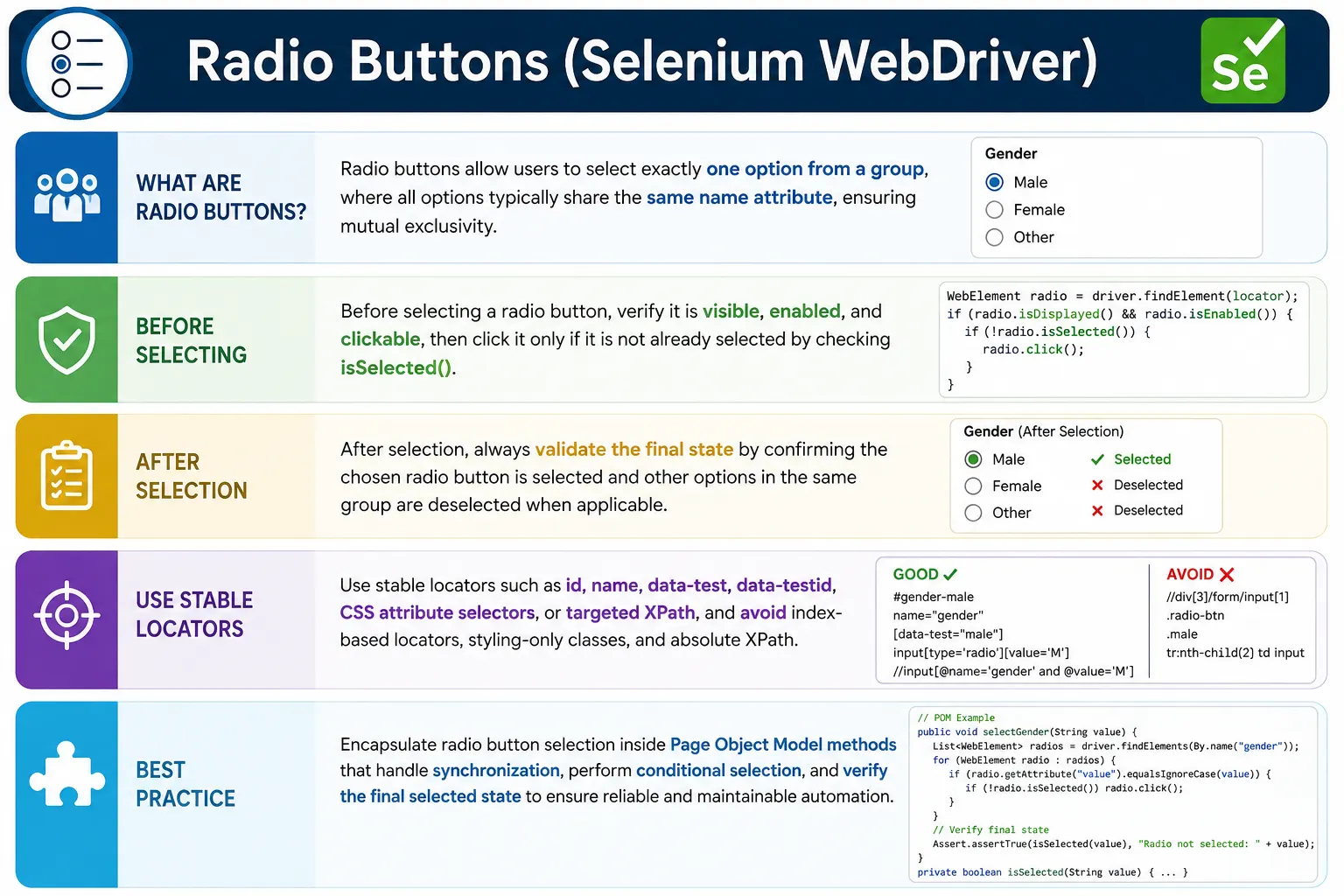
Understanding Radio Buttons in Selenium
Radio buttons are small UI controls, but they represent an important interaction pattern in web applications: choosing exactly one option from a group. Users see radio buttons in registration forms, checkout pages, survey screens, account settings, subscription plans, filters, payment choices, delivery options, and preference sections. In Selenium automation, radio buttons look simple because they can be clicked like other elements. The real testing value, however, comes from validating the selection state and the group behavior after the click.
A radio button is not only an individual element. It is part of a group. The group usually represents a set of mutually exclusive choices. When one option is selected, the other options in the same group should become unselected automatically. This behavior is what separates radio buttons from checkboxes. A checkbox can be toggled independently. A radio button belongs to a choice group. Selenium tests must understand that grouping rule, otherwise they may only verify that one element was clicked and miss important defects in the form logic.
Stable radio button automation combines correct locators, synchronization, state checks, and business-aware validation. A test should not assume a click worked. It should click only when the option is ready, verify isSelected(), and, where necessary, verify that other options in the same group are no longer selected. In a professional framework, this logic should be placed inside page object methods such as selectGender, selectSubscriptionPlan, choosePaymentMethod, or selectDeliveryOption.
What Is a Radio Button?
Mutually Exclusive Selection
A radio button is an input control that lets the user choose one option from a group. In HTML, radio buttons are commonly implemented with input type="radio". Options that share the same name attribute are treated as a group by the browser. When a user selects one radio button in that group, the browser deselects the previously selected option. This native behavior is the foundation of radio button testing.
The group behavior matters more than the individual click. For example, a form may ask for gender, payment method, shipping speed, or account type. Selecting Female should unselect Male in the same gender group. Selecting Credit Card should unselect UPI, PayPal, or Cash on Delivery in the payment group. If multiple options can remain selected in the same group, the application has a defect or the control should have been a checkbox group instead.
Default Selection and Empty Selection
Some radio groups have a default selected option. For example, a subscription page may default to Monthly, or a shipping form may default to Standard Delivery. Other radio groups may start with no selection and require the user to choose. Selenium tests should understand the expected initial state. If the requirement says no option should be selected initially, the test should verify that. If the requirement says a default should be selected, the test should verify the correct default.
Initial state validation prevents subtle issues. A wrong default option may affect pricing, permissions, communication preferences, or workflow routing. Radio button tests should therefore cover not only selecting an option, but also verifying initial state when it matters to the business.
How Radio Buttons Behave
Clicking an Unselected Option
When a user clicks an unselected radio button, that option becomes selected and the previously selected option in the same group becomes unselected. Selenium performs this interaction with click(). After clicking, the test should verify the selected option using isSelected(). If the group behavior is important, the test should also check that other options are not selected.
This post-click validation is important because a click can be intercepted, ignored, blocked, or applied to the wrong element if the locator is weak. A test that clicks and moves on may pass even when the selection did not actually change. isSelected() gives the test direct evidence of final state.
Clicking an Already Selected Option
Clicking an already selected radio button normally does not unselect it. This is different from a checkbox, where a second click toggles the state off. Radio buttons are designed for one-of-many selection. Once an option is selected, the user changes the group state by selecting a different option, not by unclicking the same one.
This behavior affects automation design. A page method should usually check whether the desired option is already selected before clicking. If it is already selected, the method can return without performing another click. This avoids redundant interactions and reduces the chance of triggering unnecessary UI updates, validation calls, or re-rendering.
Core Selenium Operations on Radio Buttons
Selecting a Radio Button
The standard way to select a radio button in Selenium is click(). The click may be performed on the input itself or, in many applications, on the associated label. Clicking the label is often more reliable when the actual radio input is small, visually hidden, or styled by a JavaScript framework. The final validation should still check the underlying input's selected state.
Before clicking, the option should be visible or at least interactable through its label, enabled according to the application's rules, and not blocked by overlays. If the radio button appears after dynamic content loads, use explicit waits. If the option is inside a modal or frame, wait for the context before interacting.
Checking Selection with isSelected()
isSelected() is the primary Selenium method for checking whether a radio button is selected. It returns true when the option is selected and false when it is not. This method should be used after clicking and also for initial state checks. It is more reliable than guessing based on CSS styling because it reads the element's selected state.
Be careful to call isSelected() on the actual input element, not on a label, div, span, or decorative wrapper unless the custom component explicitly maps selection state there. For styled radio buttons, the visible circle may be a label or pseudo-element, while the real input is hidden. Locate the input for state validation and use the label for clicking when needed.
Validating the Group
Group validation confirms that only one radio button is selected within the group. Selenium can find all radio buttons with the same name attribute and count how many return true for isSelected(). In a valid native radio group, that count should be one when selection is required, or zero before any user selection if the form allows no default. After selecting an option, the selected count should usually be exactly one.
This check is valuable in forms where business logic depends on a single choice. It also catches markup issues, such as radio buttons accidentally using different name attributes when they should belong to the same group. If two options can be selected together, the group may be incorrectly implemented.
Locating Radio Buttons Reliably
Use Stable Attributes
Good locators make radio button tests stable. If each option has a unique ID, the ID can be used. If IDs are dynamic or unavailable, CSS selectors using type, name, and value are often clear and reliable. For example, a selector can target input[type='radio'][name='gender'][value='female']. In enterprise applications, data-test, data-testid, or data-qa attributes are often the best choice because they are designed for automation.
Stable locators should reflect the meaning of the option. Avoid locators based only on position, such as the second radio button on the page. Position-based locators break when new options are added or the layout changes. Radio groups are especially sensitive to this because business options may be reordered.
Use Label Relationships Carefully
Many radio buttons are associated with labels. Sometimes the label wraps the input. Sometimes the label uses a for attribute that points to the input ID. Sometimes the visible label is separate from the hidden input and the framework connects them with custom markup. Selenium tests often need to use these relationships to click the option the user sees.
Label-based XPath can be useful when the visible option text is stable. For example, locating a label by normalized text and then clicking it can be more user-like than clicking a tiny hidden input. However, visible text locators may be fragile in multilingual applications or when labels change frequently. Use text locators when the text is part of the requirement and stable; otherwise prefer data attributes or input values.
Synchronization Challenges with Radio Buttons
Dynamic Enablement
Radio buttons may be disabled until another field is completed, a checkbox is selected, an API response is received, or a user role allows selection. A Selenium test should not force the option. It should perform the prerequisite action and wait until the desired option becomes enabled or clickable. This validates the workflow more accurately than bypassing the UI.
Dynamic enablement should be tested explicitly when it is part of the business requirement. For example, a plan option may remain disabled until a country is selected. The test can verify it is disabled initially, select the country, wait for enablement, and then select the plan. This proves both the dependency and the selection behavior.
DOM Re-Rendering After Selection
In modern JavaScript applications, selecting a radio option may re-render part of the form. A different set of fields may appear, pricing may update, or validation messages may change. When the DOM re-renders, a previously located radio element can become stale. If the test stores the element and uses it later, Selenium may throw StaleElementReferenceException.
The solution is to re-locate elements after transitions and validate final state after the UI settles. Page methods should use By locators rather than long-lived WebElement references when the form is dynamic. If a re-render is expected, waits can ignore stale elements during polling and return the fresh final element.
CSS-Based Disabled States
Not every disabled-looking radio button uses the native disabled attribute. Custom components may represent disabled state through CSS classes, aria-disabled, or internal JavaScript state. In such cases, isEnabled() may not fully reflect what the user can do. The automation framework should inspect the application markup and choose the correct state check.
This is especially common in design systems and component libraries. A radio option may be a styled wrapper with a hidden input. The wrapper may carry the visual disabled class while the input is technically enabled or hidden. A robust test validates both user-facing behavior and the state marker used by the component.
Disabled and Locked Radio Buttons
Validate the Reason, Not Only the State
Disabled radio buttons often exist for a business reason. A payment option may be disabled for unsupported countries. A premium feature may be locked for free users. A shipping method may be unavailable for a selected address. A test should not only check that the option is disabled; it should validate that the correct option is disabled under the correct condition.
This makes radio button testing more meaningful. Instead of simply verifying isEnabled() is false, the test can establish the context, such as selecting a specific country or account type, and then confirm the expected radio options are locked or available. This connects UI state to business rules.
Avoid Forcing Disabled Options
JavaScript can sometimes force a hidden or disabled radio input to change, but doing so usually creates an unrealistic test. If a real user cannot choose the option, a UI automation test should not bypass that restriction. Forcing a disabled option may also skip important validation logic and produce a state that the application would never allow through normal interaction.
The better test is to verify that the disabled state is correct or perform the prerequisite action that enables the option. Selenium should model the user path unless the test is specifically designed to investigate a technical edge case.
Radio Buttons in Page Object Model
Use Semantic Page Methods
Page objects should expose methods that describe user intent rather than radio mechanics. A registration page can expose selectGender(String gender). A checkout page can expose selectPaymentMethod(String method). A pricing page can expose selectPlan(String plan). These methods can locate the correct option, wait for readiness, click only when needed, and validate final state.
This design keeps tests readable. The test says what option the user selects, while the page object handles how the selection is performed. If the application changes from visible inputs to label-based custom controls, the page object can change without rewriting every test.
Centralize Group Validation
Group validation can also be centralized. A helper method can count selected options in a group, return the selected value, or assert that a specific value is selected. This prevents each test from writing its own loop over radio elements. It also makes group behavior checks consistent across the suite.
For example, a method named getSelectedPaymentMethod can inspect the group and return the selected value. A method named assertOnlyPlanSelected can verify mutual exclusivity. These helpers make radio button tests more expressive and less error-prone.
Common Mistakes with Radio Buttons
Clicking Without Verifying Selection
The most common mistake is clicking a radio button and assuming the selection succeeded. Clicks can fail due to overlays, disabled state, wrong locators, stale elements, or custom component behavior. Always verify the final state with isSelected() on the correct input or with the component's reliable selected-state marker.
This verification is cheap and valuable. It catches failures immediately at the point of interaction rather than allowing the test to fail later with a less obvious cause.
Ignoring Group Behavior
Another mistake is validating only the selected option and ignoring the other options in the group. For many business workflows, mutual exclusivity is the actual requirement. If selecting Express Shipping does not unselect Standard Shipping, the form may submit conflicting data. Tests should validate group behavior when it matters.
Group validation is especially important when markup is generated dynamically. A developer may accidentally give two related radio options different name attributes. The browser then treats them as separate groups, allowing multiple selections. Selenium tests can catch this by counting selected options in the group.
Using Fragile Index-Based Locators
Index-based locators such as the first radio button or second label are fragile. They break when option order changes or new choices are added. Radio button locators should use meaningful attributes such as value, name, ID, data-test, or stable label text. This keeps tests tied to the selected business option rather than layout.
Interview Perspective on Radio Buttons
Short Interview Answer
Radio buttons allow selecting one option from a group. In Selenium, they are selected using click() and validated using isSelected().
Detailed Interview Answer
In Selenium automation, radio buttons should be handled by locating the correct option, waiting until it is ready, clicking only if it is not already selected, and verifying the final state with isSelected(). Radio buttons are grouped by the same name attribute, so selecting one option should deselect the others in that group. In real projects, group behavior, disabled states, label-based clicks, and dynamic re-rendering should also be considered.
Real Project Explanation
In a real framework, I would create page methods such as selectGender, selectPlan, or selectPaymentMethod. The method would identify the option by value or stable label, wait for clickability, click only if needed, and then validate that the desired option is selected. If the feature requires mutual exclusivity validation, I would also check that no other option in the same group remains selected.
The key takeaway is that radio button automation is state validation, not just clicking. Stable Selenium tests understand grouping, use reliable locators, synchronize before interaction, verify isSelected(), and encapsulate selection behavior inside page objects. When these practices are followed, radio button tests become reliable and meaningful.
Real-World Radio Button Scenarios
Registration and Profile Forms
Registration and profile forms commonly use radio buttons for gender, account type, communication preference, user category, or employment status. These fields may look simple, but they often affect downstream behavior. Selecting a student account may reveal education fields. Selecting a business account may reveal company details. Selecting a communication preference may enable or disable email and phone fields. A Selenium test should verify both the radio selection and the dependent UI change.
In these scenarios, the radio button page method should not stop after the click. It should wait for the dependent section, hidden field, validation message, or enabled control that proves the application responded to the selection. This is how the test validates the workflow instead of only validating that Selenium clicked a circle on the page.
Checkout, Payment, and Shipping Options
Checkout flows often use radio buttons for shipping speed, payment method, billing address, delivery slot, or packaging preference. These choices can affect price, tax, delivery date, fees, and available next steps. Automation should verify that selecting an option updates the correct business information. For example, choosing Express Delivery may update the delivery date and total cost. Choosing Credit Card may display payment fields, while choosing Cash on Delivery may hide them.
This is where group validation becomes valuable. A checkout test should confirm that only the intended delivery option is selected, then verify that the price or date changed as expected. If two shipping methods are selected at the same time, the UI may send conflicting data to the backend. Selenium can catch this problem by checking group state before submitting the order.
Survey and Questionnaire Screens
Surveys, assessments, and questionnaires often contain many radio button groups on one page. Each question has its own group, and each group should allow exactly one answer. In this situation, locators must be scoped carefully. A locator that simply finds the label Yes may match the first Yes on the page instead of the Yes option for the intended question. The test should locate the question container first and then find the option inside that container.
Scoped locators make tests more readable and safer. A page method such as answerQuestion("Do you agree?", "Yes") can find the question block and select the correct radio option within that block. This prevents accidental selection in the wrong group and makes the test closer to how a user reads the page.
Accessibility and Radio Button Testing
Labels Improve Automation and Usability
Proper labels are important for both users and automation. A radio button with a connected label gives users a larger clickable area and helps screen readers announce the option correctly. It also gives Selenium a stable way to interact with visible option text. If a user can click the label to select the option, a test can often click the label as well and then verify the input state.
Poorly labeled radio buttons create usability and automation problems. If the visible text is not connected to the input, clicking the label may do nothing. If the group has no accessible name, users may not understand the choice. While Selenium is not a complete accessibility testing tool, radio button automation can reveal some of these issues when label clicks or state checks do not behave as expected.
ARIA Attributes in Custom Components
Custom radio components may use ARIA roles such as role="radio" and aria-checked to represent selection state. In these cases, the visible component may not be a native input type radio. Selenium tests may need to inspect aria-checked instead of isSelected(), or they may need to locate a hidden native input for final state. The correct strategy depends on how the component is implemented.
A framework should not guess. Inspect the DOM and determine where the true state is stored. If the component is accessible and uses ARIA correctly, aria-checked should reflect the selected option. If a hidden input backs the component, that input may still be the best state source. The important point is to validate the same state that the application and users depend on.
Radio Button Stability in CI
Why Radio Tests Can Fail Remotely
Radio button tests can fail in CI when the form renders slowly, a modal is still opening, a validation overlay is present, or a JavaScript framework re-renders the option after a click. A local run may be fast enough that these timing issues are not visible. A remote browser or shared runner may expose them. Fixed sleeps are not a good solution because they do not verify final state.
CI-ready radio button tests use explicit waits, fresh locators, and post-click validation. Before selecting, the option or label should be interactable. After selecting, the test should re-check state and dependent UI behavior. If the form re-renders, the test should re-locate the element instead of relying on an old reference. This makes the test resilient across local, headless, grid, and parallel execution.
Useful Failure Diagnostics
When a radio button test fails, the report should include the group name, desired value, selected value, current URL, displayed state, enabled state, and screenshot. If group validation fails, log how many options were selected and which values they had. This evidence makes it easier to decide whether the issue is a locator problem, a timing issue, a disabled business rule, a component bug, or incorrect test data.
Good diagnostics are especially important for dynamic forms. A screenshot may show that a prerequisite field was not completed, the option was disabled, the wrong modal was open, or the page had validation errors. Radio button failures should not be vague. They should explain which option was expected and what state the group actually reached.
In Selenium, radio button handling is a common interview topic and a frequent source of subtle bugs when grouping logic is ignored.
1. What Is a Radio Button
Definition:
A radio button is a selectable element where only one option can be selected at a time within the same group.
Typical HTML:
<input type="radio" name="gender" value="male">
<input type="radio" name="gender" value="female">
Key rule:
Radio buttons are grouped by the same name attribute.
2. How Radio Buttons Behave
- Selecting one radio button automatically deselects others in the same group
- A group may have:
- A default selected option
- No selection initially
- Clicking an already-selected radio button does not change state
3. Core Operations on Radio Buttons
3.1 Selecting a Radio Button
- Use click() to select
- Always verify the final state using isSelected()
3.2 Checking Selection State
- Use isSelected() to confirm selection
- Do not assume a click succeeded
3.3 Validating Group Behavior
- Selecting one option should deselect others
- Validate mutual exclusivity where business rules require it
4. Recommended Interaction Pattern (Best Practice)
A stable radio button pattern:
- Ensure the radio button is visible
- Ensure it is enabled
- Click only if not already selected
- Validate selection using isSelected()
This avoids redundant clicks and reduces flakiness.
5. Locating Radio Buttons (Best Practices)
Preferred locator strategies:
- ID (if unique per option)
- CSS selector using attributes (type, value, name)
- XPath using label-input relationship
- data-testid / data-qa (enterprise standard)
Avoid:
- Index-based locators
- Styling-only classes
- Absolute XPath
6. Radio Buttons with Labels (Very Common)
Often, the clickable area is the label, not the input.
Example:
<label>
  <input type="radio" name="plan" value="basic">
  Basic Plan
</label>
Best practice:
- Click the label text when input is hidden or small
- Validate the input's isSelected() state afterward
7. Synchronization Challenges
Common issues:
- Radio buttons enabled after API validation
- DOM refresh after selection (React re-render)
- CSS-based disabled states (not actual disabled attribute)
Solutions:
- Wait for clickability before clicking
- Re-locate element if DOM refresh occurs
- Validate state post-click, not pre-click
8. Disabled and Read-Only Radio Buttons
- Disabled radios cannot be selected
- isEnabled() returns false
- Attempting click causes exception
Validation focus:
- Verify disabled state
- Verify correct option is locked based on business rules
9. Radio Buttons in Page Object Model (POM)
Best practice:
- Expose semantic methods like:
- selectGender(String gender)
- isPlanSelected(String plan)
Page methods should:
- Handle waits
- Handle selection logic
- Validate final state
Tests should not manage radio mechanics directly.
10. Common Beginner Mistakes
- Clicking radio buttons without checking current state
- Using isSelected() on non-radio elements
- Ignoring group behavior
- Assuming visibility means clickability
- Using index-based locators
11. Interview Perspective
Short Answer:
Radio buttons allow selecting one option from a group, and in Selenium they are handled using click() and validated using isSelected().
Real-Time Answer:
In Selenium automation, radio buttons are grouped by the same name attribute. We select them using click() and always verify the state using isSelected(). In real projects, we also validate that selecting one option deselects others in the same group and apply proper synchronization before interaction.
12. Key Takeaway
- Radio buttons enforce mutual exclusivity
- Always validate selection using isSelected()
- Handle labels and grouping carefully
- Synchronize before interaction
- Encapsulate logic in page objects
Radio button automation is about validating state transitions-not just performing clicks.
13. Selenium Java Radio Button Code Snippets
1. Select Radio Button by ID
driver.findElement(By.id("male")).click();
2. Select Radio Button by Name + Value
driver.findElement(By.cssSelector("input[name='gender'][value='Female']")).click();
3. Select Radio Button Using XPath
driver.findElement(By.xpath("//input[@type='radio' and @value='Other']")).click();
4. Verify Radio Button Is Selected
WebElement radio = driver.findElement(By.id("male"));

if (radio.isSelected()) {
    System.out.println("Male radio button is selected");
}
5. Select Radio Button Only If Not Already Selected
WebElement radio = driver.findElement(By.id("male"));

if (!radio.isSelected()) {
    radio.click();
}
6. Select Radio Button Using Label Text
driver.findElement(By.xpath("//label[text()='Male']")).click();
7. Select Radio Button Using normalize-space()
driver.findElement(By.xpath("//label[normalize-space()='Female']")).click();
8. Select Radio Button Using Following-Sibling Axis
driver.findElement(By.xpath("//label[text()='Male']/following-sibling::input")).click();
9. Get All Radio Buttons in Group
List<WebElement> radios = driver.findElements(By.name("gender"));

for (WebElement radio : radios) {
    System.out.println(radio.getAttribute("value"));
}
10. Select Radio Button Dynamically from List
List<WebElement> radios = driver.findElements(By.name("gender"));

for (WebElement radio : radios) {
    if (radio.getAttribute("value").equals("Female")) {
        radio.click();
        break;
    }
}
11. Validate Only One Radio Button Is Selected
List<WebElement> radios = driver.findElements(By.name("gender"));

int count = 0;

for (WebElement radio : radios) {
    if (radio.isSelected()) {
        count++;
    }
}

System.out.println("Selected count: " + count);
12. Wait and Select Radio Button
WebDriverWait wait = new WebDriverWait(driver, Duration.ofSeconds(10));

WebElement radio = wait.until(
        ExpectedConditions.elementToBeClickable(By.id("male"))
);

radio.click();
13. Select Radio Button Using JavaScript (If Hidden)
WebElement radio = driver.findElement(By.id("male"));

JavascriptExecutor js = (JavascriptExecutor) driver;
js.executeScript("arguments[0].click();", radio);
14. Verify Radio Button Is Enabled
WebElement radio = driver.findElement(By.id("male"));

if (radio.isEnabled()) {
    radio.click();
}
15. Handle Radio Button Inside Frame
driver.switchTo().frame("frame1");
driver.findElement(By.id("male")).click();
driver.switchTo().defaultContent();
16. Select Radio Button Using Partial Value
driver.findElement(By.xpath("//input[@type='radio' and contains(@value,'Fem')]")).click();
17. Validate Radio Button Attribute
WebElement radio = driver.findElement(By.id("male"));

String value = radio.getAttribute("value");
System.out.println("Radio value: " + value);
18. Click Radio Button Inside Modal
WebDriverWait wait = new WebDriverWait(driver, Duration.ofSeconds(10));

wait.until(ExpectedConditions.visibilityOfElementLocated(By.id("modal")));
driver.findElement(By.id("male")).click();
19. Select Radio Button Using data-test Attribute
driver.findElement(By.cssSelector("input[data-test='gender-male']")).click();
20. Radio Button in Page Object Model (POM)
public class RegistrationPage {

    WebDriver driver;

    By maleRadio = By.id("male");
    By femaleRadio = By.id("female");

    public RegistrationPage(WebDriver driver) {
        this.driver = driver;
    }

    public void selectMale() {
        driver.findElement(maleRadio).click();
    }

    public void selectFemale() {
        driver.findElement(femaleRadio).click();
    }
}
14. Radio Button Automation Best Practices
- Use name attribute for group identification
- Validate using isSelected()
- Ensure only one option is selected
- Use Explicit Wait when necessary
- Prefer id or data-test locators
- Avoid using index-based XPath