Prompt Alerts in Selenium Java
1. Introduction
A prompt alert is a special type of JavaScript alert that allows a user to enter text before choosing OK or Cancel. In Selenium Java, prompt alerts are handled through the same Alert interface used for normal alerts and confirmation alerts, but prompt alerts add one important method to the workflow: sendKeys(). This method enters text into the prompt input field.
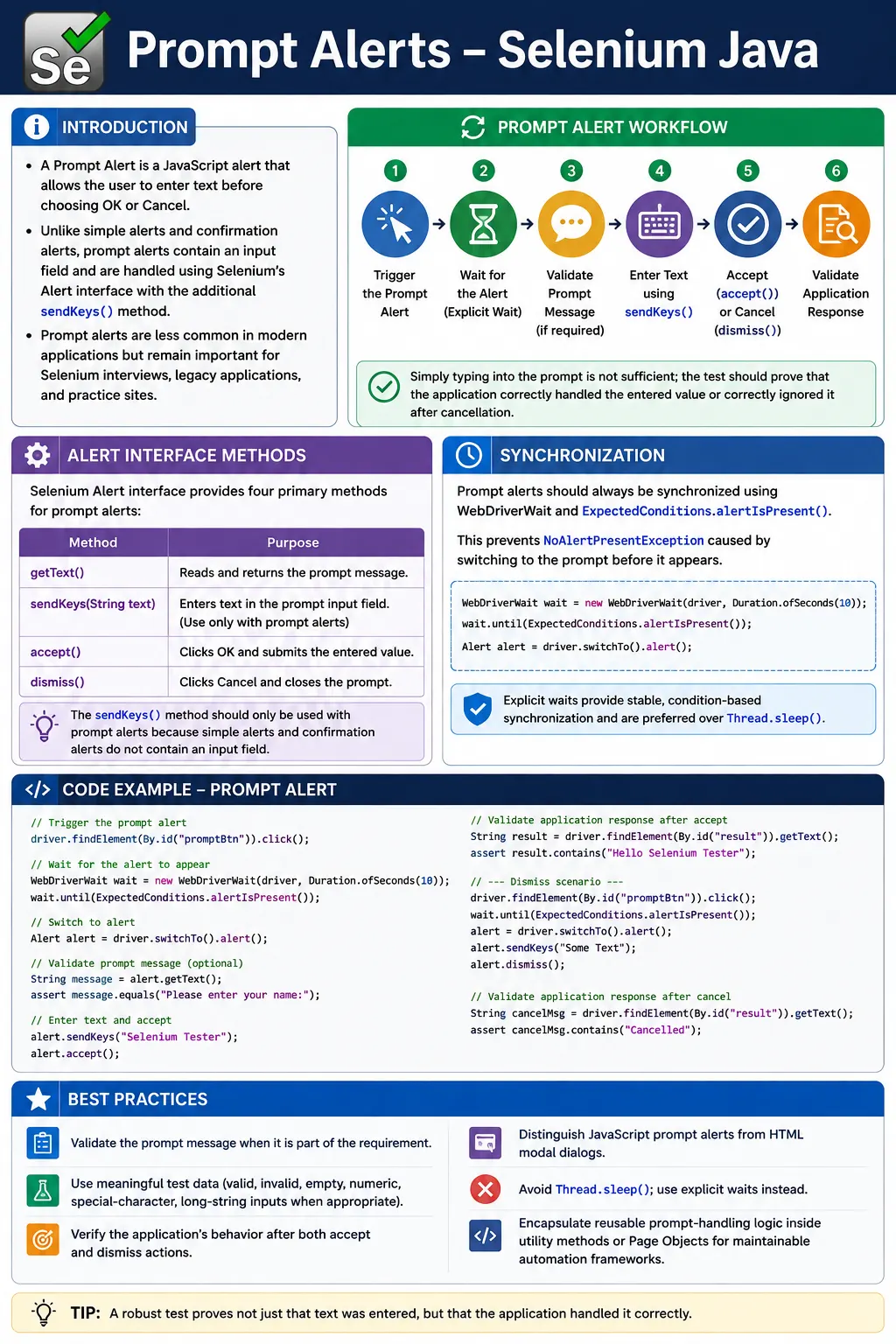
Prompt alerts are less common in modern enterprise applications than HTML modals or custom dialogs, but they are still important for Selenium interviews and for legacy applications. They are also useful on practice pages because they combine several alert skills: switching to the alert, reading text, entering data, accepting, dismissing, waiting, and validating the page result.
A reliable prompt alert test does not only type into the prompt. It triggers the prompt, waits until it is present, validates the prompt message when required, enters test data, accepts or dismisses the prompt, and then verifies what the application did with that input. This complete flow is what separates a demo script from real automation.
2. What Is a Prompt Alert?
A prompt alert displays a message, provides a text input field, and shows OK and Cancel buttons. It is created in JavaScript with the prompt() function.
prompt("Enter your name");The browser displays a native dialog with a message, an input box, and buttons. Unlike a simple alert, the user can type data. Unlike a confirmation alert, the result may depend not only on OK or Cancel but also on the entered value.
- It displays a message to the user.
- It accepts text input.
- It provides OK and Cancel actions.
- It blocks page interaction until handled.
- It is handled through Selenium's
Alertinterface.
3. Required Imports
The common imports for prompt alert handling include Alert, explicit waits, and exception handling.
import org.openqa.selenium.Alert;
import org.openqa.selenium.NoAlertPresentException;
import org.openqa.selenium.JavascriptExecutor;
import org.openqa.selenium.support.ui.ExpectedConditions;
import org.openqa.selenium.support.ui.WebDriverWait;
import java.time.Duration;
Most real framework examples also use assertions from TestNG or JUnit. If the prompt is triggered inside an iframe, frame switching is needed before the prompt is created.
4. Selenium Alert Interface for Prompt Alerts
Selenium switches to a prompt alert the same way it switches to other JavaScript alerts.
Alert alert = driver.switchTo().alert();Prompt alerts support these important methods:
| Method | Purpose |
|---|---|
| getText() | Reads the prompt message |
| sendKeys() | Enters text into the prompt input |
| accept() | Submits the entered value |
| dismiss() | Cancels the prompt |
sendKeys() should be used only on prompt alerts. A simple alert or confirmation alert does not have an input field.
5. Prompt Alert Workflow
The standard prompt workflow is simple, but each step matters.
Click Button
    ↓
Prompt Appears
    ↓
Switch To Alert
    ↓
Read or Validate Message
    ↓
Enter Text
    ↓
Accept OR Dismiss
    ↓
Validate Result
If any step is skipped, the test may become weak. Without waiting, the test can fail intermittently. Without message validation, the wrong prompt may be handled. Without result validation, the test cannot prove that the application used or ignored the input correctly.
6. Basic Prompt Alert Example
The simplest prompt test clicks a button, switches to the alert, enters text, and accepts it.
driver.findElement(By.id("promptBtn")).click();

Alert alert = driver.switchTo().alert();

alert.sendKeys("Suresh");

alert.accept();
This submits Suresh to the application. If the page displays that value after the prompt closes, the test should verify it.
7. Read Prompt Message
Before entering data, the test can read the prompt message with getText().
driver.findElement(By.id("promptBtn")).click();

Alert alert = driver.switchTo().alert();

String message = alert.getText();

System.out.println(message);
If the prompt message is part of the requirement, do not only print it. Assert it. This catches incorrect messages and wrong prompts.
8. Validate Prompt Message
Prompt message validation is important when the page has multiple prompt flows or when the exact instruction matters.
driver.findElement(By.id("promptBtn")).click();

Alert alert = driver.switchTo().alert();

Assert.assertEquals(
    alert.getText(),
    "Enter your name"
);
After validation, the test can enter data and accept or dismiss the prompt. If the message is dynamic, build the expected value from test data instead of using a vague assertion.
9. Enter Text and Accept
This is the most common prompt scenario. The user enters data and clicks OK.
driver.findElement(By.id("promptBtn")).click();

Alert alert = driver.switchTo().alert();

alert.sendKeys("SoftwareTips4U");

alert.accept();
Accepting the prompt should submit the entered value. The page result should confirm that the value was applied.
10. Enter Text and Dismiss
Dismissing a prompt should cancel the prompt. In most applications, the entered value should be ignored.
driver.findElement(By.id("promptBtn")).click();

Alert alert = driver.switchTo().alert();

alert.sendKeys("Temporary Value");

alert.dismiss();
This is an important negative path. If the application still uses the value after Cancel, that is a product defect.
11. Validate Result After Accept
A complete accept test verifies that the entered prompt value appears in the application.
driver.findElement(By.id("promptBtn")).click();

Alert alert = driver.switchTo().alert();

alert.sendKeys("Suresh");
alert.accept();

String result =
    driver.findElement(By.id("result")).getText();

Assert.assertEquals(result, "Suresh");
This assertion proves that the prompt input was submitted and processed. Without this check, the test only proves that Selenium typed into a browser dialog.
12. Validate Result After Dismiss
The dismiss path should verify that the input was cancelled.
driver.findElement(By.id("promptBtn")).click();

Alert alert = driver.switchTo().alert();

alert.dismiss();

String result =
    driver.findElement(By.id("result")).getText();

Assert.assertEquals(result, "User Cancelled");
Some applications display a specific cancel message. Others leave the previous value unchanged. The assertion should match the requirement.
13. Wait for Prompt Alert
Never assume the prompt appears instantly. Use an explicit wait.
WebDriverWait wait =
    new WebDriverWait(driver, Duration.ofSeconds(10));

Alert alert =
    wait.until(ExpectedConditions.alertIsPresent());

alert.sendKeys("Suresh");
alert.accept();
This is the recommended pattern for stable automation. It prevents NoAlertPresentException when the prompt appears after a small delay.
14. Handle Delayed Prompt Alert
Some prompts appear after a timer, AJAX response, or validation process.
driver.findElement(By.id("showPrompt")).click();

Alert alert =
    new WebDriverWait(driver, Duration.ofSeconds(10))
        .until(ExpectedConditions.alertIsPresent());

alert.sendKeys("Automation");

alert.accept();
Use a timeout that matches expected application behavior. Do not use Thread.sleep() as the normal solution.
15. Enter Dynamic Text
Prompt input often comes from test data rather than hardcoded text.
String username = "SoftwareTips4U";

driver.findElement(By.id("promptButton")).click();

Alert alert = driver.switchTo().alert();

alert.sendKeys(username);

alert.accept();
Dynamic values are useful for rename tests, generated test records, and data-driven tests.
16. Empty, Numeric, Special, and Long Input
Prompt alerts should be tested with meaningful input variations when the application validates the value. Useful inputs include empty string, numbers, special characters, and long text.
alert.sendKeys("");
alert.accept();
alert.sendKeys("12345");
alert.accept();alert.sendKeys("@#$%^&*");
alert.accept();alert.sendKeys("This is a sample prompt alert automation example.");
alert.accept();These inputs help uncover validation issues. The expected result should be clearly defined before automating the case.
17. Accept Prompt Without Input
Some applications allow accepting a prompt without entering anything. Others show validation or treat it as null.
driver.findElement(By.id("promptButton")).click();

Alert alert = driver.switchTo().alert();

alert.accept();
Validate the behavior based on the requirement. If empty input is invalid, the application should not silently create bad data.
18. Dismiss Prompt Without Input
Dismissing without input should normally cancel the operation.
driver.findElement(By.id("promptButton")).click();

Alert alert = driver.switchTo().alert();

alert.dismiss();
This test is useful for confirming that the cancel path is safe even when the user does not type anything.
19. Prompt Alert Inside Frame
If the button that triggers the prompt is inside a frame, switch to the frame before clicking it. The prompt itself is still handled as a browser alert.
driver.switchTo().frame("frame1");

driver.findElement(By.id("promptButton")).click();

Alert alert = driver.switchTo().alert();

alert.sendKeys("Frame User");
alert.accept();

driver.switchTo().defaultContent();
After handling the prompt, return to the correct frame context for the next action.
20. Accept Prompt Only If Message Matches
Conditional prompt handling can be used when multiple prompts are possible, but required flows should normally assert exact text.
driver.findElement(By.id("promptButton")).click();

Alert alert = driver.switchTo().alert();

if (alert.getText().contains("Enter")) {
    alert.sendKeys("Admin");
    alert.accept();
}
If the alert text does not match the expected prompt, failing the test is usually better than silently doing nothing.
21. Prompt Generated by JavaScript
For learning or utility testing, a prompt can be triggered directly with JavaScript.
JavascriptExecutor js = (JavascriptExecutor) driver;

js.executeScript("prompt('Enter your city');");

Alert alert = driver.switchTo().alert();

alert.sendKeys("Chicago");
alert.accept();
In business tests, prefer triggering prompts through real application actions instead of injecting JavaScript.
22. Check Whether Prompt Exists
Optional prompts should be handled carefully. If a prompt may or may not appear, catch NoAlertPresentException only when both outcomes are valid.
try {
    Alert alert = driver.switchTo().alert();
    alert.sendKeys("User");
    alert.accept();
} catch (NoAlertPresentException e) {
    System.out.println("Prompt not available.");
}
If the test requirement says a prompt must appear, do not hide failure with optional handling. Use an explicit wait and fail if the prompt does not appear.
23. NoAlertPresentException
NoAlertPresentException occurs when Selenium switches to an alert before the prompt exists.
driver.switchTo().alert();The fix is usually synchronization.
Alert alert = new WebDriverWait(driver, Duration.ofSeconds(10))
    .until(ExpectedConditions.alertIsPresent());
This exception is common in delayed prompt examples and AJAX-driven pages.
24. UnhandledAlertException
UnhandledAlertException occurs when a prompt is open and Selenium tries to interact with the page.
driver.findElement(By.id("save")).click();If the prompt is still open, page interaction is blocked. Handle the prompt first, then continue with page actions.
25. Real Project Example: Rename File
Prompt alerts are often used in older file-manager style applications for rename workflows.
renameButton.click();

Alert alert =
    wait.until(ExpectedConditions.alertIsPresent());

alert.sendKeys("Employee_Report");

alert.accept();
After accepting, validate that the file name changed in the UI. If the application updates asynchronously, wait for the new file name to appear.
26. Real Project Example: Admin Notes
An admin tool may use a prompt to collect short notes.
addNoteButton.click();

Alert alert =
    wait.until(ExpectedConditions.alertIsPresent());

alert.sendKeys("Approved by Admin");

alert.accept();

Assert.assertTrue(
    driver.getPageSource().contains("Approved by Admin")
);
A stronger assertion would locate the exact note area instead of searching the whole page source, but the example shows the basic idea.
27. Real Project Example: Cancel Rename
The cancel path is just as important as the accept path. If a user enters a new file name and cancels, the file should keep its original name.
renameButton.click();

Alert alert =
    wait.until(ExpectedConditions.alertIsPresent());

alert.sendKeys("Temporary_Name");

alert.dismiss();

Assert.assertTrue(isFileVisible("Original_Name"));
Assert.assertFalse(isFileVisible("Temporary_Name"));
This verifies that dismissing the prompt ignored the entered value.
28. Reusable Prompt Method
A reusable prompt method improves consistency across tests.
public void enterPromptText(String text) {
    Alert alert = driver.switchTo().alert();

    alert.sendKeys(text);

    alert.accept();
}
Usage:
driver.findElement(By.id("promptButton")).click();

enterPromptText("Selenium");
This simple method assumes the prompt is already present. A production utility should include an explicit wait.
29. Prompt Utility with Explicit Wait
A better framework method waits for the prompt before typing.
public void handlePrompt(String text) {
    WebDriverWait wait =
        new WebDriverWait(driver, Duration.ofSeconds(10));

    Alert alert =
        wait.until(ExpectedConditions.alertIsPresent());

    alert.sendKeys(text);

    alert.accept();
}
Usage:
driver.findElement(By.id("promptButton")).click();

handlePrompt("Automation");
30. Utility Returning Prompt Text
A utility can return the prompt message for validation.
public static String getPromptText(WebDriver driver) {
    Alert alert =
        new WebDriverWait(driver, Duration.ofSeconds(10))
            .until(ExpectedConditions.alertIsPresent());

    return alert.getText();
}
If this method does not close the prompt, the caller must still accept or dismiss it. Otherwise the browser remains blocked.
31. Full Prompt Utility
A complete utility can support text validation, accept, and dismiss behavior.
public void typeAndAcceptPrompt(String expectedText, String value) {
    Alert alert = new WebDriverWait(driver, Duration.ofSeconds(10))
        .until(ExpectedConditions.alertIsPresent());

    Assert.assertEquals(alert.getText(), expectedText);

    alert.sendKeys(value);
    alert.accept();
}

public void typeAndDismissPrompt(String value) {
    Alert alert = new WebDriverWait(driver, Duration.ofSeconds(10))
        .until(ExpectedConditions.alertIsPresent());

    alert.sendKeys(value);
    alert.dismiss();
}
These methods keep prompt handling consistent and make tests easier to read.
32. Prompt Alerts in Page Objects
Page objects should expose business actions, not only alert mechanics. For example, a file manager page object can provide renameFile() and cancelRenameFile().
public void renameFile(String oldName, String newName) {
    clickRenameForFile(oldName);
    typeAndAcceptPrompt("Enter new file name", newName);
    waitUntilFileVisible(newName);
}
This keeps test cases focused on user behavior. If the application later changes from a prompt alert to an HTML modal, the page object can absorb that change.
33. Prompt Input Test Data Strategy
Prompt alerts are input controls, so they deserve test data planning. Do not test only one happy-path value if the prompt has validation rules. Include normal values, empty values, numbers, special characters, long strings, leading spaces, trailing spaces, and duplicate names when relevant.
For example, a rename prompt should reject empty names, possibly trim spaces, prevent duplicates, and handle special characters according to business rules. Each behavior should have a clear expected result before it becomes an automated test.
34. Prompt Alerts vs HTML Input Modals
Some applications show custom modals that look like prompts but are normal HTML. If the input field can be inspected in DevTools and located with CSS or XPath, it is not a JavaScript prompt alert. Use normal locators for that case. Use Alert.sendKeys() only when the browser displays a native prompt dialog.
This distinction matters. Calling driver.switchTo().alert() for an HTML modal will fail because no JavaScript alert exists. Trying to find the input field inside a real prompt with normal locators will also fail because the prompt is not part of the DOM.
35. Prompt Alerts and Cross-Browser Testing
Prompt handling is generally supported across modern browsers, but remote grids and headless execution can introduce timing differences. Always use explicit waits. If prompt input behaves differently in a specific browser, isolate the issue with a small test and verify browser capabilities.
Do not rely on automatic unexpected prompt handling for prompt-specific tests. If the test is meant to validate prompt behavior, it should explicitly read the prompt, type the value, accept or dismiss, and verify the result.
36. Common Beginner Mistakes
- Forgetting to call
driver.switchTo().alert(). - Calling
sendKeys()before the prompt appears. - Using
sendKeys()on a simple alert instead of a prompt alert. - Accepting the prompt without validating important prompt text.
- Not validating the page result after accepting the prompt.
- Not testing the dismiss path.
- Using
Thread.sleep()instead of explicit waits.
37. Common Issues and Fixes
| Issue | Cause | Fix |
|---|---|---|
| NoAlertPresentException | Prompt not present yet | Use alertIsPresent explicit wait |
| UnhandledAlertException | Page action while prompt is open | Handle prompt first |
| Input not applied | Prompt dismissed or value invalid | Accept prompt and validate application rules |
| Cancel still applies value | Application defect | Validate dismiss path and report bug |
| Wrong prompt handled | Message not validated | Assert prompt text before typing |
38. Quick Code Patterns
38.1 Enter Text and Accept
driver.findElement(By.id("promptButton")).click();

Alert alert = driver.switchTo().alert();

alert.sendKeys("Suresh");
alert.accept();
38.2 Enter Text and Dismiss
driver.findElement(By.id("promptButton")).click();

Alert alert = driver.switchTo().alert();

alert.sendKeys("Testing");
alert.dismiss();
38.3 Wait for Prompt
Alert alert = new WebDriverWait(driver, Duration.ofSeconds(10))
    .until(ExpectedConditions.alertIsPresent());

alert.sendKeys("John");
alert.accept();
38.4 Verify Prompt Message
Assert.assertEquals(alert.getText(), "Enter your name");38.5 Verify Result
String result = driver.findElement(By.id("result")).getText();

Assert.assertEquals(result, "Alice");
39. Validating Prompt Input Rules
Prompt alerts are still input mechanisms, so the same thinking used for normal text fields applies. If the prompt asks for a file name, employee name, city, note, or reason, the application may have input rules. The prompt may reject empty values, trim spaces, block special characters, limit length, or prevent duplicates. A complete test strategy should include these rules when they matter to the feature.
For example, a rename prompt might allow letters, numbers, underscores, and spaces, but reject slashes or duplicate names. A note prompt may allow long text but limit it to a certain number of characters. A numeric prompt may accept only digits. The Selenium mechanics remain the same, but the test data and expected results change.
Do not automate random values without knowing the expected behavior. A good prompt test starts with the business rule, chooses data that proves the rule, enters the data with sendKeys(), accepts the prompt, and validates the result or error handling.
40. Handling Whitespace in Prompt Alerts
Whitespace can expose subtle prompt defects. Users may accidentally enter leading spaces, trailing spaces, or only spaces. The application should define what happens. It may trim the value, reject it, or preserve it. Automation can verify that behavior clearly.
alert.sendKeys("  Employee Report  ");
alert.accept();
After accepting, validate the displayed value. If the application trims whitespace, the expected result may be Employee Report. If whitespace is preserved intentionally, validate that. If whitespace-only values are invalid, the prompt should not create blank or confusing records. These tests are especially useful for rename and label creation workflows.
41. Prompt Alerts and Data Persistence
For important workflows, visible UI validation may not be enough. If a prompt renames a record, adds an admin note, or updates a configuration value, the test may need to verify persistence. This can be done by refreshing the page, reopening the record, searching for the updated value, or verifying that the value appears after navigation.
Persistence validation is stronger than immediate text validation because it proves the application saved the prompt input, not just displayed it temporarily. Use it for high-value workflows where prompt input changes real application data.
A practical pattern is to accept the prompt, wait for the success state, refresh or reopen the page, and verify that the prompt value still appears. This adds time to the test, so use it where the risk justifies it.
42. Prompt Alerts in Legacy Applications
Prompt alerts are more common in older or internal applications than in modern public-facing web apps. Legacy admin tools, intranet pages, and simple JavaScript utilities may use prompts for quick rename, note, or value-entry workflows. Selenium must handle these applications as they are, even if a modern design would use an HTML modal instead.
Legacy applications may also have inconsistent timing. A prompt may appear after a synchronous page event, after a timer, or after an old-style AJAX callback. Explicit waits are essential. Avoid assuming that prompts appear immediately just because they did on a local machine.
When maintaining tests for legacy prompt flows, isolate prompt handling in utility methods. If the application is later modernized and prompts become HTML dialogs, fewer tests need to change.
43. Prompt Alerts and Security Considerations
Prompt input should be treated like any other user input. If the prompt value is displayed back on the page, saved to a database, or used in a file name, the application should handle unsafe input properly. Testers may include special characters, script-like text, or invalid file-name characters when those risks are relevant.
Selenium can enter such data using sendKeys(), but tests should be responsible and aligned with the application's testing scope. For example, a prompt that creates labels should not allow stored script injection. A prompt that renames files should not allow path traversal characters. These are application security concerns, not Selenium concerns, but prompt automation can help verify them.
44. Prompt Alerts in Page Object Design
Page objects should describe what the user is doing rather than exposing raw prompt mechanics everywhere. A test should call methods such as renameFile("Old", "New"), cancelRename("Old", "Temp"), or addAdminNote("Approved"). Inside those methods, the page object can click the relevant button, wait for the prompt, validate the prompt text, enter the value, accept or dismiss, and verify the result.
public void cancelRenameFile(String oldName, String temporaryName) {
    clickRenameForFile(oldName);

    Alert alert = wait.until(ExpectedConditions.alertIsPresent());

    Assert.assertEquals(alert.getText(), "Enter new file name");

    alert.sendKeys(temporaryName);
    alert.dismiss();

    Assert.assertTrue(isFileVisible(oldName));
    Assert.assertFalse(isFileVisible(temporaryName));
}
This design keeps tests readable and makes prompt behavior easier to update. The page object owns the details of how the prompt is handled.
45. Logging Prompt Text and Values
Prompt tests are easier to debug when the alert message and entered value are logged. If a test fails after accepting a prompt, the report should show what prompt appeared and what value was submitted. If the test dismissed the prompt, the report should show the value that was intentionally cancelled.
Be careful with sensitive values. Do not log passwords, tokens, personal data, or secret answers if a prompt collects sensitive information. For ordinary values such as test file names or admin notes, logging can be very useful.
A framework utility can log prompt text and action taken in a consistent way. This avoids scattered print statements and improves reporting quality.
46. Prompt Alerts in Parallel Execution
Prompt alerts block the browser session in which they appear. In a parallel test suite, each test must use an isolated WebDriver instance. If multiple tests share one browser, one test can leave a prompt open and break another test. This is one of many reasons shared WebDriver instances are unsafe for parallel execution.
Alert utilities should operate on the current test's driver instance. Avoid global static driver references that can point to the wrong browser in parallel runs. Thread-local driver management or a clean dependency injection approach keeps prompt handling isolated.
47. Cleaning Up Unexpected Prompts
If a test fails while a prompt is open, teardown steps can fail because the browser is blocked. A cleanup method can detect an unexpected prompt, log its text, and dismiss it before closing the browser.
public void dismissUnexpectedPromptIfPresent() {
    try {
        Alert alert = driver.switchTo().alert();
        System.out.println("Unexpected prompt: " + alert.getText());
        alert.dismiss();
    } catch (NoAlertPresentException ignored) {
    }
}
This should be used as cleanup only. Expected prompts should be handled explicitly in the test or page object so that behavior is validated properly.
48. When Prompt Alerts Should Not Be Used
From a product design perspective, prompt alerts are limited. They provide little styling control, limited accessibility customization, and a basic browser-controlled experience. Many modern applications prefer HTML modals or inline forms because they can provide better validation, clearer error messages, and richer user experience.
As an automation tester, you still need to handle prompt alerts when the application uses them. But when involved in quality discussions, it is reasonable to point out that complex workflows may be better served by an HTML dialog. Selenium can automate both, but the handling strategy is different.
49. Choosing Assertions for Prompt Tests
The best assertion for a prompt test depends on what the prompt changes. If the prompt displays a name back on the page, assert that exact displayed text. If it renames a record, assert that the old name is gone and the new name is visible. If it adds a note, assert that the note appears in the correct notes area. If dismissing cancels the prompt, assert that the previous state remains unchanged.
Avoid weak assertions such as checking only that no exception occurred. Prompt alerts are workflow controls. The test should prove that accepting submitted the data or dismissing cancelled it. Strong assertions make prompt tests valuable regression coverage instead of simple Selenium API demonstrations.
For high-risk workflows, combine UI validation with persistence validation. For example, after renaming an item through a prompt, refresh the page and verify the new name still appears. This confirms that the prompt value was saved, not just temporarily displayed.
For cancel workflows, use the opposite assertion style. Confirm that the new value is absent, the old value remains, and no success message suggests that the cancelled change was applied. This makes the dismiss path as meaningful as the accept path.
50. Enterprise Best Practices
- Use
sendKeys()only for prompt alerts. - Read and validate the prompt message before entering data when message matters.
- Use
accept()to submit the entered value. - Use
dismiss()to cancel the prompt. - Use
ExpectedConditions.alertIsPresent()for synchronization. - Test valid, invalid, empty, numeric, special-character, and long-string inputs when relevant.
- Validate the application's response after accepting or dismissing.
- Avoid
Thread.sleep(); use explicit waits. - Do not confuse JavaScript prompts with HTML modals.
- Keep reusable prompt logic in utilities or page objects.
51. Interview Perspective
A short interview answer is: prompt alerts are JavaScript alerts that accept user input. In Selenium, they are handled using Alert.sendKeys(), followed by accept() to submit or dismiss() to cancel.
A stronger real-time answer is: In Selenium automation, I handle prompt alerts by switching to the alert using driver.switchTo().alert(), validating the prompt text, entering data with sendKeys(), and then using accept() or dismiss(). I always wait for the prompt with ExpectedConditions.alertIsPresent() and validate the resulting application behavior after the prompt closes.
52. Final Summary
Prompt alerts are JavaScript browser dialogs that combine alert handling with user input. They display a message, provide a text input, and allow the user to accept or cancel. Selenium Java handles prompt alerts through the Alert interface using getText(), sendKeys(), accept(), and dismiss().
Reliable prompt alert automation requires explicit waits, meaningful prompt text validation, planned test data, and result assertions after accept or dismiss. The accept path should prove that the entered value was submitted. The dismiss path should prove that the entered value was ignored or that the operation was cancelled.
The key takeaway is simple: use sendKeys() to enter prompt data, use accept() to submit it, use dismiss() to cancel it, and always verify the application result.