Page Load State Handling in Selenium Java
1. Introduction
One of the most common causes of flaky Selenium tests is interacting with a page before the application is actually ready. A browser may display part of the page, Selenium may continue execution, and the next command may search for an element that has not been created yet. The result is often a confusing failure such as NoSuchElementException, StaleElementReferenceException, ElementClickInterceptedException, or TimeoutException.
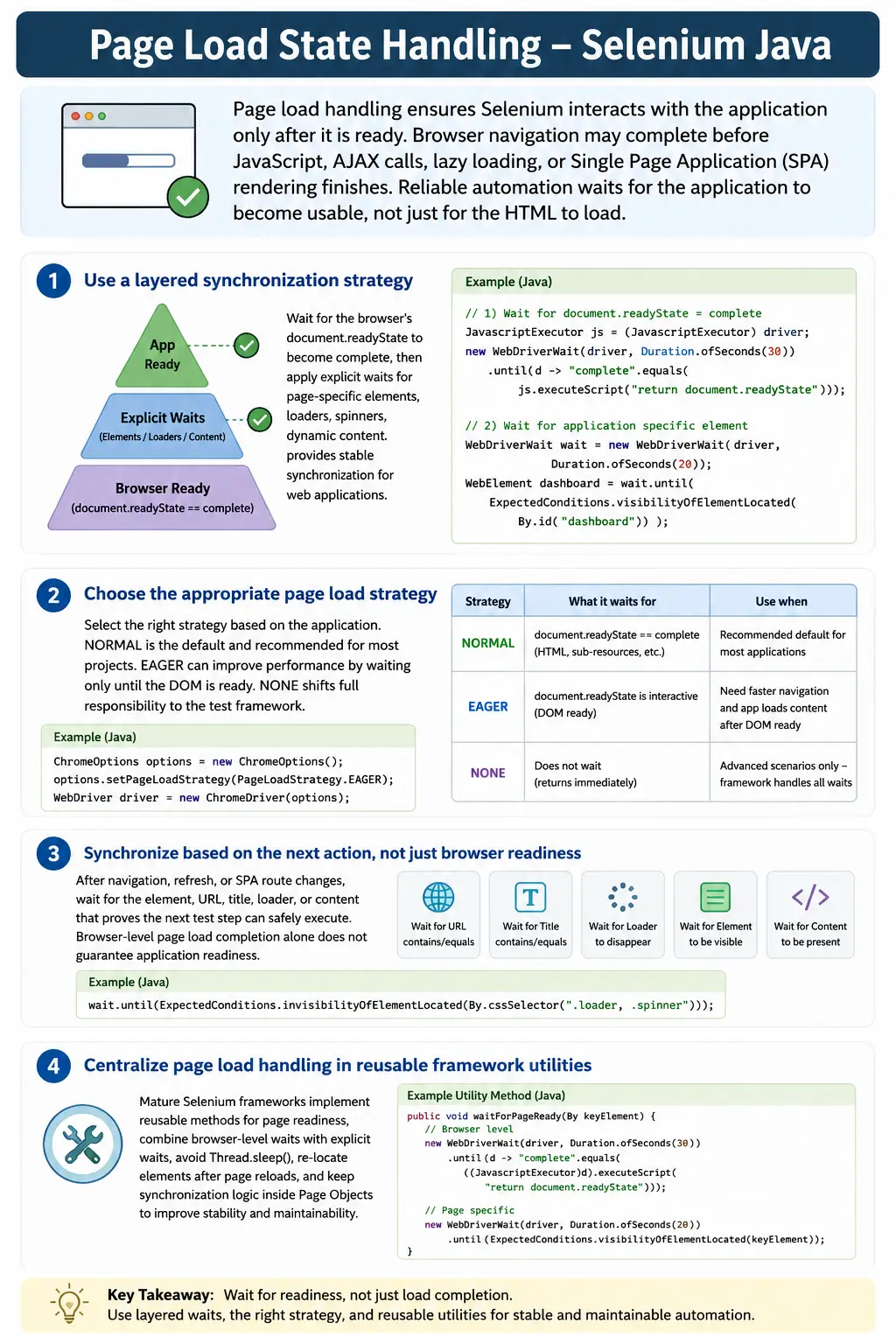
Page load handling is not just about waiting for the browser to finish downloading HTML. Modern applications use AJAX requests, REST API calls, JavaScript rendering, lazy loading, client-side routing, dynamic components, and Single Page Application behavior. A page can be technically loaded while the application is still fetching data or rendering important controls. Stable Selenium frameworks must wait for the application to become usable, not only for the browser to report a basic load state.
The right solution is usually a layered synchronization strategy. Use browser page state for navigation-level readiness, use explicit waits for important page elements, wait for loaders or spinners to disappear, and handle framework-specific asynchronous behavior when needed. This article explains those layers in a practical Selenium Java style.
2. What Is Page Load State?
A page load state represents the current loading status of a webpage from the browser's perspective. When a user opens a page, the browser sends a request, downloads HTML, creates the DOM, loads CSS, executes JavaScript, loads images and other resources, and eventually reaches a ready state.
Browser Request
      ↓
HTML Download
      ↓
DOM Creation
      ↓
CSS Loading
      ↓
JavaScript Execution
      ↓
Resources Loaded
      ↓
Page Ready
Selenium commands may run while this flow is still in progress. If the next command depends on content that is not available yet, the test becomes flaky. Page load handling gives the framework a controlled way to wait before interacting.
3. Why Page Load Handling Is Important
driver.get("https://example.com");

driver.findElement(By.id("login"))
      .click();
This looks simple, but it can fail. The browser may finish the initial navigation, while the login button is added later by JavaScript. Selenium searches immediately, does not find the button, and throws NoSuchElementException. The failure is not because the locator is necessarily wrong. The failure may be because the test tried too early.
Good page load handling reduces timing-based failures. It also makes failures more meaningful. If the page never reaches a ready state, the test should fail with a synchronization message instead of failing randomly at a later click or assertion.
4. Browser Page Load States
Browsers expose page readiness through document.readyState. It can return three common values.
loading means the document is still loading. The browser is still processing the page, and Selenium should not assume page elements are ready.
interactive means the DOM has been created and can be interacted with, but subresources such as images, stylesheets, or frames may still be loading.
complete means the page and its dependent resources have loaded from the browser's perspective. This is the most common target state for page load waits.
5. Checking document.readyState
JavascriptExecutor js =
        (JavascriptExecutor) driver;

String state =
        (String) js.executeScript(
                "return document.readyState"
        );

System.out.println(state);
The output may be loading, interactive, or complete. This is useful for debugging and for building a reusable page load wait utility. Remember that complete is a browser-level signal. It does not guarantee that AJAX calls, React rendering, Angular stability, or lazy-loaded components are finished.
6. Required Imports
import java.time.Duration;
import org.openqa.selenium.By;
import org.openqa.selenium.JavascriptExecutor;
import org.openqa.selenium.PageLoadStrategy;
import org.openqa.selenium.TimeoutException;
import org.openqa.selenium.WebDriver;
import org.openqa.selenium.WebElement;
import org.openqa.selenium.chrome.ChromeDriver;
import org.openqa.selenium.chrome.ChromeOptions;
import org.openqa.selenium.support.ui.ExpectedConditions;
import org.openqa.selenium.support.ui.WebDriverWait;
The important pieces are JavascriptExecutor, WebDriverWait, ExpectedConditions, PageLoadStrategy, and Duration.
7. Wait Until Page Fully Loads
WebDriverWait wait =
        new WebDriverWait(
                driver,
                Duration.ofSeconds(30)
        );

wait.until(webDriver ->
        ((JavascriptExecutor) webDriver)
                .executeScript(
                        "return document.readyState"
                )
                .equals("complete")
);
This is the most common page load wait using JavaScript. It waits until the browser reports complete. It is useful after navigation, refresh, back, and forward actions. It is not a replacement for element-level waits on modern pages.
8. Reusable Page Load Wait Utility
public static void waitForPageLoad(
        WebDriver driver) {

    WebDriverWait wait =
            new WebDriverWait(
                    driver,
                    Duration.ofSeconds(30)
            );

    wait.until(webDriver ->
            ((JavascriptExecutor) webDriver)
                    .executeScript(
                            "return document.readyState"
                    )
                    .equals("complete")
    );
}
Usage is straightforward:
driver.get(url);

waitForPageLoad(driver);
A framework-level utility keeps page load handling consistent. If the team later wants better logging or timeout messages, it can be added in one place.
9. Wait After Opening URL
driver.get("https://example.com");

waitForPageLoad(driver);
This pattern is useful for traditional pages. Selenium's driver.get() already waits according to the configured page load strategy, but an explicit page load utility gives the framework a clear point to verify and log readiness.
10. Wait After Clicking Link
driver.findElement(By.id("dashboardLink"))
      .click();

waitForPageLoad(driver);
If the click performs a full browser navigation, page load wait is useful. If the click only triggers SPA routing or AJAX content replacement, document.readyState may already be complete and may not change. In that case, wait for URL, title, spinner, or page-specific element changes.
11. Wait After Refresh
driver.navigate().refresh();

waitForPageLoad(driver);
Refresh recreates the DOM. Any WebElement references captured before refresh are no longer reliable. After refresh, wait for page load and locate elements again.
12. Wait After Back Navigation
driver.navigate().back();

waitForPageLoad(driver);
Back navigation may use browser cache, restore page state, or trigger a fresh request depending on the application and browser. Waiting after back navigation reduces timing issues before interacting with the restored page.
13. Wait After Forward Navigation
driver.navigate().forward();

waitForPageLoad(driver);
The same idea applies to forward navigation. After the browser changes pages, wait before locating or clicking page elements.
14. Set Page Load Timeout
driver.manage()
      .timeouts()
      .pageLoadTimeout(
              Duration.ofSeconds(30)
      );

driver.get("https://example.com");
pageLoadTimeout() prevents the driver from waiting forever for a page load. It applies to navigation commands such as get(), refresh(), and navigation between pages. This is different from an explicit wait for a specific element.
15. Handle Page Load Timeout Exception
try {
    driver.manage()
          .timeouts()
          .pageLoadTimeout(
                  Duration.ofSeconds(10)
          );

    driver.get("https://slow-site.com");
} catch (TimeoutException e) {
    System.out.println(
            "Page load timed out"
    );
}
Catching a timeout may be useful for logging or cleanup. Do not silently ignore page load timeouts. If the page did not load, the following test steps may be invalid. Fail clearly or recover in a controlled way.
16. Selenium PageLoadStrategy
Selenium provides built-in page load strategies that control how long navigation commands wait. These strategies are configured through browser options.
ChromeOptions options =
        new ChromeOptions();

options.setPageLoadStrategy(
        PageLoadStrategy.NORMAL
);
The three common strategies are NORMAL, EAGER, and NONE. Choosing the right one affects speed and stability.
17. NORMAL Strategy
ChromeOptions options =
        new ChromeOptions();

options.setPageLoadStrategy(
        PageLoadStrategy.NORMAL
);

WebDriver driver =
        new ChromeDriver(options);
NORMAL is the default and usually the safest choice. It waits for full page load, commonly corresponding to document.readyState reaching complete. Use this by default unless there is a specific reason to optimize differently.
18. EAGER Strategy
ChromeOptions options =
        new ChromeOptions();

options.setPageLoadStrategy(
        PageLoadStrategy.EAGER
);

WebDriver driver =
        new ChromeDriver(options);
EAGER waits until the DOM is ready, roughly around interactive. Images and some resources may still load. It can speed up tests where full assets are not important, but you must rely more heavily on explicit waits for elements and application readiness.
19. NONE Strategy
ChromeOptions options =
        new ChromeOptions();

options.setPageLoadStrategy(
        PageLoadStrategy.NONE
);

WebDriver driver =
        new ChromeDriver(options);
NONE tells Selenium not to wait for page load during navigation. It continues immediately. This can be useful for advanced cases, very slow pages, or applications where the framework handles all synchronization manually. It is risky for beginners because every navigation must be followed by strong custom waits.
20. Page Load Strategy Comparison
NORMAL waits for full page load. It is the best default for most projects. EAGER waits for DOM readiness and may improve speed when images and subresources are not critical. NONE performs no navigation wait and requires the framework to handle synchronization completely.
The strategy should be chosen deliberately. Do not use NONE everywhere just to make tests look faster. Fast unstable tests are worse than slightly slower reliable tests.
21. Wait for URL Change
driver.findElement(By.id("loginBtn"))
      .click();

WebDriverWait wait =
        new WebDriverWait(
                driver,
                Duration.ofSeconds(10)
        );

wait.until(
        ExpectedConditions.urlContains(
                "dashboard"
        )
);
URL waits are useful when a click should navigate to a known route. They are especially helpful for SPAs because client-side navigation may update the URL without a full browser page load.
22. Wait for Title
driver.get("https://example.com/home");

WebDriverWait wait =
        new WebDriverWait(
                driver,
                Duration.ofSeconds(10)
        );

wait.until(
        ExpectedConditions.titleContains(
                "Home"
        )
);
Title waits are useful when each page has a meaningful title. They are not enough by themselves if important content loads after the title is updated. Combine them with element waits when needed.
23. Wait for Main Element
driver.get("https://example.com/dashboard");

WebElement mainContent =
        wait.until(
                ExpectedConditions
                        .visibilityOfElementLocated(
                                By.id("mainContent")
                        )
        );
Waiting for a page-specific stable element is often better than waiting for the entire page. It directly answers the question: is the page usable for the next step?
24. Wait for AJAX Completion
document.readyState can be complete while AJAX calls are still running. This is common in dashboards, search pages, product lists, reports, and SPAs. Page load complete does not always mean data load complete.
The best wait is usually tied to the visible result of the AJAX call, such as product cards appearing or a loader disappearing. Framework-specific AJAX counters are useful only when the application exposes them reliably.
25. Wait for jQuery AJAX
WebDriverWait wait =
        new WebDriverWait(
                driver,
                Duration.ofSeconds(30)
        );

wait.until(webDriver ->
        (Boolean) ((JavascriptExecutor) webDriver)
                .executeScript(
                        "return window.jQuery != null " +
                        "&& jQuery.active === 0"
                )
);
This waits until jQuery has no active AJAX requests. It works only for applications that use jQuery for AJAX. If the application uses fetch, Axios, Angular HTTP, or another client, this condition may not help.
26. Wait for Angular Stability
wait.until(webDriver ->
        (Boolean) ((JavascriptExecutor) webDriver)
                .executeScript(
                        "return window.getAllAngularTestabilities " +
                        "&& window.getAllAngularTestabilities()" +
                        ".every(t => t.isStable())"
                )
);
Angular applications can expose testability hooks. If available, this wait checks whether Angular testabilities are stable. Use it carefully because not every Angular app exposes these hooks in production-like builds.
27. Wait for React Applications
React does not provide one universal browser-level readiness flag for Selenium. React pages can re-render after API calls, state updates, route changes, and user actions. For React, the most reliable wait is usually a page-specific element or application result.
wait.until(
        ExpectedConditions
                .visibilityOfElementLocated(
                        By.id("root")
                )
);
Waiting for the root element alone only confirms that the application shell exists. For real readiness, wait for the specific component, text, card, button, or loaded data needed for the next action.
28. Wait for Specific Element
WebElement loginButton =
        wait.until(
                ExpectedConditions
                        .elementToBeClickable(
                                By.id("login")
                        )
        );
This is one of the best synchronization patterns. Instead of waiting for an abstract page state, it waits for the actual element needed by the test. If the button is not clickable, the test should not proceed.
29. Combining Page Load and Element Wait
waitForPageLoad(driver);

WebElement loginButton =
        new WebDriverWait(
                driver,
                Duration.ofSeconds(10)
        ).until(
                ExpectedConditions
                        .visibilityOfElementLocated(
                                By.id("login")
                        )
        );
This layered approach is more reliable than either wait alone. Page load wait handles browser readiness. Element wait handles application readiness for a specific action.
30. Wait for Spinner to Disappear
wait.until(
        ExpectedConditions
                .invisibilityOfElementLocated(
                        By.id("loader")
                )
);
Spinners and loading overlays are very common in enterprise applications. Waiting for them to disappear prevents click interception and incomplete data assertions.
31. Wait for Progress Bar
wait.until(
        ExpectedConditions
                .invisibilityOfElementLocated(
                        By.className("progress")
                )
);
Progress bars often indicate file processing, report generation, dashboard loading, or search result updates. Wait for the progress indicator to finish before validating output.
32. Wait for Network-Based Content
driver.get("https://example.com/products");

wait.until(webDriver ->
        webDriver.findElements(
                By.cssSelector(".product-card")
        ).size() > 0
);
This is a practical wait for API-backed content. It does not care whether the browser page load is complete. It waits for the real business content: product cards.
33. Real Project Example: Login Page
driver.get(loginUrl);

waitForPageLoad(driver);

WebElement username =
        new WebDriverWait(
                driver,
                Duration.ofSeconds(10)
        ).until(
                ExpectedConditions
                        .visibilityOfElementLocated(
                                By.id("username")
                        )
        );

username.sendKeys("admin");
The login page example uses browser readiness plus element visibility. This is a clean pattern for traditional forms.
34. Real Project Example: Dashboard Loading
driver.findElement(By.id("login"))
      .click();

waitForPageLoad(driver);

wait.until(
        ExpectedConditions
                .invisibilityOfElementLocated(
                        By.id("dashboardLoader")
                )
);
Dashboards often load after authentication with multiple API calls. Waiting for page load alone may not be enough. Waiting for the dashboard loader to disappear gives a better signal that the application is usable.
35. Real Project Example: Search Results
Search pages frequently update results without full navigation. In that case, document.readyState may stay complete the entire time. The correct wait should focus on result changes.
searchBox.sendKeys("Selenium");
searchButton.click();

wait.until(webDriver ->
        webDriver.findElements(
                By.cssSelector(".result-row")
        ).size() > 0
);
This waits for the content that proves the search completed.
36. Real Project Example: SPA Route Change
Single Page Applications often change routes without a full document reload. A click may update the URL and replace content inside the same page shell. In this case, wait for URL and a page-specific element.
driver.findElement(By.id("ordersLink"))
      .click();

wait.until(
        ExpectedConditions.urlContains(
                "/orders"
        )
);

wait.until(
        ExpectedConditions
                .visibilityOfElementLocated(
                        By.id("ordersTable")
                )
);
This is more reliable than waiting only for document.readyState.
37. Common Exceptions Due to Page Load Issues
NoSuchElementException often means the element is not loaded yet or the locator is wrong. StaleElementReferenceException often means the DOM was recreated after the element was located. TimeoutException means the expected page state or element state never happened. ElementClickInterceptedException often means a loading overlay or animation is still present.
Do not blindly increase timeouts. Diagnose what the application is actually doing and wait for the correct signal.
38. Stale Element After Page Reload
WebElement button =
        driver.findElement(By.id("save"));

driver.navigate().refresh();

waitForPageLoad(driver);

button.click();
This is a common mistake. The button reference was captured before refresh. After refresh, the DOM is new and the old reference is stale. Locate elements after page load, not before.
39. Why Thread.sleep() Is Not a Good Strategy
Thread.sleep() pauses for a fixed time whether the page is ready or not. If the page is ready in half a second, the test still waits unnecessarily. If the page needs more than the sleep time, the test still fails. This makes test suites both slower and less reliable.
Explicit waits are condition-based. They continue as soon as the condition is satisfied and fail clearly when it is not. Use sleeps only for rare debugging or unavoidable timing gaps, not as a synchronization strategy.
40. Framework Utility: Page Ready Method
public void waitUntilPageReady() {
    waitForPageLoad(driver);

    wait.until(
            ExpectedConditions
                    .invisibilityOfElementLocated(
                            By.cssSelector(".loader")
                    )
    );
}
A framework can combine generic page load wait and loader wait. But avoid making a single global method too broad. Some pages may not have loaders. Some pages may use different indicators. Page objects can add page-specific readiness checks.
41. Page Object Readiness Pattern
A strong page object can expose a method like waitUntilLoaded(). That method should wait for the page-specific stable element that proves the page is ready.
public void waitUntilLoaded() {
    wait.until(
            ExpectedConditions
                    .visibilityOfElementLocated(
                            By.id("ordersTable")
                    )
    );
}
This keeps tests readable and pushes synchronization knowledge into the page object where it belongs.
42. Choosing the Right Wait Signal
The best wait signal is the one closest to the next action. If the next action is clicking a login button, wait for the login button to be clickable. If the next action is validating dashboard data, wait for the dashboard cards. If the next action is selecting a value from a dropdown, wait for the dropdown option list.
Generic page load waits are useful, but page-specific waits are usually more valuable. They prove that the application is ready for the exact scenario being tested.
43. Page Load Handling in Single Page Applications
Single Page Applications need special attention because the browser document may load only once. After that, navigation often happens inside the same document. A menu click may update the URL, replace a component, start API calls, and render new content without causing a traditional page reload. In that flow, document.readyState may already be complete before the click and remain complete after the click.
For SPAs, page load handling should be based on application signals. Wait for the route to change, wait for old content to disappear, wait for the new page header, wait for a loader to finish, or wait for a stable element in the new view. The framework should not assume that every navigation creates a browser load event.
ordersLink.click();

wait.until(
        ExpectedConditions.urlContains(
                "/orders"
        )
);

wait.until(
        ExpectedConditions
                .visibilityOfElementLocated(
                        By.cssSelector(".orders-page")
                )
);
This kind of wait is closer to how the application really works. It proves that the route changed and that the target view is available.
44. Handling Lazy Loading After Page Load
Lazy loading means content is loaded only when needed. Product cards may load after scrolling, images may load when they enter the viewport, reports may populate after a filter is selected, and notifications may appear after the application opens a WebSocket or API connection. In all of these cases, the page can be fully loaded from the browser's perspective while the specific content is still missing.
The correct wait should target the lazy-loaded result. If scrolling triggers more rows, wait for the row count to increase. If selecting a filter triggers a report, wait for the report table. If a lazy image matters to the test, wait for the image's loaded state or visible rendering.
int before =
        driver.findElements(
                By.cssSelector(".product-card")
        ).size();

js.executeScript(
        "window.scrollTo(0, document.body.scrollHeight);"
);

wait.until(webDriver ->
        webDriver.findElements(
                By.cssSelector(".product-card")
        ).size() > before
);
This is more meaningful than waiting for the whole page again. The test waits for the exact content that the scroll was supposed to load.
45. Handling Multiple Loaders
Enterprise pages sometimes have more than one loading indicator. A global page loader may disappear first, then a table-level loader may continue, and then a chart-level loader may finish later. If the test waits only for the global loader, it may still interact with an incomplete table or chart.
In this situation, wait for the loader related to the target area. If the test validates the orders table, wait for the orders table loader. If the test validates a dashboard card, wait for that card's skeleton state to disappear. Avoid using one generic loader wait as proof that every component on the page is ready.
wait.until(
        ExpectedConditions
                .invisibilityOfElementLocated(
                        By.cssSelector(".orders-table .loader")
                )
);

wait.until(
        ExpectedConditions
                .visibilityOfElementLocated(
                        By.cssSelector(".orders-table tbody tr")
                )
);
This two-step wait confirms both that loading stopped and that useful content appeared.
46. Handling Page Load in CI and Headless Browsers
Page load timing often changes in CI. The same test that passes locally may fail in a build agent because CPU, memory, browser size, network access, and rendering speed are different. Headless browsers can also behave differently if the viewport is not configured. Timing problems that are hidden locally often appear in CI.
Good page load handling reduces these failures. Set a stable browser size, use explicit waits, avoid fixed sleeps, and log page readiness failures. When a wait times out in CI, capture the current URL, title, ready state, screenshot, and visible loader state. Those details quickly show whether the application was still loading, navigated to the wrong page, or failed to render key content.
47. Logging Page Readiness Failures
When synchronization fails, useful logs matter. A timeout message that only says "Expected condition failed" is not enough. A framework can add diagnostic information such as current URL, page title, ready state, and whether a loader is still visible. This makes failures faster to investigate.
String readyState =
        (String) ((JavascriptExecutor) driver)
                .executeScript(
                        "return document.readyState"
                );

System.out.println("URL: " + driver.getCurrentUrl());
System.out.println("Title: " + driver.getTitle());
System.out.println("Ready State: " + readyState);
Logging should support debugging without hiding failures. If the page never becomes ready, the test should still fail clearly.
48. Avoiding Over-Synchronization
Too little waiting causes flaky tests. Too much waiting makes test suites slow and can hide real performance problems. A framework should avoid adding every possible wait after every action. For example, waiting for full page load, all loaders, all AJAX calls, and multiple elements after every click can make even simple tests unnecessarily slow.
Use targeted waits. After a full navigation, page load wait makes sense. After an AJAX button click, wait for the updated region. After opening a dropdown, wait for the option list. After submitting a form, wait for the success message or route change. The best synchronization is precise, not excessive.
49. Page Load Wait vs Implicit Wait
Implicit wait and page load wait solve different problems. An implicit wait tells Selenium how long to poll when locating elements. It does not wait for the page to finish loading, AJAX calls to complete, or spinners to disappear. Page load wait focuses on browser navigation readiness. Explicit wait focuses on a specific condition.
For serious frameworks, explicit waits are usually preferred because they state the exact condition being waited for. Mixing large implicit waits with explicit waits can make timing harder to reason about. Keep synchronization predictable and condition-based.
A practical framework rule is to keep implicit wait either very small or disabled, and to make page readiness explicit in page objects and reusable wait helpers. When a failure happens, the timeout message should tell the tester what condition was expected: page load complete, loader invisible, URL changed, title updated, table visible, or button clickable. This makes synchronization failures much easier to fix than a vague delay hidden inside a global implicit wait.
Another useful habit is to separate navigation methods from action methods. A method that opens a page can wait for page readiness. A method that clicks a filter can wait for the filtered results. A method that saves a form can wait for the success message. This keeps waits close to the behavior that causes them and prevents random waits from spreading across test classes.
50. Common Beginner Mistakes
- Using
Thread.sleep()for every page transition. - Assuming
document.readyState=completemeans AJAX is complete. - Ignoring loaders, spinners, and overlays.
- Not waiting after navigation, refresh, back, or forward actions.
- Using
PageLoadStrategy.NONEwithout strong custom waits. - Keeping WebElement references after refresh or route changes.
- Waiting for the whole page when only one element matters.
- Increasing timeout values without identifying the real wait condition.
51. Best Practices
- Use
PageLoadStrategy.NORMALby default. - Create a reusable page load wait utility.
- Combine page load waits with explicit element waits.
- Wait for spinners and overlays to disappear.
- Wait for important page-specific elements instead of relying only on browser load state.
- Avoid
Thread.sleep()as a synchronization technique. - Handle AJAX, SPA routing, and lazy loading separately.
- Re-locate elements after page reloads or major DOM updates.
52. Debugging Checklist
- Check the current
document.readyState. - Check whether the URL changed as expected.
- Check whether the page title changed as expected.
- Check whether loaders or overlays are still visible.
- Check whether AJAX or API-backed content is still loading.
- Check whether the element is present, visible, and clickable.
- Check whether the DOM was recreated after locating the element.
- Use screenshots and logs when page readiness failures happen in CI.
53. Interview Perspective
A short interview answer is: page load state handling ensures Selenium interacts with the application only after the page reaches the required readiness state. This can be done using document.readyState, Selenium page load strategies, page load timeouts, and explicit waits.
A stronger real-time answer is: in frameworks, I usually combine document.readyState == complete with explicit waits for critical elements. For modern AJAX, React, Angular, and SPA applications, I also wait for loaders to disappear, URL or route changes, and page-specific elements because browser page load completion alone does not always mean the application is usable.
54. Key Takeaway
Page load state handling is essential for stable Selenium automation. The browser exposes page readiness through document.readyState, and Selenium provides page load strategies such as NORMAL, EAGER, and NONE. These tools are useful, but they are only part of synchronization.
The most reliable Selenium frameworks wait for the application to become usable. That usually means combining page load waits, element waits, loader waits, route waits, and content-specific waits. Do not rely on Thread.sleep() or on page load completion alone.
A practical rule is simple: wait for the state that proves the next action can safely happen. That mindset produces faster, clearer, and more reliable Selenium tests.