NoSuchElementException in Selenium Java
NoSuchElementException is one of the most common exceptions in Selenium WebDriver. It occurs when Selenium tries to locate an element using a locator, but no matching element is found in the current DOM context. This sounds simple, but in real projects the root cause can be anything from a typo in the locator to a timing issue, iframe issue, wrong browser window, dynamic element attribute, lazy-loaded section, or application UI change.
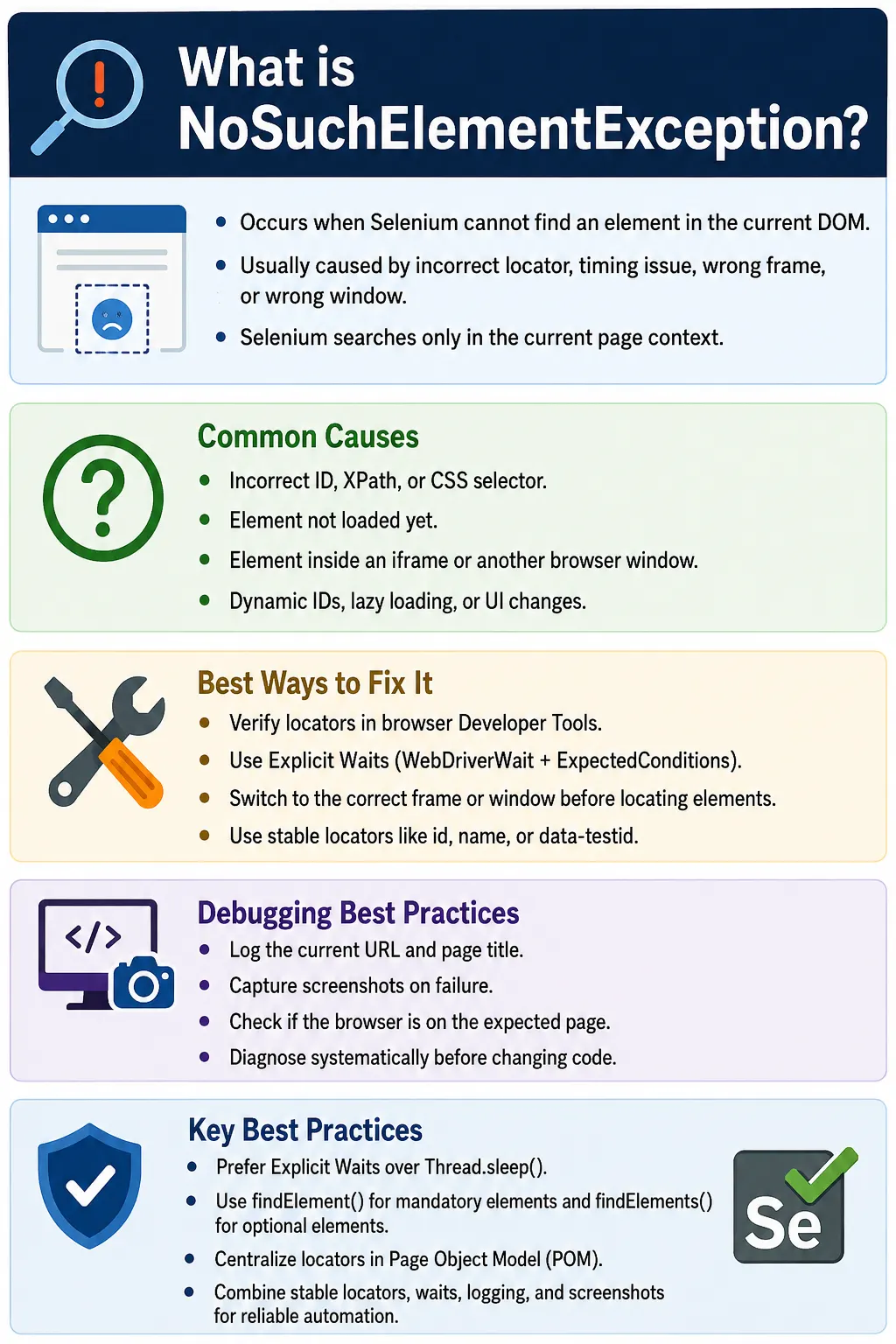
Understanding this exception is essential for writing stable Selenium tests. Many beginner scripts fail because they call findElement() immediately after navigation and assume the element is already available. Modern web applications are dynamic. Elements may load after API calls, appear only after scrolling, exist inside iframes, or change their IDs on every page load. Stable automation requires correct locators, proper waits, correct frame/window context, and good debugging evidence.
This article explains what NoSuchElementException means, why it occurs, how to diagnose it, and how to fix it using explicit waits, findElements(), frame switching, window switching, stable locators, logging, screenshots, and reusable framework helper methods.
1. What Is NoSuchElementException?
NoSuchElementException is thrown when Selenium cannot find a web element in the current page context using the provided locator. The important phrase is current page context. Selenium searches only inside the currently loaded DOM, current frame, and current window or tab. If the element is in another frame, another window, not loaded yet, or not present on the current page, Selenium cannot find it.
driver.findElement(By.id("login"));If no element with ID login exists in the current DOM context, Selenium throws NoSuchElementException. This does not always mean the application is broken. It means the locator did not match any element at the moment Selenium searched.
2. How Selenium Searches for Elements
When findElement() is called, Selenium sends a command to the browser driver asking it to search the DOM with the specified locator. If a match is found, Selenium returns a WebElement. If no match is found, Selenium throws NoSuchElementException.
This search is not a human search. Selenium does not visually inspect the page like a user. It searches the DOM based on the locator strategy. If the visible text appears on screen but not in the current DOM, or if it is inside an iframe that has not been selected, Selenium still cannot find it.
3. Common Causes
The exception can happen for several reasons. The most common causes are wrong locator, typo in locator, element not loaded yet, wrong frame, wrong browser window, dynamic ID, element removed from the DOM, wrong page, incorrect XPath, incorrect CSS selector, or lazy-loaded content.
- The locator is incorrect or has a typo.
- The element has not loaded yet when Selenium searches.
- The element is inside an iframe and Selenium is still in the main document.
- The element is in a child window or tab and Selenium is still focused on the parent window.
- The element uses dynamic attributes that change between runs.
- The test is on the wrong page or wrong URL.
- The element appears only after scrolling, expanding, or clicking another control.
- The application UI changed and the old locator is no longer valid.
4. Basic Example
Assume the HTML has an input field with ID username.
<input id="username">If the test uses the wrong ID, Selenium cannot find the element.
driver.findElement(By.id("user"));The locator user does not match the actual ID username. Selenium throws NoSuchElementException. The fix is to use the correct locator.
driver.findElement(By.id("username"));5. Cause: Incorrect ID
An incorrect ID is one of the simplest causes. Sometimes it is a typo. Sometimes the developer changed the ID. Sometimes the tester copied the wrong value from the browser developer tools.
// Wrong
driver.findElement(By.id("submitBtn"));

// Actual HTML
// <button id="submit">

// Correct
driver.findElement(By.id("submit"));
Always verify the locator in browser developer tools before changing wait logic. If the locator itself is wrong, adding waits will not fix the issue.
6. Cause: Incorrect XPath
XPath locators are powerful, but they are also easy to write incorrectly. A small mismatch in attribute name, value, hierarchy, or index can cause Selenium to find nothing.
// Wrong
driver.findElement(
        By.xpath("//input[@id='user']")
);

// Correct
driver.findElement(
        By.xpath("//input[@id='username']")
);
Before using an XPath in code, test it in browser developer tools. Also avoid overly brittle XPath expressions that depend on full DOM hierarchy or unstable indexes.
7. Cause: Incorrect CSS Selector
CSS selectors can also be incorrect. For example, the test may search for a class named login, but the actual element class is login-btn.
// Wrong
driver.findElement(
        By.cssSelector(".login")
);

// Correct
driver.findElement(
        By.cssSelector(".login-btn")
);
CSS selectors are usually fast and readable when written well. Prefer stable IDs, names, and test attributes when available.
8. Cause: Element Not Yet Loaded
Timing is one of the most common real-world causes. The page may still be loading, an API call may be pending, or JavaScript may not have rendered the element yet. If Selenium searches too early, it cannot find the element.
driver.get(url);

driver.findElement(By.id("login"));
If the login button appears after a delay, this code may fail. The correct solution is an explicit wait.
WebDriverWait wait =
        new WebDriverWait(
                driver,
                Duration.ofSeconds(10)
        );

WebElement login =
        wait.until(
                ExpectedConditions
                        .presenceOfElementLocated(
                                By.id("login")
                        )
        );
Use presence when you only need the element to exist in the DOM. Use visibility or clickability when the next action needs the element to be visible or clickable.
9. Wait for Visibility
An element can be present in the DOM but hidden. If the next action is typing or clicking, visibility is often more appropriate than presence.
WebDriverWait wait =
        new WebDriverWait(driver, Duration.ofSeconds(10));

WebElement username =
        wait.until(
                ExpectedConditions
                        .visibilityOfElementLocated(
                                By.id("username")
                        )
        );

username.sendKeys("admin");
This wait returns only when the element is present and visible. It prevents many timing-related failures.
10. Wait Until Clickable
If the next action is clicking a button, use elementToBeClickable(). This waits until the element is visible and enabled.
WebDriverWait wait =
        new WebDriverWait(driver, Duration.ofSeconds(10));

wait.until(
        ExpectedConditions.elementToBeClickable(
                By.id("loginBtn"))
).click();
This is useful for buttons that are disabled until form validation passes or until page loading completes.
11. Cause: Wrong Frame
If an element is inside an iframe, Selenium cannot find it while focused on the main document. The test must switch into the frame before locating the element.
<iframe id="loginFrame">
    <input id="username">
</iframe>
// Wrong when element is inside iframe
driver.findElement(By.id("username"));
// Correct
driver.switchTo().frame("loginFrame");
driver.findElement(By.id("username"));
driver.switchTo().defaultContent();Frame issues are very common in payment pages, embedded login widgets, chat widgets, document viewers, and third-party integrations.
12. Cause: Wrong Window or Tab
When an action opens a new window or tab, Selenium stays focused on the original window until you switch. If you search for an element that exists only in the child window, Selenium throws NoSuchElementException.
driver.switchTo().window(childWindow);

driver.findElement(By.id("payment"));
Always switch to the correct window before locating elements. Also switch back to the parent window when the child window work is complete.
13. Cause: Dynamic IDs
Some applications generate dynamic IDs. Today the input ID may be user_87453, and tomorrow it may be user_12985. A hardcoded full ID will fail when the value changes.
<input id="user_87453">// Brittle
driver.findElement(
By.id("user_87453")
);
// Better
driver.findElement(
By.xpath("//input[starts-with(@id,'user_')]")
);Even better, ask developers to add stable automation attributes such as data-testid, data-test, or data-qa when possible.
14. Cause: Wrong Page
Sometimes the locator is correct, but the test is on the wrong page. For example, the checkout button exists only on the checkout page, but the test is still on the home page. Selenium correctly fails because the element is not in the current DOM.
Before blaming the locator, log the current URL and page title. A screenshot can also reveal that the browser is on the wrong page, redirected to login, or showing an error page.
logger.info("Current URL: " + driver.getCurrentUrl());
logger.info("Page title: " + driver.getTitle());
15. Cause: Lazy Loaded Content
Some elements load only after scrolling or after a section is expanded. If Selenium searches before the content is loaded, the element may not exist in the DOM.
JavascriptExecutor js =
        (JavascriptExecutor) driver;

js.executeScript(
        "window.scrollTo(0,document.body.scrollHeight)"
);

driver.findElement(By.id("footer"));
Scrolling alone is not always enough. After scrolling, use an explicit wait for the element that should appear.
16. findElement() vs findElements()
findElement() returns a single element and throws NoSuchElementException if nothing is found. findElements() returns a list and returns an empty list if nothing is found. This difference is important.
findElement()is best for mandatory elements that must exist.findElements()is best for optional elements or existence checks.findElement()throws an exception when no element is found.findElements()returns an empty list when no element is found.
List<WebElement> elements =
        driver.findElements(By.id("login"));

if (!elements.isEmpty()) {
    elements.get(0).click();
}
17. Safe Element Check
A common helper method checks whether an element is present without throwing an exception.
public boolean isElementPresent(By locator) {

    return driver.findElements(locator)
                 .size() > 0;
}
if (isElementPresent(By.id("login"))) {
driver.findElement(By.id("login"))
.click();
}This is useful for optional popups, optional banners, optional messages, and conditional UI elements.
18. Return Optional Element
Another helper can return the first matching element or null. This avoids an exception when the element is optional.
public WebElement getElement(By locator) {

    List<WebElement> elements =
            driver.findElements(locator);

    return elements.isEmpty() ? null : elements.get(0);
}
WebElement element = getElement(By.id("username"));
if (element != null) {
element.sendKeys("admin");
}Use this pattern carefully. Mandatory elements should usually fail clearly if missing. Optional element helpers should not hide real application problems.
19. Reusable Wait Method
Reusable wait methods reduce repeated wait code and make synchronization consistent across the framework.
public WebElement waitForElement(By locator) {

    WebDriverWait wait =
            new WebDriverWait(
                    driver,
                    Duration.ofSeconds(10)
            );

    return wait.until(
            ExpectedConditions
                    .presenceOfElementLocated(locator)
    );
}waitForElement(By.id("login")).click();In a real framework, create separate helpers for presence, visibility, and clickability because each means something different.
20. FluentWait
FluentWait gives more control over timeout, polling interval, and ignored exceptions. It is useful when elements appear unpredictably or when polling should be customized.
FluentWait<WebDriver> wait =
        new FluentWait<>(driver)
                .withTimeout(Duration.ofSeconds(20))
                .pollingEvery(Duration.ofSeconds(2))
                .ignoring(NoSuchElementException.class);

WebElement element = wait.until(
        d -> d.findElement(By.id("username"))
);
FluentWait should not be used everywhere by default. Use it when explicit wait conditions are not enough or when the framework needs custom polling behavior.
21. Exception Handling
You can catch NoSuchElementException, but catching it should not become the default solution. If the element is mandatory, the test should fail. If the element is optional, use findElements() or a helper method.
try {

    driver.findElement(By.id("login"))
          .click();

} catch (NoSuchElementException e) {

    System.out.println(
            "Login button not found."
    );
}
For real frameworks, log the exception and capture evidence when appropriate. Do not silently swallow exceptions.
22. Logging the Exception
When the exception happens, logs should explain which element was missing and which locator was used. Include the exception object so the stack trace is preserved.
try {

    driver.findElement(By.id("login"))
          .click();

} catch (NoSuchElementException e) {

    logger.error(
            "Unable to locate Login button.",
            e
    );

    throw e;
}
Rethrowing keeps the test failure visible. Logging without failing can create false passes.
23. Screenshot on Exception
A screenshot is very useful when an element cannot be found. It shows the actual browser state at the time of failure.
catch (NoSuchElementException e) {

    ScreenshotUtil.captureScreenshot(
            driver,
            "LoginButtonMissing"
    );

    throw e;
}
The screenshot may reveal that the page is still loading, an overlay is visible, the browser is on the wrong page, or the expected element is hidden.
24. Search Using Alternative Locator
Sometimes an element can be found through more than one locator. A fallback locator can be used in rare cases, but it should not hide poor locator design.
try {

    driver.findElement(By.id("username"));

} catch (NoSuchElementException e) {

    driver.findElement(By.name("username"));
}
If fallback locators are needed often, consider improving the application markup or locator strategy.
25. Retry Finding Element
Retry logic can help with unstable timing, but explicit waits are usually better. A manual retry loop should be used carefully and should include logging.
for (int i = 0; i < 3; i++) {

    try {

        driver.findElement(By.id("username"));
        break;

    } catch (NoSuchElementException e) {

        System.out.println("Retry " + (i + 1));
    }
}
Do not use retry loops to hide real application defects. If the element regularly fails to appear, investigate why.
26. Framework Helper Method
A framework helper can combine waiting, clicking, logging, and exception handling. This keeps tests cleaner and makes failures more consistent.
public void click(By locator) {

    try {

        WebDriverWait wait =
                new WebDriverWait(
                        driver,
                        Duration.ofSeconds(10)
                );

        wait.until(
                ExpectedConditions
                        .elementToBeClickable(locator)
        ).click();

    } catch (NoSuchElementException e) {

        logger.error("Element not found: " + locator, e);
        throw e;
    }
}click(By.id("loginBtn"));In real frameworks, helpers may also catch timeout exceptions, take screenshots, and include current URL in the log.
27. Real Project Example: Login Page
On a login page, username and password fields may load after JavaScript initializes the page. Waiting for visibility is safer than immediately calling findElement().
WebDriverWait wait =
        new WebDriverWait(
                driver,
                Duration.ofSeconds(10)
        );

WebElement username =
        wait.until(
                ExpectedConditions
                        .visibilityOfElementLocated(
                                By.id("username")
                        )
        );

username.sendKeys("admin");
This pattern avoids many early-search failures.
28. Real Project Example: Dashboard
After login, the dashboard may take time to load. Instead of locating dashboard elements immediately, wait for a reliable dashboard marker.
wait.until(
        ExpectedConditions
                .presenceOfElementLocated(
                        By.id("dashboard")
                )
);
Choose a stable marker. Waiting for a fragile or optional element can make the test unreliable.
29. Diagnosing the Exception
When NoSuchElementException occurs, do not randomly change code. Diagnose systematically. First verify the locator in developer tools. Then confirm the browser is on the correct page. Check whether the element is inside a frame or child window. Check whether the element loads after a delay. Check whether the attribute is dynamic. Capture screenshot and current URL for evidence.
- Verify the locator manually in browser developer tools.
- Check current URL and page title.
- Check whether the element is inside an iframe.
- Check whether a new window or tab is active.
- Check whether the element appears after waiting or scrolling.
- Check whether IDs, classes, or attributes are dynamic.
- Check whether recent UI changes broke the locator.
30. Stable Locator Strategy
The best long-term fix is a stable locator strategy. Prefer IDs, names, accessible labels, and test-specific attributes when available. Avoid brittle absolute XPath expressions and dynamic IDs. Work with developers to add automation-friendly attributes for important controls.
<button data-testid="login-button">Login</button>driver.findElement(
By.cssSelector("[data-testid='login-button']")
);Stable locators reduce NoSuchElementException and make tests easier to maintain as UI layout changes.
31. Wrong Page vs Missing Element
A common mistake is assuming the element is missing when the browser is actually on the wrong page. For example, a test may expect the dashboard but still be on the login page because authentication failed. The dashboard locator then throws NoSuchElementException, but the real issue is login failure.
To catch this, log page title and URL at important checkpoints. Use screenshots on failure. Add assertions that confirm navigation before interacting with page-specific elements.
32. Hidden Element vs Missing Element
NoSuchElementException means Selenium did not find the element. If the element is found but hidden, Selenium may throw a different exception such as ElementNotInteractableException. However, hidden and lazy-rendered UI can still lead to NoSuchElementException if the element is not added to the DOM until later.
This distinction matters. If the element is hidden but present, use visibility or interaction waits. If the element is not in the DOM, wait for presence or trigger the action that loads it.
33. Optional Elements
Optional elements should not be located with findElement() unless you are prepared to handle the exception. Examples include optional banners, cookie popups, promotional modals, warning messages, and feature flags. Use findElements() for optional UI.
List<WebElement> popups =
        driver.findElements(By.id("promoPopup"));

if (!popups.isEmpty()) {
    popups.get(0).click();
}
This avoids unnecessary exceptions for UI that may or may not appear.
34. NoSuchElementException vs TimeoutException
NoSuchElementException and TimeoutException are closely related in Selenium debugging, but they are not the same. NoSuchElementException is thrown directly when findElement() cannot find an element. TimeoutException is usually thrown by an explicit wait when the expected condition is not satisfied before the timeout expires.
For example, if you call driver.findElement(By.id("login")) and the element is missing, Selenium can immediately throw NoSuchElementException. If you call wait.until(ExpectedConditions.visibilityOfElementLocated(By.id("login"))) and the element never becomes visible within ten seconds, the wait throws TimeoutException. The root cause may still be the same missing element, but the exception comes from the wait mechanism.
This distinction helps debugging. A direct NoSuchElementException often suggests that the code searched too early or used a wrong locator. A TimeoutException suggests that the framework waited, but the expected condition still did not happen. Both require checking locator correctness, page context, and application state.
35. NoSuchElementException vs StaleElementReferenceException
NoSuchElementException means Selenium could not find the element at all. StaleElementReferenceException means Selenium found the element earlier, but the element reference is no longer valid because the DOM changed. These two exceptions are often confused in dynamic applications.
If a page re-renders after an API response, an element reference stored earlier may become stale. In that case, the fix is usually to locate the element again after the DOM update. If the element was never found, the issue is more likely locator, timing, frame, window, or page context.
Understanding the difference prevents wrong fixes. Adding a stale-element retry will not fix a truly wrong locator. Changing a locator will not fix a stale reference caused by DOM re-rendering.
36. Why Thread.sleep() Is Not the Right Fix
Many beginners try to solve NoSuchElementException by adding Thread.sleep(). This may appear to work locally, but it is not a reliable solution. A fixed sleep always waits the same amount of time, whether the page is ready or not. If the application is faster, the test wastes time. If the application is slower, the test still fails.
Explicit waits are better because they wait for a specific condition. They stop early when the condition is met and fail clearly when the condition is not met. Instead of sleeping for five seconds and hoping the button appears, wait until the button is visible or clickable.
// Poor approach
Thread.sleep(5000);
driver.findElement(By.id("login")).click();

// Better approach
wait.until(
        ExpectedConditions.elementToBeClickable(
                By.id("login")
        )
).click();
Use sleeps only for rare debugging experiments or unavoidable external timing gaps. They should not be the default synchronization strategy in a Selenium framework.
37. Validating Locators in Developer Tools
Before changing automation code, validate the locator in browser developer tools. For CSS selectors, use the Elements panel search or JavaScript console. For XPath, use the Elements panel search with the XPath expression. Confirm that the locator matches exactly one stable element when possible.
If the locator matches zero elements in developer tools, Selenium will also fail. If it matches multiple elements, Selenium may find the first one, which may not be the intended target. If the locator works only after expanding a section or switching into an iframe, your automation must perform the same context setup.
Locator validation should be the first step in debugging. Do not add waits, retries, or JavaScript workarounds until you know the locator is correct.
38. Centralizing Locators in Page Objects
Page Object Model helps manage NoSuchElementException by centralizing locators. If locators are scattered across test methods, UI changes require updates in many places. When locators are defined in page classes, the fix is localized.
public class LoginPage {

    private By username = By.id("username");
    private By password = By.id("password");
    private By loginButton = By.id("login");

    public void login(String user, String pass) {
        wait.until(
                ExpectedConditions
                        .visibilityOfElementLocated(username)
        ).sendKeys(user);

        driver.findElement(password).sendKeys(pass);
        driver.findElement(loginButton).click();
    }
}
Page objects also allow you to combine locators with waits and meaningful logging. Instead of every test handling missing elements differently, the page class can provide a consistent action method.
39. Logging Useful Debug Information
When NoSuchElementException occurs, good logs should include locator, current URL, page title, frame or window context if available, and screenshot path. This evidence helps determine whether the problem is locator-related, timing-related, or context-related.
logger.error("Element not found: " + locator);
logger.error("Current URL: " + driver.getCurrentUrl());
logger.error("Page title: " + driver.getTitle());
Logs should not only say element not found. They should help the next person understand where Selenium was searching and what page state existed at the time.
40. Screenshot-Based Debugging
A screenshot is one of the fastest ways to understand NoSuchElementException. It may show that the browser is still on the login page, a loader is blocking the page, a modal is open, an error message is visible, or the expected section is not expanded. This visual context often explains the failure faster than stack trace alone.
In a mature framework, failure listeners capture screenshots automatically. For element lookup failures inside utilities, it is also useful to capture a named screenshot before rethrowing the exception. The screenshot file name should include the test name and the missing element context when possible.
41. Working with Developers
Sometimes the right fix is not in the test code. If important elements have dynamic IDs, missing labels, repeated classes, or no stable attributes, the automation team should work with developers to improve testability. Adding data-testid or data-qa attributes can dramatically reduce locator failures.
Stable automation attributes do not affect the user interface, but they provide reliable hooks for tests. This is common in professional teams where testability is treated as part of application quality.
This collaboration is especially valuable for frequently used elements such as login buttons, submit buttons, search fields, navigation links, table rows, and modal controls. When these elements have stable identifiers, Selenium tests become simpler, faster to debug, and less sensitive to visual layout changes.
42. Debugging Checklist
- Check whether the locator is correct in browser developer tools.
- Check whether the browser is on the expected URL.
- Check whether the element exists inside an iframe.
- Check whether a child window or tab should be selected.
- Check whether the element loads after API calls or animations.
- Check whether the element appears only after scrolling or expanding a panel.
- Check whether the element has dynamic attributes.
- Check screenshots and logs before changing the code.
43. Common Mistakes
- Typing the locator value incorrectly, such as
uesrnameinstead ofusername. - Using an XPath that does not match the actual DOM.
- Calling
findElement()immediately after page navigation. - Forgetting to switch into the correct frame.
- Forgetting to switch to the correct browser window or tab.
- Using dynamic IDs as if they were stable.
- Searching for elements on the wrong page.
- Using
findElement()for optional elements. - Ignoring screenshots, current URL, and logs during debugging.
44. Best Practices
- Prefer stable locators such as ID, name, and
data-testid. - Use explicit waits instead of immediately calling
findElement(). - Use visibility or clickability waits when interacting with elements.
- Switch to the correct frame before locating iframe elements.
- Switch to the correct window or tab before locating child-window elements.
- Use
findElements()when checking optional elements. - Capture screenshots and log details when exceptions occur.
- Centralize locators and actions in Page Object Model classes.
- Avoid brittle XPath expressions and dynamic IDs when possible.
- Review locator strategies regularly for frequently changing applications.
45. Interview Perspective
A short interview answer is: NoSuchElementException occurs when Selenium cannot locate an element using the specified locator. Common reasons include incorrect locators, timing issues, wrong frame or window, dynamic page content, or being on the wrong page.
A stronger real-time answer is: when I see NoSuchElementException, I first verify the locator in browser developer tools. If the locator is valid, I check whether the element loads dynamically, whether it is inside an iframe, whether the test is focused on the correct window, and whether the browser is on the correct page. I usually fix it with stable locators, explicit waits, proper frame or window switching, and framework-level logging with screenshots for debugging.
46. Key Takeaway
NoSuchElementException means Selenium could not find the element in the current DOM context at the time of search. The cause may be a wrong locator, timing issue, wrong frame, wrong window, dynamic element, lazy loading, or wrong page.
The preferred solution is not random sleeps or broad exception handling. Verify the locator, confirm the page context, use explicit waits, switch frames or windows correctly, and use stable locator strategies. Use findElements() for optional elements and findElement() for mandatory elements.
Most NoSuchElementException failures become easy to fix when you debug systematically: correct locator, correct page, correct frame, correct window, and correct wait.