Name Locator
The name locator is a simple and efficient way to identify elements using the HTML name attribute. While not as strong as id, it is commonly used in forms and is often the second-best choice when a stable ID is unavailable.
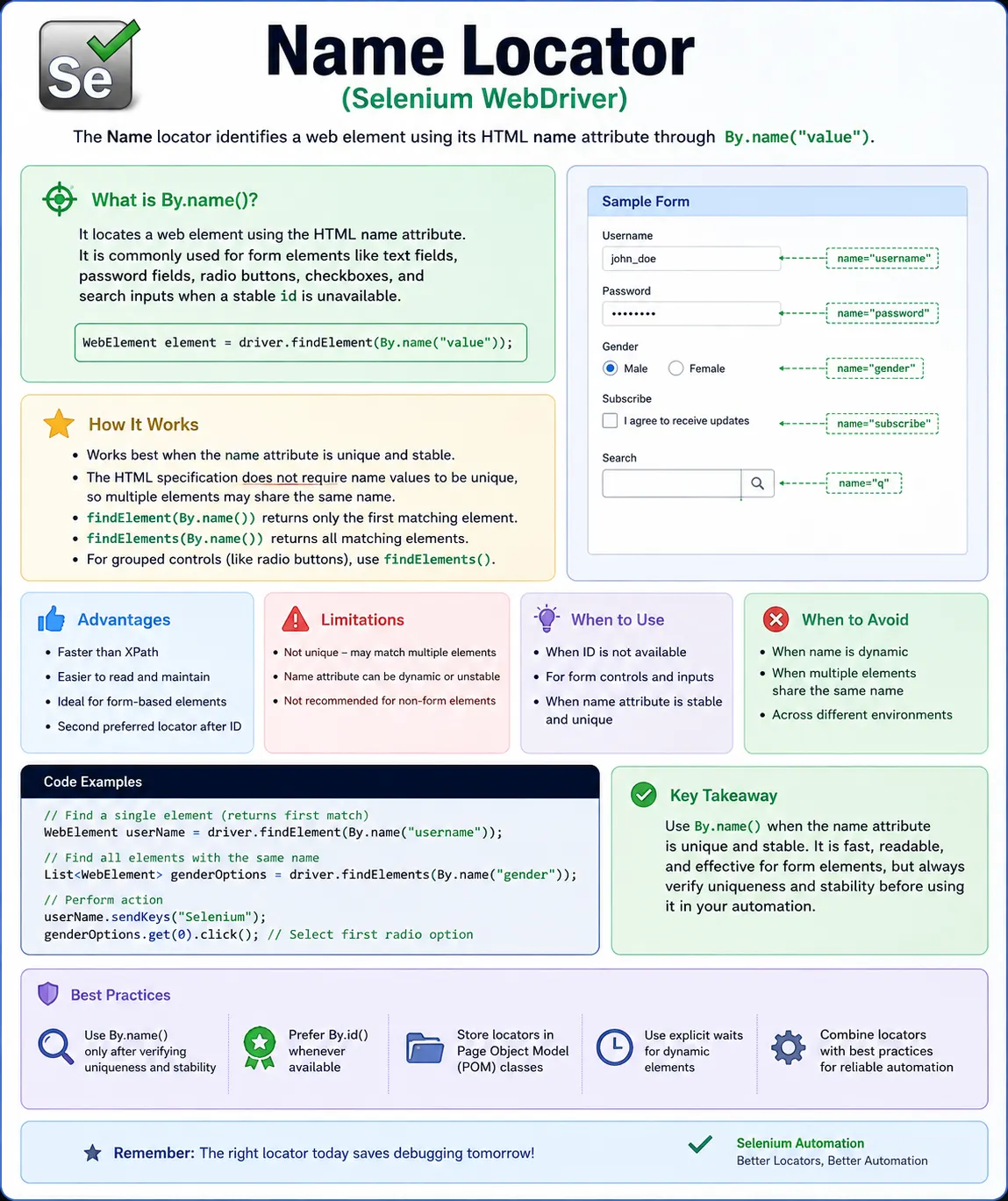
Understanding the Name Locator in Selenium WebDriver
The name locator is one of the simple locator strategies provided by Selenium WebDriver. It identifies an element by reading the value of the HTML name attribute. In real web applications, the name attribute appears frequently on form controls because it is tied to how form data is submitted. Text boxes, password fields, email fields, search inputs, hidden fields, checkboxes, radio buttons, and sometimes entire forms may contain a name attribute. Because so many user workflows depend on forms, the name locator remains a practical and common choice in Selenium automation.
A Selenium test cannot interact with a page by guessing what a user sees. It must search the browser's Document Object Model and obtain a WebElement. The locator is the instruction that tells Selenium how to perform that search. With By.name("username"), the strategy is name and the value is username. Selenium sends this request to the browser driver, the browser searches for an element whose name attribute has that value, and Selenium returns a WebElement if a match is found. After that, the test can call methods such as sendKeys(), click(), clear(), getAttribute(), isDisplayed(), isEnabled(), and isSelected().
The name locator is often described as the second-best option after ID. This is a useful rule of thumb, but it needs a practical explanation. The ID attribute is designed to be unique within an HTML page, so a stable ID is usually the strongest direct locator. The name attribute, however, is not required to be unique. Multiple elements can share the same name, and in some cases they are expected to share the same name. Radio buttons in a group commonly use the same name so the browser knows they belong to one choice group. This makes name very useful in some scenarios and risky in others.
The biggest strength of the name locator is readability. A statement like driver.findElement(By.name("email")) is easy to understand. It tells the reader that the test is locating a field used to submit an email value. A statement like driver.findElement(By.name("password")) is equally clear. This readability matters because test automation is maintained by people over time. When a test fails in a pipeline, the person investigating the failure should quickly understand the target element. Meaningful name locators support that kind of quick diagnosis.
Name locators work especially well for traditional forms. A login form may contain name="username" and name="password". A registration form may contain name="firstName", name="lastName", name="email", and name="phone". A search page may contain name="q" or name="search". These attributes are often stable because backend form processing, analytics, accessibility labels, and browser autofill may depend on them. When an application has clean form markup and no stable IDs, By.name() can be a direct and maintainable choice.
The limitation is that name is not a uniqueness guarantee. If two inputs have name="email", findElement() returns the first matching element, and that first element may not be the one the scenario needs. This can happen when a page contains a visible form and a hidden template, a modal and a background form, a desktop view and a mobile view in the DOM at the same time, or repeated rows in a table. The test may appear to work locally but fail under another viewport or data condition. For this reason, every name locator should be checked for uniqueness before it is trusted as a single-element locator.
Browser developer tools are useful for validating name locators. A tester can inspect the element and search for [name='username'] in the Elements panel. If the search returns exactly one match, the locator is likely safe. If it returns several matches, the locator needs more context. That context may come from a parent form, a modal container, a section ID, a data attribute, or a combination selector. The goal is not merely to find an element. The goal is to find the correct element in a way that remains correct when the page evolves.
Radio buttons are the most important case where repeated names are normal. In HTML, a radio group uses the same name value for all options so the browser treats them as mutually exclusive. For example, several radio buttons may have name="gender", name="paymentMethod", or name="deliverySpeed". In this case, By.name("paymentMethod") should usually be used with findElements(), not findElement(), because the test expects multiple matching elements. The automation can then loop through the list, inspect values or labels, and click the desired option. Using findElement() on a radio group may click only the first option and silently ignore the user's intended choice.
This difference between findElement() and findElements() is central to using name locators correctly. findElement() is appropriate when exactly one element should match. If no element matches, Selenium throws NoSuchElementException. findElements() is appropriate when zero, one, or many elements may match. It returns a list, and the list is empty when no matches are found. With name locators, repeated names are common enough that testers should consciously decide which method matches the expected page behavior. A username field is usually a findElement() case. A radio group is usually a findElements() case.
Name locators are also useful with getAttribute("value") for input fields. A common beginner mistake is to call getText() on a text box after typing into it. Most input elements do not expose their typed value as visible inner text. The value is stored in the value attribute or DOM property. A test that enters text into a field found by name should verify it with getAttribute("value") when needed. This reinforces a broader Selenium principle: locators find elements, while the correct WebElement method depends on the kind of element and the state being validated.
The name locator is often cleaner than XPath when the attribute is unique. For example, By.name("email") is easier to read than By.xpath("//input[@name='email']"). Both may locate the same element, but the direct name strategy communicates intent more clearly. XPath is still valuable when extra relationships are required, such as locating an email field inside a specific form, row, or modal. The best Selenium code does not use XPath by habit. It uses the simplest locator that is stable, unique, and understandable for the specific page.
CSS selectors can also locate elements by name. The selector [name='email'] is equivalent in target to By.name("email") when the name is unique. CSS becomes useful when the locator needs to combine name with other conditions, such as input[name='email'], form#registrationForm input[name='email'], or [data-section='billing'] input[name='email']. When name alone is not precise enough, CSS can make the locator more specific without becoming as verbose as XPath. This is a common pattern in real frameworks.
Dynamic pages create timing problems for all locator strategies, including name. A field may be rendered only after an API response, after a modal opens, or after the user chooses a previous option. A correct name locator will still fail if Selenium searches too early. Explicit waits solve this problem more reliably than fixed sleeps. If the test needs to type into a field, it can wait until the element located by name is visible or clickable. If the test needs only to verify that a hidden field exists, it can wait for presence. The locator identifies the target; the wait defines when the target is ready.
Name locators can also produce stale element issues. If a test stores a WebElement found by name and then the page refreshes or a frontend component re-renders, the old element reference may become invalid. The name attribute may still exist on the new element, but the old WebElement points to a node that is no longer attached to the DOM. The fix is to locate the element again after the update. This is why some page object designs store By locators and resolve them inside methods rather than storing WebElement references too early.
Frames are another common source of confusion. If a form field with name="username" is inside an iframe, Selenium cannot locate it from the main page context. The test must switch into the frame first, find the element, perform the action, and then switch back if needed. A name locator that fails inside a frame is not necessarily wrong. The driver may simply be searching the wrong document. When debugging a locator failure, it is always worth checking whether the element is inside an iframe, a new browser window, a shadow root, or a closed modal state.
In the Page Object Model, name locators should be kept inside the page class that owns the form. A test method should not repeat By.name("email") throughout the suite. Instead, a page object can expose methods such as enterEmail(), enterPassword(), chooseGender(), submitRegistration(), or getEnteredEmail(). This keeps the test readable and makes locator maintenance easier. If the application later adds stable IDs or data-test attributes, the page object can be updated without rewriting every test.
Name locators are also helpful in reusable form components. Many enterprise applications contain repeated patterns such as address forms, payment forms, search filters, user profile forms, and preference panels. A component object can search within its own root element using name locators. This scoped approach avoids accidental matches elsewhere on the page. For example, both billing address and shipping address sections may contain name="city". A global By.name("city") is ambiguous, but shippingAddressSection.findElement(By.name("city")) is much clearer.
Accessibility and form semantics are related to name locator quality. The name attribute is part of how form data is identified, but it is not the same as the accessible name presented to assistive technologies. A field may have name="email" while its visible label says "Work email address". Selenium's By.name() looks at the HTML attribute, not the visual label. If tests must locate elements by user-facing label, XPath, CSS with label relationships, or accessibility-oriented tooling may be needed. Understanding what name means in HTML prevents confusion between form submission names and visible text.
A practical review rule is to ask three questions before accepting a name locator. Is the name value stable? Is it unique in the search scope? Does it describe the element's purpose clearly enough? If the answer to all three is yes, By.name() is usually a good choice. If the name is duplicated, scope it or use findElements() when multiple matches are expected. If the name is generated or unclear, prefer a better attribute such as ID or a data-test hook. This simple checklist prevents many common locator failures.
Interviewers often ask when to use name instead of ID. A strong answer is that ID is preferred when it is stable and unique, but name is a good alternative when the ID is missing, generated, or unsuitable and the name attribute is unique in the relevant scope. The answer should also mention that name is common in forms and radio groups, but not guaranteed unique. A practical candidate will explain that they verify uniqueness in developer tools and centralize locators in page objects rather than scattering them across tests.
Another common interview question is what happens when multiple elements have the same name. With findElement(), Selenium returns the first matching element. With findElements(), Selenium returns all matching elements as a list. This is not just interview theory. It directly affects radio buttons, repeated form rows, hidden templates, and pages that keep both mobile and desktop markup in the DOM. Knowing this behavior helps testers choose the right method and avoid accidentally interacting with the wrong element.
Troubleshooting a failing name locator should follow a careful order. First, confirm the test is on the expected page. Second, inspect whether the element is present when Selenium searches for it. Third, verify the name value in the current environment. Fourth, count how many elements match that name. Fifth, check visibility, enabled state, iframe context, shadow DOM, and stale references. This process is faster than randomly replacing a name locator with a long XPath. The goal is to identify the actual cause, not merely to make one run pass.
In real automation, the name locator is valuable because it balances simplicity and usefulness. It is not as strong as a stable ID, but it is far better than many fragile alternatives when used correctly. It is especially effective for form elements where the name attribute reflects submitted data. It becomes risky when names are duplicated, dynamic, or used only as implementation details. The tester's job is to recognize that difference before adding the locator to the framework.
The key takeaway is that By.name() is a practical Selenium locator for form-heavy pages. It is simple, readable, and efficient, but it requires a uniqueness check. Use it when stable IDs are unavailable and the name attribute is meaningful within the page or component. Avoid it when the name is repeated without clear intent, generated dynamically, or less stable than another available locator. When combined with page objects, scoped searches, explicit waits, and thoughtful assertions, the name locator becomes a reliable part of a professional Selenium automation suite.
Using Name Locators Safely in Complex Pages
Complex pages are where name locators need the most discipline. A simple login page may have one username field and one password field, so By.name("username") and By.name("password") are obvious choices. A large business application is different. It may contain several forms on the same screen, a hidden edit modal, reusable address components, filters in a sidebar, and repeated rows in a table. In that kind of page, a name value that looks unique at first may have several matches in the DOM. A reliable test does not depend on luck or browser match order. It scopes the search to the form, modal, row, or component that represents the user's current context.
Scoping is especially useful when the same field appears in multiple sections. Billing address and shipping address may both have fields named firstName, lastName, addressLine1, city, and postalCode. These names are meaningful, but they are not globally unique. A page object can solve this by locating the billing section first and then finding fields by name inside that section. The result is both readable and accurate. The test can say billingAddress.enterCity("Dallas") while the component uses a scoped name locator internally. This approach keeps the benefit of name locators without accepting ambiguity.
Radio groups show another side of this strategy. Because radio buttons in one group intentionally share the same name, uniqueness is not the goal. The goal is to collect the group and select the correct option. A test might find all elements with By.name("paymentMethod"), then choose the option whose value attribute is card, upi, wallet, or cash. The name identifies the group, while another attribute identifies the exact option. This is cleaner than writing a different locator for each radio button when the group itself already provides a meaningful structure.
The same idea applies to checkboxes that share a name. Some forms use several checkboxes with the same name to submit multiple selected values, such as interests, skills, permissions, or categories. In that situation, By.name("skills") should usually return a list, and the automation should filter by value, label text, or nearby content. Treating the name as a single-element locator would be wrong because the HTML is modeling a collection. A good tester reads the page structure and uses Selenium in a way that matches the intent of the markup.
Name locators should also be considered alongside data attributes. If name is meaningful but repeated in several places, a data-test attribute may provide a better top-level hook. For example, a checkout page could expose data-test="shipping-address-form" and data-test="billing-address-form". Inside each form, name locators can still be used for individual fields. This creates a strong combination: data attributes identify major components, and name attributes identify form controls within those components. The locators remain readable without becoming dependent on layout indexes or styling classes.
Another practical consideration is how validation errors are rendered. Many forms display error messages near the field that failed validation. If several fields have similar error markup, a global locator for an error message may return the wrong text. A better approach is to scope the lookup around the field or form group. The page object can find the input by name, move to the surrounding container if the DOM supports it, and then read the associated error message. XPath may be needed for this relationship, but the name attribute can still serve as the anchor that identifies the correct field.
Name locators are also useful in data-driven testing. When test data maps naturally to form names, helper methods can fill forms by matching keys to name attributes. For example, a map containing email, password, phone, and city can drive a generic form filler that locates inputs by name. This can reduce repetitive code, but it must be used carefully. A generic form filler should still handle missing fields, hidden fields, unsupported input types, and duplicate names in a controlled way. Convenience should not remove clarity from important business tests.
In continuous integration pipelines, locator stability becomes more visible because tests run often and under different timing conditions. A name locator that depends on a field appearing immediately may fail when the environment is slower. A name locator that matches hidden mobile markup may fail when the browser viewport changes. A name locator that finds the first match may behave differently after a feature flag adds another form to the DOM. These are not random Selenium problems. They are signals that the locator strategy needs better scoping, synchronization, or collaboration with the frontend team.
Good assertion messages make name locator failures easier to understand. If a test says "Unable to type email," the report is more useful than a generic NoSuchElementException buried inside a utility method. If a radio button selection fails, the message should explain which group and option were expected. Clear locator names, scoped page object methods, and readable assertion messages work together. They turn failures into actionable information rather than long debugging sessions.
A final best practice is to document the locator priority used by the team. One project may prefer stable ID first, then data-test, then name, then CSS, then XPath. Another project may prefer data-test before ID because generated framework IDs are common. The exact order can vary by application, but the team should agree on it. When everyone follows the same rules, locators become consistent across the suite. Consistency helps new automation engineers learn the framework and helps reviewers identify weak locators before they become flaky pipeline failures.
The name locator is therefore neither a beginner-only shortcut nor a universal solution. It is a focused tool. It works very well when form markup is clean and the name attribute is stable in the relevant scope. It works poorly when the same name appears in unrelated sections and the test ignores that ambiguity. Used thoughtfully, it gives Selenium tests a readable way to connect automation steps to the form fields that users and systems depend on every day.
When learning Selenium, it is tempting to judge locators only by whether the test passes once. In professional automation, that is not enough. A name locator should be judged by whether it continues to pass after a reload, after test data changes, after a responsive layout changes, and after another field is added to the page. This is why experienced testers inspect the DOM, count matches, and think about future maintenance before committing a locator. A small amount of care during locator design prevents repeated failures later.
In interviews and in real projects, the best way to explain the name locator is to connect syntax with judgment. The syntax is simple: driver.findElement(By.name("value")). The judgment is knowing when that value is unique, when it represents a group, when findElements() is safer, and when another locator strategy would be stronger. If you can explain both parts, you show that you understand Selenium as a practical testing tool, not just as a collection of commands. That practical judgment is what makes locator code durable across ordinary product changes.
In Selenium, name locators are frequently used for input fields, radio buttons, and form submissions.
1. What Is a Name Locator
Definition: A name locator identifies a web element using the HTML name attribute.
Conceptually:
- Strategy means Name
- Value means value of the name attribute
Example HTML:
<input type="text" name="username">2. When Name Locator Works Best
Use name locator when:
- id is not available or not stable
- The name attribute is unique
- You are dealing with form elements
Common use cases:
- Username/password fields
- Search inputs
- Radio button groups
- Form submissions
3. Strengths of Name Locator
- Simple and readable
- Faster than XPath
- Often stable across environments
- Works well with forms
Industry practice: Use name locator only if it is unique on the page.
4. Limitations of Name Locator
- name is not guaranteed to be unique
- Multiple elements can share the same name
- Overused in radio button groups
- Less reliable than ID
If multiple elements share the same name, Selenium returns the first match.
5. Name Locator vs ID Locator
| Aspect | ID | Name |
|---|---|---|
| Uniqueness | Guaranteed (HTML spec) | Not guaranteed |
| Stability | Very High | Medium-High |
| Speed | Fastest | Fast |
| Preferred order | 1st | 2nd |
Always prefer ID over Name.
6. Name Locator in Page Object Model (POM)
Best practice:
- Use name locators inside page classes
- Avoid hardcoding in tests
- Validate uniqueness during locator design
Centralization makes maintenance easier.
7. Common Beginner Mistakes
- Assuming name is always unique
- Using name locator for lists or repeated elements
- Ignoring better ID locators
- Using name without verifying DOM uniqueness
These cause unexpected element selection.
8. Real-Project Best Practices
- Validate name uniqueness using browser dev tools
- Use name for form inputs when ID is missing
- Avoid name locator for dynamic lists
- Combine with other strategies if necessary
9. Interview Perspective
Short Answer: A name locator uses the HTML name attribute to locate elements in Selenium, commonly used for form fields.
Real-Time Answer: In Selenium, the name locator identifies elements using the name attribute. It is useful for form-related elements but should be used only when the name value is unique on the page, as uniqueness is not guaranteed.
10. Key Takeaway
- Name locator is simple and fast
- Best suited for form fields
- Less reliable than ID
- Always verify uniqueness
- Name locators are good-but only when uniqueness is guaranteed.
11. Name Locator Examples (Interview Ready)
1. Basic Name Locator Usage
driver.findElement(By.name("username"));Key Point: Locates element using the HTML name attribute.
2. Name Locator with sendKeys()
driver.findElement(By.name("username"))
      .sendKeys("admin");
3. Name Locator with click()
driver.findElement(By.name("login"))
      .click();
4. Name Locator with clear() + sendKeys()
WebElement email = driver.findElement(By.name("email"));
email.clear();
email.sendKeys("test@example.com");
5. Name Locator with getText()
String label =
    driver.findElement(By.name("welcomeMsg")).getText();

System.out.println(label);
6. Name Locator with getAttribute()
String value =
    driver.findElement(By.name("username"))
          .getAttribute("value");
Interview Tip: Use this for input fields, not getText().
7. Name Locator with isDisplayed()
Assert.assertTrue(
    driver.findElement(By.name("logo")).isDisplayed()
);
8. Name Locator with isEnabled()
WebElement submit = driver.findElement(By.name("submit"));
Assert.assertTrue(submit.isEnabled());
9. Name Locator with isSelected() (Checkbox)
WebElement checkbox = driver.findElement(By.name("agree"));
Assert.assertFalse(checkbox.isSelected());
10. Name Locator with Explicit Wait (Best Practice)
WebDriverWait wait =
    new WebDriverWait(driver, Duration.ofSeconds(10));

WebElement loginBtn =
    wait.until(ExpectedConditions.elementToBeClickable(
        By.name("login")
    ));

loginBtn.click();
11. Name Locator with findElements() (Multiple Matches)
List<WebElement> radios =
    driver.findElements(By.name("gender"));

System.out.println(radios.size());
Important: name can be non-unique.
12. Selecting a Radio Button Using Name Locator
List<WebElement> gender =
    driver.findElements(By.name("gender"));

gender.get(0).click();
13. Safe Check with Name Locator (Optional Element)
if (driver.findElements(By.name("popup")).size() > 0) {
    driver.findElement(By.name("popup")).click();
}
14. Name Locator Inside Form (Chaining)
WebElement form = driver.findElement(By.id("loginForm"));
form.findElement(By.name("username")).sendKeys("admin");
15. Name Locator Inside Frame
driver.switchTo().frame("loginFrame");
driver.findElement(By.name("username")).sendKeys("admin");
driver.switchTo().defaultContent();
16. Name Locator After Page Refresh (Stale Fix)
WebElement field = driver.findElement(By.name("email"));
driver.navigate().refresh();

// field.sendKeys("x"); Invalid: stale
field = driver.findElement(By.name("email"));
field.sendKeys("test@example.com");
17. Name Locator Stored as By (Framework Style)
By username = By.name("username");
driver.findElement(username).sendKeys("admin");
18. Name Locator in Page Object Model (POM)
@FindBy(name = "username")
WebElement username;

public void enterUsername(String value) {
    username.clear();
    username.sendKeys(value);
}
19. Name Locator vs ID Locator (Interview)
By.id("username");   // preferred
By.name("username"); // used when ID not available
Rule: Use ID first, then Name.
20. Name Locator for Password Field
driver.findElement(By.name("password"))
      .sendKeys("secret");
21. Name Locator with Form Submit
driver.findElement(By.name("loginForm")).submit();22. Common Interview Mistake
By.name("username").sendKeys("admin"); // Invalid:Correct:
driver.findElement(By.name("username")).sendKeys("admin"); // Valid:23. Name Locator vs CSS Selector (Equivalent)
driver.findElement(By.name("email"));
driver.findElement(By.cssSelector("[name='email']"));
24. When NOT to Use Name Locator
- Invalid: Name is not unique
- Invalid: Multiple radio buttons share same name
- Invalid: Name changes dynamically
25. Interview Summary - Name Locator
driver.findElement(By.name("elementName"));Key Points:
- Uses name attribute
- Can return multiple elements
- Common for forms (username, password, radio buttons)
- Second priority after ID
- Simple & readable