Multi-Select Dropdowns
In Selenium, multi-select dropdowns are common in forms, filters, admin panels, and configuration screens.
Handling them correctly requires understanding both native <select multiple> dropdowns and
state validation/deselection logic.
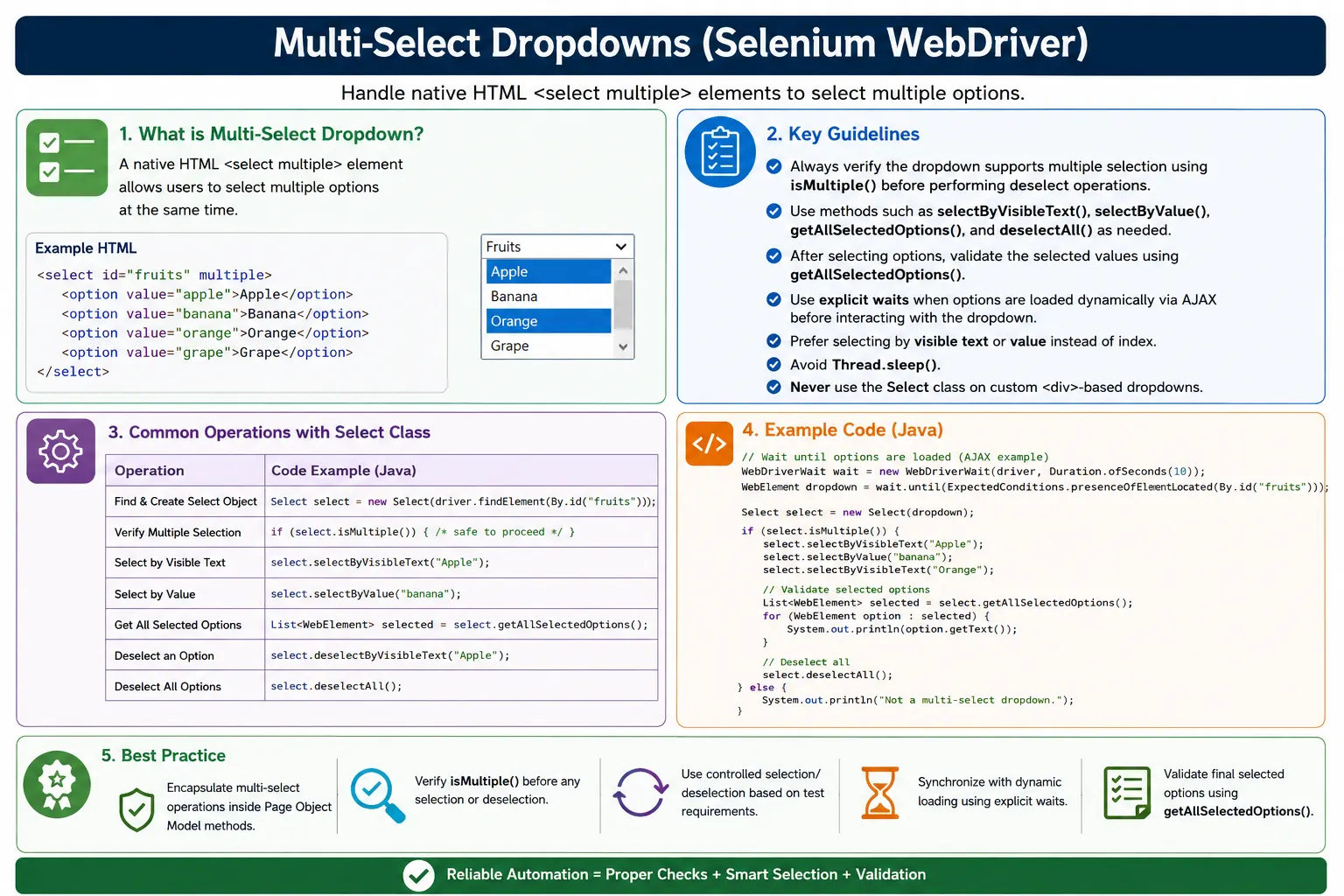
Understanding Multi-Select Dropdowns in Selenium
Multi-select dropdowns are controls that allow a user to choose more than one option from the same list. They are common in admin panels, configuration screens, advanced filters, permission settings, skills forms, reporting dashboards, and preference pages. In Selenium automation, they require more care than normal single-select dropdowns because the test must manage a collection of selected values rather than one selected value. The framework must know how to select multiple options, validate all selected options, deselect specific options, and sometimes reset the control completely.
Selenium's Select class supports native multi-select dropdowns when the HTML element is a select tag with the multiple attribute. This distinction is important. A native multi-select is not the same as a custom dropdown built with div, ul, li, checkboxes, chips, or a JavaScript component library. The Select class works with native select elements. Custom multi-select components require normal click, wait, and locator strategies. A stable automation engineer always inspects the DOM before choosing the strategy.
Multi-select testing is not just about calling selectByVisibleText several times. A good test verifies that the dropdown actually supports multiple selection, waits until the options are loaded, selects the intended values, validates the full selected set, and handles deselection safely. When this logic is repeated in many tests, it should be moved into Page Object Model methods or dropdown utilities so that tests remain readable and consistent.
What Is a Multi-Select Dropdown?
Multiple Values in One Control
A multi-select dropdown is a select element that allows more than one option to be selected at the same time. In native HTML, this is done by adding the multiple attribute to the select tag. The user can then select multiple options, often with keyboard support such as Control or Shift depending on the browser and operating system. Selenium can work with this control through the Select class and can retrieve all selected options using getAllSelectedOptions().
Multi-select dropdowns represent many-to-many choices. A user may select several countries, multiple skills, many permissions, several product categories, or different notification channels. The test must therefore think in terms of sets. The selected set should match the expected set. Checking only the first selected option is not enough when more than one value matters.
Single Select vs Multi-Select
A single-select dropdown allows only one selected value. Selecting a new option replaces the old selected option. A multi-select dropdown allows several selected values to remain selected together. This changes both action and validation. In a single-select control, getFirstSelectedOption is usually enough. In a multi-select control, getAllSelectedOptions is the main validation method because the test needs the full selected list.
The difference also matters for deselection. Selenium's deselect methods work only for multi-select dropdowns. Calling deselectByVisibleText, deselectByValue, deselectByIndex, or deselectAll on a single-select dropdown causes an exception. That is why isMultiple() should be checked before any deselect operation.
Creating and Verifying a Select Object
Create Select from the Native Element
To automate a native multi-select dropdown, first locate the select element itself. Then create a Select object by passing that WebElement to the Select constructor. The located element must be the select tag, not a wrapper, label, option, or custom visual container. If the element is not a select tag, the Select class is the wrong tool and Selenium will fail when creating the object.
Locator quality remains important. IDs and stable data attributes are best when available. CSS selectors using name, id, or other stable attributes are also good. Avoid absolute XPath and index-based locators because option lists and forms often change over time. A multi-select dropdown usually represents business configuration, so a wrong locator can select or validate the wrong field silently.
Always Check isMultiple()
isMultiple() tells whether the select element supports multiple selections. This check is especially important before deselecting. It is also useful for defensive framework code. A utility method that expects a multi-select dropdown should fail clearly if isMultiple() returns false. That failure message is better than a confusing unsupported operation later in the test.
Checking isMultiple() also protects against UI regressions. If a developer accidentally removes the multiple attribute, the control becomes single-select. A test that verifies isMultiple() can catch this change quickly. That is valuable because removing multiple-selection capability can break user workflows even if the dropdown still appears on the page.
Selecting Multiple Options
Select by Visible Text
selectByVisibleText is usually the most readable method when selecting business values. If a skills dropdown contains Java, Python, and Selenium, selecting by visible text makes the test easy to understand. Test reviewers can see exactly which values are intended without inspecting option attributes. This is a strong default when labels are stable and represent user-facing requirements.
After selecting by visible text, validate the selected options. Multi-select dropdowns can behave differently depending on JavaScript listeners, browser behavior, and application state. The fact that Selenium called a selection method does not replace assertion. The selected set should be read and compared to the expected set.
Select by Value
selectByValue is useful when option values are stable and meaningful. For example, country options may display United States while using value="US", or skills may display Selenium WebDriver while using value="selenium". Values are often less likely to change than visible labels in multilingual or marketing-driven applications. When values are part of the application contract, selecting by value can be robust.
The value approach is not always better. Some applications use generated values, database IDs, or unclear codes. In that case, visible text may be more readable and safer for test intent. The best selection method depends on which attribute is stable and meaningful in the application.
Select by Index
selectByIndex should be used carefully. It selects based on option position, and option position can change when new values are added, sorting changes, localization changes, or placeholders appear. In production test automation, index is usually the least preferred method because it hides intent. A test that selects index 2 does not clearly say which business option is being selected.
Index selection can be acceptable when order itself is under test or when a very controlled list has no stable text or value. Even then, validate the selected option afterward. This prevents silent failures when order changes unexpectedly.
Validating Selected Options
Use getAllSelectedOptions()
getAllSelectedOptions() is the main validation method for multi-select dropdowns. It returns all selected option elements. The test can map those options to visible text, value attributes, or both. This allows assertions on selected count, expected values, unexpected extra values, and selected option order when order matters.
In many tests, selected values should be treated as a set rather than a strict ordered list. Browser or application behavior may return selected options in DOM order, not the order in which the test selected them. If business rules do not require order, compare sets or sort both lists before assertion. This prevents false failures caused by ordering rather than selection correctness.
Validate Count and Exact Values
Selected count is a useful first check. If the test intended to select three countries, getAllSelectedOptions() should return three. But count alone is not enough. The test should also verify that the exact expected values are selected. A dropdown with three selected values can still be wrong if one intended value is missing and an unintended value is selected.
A strong assertion reports both missing and unexpected values. For example, if the expected selected skills are Java and Selenium but the actual selected values are Java and Python, the failure should say Selenium is missing and Python is unexpected. This makes debugging faster than a generic list mismatch.
Deselecting Options Safely
Deselect Specific Values
Multi-select dropdowns support deselection by visible text, value, and index. These methods are useful when a test needs to remove one option while keeping others selected. For example, a permissions screen may start with several selected modules and the test may need to remove only Export. A filter screen may need to clear one selected category while leaving others active.
Before deselecting, confirm that the dropdown is multiple. After deselecting, validate the selected set again. Do not assume the deselection succeeded. Dynamic pages may update dependent content after deselection, so the test may also need to wait for the related UI state, such as result count or active filter chips.
Deselect All
deselectAll() clears every selected option in a native multi-select dropdown. This is useful for resetting state before a test selects a new set of options. However, it should still be used intentionally. If a dropdown has required selections or business rules that prevent empty selection, clearing all options may trigger validation or be blocked by application logic.
After deselectAll(), validate that no options are selected or that the application shows the expected validation state. A reset action is still a behavior that should be verified. In framework utilities, a clearAndSelect method can call deselectAll(), select the desired values, and then validate the final set.
Dynamic Multi-Select Dropdowns
Wait for Options to Load
Multi-select options may load dynamically after an API call, page initialization, parent dropdown selection, or user role check. The select element may be present before all options are available. If Selenium tries to select too early, it may fail with option not found or select only a partial list. A reliable test waits until the expected options exist before selecting.
A good wait condition can check that option count is greater than a minimum, or better, that all expected option texts or values are present. Waiting for exact expected options is stronger because it proves the dropdown has loaded the values the test needs. This is better than Thread.sleep because it reacts to the actual application state.
Dependent Multi-Select Controls
Some multi-select dropdowns depend on other form fields. Selecting a department may load available skills. Choosing a country may load regions. Selecting a product type may load compatible add-ons. In these workflows, the page object should perform the parent action, wait for the multi-select options, select the intended child values, and validate the result.
Dependent controls should be tested as state transitions. The test should not only select options; it should verify that the options available are correct for the parent selection. This catches business rule defects where the wrong options appear for a given context.
Actions Class and Keyboard Multi-Selection
When Keyboard Interaction Matters
Native multi-select controls may support selecting multiple values through Control or Shift keyboard behavior. Selenium's Select class is usually simpler and preferred for native dropdowns, but the Actions class can be useful when the test specifically needs to validate user-like keyboard behavior or when the UI intercepts normal selection. Actions can hold Control, click multiple options, and release Control.
This approach is more sensitive to browser and operating system behavior, so it should not be the default for ordinary selection. Use Select methods for normal automation. Use Actions when keyboard interaction is part of the requirement or when the application behavior demands it.
Control and Shift Considerations
Control-click usually toggles individual selections, while Shift-click may select a range. The exact user experience can depend on the platform and browser. If a test validates keyboard multi-selection, it should be clear about what behavior is expected. After performing Actions, always validate the selected options using getAllSelectedOptions().
Multi-Select Dropdowns in Page Object Model
Expose Set-Based Methods
Page objects should expose methods that describe the desired set of selections. Examples include selectSkills, setCountries, choosePermissions, selectCategories, or clearAndSelectRegions. These methods can verify isMultiple(), wait for expected options, clear existing selections if needed, select the desired values, and validate the final selected set.
This design keeps tests readable. A test can say settingsPage.selectCountries("India", "USA", "Canada") rather than repeating Select object creation, loops, waits, and assertions. If the dropdown implementation changes, the page method can be updated without rewriting business tests.
Build Reusable Multi-Select Utilities
Frameworks often benefit from utility methods such as selectMultipleByText, selectMultipleByValue, getSelectedTexts, getSelectedValues, deselectAllIfMultiple, waitForOptions, and assertSelectedSet. These helpers centralize common behavior and provide consistent failure messages. They can also handle sorting before assertions when order is not part of the requirement.
A good utility fails clearly when the dropdown is not multi-select, when expected options are missing, or when final selected values do not match. Good diagnostics matter because multi-select failures can otherwise be hard to interpret.
Common Mistakes with Multi-Select Dropdowns
Forgetting isMultiple()
The most common mistake is assuming a dropdown is multi-select and calling deselect methods. If the multiple attribute is missing, Selenium throws an exception. Always check isMultiple() before deselecting and consider asserting it in page methods that are specifically designed for multi-select controls.
Validating Only the First Selected Option
getFirstSelectedOption is not enough for multi-select validation. It returns only one selected option. A test that selects three values must validate all three. Use getAllSelectedOptions and compare the selected set to the expected set. This prevents partial-selection defects from slipping through.
Using Index Without Need
Selecting by index is fragile because option order can change. Multi-select dropdowns often grow over time as new skills, countries, permissions, or categories are added. Use visible text or value whenever possible. If index is used, validate the selected values after selection.
Interview Perspective on Multi-Select Dropdowns
Short Interview Answer
Multi-select dropdowns allow selecting more than one option. In Selenium, native multi-select dropdowns are handled with the Select class, using isMultiple(), select methods, getAllSelectedOptions(), and deselect methods.
Detailed Interview Answer
In Selenium WebDriver, a multi-select dropdown is a native select element with the multiple attribute. I first create a Select object and verify isMultiple(). Then I select multiple options using visible text or value, validate the selected set using getAllSelectedOptions(), and use deselect methods only after confirming the dropdown supports multiple selection. For dynamic dropdowns, I wait until the required options are loaded before selecting.
Real Project Explanation
In a real framework, I would wrap multi-select behavior inside Page Object Model methods. A method such as selectSkills(List<String> skills) would wait for the dropdown, verify it is multi-select, optionally clear existing values, select each expected skill, and assert that the final selected set matches the requested set. If the dropdown is custom rather than native select multiple, I would not use Select class and would automate the custom component through normal UI interactions.
The key takeaway is that multi-select dropdown automation is about controlled set selection and precise validation. Always confirm that the control supports multiple selection, prefer visible text or value over index, wait for dynamic options, validate all selected values, and centralize the logic in reusable page methods or utilities.
Real-World Multi-Select Dropdown Scenarios
Skills and Technology Selection
Skills dropdowns are common in job portals, resume builders, training platforms, and internal employee systems. A user may select Java, Selenium, Python, SQL, API Testing, or DevOps from one multi-select control. In this scenario, the test should validate that each requested skill becomes selected and that unrelated skills remain unselected when the workflow requires an exact set. It may also need to verify that the selected skills persist after saving and reopening the profile.
Persistence validation is important because multi-select controls often serialize multiple values to the backend. The UI may show the selection correctly before save, but the backend may store only one value, store the wrong values, or lose ordering. A strong test selects the skills, saves, reloads the page, and verifies that the same selected set is restored.
Permissions and Access Control
Admin panels may use multi-select dropdowns for assigning roles, permissions, departments, regions, or allowed modules. These selections often affect security and access control. A test should not only select values but also verify that the correct values are available for the current administrator. For example, a regional admin may be allowed to select only certain regions, while a global admin may see all regions.
In permission screens, exact-set validation is critical. Selecting View, Edit, and Export should not accidentally include Delete. Deselecting Export should leave View and Edit intact. Multi-select tests should verify missing and unexpected selections clearly because permission defects can have serious product impact.
Advanced Search and Reporting Filters
Reporting screens often use multi-select dropdowns to filter by status, category, region, owner, team, or date grouping. Selecting multiple statuses may update a chart or table. Selecting multiple regions may change totals and summary cards. Automation should wait for the dropdown selected set and then wait for the report area to refresh. The selected values are only part of the behavior; the filtered result is the business outcome.
For report filters, post-selection validation can include active filter chips, query parameters, result count, table values, chart legends, or export payloads. The correct assertion depends on the feature. A framework method can select filters and then call a page-specific wait for report refresh so tests remain readable.
Accessibility and User Behavior
Keyboard Interaction
Native multi-select dropdowns support keyboard behavior, but the interaction can be less intuitive than simple dropdowns. Users may hold Control to select non-adjacent options or Shift to select ranges. Selenium's Select class can select options directly, but accessibility-focused tests may also verify keyboard behavior with the Actions class. This is useful when the product specifically supports keyboard workflows or must meet accessibility requirements.
Keyboard tests should be intentional. Do not replace simple Select methods with Actions unless keyboard behavior is part of what the test is proving. Actions-based selection can be more sensitive to browser and platform differences. After using keyboard interaction, always validate the final selected set with Select class methods.
Labels and Instructions
Multi-select dropdowns should provide clear labels and instructions because users need to understand that more than one option can be selected. Some native multi-select controls are visually different from normal dropdowns, while others may not be obvious. A test can validate visible labels, default placeholder options, and helper text when those are part of the requirement. Good labels improve both usability and test clarity.
When a multi-select control is custom rather than native, accessibility state may be represented through ARIA attributes such as aria-multiselectable, aria-selected, role="listbox", and role="option". Those controls are not handled by the Select class, but understanding their state model helps automation choose the right locators and assertions.
Multi-Select Stability in CI
Why Multi-Select Tests Fail in Pipelines
Multi-select tests can fail in CI when options load more slowly than they do locally, when dependent dropdowns are populated by delayed API calls, or when a remote browser behaves differently with keyboard selection. A test that assumes options are immediately available may pass on a developer machine and fail on a shared runner. The fix is not a longer sleep. The fix is to wait for the expected option set.
CI-stable tests wait until all required options exist before selecting, validate the final selected set, and log available options when selection fails. If the dropdown is inside a frame or modal, the page object should wait for that context first. If selecting values updates a report or table, the test should wait for the dependent UI to finish refreshing before asserting.
Useful Diagnostics for Multi-Select Failures
Multi-select failures should include the dropdown locator, expected values, actual selected values, available option values, isMultiple result, enabled state, current URL, and screenshot path. This information immediately shows whether the dropdown was not multi-select, options were missing, the wrong values were selected, or the application did not load the expected data.
Without diagnostics, teams often respond to multi-select failures by adding sleeps or changing locators randomly. With diagnostics, the cause is usually clear. If the available options list is empty, the problem is dynamic loading. If the expected option is absent for a particular role, the issue may be test data or business permissions. If isMultiple is false, the markup changed. Good logging turns a flaky-looking failure into a concrete investigation.
Designing Robust Multi-Select Helpers
Clear Existing Selections When Needed
A helper method should decide whether it is adding selections or setting an exact final set. These are different operations. Adding selections leaves existing values untouched. Setting an exact final set should clear existing selections first, then choose the expected values, then validate that no extra values remain selected. The method name should make this clear. addSelectedSkills and setSelectedSkills should not behave the same way.
Exact-set helpers are useful when tests need predictable state. If an account already has old selections, the helper can reset the dropdown and apply only the required values. This makes tests independent of previous data and avoids accidental extra selected options.
Compare Sets Instead of Lists When Order Does Not Matter
Multi-select values are often unordered from a business perspective. If the user selects India, USA, and Canada, the business requirement may care only that all three are selected, not the order in which they are returned. In that case, helper methods should compare sets. If order matters, the test should state that clearly and validate order intentionally.
Set comparison reduces false failures. Selenium may return selected options in DOM order rather than selection order. A strict list comparison can fail even when the selected values are correct. A robust assertion matches the business rule: unordered selection should use unordered comparison.
Separate Native and Custom Multi-Select Helpers
Native multi-select helpers should use the Select class. Custom multi-select helpers should not. Custom components may use checkboxes, tokens, chips, searchable inputs, virtual scrolling, or asynchronous option panels. They require a different approach: open the dropdown, search or scroll for options, click values, and validate chips or aria-selected states. Mixing these strategies creates confusing framework code.
Keep the page method stable even if the implementation changes. A test can call selectRegions or setSkills regardless of whether the UI is native or custom. The page object decides which helper to use. This protects test scenarios from UI component changes.
Common Edge Cases
Placeholder and Disabled Options
Some multi-select dropdowns include placeholder or disabled options. These should usually not be selected as real values. Tests should validate whether such options are present and whether they are disabled when that is a requirement. If a placeholder remains selected together with real values, the application may have a bug or the test may need to clear it before selecting.
Duplicate Visible Text
Duplicate visible text can create ambiguity. If two options display the same label but have different values, selectByVisibleText may not be precise enough for the business scenario. In that case, selectByValue may be safer. Tests should also validate selected values, not only visible text, when duplicates are possible.
Option Sorting and Localization
Option order and visible text may change by locale or sorting rules. A test that uses visible English labels may fail in another language. A test that uses index may fail when sorting changes. Choose selectors and assertions based on the environment and purpose of the test. For internationalized applications, value attributes or test data mappings may be more stable than visible text.
1. What Is a Multi-Select Dropdown?
A multi-select dropdown allows selecting more than one option simultaneously.
Example HTML
<select id="skills" multiple>
    <option value="java">Java</option>
    <option value="python">Python</option>
    <option value="selenium">Selenium</option>
</select>
- Single select means Only one option selected
- Multi-select means Multiple selections allowed
2. Creating Select Object
WebElement dropdown = driver.findElement(By.id("skills"));
Select select = new Select(dropdown);
3. Verify It Is Multi-Select (Very Important)
Always check before deselecting:
boolean isMulti = select.isMultiple();
System.out.println("Is Multi Select: " + isMulti);
- ✔ Returns true if multiple attribute exists
- Invalid: Deselect methods throw exception if not multi-select
4. Selecting Multiple Options
4.1 Select by Visible Text
select.selectByVisibleText("Java");
select.selectByVisibleText("Python");
4.2 Select by Value
select.selectByValue("selenium");
4.3 Select by Index
select.selectByIndex(0);
select.selectByIndex(2);
Warning: Avoid index unless necessary.
5. Getting All Selected Options
List<WebElement> selectedOptions = select.getAllSelectedOptions();
for (WebElement option : selectedOptions) {
    System.out.println(option.getText());
}
Use for validation, assertions, and logging.
6. Deselecting Options
6.1 Deselect by Visible Text
select.deselectByVisibleText("Python");
6.2 Deselect by Value
select.deselectByValue("java");
6.3 Deselect All
select.deselectAll();
❗ Works only for multi-select.
7. Validate Selected Values
List<WebElement> selected = select.getAllSelectedOptions();
Assert.assertEquals(selected.size(), 2);
Assert.assertEquals(selected.get(0).getText(), "Java");
8. Safe Multi-Select Utility (Best Practice)
Avoid blindly selecting duplicates:
public void selectOptions(WebElement dropdown, List<String> values) {
    Select select = new Select(dropdown);
    for (String value : values) {
        select.selectByVisibleText(value);
    }
}
Usage:
selectOptions(dropdown, Arrays.asList("Java", "Python"));
9. Wait Until Options Are Loaded (Dynamic Multi-Select)
WebDriverWait wait = new WebDriverWait(driver, Duration.ofSeconds(10));
wait.until(driver -> {
    Select s = new Select(dropdown);
    return s.getOptions().size() > 2;
});
Prevents premature selection failures.
10. Handling CTRL / SHIFT Key (Alternative Approach)
For UI-driven multi-select behavior:
Actions actions = new Actions(driver);
actions.keyDown(Keys.CONTROL)
       .click(select.getOptions().get(0))
       .click(select.getOptions().get(2))
       .keyUp(Keys.CONTROL)
       .build()
       .perform();
- Used when UI requires keyboard interaction
- Used when JavaScript intercepts normal selection
11. Page Object Model Example
public class SkillsPage {
    @FindBy(id = "skills")
    private WebElement skillsDropdown;

    public void selectSkills(List<String> skills) {
        Select select = new Select(skillsDropdown);
        for (String skill : skills) {
            select.selectByVisibleText(skill);
        }
    }

    public List<String> getSelectedSkills() {
        Select select = new Select(skillsDropdown);
        return select.getAllSelectedOptions()
                     .stream()
                     .map(WebElement::getText)
                     .toList();
    }
}
Test Usage:
skillsPage.selectSkills(Arrays.asList("Java", "Selenium"));
Assert.assertTrue(
    skillsPage.getSelectedSkills().contains("Java")
);
12. Common Issues in Real Projects
| Issue | Cause | Fix |
|---|---|---|
| UnsupportedOperationException | Not multi-select | Check isMultiple() |
| Selection not reflecting | JS override | Use Actions |
| Options not loaded | AJAX delay | Add explicit wait |
| Order mismatch in validation | UI sorting | Sort before assert |
13. Common Beginner Mistakes
- Invalid: Not checking
isMultiple() - Invalid: Using index unnecessarily
- Invalid: Forgetting to validate selection
- Invalid: Using
Thread.sleep() - Invalid: Trying Select class on custom dropdown
14. Interview Perspective
Short Answer
Multi-select dropdowns allow selecting multiple options. In Selenium, they are handled using the Select
class with methods like selectByVisibleText() and getAllSelectedOptions().
Real-Time Answer
In Selenium, first verify that the dropdown is multi-select using isMultiple(). Then select
multiple values using visible text or value. Validate selections using
getAllSelectedOptions() and handle dynamic loading with explicit waits.
15. Key Takeaway
- Multi-select requires
multipleattribute - Always check
isMultiple() - Validate using
getAllSelectedOptions() - Use explicit waits for dynamic options
- Encapsulate in Page Objects
Multi-select dropdown automation is about controlled selection and precise validation.
Required Import
import org.openqa.selenium.support.ui.Select;
20 Practical Selenium Java Multi-Select Examples
1. Verify Dropdown Supports Multiple Selection
Select select = new Select(driver.findElement(By.id("countries")));
if (select.isMultiple()) {
    System.out.println("Dropdown supports multiple selection");
}
2. Select Multiple Options by Visible Text
Select select = new Select(driver.findElement(By.id("countries")));
select.selectByVisibleText("India");
select.selectByVisibleText("USA");
3. Select Multiple Options by Value
Select select = new Select(driver.findElement(By.id("countries")));
select.selectByValue("IN");
select.selectByValue("US");
4. Select Multiple Options by Index
Select select = new Select(driver.findElement(By.id("countries")));
select.selectByIndex(1);
select.selectByIndex(3);
5. Print All Selected Options
Select select = new Select(driver.findElement(By.id("countries")));
List<WebElement> selected = select.getAllSelectedOptions();
for (WebElement option : selected) {
    System.out.println(option.getText());
}
6. Get First Selected Option
Select select = new Select(driver.findElement(By.id("countries")));
WebElement first = select.getFirstSelectedOption();
System.out.println("First selected: " + first.getText());
7. Deselect by Visible Text
Select select = new Select(driver.findElement(By.id("countries")));
select.deselectByVisibleText("India");
8. Deselect by Value
Select select = new Select(driver.findElement(By.id("countries")));
select.deselectByValue("US");
9. Deselect by Index
Select select = new Select(driver.findElement(By.id("countries")));
select.deselectByIndex(2);
10. Deselect All Options
Select select = new Select(driver.findElement(By.id("countries")));
select.deselectAll();
11. Select Options Dynamically Using Loop
Select select = new Select(driver.findElement(By.id("countries")));
for (WebElement option : select.getOptions()) {
    if (option.getText().equals("Canada") ||
        option.getText().equals("Germany")) {
        option.click();
    }
}
12. Count Selected Options
Select select = new Select(driver.findElement(By.id("countries")));
int count = select.getAllSelectedOptions().size();
System.out.println("Selected count: " + count);
13. Validate Specific Option Is Selected
Select select = new Select(driver.findElement(By.id("countries")));
boolean found = false;
for (WebElement option : select.getAllSelectedOptions()) {
    if (option.getText().equals("India")) {
        found = true;
        break;
    }
}
System.out.println("India selected: " + found);
14. Wait and Select Multi-Select Dropdown
WebDriverWait wait = new WebDriverWait(driver, Duration.ofSeconds(10));
WebElement dropdown = wait.until(
    ExpectedConditions.elementToBeClickable(By.id("countries"))
);
Select select = new Select(dropdown);
select.selectByVisibleText("India");
select.selectByVisibleText("USA");
15. Multi-Select Inside Frame
driver.switchTo().frame("frame1");
Select select = new Select(driver.findElement(By.id("countries")));
select.selectByVisibleText("India");
driver.switchTo().defaultContent();
16. Validate Total Options in Multi-Select
Select select = new Select(driver.findElement(By.id("countries")));
int totalOptions = select.getOptions().size();
System.out.println("Total options: " + totalOptions);
17. Select All Options
Select select = new Select(driver.findElement(By.id("countries")));
for (WebElement option : select.getOptions()) {
    option.click();
}
18. Deselect Specific Set of Options
Select select = new Select(driver.findElement(By.id("countries")));
for (WebElement option : select.getAllSelectedOptions()) {
    if (option.getText().equals("Germany")) {
        option.click();
    }
}
19. Validate Dropdown Is Enabled Before Selecting
WebElement dropdown = driver.findElement(By.id("countries"));
if (dropdown.isEnabled()) {
    Select select = new Select(dropdown);
    select.selectByVisibleText("India");
}
20. Multi-Select in Page Object Model (POM)
public class SettingsPage {
    WebDriver driver;
    By countriesDropdown = By.id("countries");

    public SettingsPage(WebDriver driver) {
        this.driver = driver;
    }

    public void selectCountries(String... countries) {
        Select select = new Select(driver.findElement(countriesDropdown));
        for (String country : countries) {
            select.selectByVisibleText(country);
        }
    }
}
Usage:
settingsPage.selectCountries("India", "USA", "Canada");
Multi-Select Dropdown Best Practices
- Always verify using
isMultiple()before deselecting - Prefer
selectByVisibleText()for clarity - Avoid using index in production code
- Validate selected options after selection
- Use explicit wait for dynamic content
- Remember: Select works only for
<select multiple>HTML elements