Mouse Hover in Selenium Java
1. Introduction
Mouse hover is used when UI elements appear only after placing the mouse pointer over an element. Many modern web applications use hover behavior for dropdown menus, tooltips, hidden action buttons, mega menus, profile menus, image overlays, product cards, charts, and custom controls. These elements may exist in the DOM before hover, or they may be created dynamically only after the hover event occurs.
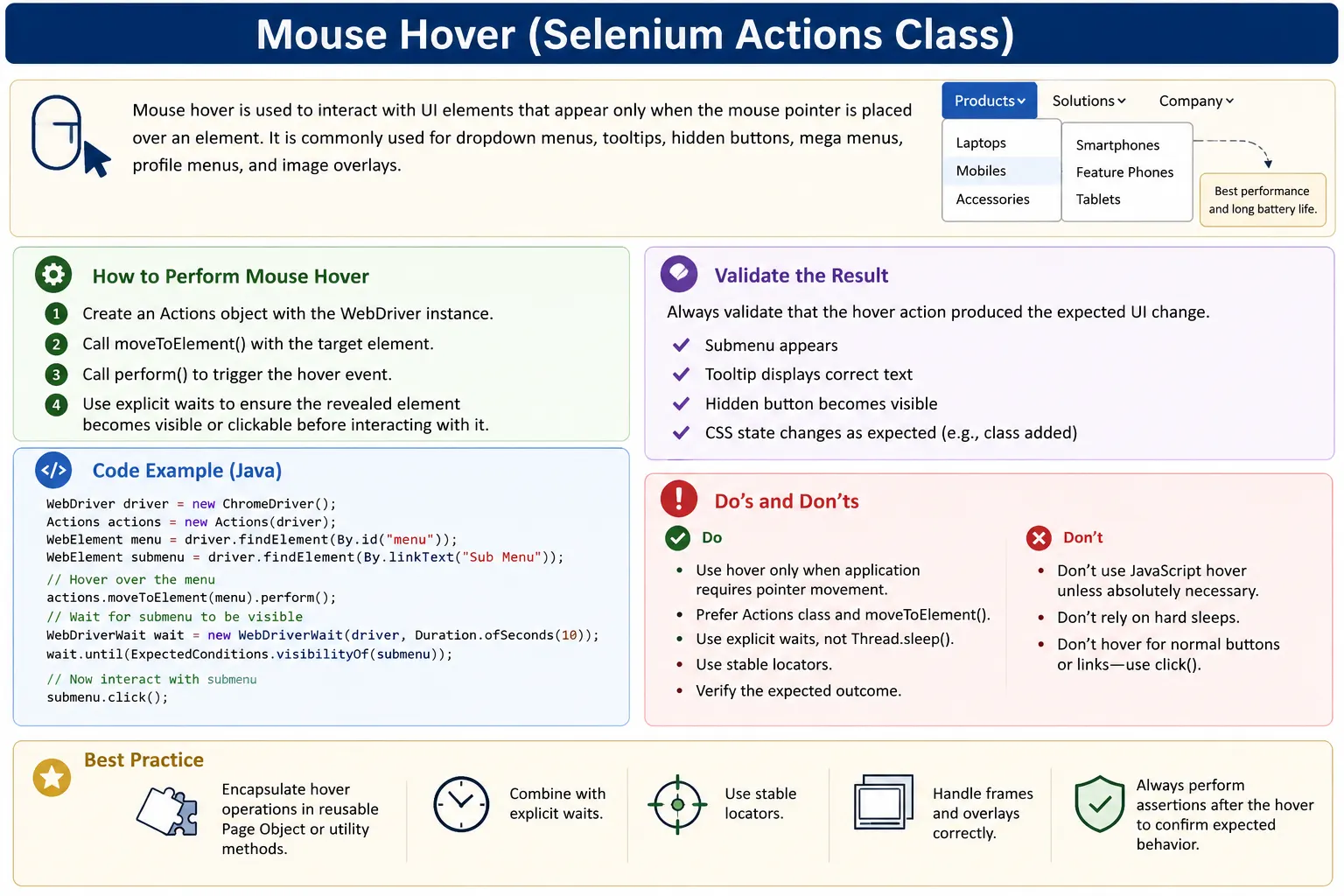
In Selenium Java, mouse hover automation is handled using the Actions class and its moveToElement() method. A normal click() is not enough when the application expects the pointer to move over a parent element first. If a submenu is hidden until hover, clicking the submenu directly may fail because the submenu is not visible or clickable yet.
Mouse hover testing is common in Selenium interviews because it combines several important automation skills: using Actions, waiting for dynamic content, handling hidden elements, validating tooltips or submenus, debugging click interception, and avoiding fixed sleeps. A good hover test does not only move the mouse. It also waits for the hover result and validates the visible UI change.
2. Why click() Is Not Enough
Basic WebDriver click() works when the target element is visible, enabled, and directly clickable. Hover-based components do not always meet those conditions. A menu item may appear only after hovering over a parent menu. A tooltip may not exist until the pointer enters an icon. A hidden button may become visible only when the user hovers over a card. In these situations, clicking without hover can fail or click the wrong element.
Many elements also trigger JavaScript events such as mouseover, mouseenter, or pointer events. These events may update CSS classes, render submenus, show overlays, or change the DOM. The Actions class simulates mouse movement so those events can fire in a user-like way.
- Elements may be hidden until hover.
- Submenus may become clickable only after hover.
- Tooltips may be created dynamically on mouseover.
- JavaScript frameworks may listen for pointer movement.
- Visual overlays may appear only after the pointer enters an element.
3. Required Import
Mouse hover uses Selenium's Actions class. The required import is:
import org.openqa.selenium.interactions.Actions;Most real examples also use WebDriver, WebElement, By, WebDriverWait, ExpectedConditions, Duration, and assertions from the chosen test framework. For hover flows that reveal dynamic content, explicit waits are especially important.
4. Basic Mouse Hover Example
The simplest hover example locates an element and moves the mouse pointer to it.
WebElement menu = driver.findElement(By.id("menu"));

Actions actions = new Actions(driver);
actions.moveToElement(menu).perform();
This moves the pointer to the menu element and triggers the hover event. If the application shows a submenu or tooltip after hover, the next step should be to wait for that UI change. Hover itself is an action, but the test becomes meaningful only when the expected result is verified.
5. Hover and Click Submenu
The most common hover scenario is a parent menu that reveals a submenu. The flow is: hover over the parent menu, wait for the submenu, then click the submenu.
WebDriverWait wait =
    new WebDriverWait(driver, Duration.ofSeconds(10));

WebElement menu =
    driver.findElement(By.id("productsMenu"));

Actions actions = new Actions(driver);
actions.moveToElement(menu).perform();

WebElement subMenu = wait.until(
    ExpectedConditions.visibilityOfElementLocated(By.id("softwareLink"))
);

subMenu.click();
This pattern is better than using a fixed sleep because it waits only until the submenu is actually visible. If the submenu appears quickly, the test continues quickly. If it takes longer, the wait gives it time up to the timeout. If it never appears, the test fails with a useful signal.
6. Clean Inline Hover Version
For very short flows, you can create and use the Actions object inline.
new Actions(driver)
    .moveToElement(driver.findElement(By.id("menu")))
    .perform();
This is concise, but use it carefully. If the same hover is used in multiple tests, a named page object method is usually better because it documents intent and centralizes interaction logic.
7. Hover Using CSS Selector
CSS selectors are commonly used for hover elements such as navigation items, icons, or product cards.
WebElement element =
    driver.findElement(By.cssSelector(".nav-item"));

new Actions(driver)
    .moveToElement(element)
    .perform();
Use stable CSS selectors. Avoid selectors based on styling-only classes if those classes change frequently. For test-critical elements, stable attributes such as data-testid, data-test, or meaningful IDs are usually better.
8. Hover Using XPath
XPath can also locate elements for hover, especially when text or hierarchy matters.
WebElement element =
    driver.findElement(By.xpath("//div[@class='profile']"));

new Actions(driver)
    .moveToElement(element)
    .perform();
XPath should be written carefully. Avoid long absolute XPath expressions that depend on exact wrapper positions. Prefer stable attributes, meaningful text, or relative paths that reflect the element's purpose.
9. Hover Using Offset
Sometimes hovering over the center of an element is not enough. You may need to hover at a specific location inside a canvas, chart, image, slider, map, or custom widget. moveToElement(element, x, y) moves to an offset from the element's center in Selenium's coordinate model.
WebElement element = driver.findElement(By.id("slider"));

new Actions(driver)
    .moveToElement(element, 20, 10)
    .perform();
In this example, 20 is the X offset and 10 is the Y offset. Offset-based hover can be useful, but it is more fragile than hovering a normal element. Element size, browser zoom, responsive layout, and device pixel ratio can affect results. Use offsets only when the UI requires location-specific interaction.
10. Hover and Validate Tooltip
Tooltips are a classic hover use case. A test should hover over the trigger element, wait for the tooltip, and validate its text.
WebDriverWait wait =
    new WebDriverWait(driver, Duration.ofSeconds(10));

WebElement icon = driver.findElement(By.id("infoIcon"));

new Actions(driver)
    .moveToElement(icon)
    .perform();

WebElement tooltip = wait.until(
    ExpectedConditions.visibilityOfElementLocated(By.cssSelector(".tooltip"))
);

Assert.assertEquals(tooltip.getText(), "Enter valid email");
This verifies the real purpose of the hover. It proves that the tooltip appeared and that the content is correct. Some tooltip libraries render the tooltip outside the hovered element, often near the end of the body. Inspect the DOM to choose the correct locator.
11. Hover with Explicit Wait for Tooltip
If the tooltip has a specific class, wait for that element before reading text.
WebElement icon = driver.findElement(By.id("infoIcon"));

new Actions(driver)
    .moveToElement(icon)
    .perform();

WebDriverWait wait =
    new WebDriverWait(driver, Duration.ofSeconds(10));

WebElement tooltip = wait.until(
    ExpectedConditions.visibilityOfElementLocated(
        By.className("tooltip-inner")
    )
);

System.out.println(tooltip.getText());
Explicit waits are important because tooltip creation may be delayed by animation or JavaScript. Reading the tooltip immediately after hover can cause intermittent failures.
12. Hover Multiple Nested Menus
Mega menus and nested navigation often require a chain of hover actions. The user hovers over the main menu, then a submenu, then a child item, and finally clicks.
Actions actions = new Actions(driver);

WebElement mainMenu = driver.findElement(By.id("mainMenu"));
WebElement subMenu = driver.findElement(By.id("subMenu"));
WebElement childMenu = driver.findElement(By.id("childMenu"));

actions.moveToElement(mainMenu)
       .moveToElement(subMenu)
       .moveToElement(childMenu)
       .click()
       .build()
       .perform();
Chained actions are useful for nested menus, but they can be brittle if each menu appears with animation. A more robust approach is to hover one level, wait for the next level, then hover the next. This makes failures easier to diagnose because you know exactly which level failed.
13. Hover Parent and Child Menu
A smaller parent-to-child hover chain can be written like this:
WebElement parent = driver.findElement(By.id("parentMenu"));
WebElement child = driver.findElement(By.id("childMenu"));

Actions actions = new Actions(driver);

actions.moveToElement(parent)
       .moveToElement(child)
       .click()
       .perform();
If the child is not in the DOM until the parent is hovered, locate the child only after hovering the parent. Locating hidden or non-existing child elements too early is a common source of failures.
14. Hover to Reveal Hidden Button
Many product cards and image cards show action buttons only on hover. For example, an "Add to Cart" button may be hidden until the product card is hovered.
WebElement card =
    driver.findElement(By.className("product-card"));

Actions actions = new Actions(driver);
actions.moveToElement(card).perform();

driver.findElement(By.className("add-to-cart")).click();
A stronger version waits for the button to be clickable after hover. This avoids failures caused by animation or delayed rendering.
15. Hover Over Profile Image and Open Menu
Profile menus are often hover-based in older applications or desktop layouts. The test moves to the profile image and clicks a menu item such as logout.
WebElement profile =
    driver.findElement(By.id("profileImage"));

Actions actions = new Actions(driver);
actions.moveToElement(profile).perform();

driver.findElement(By.id("logout")).click();
If logout is important, validate that the user reaches the login page or that the session ends. Do not stop at clicking the hidden menu item.
16. Hover Inside Frame
If the hover target is inside a frame or iframe, switch into the frame before locating the element.
driver.switchTo().frame("frame1");

WebElement element = driver.findElement(By.id("menu"));

new Actions(driver)
    .moveToElement(element)
    .perform();

driver.switchTo().defaultContent();
Frame handling is a frequent cause of "element not found" issues. If the element is visible in the browser but Selenium cannot locate it, inspect whether it is inside an iframe.
17. Hover Over Bootstrap Dropdown
Bootstrap and similar UI libraries may use dropdown toggles. Some open on click, while custom implementations may open on hover.
WebElement dropdown =
    driver.findElement(By.className("dropdown-toggle"));

new Actions(driver)
    .moveToElement(dropdown)
    .perform();
Always inspect the actual behavior. If the dropdown is click-based, use click instead of hover. Automating the wrong interaction can create tests that pass artificially or fail for the wrong reason.
18. Hover and Click After Wait
For production tests, the safest hover-and-click pattern includes a wait after hover.
WebElement menu = driver.findElement(By.id("menu"));

new Actions(driver)
    .moveToElement(menu)
    .perform();

WebDriverWait wait =
    new WebDriverWait(driver, Duration.ofSeconds(10));

WebElement submenu = wait.until(
    ExpectedConditions.elementToBeClickable(By.id("submenu"))
);

submenu.click();
This handles dynamic rendering and avoids clicking before the submenu is ready.
19. Hover and Validate CSS Change
Sometimes hover changes the visual style of an element. Selenium can read CSS values after hover.
WebElement element = driver.findElement(By.id("hoverArea"));

new Actions(driver)
    .moveToElement(element)
    .perform();

String bgColor = element.getCssValue("background-color");
System.out.println("Background Color: " + bgColor);
CSS value validation can be useful, but prefer validating user-visible behavior when possible. For example, verifying that a hidden button appears is often more meaningful than checking a color value.
20. Hover and Verify Element Displayed
A simple validation is checking whether a popup or panel becomes displayed after hover.
WebElement element = driver.findElement(By.id("menu"));

new Actions(driver)
    .moveToElement(element)
    .perform();

WebElement popup = driver.findElement(By.id("popup"));

System.out.println("Popup displayed: " + popup.isDisplayed());
For reliable tests, use an assertion rather than printing the result. Also wait for the popup if it appears dynamically.
21. Hover Over Multiple Menu Items
You may need to hover over a list of menu items, cards, or chart points.
List<WebElement> items =
    driver.findElements(By.className("menu-item"));

Actions actions = new Actions(driver);

for (WebElement item : items) {
    actions.moveToElement(item).perform();
}
If hover causes DOM updates, the original list may become stale. In that case, re-locate elements inside the loop or use indexed locators carefully.
22. Hover and Pause
Some interfaces use a small delay before showing hover content. Actions supports pause().
WebElement element = driver.findElement(By.id("hoverArea"));

new Actions(driver)
    .moveToElement(element)
    .pause(Duration.ofSeconds(1))
    .perform();
Use pauses sparingly. A pause may be acceptable for a known animation, but explicit waits are usually better because they react to real UI state.
23. Hover Over Slider Handle
Some sliders reveal labels or handles more clearly on hover.
WebElement slider =
    driver.findElement(By.id("sliderHandle"));

new Actions(driver)
    .moveToElement(slider)
    .perform();
After hovering over a slider handle, validate the label or tooltip if that is the expected behavior. If the goal is to move the slider, use drag, keyboard, or track-click logic after identifying the slider implementation.
24. JavaScript Hover Fallback
Sometimes moveToElement() does not trigger the expected hover behavior because of a framework implementation, custom event handling, or test environment issue. JavaScript can dispatch a mouseover event as a fallback.
WebElement element = driver.findElement(By.id("menu"));

JavascriptExecutor js = (JavascriptExecutor) driver;

js.executeScript(
    "var evObj = document.createEvent('MouseEvents');" +
    "evObj.initEvent('mouseover', true, false);" +
    "arguments[0].dispatchEvent(evObj);",
    element
);
Use JavaScript only when Actions fails and you understand why. JavaScript can bypass real pointer behavior, so it may not represent a real user interaction. Prefer Actions first because it is closer to browser-level user behavior.
25. Headless Mode Hover Fix
Hover tests may behave differently in headless mode if the browser window size is too small or if responsive layout changes. Set a consistent window size when running Chrome headless.
ChromeOptions options = new ChromeOptions();

options.addArguments("--headless=new");
options.addArguments("--window-size=1920,1080");
Without a clear window size, the page may render a mobile layout or hide desktop hover menus. If a hover test passes locally but fails in CI, check the headless browser size, zoom, and responsive breakpoint.
26. Common Hover Issues and Fixes
| Problem | Cause | Fix |
|---|---|---|
| Submenu not appearing | No wait or wrong hover target | Use visibility wait and verify the parent element |
| Hover not triggering | Element is hidden or offscreen | Scroll into view and wait for visibility |
| Click intercepted | Overlay, animation, or menu transition | Wait for clickability and overlay invisibility |
| Stale element | React or Angular re-render | Re-locate element after hover or state change |
| Headless mode issue | Different rendering or viewport | Set a stable headless window size |
27. Debugging Flaky Hover Tests
Hover tests often fail because of timing, wrong target elements, animation, overlays, responsive layout, or DOM re-rendering. If a hover test is flaky, first confirm that the hover target is visible and stable. Then confirm that the expected submenu, tooltip, or popup appears after hover. If the hover target is inside a frame, switch to the frame. If the UI is hidden behind an overlay, wait for the overlay to disappear.
Use screenshots and DOM inspection at the failure point. A screenshot may show that the page is in a mobile layout, a cookie banner is covering the menu, or the submenu is open but not clickable yet. Inspecting the DOM may reveal that the tooltip is created in a different location than expected. Debugging hover tests is much easier when the test captures the real UI state.
Do not solve every hover issue by adding Thread.sleep(). A fixed sleep slows the suite and may still fail when the application is slower. Use explicit waits for visibility, clickability, text presence, or overlay invisibility.
28. Accessibility Perspective
Hover-only interactions can create accessibility problems. Users who rely on keyboard navigation may not be able to access content that appears only on mouse hover. Touch devices also do not have a true hover state. A well-designed application should provide keyboard and touch alternatives for hover-based content.
For testers, this matters because a hover test passing does not prove the UI is accessible. If a menu appears only on hover, also check whether it can be opened with keyboard focus or click. If a tooltip contains important information, make sure the information is available to keyboard and screen reader users too.
In interviews, mentioning accessibility shows maturity. Selenium hover automation solves the mouse interaction, but good QA thinking also asks whether hover is the only way to access the content.
29. Hover Method in Page Object Model
Repeated hover logic should be moved into a utility or page object method. This keeps test methods clean and centralizes hover behavior.
public class HoverUtil {

    private WebDriver driver;
    private Actions actions;

    public HoverUtil(WebDriver driver) {
        this.driver = driver;
        this.actions = new Actions(driver);
    }

    public void hoverOver(By locator) {
        actions.moveToElement(driver.findElement(locator)).perform();
    }
}
Usage:
HoverUtil hover = new HoverUtil(driver);

hover.hoverOver(By.id("menu"));
In production frameworks, the utility can also include waits and logging. For specific menus, a page object method such as openProductsMenu() may be clearer than a generic hover utility.
30. Understanding Hover Events
Hover behavior is usually controlled by CSS, JavaScript, or both. CSS can show an element using the :hover pseudo-class. JavaScript can listen for events such as mouseover, mouseenter, pointerenter, or mousemove. Selenium's moveToElement() is valuable because it simulates pointer movement through the browser, allowing these event handlers to run more like they would for a real user.
This distinction helps when debugging. If a menu is purely CSS-based, moving to the correct element should usually show it. If a menu is JavaScript-based, the application may require the pointer to enter a specific child element, wait for an animation, or update framework state. If a tooltip uses a library, the tooltip may be inserted elsewhere in the DOM after a delay.
When hover does not work, inspect the event trigger. Sometimes the visible text is not the actual hover target. The event listener may be attached to the parent container, icon wrapper, or navigation item rather than the inner span. Moving to the wrong element can make the test appear flaky even when Actions is working correctly.
31. Locator Strategy for Hover
Hover tests need stable locators for both the trigger element and the revealed element. The trigger is the element that receives the mouse movement. The revealed element is the submenu, tooltip, button, overlay, or popup that appears after hover. Weak locators on either side can make the test unstable.
For trigger elements, prefer IDs, stable test attributes, accessible labels, or meaningful structural locators. Avoid targeting styling-only classes that may change during redesign. For revealed elements, avoid locating too early if the element is created dynamically. Hover first, then wait for the revealed element using a locator that matches the final DOM.
A good hover test reads almost like a user story: hover over Products, wait for Software link, click Software link. The locators should support that clarity. If the locator is a long absolute XPath, future maintainers may struggle to understand which UI element is being tested.
32. Responsive Layout Considerations
Hover behavior can change between desktop and mobile layouts. A desktop navigation menu may open on hover, while the mobile layout may use a hamburger button and click-based expansion. If your test runs with a small viewport in CI, the hover target may not exist or may behave differently.
This is why browser window size matters. Before testing desktop hover menus, set a desktop-sized window or configure the test environment consistently. If the application supports both desktop and mobile layouts, test them separately with different expectations. Do not assume hover behavior should exist in a mobile viewport.
Responsive differences are one of the most common reasons a hover test passes locally but fails in CI. Local runs may use a large browser window. Headless CI may use a smaller default viewport. The page then renders a different layout, and the hover menu is no longer present.
33. Hover and Overlays
Overlays can interfere with hover tests. Cookie banners, loading masks, sticky headers, modal backdrops, chat widgets, and advertisements can cover the hover target or revealed submenu. Selenium may move to the element, but a click afterward may be intercepted by another element.
Before hovering, wait for blocking overlays to disappear. If the application shows a cookie banner, handle it as part of test setup. If a loading spinner covers the page, wait for invisibility. If the submenu appears under a sticky header or fixed overlay, inspect the layout and report a UI problem if real users would also be affected.
A reliable hover test controls the environment as much as possible. It starts from a stable page state, hovers the correct target, waits for the result, and then interacts with the revealed content.
34. Hover in JavaScript Framework Applications
React, Angular, Vue, and similar frameworks may re-render parts of the DOM after hover. For example, hovering over a menu may update component state and render submenu items. Hovering over a card may replace a placeholder with action buttons. Hovering over a chart point may create a tooltip component.
These updates can make old WebElement references stale. If the DOM changes after hover, locate the revealed element after the hover completes. Do not store submenu references before they exist or before they become visible. Use waits that match framework behavior, such as visibility of a new element or text appearing inside the tooltip.
Framework applications may also debounce or delay hover behavior. A small pause may be part of the component design, but explicit waits remain better than fixed sleeps. Wait for the actual UI result, not an assumed time.
35. Hover vs Focus
Mouse hover and keyboard focus are different interactions. A hover test proves that content appears when the pointer moves over an element. It does not prove that keyboard users can access the same content. For accessible applications, important hover content should often also be available on focus or click.
For example, a tooltip on an information icon should ideally appear when the icon receives keyboard focus, not only when it is hovered. A navigation menu should be usable by keyboard. A card action hidden on hover should be reachable without a mouse. Selenium can help test both interactions: use Actions for hover and keyboard actions for focus-based behavior.
This distinction is useful in interviews. A basic answer says how to hover. A stronger answer explains that hover automation should be combined with accessibility thinking when the content is important.
36. Validating After Hover
Hover validation should match the purpose of the UI. If hover reveals a submenu, validate that the submenu is visible and contains the expected items. If hover shows a tooltip, validate the tooltip text. If hover changes a card, validate that the hidden button appears. If hover changes styling, validate the relevant CSS only when styling is the actual requirement.
Do not treat a successful moveToElement() call as a passed test. Selenium can move the pointer without the application showing the expected result. The assertion is what proves the feature works.
Good validations also help debugging. If the hover target is found but the submenu never appears, the issue may be event handling or wrong target. If the submenu appears but is not clickable, the issue may be animation, overlay, or timing. If the submenu is clickable but navigation fails, the issue may be link behavior.
37. Designing Reusable Hover Flows
Reusable hover methods should include the behavior that matters for the application. A generic hoverOver() method is useful, but a higher-level method such as openProductsMenu() or hoverProductCardAndClickAddToCart() is often clearer in page objects. The test should express user intent, while the page object handles Selenium mechanics.
A robust hover page object method can wait for the trigger, perform the hover, wait for the revealed element, and return that element or click it. This keeps test methods clean and avoids repeating timing logic. If the menu implementation changes, update the page object method once.
For enterprise suites, hover utilities should also support logging and screenshots on failure. Hover issues can be visually obvious in screenshots, especially when a submenu is missing, an overlay is blocking the target, or the wrong responsive layout is displayed.
38. When JavaScript Hover Is Acceptable
JavaScript hover should be rare, but it has valid uses. It may be acceptable when a legacy application has custom event handling that does not respond well to WebDriver pointer movement, when the goal is to trigger a specific event for a controlled test setup, or when a third-party widget behaves inconsistently across browsers. Even then, the test should document why JavaScript is used.
The risk is that JavaScript can dispatch an event that a real user interaction would not produce in exactly the same way. It may skip pointer movement, focus behavior, layout constraints, or overlay problems. If a feature works only with JavaScript event injection and not with real user movement, that may indicate a product or test environment issue.
Use JavaScript hover as a fallback, not the first choice. Prefer moveToElement(), explicit waits, correct locators, and stable viewport configuration first.
39. Best Practices
- Always call
perform(). - Use explicit waits when hover reveals dynamic content.
- Prefer
moveToElement()over JavaScript fallback. - Handle frames and modals before hovering.
- Validate UI changes such as tooltips, menus, CSS changes, or popup visibility.
- Avoid fixed
Thread.sleep()waits. - Use stable locators for hover targets and revealed elements.
- Set a predictable browser window size in headless execution.
- Re-locate elements after framework re-rendering.
- Wrap common hover flows in page object methods.
40. Interview Perspective
A short interview answer is: mouse hover in Selenium is performed using the Actions class with the moveToElement() method.
A stronger real-time answer is: In Selenium Java, I use the Actions class to simulate mouse hover for elements that reveal submenus, tooltips, hidden buttons, mega menus, or overlays. I first wait for the hover target to be visible, then use moveToElement(), then wait for the dynamically displayed element to become visible or clickable before interacting with it. I avoid Thread.sleep() and validate the result after hover.
41. Quick Code Patterns
41.1 Basic Mouse Hover
WebElement menu = driver.findElement(By.id("menu"));

Actions actions = new Actions(driver);
actions.moveToElement(menu).perform();
41.2 Hover and Click Submenu
WebElement menu = driver.findElement(By.id("menu"));
WebElement submenu = driver.findElement(By.id("submenu"));

Actions actions = new Actions(driver);
actions.moveToElement(menu)
       .click(submenu)
       .perform();
41.3 Hover and Validate Tooltip Text
WebElement icon = driver.findElement(By.id("infoIcon"));

new Actions(driver)
    .moveToElement(icon)
    .perform();

String tooltip =
    driver.findElement(By.className("tooltip-inner")).getText();

System.out.println("Tooltip: " + tooltip);
41.4 Hover with Offset
WebElement element = driver.findElement(By.id("canvas"));

new Actions(driver)
    .moveToElement(element, 30, 10)
    .perform();
41.5 Hover and Click After Wait
WebElement menu = driver.findElement(By.id("menu"));

new Actions(driver)
    .moveToElement(menu)
    .perform();

WebDriverWait wait =
    new WebDriverWait(driver, Duration.ofSeconds(10));

WebElement submenu = wait.until(
    ExpectedConditions.elementToBeClickable(By.id("submenu"))
);

submenu.click();
42. Final Summary
Mouse hover automation in Selenium Java is handled with the Actions class and moveToElement(). It is needed when menus, tooltips, hidden buttons, overlays, and other UI elements appear only after pointer movement. A strong hover test waits for the hover target, performs the hover, waits for the revealed element, and validates the expected result.
Reliable hover automation depends on stable locators, explicit waits, correct frame handling, predictable headless window size, and meaningful assertions. JavaScript hover should be used only as a fallback. In production frameworks, common hover flows should be wrapped in utility or page object methods so tests remain readable and maintainable.