Managing Browser Window
Managing the browser window ensures consistent UI rendering, element visibility, and stable execution across environments. These controls are provided by Selenium WebDriver via the window management API.
Browser window management looks like a small setup detail, but it has a direct effect on Selenium test stability. Web applications do not always render the same layout at every screen size. A navigation menu may appear horizontally on a desktop viewport, collapse into a hamburger icon on a tablet viewport, and move behind a slide-out panel on a mobile viewport. A button may be visible without scrolling on one resolution and hidden below the fold on another. If the test does not control the browser window, the same script can behave differently on a laptop, a virtual machine, a remote Grid node, and a headless CI agent.
A strong Selenium framework treats the browser window as part of test environment configuration. The framework decides whether headed runs should be maximized, whether headless runs should use a fixed size, whether responsive tests should run against defined breakpoints, and where those choices are configured. This is more reliable than letting the browser start with whatever default size the operating system or browser driver happens to provide.
Window management is also an interview-friendly topic because it connects Selenium syntax to real
automation problems. The methods are easy to remember: maximize(), minimize(),
fullscreen(), getSize(), setSize(), getPosition(), and
setPosition(). The important skill is knowing when each method helps and when it can create
misleading results. This article explains window management as a framework design decision, not just a list
of commands.
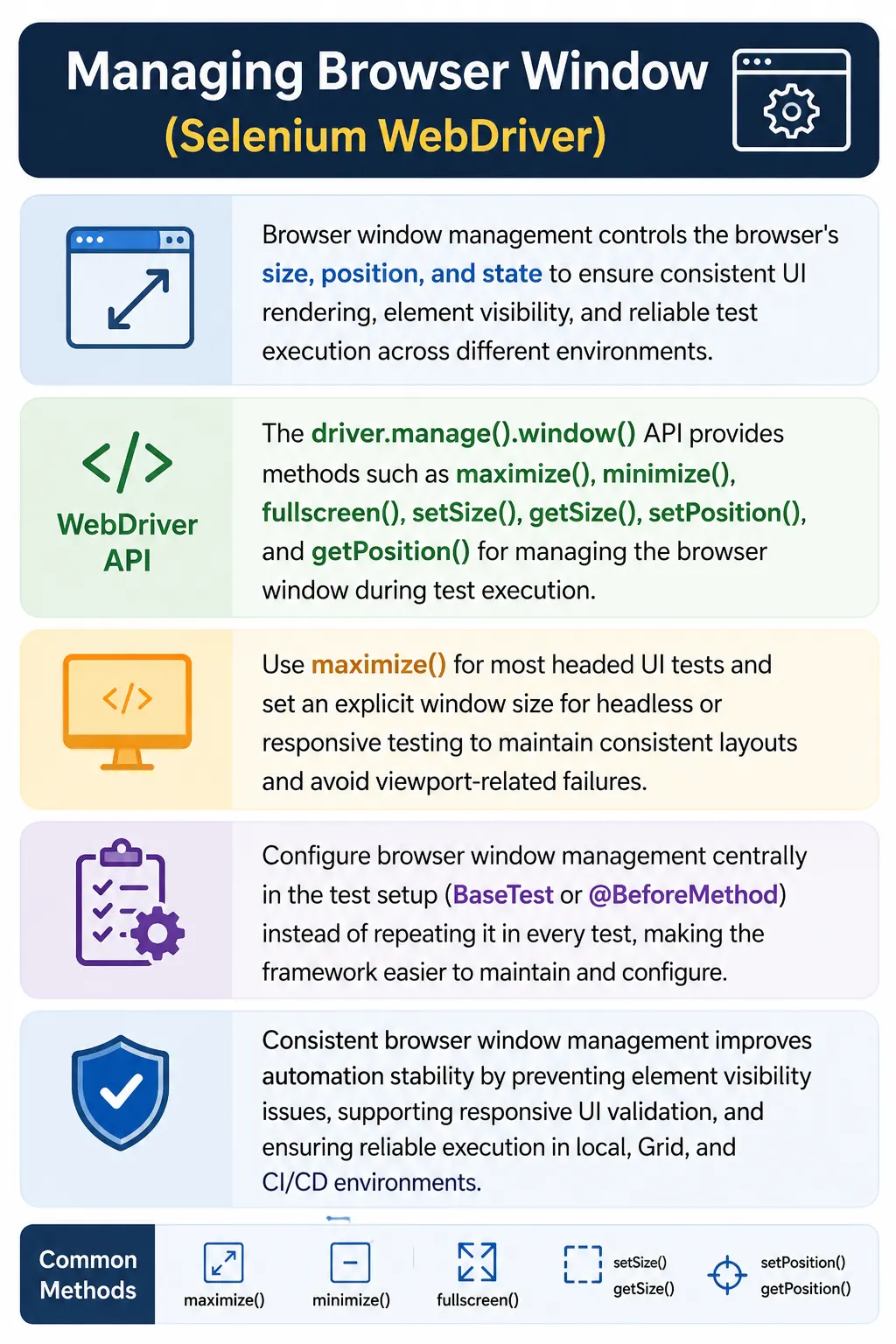
1. Why Window Management Matters
- Prevents element-not-visible issues
- Ensures consistent layout across resolutions
- Improves cross-browser reliability
- Avoids flaky failures due to responsive UI changes
- Aligns local runs with CI/CD (often headless)
Many Selenium failures that look like locator problems are actually viewport problems. An element may exist in the DOM, but it may not be visible because the page is rendered in a smaller layout. A menu item may be available only after opening a collapsed menu. A sticky header may cover a button after scrolling. A modal may be positioned differently at different window sizes. If the window size changes between environments, the test interacts with a different version of the user interface.
Consistent window management reduces this uncertainty. When the framework starts every desktop test with a known viewport, failures become easier to diagnose. If an element is hidden, the team can investigate the application behavior instead of guessing whether the browser was too small. This is especially important in CI, where tests often run on headless browsers without a visible screen. A headless browser can default to a small viewport unless the framework explicitly sets a size.
Window management also affects screenshots. Failure screenshots are useful only when they represent a consistent view. If the viewport is random, screenshots from local and CI runs may show different layouts. Fixed sizes make screenshots easier to compare and make visual debugging more predictable. This does not mean every test must use the same size, but it does mean the selected size should be intentional.
2. Accessing Window Management
All window operations are performed through:
driver.manage().window()
This API controls size, position, maximize, minimize, and fullscreen.
The manage() method exposes browser management features such as timeouts, cookies, logs, and
window controls. The window() part returns a window management object for the active browser
window. From there, Selenium can request changes to the window state or read the current size and position.
These commands act on the current browser window associated with the active WebDriver session.
This API is different from window handling. Window management changes the size, position, or state of a
window. Window handling switches between multiple windows or tabs using window handles. For example,
driver.manage().window().maximize() changes the current window size, while
driver.switchTo().window(handle) changes which window Selenium is controlling. The similarity
in wording causes confusion, so it is useful to keep these two concepts separate.
Window commands are normally called after the browser is launched and before the application page is opened. This order reduces layout recalculation. If the page is opened at a small size and then maximized, the application may reflow after loading. That usually works, but it can cause timing differences or responsive transitions. Setting the window first gives the application a stable viewport from the start.
3. maximize() - Most Common
What it does:
- Maximizes the browser to available screen size
When to use:
- Default for most UI tests
- Prevents hidden elements due to small viewports
Best practice:
- Call immediately after browser launch
Note: In headless mode, maximize() may not have effect; use explicit size instead.
maximize() is the most common command in traditional Selenium setup because it gives the
browser the largest normal window available on the screen. For many desktop test suites, this is enough to
avoid hidden elements caused by small default windows. It is simple, readable, and familiar to most testers.
A setup method that launches Chrome and immediately calls driver.manage().window().maximize()
is a common starting pattern.
However, maximize is not the same as setting a guaranteed pixel size. It depends on the operating system,
display resolution, window manager, browser chrome, taskbar, and remote node environment. A maximized window
on a developer's laptop may not match a maximized window on a CI virtual machine. If exact layout consistency
matters, setSize() is more deterministic.
Maximize is best for general headed desktop execution where the goal is to avoid tiny default windows. For responsive testing, screenshot comparison, headless execution, or cross-environment precision, explicit dimensions are usually better. A mature framework often supports both: maximize for local headed debugging and configured sizes for CI or responsive runs.
4. fullscreen() - True Fullscreen
What it does:
- Enters OS-level fullscreen (hides OS chrome)
Difference vs maximize:
- maximize() uses window manager bounds
- fullscreen() hides OS UI elements
When to use:
- Rare; only if testing fullscreen behavior
fullscreen() is often confused with maximize(), but they are not the same user
experience. Maximize keeps the browser in a normal operating system window that fills the available desktop
area. Fullscreen attempts to place the browser in a true fullscreen mode, similar to pressing F11 in many
browsers. This may hide browser chrome or operating system UI elements depending on the platform.
Most web automation does not need fullscreen mode. It is useful only when fullscreen behavior is part of the product requirement or when the test must validate how the application behaves in that mode. For ordinary UI tests, maximize or explicit size is easier to reason about. Fullscreen can also behave differently across operating systems, browsers, remote nodes, and headless modes, so it should be used intentionally.
5. minimize() - Rarely Used
What it does:
- Minimizes the browser window
When to use:
- Rare edge cases
- Not recommended for standard automation
Caution: Minimized windows can cause focus/visibility issues.
minimize() is supported in modern Selenium versions, but it is rarely useful in normal
automation. A minimized browser is not how most automated UI tests are intended to run. Some browsers,
operating systems, or remote environments may deprioritize painting, focus, or interaction when a window is
minimized. This can lead to confusing failures where the test is technically running but the UI is not in a
state suitable for interaction.
The main reason to know minimize() is for interview completeness or a specific edge case. If a
product requirement involves minimizing and restoring a browser, then it may be relevant. Otherwise,
standard automation should keep the browser visible, maximized, or explicitly sized. In CI, headless mode is
a better choice than minimizing a visible browser.
6. Setting Custom Window Size (Critical for Responsive Testing)
What it does:
- Sets exact viewport dimensions
When to use:
- Responsive UI validation
- Mobile/tablet simulation (without device emulation)
- Headless execution consistency
Common sizes:
- Desktop: 1366x768, 1920x1080
- Tablet: 768x1024
- Mobile: 375x667
Best practice:
Use explicit size in headless CI to avoid default tiny viewports.
setSize() is one of the most important window management methods because it gives the test a
specific viewport target. This is critical for responsive testing and for consistency in headless execution.
Instead of relying on whatever size the browser chooses, the framework can request a known dimension such as
1920 by 1080, 1366 by 768, 768 by 1024, or 375 by 812. The test then validates the application at that
intended layout.
Responsive testing should be deliberate. A desktop test should not accidentally become a tablet test because CI opened the browser smaller than expected. A mobile-width test should not pretend to be full mobile device emulation unless that is the framework's design. Setting a small browser size can test responsive breakpoints, but it does not automatically simulate device pixel ratio, touch input, user agent, browser UI, or mobile hardware. For true mobile emulation, browser options or mobile testing tools may be needed.
Explicit size is especially important in headless Chrome or Edge. Headless browsers can run without a
physical display, so maximize may not behave like a visible desktop maximize. Setting
--window-size=1920,1080 through browser options or calling setSize() after launch
gives the browser a predictable layout. Without this, tests may fail because the UI renders as a narrow
mobile layout.
7. Setting Window Position (Advanced / Multi-Monitor)
What it does:
- Moves the browser to a specific screen position
When to use:
- Multi-monitor setups
- Visual debugging
Not typically required in CI pipelines.
Window position is less commonly used than size, but it can help during local debugging. On a multi-monitor
setup, a tester may move browsers to a specific screen so multiple parallel sessions can be observed. It can
also be useful when recording local demonstrations or investigating how an application behaves with windows
arranged in a particular way. The methods use Selenium's Point class to read or set the
top-left position of the browser window.
In CI and remote execution, position usually has little value. A headless browser has no visible desktop, and a Grid node may not map to a physical screen that the tester can inspect. Position can also be influenced by operating system window managers. Because of that, framework configuration should treat position as an optional debugging feature, not a standard requirement for every test.
8. Window Management vs Browser Options
- Window management: Runtime control after launch
- Browser options: Launch-time configuration (e.g., headless, start maximized)
Recommendation:
- For headless, set size via options or immediately after launch
- For headed runs, maximize() after launch
Browser options and window management happen at different times. Browser options are provided before the browser starts. They control launch-time behavior such as headless mode, start maximized, user data directory, device emulation, download preferences, and startup arguments. Window management happens after the WebDriver session exists. It changes the active browser window while the session is running.
For headless execution, launch-time options are often the best place to set the window size because the
browser starts directly with the intended viewport. For headed local execution, calling
maximize() after launch is simple and works well. For responsive tests, the framework may call
setSize() during setup for each configured breakpoint. The right approach depends on execution
mode and test goal.
Avoid mixing too many window strategies without a reason. If browser options say start maximized and setup immediately sets a fixed size, the code becomes harder to understand. Pick a clear rule: headed desktop uses maximize, headless uses explicit size, responsive tests use configured breakpoints. Simple rules reduce environment-specific surprises.
9. Common Pitfalls & Fixes
- Elements not clickable or visible: maximize or set size
- Headless tests failing: explicitly set window size
- Responsive layout breaking tests: lock viewport size
- Inconsistent CI results: use fixed dimensions
One common pitfall is assuming that a locator is broken when the element is simply outside the visible layout. Before changing locators, inspect the screenshot and viewport size. If the page rendered a mobile menu, the desktop locator may not be visible. If a sticky header overlaps a button, the element may be present but not clickable. If a modal is centered differently at a smaller size, the click target may be covered. Window size can be the hidden cause of many interaction failures.
Another pitfall is relying on maximize in headless mode. A headless browser does not have the same visible desktop environment as a headed browser. In some environments, maximize has limited or no useful effect. If the CI pipeline is headless, set an explicit window size and log it. When a failure occurs, the screenshot will then correspond to a known viewport rather than an unknown default.
A third pitfall is changing window size in the middle of a test without waiting for the layout to settle. Resizing can trigger responsive reflow, JavaScript resize listeners, lazy rendering, and animation. If a test intentionally changes size, it should wait for the target layout before interacting. For example, after switching to a mobile width, wait for the mobile menu button to appear before clicking it.
10. Framework Placement (Best Practice)
- Apply window management in BaseTest / setup
- Do not repeat in every test
- Keep it configurable (via properties)
Window management belongs in framework setup because it defines the test environment. Repeating
maximize() or setSize() in every test creates duplication and makes future changes
harder. If the team decides CI should use 1920 by 1080 instead of 1366 by 768, that change should happen in
one place. A base test class, driver factory, browser manager, or setup hook is the right location.
Configuration makes window management flexible. A property such as browser.mode=headed or
window.size=1920x1080 can drive setup behavior. Local testers can maximize for debugging, while
CI can use a fixed headless size. Responsive suites can run the same test group across a list of configured
sizes. This keeps tests stable without hardcoding layout decisions inside test methods.
A good framework also logs the selected window strategy. When a test fails in CI, knowing that the run used headless mode at 1920 by 1080 is valuable. If a failure only appears at 768 by 1024, the team immediately knows it is likely a responsive or layout issue. Logging turns window management from a hidden setup detail into useful diagnostic information.
11. Interview Perspective
Short Answer:
Browser window management in Selenium controls window size, position, and state using methods like maximize, fullscreen, minimize, and setSize to ensure consistent test execution.
Real-Time Answer:
In real projects, we manage browser windows in setup, typically maximizing for headed runs and setting explicit dimensions for headless or responsive testing, to avoid visibility issues and ensure stable, CI-friendly execution.
A stronger interview answer explains why the command is used. You can say that Selenium exposes window
management through driver.manage().window(). For normal headed desktop tests, teams often call
maximize() after browser launch. For headless or responsive testing, they use
setSize() or browser options to force a known viewport. This prevents inconsistent layouts,
hidden elements, and CI-only failures caused by different screen sizes.
Interviewers may also ask the difference between maximize and fullscreen. Maximize expands the browser to the available window manager bounds, while fullscreen requests a true fullscreen state that may hide OS or browser UI. They may ask whether minimized browsers are useful in automation. The practical answer is that minimize is rarely used because it can create focus and visibility issues. These details show real-world understanding rather than command memorization.
12. Key Takeaway
- Default to maximize() for headed runs
- Use explicit size for headless and responsive testing
- Configure once, centrally
- Consistent viewport = stable automation
The main takeaway is that browser window management controls the visual conditions under which a Selenium test runs. If those conditions vary randomly, test behavior varies randomly. If those conditions are deliberate, failures become easier to understand. This is why professional frameworks do not leave window size to chance.
For most teams, a simple strategy works well: maximize headed desktop runs, set explicit dimensions for headless runs, and use configured sizes for responsive validation. Keep the strategy in setup, keep it visible in logs, and avoid changing the window during tests unless the resize itself is part of the scenario.
13. Viewport Strategy for Real Frameworks
A viewport strategy is the rule a framework follows when deciding browser size. Without a strategy, each environment makes its own decision. One developer may run tests on a 13-inch laptop, another may run them on a large monitor, CI may run headless, and a Grid node may use a virtual display. The test code may be the same, but the application layout may not be. A viewport strategy removes that randomness by defining how each execution mode should size the browser.
A practical strategy usually separates normal desktop regression from responsive validation. For standard desktop regression, the framework may maximize the browser or use a fixed desktop size such as 1920x1080. For responsive validation, the framework intentionally sets sizes that match important breakpoints. For headless CI, the framework uses an explicit size from configuration. This avoids a common problem where a headless run accidentally uses a small viewport and triggers mobile navigation, causing desktop locators to fail.
The strategy should be easy to change without editing tests. A property such as
window.strategy=maximize or window.size=1920x1080 is easier to maintain than
hardcoded values across test classes. When the application design changes or the team chooses a new standard
viewport, the framework configuration changes once. This is the difference between a demo script and a
maintainable automation suite.
14. Responsive Testing vs Mobile Emulation
Setting a small browser window is useful for responsive testing, but it is not the same as full mobile
emulation. When Selenium calls setSize(new Dimension(375, 812)), the browser viewport becomes
narrow and the application may render its mobile layout. That helps validate responsive CSS breakpoints,
menu changes, wrapping behavior, and element visibility. It does not automatically make the browser behave
like a physical phone.
Real mobile behavior can include touch input, different device pixel ratio, mobile user agent, virtual keyboard behavior, browser chrome differences, geolocation prompts, and performance constraints. Chrome mobile emulation or a real mobile testing tool may be needed when those details matter. A small Selenium window is best described as responsive viewport testing, not complete mobile device testing.
This distinction is useful in interviews and real projects. If a manager asks whether a 375-pixel Selenium browser test proves mobile support, the accurate answer is that it helps validate responsive layout, but it does not replace real mobile or emulated mobile testing. Clear terminology prevents false confidence.
15. Headless Window Management in CI
Headless execution is one of the most common reasons to manage window size explicitly. Because there is no visible desktop, a headless browser may not respond to maximize the way a headed browser does. It still has a viewport, and that viewport controls layout, screenshots, and element visibility. If the viewport is too small, the application may render mobile or tablet layout even though the test expects desktop behavior.
The safest CI pattern is to pass a window size through browser options at launch, such as
--window-size=1920,1080 for Chrome or Edge. Some frameworks also call setSize()
after launch as an extra guard. The important point is that the selected size is deliberate and logged. When
a CI failure screenshot is reviewed, the team should know which viewport produced it.
Headless mode should also be tested against the same layout assumptions as headed mode. If local headed runs use a large desktop viewport but CI headless uses a smaller viewport, failures may appear only in CI. The fix is not always a locator change. Often the fix is to align the viewport strategy across environments or create separate tests for different responsive layouts.
16. Selenium Grid and Remote Viewports
In Selenium Grid, the browser runs on a remote node. When the test calls window management commands, those commands affect the browser on the node, not the machine where the test code is running. This matters because the remote node's display configuration may be different from the tester's local screen. A maximize command on a Grid node may produce a different size than maximize on a laptop.
For Grid execution, explicit window size is often more predictable than maximize. A remote node can run Chrome in a container with a virtual display. If the framework sets 1920x1080, the test receives a known layout regardless of the physical machine running the test client. This is one reason many teams prefer configured sizes for remote execution and reserve maximize for local debugging.
Grid logs and screenshots become easier to analyze when the viewport is standardized. If a test fails only on a remote browser, capture the current window size as part of diagnostics. Comparing local and remote viewport values can quickly reveal whether the issue is a real browser difference or a layout difference caused by different window sizing.
17. Screenshots, Visual Debugging, and Window Size
Failure screenshots are one of the most useful debugging tools in Selenium, and their usefulness depends on window size. If a screenshot captures a mobile menu while the test expected a desktop menu, the screenshot immediately points toward a viewport mismatch. If screenshots are taken at random sizes, they become harder to compare across runs. A consistent viewport makes screenshots more meaningful.
For visual debugging, local testers may prefer maximize because it gives a broad view of the page. For automated evidence, a fixed size is often better because it makes screenshots consistent. Teams that perform visual comparison testing usually require stable viewport dimensions; otherwise, small layout shifts caused by size differences can create false visual differences.
A practical framework can log the window size whenever it captures a screenshot. This small detail saves time during debugging. If the screenshot shows an unexpected layout and the log says the browser was 800x600, the cause is immediately visible. Without that information, the team may waste time investigating locators, waits, or browser differences.
18. Practical Window Management Checklist
A reliable window management checklist is simple. Decide the execution mode first: headed, headless, responsive, remote, or visual. Choose the window strategy for that mode. Apply the strategy immediately after browser launch and before opening the application when possible. Log the chosen strategy and final window size. Avoid resizing during tests unless the test is specifically about responsive behavior. After a resize, wait for the layout to stabilize before interacting with elements.
The checklist should also define ownership. The driver factory or setup method owns window size. Individual tests should not call maximize or setSize unless the resize is part of the scenario. This keeps test methods focused on behavior and keeps environment setup centralized. If a test changes the window size intentionally, it should either restore the size or run in an isolated browser session so later tests are not affected.
Finally, treat window management as part of test data for responsive suites. The viewport is an input that changes application behavior. A test running at 1920x1080 is not always equivalent to a test running at 375x812. Record the viewport in reports, especially when failures are specific to one layout.
19. Window Management Examples (Quick Reference)
1. Maximize Browser Window
WebDriver driver = new ChromeDriver();
driver.manage().window().maximize();
driver.get("https://example.com");
Use Case
- Most common in test setup
- Avoids hidden elements due to small resolution
2. Minimize Browser Window
driver.manage().window().minimize();Note
- Supported in Selenium 4+
- Rarely used in automation, but interview-asked
3. Fullscreen Browser Window
driver.manage().window().fullscreen();Difference
- maximize() means OS window max
- fullscreen() means browser fullscreen (F11 mode)
4. Get Browser Window Size
import org.openqa.selenium.Dimension;

Dimension size = driver.manage().window().getSize();
System.out.println(size.getWidth());
System.out.println(size.getHeight());
5. Set Custom Browser Window Size
driver.manage().window().setSize(new Dimension(1200, 800));Use Case
- Responsive UI testing
- Mobile/tablet view simulation
6. Get Browser Window Position
import org.openqa.selenium.Point;

Point position = driver.manage().window().getPosition();
System.out.println(position.getX());
System.out.println(position.getY());
7. Set Browser Window Position
driver.manage().window().setPosition(new Point(100, 50));Use Case
- Multi-monitor setups
- Parallel test visibility
8. Typical Framework Setup (Best Practice)
@BeforeMethod
public void setup() {
    driver = new ChromeDriver();
    driver.manage().window().maximize();
}
9. Headless Browser (No Visible Window)
ChromeOptions options = new ChromeOptions();
options.addArguments("--headless=new");
options.addArguments("--window-size=1920,1080");
WebDriver driver = new ChromeDriver(options);
Important
- Window APIs won’t visually apply
- Size still matters for layout
10. Responsive Testing - Desktop View
driver.manage().window().setSize(new Dimension(1920, 1080));11. Responsive Testing - Tablet View
driver.manage().window().setSize(new Dimension(768, 1024));12. Responsive Testing - Mobile View
driver.manage().window().setSize(new Dimension(375, 812));13. Reset Window Size After Test
@AfterMethod
public void teardown() {
    driver.manage().window().maximize();
    driver.quit();
}
14. Window Handling vs Window Management (Interview Trap)
// Window management
driver.manage().window().maximize();
// Window handling
driver.switchTo().window(windowHandle);
Key Difference
- Management means size, position, and state
- Handling means switching between windows
15. Browser Window Management with Selenium Grid
WebDriver driver =
    new RemoteWebDriver(new URL("http://localhost:4444"),
                        new ChromeOptions());
driver.manage().window().maximize();
Note
- Runs on remote node display
16. Window Management Before Page Load
driver.manage().window().maximize();
driver.get("https://example.com");
Recommended
- Avoids layout recalculation issues
17. Window Management After Page Load
driver.get("https://example.com");
driver.manage().window().maximize();
Works
- Slight reflow may occur
18. Common Interview Mistake
driver.window().maximize(); // invalidCorrect
driver.manage().window().maximize(); // correct19. Managing Window in Parallel Tests (Tip)
// Each thread must have its own WebDriver
driver.manage().window().maximize();
Rule
- Never share WebDriver across threads
20. Interview Summary - Managing Browser Window
driver.manage().window()Key Methods
- maximize()
- minimize()
- fullscreen()
- getSize() / setSize()
- getPosition() / setPosition()
Best Practice
- Maximize in setup
- Use custom sizes for responsive testing
- Headless means always set window size