Logging Basics in Selenium Java
Logging is one of the most important parts of a Selenium automation framework. Assertions tell us whether a test passed or failed, but logs explain what happened during execution. A test report may say that a login test failed, but a good log can show which browser was launched, which URL was opened, which user action was performed, which wait condition timed out, which exception occurred, and whether a screenshot was captured.
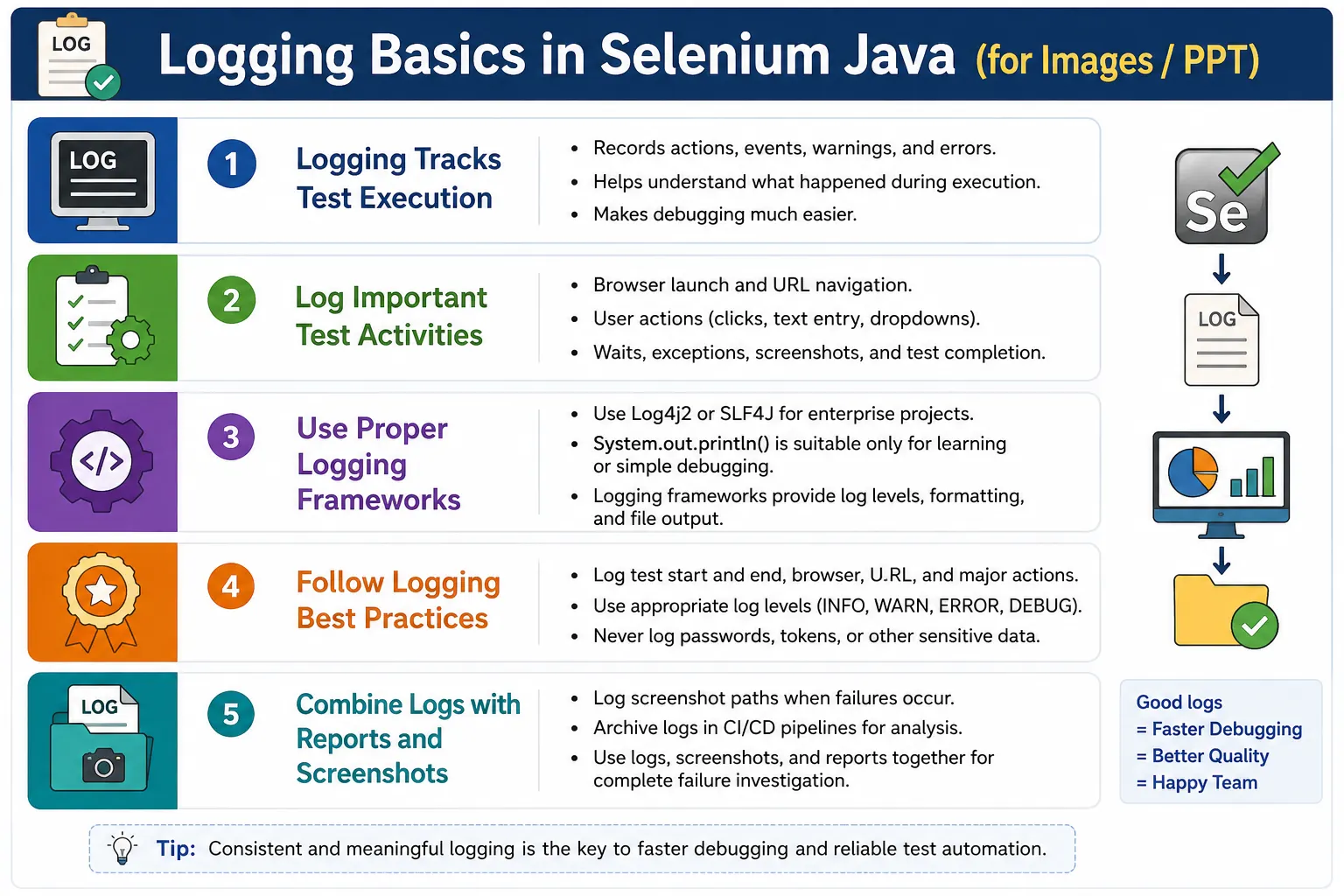
In small learning scripts, testers often depend on console messages or the final test result. That may be enough when there are only two or three test cases. In real projects, however, automation suites can contain hundreds or thousands of tests running across browsers, environments, and CI/CD pipelines. When something fails in that kind of system, logging becomes essential. Without logs, debugging becomes guesswork.
Good logging transforms Selenium tests from simple pass/fail scripts into traceable automation workflows. It creates an execution history. It helps identify flaky tests. It supports reports. It gives visibility in CI pipelines where nobody watches the browser live. It also helps teams separate application defects from automation problems, environment issues, and test data problems.
1. What Is Logging?
Logging is the process of recording events, actions, messages, warnings, and errors during test execution. In Selenium automation, logging can record browser launch, URL navigation, user actions, waits, assertions, exceptions, screenshots, downloads, uploads, window switching, and test completion.
Instead of seeing only Test Failed, logs provide a timeline. A useful execution log may show that the browser launched at 10:15:20, the login page opened at 10:15:25, the username was entered at 10:15:30, the password was entered at 10:15:31, the login button was clicked at 10:15:32, and the dashboard wait failed at 10:15:42. That timeline makes failure analysis much faster.
2. Why Logging Is Important
When a test fails without logging, the failure message often lacks context. For example, an assertion may say that the expected page title was Dashboard, but the actual title was Login. This tells you the final mismatch but not the path that led there. Did the browser open the correct URL? Was the username typed? Did the password field accept input? Was the login button clicked? Did an error message appear? Was the dashboard loading slowly? Logs answer these questions.
Logging is also important for CI/CD visibility. In a local run, the tester may watch the browser and see what happened. In Jenkins, GitHub Actions, Azure DevOps, GitLab CI, or TeamCity, tests often run in headless mode on remote agents. The console log and generated log files become the primary source of execution detail.
3. Benefits of Logging
Logging provides both technical and process benefits. It helps the automation engineer debug failures. It helps test leads review execution. It helps developers understand automation-reported issues. It gives release teams a record of what ran in a pipeline. It also helps identify patterns in flaky tests.
- Logs make debugging easier by showing execution flow.
- Logs improve failure analysis by recording actions before failure.
- Logs provide historical records for test runs.
- Logs support CI/CD investigation when tests run unattended.
- Logs help troubleshoot flaky tests and timing issues.
- Logs support reporting tools and framework diagnostics.
- Logs reduce the need to rerun failed tests just to understand what happened.
4. What Should Be Logged?
A good automation framework logs important actions and state changes. It should not log every tiny internal detail by default, because excessive logs become noisy. The goal is to log enough information to reconstruct the execution flow.
Common items to log include test start, test end, browser launch, URL navigation, page title, current URL, click actions, text entry actions, dropdown selections, wait operations, alerts, frame switches, window switches, assertion checkpoints, exceptions, screenshot capture, file downloads, file uploads, and report attachment events.
5. Example Without Logging
The following code performs a login workflow, but it gives no execution trace. If it fails, the test result may only show the final exception or assertion error.
driver.get(url);

driver.findElement(By.id("username"))
      .sendKeys("admin");

driver.findElement(By.id("password"))
      .sendKeys("admin123");

driver.findElement(By.id("login"))
      .click();
If login fails, the reviewer does not know whether the page opened correctly, whether the fields were found, or whether the click happened. The code may be simple, but the execution is not observable.
6. Example With Simple Logging
Adding simple messages immediately improves traceability. Even basic console logs show the major steps that were performed.
System.out.println("Launching browser...");

driver.get(url);

System.out.println("Opening login page...");

driver.findElement(By.id("username"))
      .sendKeys("admin");

System.out.println("Username entered.");

driver.findElement(By.id("password"))
      .sendKeys("admin123");

System.out.println("Password entered.");

driver.findElement(By.id("login"))
      .click();

System.out.println("Login button clicked.");
This is better than no logging, but it is still not a professional logging solution. Console print statements do not provide structured log levels, log files, filtering, formatting, or easy control over verbosity.
7. Using System.out.println()
System.out.println() is the simplest logging approach. It is built into Java and easy to use. It is useful for learning, quick debugging, and small demonstrations.
System.out.println("Browser launched successfully.");However, it has clear limitations. It has no standard log levels, no built-in timestamp formatting, no file output configuration, no filtering, and no easy integration with enterprise logging practices. It can also become messy when multiple tests run in parallel. For production automation frameworks, use a logging framework instead.
8. Java Logger Example
Java provides java.util.logging, often called JUL. It is built into the JDK and supports basic logging levels. Some teams use it for simple frameworks, although Log4j2, SLF4J, and Logback are more common in enterprise automation.
import java.util.logging.Logger;

Logger logger =
        Logger.getLogger("TestLogger");

logger.info("Application launched.");
logger.warning("Login button is disabled.");
logger.severe("Unable to locate element.");
JUL is better than raw print statements because it introduces logging levels. Still, many modern Java projects prefer SLF4J with Logback or Log4j2 because they offer flexible configuration and widespread ecosystem support.
9. Logging Levels
Professional logging frameworks classify messages by importance. This allows teams to control how much detail appears during execution. During normal CI runs, INFO, WARN, and ERROR may be enough. During deep debugging, DEBUG or TRACE can be enabled.
TRACErecords very detailed execution flow.DEBUGrecords developer-oriented diagnostic details.INFOrecords normal execution events.WARNrecords potential issues where execution can continue.ERRORrecords serious failures affecting execution.FATALis used by some frameworks for critical failures.
10. INFO Logs
INFO logs describe normal execution steps. They are usually enabled in regular test runs. Examples include browser launch, URL navigation, login submitted, dashboard loaded, screenshot captured, and test finished.
logger.info("Browser launched.");
logger.info("Login page loaded.");
logger.info("User logged in.");
INFO logs should be clear and meaningful. They should help someone understand the workflow without reading the test code.
11. DEBUG Logs
DEBUG logs are more detailed and are mainly useful for automation developers. They may include locator values, resolved configuration, retry attempts, wait polling details, or framework decisions.
logger.debug("XPath used: //input[@id='username']");DEBUG logs should not be too noisy in normal runs. They are best enabled when investigating a framework issue or recurring failure.
12. WARN Logs
WARN logs indicate potential problems where execution can continue. For example, an element may have required a retry, a fallback locator may have been used, or an optional popup may have appeared.
logger.warn("Element loaded after retry.");Warnings are valuable because they reveal weak points before they become failures. A suite with many warnings may still pass, but the warnings show instability that should be reviewed.
13. ERROR Logs
ERROR logs record serious failures. They should include the exception object when available so the stack trace is preserved. A message alone is often not enough.
try {
    driver.findElement(By.id("submit"))
          .click();
} catch (Exception e) {
    logger.error(
            "Submit button not found.",
            e
    );
}
Including the exception gives the stack trace, exception type, and message. This is essential for real debugging.
14. TRACE Logs
TRACE logs are the most detailed. They may log method entry, method exit, low-level framework actions, and every step inside a reusable utility. TRACE is rarely enabled in normal CI runs because it can create huge logs.
logger.trace("Entering login()");
logger.trace("Clicking login button");
logger.trace("Waiting for dashboard");
Use TRACE when diagnosing complex behavior, but keep default logging at a practical level.
15. Popular Java Logging Frameworks
Most enterprise Selenium Java frameworks use a proper logging library. Common choices include Log4j2, SLF4J, Logback, and Java Util Logging. The most common modern choices are SLF4J with Logback or Log4j2.
SLF4J is a logging facade. It lets your code use a common logging API while the actual logging implementation can be Logback or another backend. Log4j2 is a powerful logging framework with flexible configuration. Both are widely used in Java automation projects.
16. Example Using Log4j2
Log4j2 is a common logging framework in Selenium projects. A logger is usually created per class.
private static final Logger logger =
        LogManager.getLogger(LoginTest.class);

logger.info("Browser launched.");
logger.info("Login successful.");
logger.error("Login failed.");
In real projects, Log4j2 is configured using a configuration file that controls output format, file location, log level, and appenders.
17. Example Using SLF4J
SLF4J provides a clean logging API and is often used with Logback. The code looks similar to Log4j2 from a test author's point of view.
private static final Logger logger =
        LoggerFactory.getLogger(LoginTest.class);

logger.info("Opening application.");
logger.warn("Retrying click.");
logger.error("Element not found.");
SLF4J is popular because it decouples application code from the logging implementation. This is useful in larger Java ecosystems.
18. Logging Test Start and End
Every test should have clear start and end logs. These markers make console output easier to read, especially when many tests run in the same suite.
logger.info("===== Test Started: verifyLogin =====");

// test steps

logger.info("===== Test Finished: verifyLogin =====");
In TestNG or JUnit frameworks, this can be done in setup and teardown methods or listeners. The test name can be pulled from the framework result object.
19. Logging Browser Launch
Browser launch should be logged because browser configuration affects failures. A test may fail only on Chrome, only on Firefox, or only in headless mode. Logging the browser helps identify these patterns.
logger.info("Launching Chrome browser.");For stronger logs, include browser version, headless mode, remote grid URL, and platform when available.
20. Logging URL and Page State
URL navigation should be logged because wrong environments and wrong URLs are common causes of failures. Logging current URL and page title at important checkpoints can save debugging time.
logger.info("Opening URL: " + url);

driver.get(url);

logger.info("Current URL: " + driver.getCurrentUrl());
logger.info("Page title: " + driver.getTitle());
Do not log sensitive tokens that may appear in URLs. If URLs include secrets, sanitize them before logging.
21. Logging User Actions
User actions are the core of Selenium tests. Logs should capture major actions such as entering username, clicking login, selecting a dropdown value, switching windows, or submitting a form.
logger.info("Entering username.");
logger.info("Entering password.");
logger.info("Clicking Login button.");
Be careful with sensitive values. Logging that a password was entered is fine. Logging the actual password is not acceptable.
22. Logging Waits
Waits are a frequent source of Selenium failures. Logging what the framework is waiting for makes timeout exceptions easier to understand.
logger.info("Waiting for dashboard page.");If a wait fails, the error log should state the condition that failed. For example, Timed out waiting for dashboard header to be visible is much more useful than TimeoutException alone.
23. Logging Exceptions
Exception logging should include both a meaningful message and the exception object. This preserves the stack trace.
try {

    driver.findElement(By.id("submit"))
          .click();

} catch (Exception e) {

    logger.error(
            "Submit button click failed.",
            e
    );

    throw e;
}
After logging, rethrow the exception unless the framework intentionally handles it. Logging should not hide failures.
24. Logging Screenshot Capture
When a screenshot is captured, log the screenshot path. This connects visual evidence to the execution log.
String screenshotPath =
        ScreenshotUtil.captureScreenshot(
                driver,
                "LoginFailure"
        );

logger.info("Screenshot saved: " + screenshotPath);
This is useful in CI logs because even if the HTML report is not opened, the console output tells the reviewer where the screenshot was saved.
25. Real Project Login Example
A login flow with logging becomes much easier to debug. Each important action is recorded.
logger.info("Launching browser.");

driver.get(url);

logger.info("Opening Login Page.");

driver.findElement(By.id("username"))
      .sendKeys("admin");

logger.info("Username entered.");

driver.findElement(By.id("password"))
      .sendKeys("admin123");

logger.info("Password entered.");

driver.findElement(By.id("login"))
      .click();

logger.info("Login submitted.");
If this test fails later, the log shows that the click was performed. Combined with a screenshot, it becomes much easier to identify whether the application rejected the login, failed to navigate, or loaded slowly.
26. Logging with Screenshot on Failure
Logs and screenshots work best together. The log records the failure and screenshot path. The screenshot shows the browser state.
catch (Exception e) {

    logger.error(
            "Login failed.",
            e
    );

    String screenshotPath =
            ScreenshotUtil.captureScreenshot(
                    driver,
                    "LoginFailure"
            );

    logger.info(
            "Screenshot saved: " + screenshotPath
    );
}
This gives both technical and visual evidence. The error log contains the stack trace, while the screenshot contains the UI state.
27. Logging in Page Object Model
In Page Object Model, logs can be placed inside page methods to record user-level actions. This keeps test methods readable while still producing useful execution traces.
public void login(String user, String pass) {

    logger.info("Entering username.");
    username.sendKeys(user);

    logger.info("Entering password.");
    password.sendKeys(pass);

    logger.info("Clicking Login.");
    loginButton.click();
}
Do not log actual passwords. The log should say that a password was entered, not what the password value was.
28. Logging in Base Test Classes
Base test classes are a good place to log setup and teardown events. Browser initialization, configuration loading, environment selection, and driver cleanup should be visible in logs.
logger.info("Initializing WebDriver.");
logger.info("Selected environment: QA.");
logger.info("Closing browser.");
These logs help identify setup failures. If a test fails before the first page object action, base test logs often explain what went wrong.
29. Logging in Listeners
TestNG listeners can log test lifecycle events. This is useful because listeners know when tests start, pass, fail, skip, and finish.
logger.info("Test started: " + result.getName());
logger.info("Test passed: " + result.getName());
logger.error("Test failed: " + result.getName());
Listeners are also good places to log screenshot capture and report attachment events.
30. Logging Sensitive Data
One of the most important logging rules is to avoid sensitive data. Do not log passwords, API keys, access tokens, session IDs, OTP values, full credit card numbers, personal identifiers, or confidential business data. Logs are often stored in CI systems and shared with many people.
Instead of logging actual values, log safe context. For example, log Entering password, not Entering password: Admin123. Log Using test user type: Admin, not a real user's private details. Good logs help debugging without creating security risks.
31. Too Much Logging
Logging every tiny action can be as harmful as logging too little. Excessive logs become noisy and hard to read. They can slow execution, increase storage usage, and hide important messages among low-value details.
Log major business steps, important framework events, waits, exceptions, screenshots, and configuration context. Use DEBUG or TRACE for detailed developer diagnostics, and keep normal CI logs focused on INFO, WARN, and ERROR messages.
32. Logging and CI/CD
CI/CD logs should be clear enough to diagnose failures without local reruns. Include browser, environment, test name, URL, failed step, exception details, screenshot path, and report path. These details help remote investigation.
Store log files as CI artifacts when possible. Console logs are useful, but file logs can be easier to download, search, and attach to defect reports. If logs are generated per test run, include build number or timestamp in the log folder path.
33. Log File Organization
Just like screenshots, logs should be organized. A common structure is logs/execution.log for the latest run or logs/20260701/execution.log for date-based archives. CI runs may use build-specific folders.
AutomationProject
|
|-- logs
|   |-- execution.log
|
|-- screenshots
|-- reports
|-- src
A consistent structure makes it easier to attach logs to reports and archive them from CI pipelines.
34. Logging Framework Comparison
System.out.println() is easy but limited. Log4j2 and SLF4J provide log levels, timestamps, file output, formatting, filtering, and production-grade configuration. For learning, console prints are acceptable. For real frameworks, use a logging library.
System.out.println()is simple but not enterprise-ready.- Java Util Logging is built into the JDK and supports basic levels.
- Log4j2 is powerful and flexible for Java projects.
- SLF4J provides a common logging facade and is often used with Logback.
- Enterprise Selenium frameworks usually prefer Log4j2 or SLF4J.
35. Logging Configuration Basics
A professional logging framework is normally controlled by configuration. The configuration decides where logs go, what format they use, which levels are enabled, and whether logs are written to console, files, or both. This is better than hardcoding logging behavior in test classes.
For example, a local developer run may show DEBUG logs in the console, while a CI run may write INFO and ERROR logs to a file. The test code should not change for these two cases. Only the logging configuration should change. This separation makes the framework easier to maintain.
Good log formatting usually includes timestamp, log level, thread name, class name, and message. In parallel execution, thread name is especially useful because multiple tests may write logs at the same time. Without thread information, logs from different tests can appear mixed together and become difficult to follow.
36. Console Logs vs File Logs
Console logs are useful during local execution and CI console review. They show immediate progress and help identify where execution is currently happening. However, console logs can be long and difficult to search after the run. File logs are better for archiving, sharing, and attaching to defect reports.
A good framework often uses both. Important messages go to the console so the CI output remains useful. Detailed logs go to a file so testers can download and inspect them later. If a test fails in CI, the report, screenshots, and log file should all be available as artifacts.
logs
|
|-- execution.log
|-- error.log
|-- debug.log
Some teams separate error logs from full execution logs. This makes failure review faster because the reviewer can inspect the error file first, then open the full execution log if more context is needed.
37. Logging in Parallel Execution
Parallel execution introduces a logging challenge. Multiple tests can write logs at the same time. If all messages go into one log file without thread names or test names, the log becomes hard to read. Messages from different tests may interleave.
To make parallel logs useful, include the test name and thread name where possible. Some frameworks use mapped diagnostic context, often called MDC, to add test-specific values to every log line. Even without MDC, log messages should include enough context at key points to identify which test is running.
logger.info(
        "Test started on thread: "
        + Thread.currentThread().getId()
);
For large parallel suites, consider separate log files per test, per thread, or per suite. This is more advanced, but it makes failure analysis much cleaner when hundreds of tests run together.
38. Logging Test Data Safely
Test data can be useful in logs, but it must be handled carefully. Some test data is safe, such as a user role, product category, browser name, or environment. Some data is sensitive, such as passwords, tokens, customer names, account numbers, or personal identifiers.
Instead of logging raw sensitive values, log safe labels. For example, log Using user role: Admin instead of the actual username and password. Log Testing invalid password scenario instead of printing the invalid password. This keeps logs useful without creating security problems.
- Log scenario labels rather than raw credentials.
- Mask sensitive values if they must appear.
- Do not log tokens, session IDs, passwords, or secret keys.
- Review CI log visibility because many team members may access logs.
- Treat logs as shareable artifacts, not private scratch notes.
39. Logging and Reports Together
Logs and reports solve related but different problems. A report summarizes test results. Logs explain execution details. A strong framework connects them. When a test fails, the report should show the failure, screenshot, and possibly a link to the relevant log file or log excerpt.
For example, an Extent Report may show that verifyCheckout failed, attach a screenshot, and include a message saying Timeout waiting for order confirmation. The log file then provides the detailed sequence: browser launched, cart opened, product added, checkout page opened, payment submitted, confirmation wait started, timeout occurred, screenshot saved. Together, this evidence tells the complete story.
40. Real Failure Analysis Example
Consider a test that fails because the dashboard header is not visible. Without logs, the test result only says that the wait timed out. With logs, the failure is much easier to understand.
INFO Test started: verifyDashboard
INFO Launching Chrome browser
INFO Opening URL: https://qa.example.com
INFO Entering username
INFO Entering password
INFO Clicking Login button
INFO Waiting for dashboard header
ERROR Timeout waiting for dashboard header
INFO Screenshot saved: screenshots/verifyDashboard_FAIL.png
This log tells the reviewer that the test reached the wait step after clicking login. If the screenshot shows an invalid credentials message, the issue is likely test data. If the screenshot shows a loading spinner, the issue may be performance or wait timing. If the screenshot shows a server error, the issue may be environment stability. The log narrows the investigation.
41. Logging in Utility Methods
Utility methods should log important framework actions, especially when they hide complexity. For example, a click utility may retry a click after scrolling, waiting, or handling an intercepted click. If that retry is not logged, the framework behavior remains invisible.
logger.debug("Waiting for element to be clickable.");
logger.debug("Clicking element using WebDriver click.");
logger.warn("Normal click failed. Retrying with JavaScript click.");
Use DEBUG for detailed utility internals and WARN when the framework had to use a fallback. This helps identify unstable UI areas without making normal logs too noisy.
42. Logging Current URL on Failure
The current URL is one of the most useful values to log when a failure occurs. It reveals whether the browser is on the expected page. Many Selenium failures happen because the test is still on the previous page, redirected to login, or sent to an error page.
logger.error(
        "Failure occurred on URL: "
        + driver.getCurrentUrl()
);
Be careful if URLs contain sensitive query parameters. If they do, sanitize the URL before logging it. Still, in most test applications, logging current URL is extremely helpful.
43. Logging Page Title on Failure
Page title is another quick diagnostic value. It can show whether the browser is on the login page, dashboard, error page, or a blank page. It should be logged along with the current URL when a failure occurs.
logger.error(
        "Page title at failure: "
        + driver.getTitle()
);
Page title is not a replacement for assertions, but it is a useful breadcrumb during failure analysis.
44. Common Beginner Mistakes
- Using only
System.out.println()in production automation frameworks. - Logging passwords, tokens, or sensitive test data.
- Logging every minor action excessively.
- Not logging exceptions with stack traces.
- Using inconsistent log messages across page objects.
- Not logging test start and test end.
- Not logging browser, URL, or environment details.
- Failing to connect logs with screenshots and reports.
45. Best Practices
- Use Log4j2, SLF4J, or another proper logging framework for real projects.
- Log test start, test end, browser launch, and URL navigation.
- Log important user actions such as clicks, text entry, and submissions.
- Use appropriate log levels such as INFO, WARN, ERROR, DEBUG, and TRACE.
- Log exceptions with stack traces.
- Never log passwords, API keys, tokens, or sensitive personal data.
- Keep log messages clear, consistent, and action-oriented.
- Combine logs with screenshots and reports for complete failure evidence.
- Store logs as CI artifacts for execution history.
- Control verbosity through logging configuration rather than editing test code.
46. Interview Perspective
A short interview answer is: logging records the execution flow of automation tests, making it easier to debug failures and understand what happened during test execution. Enterprise Selenium frameworks typically use Log4j2 or SLF4J instead of System.out.println().
A stronger real-time answer is: in my Selenium framework, I log important execution steps such as browser launch, URL navigation, page actions, waits, assertions, exceptions, screenshot capture, and test completion. I use proper log levels like INFO, WARN, ERROR, and DEBUG. I avoid logging sensitive data, include exception stack traces in error logs, and combine logs with screenshots and reports such as Extent Reports or Allure. In CI/CD, logs are archived as execution evidence and used for failure analysis.
47. Key Takeaway
Logging gives visibility into Selenium test execution. It explains what happened before a test passed, failed, or skipped. Without logging, debugging depends heavily on reruns and guesswork. With logging, the execution flow becomes traceable.
For learning, System.out.println() is acceptable. For real automation frameworks, use Log4j2, SLF4J, Logback, or another professional logging framework. Use log levels properly, keep messages meaningful, avoid sensitive data, and include exception stack traces.
Good logging, screenshots, and reports work together. Logs explain the sequence of events. Screenshots show the browser state. Reports organize the result. Together, they make Selenium automation easier to debug, maintain, and trust.