Launching Browsers in Selenium
Launching a browser is the first visible action in Selenium automation and confirms that the WebDriver session is created successfully. A correct launch strategy is essential for stability, cross-browser execution, and CI/CD readiness.
For a beginner, browser launching may look like a single line of code, such as creating a
new ChromeDriver(). In a real automation framework, however, that line represents the
point where Selenium leaves ordinary Java execution and starts communicating with an actual browser
process. From this point onward, the test is no longer only a Java program. It is a coordinated
interaction between test code, Selenium WebDriver, a browser-specific driver, the installed browser,
the operating system, and sometimes a remote Grid or cloud provider. This is why a browser launch
failure usually blocks the entire test before the application under test is even opened.
A strong Selenium tester treats browser launch as part of framework design, not as a random setup detail. The browser must be chosen correctly, the driver must be compatible, the launch options must match the execution environment, and the lifecycle must be cleaned up after the test. If these decisions are handled casually, tests become inconsistent: they may pass on one machine, fail on another, run slowly in CI, or leave browser processes running in the background. If they are handled cleanly, the same test suite can run on Chrome locally, Firefox for cross-browser validation, Edge in an enterprise environment, and headless Chrome in a CI pipeline with minimal changes.
Browser launching is also one of the first Selenium topics where interviewers check whether a
candidate understands automation beyond syntax. Anyone can memorize WebDriver driver = new
ChromeDriver();, but a practical tester should be able to explain what that statement does,
why the variable is usually declared as WebDriver, how browser options are passed, why
quit() is preferred at teardown, and how the same launch logic can be made configurable
for different environments. This article explains launching browsers from that real-world angle.
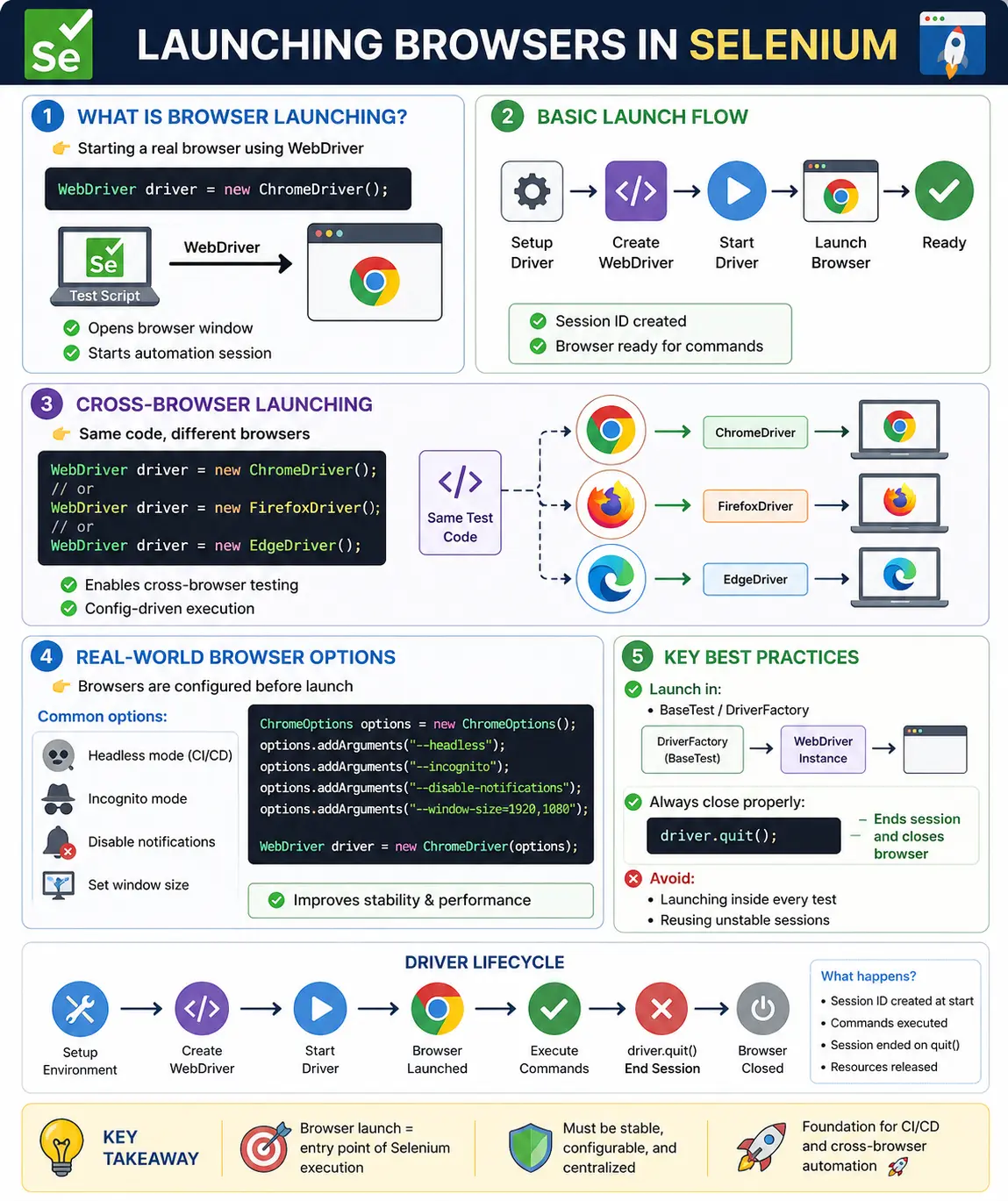
1. What “Launching a Browser” Means
Definition:
Launching a browser means starting a real browser process (Chrome, Firefox, Edge, etc.) using a browser-specific WebDriver implementation through the Selenium WebDriver interface.
When Selenium launches a browser, it does not simply open the browser the same way a user opens it
from the desktop. Selenium creates an automation session. That session has a unique session ID, a set
of capabilities, and a communication channel through which commands are sent. For example, when test
code later calls driver.get(), findElement(), click(), or
sendKeys(), Selenium sends those commands to the active browser session. The browser
responds with success, failure, element references, page information, or error details.
The important idea is that launching a browser creates the foundation for all later actions. Before the launch, there is no web page, no DOM, no cookies, no current URL, and no window context. After the launch, Selenium has a browser instance that can be controlled. If the browser process starts but the WebDriver session is not established, automation still cannot proceed. If a session is created but the browser closes immediately because of an exception or bad configuration, every following command will fail. A launch should therefore be treated as a required precondition for each test.
Until a browser is launched:
- No URL can be opened
- No elements can be interacted with
- No automation can proceed
2. Basic Browser Launch Flow (Conceptual)
- Configure driver (recommended: WebDriverManager)
- Create WebDriver object
- Browser driver starts browser process
- WebDriver session is established
- Browser window opens and is ready
Any failure in these steps results in startup exceptions.
This flow is simple to remember, but each step has a practical meaning. Driver configuration decides whether Selenium can locate the correct executable or driver service. Creating the WebDriver object starts the driver service and sends the requested capabilities. The browser driver then starts the browser process with those capabilities. Once the browser accepts the session request, Selenium receives a session ID and stores it inside the driver object. From that moment, the driver object is the test's handle to the browser.
Most launch problems happen before the first page is opened. A missing driver, incompatible browser
version, blocked executable, incorrect binary path, or unsupported option can all fail during
startup. This distinction helps during debugging. If the failure occurs before driver.get(),
investigate driver setup and browser launch configuration. If the browser launches but navigation
fails, then the problem may be application URL, network, SSL, proxy, authentication, or page-load
behavior. Separating startup issues from application issues makes troubleshooting much faster.
3. Launching Chrome Browser
What Happens:
- ChromeDriver executable starts
- Chrome browser instance launches
- WebDriver session ID is created
Notes:
- Most commonly used browser
- Fast execution
- Best tool support
- Frequently auto-updates (watch compatibility)
Chrome is the default browser in most projects.
Chrome is commonly selected first because many web applications are primarily tested by developers and testers in Chromium-based browsers. It has strong Selenium support, fast execution, predictable DevTools integration, and broad CI compatibility. Chrome also supports a rich set of launch arguments, which makes it useful for disabling notifications, controlling downloads, running in headless mode, ignoring certificate errors in test environments, and defining a consistent viewport.
The main caution with Chrome is version movement. Chrome updates frequently, and the automation setup must stay compatible with that update cycle. Modern Selenium versions include Selenium Manager, and many projects use WebDriverManager, so manual driver download is less common than it used to be. Still, testers should understand the compatibility concept: ChromeDriver must be able to control the installed Chrome browser. If Chrome updates on a machine but the framework uses an old pinned driver, the browser may fail to launch or throw a session creation exception.
4. Launching Firefox Browser
What Happens:
- GeckoDriver starts
- Firefox launches via Marionette
- WebDriver session is created
Notes:
- Strict standards compliance
- Slightly slower in some scenarios
- Often used for cross-browser validation
Firefox helps catch browser-specific issues.
Firefox is especially valuable when a team wants confidence that the application is not accidentally dependent on Chromium behavior. Modern browsers follow web standards, but differences still appear in rendering, focus handling, downloads, alerts, file uploads, certificate behavior, and certain JavaScript edge cases. A test suite that only runs in Chrome may miss a problem that Firefox users experience. Launching Firefox through GeckoDriver gives the framework an additional browser target for validating important business flows.
Firefox configuration is similar in principle to Chrome configuration, but the option classes and some arguments differ. A framework should not assume that every Chrome option has a direct Firefox equivalent. For this reason, browser-specific launch logic is normally isolated inside a factory or setup class. Tests should request a browser by name and receive a ready WebDriver instance without knowing the low-level details of each browser implementation.
5. Launching Edge Browser
What Happens:
- EdgeDriver starts
- Chromium-based Edge launches
- WebDriver session is created
Notes:
- Common in enterprise Windows environments
- Similar behavior to Chrome
- Important for corporate applications
Microsoft Edge is now Chromium-based, so many Chrome concepts apply to Edge as well. This makes Edge relatively easy to include in a Selenium framework, especially for teams that already support Chrome. It is still important to test Edge separately when the application is used inside corporate networks, managed Windows machines, or environments where browser policies are controlled by IT administrators. Enterprise policies, default profiles, certificates, proxy settings, and security restrictions can influence how an application behaves in Edge.
Edge launch support is useful for organizations where Edge is the officially supported browser. In such teams, Chrome might be convenient for local development, but Edge may be the release validation target. A configurable browser launch strategy allows both use cases. Developers can run quick tests in Chrome, QA can run regression tests in Edge, and CI can execute a selected matrix based on the release requirement.
6. Cross-Browser Launching (Framework Concept)
In real projects, browsers are not hardcoded.
Common Approach:
- Browser name read from configuration
- Driver created dynamically based on value
- Same test runs on multiple browsers
This enables:
- Cross-browser testing
- CI matrix execution
- Environment flexibility
Hardcoding new ChromeDriver() in every test is easy at the beginning, but it becomes a
maintenance problem as soon as the team needs another browser. The better approach is to place browser
creation behind a small abstraction, often called DriverFactory,
BrowserFactory, or WebDriverFactory. The test asks for a browser using a
configuration value such as chrome, firefox, edge, or
remote-chrome. The factory creates the correct driver and returns it as a
WebDriver reference.
This design has a direct testing benefit. The same test method does not need to know which browser is being used. A login test remains a login test. A checkout test remains a checkout test. Browser selection becomes an execution concern, not test logic. In CI, a pipeline can run the same suite with different browser parameters. Locally, a tester can switch browsers by changing a property file, command-line argument, Maven profile, TestNG parameter, or environment variable. This keeps browser differences visible without spreading browser-specific code throughout the test suite.
7. Launching Browser with Options (Real-World Requirement)
Browsers are rarely launched with default settings.
Common Browser Options:
- Headless mode (CI/CD)
- Disable notifications
- Incognito/private mode
- Ignore SSL certificate errors
- Set download directory
- Disable extensions
Options are configured before browser launch.
Browser options are startup instructions. They must be supplied before the browser session is created because many browser behaviors cannot be changed after launch. For example, headless mode, user data directory, browser binary path, download preferences, incognito mode, and certain security flags are startup-level choices. If the browser has already launched, changing these settings may require closing the session and launching a new one.
Options should be used carefully. Some teams add many arguments copied from the internet without understanding why they are needed. That can hide real problems or create different behavior between automated and manual testing. A good rule is to keep launch options minimal and intentional. Add an option when it solves a known need, document the reason in the framework if it is not obvious, and avoid disabling browser features unnecessarily. For example, disabling notifications may be useful when notification popups interrupt tests, but disabling security features broadly can make the test environment less realistic.
8. Maximizing and Managing Browser Window
After launch, common window operations:
- Maximize window
- Set custom window size
- Fullscreen mode
Why this matters:
- Element visibility issues
- Responsive UI behavior
- Consistent execution across environments
Window management is not cosmetic in Selenium. Many applications are responsive, which means the same page can render differently depending on viewport width and height. A menu that appears as a desktop navigation bar at one size may become a hamburger menu at another. A button visible without scrolling on a large screen may move below the fold on a smaller viewport. If a tester launches the browser with whatever size the environment provides, the test may behave differently across laptops, virtual machines, Docker containers, and CI agents.
Maximizing the browser is common for local execution, but explicit window size is often better for repeatability, especially in headless mode. A consistent size such as 1920 by 1080 gives the test a stable viewport. For responsive testing, the framework may intentionally run the same scenario with multiple sizes. The key is that size should be a deliberate part of test setup, not an accidental side effect of the machine where the test happens to run.
9. Headless Browser Launching
What is Headless Mode:
- Browser runs without UI
- Faster execution
- Ideal for CI/CD pipelines
When to Use:
- Automated pipelines
- Server environments
- Performance-sensitive runs
When NOT to Use:
- UI debugging
- Visual validation
- Layout testing
Headless mode is widely used in CI/CD because it avoids the need for a visible desktop session. It is faster to start, easier to run on servers, and practical for containerized test execution. However, headless execution should not be treated as a complete replacement for headed browser testing. When a test fails in headless mode, it can be harder to observe what happened unless the framework captures screenshots, page source, console logs, and useful diagnostics. For UI investigation, running the same test in a visible browser is still valuable.
Modern headless browsers are much closer to headed browsers than older versions were, but differences can still appear around viewport size, file downloads, focus, printing, media permissions, and visual behavior. A practical framework supports both modes. Developers may run headed tests while creating or debugging scripts, while CI runs headless for speed. Release validation may include at least one headed run for critical user journeys if the product has visual or layout sensitivity.
10. Common Browser Launch Failures (Real-Time)
10.1 Browser Does Not Launch
Causes:
- Driver not found
- Driver–browser mismatch
- Missing browser installation
Fix:
- Use WebDriverManager
- Verify browser installation
10.2 Browser Launches and Closes Immediately
Causes:
- Runtime exception after launch
- Driver object not retained
- JVM exits early
Fix:
- Check logs
- Ensure proper test flow
10.3 Browser Launch Is Very Slow
Causes:
- Antivirus interference
- Heavy browser profiles
- Old hardware or VM
Fix:
- Use clean browser profile
- Run headless in CI
Troubleshooting browser launch problems is easier when the framework logs the browser name, browser version, driver version, execution mode, remote URL if any, headless setting, and selected options. Without those details, startup failures become guesswork. A session creation exception may look the same to a beginner whether it is caused by a driver mismatch, a blocked executable, an invalid argument, a missing browser installation, or a remote Grid node that has no available slot. Good startup logging turns a vague launch problem into a diagnosable configuration problem.
It is also useful to distinguish repeatable failures from environment failures. If the browser never launches on any machine, the framework setup is probably wrong. If it launches locally but not in CI, compare installed browser versions, operating system permissions, sandbox restrictions, display availability, proxy configuration, and container settings. If it launches on one CI agent but not another, the problem may be agent drift. Consistent infrastructure matters as much as Selenium code.
11. Where Browser Launch Should Happen (Framework Rule)
Wrong:
- Inside every test method
Correct:
- In a centralized setup method
- BaseTest
- DriverFactory
- BeforeMethod / BeforeClass
This ensures:
- Clean session lifecycle
- Parallel execution support
- Easy browser switching
Browser launch belongs in test setup because it is a prerequisite, not a test step. A test method should describe the behavior being validated: open login page, enter credentials, submit form, verify result. It should not repeatedly contain low-level driver creation code. Centralizing launch logic keeps tests readable and makes setup changes easier. If the team later adds headless support, remote execution, a different download directory, or a new browser, the change happens in one setup layer instead of dozens or hundreds of test methods.
The exact location depends on the framework. In TestNG, many teams launch the browser in
@BeforeMethod to create a clean browser per test. In JUnit 5, @BeforeEach
serves a similar purpose. In larger frameworks, those annotations call a reusable driver factory.
Page objects should not launch browsers, because page objects represent pages or components, not
infrastructure. Utility methods should not secretly create drivers either, because hidden driver
creation makes session ownership unclear.
Parallel execution adds another reason to centralize setup. When tests run in parallel, each thread
needs the correct driver instance. Many Java Selenium frameworks use ThreadLocal to
keep drivers isolated per thread. If driver creation is scattered through test classes, parallel
execution becomes risky. A controlled launch layer can create, store, return, and remove each thread's
driver consistently.
12. Browser Lifecycle Best Practices
- Launch one browser per test (recommended)
- Do not reuse browser across tests unless required
- Always close browser using quit()
- Avoid close() unless intentionally closing one tab
Improper lifecycle management causes:
- Memory leaks
- Hanging sessions
- Grid failures
A launched browser is a resource. It consumes memory, CPU, ports, files, and sometimes remote Grid capacity. If the framework does not close it properly, the resource stays alive after the test ends. On a local machine, this may appear as many hidden Chrome or Firefox processes. On a Grid, it may appear as occupied sessions that prevent new tests from starting. In CI, it may cause jobs to slow down over time or fail because the agent runs out of resources.
driver.quit() is the normal teardown call because it ends the entire WebDriver session
and closes every browser window associated with that session. driver.close() only closes
the current window or tab. There are cases where close() is appropriate, such as testing
multiple-window behavior, but it should not replace quit() at the end of a test. A good
teardown runs even when the test fails, usually in an @AfterMethod,
@AfterEach, or equivalent cleanup hook.
The browser lifecycle should also match the test isolation strategy. Launching a fresh browser for every test gives strong isolation and reduces state leakage through cookies, local storage, cache, open tabs, or logged-in sessions. Reusing one browser across many tests can be faster, but it creates dependencies between tests unless the framework carefully resets state. For most automation suites, one browser per test is the more reliable default.
13. Local, Remote, and Cloud Browser Launching
Selenium can launch browsers locally or remotely. A local launch means the browser runs on the same
machine as the test code. This is common during development because it is simple and visible. A remote
launch means the test code sends commands to a Selenium Server, Selenium Grid, Docker container, or
cloud testing provider. The remote machine owns the browser process, while the test code still uses
the same WebDriver API through RemoteWebDriver.
Remote launching is important when teams need scalability, browser variety, or standardized infrastructure. Instead of installing every browser on every tester's machine, the team can maintain Grid nodes with known browser versions. CI jobs can request Chrome, Firefox, or Edge sessions from the Grid. Cloud providers extend this idea by offering many browser and operating system combinations. The test code changes very little; the main difference is that desired capabilities and options are sent to a remote endpoint.
The practical rule is to hide the local versus remote decision behind configuration. A test should not
be rewritten just because it runs on a laptop today and a Grid tomorrow. The launch layer can read a
setting such as execution=local or execution=remote. If local, it creates
ChromeDriver, FirefoxDriver, or EdgeDriver. If remote, it
creates RemoteWebDriver with the appropriate browser options and Grid URL. This makes the
framework flexible without complicating test classes.
14. Browser Launching in CI/CD Pipelines
CI/CD execution places additional demands on browser launching. A developer's local machine usually has a visible desktop, a logged-in user, and a browser profile created through normal usage. A CI agent may be a clean virtual machine or container with no desktop interface, restricted permissions, limited shared memory, and a browser installed by a build image. These differences can break browser startup if the framework assumes local-machine behavior.
Headless mode is the usual CI choice, but it should be configured with a defined window size. Many CI failures come from running headless with a tiny or unexpected viewport. Download tests may need a writable download directory. Certificate-heavy test environments may need controlled handling of SSL warnings. Containerized browsers may need additional arguments depending on the image and operating system. These choices should be reviewed and documented as part of the framework's CI profile.
A stable CI launch also benefits from deterministic dependencies. The build should know which browser version is installed, how the driver is resolved, and whether the run uses Selenium Manager, WebDriverManager, preinstalled drivers, Grid images, or a cloud provider. Random version drift is one of the easiest ways to create flaky startup behavior. When tests fail before application navigation, the first CI investigation should inspect browser startup logs and dependency versions.
15. Designing a Browser Factory
A browser factory is a small but important framework component. Its job is to accept configuration and return a ready WebDriver instance. A simple factory may only switch between Chrome, Firefox, and Edge. A mature factory may also support local versus remote execution, headless mode, browser versions, platform names, download paths, proxy settings, mobile emulation, and logging preferences. The factory keeps these decisions in one place.
The factory should return the driver using the WebDriver interface rather than a concrete
type. This allows the rest of the framework to stay browser-independent. Test code should not need
Chrome-specific methods unless the scenario genuinely requires Chrome-specific behavior. In most
cases, using the WebDriver interface keeps the framework loosely coupled and easier to extend.
A good factory also validates input. If the configuration asks for an unsupported browser name, the framework should fail fast with a clear message. Silent fallback can be dangerous. For example, if the tester requests Firefox but the factory silently launches Chrome, cross-browser coverage becomes misleading. Clear errors are better than hidden wrong execution.
16. Common Mistakes When Launching Browsers
The most common mistake is tight coupling, where tests declare ChromeDriver directly
instead of WebDriver. This works for simple demos, but it makes the test depend on one
browser implementation. Another mistake is creating the driver inside page classes. That mixes page
modeling with infrastructure and makes it difficult to control sessions. A third mistake is forgetting
teardown, which leaves browser sessions open and causes later tests to fail unpredictably.
Another frequent mistake is assuming that launching the browser successfully means the test environment is ready. Browser launch only proves that the automation session exists. The application URL may still be down, the test user may be locked, the environment may have old data, or the network may be blocked. A framework should separate browser startup from application readiness checks. The launch layer starts the browser; navigation and validation layers confirm that the application is reachable.
Teams also sometimes overuse implicit waits immediately after launch. Setting an implicit wait is a framework choice, but it does not make the browser more ready. It only changes how long Selenium waits while finding elements. Browser startup, page load, Ajax behavior, and element readiness are different concerns. Modern frameworks usually rely heavily on explicit waits for meaningful conditions, while keeping browser launch focused on creating a clean, configured session.
17. Interview Perspective
Short Answer:
Launching a browser in Selenium means creating a WebDriver instance using a browser-specific driver, which starts a real browser session for automation.
Real-Time Answer:
In Selenium, browsers are launched by instantiating WebDriver implementations like ChromeDriver or FirefoxDriver, typically managed via WebDriverManager, and configured using browser options to support cross-browser and CI/CD execution.
A stronger interview answer connects the code to the architecture. You can explain that Selenium
communicates with browsers through WebDriver implementations. For Chrome, the implementation is
ChromeDriver; for Firefox, it is FirefoxDriver; for Edge, it is
EdgeDriver; and for remote execution, it is usually RemoteWebDriver. The
browser should be selected through configuration, options should be applied before launch, and the
session should be closed with quit() after the test. This answer shows practical
understanding rather than only syntax recall.
18. Key Takeaway
- Browser launch is the entry point of Selenium automation
- Requires compatible driver and browser
- Must be centralized in framework design
- Options and headless mode are real-project necessities
If browser launch is unstable, the entire automation framework is unstable.
The best way to think about browser launching is to treat it as framework infrastructure. It should be predictable, configurable, observable, and easy to clean up. Predictable means the same configuration produces the same kind of session every time. Configurable means browser, mode, window size, remote execution, and options can be changed without editing test logic. Observable means startup logs and failure messages reveal what was attempted. Clean cleanup means every launched session is ended reliably.
Once this foundation is solid, the rest of Selenium automation becomes easier. Tests can focus on user journeys, page objects can focus on page behavior, utilities can focus on reusable operations, and CI can run the suite consistently. Browser launch may be the first visible action in Selenium, but it is also one of the most important design points in the whole automation framework.
19. Browser Launch Examples (Hands-On)
1. Launching Chrome Browser (Basic)
import org.openqa.selenium.WebDriver;
import org.openqa.selenium.chrome.ChromeDriver;
class Demo {
public static void main(String[] args) {
WebDriver driver = new
            ChromeDriver();
driver.get("https://example.com");
driver.quit();
}
}
Key Point: Simplest way to launch Chrome.
2. Launching Chrome with WebDriverManager
import io.github.bonigarcia.wdm.WebDriverManager;
import org.openqa.selenium.WebDriver;
import org.openqa.selenium.chrome.ChromeDriver;

class Demo {
    public static void main(String[] args) {
        WebDriverManager.chromedriver().setup();
        WebDriver driver = new ChromeDriver();
        driver.get("https://example.com");
        driver.quit();
    }
}
3. Launching Chrome with Options (Maximize)
import org.openqa.selenium.*;
import org.openqa.selenium.chrome.*;

class Demo {
    public static void main(String[] args) {
        ChromeOptions options = new ChromeOptions();
        options.addArguments("--start-maximized");

        WebDriver driver = new ChromeDriver(options);
        driver.get("https://example.com");
        driver.quit();
    }
}
4. Launching Chrome in Headless Mode
ChromeOptions options = new ChromeOptions();
options.addArguments("--headless=new");
options.addArguments("--window-size=1920,1080");

WebDriver driver = new ChromeDriver(options);
driver.get("https://example.com");
driver.quit();
Used In:
- CI/CD pipelines (Jenkins, GitHub Actions)
5. Launching Chrome in Incognito Mode
ChromeOptions options = new ChromeOptions();
options.addArguments("--incognito");

WebDriver driver = new ChromeDriver(options);
driver.get("https://example.com");
driver.quit();
6. Launching Firefox Browser
import org.openqa.selenium.WebDriver;
import org.openqa.selenium.firefox.FirefoxDriver;

class Demo {
    public static void main(String[] args) {
        WebDriver driver = new FirefoxDriver();
        driver.get("https://example.com");
        driver.quit();
    }
}
7. Launching Firefox with Options
import org.openqa.selenium.*;
import org.openqa.selenium.firefox.*;

FirefoxOptions options = new FirefoxOptions();
options.addArguments("--private");

WebDriver driver = new FirefoxDriver(options);
driver.get("https://example.com");
driver.quit();
8. Launching Edge Browser
import org.openqa.selenium.WebDriver;
import org.openqa.selenium.edge.EdgeDriver;

WebDriver driver = new EdgeDriver();
driver.get("https://example.com");
driver.quit();
9. Launching Edge with Options
import org.openqa.selenium.edge.*;

EdgeOptions options = new EdgeOptions();
options.addArguments("--start-maximized");

WebDriver driver = new EdgeDriver(options);
driver.get("https://example.com");
driver.quit();
10. Launching Browser Using Dynamic Selection
WebDriver driver;
String browser = "chrome";

if (browser.equalsIgnoreCase("chrome")) {
    driver = new ChromeDriver();
} else if (browser.equalsIgnoreCase("firefox")) {
    driver = new FirefoxDriver();
} else {
    driver = new EdgeDriver();
}

driver.get("https://example.com");
driver.quit();
Interview Favorite
11. Launching Browser via Browser Factory (Best Practice)
public class BrowserFactory {

    public static WebDriver launch(String browser) {
        switch (browser.toLowerCase()) {
            case "chrome":
                return new ChromeDriver();
            case "firefox":
                return new FirefoxDriver();
            case "edge":
                return new EdgeDriver();
            default:
                throw new RuntimeException("Unsupported browser");
        }
    }
}

WebDriver driver = BrowserFactory.launch("chrome");
driver.get("https://example.com");
driver.quit();
12. Launching Browser in TestNG (@BeforeMethod)
public class DemoTest {

    WebDriver driver;

    @BeforeMethod
    public void launchBrowser() {
        driver = new ChromeDriver();
    }

    @Test
    public void testSite() {
        driver.get("https://example.com");
    }

    @AfterMethod
    public void closeBrowser() {
        driver.quit();
    }
}
13. Launching Browser in JUnit 5
class DemoTest {

    WebDriver driver;

    @BeforeEach
    void setup() {
        driver = new ChromeDriver();
    }

    @AfterEach
    void teardown() {
        driver.quit();
    }
}
14. Launching Remote Browser (Selenium Grid)
import org.openqa.selenium.remote.RemoteWebDriver;
import java.net.URL;

WebDriver driver =
    new RemoteWebDriver(
        new URL("http://localhost:4444"),
        new ChromeOptions()
    );

driver.get("https://example.com");
driver.quit();
15. Launching Browser with Implicit Wait
driver = new ChromeDriver();
driver.manage().timeouts()
      .implicitlyWait(Duration.ofSeconds(10));
driver.get("https://example.com");
16. Launching Browser and Clearing Cookies
driver = new ChromeDriver();
driver.manage().deleteAllCookies();
driver.get("https://example.com");
17. Launching Multiple Browsers Sequentially
WebDriver chrome = new ChromeDriver();
chrome.quit();

WebDriver firefox = new FirefoxDriver();
firefox.quit();
18. Common Mistake (Tight Coupling)
ChromeDriver driver = new ChromeDriver(); // tightly coupled
Correct
WebDriver driver = new ChromeDriver(); // preferred abstraction
19. Launching Browser Using Environment Variable
String browser = System.getenv("BROWSER");

WebDriver driver =
    browser.equalsIgnoreCase("firefox")
        ? new FirefoxDriver()
        : new ChromeDriver();
20. Interview Summary - Launching Browsers in Selenium
WebDriver driver = new ChromeDriver();
Key Points
- Always use WebDriver interface
- Browser choice should be configurable
- Use Options for customization
- Headless for CI
- Factory pattern for scalability