Keyboard Actions in Selenium Java
1. Introduction
Keyboard actions in Selenium are used when an automation test must simulate real user keystrokes. Basic typing can be handled with sendKeys(), but many real applications need more than plain text entry. A user may press Enter to submit a form, Tab to move through fields, Escape to close a popup, Arrow Down to choose an auto-suggest result, Control A to select all text, Control C and Control V to copy and paste, or Shift and click to select a range. Selenium supports these interactions through the Keys class and the Actions class.
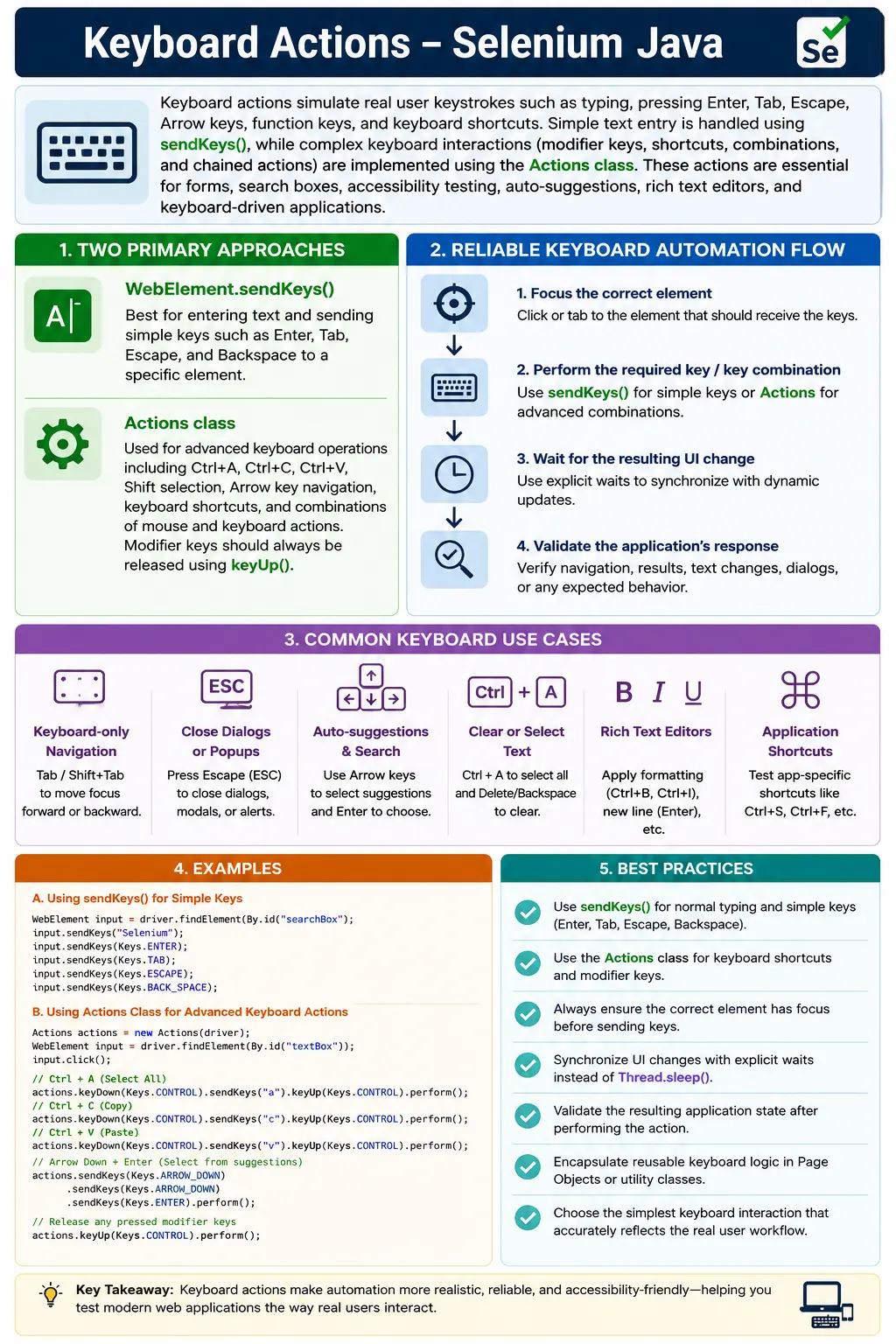
Keyboard automation is important because many modern applications are not used only with a mouse. Users navigate forms with Tab, submit searches with Enter, select values with arrow keys, and activate shortcuts in rich web interfaces. Accessibility testing also depends heavily on keyboard behavior because keyboard-only users must be able to complete important workflows without relying on the mouse. A page that works only when clicked may pass simple automation but still fail real usability expectations.
A good keyboard test does not stop at sending a key. It waits for the right element, sends the key or key combination, waits for the application to respond, and validates the result. If Enter submits a form, the test should verify the submission result. If Escape closes a modal, the test should verify that the modal is no longer visible. If Arrow Down and Enter select an auto-suggest item, the selected value should be asserted. Keyboard automation becomes reliable when keystrokes are tied to visible application behavior.
2. Why Keyboard Actions Matter
Many Selenium beginners think keyboard actions are needed only for typing into text boxes. In real projects, keyboard actions cover a much wider set of user behaviors. They help with accessibility-style navigation, auto-suggest selection, rich text editors, multi-select controls, shortcut-driven dashboards, keyboard-only forms, and controlled inputs in frameworks such as React and Angular.
Keyboard actions are also useful when mouse interactions are unreliable or unnecessary. For example, selecting an auto-suggest item by clicking a dynamic suggestion can be flaky if the list re-renders. In many cases, typing a search term, pressing Arrow Down, and pressing Enter is more stable because it follows the same accessibility path a real keyboard user would follow. Similarly, clearing a controlled input with clear() may not trigger framework state updates, while Control A and Delete often behaves more like a real user edit.
- Typing text into fields and editors
- Submitting forms with Enter
- Moving focus with Tab and Shift Tab
- Closing popups, dropdowns, and modals with Escape
- Selecting auto-suggest values with arrow keys
- Clearing controlled inputs with Control A and Delete
- Using shortcuts such as Control F, Control S, or application-specific commands
- Combining keyboard and mouse actions for multi-select behavior
3. Required Imports
The two most common imports for keyboard work are Keys and Actions.
import org.openqa.selenium.Keys;
import org.openqa.selenium.interactions.Actions;
Practical tests also commonly use WebElement, By, WebDriverWait, ExpectedConditions, Duration, and an assertion library such as TestNG or JUnit. If keyboard actions trigger dynamic UI updates, explicit waits are not optional. They are part of reliable test design.
4. Two Ways to Send Keyboard Input
Selenium provides two broad ways to send keyboard input. The first is WebElement.sendKeys(), which is best for simple typing and simple special keys on a known element. The second is the Actions API, which is better for keyboard combinations, modifier keys, shortcuts, and realistic action sequences.
driver.findElement(By.id("username")).sendKeys("admin");
driver.findElement(By.id("password")).sendKeys("pass123");
driver.findElement(By.id("password")).sendKeys(Keys.ENTER);
This is simple, readable, and ideal for normal forms. If the test needs a combination such as Control A, Shift selection, or a sequence that depends on the current focus, use Actions.
Actions actions = new Actions(driver);
actions.sendKeys(Keys.ESCAPE).perform();
Use sendKeys() for normal typing. Use Actions when you need keyDown(), keyUp(), keyboard shortcuts, modifier keys, or a chain that combines mouse and keyboard behavior.
5. Press Enter, Tab, Escape, Backspace, and Delete
The Keys class contains constants for special keyboard keys. These constants make tests readable and avoid hardcoded key values.
WebElement input = driver.findElement(By.id("search"));

input.sendKeys("Selenium");
input.sendKeys(Keys.ENTER);

input.sendKeys(Keys.TAB);
input.sendKeys(Keys.ESCAPE);
input.sendKeys(Keys.BACK_SPACE);
input.sendKeys(Keys.DELETE);
Each key should be used for a clear purpose. Enter may submit a search. Tab may move focus to the next field. Escape may close a modal. Backspace and Delete may edit text. The test should verify the result of the key, not merely send it and continue.
6. Press Enter with Actions
Actions can click an element, type text, and press Enter in one chain. This is useful when the focus must be established as part of the action sequence.
WebElement search = driver.findElement(By.id("search"));

new Actions(driver)
    .click(search)
    .sendKeys("Selenium")
    .sendKeys(Keys.ENTER)
    .perform();
This pattern is commonly used for search boxes, command fields, chat inputs, and forms where pressing Enter triggers application behavior. After pressing Enter, wait for the result list, submitted state, new message, or navigation outcome.
7. Keyboard Navigation Through a Form
Keyboard users often complete forms by pressing Tab from one control to the next. Selenium can simulate this behavior with Actions. This is useful for accessibility checks and for workflows where focus order matters.
Actions actions = new Actions(driver);

actions.sendKeys(Keys.TAB)
       .sendKeys("Suresh")
       .sendKeys(Keys.TAB)
       .sendKeys("Arumugam")
       .sendKeys(Keys.TAB)
       .sendKeys(Keys.ENTER)
       .build()
       .perform();
This approach depends on the current focus and the page's tab order. Before using it, make sure the starting focus is known. If the page loads with focus on a different element in different browsers, the test may become flaky. For stable form data entry, direct locators are usually better. For testing keyboard accessibility, focus-based navigation is exactly what you want.
8. Validating Focus During Keyboard Tests
When a test depends on focus, it can verify the active element. Selenium can use JavaScript to return document.activeElement. This helps debug cases where the wrong element receives the keystrokes.
WebElement activeElement = (WebElement) ((JavascriptExecutor) driver)
    .executeScript("return document.activeElement;");

System.out.println("Focused element: " + activeElement.getAttribute("id"));
Focus validation is especially useful in forms, modals, menus, and accessibility tests. If pressing Tab moves focus to the wrong control, the problem may be in the application, not Selenium. A keyboard test can expose real accessibility and usability defects.
9. Clear Input with Control A and Delete
Some modern inputs do not behave well with Selenium's clear(). React controlled inputs, masked fields, and custom components may need a real user-like clearing sequence. Control A selects all text and Delete removes it.
WebElement input = driver.findElement(By.id("email"));

input.click();
input.sendKeys(Keys.chord(Keys.CONTROL, "a"));
input.sendKeys(Keys.DELETE);
This is often more reliable than clear() because it triggers key events that the application expects. After clearing, validate that the field value is empty before entering the new value if the field is critical.
10. Control A with Actions
The same selection can be written with Actions using keyDown() and keyUp().
WebElement input = driver.findElement(By.id("username"));

new Actions(driver)
    .click(input)
    .keyDown(Keys.CONTROL)
    .sendKeys("a")
    .keyUp(Keys.CONTROL)
    .perform();
This pattern is useful when building reusable utilities for shortcuts. The important rule is to release modifier keys with keyUp(). If a modifier remains pressed in an action chain, later actions may behave unexpectedly.
11. Copy and Paste with Keyboard Shortcuts
Copy and paste can be automated with Control C and Control V when the application and browser allow clipboard-like keyboard behavior.
WebElement source = driver.findElement(By.id("source"));
WebElement target = driver.findElement(By.id("target"));

source.click();
source.sendKeys(Keys.chord(Keys.CONTROL, "a"));
source.sendKeys(Keys.chord(Keys.CONTROL, "c"));

target.click();
target.sendKeys(Keys.chord(Keys.CONTROL, "v"));
Clipboard behavior can be affected by browser security settings, operating system behavior, and the application itself. If the test is mainly verifying that text can be copied through the UI, this is valid. If the test only needs to enter text into a field, direct sendKeys() is simpler and more stable.
12. Cut Text with Control X
Cut operations are similar to copy, but the source content is removed after the operation.
new Actions(driver)
    .keyDown(Keys.CONTROL)
    .sendKeys("x")
    .keyUp(Keys.CONTROL)
    .perform();
After a cut operation, verify both sides of the workflow. The source should lose the selected text, and the destination should receive it after paste. This avoids false positives where the shortcut was sent but the application did not update as expected.
13. Shift Typing for Uppercase
The Shift key can be held down while sending characters. This simulates uppercase typing.
new Actions(driver)
    .keyDown(Keys.SHIFT)
    .sendKeys("selenium")
    .keyUp(Keys.SHIFT)
    .perform();
For ordinary uppercase text, direct sendKeys("SELENIUM") is simpler. Shift typing is useful when the behavior being tested depends on the actual Shift key, such as shortcut logic, selection behavior, or custom editors.
14. Shift and Arrow Selection
Shift combined with arrow keys can select characters or ranges inside text fields and editors.
new Actions(driver)
    .keyDown(Keys.SHIFT)
    .sendKeys(Keys.ARROW_RIGHT)
    .sendKeys(Keys.ARROW_RIGHT)
    .keyUp(Keys.SHIFT)
    .perform();
This is useful in rich text editors, code editors, and applications that provide keyboard-based selection. The test should verify the result through visible text, editor state, or application behavior after the selected range is modified.
15. Arrow Keys for Auto-Suggest Selection
Auto-suggest fields are a strong use case for keyboard automation. Instead of clicking a suggestion that may move or re-render, the test can type, press Arrow Down, and press Enter.
WebElement input = driver.findElement(By.id("searchBox"));

input.sendKeys("Ind");
input.sendKeys(Keys.ARROW_DOWN);
input.sendKeys(Keys.ARROW_DOWN);
input.sendKeys(Keys.ENTER);
This pattern often mirrors real user behavior and accessibility behavior. It also avoids brittle locators for suggestion list items. After selection, validate the selected value or the resulting page state.
16. Dropdown Navigation with Arrow Keys
Native and custom dropdowns may support keyboard navigation. The test can click the dropdown, use arrow keys, and press Enter.
WebElement dropdown = driver.findElement(By.id("country"));

new Actions(driver)
    .click(dropdown)
    .sendKeys(Keys.ARROW_DOWN)
    .sendKeys(Keys.ARROW_DOWN)
    .sendKeys(Keys.ENTER)
    .perform();
For native HTML select elements, Selenium's Select class is usually better. Keyboard navigation is useful when testing custom dropdowns or verifying accessibility behavior.
17. Page Scrolling with Keyboard Keys
Keyboard keys can scroll the page when the body or a scrollable container has focus.
new Actions(driver)
    .sendKeys(Keys.PAGE_DOWN)
    .sendKeys(Keys.PAGE_DOWN)
    .sendKeys(Keys.HOME)
    .perform();
Another pattern is to send the key to the body element.
driver.findElement(By.tagName("body")).sendKeys(Keys.END);Scrolling with keyboard keys is useful when validating keyboard usability. For ordinary automation setup, JavaScript scrolling or Selenium's element interactions may be more direct. Choose the approach that matches the test purpose.
18. Home and End Keys
Home and End can move to the beginning or end of a page, text field, or scrollable area depending on focus.
new Actions(driver)
    .sendKeys(Keys.HOME)
    .sendKeys(Keys.END)
    .perform();
If focus is inside an input, these keys may move the cursor inside the input instead of scrolling the page. This is normal browser behavior. Tests should establish focus deliberately before using these keys.
19. Escape Key for Closing UI
Escape is commonly used to close modals, dropdowns, tooltips, menus, and auto-suggest lists.
new Actions(driver)
    .sendKeys(Keys.ESCAPE)
    .perform();
After pressing Escape, wait for the target UI to close.
wait.until(
    ExpectedConditions.invisibilityOfElementLocated(By.id("modal"))
);
Escape behavior is a practical accessibility check. If a modal cannot be closed with Escape and there is no clear keyboard alternative, users may get stuck.
20. Tab and Shift Tab
Tab moves focus forward. Shift Tab moves focus backward. Selenium can model both.
new Actions(driver)
    .sendKeys(Keys.TAB)
    .keyDown(Keys.SHIFT)
    .sendKeys(Keys.TAB)
    .keyUp(Keys.SHIFT)
    .perform();
This is important for focus-order testing. A good form should move through fields in a logical order. A modal should keep focus inside the modal until it is closed. Keyboard tests can reveal broken focus management that simple mouse-based tests miss.
21. Control Click Multi-Select
Keyboard and mouse can be combined in the same Actions chain. Control click is used in some multi-select lists, file managers, tables, and pickers.
WebElement item1 = driver.findElement(By.id("item1"));
WebElement item2 = driver.findElement(By.id("item2"));

new Actions(driver)
    .keyDown(Keys.CONTROL)
    .click(item1)
    .click(item2)
    .keyUp(Keys.CONTROL)
    .perform();
After the action, validate that both items are selected. Do not assume that sending Control click worked. Check selected classes, aria-selected attributes, checkbox states, or business result.
22. Shift Click Range Selection
Shift click is often used to select a range of rows or files.
WebElement first = driver.findElement(By.id("row1"));
WebElement last = driver.findElement(By.id("row5"));

new Actions(driver)
    .click(first)
    .keyDown(Keys.SHIFT)
    .click(last)
    .keyUp(Keys.SHIFT)
    .perform();
This is common in file managers, inbox-style UIs, admin grids, and custom list controls. The test data should be predictable so the selected range is known and assertable.
23. Browser Shortcuts vs Application Shortcuts
Some shortcuts are handled by the browser before the application can respond. Control F may open browser search. Control S may trigger browser save behavior. Function keys may refresh the page or activate browser features. Use browser-native shortcuts only when that behavior is actually part of the test.
new Actions(driver)
    .keyDown(Keys.CONTROL)
    .sendKeys("f")
    .keyUp(Keys.CONTROL)
    .perform();
Application-level shortcuts are safer when the app is designed to listen for them. For example, a web editor may define Control B for bold or Control K for insert link. When testing these, focus the editor first and validate the application result.
24. Refresh with F5
The F5 key can refresh the page.
new Actions(driver)
    .sendKeys(Keys.F5)
    .perform();
In automation, driver.navigate().refresh() is usually clearer if the goal is simply refreshing the page. Use F5 when the test specifically needs to verify keyboard refresh behavior.
25. Handling Wrong Element Receiving Keys
One of the most common keyboard automation failures is sending keys when the wrong element has focus. A test may type into the body, into a hidden field, or into the previously focused input. This can happen after animations, modals, auto-focus behavior, or validation errors.
Best practice is to click or focus the target element before sending important keys. If the workflow depends on Tab order, verify the starting focus. If a modal opens, wait until focus moves into the modal or explicitly focus the target control. Keyboard tests are focus-sensitive, so focus should be treated as part of the test state.
WebElement input = driver.findElement(By.id("search"));

input.click();
input.sendKeys("Selenium");
26. Explicit Waits with Keyboard Actions
Keyboard actions often trigger dynamic UI changes. Pressing Enter may submit a form. Pressing Arrow Down may display a selection. Pressing Escape may hide a dropdown. Use explicit waits for these changes.
WebElement search = wait.until(
    ExpectedConditions.elementToBeClickable(By.id("search"))
);

search.sendKeys("Selenium");
search.sendKeys(Keys.ENTER);

wait.until(
    ExpectedConditions.visibilityOfElementLocated(By.id("results"))
);
This pattern keeps keyboard tests stable. Avoid Thread.sleep() because it does not wait for the actual condition and makes tests slower than necessary.
27. Keyboard Actions in React and Angular Applications
Framework-based applications often listen to key events and update internal state. This is why keyboard-like clearing with Control A and Delete may work better than clear(). It produces events the framework understands. Similarly, choosing from an auto-suggest with Arrow Down and Enter can be more stable than clicking transient list elements.
However, framework re-rendering can also cause stale elements. If pressing a key causes an input, list, or popup to re-render, re-locate the element afterward. Do not keep old WebElement references across major UI changes. Wait for the final state and assert it.
28. Keyboard Testing and Accessibility
Keyboard automation is closely connected to accessibility. Many users rely on keyboards, switch devices, screen readers, or other assistive technologies. If important workflows cannot be completed with the keyboard, the application may be difficult or impossible for some users to use.
Selenium can help validate basic keyboard paths. A test can tab through a form, open menus with Enter or Space, close dialogs with Escape, and verify focus movement. It can also check attributes such as aria-expanded, aria-selected, and visible focus styling when those are relevant to the application's accessibility behavior.
Keyboard tests should not replace a complete accessibility audit, but they are valuable practical checks. They reveal real user problems that mouse-only tests often miss.
29. Keyboard Actions in Page Objects
Reusable keyboard behavior should be placed inside page objects or utility classes. This keeps tests readable and avoids repeated low-level action chains.
public void pressShortcut(Keys modifier, String key) {
    new Actions(driver)
        .keyDown(modifier)
        .sendKeys(key)
        .keyUp(modifier)
        .perform();
}
Usage:
pressShortcut(Keys.CONTROL, "a");
pressShortcut(Keys.CONTROL, "c");
pressShortcut(Keys.CONTROL, "v");
For page objects, prefer business methods when possible. Instead of exposing only pressShortcut(), a rich text editor page object might have methods such as makeSelectionBold(), openFindDialog(), or clearEditor(). These methods can include keyboard actions plus validation.
30. Reusable Clear and Type Utility
A practical utility for modern web apps is clear and type using keyboard behavior.
public void clearAndType(WebElement element, String value) {
    element.click();
    element.sendKeys(Keys.chord(Keys.CONTROL, "a"));
    element.sendKeys(Keys.DELETE);
    element.sendKeys(value);
}
This utility is useful for controlled inputs. It can be improved with waits, logging, and value verification depending on the framework standard.
31. Validating Input Value After Keyboard Entry
Typing into a field should be validated when the value is important. Use the value attribute for input elements.
WebElement email = driver.findElement(By.id("email"));

email.click();
email.sendKeys("user@example.com");

Assert.assertEquals(
    email.getAttribute("value"),
    "user@example.com"
);
This catches cases where a mask, validation rule, formatting script, or stale element prevents the expected value from being entered.
32. Testing Shortcut-Driven UI
Some applications provide keyboard shortcuts as product features. Examples include saving drafts, opening command palettes, formatting text, switching panels, or triggering search. These should be tested as real user workflows, not only as key events.
If Control S saves a document inside the app, the test should focus the editor, press Control S, wait for the saved state, and verify the save indicator or persistence. If Control K opens a link dialog, the test should verify the dialog. If Escape closes a command palette, the test should verify that it disappears and focus returns to a useful place.
33. Common Problems and Fixes
| Problem | Likely Cause | Practical Fix |
|---|---|---|
| Text goes to wrong field | Wrong element has focus | Click or validate focus before sending keys |
| Control A does not work | Modifier not handled or wrong OS key | Use correct modifier and release with keyUp |
| Dropdown selection fails | List not open or focus lost | Wait for dropdown and verify active option |
| Escape does not close modal | Modal does not support Escape or focus is outside | Focus modal and verify application behavior |
| Shortcut opens browser UI | Browser owns shortcut | Use only app-supported shortcuts or alternate checks |
| Stale element after key press | Framework re-rendered component | Re-locate element after action |
34. Quick Code Patterns
34.1 Type Text Using Actions
WebElement username = driver.findElement(By.id("username"));

Actions actions = new Actions(driver);
actions.click(username)
       .sendKeys("admin")
       .perform();
34.2 Press Tab
WebElement username = driver.findElement(By.id("username"));

new Actions(driver)
    .click(username)
    .sendKeys("admin")
    .sendKeys(Keys.TAB)
    .perform();
34.3 Press Backspace
WebElement input = driver.findElement(By.id("username"));

new Actions(driver)
    .click(input)
    .sendKeys(Keys.BACK_SPACE)
    .perform();
34.4 Press Delete
WebElement input = driver.findElement(By.id("username"));

new Actions(driver)
    .click(input)
    .sendKeys(Keys.DELETE)
    .perform();
34.5 Paste Text
new Actions(driver)
    .keyDown(Keys.CONTROL)
    .sendKeys("v")
    .keyUp(Keys.CONTROL)
    .perform();
35. Operating System Modifier Differences
Keyboard shortcuts are not always identical across operating systems. On Windows and Linux, Control is commonly used for shortcuts such as Control A, Control C, and Control V. On macOS, users normally use Command instead. Selenium provides Keys.COMMAND and Keys.META for such cases. If the same automation suite runs across different operating systems, the framework should choose the modifier key based on the execution environment.
Keys modifier = System.getProperty("os.name").toLowerCase().contains("mac")
    ? Keys.COMMAND
    : Keys.CONTROL;

new Actions(driver)
    .keyDown(modifier)
    .sendKeys("a")
    .keyUp(modifier)
    .perform();
This matters most in cross-platform test grids. A shortcut that works on a Windows developer laptop may fail on a macOS worker or a cloud browser if the wrong modifier is used. For normal web form typing, this difference is not important. For shortcut-heavy tests, it should be handled deliberately.
36. Keyboard Actions in Rich Text Editors
Rich text editors are one of the most common places where keyboard automation becomes important. Editors may support shortcuts such as Control B for bold, Control I for italic, Control K for links, Enter for new paragraphs, Shift Enter for line breaks, and Escape for closing toolbars or suggestion panels. These editors may not behave like normal text inputs because the editable area may be a contenteditable region rather than an input or textarea.
When testing a rich editor, first focus the editor body. Then type text or send shortcuts. After the action, validate the editor output through visible text, generated HTML, toolbar state, or saved content depending on the product requirement. For example, if Control B applies bold formatting, the test should verify that the selected text became bold or that the bold toolbar button is active. Merely sending Control B does not prove the feature works.
Rich editors are also prone to timing issues because they may render toolbars, suggestion lists, and formatting state asynchronously. Use waits after keyboard shortcuts when the UI changes. Keep test data simple and deterministic so the selected text and expected formatting are clear.
37. Space Key for Buttons, Checkboxes, and Menus
The Space key has special meaning in accessible web interfaces. On a focused checkbox, Space toggles checked state. On a focused button, Space can activate the button. In menu-like widgets, Space may select an item. Testing Space behavior helps verify that controls are keyboard-operable and not dependent only on mouse clicks.
WebElement checkbox = driver.findElement(By.id("terms"));

checkbox.sendKeys(Keys.SPACE);

Assert.assertTrue(checkbox.isSelected());
For custom controls, Selenium may not expose isSelected() reliably if the control is not a native checkbox. In that case, validate attributes such as aria-checked, CSS state classes, or visible UI changes. The important idea is that Space should cause the same meaningful state change a user expects.
38. Keyboard Actions in Modal Dialogs
Modal dialogs are a critical area for keyboard testing. When a modal opens, focus should usually move into the modal. Tab should move through controls inside the modal. Shift Tab should move backward. Escape may close the modal if the design supports it. Focus should not silently move behind the modal while it is open.
A useful modal keyboard test opens the modal, verifies initial focus, tabs through the controls, activates the primary action with Enter or Space, and verifies the final state. Another test can press Escape and verify that the modal closes and focus returns to the control that opened it. These behaviors make a big difference for keyboard and screen reader users.
If a modal traps focus forever with no working close action, that is a serious accessibility problem. If Tab moves behind the modal, users may interact with hidden background content. Keyboard automation can catch these issues early during regression testing.
39. Debugging Keyboard Test Failures
Keyboard failures are easier to debug when the test records evidence. Capture screenshots after the failure, log the active element, log important field values, and record whether expected elements are visible. If a key was sent but nothing changed, the wrong element may have focus. If a shortcut opened browser UI, the shortcut may not belong to the application. If a dropdown selection failed, the dropdown may not have been open when Arrow Down was pressed.
When debugging, reduce the workflow to the smallest reproducible sequence. Focus the element, send one key, and inspect the result. Then add the next key. This is much clearer than debugging a long chain of actions all at once. Long chains are useful when stable, but during investigation, small steps expose the exact point of failure.
In CI, also check browser size, headless mode, operating system, keyboard modifier differences, and application performance. Keyboard tests can be affected by focus behavior that changes when the viewport switches to a responsive layout.
40. Designing Keyboard Tests for Maintainability
Keyboard tests should be readable at the business level. A test named userCanSubmitSearchWithEnter is clearer than a test that only describes low-level key presses. Page objects and helper methods should hide repeated key sequences while still making the intent visible. For example, searchPage.searchWithEnter("Selenium") is easier to understand than repeated calls to click, sendKeys, and Enter across many test classes.
Do not overuse keyboard actions just because they are available. If the feature is normal text entry, direct sendKeys() is enough. If the feature is a native select dropdown, Selenium's Select class may be better. If the feature is a shortcut, focus behavior, auto-suggest, or accessibility workflow, keyboard actions are the right tool. Maintainable automation chooses the simplest method that accurately represents the requirement.
41. Enterprise Best Practices
- Prefer
WebElement.sendKeys()for normal typing. - Use Actions for key combinations, shortcuts, and modifier keys.
- Always release modifier keys with
keyUp(). - Click or focus the target element before sending important keys.
- Use explicit waits when keyboard actions trigger UI updates.
- Use keyboard navigation to validate accessibility-critical flows.
- Avoid testing browser-native shortcuts unless the requirement needs them.
- Use Control A and Delete for stubborn controlled inputs.
- Validate the result after every meaningful keyboard action.
- Keep reusable keyboard logic in page objects or framework utilities.
42. Interview Perspective
A short interview answer is: keyboard actions in Selenium are performed using sendKeys() for simple input and the Actions class for advanced keyboard combinations such as Control, Shift, Tab, Enter, Escape, and arrow navigation.
A stronger real-time answer is: In Selenium Java, I use WebElement.sendKeys() for normal typing and simple special keys such as Enter or Tab. For advanced interactions, I use the Actions class with keyDown(), sendKeys(), and keyUp(). This helps with Control A clearing, copy and paste, Shift selection, Control click multi-select, Shift click range selection, and auto-suggest navigation with arrow keys. I always focus the correct element first, use explicit waits when the key triggers UI changes, release modifier keys properly, and validate the final behavior.
43. Final Summary
Keyboard actions are an essential part of Selenium Java automation. They allow tests to simulate real user behavior beyond basic typing, including Enter submission, Tab navigation, Escape closing, arrow key selection, Control and Shift combinations, copy and paste, text selection, multi-select lists, and shortcut-driven features. Simple typing should usually use WebElement.sendKeys(), while complex keyboard sequences should use the Actions class.
Reliable keyboard automation depends on focus, waits, and validation. The test should know which element receives the keys, wait for any resulting UI change, and assert the final state. Keyboard actions are especially valuable for accessibility, modern framework inputs, auto-suggest fields, rich editors, and enterprise workflows where users depend on shortcuts and keyboard navigation.
The key takeaway is simple: use sendKeys() for simple input, use Actions for combinations and sequences, release modifier keys correctly, avoid unnecessary sleeps, and always verify that the application responded as expected.