JavaScriptExecutor Interface in Selenium Java
1. Introduction
The JavaScriptExecutor interface allows Selenium to execute JavaScript code directly inside the browser. It acts as a bridge between Selenium WebDriver and the browser's JavaScript engine. When normal WebDriver methods are not enough, JavaScriptExecutor gives the automation code a way to run browser-side scripts against the currently loaded page.
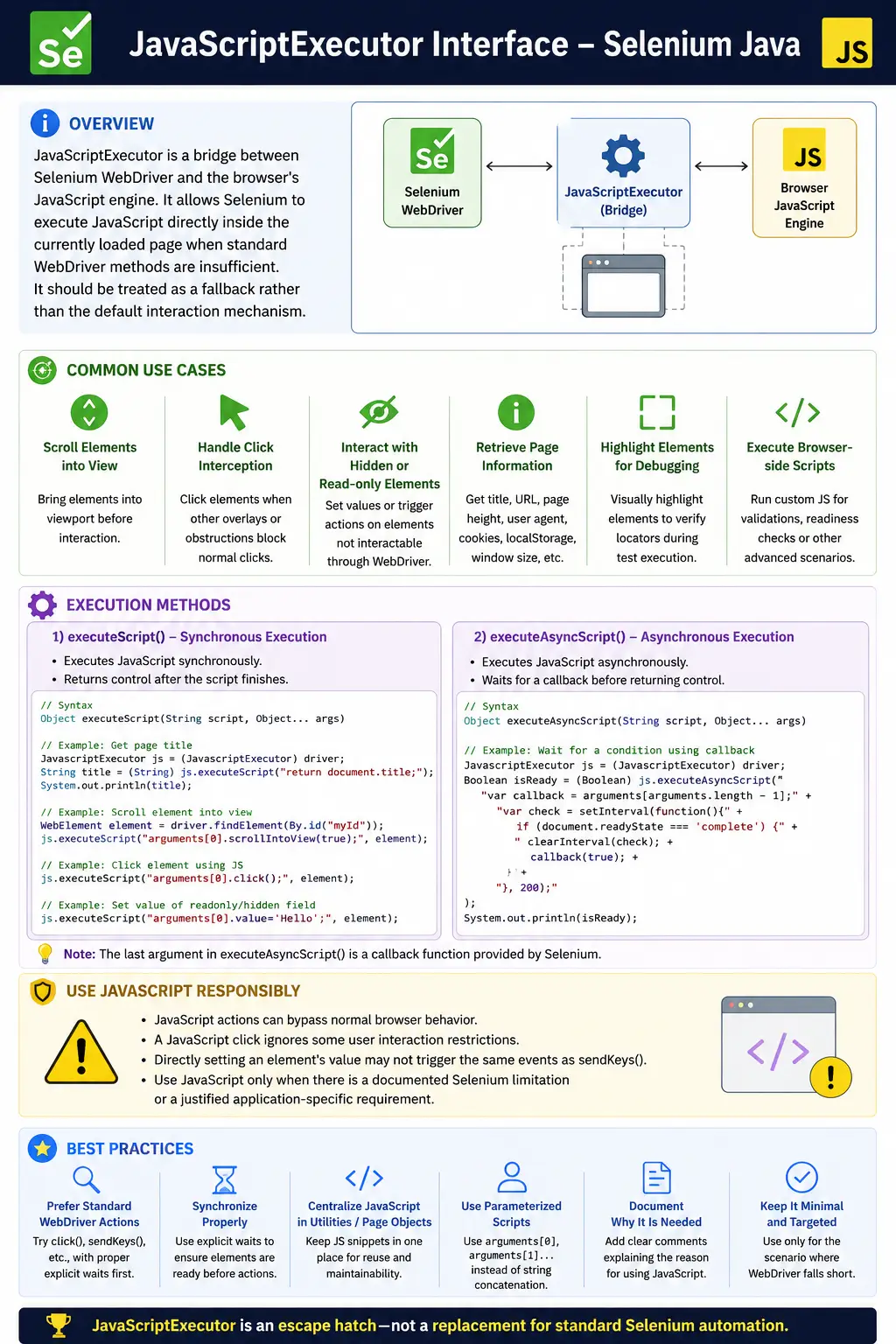
In real Selenium projects, JavaScriptExecutor is commonly used for scroll issues, click interception, hidden elements, complex JavaScript frameworks, dynamic DOM updates, readonly fields, debugging highlights, and browser information retrieval. It is powerful, but it should be used carefully. A JavaScript click is not always the same as a real user click, and directly changing DOM attributes can bypass application behavior.
A strong Selenium engineer knows both sides of this tool. JavaScriptExecutor is valuable as an escape hatch, but it should not replace normal WebDriver interactions by default. The best practice is to use WebDriver actions first, add proper waits, and use JavaScript only when there is a clear reason.
2. What Is JavaScriptExecutor?
JavaScriptExecutor is a Selenium interface that enables a test to execute JavaScript statements in the context of the currently loaded browser page. Since modern browsers run JavaScript natively, Selenium can ask the browser to run small scripts and return results to Java code.
For example, Selenium can ask the browser to return the page title, scroll the page, click an element, retrieve hidden text, set an attribute, or execute an asynchronous callback. This makes JavaScriptExecutor useful for both automation actions and debugging.
3. Why JavaScriptExecutor Is Needed
Normal Selenium methods can fail when the application UI is complex. A click may be intercepted by an overlay. An element may exist in the DOM but be outside the viewport. A field may be readonly. A framework may update the DOM after a delay. In these cases, normal code such as element.click() or sendKeys() may not complete the intended interaction.
element.click();If this fails due to interception or scrolling issues, JavaScript can sometimes perform the action directly.
JavascriptExecutor js =
        (JavascriptExecutor) driver;

js.executeScript(
        "arguments[0].click();",
        element
);
This should be treated as a fallback. If a normal click fails, first understand why it failed. Sometimes the correct fix is a better wait, a scroll, or closing an overlay, not a JavaScript click.
4. JavaScriptExecutor Hierarchy
Browser driver classes such as ChromeDriver implement WebDriver and also support JavaScript execution. That is why the WebDriver reference can be cast to JavascriptExecutor.
WebDriver
    |
    +-- ChromeDriver
            |
            +-- implements JavascriptExecutor
The common cast is:
JavascriptExecutor js =
        (JavascriptExecutor) driver;
5. Required Import
import org.openqa.selenium.JavascriptExecutor;Most examples also use WebElement, By, and waits depending on the scenario.
import org.openqa.selenium.By;
import org.openqa.selenium.WebElement;
import org.openqa.selenium.support.ui.WebDriverWait;
import org.openqa.selenium.support.ui.ExpectedConditions;
import java.time.Duration;
6. Creating JavaScriptExecutor Object
The most common setup is to cast the driver.
WebDriver driver = new ChromeDriver();

JavascriptExecutor js =
        (JavascriptExecutor) driver;
After this, the js reference can call executeScript() and executeAsyncScript().
7. JavaScriptExecutor Methods
JavaScriptExecutor provides two main execution methods.
executeScript()for synchronous JavaScript execution.executeAsyncScript()for asynchronous JavaScript execution.
Most day-to-day Selenium automation uses executeScript(). executeAsyncScript() is less common but useful for callbacks, timers, AJAX, promises, or custom async browser-side checks.
8. executeScript()
executeScript() runs JavaScript synchronously. Selenium waits until the JavaScript finishes and then returns control to Java.
js.executeScript(
        "alert('Hello Selenium');"
);
This creates a browser alert. After the alert appears, Selenium can handle it using the normal alert API.
9. executeAsyncScript()
executeAsyncScript() is used when JavaScript completes later through a callback. Selenium waits until the script calls the callback argument.
js.executeAsyncScript(
    "window.setTimeout(arguments[arguments.length - 1], 3000);"
);
This waits for three seconds before completing. In real projects, asynchronous execution is useful for custom readiness checks, but it should be used carefully because WebDriver waits are usually clearer for normal UI synchronization.
10. JavaScript Click
JavaScript click is one of the most common uses of JavaScriptExecutor.
WebElement loginButton =
        driver.findElement(By.id("login"));

js.executeScript(
        "arguments[0].click();",
        loginButton
);
This directly calls the element's browser-side click behavior. It can help when Selenium's native click is blocked by viewport or interception issues. However, use it only after checking whether a normal user would actually be able to click the element.
11. Scrolling to an Element
JavaScript is often used to scroll an element into view.
WebElement footer =
        driver.findElement(By.id("footer"));

js.executeScript(
        "arguments[0].scrollIntoView(true);",
        footer
);
This is useful for elements below the fold, lazy-loaded sections, and pages with long content. After scrolling, a normal Selenium click may work.
12. Scroll to Bottom and Top
js.executeScript(
        "window.scrollTo(0, document.body.scrollHeight);"
);
This scrolls to the bottom of the page. It is useful for infinite scroll and lazy-loaded content.
js.executeScript(
        "window.scrollTo(0,0);"
);
This scrolls back to the top of the page.
13. Scroll by Pixel Amount
js.executeScript("window.scrollBy(0,500);");

js.executeScript("window.scrollBy(0,-500);");
Pixel scrolling is useful during debugging, but element-based scrolling is usually more stable for automation because it targets the element that matters.
14. Get Page Title
String title =
        (String) js.executeScript(
                "return document.title;"
        );

System.out.println(title);
This returns the same kind of information as driver.getTitle(), but it demonstrates returning values from JavaScript.
15. Get Current URL and Domain
String url =
        (String) js.executeScript(
                "return document.URL;"
        );

String domain =
        (String) js.executeScript(
                "return document.domain;"
        );
These are useful for debugging and for understanding what the browser sees from inside the page.
16. Enter Text Using JavaScript
Sometimes sendKeys() fails because a field is controlled by JavaScript or marked readonly. JavaScript can set the value directly.
WebElement textbox =
        driver.findElement(By.id("username"));

js.executeScript(
        "arguments[0].value='admin';",
        textbox
);
This changes the DOM value, but it may not trigger the same events as real typing. Modern frameworks may require input or change events to update application state.
17. Passing Multiple Arguments
Use arguments[0], arguments[1], and so on instead of building unsafe JavaScript strings.
js.executeScript(
        "arguments[0].value=arguments[1];",
        textbox,
        "admin"
);
This is cleaner and safer than concatenating values directly into the JavaScript string.
18. Highlight Element for Debugging
Highlighting an element is useful during demos, screenshots, and debugging.
WebElement element =
        driver.findElement(By.id("login"));

js.executeScript(
        "arguments[0].style.border='3px solid red';",
        element
);
This does not test application behavior. It is only a debugging aid.
19. Change Background Color
js.executeScript(
        "arguments[0].style.background='yellow';",
        element
);
This can make screenshots easier to understand when explaining failures or demonstrating locator behavior.
20. Generate Alert, Confirm, and Prompt
js.executeScript("alert('Welcome to Selenium');");

js.executeScript("confirm('Delete Record?');");

js.executeScript("prompt('Enter Name');");
These examples are useful for learning alert handling. In application tests, alerts should normally be triggered by real application actions rather than injected scripts.
21. Refresh Page
js.executeScript("history.go(0);");This refreshes the page through browser history. In most cases, driver.navigate().refresh() is clearer. JavaScript refresh is mainly useful for understanding browser-side options.
22. Zoom Page
js.executeScript(
        "document.body.style.zoom='50%'"
);
Zoom changes can be useful for UI debugging, but they should not be part of normal functional validation unless the test specifically covers zoom behavior.
23. Retrieve Hidden Element Text
Selenium's normal getText() may return empty text for hidden elements. JavaScript can read text content directly from the DOM.
String text =
        (String) js.executeScript(
                "return arguments[0].textContent;",
                element
        );
This can be useful for diagnostics. Be careful when asserting hidden content because users may not actually see it.
24. Get Entire Page HTML
String html =
        (String) js.executeScript(
                "return document.documentElement.outerHTML;"
        );
Capturing page HTML can help debug dynamic DOM changes, missing elements, and framework-rendered pages. Avoid printing huge HTML in normal test logs unless needed.
25. Set Attribute Value
js.executeScript(
        "arguments[0].setAttribute('value','Selenium');",
        element
);
This changes an attribute directly. It may not be the same as user input, so use it when the test goal requires DOM manipulation or controlled setup.
26. Remove readonly Attribute
js.executeScript(
        "arguments[0].removeAttribute('readonly');",
        element
);
This can help with date fields or widgets that block direct typing. However, bypassing readonly behavior may skip the actual user workflow, so document why it is required.
27. Handling Disabled Elements
js.executeScript(
        "arguments[0].removeAttribute('disabled');",
        button
);
Removing disabled attributes is usually a test setup or debugging technique. If a real user cannot click a disabled button, an automation test should not normally force it unless testing a special internal condition.
28. Return Values from JavaScript
JavaScript can return strings, numbers, booleans, elements, lists, and other values that Selenium maps back to Java types.
String title =
        (String) js.executeScript(
                "return document.title;"
        );

Long height =
        (Long) js.executeScript(
                "return document.body.scrollHeight;"
        );

Boolean hidden =
        (Boolean) js.executeScript(
                "return document.hidden;"
        );
Correct casting matters. If JavaScript returns a string, do not cast it to an integer.
29. Real Project Use Cases
Common real project uses include clicking an intercepted element, scrolling to a lazy-loaded section, highlighting failed elements in screenshots, reading hidden diagnostic text, removing readonly from controlled date fields, and retrieving page-level information during debugging.
Each use should have a reason. If normal Selenium can do the action reliably, prefer the normal Selenium method because it better represents real user behavior.
30. JavaScriptExecutor and Waits
JavaScriptExecutor does not remove the need for waits. If an element is not yet present, JavaScript cannot click it. If the page has not rendered the target section, scrolling to it will not help. Use explicit waits before JavaScript actions.
WebElement button =
        wait.until(
                ExpectedConditions.elementToBeClickable(
                        By.id("login")
                )
        );

js.executeScript(
        "arguments[0].click();",
        button
);
In many cases, the wait itself may make the normal click work, so try normal Selenium after proper synchronization.
31. JavaScript Click vs WebDriver Click
WebElement.click() tries to act like a user click. It respects visibility, interactability, overlays, and browser-level rules. JavaScript click directly invokes a click on the element. This can bypass conditions that a real user would face.
Use JavaScript click when the application is known to require it or when a complex framework causes a technical Selenium limitation. Do not use it just to hide real usability problems such as overlays blocking buttons.
32. JavaScript and Framework-Controlled Inputs
Modern frameworks such as React, Angular, and Vue may track input state internally. Setting element.value directly may change the DOM but not update framework state. In those cases, the application may still behave as if no user typed anything.
When setting values with JavaScript in such applications, you may need to dispatch input or change events. However, this becomes application-specific and should be used only when normal user-like input is not possible.
33. JavascriptException
JavascriptException occurs when the JavaScript is invalid or fails at runtime.
js.executeScript("invalid javascript");Fix the JavaScript syntax and test small snippets in browser DevTools when needed. Keep scripts short and readable.
34. ClassCastException
ClassCastException occurs when Java casts the returned JavaScript value to the wrong type.
Integer value =
        (Integer) js.executeScript(
                "return document.title;"
        );
The title is a string, so this cast is wrong. Use String for title values and Long for many JavaScript numeric values returned through Selenium.
35. JavaScript Utility Class
public class JavaScriptUtil {

    private WebDriver driver;
    private JavascriptExecutor js;

    public JavaScriptUtil(WebDriver driver) {
        this.driver = driver;
        this.js = (JavascriptExecutor) driver;
    }

    public void click(By locator) {
        js.executeScript(
                "arguments[0].click();",
                driver.findElement(locator)
        );
    }

    public void scrollTo(By locator) {
        js.executeScript(
                "arguments[0].scrollIntoView(true);",
                driver.findElement(locator)
        );
    }
}
A utility class prevents scattered JavaScript snippets. It also gives the team one place to document why JavaScript is used.
36. Better Utility Design
Useful JavaScript utilities should stay small and purposeful. Methods such as scrollToElement(), highlight(), getPageHeight(), and jsClick() are understandable. A utility that accepts arbitrary long scripts from tests can become hard to maintain.
Keep low-level JavaScript centralized, but keep business intent in page objects. A test should call checkoutPage.clickPayButton(), not necessarily know whether that page object used JavaScript internally.
37. Debugging with JavaScriptExecutor
JavaScriptExecutor is very useful for debugging. It can highlight an element, return page HTML, inspect scroll height, check document readiness, and read hidden text. These actions can improve logs and screenshots without changing product behavior.
Debugging JavaScript is safer than behavior-changing JavaScript. Highlighting an element is usually harmless. Removing attributes, forcing clicks, or setting values can change what the application does, so those should be used more carefully.
38. Checking Document Ready State
JavaScriptExecutor can read the browser document readiness state. This is useful for debugging page load timing, although it should not be the only synchronization strategy for modern applications because frameworks can continue rendering after the document is complete.
String readyState =
        (String) js.executeScript(
                "return document.readyState;"
        );

System.out.println(readyState);
A value of complete means the browser finished loading the document, but it does not guarantee that AJAX calls, animations, or framework-rendered components are ready. Use it as one signal, not the whole waiting strategy.
39. Waiting for AJAX with JavaScript
Some teams use JavaScriptExecutor to wait for AJAX activity. This can work when the application exposes a reliable JavaScript state. For example, older jQuery applications can sometimes be checked through jQuery.active. Modern applications vary widely, so there is no universal script that works for every framework.
If the application has a stable loading indicator, waiting for that indicator to disappear is usually clearer. If the team exposes a test-friendly readiness flag, JavaScriptExecutor can read it. Avoid copying generic AJAX wait scripts without confirming that the application actually supports them.
40. Dispatching Events After Setting Values
When JavaScript sets an input value directly, some applications do not react because the normal input events did not fire. Frameworks often listen for input or change events. In those cases, JavaScript may need to set the value and dispatch an event.
js.executeScript(
        "arguments[0].value=arguments[1];" +
        "arguments[0].dispatchEvent(new Event('input'));",
        textbox,
        "admin"
);
This is more realistic than setting the value alone, but it is still not identical to real keyboard input. Use this only when the project has a clear reason to bypass sendKeys().
41. JavaScriptExecutor with Shadow DOM
Some modern components use Shadow DOM. JavaScriptExecutor can sometimes help inspect or interact with shadow roots, although Selenium also has modern shadow root support. The important point is to understand whether the target element is in the normal DOM, a frame, or a shadow DOM. Each requires a different strategy.
Do not use JavaScriptExecutor blindly for every difficult locator. First identify the browser structure. A frame requires frame switching. A shadow root requires shadow DOM handling. A hidden overlay requires UI state handling. JavaScriptExecutor is useful, but it is not a substitute for understanding the page.
42. JavaScriptExecutor and Security Restrictions
JavaScriptExecutor runs in the context of the currently selected page. Browser security still matters. Cross-origin frames, protected browser pages, file downloads, and browser-level UI cannot always be controlled through page JavaScript. If the test needs to interact with another frame or window, switch to that context first.
This is especially important in payment and OAuth flows. JavaScriptExecutor should not be used to bypass security boundaries. Use approved test environments, supported test data, and documented integration flows.
43. JavaScriptExecutor in Page Object Model
In a Page Object Model, JavaScript usage should be hidden inside meaningful page methods. A test should call loginPage.clickLogin() or checkoutPage.scrollToPayment(), not raw JavaScript snippets. The page object can decide whether normal Selenium or JavaScript is needed.
This keeps tests readable and localizes JavaScript workarounds. If the UI later becomes easier to automate with normal WebDriver methods, the page object can be updated without changing every test.
44. When JavaScript Click Is a Bad Fix
JavaScript click can hide real product defects. If an overlay covers a button, a real user may not be able to click it. If Selenium reports click interception, the correct fix may be to wait for the overlay to disappear or close the modal, not to force a JavaScript click through it.
Before using JavaScript click, ask what a real user would experience. If JavaScript click makes the test pass while the real UI is broken, the automation is no longer protecting quality. Use JavaScript click when the issue is a WebDriver limitation, not when it masks an application problem.
45. When JavaScriptExecutor Is Appropriate
JavaScriptExecutor is appropriate when the automation needs browser-side information, debugging support, controlled scrolling, a documented application workaround, or a fallback for a known Selenium interaction limitation. It is also useful for small framework utilities such as highlighting failed elements in screenshots.
It is less appropriate when used to bypass disabled controls, skip validation, click through overlays, or simulate user behavior that a real user cannot perform. The difference is intent: helpful automation support versus hiding product behavior.
46. Logging JavaScript Usage
In larger frameworks, it can be useful to log when JavaScriptExecutor is used for behavior-changing actions. A log line such as "Using JS click for checkout Pay button because native click is intercepted by framework animation" gives future maintainers context.
Documentation matters because JavaScript snippets are often copied and forgotten. Clear method names, comments where needed, and centralized utilities reduce the risk of mysterious browser-side code spreading through the suite.
47. JavaScriptExecutor in CI
JavaScriptExecutor can behave differently if the page renders differently in CI. Headless browser viewport size, slower JavaScript execution, disabled third-party resources, or timing differences can affect scroll, click, and value-setting behavior. Keep viewport size stable and use explicit waits before executing JavaScript.
When a JavaScript action fails in CI, capture the current URL, screenshot, page source when useful, and the exact script being executed. This makes failures easier to reproduce and understand.
48. Creating a Safe JavaScript Utility Policy
Teams that use JavaScriptExecutor often benefit from a simple policy. For example: normal Selenium first, explicit wait second, JavaScript fallback only with a clear reason. JavaScript snippets should live in a utility or page object, not directly in every test. Behavior-changing JavaScript should be reviewed carefully.
This policy prevents JavaScriptExecutor from becoming a shortcut for every difficult UI problem. It keeps automation closer to real user behavior while still allowing practical solutions when the browser engine is the right tool.
49. Understanding JavaScript Return Types
JavaScript and Java do not use exactly the same type system. Selenium maps returned JavaScript values into Java-friendly objects. Strings usually come back as String, booleans as Boolean, many numbers as Long, elements as WebElement, and arrays as lists. This mapping is useful, but it requires correct casting in Java.
When you are not sure what a script returns, start by storing the result as Object and printing the class. After confirming the type, cast it properly. This avoids careless ClassCastException failures in framework code.
Object result =
        js.executeScript(
                "return document.body.scrollHeight;"
        );

System.out.println(result.getClass());
50. Script Timeout for Async Execution
Asynchronous scripts depend on a callback. If the callback is never called, Selenium waits until the configured script timeout is reached. This is different from normal element waits. When using executeAsyncScript(), make sure the callback is always invoked in success and failure paths.
In most everyday UI tests, explicit waits are easier to read than custom async scripts. Use async scripts only when the browser-side condition is genuinely asynchronous and cannot be expressed clearly through standard Selenium waits.
51. JavaScriptExecutor and Real User Simulation
The biggest conceptual risk with JavaScriptExecutor is that it can make automation less user-like. A real user cannot remove the disabled attribute from a button. A real user cannot click a hidden checkbox behind the UI. A real user cannot directly set a value without keyboard or mouse interaction. Selenium tests are usually most valuable when they simulate realistic user behavior.
This does not mean JavaScriptExecutor is bad. It means each use should be intentional. Scrolling to an element before a normal click is often reasonable. Forcing a disabled button to become enabled is usually not a valid user test. The difference should be clear in the test design.
52. Real Example: Click Interception
Suppose a native click fails because an animation overlay is still present. The weak fix is to immediately use JavaScript click. The better fix is to wait for the overlay to disappear, then attempt the normal click. JavaScript click should be reserved for cases where the native click is blocked by a known WebDriver limitation or unavoidable framework behavior.
wait.until(
        ExpectedConditions.invisibilityOfElementLocated(
                By.cssSelector(".loading-overlay")
        )
);

button.click();
If this still fails for a documented reason, then a page object may use JavaScript click as a controlled fallback.
53. Real Example: Lazy Loading
Lazy-loaded pages often render content only after the user scrolls. JavaScriptExecutor can scroll to the bottom or to a target section, but the test should still wait for the content that is expected to appear after scrolling.
js.executeScript(
        "window.scrollTo(0, document.body.scrollHeight);"
);

wait.until(
        ExpectedConditions.visibilityOfElementLocated(
                By.id("lastProduct")
        )
);
This pattern combines JavaScript scrolling with Selenium synchronization. The scroll triggers loading; the wait validates that loading actually completed.
54. Real Example: Readonly Date Field
Date picker fields are sometimes readonly because the application expects the user to choose a date from a calendar widget. Removing readonly and typing directly may bypass the calendar behavior. That can be acceptable for test data setup, but it is not a true test of the date picker UI.
If the test goal is to validate the date picker, interact with the calendar. If the test goal is to quickly set a date so a later workflow can proceed, JavaScript may be acceptable if the team agrees and the behavior is documented.
55. Page Object Documentation
When a page object uses JavaScriptExecutor for a business action, the method should make the reason clear. A small comment can be useful when the workaround is not obvious. For example, a comment explaining that a third-party widget requires JavaScript scrolling can save future maintainers from removing necessary code.
Comments should explain why JavaScript is required, not merely restate what the code does. The code already shows that scrollIntoView() is being called. The useful comment explains the page-specific reason.
56. Common Beginner Mistakes
- Overusing JavaScriptExecutor for every action.
- Replacing all normal Selenium clicks with JavaScript clicks.
- Ignoring explicit waits before JavaScript execution.
- Using JavaScript when normal WebDriver methods work.
- Forgetting to use
returnwhen expecting a value. - Incorrectly casting returned JavaScript values.
- Changing disabled or readonly elements without understanding the business behavior.
- Building JavaScript strings with unsafe concatenation instead of using arguments.
57. Debugging Checklist
- Confirm whether normal Selenium interaction can work with proper waits.
- Check whether the element is present, visible, and enabled.
- Scroll the element into view before using JavaScript click.
- Use DevTools to test complex JavaScript snippets.
- Keep scripts short and readable.
- Use
arguments[0]for WebElement references. - Validate returned value types before casting.
- Document why JavaScript was required.
58. Best Practices
- Use normal Selenium methods first.
- Use JavaScriptExecutor as a fallback, not the default approach.
- Prefer explicit waits before JavaScript actions.
- Use
scrollIntoView()for elements outside the viewport. - Pass elements and values through
argumentsinstead of string concatenation. - Keep reusable JavaScript snippets in utility methods.
- Avoid bypassing real user behavior unless there is a clear test reason.
- Be careful with hidden, disabled, and readonly elements.
- Use return values with correct Java types.
- Document JavaScript workarounds in page objects or utilities.
59. Interview Perspective
A short interview answer is: JavaScriptExecutor is a Selenium interface used to execute JavaScript code directly in the browser. It is commonly used for scrolling, JavaScript clicks, highlighting elements, setting values, retrieving page information, and handling cases where normal WebDriver methods are insufficient.
A stronger real-time answer is: I use JavaScriptExecutor as a fallback when standard Selenium interactions do not work reliably, such as scrolling to an element, handling click interception, reading hidden text, or working with readonly fields. I still prefer normal WebDriver methods first because JavaScript can bypass real user behavior. I combine JavaScriptExecutor with explicit waits and keep JavaScript snippets in reusable utility methods.
60. Key Takeaway
JavaScriptExecutor gives Selenium direct access to the browser's JavaScript engine. It supports synchronous execution with executeScript() and asynchronous execution with executeAsyncScript(). It can click, scroll, highlight, set values, remove attributes, generate alerts, retrieve page data, and return JavaScript values to Java.
The main engineering rule is restraint. JavaScriptExecutor is powerful, but overusing it can create tests that no longer represent real user behavior. Use it when normal Selenium methods are insufficient, keep scripts readable, and document why JavaScript is needed.
In practical Selenium Java automation, JavaScriptExecutor is the escape hatch: not the first tool for every action, but an important tool when the browser's JavaScript engine is the right way to solve a specific automation problem.