JavaScript Alerts in Selenium Java
1. Introduction
JavaScript alerts are browser-generated popup dialogs that interrupt normal page interaction. When an alert is open, the user must respond to it before continuing. In Selenium Java, this means the automation cannot keep clicking normal web page elements until the alert is handled. The test must switch control to the alert, read it if needed, accept it, dismiss it, or enter prompt text depending on the alert type.
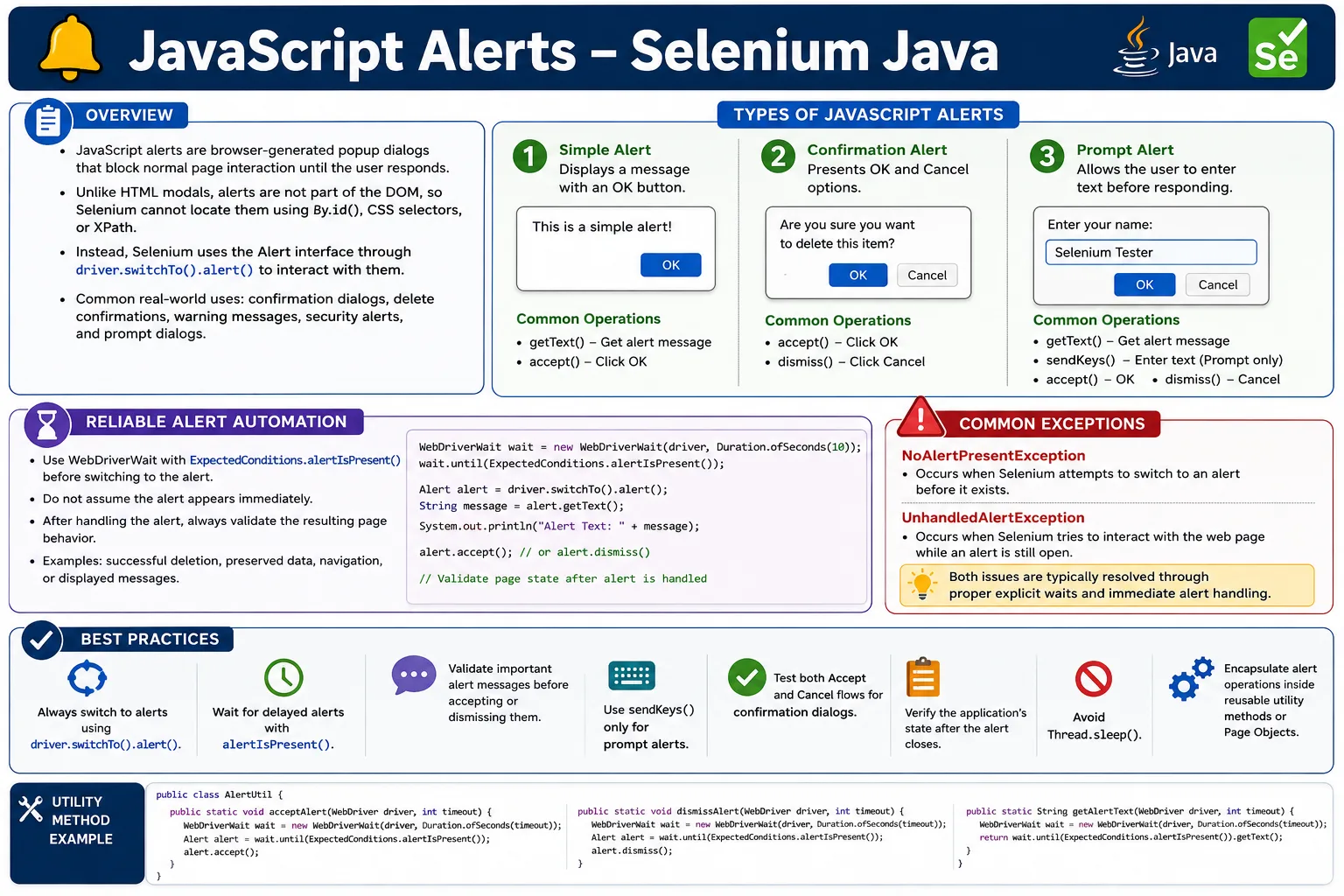
Alerts are different from normal HTML modals. A normal modal is part of the page DOM and can be handled with locators such as By.id(), By.cssSelector(), or XPath. A JavaScript alert is browser-native. It is not part of the page DOM, and Selenium handles it using the Alert interface. This distinction is important in interviews and in real projects because using the wrong approach leads to confusing failures.
Real applications use alerts for confirmation messages, delete confirmations, warning messages, user input prompts, unsaved-change warnings, and security notifications. A stable Selenium test must wait for the alert, validate the message when the message matters, take the correct action, and then verify the page result after the alert is closed.
2. What Are JavaScript Alerts?
JavaScript provides three built-in alert-style dialogs: simple alert, confirmation alert, and prompt alert. A simple alert shows a message and usually has only an OK button. A confirmation alert asks the user to accept or cancel. A prompt alert asks the user to enter text before accepting or cancelling.
| Alert Type | Purpose | Selenium Actions |
|---|---|---|
| Simple alert | Show a message | getText and accept |
| Confirmation alert | Ask OK or Cancel | accept or dismiss |
| Prompt alert | Accept user input | sendKeys, accept, or dismiss |
alert("Operation Successful");
confirm("Are you sure?");
prompt("Enter your name");
These dialogs are controlled by the browser, not by the HTML page. That is why Selenium uses driver.switchTo().alert() instead of normal element locators.
3. Why Alerts Are Special
When a JavaScript alert appears, it blocks normal interaction with the page. Selenium cannot click elements behind the alert, cannot type into page fields, and cannot continue normal actions until the alert is handled. If the test ignores the alert and tries to interact with the page, WebDriver commonly throws an exception.
This blocking behavior is realistic. A real user also cannot continue using the page until they respond to the browser dialog. Therefore, the correct automation design is to handle the alert immediately after the action that triggers it. Delaying alert handling usually makes the test harder to debug.
- Alerts are browser-native, not normal HTML elements.
- Alerts block page interaction until handled.
- Normal locators cannot find alert buttons.
- Selenium must switch to the alert context.
- Tests should validate page behavior after closing the alert.
4. Required Imports
The common imports for alert handling include Alert, explicit waits, and duration.
import org.openqa.selenium.Alert;
import org.openqa.selenium.NoAlertPresentException;
import org.openqa.selenium.support.ui.ExpectedConditions;
import org.openqa.selenium.support.ui.WebDriverWait;
import java.time.Duration;
If an example triggers an alert with JavaScript, JavascriptExecutor is also used. In real test frameworks, alert utilities usually live beside other browser utility methods.
5. Selenium Alert Interface
The Selenium Alert interface provides the methods needed to work with JavaScript alerts.
Alert alert = driver.switchTo().alert();| Method | Purpose |
|---|---|
| accept() | Clicks OK or accepts the alert |
| dismiss() | Clicks Cancel or dismisses the alert |
| getText() | Reads the alert message |
| sendKeys() | Types into a prompt alert |
Use sendKeys() only for prompt alerts. Simple alerts and confirmation alerts do not accept text input.
6. Accept a Simple Alert
A simple alert usually displays information and asks the user to click OK.
driver.findElement(By.id("alertButton")).click();

Alert alert = driver.switchTo().alert();
alert.accept();
This closes the alert. If the alert appears immediately, direct switching may work. In real projects, explicit wait is safer because alerts may be delayed by JavaScript, network behavior, timers, or UI transitions.
7. Read Alert Text
Alert text can be captured with getText(). This is useful for validation, logging, and conditional decisions.
driver.findElement(By.id("alertButton")).click();

Alert alert = driver.switchTo().alert();

String message = alert.getText();
System.out.println(message);

alert.accept();
If the alert message is part of the requirement, validate it before accepting or dismissing the alert. This catches incorrect warnings, wrong confirmation text, and localization issues.
8. Validate Alert Message
Alert validation is common in delete confirmations, security warnings, and user-facing status messages.
driver.findElement(By.id("alertButton")).click();

Alert alert = driver.switchTo().alert();

Assert.assertEquals(
    alert.getText(),
    "Operation Successful"
);

alert.accept();
Keep alert text assertions strict when the exact text matters. Use contains checks only when dynamic values or localization make exact matching inappropriate.
9. Confirmation Alert Accept
A confirmation alert gives the user an OK and Cancel choice. Accepting it is equivalent to clicking OK.
driver.findElement(By.id("deleteBtn")).click();

Alert alert = driver.switchTo().alert();

alert.accept();
For a delete flow, accepting the alert should remove the record or continue the destructive action. The test should verify that the record is gone or that a success message appears after the alert is accepted.
10. Confirmation Alert Dismiss
Dismissing a confirmation alert is equivalent to clicking Cancel.
driver.findElement(By.id("deleteBtn")).click();

Alert alert = driver.switchTo().alert();

alert.dismiss();
Dismiss flows are important. A good delete-confirmation suite should test both accept and dismiss behavior. If the user cancels deletion, the record should remain visible and unchanged.
11. Prompt Alert with Text
A prompt alert accepts user input. Selenium enters prompt text with sendKeys() and then accepts the prompt.
driver.findElement(By.id("promptButton")).click();

Alert alert = driver.switchTo().alert();

alert.sendKeys("Suresh");
alert.accept();
After accepting the prompt, validate the page result. The entered value may appear in a message, field, table, or saved record depending on the application.
12. Prompt Alert and Validation
A complete prompt test includes input and result validation.
driver.findElement(By.id("promptButton")).click();

Alert alert = driver.switchTo().alert();

alert.sendKeys("SoftwareTips4U");
alert.accept();

String result =
    driver.findElement(By.id("result")).getText();

Assert.assertEquals(result, "SoftwareTips4U");
If the prompt value is transformed by the application, validate the transformed output. The important point is that the test proves the prompt value was actually processed.
13. Wait for Alert to Appear
Do not assume an alert appears instantly. Use ExpectedConditions.alertIsPresent() to wait for it.
WebDriverWait wait =
    new WebDriverWait(driver, Duration.ofSeconds(10));

Alert alert = wait.until(
    ExpectedConditions.alertIsPresent()
);

alert.accept();
This is the recommended approach for stable automation. It avoids NoAlertPresentException when the alert appears slightly after the click.
14. Handle Delayed Alert
Some alerts appear after an AJAX call, validation process, timer, or delayed JavaScript callback. Waiting is essential.
driver.findElement(By.id("delayedAlert")).click();

WebDriverWait wait =
    new WebDriverWait(driver, Duration.ofSeconds(15));

Alert alert =
    wait.until(ExpectedConditions.alertIsPresent());

System.out.println(alert.getText());

alert.accept();
Use a timeout that matches application expectations. A very long timeout can hide performance problems. A very short timeout can create unnecessary flakiness.
15. Check Alert Exists Before Handling
Sometimes an alert is optional. For example, an unsaved-change warning may appear only if the form was modified. In those cases, handle the absence of an alert gracefully.
try {
    Alert alert = driver.switchTo().alert();
    alert.accept();
} catch (NoAlertPresentException e) {
    System.out.println("No alert found");
}
Use this pattern only when no-alert is an acceptable outcome. If the requirement says an alert must appear, prefer an explicit wait and fail when it does not appear.
16. NoAlertPresentException
NoAlertPresentException occurs when Selenium tries to switch to an alert before an alert exists.
driver.switchTo().alert();The usual fix is to wait for the alert.
Alert alert = new WebDriverWait(driver, Duration.ofSeconds(10))
    .until(ExpectedConditions.alertIsPresent());
This exception is usually a synchronization problem, not an alert-handling problem. The test moved faster than the browser or application.
17. UnhandledAlertException
UnhandledAlertException occurs when an alert is open and Selenium tries to perform a normal page action.
driver.findElement(By.id("login")).click();If an alert exists at that moment, the page click cannot proceed. The fix is to handle the alert first. In framework design, tests should immediately handle known alerts after the triggering action and should include cleanup logic for unexpected alerts when appropriate.
18. Accept Multiple Alerts
Some pages trigger multiple alerts one after another. After accepting the first alert, switch again to the next alert.
driver.findElement(By.id("multiAlert")).click();

Alert alert = driver.switchTo().alert();
alert.accept();

alert = driver.switchTo().alert();
alert.accept();
For better reliability, use a wait before each alert because the second alert may not appear at the exact same instant the first one closes.
19. Conditional Alert Handling
Sometimes the test action depends on the alert message. For example, only accept if the message contains "Delete."
driver.findElement(By.id("confirmButton")).click();

Alert alert = driver.switchTo().alert();

if (alert.getText().contains("Delete")) {
    alert.accept();
} else {
    alert.dismiss();
}
Conditional alert handling should be used carefully. If an unexpected alert appears, failing the test may be better than silently dismissing it. Use conditional logic only when the product requirement allows multiple alert messages.
20. Alert Inside Frame
If the button that triggers the alert is inside an iframe, switch into the frame before clicking the button. The alert itself is still browser-level and can be handled after it appears.
driver.switchTo().frame("frame1");

driver.findElement(By.id("alertButton")).click();

driver.switchTo().alert().accept();

driver.switchTo().defaultContent();
After handling the alert, return to the appropriate frame or default content depending on the next step. Frame context and alert context are different concepts, and both must be managed carefully.
21. Trigger Alert Using JavaScript
For practice pages or framework utility tests, JavaScript can create an alert directly.
JavascriptExecutor js = (JavascriptExecutor) driver;

js.executeScript("alert('Welcome to Selenium');");

Alert alert = driver.switchTo().alert();

System.out.println(alert.getText());

alert.accept();
This is useful for learning or testing alert utilities. In business tests, prefer triggering alerts through real user actions such as clicking Delete or Submit.
22. Authentication Popups Are Different
Basic authentication popups are not the same as JavaScript alerts. They are browser authentication dialogs. A common way to handle basic authentication is to include credentials in the URL when the browser and environment support it.
driver.get("https://admin:password@example.com");Do not confuse authentication popups with JavaScript alerts. Selenium's Alert interface is for JavaScript alert, confirm, and prompt dialogs, not every browser dialog that may appear.
23. Real Project Scenario: Delete Confirmation
Delete flows are one of the most common alert use cases. The test should validate the confirmation message before accepting it, then verify that the record was deleted.
deleteButton.click();

Alert alert =
    wait.until(ExpectedConditions.alertIsPresent());

Assert.assertEquals(
    alert.getText(),
    "Delete employee?"
);

alert.accept();

wait.until(
    ExpectedConditions.invisibilityOf(employeeRow)
);
This test checks three things: the alert appeared, the message was correct, and accepting the alert completed the deletion.
24. Real Project Scenario: Cancel Delete
The cancel path is just as important. If the user dismisses the confirmation, the data should remain unchanged.
deleteButton.click();

Alert alert =
    wait.until(ExpectedConditions.alertIsPresent());

alert.dismiss();

Assert.assertTrue(employeeRow.isDisplayed());
Testing only the accept path can miss serious defects where Cancel still deletes data or leaves the page in an inconsistent state.
25. Real Project Scenario: Unsaved Changes Warning
Unsaved-change alerts appear when a user tries to leave a modified form. Accept may discard changes, while dismiss may keep the user on the page. The test should cover both behaviors if they are important to the application.
For dismiss behavior, after dismissing the alert, verify that the user remains on the same page and the entered data is still present. For accept behavior, verify that the application navigates away or discards changes as expected. Alert handling is only one part of the workflow; page-state validation is the real proof.
26. Real Project Scenario: Login Security Alert
Some applications show security alerts after unusual login attempts, inactive sessions, or important account actions. These alerts may need to be accepted before the workflow continues.
In such tests, validate the alert message if it is part of the security requirement. Then accept the alert and verify the next screen. Security-related alerts should not be dismissed without checking what they communicate because the message itself may be part of compliance or user communication.
27. Reusable Alert Utility Class
Alert handling should be reusable in a real framework. A simple utility can wait for and accept an alert.
public class AlertUtil {
    public static void acceptAlert(WebDriver driver) {
        WebDriverWait wait =
            new WebDriverWait(driver, Duration.ofSeconds(10));

        Alert alert =
            wait.until(ExpectedConditions.alertIsPresent());

        alert.accept();
    }
}
Usage:
AlertUtil.acceptAlert(driver);28. Alert Utility with Text
A utility can also return alert text before closing the alert.
public static String getAlertText(WebDriver driver) {
    Alert alert =
        new WebDriverWait(driver, Duration.ofSeconds(10))
            .until(ExpectedConditions.alertIsPresent());

    return alert.getText();
}
Usage:
String text = AlertUtil.getAlertText(driver);

Assert.assertEquals(text, "Delete record?");
If this utility does not close the alert, the caller must close it. Otherwise the browser remains blocked.
29. Full Utility for Accept, Dismiss, and Prompt
A more complete utility can centralize accept, dismiss, text reading, and prompt input.
public class AlertUtil {
    private WebDriver driver;
    private WebDriverWait wait;

    public AlertUtil(WebDriver driver) {
        this.driver = driver;
        this.wait = new WebDriverWait(driver, Duration.ofSeconds(10));
    }

    public Alert waitForAlert() {
        return wait.until(ExpectedConditions.alertIsPresent());
    }

    public String getText() {
        return waitForAlert().getText();
    }

    public void accept() {
        waitForAlert().accept();
    }

    public void dismiss() {
        waitForAlert().dismiss();
    }

    public void typeAndAccept(String value) {
        Alert alert = waitForAlert();
        alert.sendKeys(value);
        alert.accept();
    }
}
This keeps page objects clean and ensures that all alert handling uses explicit waits.
30. Validate Page Result After Alert
Closing an alert is not the end of the test. The page should reflect the outcome. After a success alert, validate the success state. After a delete confirmation, validate deletion. After a prompt, validate the entered value. After a cancel action, validate that data was preserved.
driver.findElement(By.id("alertButton")).click();

driver.switchTo().alert().accept();

String result =
    driver.findElement(By.id("result")).getText();

Assert.assertEquals(result, "Saved successfully");
This makes the test behavior-driven instead of alert-driven. The alert is only part of the workflow.
31. Alerts and Parallel Execution
Alerts can create confusion in parallel execution if driver instances are not isolated correctly. Each test thread must use its own WebDriver instance. If tests share a driver, one test may trigger an alert while another tries to interact with the page, causing unpredictable failures.
Good parallel frameworks keep drivers thread-local or otherwise isolated. Alert utilities should operate on the driver instance passed to them, not on global static driver state. This prevents one test's alert from affecting another test's browser session.
32. Alerts and Test Cleanup
Unexpected alerts can block later cleanup steps. For example, after a failed assertion, the test may try to take a screenshot, navigate away, or close the browser while an alert is still open. Some frameworks include cleanup logic that checks for and dismisses unexpected alerts during teardown.
Cleanup should be conservative. It can help prevent cascading failures, but it should not hide a real problem. If an unexpected alert appears, log its text before closing it. That text may explain why the test failed.
33. Common Mistakes
- Trying to locate alert buttons with normal page locators.
- Clicking page elements while an alert is still open.
- Using
Thread.sleep()instead of waiting for the alert. - Accepting alerts without validating important message text.
- Using
sendKeys()on simple alerts instead of prompt alerts. - Forgetting to validate page behavior after closing the alert.
- Confusing JavaScript alerts with HTML modals or authentication popups.
34. Common Alert Issues and Fixes
| Issue | Likely Cause | Fix |
|---|---|---|
| NoAlertPresentException | Switched before alert appeared | Use alertIsPresent explicit wait |
| UnhandledAlertException | Tried page action while alert was open | Handle alert before page interaction |
| Prompt input ignored | Alert is not a prompt or browser limitation | Use sendKeys only for prompt alerts |
| Wrong result after dismiss | Application handles Cancel incorrectly | Validate cancel path and report defect |
| Intermittent alert failure | Timing or delayed JavaScript | Wait for alert and page result |
35. Quick Code Patterns
35.1 Accept Alert
driver.findElement(By.id("alertButton")).click();

Alert alert = driver.switchTo().alert();
alert.accept();
35.2 Dismiss Alert
driver.findElement(By.id("confirmButton")).click();

Alert alert = driver.switchTo().alert();
alert.dismiss();
35.3 Get Alert Text
Alert alert = driver.switchTo().alert();

System.out.println(alert.getText());
35.4 Prompt Text
Alert alert = driver.switchTo().alert();

alert.sendKeys("Selenium");
alert.accept();
35.5 Wait for Alert
Alert alert = new WebDriverWait(driver, Duration.ofSeconds(10))
    .until(ExpectedConditions.alertIsPresent());

alert.accept();
36. Alert Handling in Page Objects
In a well-designed Selenium framework, page objects should not expose alert mechanics everywhere. A page object method should represent the user workflow. For example, a page object can have deleteEmployeeAndConfirm() and deleteEmployeeAndCancel(). Inside those methods, the page object clicks the delete button, waits for the alert, validates the message, accepts or dismisses it, and then validates the page result.
This approach keeps test cases readable. A test should communicate intent, such as "user can cancel employee deletion," rather than repeat low-level alert handling code. Reusable alert utilities support the page object, while the page object keeps business meaning visible.
public void deleteEmployeeAndConfirm(String employeeName) {
    clickDeleteForEmployee(employeeName);

    Alert alert = alertUtil.waitForAlert();

    Assert.assertEquals(alert.getText(), "Delete employee?");
    alert.accept();

    waitUntilEmployeeIsRemoved(employeeName);
}
This style also makes maintenance easier. If the product changes from a browser alert to an HTML modal later, only the page object or utility layer needs to change. The test case can still express the same business workflow.
37. Alert Handling in Negative Testing
Alerts are often used in negative scenarios. A user may submit invalid data, attempt a restricted action, leave required fields empty, or try to delete something that cannot be deleted. In these cases, the alert text is often the main expected result. The test should validate that the warning message is clear and that the application remains in a stable state.
For example, if a user tries to submit a form without accepting terms, an alert may say "Please accept terms and conditions." The test should validate the message, accept the alert, and verify that the user remains on the form. If the alert is dismissed or accepted, the application should not accidentally submit invalid data.
Negative tests should be strict about alert content when the message is part of the user experience. Vague assertions such as checking only that an alert appeared may miss important defects in error communication.
38. Localization and Dynamic Alert Text
In applications that support multiple languages, alert text may change based on locale. Hardcoding English text in every test can make localization suites difficult to maintain. A better approach is to keep expected messages in test data, resource files, or page-specific constants that match the language under test.
Some alert messages also contain dynamic values such as a username, order number, employee name, or file name. In those cases, exact matching can still be useful if the test constructs the expected text from known data. If only part of the message is stable, a contains check may be appropriate, but use it deliberately.
String expected =
    "Delete employee " + employeeName + "?";

Assert.assertEquals(alert.getText(), expected);
Good alert validation balances strictness and flexibility. The goal is to catch real message defects without making tests fragile for expected variation.
39. Alerts in Cross-Browser Execution
JavaScript alerts are standardized, but browser behavior and WebDriver timing can still differ slightly across Chrome, Edge, Firefox, and remote browser grids. A direct driver.switchTo().alert() may work locally and fail intermittently in a cloud grid if the alert appears slightly later. Explicit waits make cross-browser execution much more stable.
Prompt alerts can also behave differently in some environments, especially in headless execution or remote sessions. If a prompt test is critical, run it across the supported browsers and verify that sendKeys() works consistently. If it does not, record the browser-specific behavior and decide whether the application requirement needs cross-browser support or whether the test needs environment-specific handling.
In cross-browser suites, avoid using browser settings that automatically accept or dismiss unexpected prompts unless that behavior is explicitly part of the framework strategy. Auto-handling can hide product defects where unexpected alerts appear.
40. Alerts and Unexpected Browser State
Unexpected alerts are dangerous because they block the browser and can cause many later commands to fail. A test may fail at a click step even though the root cause was an alert created several steps earlier. This is why alert text should be logged when an unexpected alert is found during failure handling.
Some teams add a small utility in teardown that attempts to detect an alert, logs its text, and dismisses it before closing the browser. This should be treated as cleanup, not as a replacement for proper workflow handling. If an unexpected alert appears, the test should still fail and report the message so the team can investigate.
Unexpected alerts can point to real product issues: unhandled validation, session timeout warnings, stale data confirmations, security checks, or JavaScript errors surfaced through alerts. Dismissing them silently removes valuable information.
41. Alert Timing and Race Conditions
Alert timing issues often appear when the alert is triggered after an asynchronous operation. For example, clicking Save may send data to the server, wait for a response, and then show an alert. If the test immediately switches to the alert without waiting, it may fail. If the test immediately clicks another page element, it may hit UnhandledAlertException when the alert appears late.
The solution is to design the workflow around the expected alert. If the action should produce an alert, wait for it before doing anything else. If the alert is optional, define exactly when it is acceptable and how long the test should wait. Do not guess with sleeps. Wait for either alert presence or a clear alternate page state.
For delayed alerts, choose realistic timeouts. A delete confirmation should usually appear quickly. A server-side processing alert may take longer. Timeout choices should reflect application behavior, not arbitrary values copied from other tests.
42. Difference Between Alerts, Modals, Toasts, and Popups
Many teams use the word popup for several different UI patterns, but Selenium handles them differently. A JavaScript alert is handled with the Alert interface. An HTML modal is handled with normal locators because it is part of the DOM. A toast notification is also a DOM element and usually disappears after a short time. A browser authentication popup or file picker is not a JavaScript alert and needs a different strategy.
| UI Type | Where It Exists | Selenium Handling |
|---|---|---|
| JavaScript alert | Browser dialog | Alert interface |
| HTML modal | Page DOM | Normal locators and waits |
| Toast message | Page DOM | Visibility wait and text assertion |
| Authentication dialog | Browser/system UI | Credentials, browser options, or external handling |
Correct identification saves time. If you try to use driver.switchTo().alert() for an HTML modal, Selenium will not find an alert. If you try to locate JavaScript alert buttons with CSS selectors, Selenium will not find them because they are not DOM elements.
43. Alerts in CI and Headless Mode
Alerts usually work in headless browsers, but test failures can be harder to diagnose because there is no visible browser. Logs become more important. When handling alerts in CI, log the alert text before accepting or dismissing it. If an alert was unexpected, include the message in the failure output.
Some CI failures come from browser options that automatically handle unexpected prompts. Review the browser capabilities used by the framework. If unexpected prompt behavior is configured to automatically accept or dismiss alerts, the test may never see an alert that a real user would see. That can be useful for cleanup in some cases, but it can also hide important defects.
For alert-heavy tests, keep screenshots and logs around the triggering action. A screenshot may not show a native alert in every environment, but the surrounding page state still helps explain what action caused the alert.
44. Designing Alert Test Coverage
Alert coverage should be intentional. You do not need to test the browser's alert implementation; browsers already handle that. Your goal is to test that the application triggers the correct alert at the correct time, with the correct message, and that the application responds correctly to accept, dismiss, or prompt input.
For confirmation alerts, cover both accept and dismiss. For prompt alerts, cover valid input, cancelled input, and possibly empty input if the requirement defines it. For warning alerts, cover the condition that triggers the warning and verify that the user cannot proceed incorrectly. For delayed alerts, cover synchronization with explicit waits.
Keep alert tests close to the business workflows they protect. A delete confirmation belongs in delete workflow coverage. An unsaved-change warning belongs in form navigation coverage. A security alert belongs in authentication or account protection coverage.
45. Enterprise Best Practices
- Always switch to alerts using
driver.switchTo().alert(). - Use explicit waits with
alertIsPresent()for delayed alerts. - Read and validate alert text before accepting or dismissing when message matters.
- Use
sendKeys()only for prompt alerts. - Handle alerts immediately after the triggering action.
- Test both accept and dismiss paths for confirmation alerts.
- Validate the page result after closing the alert.
- Avoid
Thread.sleep()in alert workflows. - Do not confuse JavaScript alerts with HTML modals or authentication popups.
- Wrap alert behavior in reusable utility methods.
46. Interview Perspective
A short interview answer is: JavaScript alerts are browser popups handled using Selenium's Alert interface. Selenium provides accept(), dismiss(), getText(), and sendKeys() to interact with them.
A stronger real-time answer is: In Selenium automation, I switch to alerts using driver.switchTo().alert(). For simple alerts, I read the text if needed and call accept(). For confirmation dialogs, I test both accept() and dismiss(). For prompt alerts, I use sendKeys() followed by accept(). I always wait for alerts using ExpectedConditions.alertIsPresent(), avoid sleeps, and validate the page result after the alert is closed.
47. Final Summary
JavaScript alerts are browser-native dialogs that block normal page interaction until they are handled. Selenium Java handles them through the Alert interface, not through normal DOM locators. The main operations are accept(), dismiss(), getText(), and sendKeys() for prompt alerts.
Reliable alert automation requires explicit waits, message validation where appropriate, correct handling of accept and dismiss paths, and page-result validation after the alert closes. Alerts are often small UI elements, but they can control important workflows such as deletion, unsaved changes, security warnings, and user input prompts.
The key takeaway is simple: handle JavaScript alerts by switching context, wait before handling, take the correct action, and prove that the page behaved correctly afterward.