isSelected()
The isSelected() method is used to verify whether a selectable web element is currently selected or not. It is a state-validation method of the WebElement interface and is essential when working with checkboxes, radio buttons, and selectable options in Selenium.
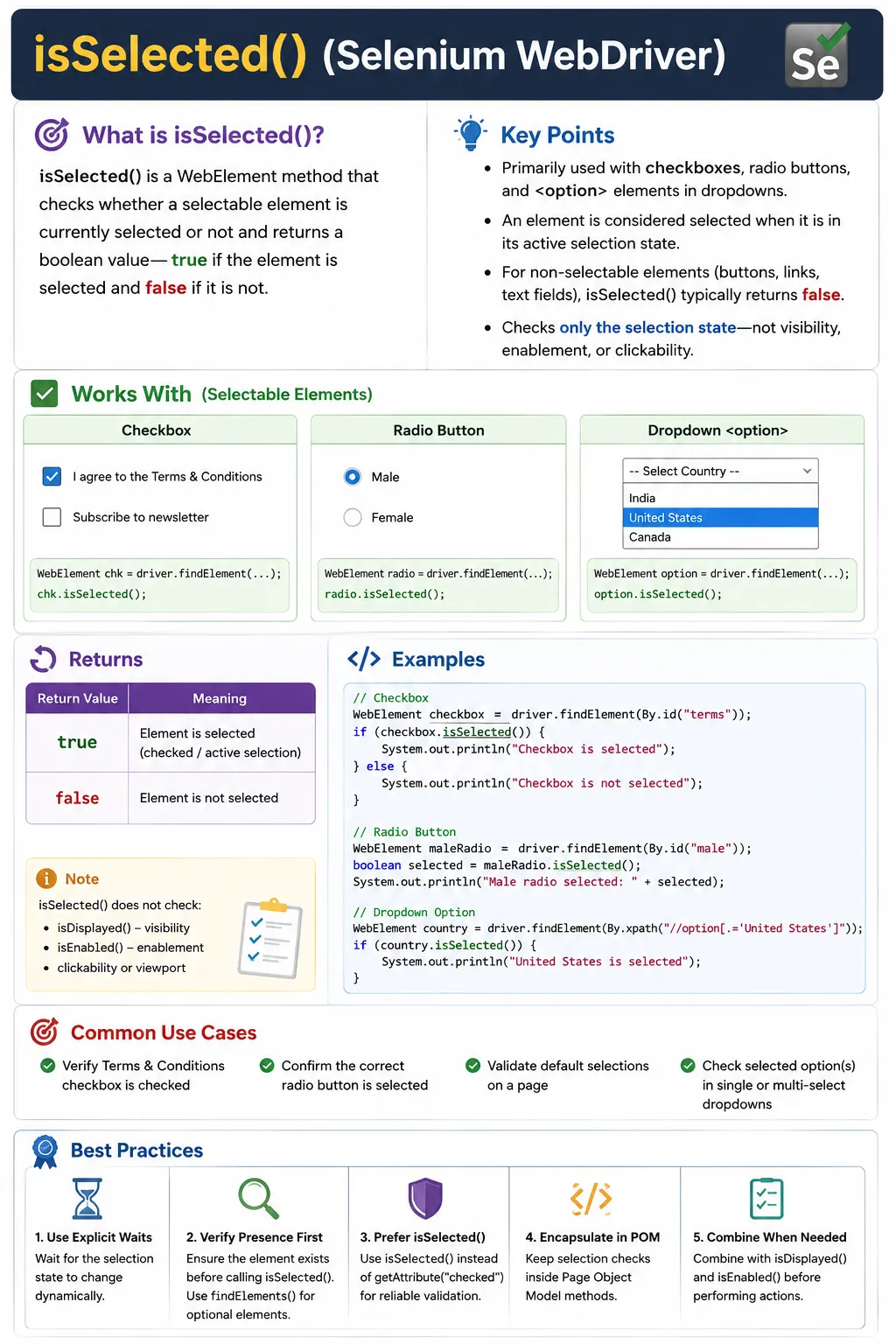
Understanding isSelected() in Selenium WebDriver
In Selenium WebDriver, many test failures happen not because the application is completely broken, but because the test did not check the right state at the right time. A checkbox may be visible but not checked, a radio button may be enabled but not chosen, or a dropdown may display one option while the underlying selected option is different from what the user expects. The isSelected() method exists for this exact category of verification. It answers a narrow but important question: is this selectable element currently selected according to the browser's DOM state?
This question sounds simple, but it is very important in real automation projects. Modern web applications often use forms for registration, checkout, configuration, filters, account settings, consent flows, surveys, admin screens, and onboarding pages. These forms contain many controls whose selected state directly affects business behavior. If the user accepts terms and conditions, chooses a delivery method, selects a subscription preference, enables notifications, chooses a gender or category radio option, or picks one or more values from a select list, the test must validate that the application actually stored the selected state. A test that only clicks a control and moves forward is incomplete. A reliable test clicks, waits if needed, and then verifies the expected state using the correct WebElement method.
The isSelected() method belongs to the WebElement interface, which means it is called on an element returned by driver.findElement(), not on the WebDriver object itself. It returns a boolean value. When the element is selected, it returns true. When the element exists but is not selected, it returns false. If the element cannot be found in the DOM at all, Selenium does not return false; it throws NoSuchElementException before isSelected() gets a chance to run. This distinction matters because "not selected" and "not present" are two different conditions. A checkbox that exists and is unchecked is a valid UI state. A checkbox that does not exist might mean the page did not load correctly, a locator is wrong, a permission condition hides the field, or the test is running against an unexpected page.
The best way to understand isSelected() is to separate it from the other common WebElement state methods. Selenium gives testers isDisplayed(), isEnabled(), and isSelected() because the browser exposes different kinds of state. isDisplayed() is about whether an element is visible to the user. isEnabled() is about whether a user can interact with an element in its current enabled or disabled condition. isSelected() is about whether a selectable element is checked, chosen, or selected. These methods are related because they are often used together, but they are not interchangeable. A checkbox can be displayed, enabled, and not selected. A disabled checkbox can still be selected if the application intentionally locks it in the checked state. A hidden option might technically be selected in the DOM even though the user cannot see it directly. Each method answers one specific question, and good automation code asks the right question instead of making assumptions from a different state.
In practice, isSelected() is meaningful mainly for three groups of HTML elements: checkboxes, radio buttons, and options inside select dropdowns. These are the controls whose main purpose includes holding a selected state. A checkbox can usually switch between checked and unchecked. A group of radio buttons usually allows only one option to be selected at a time. A select dropdown holds one selected option in single-select mode or multiple selected options in multi-select mode. When isSelected() is called on these elements, Selenium asks the browser whether that element is selected and returns the answer as true or false.
Calling isSelected() on other elements, such as a regular text box, a button, a div, a span, or a heading, does not provide useful information. Selenium may simply return false because those elements do not have a selected state in the same sense. This is a common beginner mistake. A tester may call isSelected() on a button to check whether it is ready to click, or on an input field to check whether it has focus. Those are different questions. A button's readiness is usually checked with isDisplayed(), isEnabled(), and sometimes an explicit wait for clickability. A text field's value is usually checked with getAttribute("value"). Keyboard focus is usually checked with JavaScript or the activeElement property if it truly matters. isSelected() should stay focused on selection state.
Checkbox automation is the most common place where isSelected() becomes useful. A checkbox can represent a simple yes-or-no setting, such as "Remember me", "Subscribe to newsletter", "I agree to the terms", or "Use billing address as shipping address". In a manual test, a tester can visually inspect the checkbox and decide whether it is checked. In automation, the script must read that state programmatically. isSelected() gives a clear and readable way to do this. For example, before submitting a registration form, a test can assert that the required terms checkbox is selected. Before testing an optional preference, a test can assert that the newsletter checkbox is not selected by default. These assertions document the expected behavior and catch regressions when default form states change unexpectedly.
One of the strongest patterns with checkboxes is conditional selection. A checkbox click is a toggle operation. If the checkbox is unchecked, clicking it selects it. If the checkbox is already checked, clicking it clears it. Because of this, blindly clicking a checkbox can create unstable tests. Suppose the test wants the newsletter checkbox to be selected. If the test always clicks it, the outcome depends on the starting state. If the checkbox starts unchecked, the click produces the desired result. If the checkbox starts checked, the click produces the opposite result. The stable pattern is to read isSelected() first and click only when the current state does not match the desired state. This makes the test idempotent: running it from either starting state results in the same final state.
Radio buttons are different because they represent a choice from a group. A user generally cannot unselect a selected radio button by clicking it again; instead, selecting another option in the same named group changes the selected option. isSelected() helps verify both the chosen option and the mutually exclusive behavior of the group. For example, if a checkout page offers "standard delivery", "express delivery", and "store pickup", a test can click express delivery and assert that express is selected while the other radio options are not. This validates more than a single click. It confirms that the browser state reflects the intended business decision and that selecting one option correctly clears the others.
Dropdown options need slightly more care. Selenium's Select class is commonly used for standard HTML select elements. In a single-select dropdown, getFirstSelectedOption() can return the option that is currently active, and isSelected() can be called on that option to confirm its state. In a multi-select dropdown, getAllSelectedOptions() returns the chosen options, and each option can be checked using isSelected(). This is useful for forms where the user can choose multiple skills, locations, permissions, tags, or categories. However, many modern web applications use custom dropdown widgets built from div, button, ul, li, or aria-based components rather than native select tags. For those custom widgets, isSelected() may not be the correct method because the widget may represent selection using class names, aria-selected, aria-checked, hidden input values, or JavaScript state. In that case, the automation approach should match the component's actual implementation.
This distinction between browser-level selected state and visual styling is one of the most important lessons for practical Selenium work. A test should not assume that a blue border, a tick icon, or a highlighted background automatically means isSelected() will return true. Selenium does not judge screenshots; it asks the browser about the DOM element's selection state. If the UI uses a real checkbox hidden behind a styled label, then isSelected() should usually be called on the real input element, not on the decorative span or label. If the UI uses an ARIA checkbox role without a native input, then the selected-like state may be exposed through aria-checked rather than through isSelected(). Understanding the HTML beneath the UI helps testers write accurate and maintainable locators.
Many beginners compare selected state using getAttribute("checked") or getAttribute("selected"). This may work in simple pages, but it can be misleading. HTML attributes describe initial markup or current reflected attributes, while DOM properties often represent the live state after user interaction. In many cases Selenium's isSelected() is the cleaner and more intentional choice because it asks the browser for the current selection state in a WebDriver-defined way. Attribute checks still have a place when testing custom controls or when a framework exposes a state through aria-checked or aria-selected, but for native checkboxes, radio buttons, and select options, isSelected() is usually the first method to prefer.
Timing is another reason selection tests fail. A checkbox may become selected only after an Ajax response. A radio option may trigger a JavaScript handler that disables another field after a short delay. A dropdown may update selected values after an animation, network call, or component re-render. If the test clicks and immediately calls isSelected(), it may read the old state. The solution is not to add arbitrary sleeps. A better solution is to wait for the specific condition the user expects. Sometimes that means waiting until the element is clickable before clicking. Sometimes it means waiting until element.isSelected() returns true. Sometimes it means waiting for a related UI result, such as a summary panel or submit button becoming enabled. The right wait depends on the business behavior being validated.
A strong automation engineer also avoids mixing too much UI mechanics into test cases. If every test method directly finds a checkbox, checks isSelected(), clicks it, and repeats that pattern throughout the suite, the code becomes repetitive and fragile. The Page Object Model offers a better home for this logic. A page class can expose a method such as selectTermsIfNeeded(), isTermsAccepted(), chooseExpressDelivery(), or getSelectedSkills(). The test can then express business intent while the page object handles WebDriver details. This also makes it easier to update locators, waits, and selection behavior when the application UI changes.
Consider a registration page with a terms checkbox. A weak test might simply click the checkbox and submit the form. A stronger test first verifies that the checkbox is unchecked by default if that is the requirement. Then it selects the checkbox only if needed. After clicking, it waits until the selected state is true. Finally, it submits the form and checks the next page or confirmation message. This layered style creates useful evidence. If the test fails before submit, the issue is likely around checkbox interaction or state update. If it fails after submit, the issue is likely around form processing or navigation. Each assertion narrows the failure.
isSelected() is also useful for negative testing. Negative tests often verify that an application does not accept a form unless a required control has been selected. For example, a checkout page may require the user to accept terms before enabling the "Place Order" button. The test can start by asserting that the terms checkbox is not selected, then assert that the place order button is disabled. After selecting the checkbox, the test can assert that the button becomes enabled. This pattern uses isSelected() as part of a broader business rule, rather than treating it as an isolated technical method.
Disabled checkboxes and radio buttons deserve special attention. A disabled element cannot be changed by the user, but it can still have a selected state. For example, an admin screen might show a locked permission that is selected by policy but disabled for editing. isEnabled() would return false, while isSelected() could return true. This is not a contradiction. The element is not interactable, but it is still selected. Tests for such controls should assert both conditions when both are part of the requirement. A single state check rarely tells the whole story.
Stale element handling is another practical concern. Selection controls are often inside dynamic pages where clicking one option causes a portion of the DOM to refresh. When the DOM node is replaced, an old WebElement reference becomes stale. Calling isSelected() on that old reference throws StaleElementReferenceException. The fix is usually to relocate the element after the refresh or to build a wait that finds the element again before checking its state. This is especially common in React, Angular, Vue, and other component-based applications where a small UI action can cause a component subtree to be recreated.
Frames and windows add another layer. If a checkbox or radio button exists inside an iframe, Selenium cannot interact with it until the driver switches into that frame. If a test tries to find the element from the default page context, it may fail with NoSuchElementException even though the element is visible in the browser. The selected state can be read only after Selenium is focused on the correct document context. Similarly, if a form opens in a new tab or window, the driver must switch to that window before locating and checking the element. isSelected() itself is simple; the surrounding browser context must still be correct.
From an interview point of view, isSelected() is often used to test whether a candidate understands WebElement state methods. A short answer is that isSelected() checks whether a checkbox, radio button, or select option is selected and returns a boolean. A stronger answer adds that it should be called on a WebElement, not on WebDriver, and that it is different from isDisplayed() and isEnabled(). A practical answer explains how to use it before clicking a checkbox so the final state is predictable. The strongest answer mentions dynamic pages, waits, stale elements, custom controls, and why native selected state is better checked with isSelected() than with raw attribute checks.
In real projects, the method becomes most valuable when the test is written around user intent. Instead of saying "click checkbox", the test should say "accept terms", "enable email alerts", "choose UPI payment", or "confirm premium plan is selected". The page object can implement those actions using isSelected() internally. This keeps the test readable and keeps low-level Selenium operations in one place. When a product team later changes the checkbox into a toggle switch, the test language can remain stable while the page object adapts to the new implementation.
For custom toggle switches, testers must inspect the HTML carefully. Some switches are true input type checkbox elements with CSS styling, and isSelected() works perfectly when called on the input. Others are button elements with role="switch" and aria-checked="true" or aria-checked="false". In those cases, isSelected() may return false because the element is not a native selectable control. The correct validation may be getAttribute("aria-checked") or a framework-specific state exposed in the DOM. The broader principle is simple: use isSelected() for native selected state; use semantic attributes for custom accessible components when the native selected state does not exist.
The method also helps avoid false positives in regression testing. A test that checks only that a checkbox is displayed may pass even when the checkbox is not checked by default as required. A test that checks only that a radio button can be clicked may pass even when the wrong option stays selected because of a JavaScript bug. A test that checks only dropdown text may miss a mismatch between displayed label and selected underlying option. By asserting selected state directly, the test verifies the condition that matters to the browser and the submitted form.
When debugging selection failures, start with the locator. Confirm that the WebElement points to the real input, radio, or option, not merely to a label or wrapper. Then confirm that the element is in the correct frame or window. Next, check whether the element is displayed and enabled if the test is supposed to interact with it. After clicking, wait for the state change rather than assuming the DOM updates instantly. Finally, inspect whether the application uses native inputs or custom components. This order of investigation usually separates locator problems, timing problems, and application behavior problems quickly.
There is also a maintainability lesson in how assertions are named. A direct assertion such as Assert.assertTrue(checkbox.isSelected()) is fine in a small example, but larger suites benefit from clearer method names and assertion messages. For example, Assert.assertTrue(checkoutPage.isTermsAccepted(), "Terms checkbox should be selected before checkout") explains the business meaning of the state. When the test fails, the report tells a human what requirement failed, not merely that a boolean was false. Selenium automation is most useful when failures are easy to diagnose.
Finally, isSelected() should be treated as a verification method, not a replacement for thoughtful test design. It tells you the current selected state of one element. It does not prove that the application saved the choice, that the backend received the value, that the next page used the value correctly, or that the correct database record changed. For many user journeys, isSelected() is one assertion in a chain. It validates the UI state before or after interaction, while other assertions validate the business outcome. Used this way, it becomes a precise and reliable building block in form automation.
The key takeaway is that isSelected() is small but important. It keeps Selenium tests honest about selection state. It prevents blind checkbox clicks, verifies radio button behavior, supports dropdown validation, and helps distinguish selected state from visibility or enablement. When combined with good locators, explicit waits, page objects, and meaningful assertions, it turns form automation from a sequence of clicks into a clear validation of user choices.
Building Reliable Tests Around Selected State
A mature Selenium suite does not use isSelected() only after a click. It uses the method at the points where selected state has business meaning. Before an action, it can confirm the starting condition of the page. After an action, it can confirm that the expected change happened. Before a form submission, it can confirm that the submitted state is valid. After a page reload, it can confirm whether the state was persisted. These checks turn a simple boolean method into a practical guard against regressions in form behavior, default preferences, saved settings, and user workflow decisions.
For example, an account settings page may contain several notification preferences. Some may be enabled by default, some may be disabled by default, and some may depend on the user's role. If the test only clicks each checkbox and submits the form, it does not clearly prove that the application started in the correct state or saved the correct state. A stronger test reads each checkbox with isSelected(), compares it with the expected default, changes only the preferences needed for the scenario, submits the form, reloads the page, and checks the selected states again. That final reload check is especially useful because it verifies persistence rather than just temporary client-side behavior.
isSelected() is also valuable in tests that must avoid accidental side effects. In a shared test environment, user accounts or application records may already have certain settings enabled. A test that blindly toggles a checkbox can leave the data in an unexpected state and cause later tests to fail. By checking the current state first, the test can set the element to the required value without depending on previous data. This is one reason conditional checkbox helpers are common in well-maintained frameworks. The helper receives the desired state, checks the current state, clicks only when needed, and then verifies the final state. This small pattern removes a surprising amount of instability from form automation.
Another practical pattern is grouping selected-state validation with domain language. A page object method named isNewsletterEnabled() is clearer than a test-level locator named newsletterCheckbox followed by isSelected(). A method named choosePaymentMethod("card") is clearer than several radio button clicks scattered through test classes. The page object can still use isSelected() internally, but the test reads like a business scenario. This separation is useful when the UI changes from native radio buttons to a custom card selector. The page object changes, while the test can keep saying that the card payment method should be selected.
When selected state is controlled by JavaScript frameworks, it is worth checking the result from the user's perspective as well as from the element state. A checkbox may become selected, but a dependent section may fail to appear. A radio option may become selected, but the price summary may not update. A multi-select option may be selected, but the saved tag list may omit it. isSelected() confirms the control state; additional assertions confirm the application response. This layered validation gives stronger coverage without making the test confusing. Each assertion has a specific purpose, and a failure tells the tester which layer is broken.
Accessibility-aware applications may expose selected-like state through ARIA attributes. For native controls, isSelected() remains appropriate. For custom controls, the test should often verify aria-checked, aria-selected, or aria-pressed depending on the component role. This is not a weakness of isSelected(); it is a sign that different UI technologies expose state differently. A skilled tester looks at the DOM, understands the component, and chooses the verification method that matches the implementation. When possible, using native controls is simpler for both accessibility and automation because Selenium can read their state directly.
Finally, selected-state checks should produce useful failure messages. A test report that says "expected true but found false" is technically correct but not very helpful. A message like "Terms and conditions checkbox should be selected before registration submit" gives immediate context. For radio groups, a message like "Express delivery should be selected after choosing delivery speed" points directly to the failed behavior. In large suites, readable assertion messages save debugging time because the person reviewing the failure may not have written the original test.
1. What isSelected() Does
Definition: isSelected() returns a boolean:
- true means the element is selected
- false means the element is not selected
Selection represents a logical state, not just a visual one.
2. Elements That Support isSelected()
isSelected() is meaningful for:
- Checkboxes
- Radio buttons
- Options inside <select> dropdowns
For non-selectable elements (buttons, inputs, divs):
- isSelected() always returns false
- Using it has no practical value
3. How Selection Works
3.1 Checkboxes
- Can be selected or deselected
- isSelected() reflects current checked state
3.2 Radio Buttons
- Only one option in a group can be selected
- Selecting one automatically deselects others
3.3 Dropdown Options
- Single-select: one option selected
- Multi-select: multiple options may be selected
4. What isSelected() Does NOT Check
isSelected() does not verify:
- Visibility (isDisplayed())
- Enablement (isEnabled())
- Clickability
- Whether the element is inside viewport
Rule: Selected is not the same as Enabled is not the same as Visible
5. Typical Use Cases
- Verify checkbox default state
- Validate radio button selection logic
- Ensure terms & conditions checkbox is checked
- Validate dropdown selected option
- Conditional logic based on selection state
6. Behavior When Element Is Not Present
- If element exists means returns true or false
- If element does not exist means throws NoSuchElementException
Best practice: Confirm presence using findElements() before calling isSelected().
7. isSelected() vs Attribute Validation
- isSelected() means browser-level selection state
- getAttribute("checked") means HTML attribute presence
Recommendation: Prefer isSelected() for assertions; attribute checks can be inconsistent.
8. Synchronization Considerations
- Selection state may change dynamically
- Calling isSelected() too early may return incorrect state
- Use waits if selection depends on async UI behavior
Never assume immediate state change after click().
9. Common Beginner Mistakes
- Using isSelected() on non-selectable elements
- Assuming click always toggles state correctly
- Skipping validation after selection
- Ignoring dynamic state changes
10. isSelected() in Page Object Model (POM)
- Encapsulate selection checks in page methods (e.g., isTermsCheckboxSelected())
- Tests assert business rules, not UI mechanics
- Avoid direct calls in test logic
11. Interview Perspective
Short Answer: isSelected() checks whether a checkbox, radio button, or dropdown option is selected.
Real-Time Answer: In Selenium, isSelected() returns true if a selectable element such as a checkbox or radio button is currently selected. It is commonly used to validate default and post-action selection states.
12. Key Takeaway
- isSelected() validates selection state
- Works only with selectable elements
- Does not check visibility or enablement
- Requires synchronization for dynamic UIs
- Selection is a logical state-always validate it explicitly.
13. Practical Examples & Interview Scenarios
1. Basic isSelected() Usage (Checkbox)
WebElement checkbox = driver.findElement(By.id("agree"));
System.out.println(checkbox.isSelected());
Key Point
- Returns true if checkbox is checked
2. Validate Checkbox Is Selected
WebElement checkbox = driver.findElement(By.id("agree"));
Assert.assertTrue(checkbox.isSelected());
3. Select Checkbox Only If Not Selected (Best Practice)
WebElement checkbox = driver.findElement(By.id("agree"));
if (!checkbox.isSelected()) {
    checkbox.click();
}
4. isSelected() on Radio Button
WebElement male = driver.findElement(By.id("male"));
male.click();

Assert.assertTrue(male.isSelected());
5. Validate Only One Radio Button Is Selected
WebElement male = driver.findElement(By.id("male"));
WebElement female = driver.findElement(By.id("female"));

Assert.assertTrue(male.isSelected());
Assert.assertFalse(female.isSelected());
Interview Favorite
- Radio buttons are mutually exclusive
6. isSelected() with Explicit Wait
WebDriverWait wait = new WebDriverWait(driver, Duration.ofSeconds(10));
WebElement checkbox =
    wait.until(ExpectedConditions.elementToBeClickable(By.id("agree")));

checkbox.click();
Assert.assertTrue(checkbox.isSelected());
7. isSelected() on Checkbox After Page Load
WebElement newsletter = driver.findElement(By.id("newsletter"));
Assert.assertFalse(newsletter.isSelected());
8. Toggle Checkbox Using isSelected()
WebElement checkbox = driver.findElement(By.id("terms"));

if (checkbox.isSelected()) {
    checkbox.click(); // unselect
} else {
    checkbox.click(); // select
}
9. isSelected() on Disabled Checkbox
WebElement checkbox = driver.findElement(By.id("agree"));
System.out.println(checkbox.isSelected());
Note
- isSelected() works even if checkbox is disabled
10. isSelected() vs getAttribute("checked")
WebElement checkbox = driver.findElement(By.id("agree"));

System.out.println(checkbox.isSelected());            // true / false
System.out.println(checkbox.getAttribute("checked")); // true / null
Interview Tip
- Prefer isSelected() (more reliable)
11. isSelected() on <select> Option
Select dropdown = new Select(driver.findElement(By.id("country")));
WebElement option = dropdown.getFirstSelectedOption();

Assert.assertTrue(option.isSelected());
12. Validate Multiple Selected Options (Multi-Select)
Select dropdown = new Select(driver.findElement(By.id("skills")));

for (WebElement opt : dropdown.getAllSelectedOptions()) {
    Assert.assertTrue(opt.isSelected());
}
13. isSelected() with findElements() (Safe Check)
List<WebElement> checks = driver.findElements(By.name("hobby"));

for (WebElement c : checks) {
    System.out.println(c.isSelected());
}
14. isSelected() After Page Refresh (Stale Fix)
WebElement checkbox = driver.findElement(By.id("agree"));
driver.navigate().refresh();

// checkbox.isSelected(); Invalid: stale
checkbox = driver.findElement(By.id("agree"));
System.out.println(checkbox.isSelected());
15. isSelected() Inside Frame
driver.switchTo().frame("optionsFrame");
WebElement checkbox = driver.findElement(By.id("agree"));
Assert.assertTrue(checkbox.isSelected());
driver.switchTo().defaultContent();
16. Invalid: Common Interview Mistake
driver.isSelected(); // Invalid: invalidCorrect
driver.findElement(By.id("x")).isSelected(); // Valid:17. isSelected() in Page Object Model (POM)
@FindBy(id = "agree")
WebElement agreeCheckbox;

public boolean isAgreeChecked() {
    return agreeCheckbox.isSelected();
}
18. Validate Default Selection (Radio Button)
WebElement yes = driver.findElement(By.id("yes"));
Assert.assertTrue(yes.isSelected());
19. Validate Checkbox State After Click
WebElement checkbox = driver.findElement(By.id("subscribe"));
checkbox.click();

Assert.assertTrue(checkbox.isSelected());
20. Interview Summary - isSelected() in Selenium
element.isSelected();Key Points
- Used for checkbox, radio, option
- Returns boolean
- Independent of visibility
- Preferred over attribute checks
- Common in form & option validation