isEnabled()
The isEnabled() method is used to verify whether a web element is enabled for user interaction
in Selenium WebDriver. It is a state-validation method of the WebElement interface and is
commonly used before clicking buttons, typing into fields, selecting checkboxes, working with form controls,
and validating business rules that enable or disable actions. When a test needs to confirm that a Login,
Submit, Save, Next, Continue, or Checkout button becomes available only after the correct conditions are met,
isEnabled() is often part of the validation.
Enablement is different from visibility. A button can be visible on the page and still be disabled. A text
box can be displayed but blocked from editing. A checkbox can be visible but unavailable until another
condition is satisfied. Selenium's isEnabled() answers a specific question: does the browser
consider this element enabled for interaction? It does not answer every interaction question by itself, but
it is an important piece of the overall readiness check.
In real applications, enabled and disabled states often reflect business logic. A Submit button may remain disabled until all required fields contain valid data. A Continue button may be disabled until the user accepts terms. A payment button may be disabled while an API call is running. A username field may be disabled for users who authenticate through single sign-on. These states should be tested because they prevent invalid workflows and guide users through the application correctly.
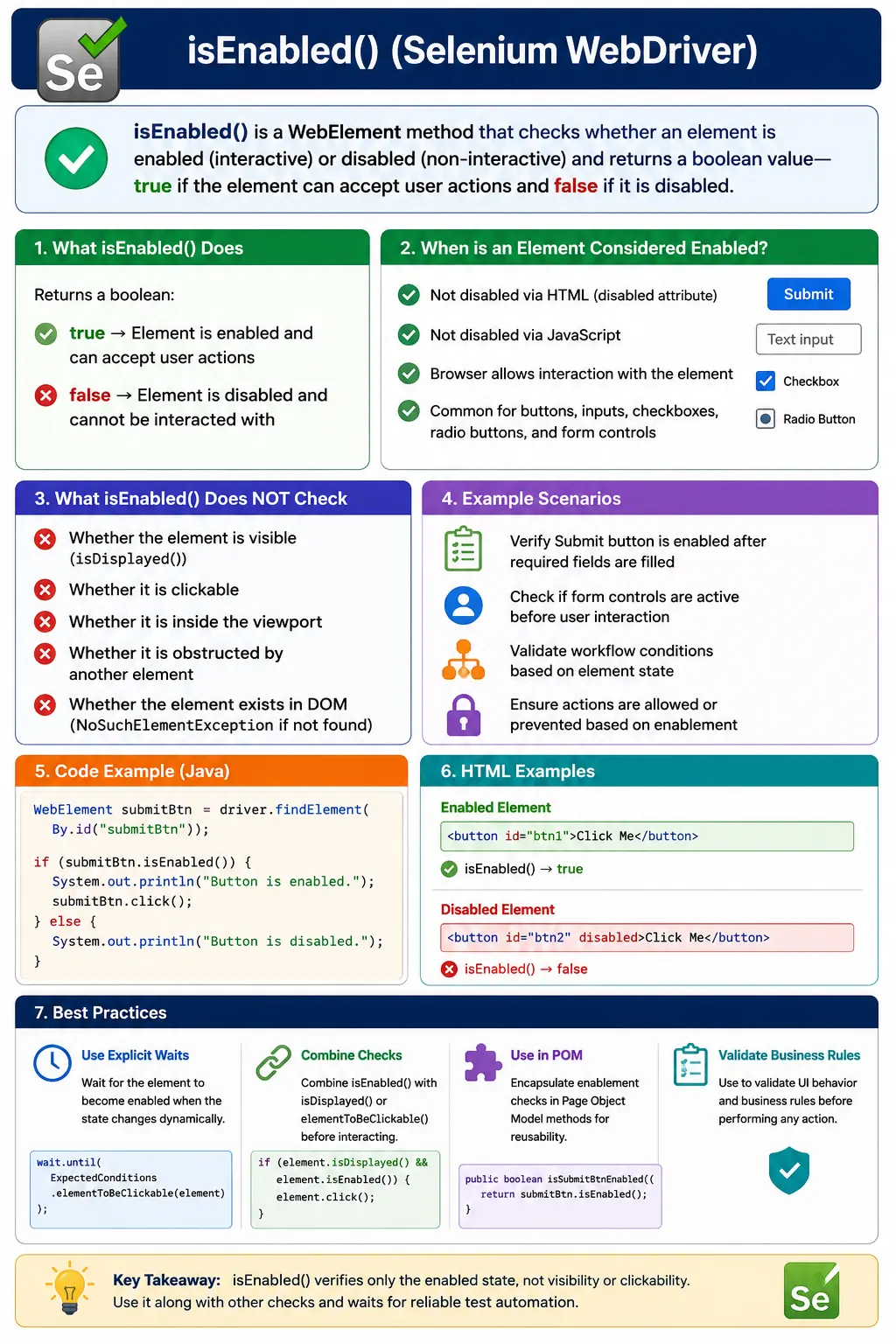
1. What isEnabled() Does
Definition:
isEnabled() returns a boolean:
- true means the element is enabled and can accept relevant user actions
- false means the element is disabled and cannot be interacted with normally
An enabled element typically allows:
- Clicking
- Typing
- Selection
The method is called on a WebElement, not on WebDriver. Selenium must first locate
the element. If the element exists, isEnabled() returns true or false based on the element's
enabled state as understood by the browser. If the element does not exist, the lookup fails before
isEnabled() can run. This is the same pattern as many other WebElement state methods: the
method can evaluate state only after an element reference exists.
In practice, enabled means the element is not disabled for normal browser interaction. For a button, enabled
usually means the user can click it. For a text field, enabled usually means the user can focus it and type
into it, unless another attribute such as readonly changes editability. For a checkbox or radio
button, enabled means the user can select it. The exact action still depends on the element type and page
state.
2. What Selenium Considers Enabled
An element is considered enabled if:
- It is not disabled via HTML (disabled attribute)
- It is not disabled by JavaScript
- The browser allows interaction with it
The most familiar disabled state is the HTML disabled attribute. When a button or input is
disabled, browsers prevent normal interaction. Selenium respects that behavior. If a user cannot click or
type into the control because it is disabled, the automated test should not bypass that state through normal
WebDriver interaction. A disabled control often communicates an application rule, and that rule is worth
validating.
JavaScript can also control enablement dynamically. The DOM may add or remove the disabled attribute after validation, loading, role checks, or user selections. The control may start disabled and become enabled after the user fills mandatory fields. The reverse can happen when data becomes invalid or a request is in progress. Because this state can change, tests should often wait for enabled or disabled state before asserting or interacting.
Common disabled cases:
- <input disabled>
- <button disabled>
- Dynamically disabled fields during loading/validation
3. What isEnabled() Does NOT Check
isEnabled() does not verify:
- Whether the element is visible (isDisplayed())
- Whether it is clickable (overlays, loaders)
- Whether it is within the viewport
- Whether another element overlaps it
Rule: Enabled is not the same as visible or clickable.
All three must be considered before interaction.
This distinction prevents incorrect assumptions. isEnabled() does not check whether the element
is displayed to the user. A hidden input might still be enabled at the DOM level, but a user cannot see it.
It does not check whether an overlay blocks a click. It does not guarantee the element is scrolled into a
usable position. It does not verify that the action will trigger the expected business outcome. It checks
enabled state, not full readiness.
For clicking, the usual requirement is stronger than enabled state. The element should be present, visible,
enabled, and not blocked by another element. Selenium's ExpectedConditions.elementToBeClickable()
is commonly used because it waits for visibility and enabled state together. Even then, some overlay and
animation issues can still require specific waits. Use isEnabled() as one signal, not as the
only interaction guard.
4. Typical Use Cases
- Verify Submit/Login button is enabled after input
- Check form fields enabled/disabled based on conditions
- Validate UI business rules, such as Next button disabled until checkbox selected
- Conditional branching in tests
Form validation is the most common use case. Many applications keep a Submit button disabled until all required fields are valid. A test can first assert that the button is disabled when fields are blank, then fill the required fields, then assert that the button becomes enabled. This checks both negative and positive behavior. It proves the application prevents invalid submission and allows valid submission.
Workflow controls are another common use case. A Next button may be disabled until the user chooses an option. A Save button may be disabled until a field changes. A Delete button may be disabled for users without permission. A Continue button may be disabled until a checkbox is selected. These states are part of application behavior, so they deserve assertions in UI tests.
5. Behavior When Element Is Not Present
- If element exists, it returns true or false
- If element does not exist, Selenium throws NoSuchElementException
Best practice: Use findElements() to confirm presence before calling isEnabled().
This is a frequent interview trap. isEnabled() does not return false for a missing element. The
method is executed on an element object, so Selenium must find the element first. If
findElement() fails, the script gets NoSuchElementException. This distinction is
important when checking optional UI or role-specific controls that may not appear for every user.
For mandatory controls, failing on absence is usually correct. If a login page has no login button, the test
should fail clearly. For optional controls, use findElements() first and check whether the list
is empty. If the element exists, then check isEnabled(). This avoids exception-driven code for
normal optional conditions.
6. isEnabled() vs Attribute-Based Validation
- isEnabled() checks browser-level enablement
- getAttribute("disabled") checks the HTML attribute
Recommendation: Prefer isEnabled() for interaction logic; use attribute checks for deeper validation.
For interaction logic, isEnabled() is usually clearer because it asks whether the element is
enabled according to WebDriver's model. Attribute checks are useful when the attribute itself is the
requirement. For example, an accessibility test may need to verify aria-disabled. A technical
test may need to confirm that the actual disabled attribute appears. A functional test usually
cares whether the user can interact with the control, so isEnabled() is the better expression.
Boolean attributes can be tricky because presence and absence often matter more than true and false strings.
Depending on browser and driver behavior, getAttribute("disabled") may return a value when the
attribute exists and null when it does not. Do not write brittle tests that expect one exact representation
unless the project has verified it. Prefer state methods for user interaction decisions.
7. Synchronization Considerations
- Enablement may change dynamically
- Calling isEnabled() too early may return false
- Use explicit waits when enablement depends on async actions
Do not poll isEnabled() in a loop; use waits.
Enablement often changes after asynchronous behavior. A user types into a form, the application validates the input, and the Submit button becomes enabled. A user selects a checkbox, and the Continue button becomes enabled. A loading state finishes, and the Save button becomes enabled again. If the test checks too early, it may read false even though the button becomes enabled a moment later. Explicit waits are the correct tool for these state transitions.
A good wait describes the target condition. Wait until the button is enabled, until it is clickable, until the disabled attribute is gone, or until an ARIA state changes. The best condition depends on the application and the test purpose. Avoid arbitrary sleeps. A fixed delay makes tests slower and still fails when the environment is slower than expected.
8. Common Pitfalls
- Clicking an enabled but hidden element
- Assuming enabled means clickable
- Checking enablement before page is ready
- Ignoring dynamic state changes
One common mistake is clicking an enabled element that is not visible. The enabled state may be true, but a hidden element cannot be clicked like a user would click it. Another mistake is assuming enabled means clickable. A button can be enabled and visible but covered by a spinner, sticky header, modal backdrop, or animation layer. In that case, the click can still be intercepted. Enablement should be combined with visibility and page readiness.
A subtler mistake is confusing read-only fields with disabled fields. A read-only field may return true for
isEnabled() because it is not disabled, but the user cannot edit its value. If the test needs to
validate editability, it should also inspect the readonly attribute or attempt the proper user
flow. This is a classic interview point because it shows the difference between enabled state and editable
state.
9. isEnabled() in Page Object Model (POM)
- Encapsulate checks in page methods (e.g., isSubmitButtonEnabled())
- Tests assert business logic, not UI mechanics
- Avoid direct state checks in test classes
Page Object Model helps keep enabled-state checks meaningful. A test should not repeatedly locate a button
and call isEnabled() inline. Instead, the page object can expose methods such as
isSubmitButtonEnabled(), isContinueButtonDisabled(), or
waitForSaveButtonEnabled(). These methods describe the business control being checked and hide
locator details from the test.
Page object method names should make timing clear. isSubmitButtonEnabled() can be a current
state check. waitForSubmitButtonEnabled() should wait until the condition becomes true. Keeping
these two ideas separate prevents confusion. Tests can then choose whether they are asserting immediate
state or waiting for a dynamic transition.
10. Interview Perspective
Short Answer:
isEnabled() checks whether a web element is enabled and can be interacted with.
Real-Time Answer:
In Selenium, isEnabled() returns true if an element is not disabled and is eligible for user interaction. It does not guarantee visibility or clickability, so it is often combined with other checks or waits.
A complete interview answer should also mention that isEnabled() is a WebElement method, not a
WebDriver method. It returns true or false only after the element has been located. If the element is absent,
Selenium throws NoSuchElementException. It is preferred over checking the disabled attribute for
normal interaction logic, but attribute checks are still useful when validating markup, ARIA states, or
read-only behavior.
11. Key Takeaway
- isEnabled() validates interactivity
- Does not guarantee visibility or click success
- Element must exist in the DOM
- Use waits for dynamic enablement
Enabled is a necessary condition, not a sufficient one, for interaction.
12. Enabled, Visible, Clickable, and Editable
Selenium state methods are easier to use correctly when their boundaries are clear. Enabled means the element is not disabled for browser interaction. Visible means the element is rendered so the user can see it. Clickable usually means the element is visible and enabled, and can receive a click. Editable means the user can change the value, which may require enabled state plus the absence of a read-only restriction. These ideas are related, but they are not interchangeable.
Consider a button that is disabled until a form is valid. isDisplayed() may return true because
the button is visible. isEnabled() may return false because the button is disabled. A click
should not be attempted yet. After the user fills valid data, isEnabled() may become true, and a
wait for clickability may then be appropriate. This sequence matches how a user experiences the page.
Now consider a read-only input. It may be displayed and enabled, but not editable. isEnabled()
alone is not enough to prove the user can type into it. A test for read-only behavior should inspect the
readonly attribute or verify that typing does not change the value. This distinction is
important for profile pages, generated IDs, locked account fields, and fields controlled by permissions.
13. Disabled Controls and Business Rules
Disabled controls often enforce business rules. A checkout button may remain disabled until the cart has valid items. A Submit button may remain disabled until required fields pass validation. A Delete button may remain disabled for records that cannot be deleted. A Next button may remain disabled until the user accepts terms. Testing only the enabled state after valid input is not enough; good tests also verify that the control is disabled when the prerequisite is missing.
Negative assertions are valuable here. Before filling the form, assert that Submit is disabled. After filling invalid data, assert that it remains disabled. After correcting the data, wait until it becomes enabled. This proves the page blocks invalid actions and allows valid actions. It also catches regressions where a button accidentally becomes clickable too early.
These validations should be connected to real workflows. A test for a Login button should not only check that the button becomes enabled; it should also submit and verify the login result when appropriate. A test for a disabled Save button should explain which rule keeps it disabled. This keeps the assertion meaningful rather than mechanical.
14. Dynamic Enablement and Explicit Waits
Dynamic enablement is common in modern front-end applications. Validation may run after typing, sometimes
with debouncing. An API call may check whether a username is available before enabling a Continue button. A
payment form may enable the Pay button only after tokenization succeeds. In these cases, immediately calling
isEnabled() after typing can read the old disabled state. A wait should be used to observe the
final state.
There are several wait strategies. A test can wait for elementToBeClickable() when the next
action is a click. It can wait for the disabled attribute to disappear when the requirement is specifically
about markup. It can use a custom wait that repeatedly finds the element and checks isEnabled().
Custom waits should re-locate elements when the DOM is dynamic so stale references do not break polling.
Waiting for enablement should be paired with waiting after the action too. After the enabled button is clicked, the application may disable it again while processing. A Save button may become disabled during submission and re-enabled if validation fails. A robust test follows the full state change rather than only checking one moment.
15. Readonly vs Disabled
Read-only and disabled are often confused. A disabled field is not available for interaction and usually
returns false from isEnabled(). A read-only field may still be enabled, focusable, and included
in form behavior, but the user cannot edit its value. Selenium may report the field as enabled because it is
not disabled. This is not a Selenium problem; it reflects the difference between the two HTML states.
If a test must verify that a field cannot be edited, checking isEnabled() is incomplete. The
test should check the readonly attribute, attempt a user-like edit and verify the value did not
change, or validate the page rule that locks the field. For example, an employee ID field may be read-only
after creation but still visible and enabled for copying. A profile email field may be read-only for users
managed by single sign-on.
Interviewers ask this because it reveals whether the candidate understands browser behavior. The short
answer is: disabled controls are not enabled, while read-only controls may still be enabled but not editable.
Use isEnabled() for disabled state and attribute or behavior checks for read-only state.
16. Frames, Windows, and Context
Enablement checks happen in the current browser context. If a form is inside an iframe, Selenium must switch into that frame before locating the button or input. If a click opens a new window, Selenium must switch to that window before checking whether a control is enabled there. If the driver remains in the wrong context, the element may not be found even though it is visible and enabled on the screen.
Context errors are often misdiagnosed as locator errors. Before rewriting locators, check whether the element is inside a frame, nested frame, new tab, modal document, or shadow DOM boundary. Page objects and helper methods can hide context switching so tests do not repeat low-level driver operations everywhere.
After finishing inside a frame, switch back to default content when needed. After validating a control in a child window, return to the parent if the workflow continues there. Context discipline prevents later state checks from failing unexpectedly.
17. Stale Elements and Re-Rendering
Like other WebElement state checks, isEnabled() can fail on stale elements. A WebElement
reference points to a DOM node at the time it was located. If the application replaces that node during
validation, refresh, route changes, or component re-rendering, the old reference is no longer valid. Calling
isEnabled() on it can throw StaleElementReferenceException.
The fix is to locate elements close to the action or state check, especially after UI changes. If typing into
a form re-renders the Submit button, locate the button after typing before checking enabled state. If a page
refreshes, locate the button again. Storing By locators and resolving them inside page methods
is often more resilient than storing long-lived WebElement references.
Stale element failures are lifecycle failures, not simple visibility or enablement failures. The page changed, so the old element object is no longer attached. Re-locating aligns the test with the current DOM.
18. Page Object Design for Enablement
Page object methods should translate enabled-state checks into business meaning. A method named
isSubmitEnabled() is useful, but a method named canContinueToPayment() may be even
clearer in a checkout flow. The best name depends on the page and the audience. Test code should read like a
user workflow, not like a list of driver commands.
For dynamic state transitions, page objects can expose waiting methods. waitUntilSubmitEnabled()
can wait for valid form state. waitUntilSaveDisabled() can wait for processing to begin. These
methods can include the correct locator, stale handling, and timeout messages. Tests then remain concise and
consistent.
Keep assertions in the test layer unless the page method represents a complete workflow. A reusable page method can return whether a button is enabled. One test can assert it is false before data entry, and another can assert it is true after valid data. This reuse is harder if the page object hardcodes one expected result.
19. Debugging isEnabled() Failures
When an enabled-state assertion fails, first check the screenshot and DOM. Is the element present? Is it the correct element? Is it disabled by an attribute? Is the user on the expected page? Did the required input actually get entered? Did validation finish? Is the browser in the correct frame or window? These questions usually reveal the cause faster than changing timeouts randomly.
If a button remains disabled unexpectedly, inspect the business rule that controls it. The test data may be incomplete. A validation message may be present. An API call may have failed. A required checkbox may not be selected. If the button is enabled locally but disabled in CI, the difference may be timing, viewport, environment data, or feature flags. Good logs should include the field values entered before the state check.
If isEnabled() returns true but the click fails, the problem is probably not disabled state. It
may be visibility, overlay interception, scroll position, animation, or stale DOM. The exception type and
screenshot should guide the next fix. Do not force JavaScript clicks just because isEnabled()
returned true.
20. Interview-Ready Summary
isEnabled() is a Selenium WebElement method that checks whether an already located element is
enabled for browser interaction. It returns true when the element is enabled and false when it is disabled.
If the element is not present, Selenium throws NoSuchElementException before
isEnabled() can return anything. The method is useful for buttons, input fields, checkboxes,
radio buttons, workflow controls, and form validation rules.
It does not guarantee visibility, clickability, editability, or successful interaction. For user actions,
combine enabled state with visibility, waits, and correct context. Prefer isEnabled() for normal
interaction decisions and use attribute checks when the disabled, readonly, or ARIA attribute itself is the
requirement. In frameworks, wrap enablement logic in meaningful Page Object Model methods.
21. Practical Framework Rules for isEnabled()
A practical Selenium framework should treat enablement checks as part of workflow validation, not just as a defensive condition before clicking. If a business rule says a user cannot continue until required data is valid, the test should verify both sides of that rule: the button is disabled before the requirement is met and enabled after the requirement is met. This gives the test real value because it confirms that the UI protects the workflow from invalid user actions.
Framework helpers should make the difference between current-state checks and waiting checks visible. A
method named isContinueEnabled() should answer the current state. A method named
waitUntilContinueEnabled() should wait for a dynamic transition. A method named
assertContinueDisabledUntilTermsAccepted() might belong in a higher-level test helper if that
business rule appears in many scenarios. Clear names prevent confusion and reduce repeated low-level
WebDriver code.
It is also useful to centralize diagnostics. When a required button never becomes enabled, the failure message should include the button name, locator, current URL, and relevant field values if they are safe to log. For form pages, the framework can log visible validation messages before failing. If a submit button remains disabled, the reason is often visible somewhere on the page: a missing required field, invalid format, unchecked consent box, failed availability check, or incomplete upload. Capturing that context turns a vague disabled-state failure into a fixable issue.
Avoid converting every disabled-state problem into a JavaScript workaround. Removing a disabled attribute or forcing a click through JavaScript may make the test move forward, but it no longer represents a real user. If the application keeps a button disabled, the automation should usually respect that state and report why the expected enablement did not happen. JavaScript should be reserved for narrow diagnostic or setup cases, not for bypassing the workflow under test.
Finally, use isEnabled() together with business assertions. If a Save button becomes enabled
after editing a profile, click it and verify the save result. If a Continue button remains disabled when
terms are not accepted, verify the disabled state and the visible instruction that explains it. The best
tests connect enabled state to user guidance and application behavior.
This approach also helps new automation engineers learn the application. When tests clearly show which controls are disabled, which user actions enable them, and which outcomes follow, the test suite becomes documentation of workflow rules and validation intent. That is more valuable than isolated checks that only say a button returned true or false at one moment.
22. Practical Examples & Interview Scenarios
1. Basic isEnabled() Usage
WebElement submit = driver.findElement(By.id("submit"));
System.out.println(submit.isEnabled());
Key Point
- Returns true if element is enabled & interactable
2. Validate Button Is Enabled
WebElement loginBtn = driver.findElement(By.id("login"));
Assert.assertTrue(loginBtn.isEnabled());
3. Conditional Click Using isEnabled()
WebElement submit = driver.findElement(By.id("submit"));
if (submit.isEnabled()) {
    submit.click();
}
4. isEnabled() with Explicit Wait (Recommended)
WebDriverWait wait = new WebDriverWait(driver, Duration.ofSeconds(10));
WebElement btn =
    wait.until(ExpectedConditions.elementToBeClickable(By.id("submit")));

Assert.assertTrue(btn.isEnabled());
Interview Tip
- elementToBeClickable() internally checks isEnabled()
5. isEnabled() on Disabled Button
WebElement btn = driver.findElement(By.id("submit"));
System.out.println(btn.isEnabled()); // false
6. Validate Disabled State Using Assertion
Assert.assertFalse(
    driver.findElement(By.id("submit")).isEnabled()
);
7. isEnabled() After Filling Mandatory Fields
driver.findElement(By.id("username")).sendKeys("admin");
driver.findElement(By.id("password")).sendKeys("secret");

WebElement submit = driver.findElement(By.id("submit"));
Assert.assertTrue(submit.isEnabled());
Real-World Use
- Login / form validation
8. isEnabled() on Input Field
WebElement input = driver.findElement(By.id("email"));
System.out.println(input.isEnabled());
9. isEnabled() vs getAttribute("disabled")
WebElement btn = driver.findElement(By.id("submit"));

System.out.println(btn.isEnabled());                  // false
System.out.println(btn.getAttribute("disabled"));     // true
Interview Note
- isEnabled() is preferred
10. isEnabled() on Checkbox
WebElement checkbox = driver.findElement(By.id("agree"));
Assert.assertTrue(checkbox.isEnabled());
11. isEnabled() Inside Frame
driver.switchTo().frame("formFrame");
WebElement submit = driver.findElement(By.id("submit"));
Assert.assertTrue(submit.isEnabled());
driver.switchTo().defaultContent();
12. isEnabled() After Page Refresh (Stale Fix)
WebElement btn = driver.findElement(By.id("submit"));
driver.navigate().refresh();

// btn.isEnabled(); would throw StaleElementReferenceException
btn = driver.findElement(By.id("submit"));
Assert.assertTrue(btn.isEnabled());
13. isEnabled() on Dynamic Button
driver.findElement(By.id("acceptTerms")).click();

WebElement continueBtn = driver.findElement(By.id("continue"));
Assert.assertTrue(continueBtn.isEnabled());
14. isEnabled() with findElements() (Safe Check)
List<WebElement> buttons =
    driver.findElements(By.id("submit"));

if (!buttons.isEmpty() && buttons.get(0).isEnabled()) {
    buttons.get(0).click();
}
15. Common Interview Mistake
driver.isEnabled(); // invalidCorrect
driver.findElement(By.id("x")).isEnabled(); // valid16. isEnabled() in Page Object Model (POM)
@FindBy(id = "submit")
WebElement submit;

public boolean isSubmitEnabled() {
    return submit.isEnabled();
}
17. isEnabled() with Soft Assertion
SoftAssert soft = new SoftAssert();
soft.assertTrue(driver.findElement(By.id("submit")).isEnabled());
soft.assertAll();
18. isEnabled() for Read-Only Field
WebElement field = driver.findElement(By.id("username"));
System.out.println(field.isEnabled()); // true
Interview Trap
- readonly fields are enabled, but not editable
19. Read-Only vs Disabled (Interview)
isEnabled() returns false only if disabled
readonly fields may still return true
20. Interview Summary - isEnabled() in Selenium
element.isEnabled();Key Points
- Checks interactability
- Returns boolean
- Preferred over attribute checks
- Used for form & button validation
- Common in login & workflow tests