isDisplayed()
The isDisplayed() method is used to check whether a web element is visible to the user on the
page in Selenium WebDriver. It is a state-validation method of the WebElement interface and is
fundamental for conditional logic, UI assertions, optional element handling, and safe interaction decisions.
Whenever a test needs to verify that an error message is shown, a success banner appears, a modal opens, a
section becomes visible, or a hidden element remains hidden, isDisplayed() is often part of the
solution.
Visibility is different from presence. An element can exist in the DOM but still be hidden from the user. It
may have display: none, visibility: hidden, zero size, a hidden parent, or a UI
state that keeps it collapsed. Selenium can locate that element, but a real user may not be able to see it.
isDisplayed() helps answer the user-facing question: is this element rendered as visible on the
page?
At the same time, visibility is not the same as clickability. A visible button can still be disabled. A
visible link can be covered by an overlay. A visible element can be outside the user's practical interaction
area after scrolling or hidden behind a fixed header. This is why isDisplayed() should be
understood as one part of interaction readiness, not as a complete guarantee that a click or typing action
will succeed.
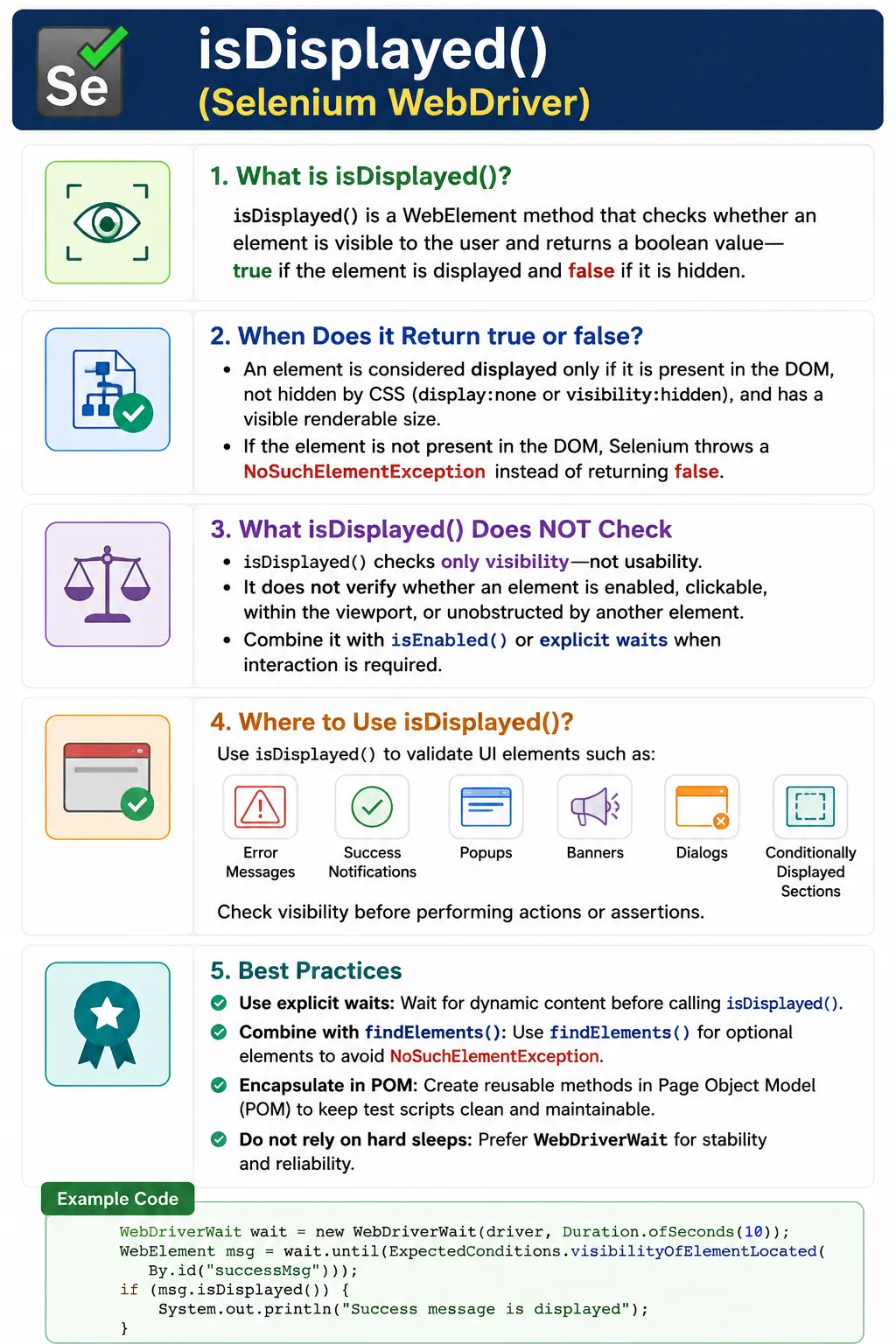
1. What isDisplayed() Does
Definition:
isDisplayed() returns a boolean:
- true means the element is visible to the user
- false means the element is not visible
Visibility means the element:
- Exists in the DOM
- Is not hidden by CSS
- Has a renderable size on the page
The method is called on a WebElement, not on the driver itself. That means Selenium must first
locate the element. If the element is found, isDisplayed() checks its rendered visibility and
returns true or false. If the element is not found in the DOM, Selenium does not return false. The lookup
fails before isDisplayed() can run, usually with NoSuchElementException.
This behavior is important for control flow. If a test already has a WebElement reference and wants to know
whether that element is visible, isDisplayed() is appropriate. If a test wants to know whether
an optional element exists at all, it should first use findElements() and check whether the list
is empty. This prevents normal optional absence from becoming an exception.
2. What Selenium Considers Displayed
An element is considered displayed if:
- display is not none
- visibility is not hidden
- The element has height and width > 0
- It is not hidden by parent elements
- It is rendered within the viewport (practically)
Even if an element exists in the DOM, it may still be not displayed.
Selenium's displayed calculation is based on browser-rendered state. If an element or one of its parent elements is hidden, Selenium treats the element as not displayed. If the element has no meaningful width or height, it may not be considered displayed. If the element is part of a collapsed section, closed menu, inactive tab, or hidden modal, the method should return false even though the HTML node exists.
This makes isDisplayed() useful for testing show/hide behavior. A tooltip may exist in the DOM
before hover but should not be displayed until the user performs the correct action. A modal may be present
but hidden until a button is clicked. An advanced search panel may be collapsed until expanded. The test can
validate these UI state transitions by checking visibility before and after the action.
3. What isDisplayed() Does NOT Check
isDisplayed() does not verify:
- Whether the element is enabled
- Whether it is clickable
- Whether it is inside the viewport due to scrolling
- Whether another element is overlapping it
For interaction readiness, visibility alone is not sufficient.
The most common misunderstanding is assuming that a displayed element can always be clicked. A visible button
may be disabled, in which case isEnabled() is needed. A visible checkbox may not be selected,
in which case isSelected() is needed. A visible element may be covered by a spinner or modal
backdrop, causing an intercepted click. A visible field may still reject input because it is read-only.
isDisplayed() answers only the visibility part of the question.
A robust interaction usually combines conditions. Before clicking a button, a test may wait for clickability, which includes visibility and enabled state. Before typing into a field, a test may wait for visibility and enabled state. Before asserting a message, visibility may be enough. The correct check depends on the operation that follows.
4. Typical Use Cases
- Check if an error message is shown
- Verify conditional UI elements (banner, popup, modal)
- Handle optional elements safely
- Control test flow with conditional logic
- Validate show/hide behavior
Conditional UI is one of the strongest use cases. Cookie banners, promotional popups, optional tooltips,
role-based menus, feature-flag sections, empty-state messages, validation messages, and notification panels
do not always appear in every test run. A test often needs to behave differently based on whether such an
element is visible. isDisplayed() lets the test validate or branch based on what the user sees.
Visibility validation is also important after actions. After clicking "Show details", the details panel should become visible. After clicking "Hide filters", the filter panel should disappear. After entering invalid data, an error message should become visible. After correcting the data, the error message may no longer be displayed. These are functional behaviors, not just technical checks.
5. Behavior When Element Is Not Present
Important distinction:
- If the element exists but is hidden, isDisplayed() returns false
- If the element does not exist in the DOM, Selenium throws NoSuchElementException
Best practice: Use findElements() before isDisplayed() to avoid exceptions.
This is a high-value interview point. Many beginners say isDisplayed() returns false when an
element is missing. That is not correct. The method can return false only after Selenium has a WebElement to
check. If findElement() cannot locate the element, the call fails before visibility is checked.
This distinction affects how optional UI should be handled.
A safe optional pattern is to call findElements(locator), check whether the returned list is not
empty, and then call isDisplayed() on the first element. This treats absence as normal data
instead of an exception. For mandatory elements, using findElement() directly is acceptable
because absence should fail the test.
6. isDisplayed() vs Visibility Waits
- isDisplayed() is an instant check
- Explicit waits wait until a condition is met
In real projects:
- Use waits to synchronize
- Use isDisplayed() to validate state
Never replace waits with isDisplayed().
isDisplayed() checks the current state at the exact moment it is called. It does not poll for a
period of time and it does not wait for an animation, API response, or component render to finish. Explicit
waits serve a different purpose. They repeatedly check a condition until it becomes true or a timeout is
reached. In dynamic applications, waits are needed before visibility assertions when content appears after a
delay.
A practical rule is to use explicit waits for synchronization and isDisplayed() for validation
or conditional logic. For example, wait until the success message is visible, then assert that the returned
element is displayed. Or use a short optional check with findElements() when a popup may or may
not be present. Do not write loops that repeatedly call isDisplayed() with sleeps unless a
proper wait utility is not available.
7. Common Pitfalls
- Calling isDisplayed() without ensuring element presence
- Using it as a replacement for waits
- Assuming true means clickable
- Ignoring dynamic DOM updates (stale elements)
Another pitfall is checking visibility on stale elements. In modern applications, a visible component can be
replaced during re-rendering. The old WebElement reference remains in Java code, but the browser no longer
has the same DOM node. Calling isDisplayed() on that old reference can throw
StaleElementReferenceException. The fix is to re-locate the element after DOM updates or wait
for a stable condition before checking visibility.
Testers also sometimes use visibility checks to hide weak locators. If a locator matches several elements,
the first one may be hidden while another match is visible. In that case, findElement() followed
by isDisplayed() may return false even though the intended element is visible elsewhere. Use
specific locators or collect all matches and filter visible elements when the page contains repeated
structures.
8. isDisplayed() in Page Object Model (POM)
- Encapsulate visibility checks in page methods (e.g., isErrorMessageVisible())
- Tests assert on returned boolean
- Avoid direct visibility logic in test classes
This improves readability and maintainability.
Page Object Model is the best place to hide visibility details. A test should not need to know the locator
for an error message or the details of how a popup is detected. It should call a meaningful method such as
isErrorMessageVisible(), isPromoPopupVisible(), or
isAdvancedSearchExpanded(). The page object can decide whether to use direct
isDisplayed(), findElements(), or an explicit wait.
Page object methods should be honest about whether they wait. A method named isErrorVisible()
may simply return the current state. A method named waitForErrorVisible() should wait until the
message appears. Mixing these behaviors under vague names makes tests hard to debug. Clear method names make
timing expectations visible to future maintainers.
9. Interview Perspective
Short Answer:
isDisplayed() checks whether a web element is visible on the page.
Real-Time Answer:
In Selenium, isDisplayed() returns true if an element is present in the DOM and visible to the user. It is commonly used for validating conditional UI elements but does not guarantee that the element is clickable or enabled.
A complete interview answer should include the missing-element behavior. isDisplayed() returns
true or false only when the element has already been located. If the locator does not find the element,
Selenium throws NoSuchElementException. It is a visibility check, not a presence check, wait
mechanism, enabled-state check, selected-state check, or clickability guarantee.
10. Key Takeaway
- isDisplayed() validates visibility
- Element must exist in the DOM
- Not a wait mechanism
- Not a clickability check
- Use with findElements() for safety
Visibility is a prerequisite, not a guarantee, for interaction.
11. Presence, Visibility, Enabled State, and Clickability
Selenium automation becomes much clearer when these four ideas are separated. Presence means the element exists in the DOM. Visibility means the element is rendered in a way the user can see. Enabled state means the element is available for interaction from Selenium's point of view. Clickability usually means the element is visible and enabled, and can be clicked according to WebDriver's interaction rules. These states often overlap, but they are not identical.
An element can be present but not visible, such as a hidden modal. It can be visible but disabled, such as a submit button before required fields are filled. It can be visible and enabled but still difficult to click because an overlay is blocking it. It can be absent entirely because the current user role does not have access to that feature. A reliable test chooses the check that matches the question being asked.
If the question is "does this optional banner exist at all," use findElements(). If the
question is "is this found banner visible," use isDisplayed(). If the question is "can this
button be used," check enabled state or wait for clickability. If the question is "is this checkbox
selected," use isSelected(). Good method choice makes the test easier to read and easier to
debug.
12. Hidden Elements and CSS Visibility
Hidden elements are common in web applications. Menus may be hidden until the user clicks a toggle. Error
messages may be hidden until validation fails. Tooltips may be hidden until hover. Tabs may keep inactive
panel content in the DOM but hide it visually. Selenium can often locate these elements because they exist in
the DOM, but isDisplayed() should return false while they are hidden from the user.
CSS is usually responsible for this state. display: none removes the element from normal
rendering. visibility: hidden keeps layout space but hides the content. Parent elements can hide
child elements. Zero-size elements may not be considered displayed. Collapsed containers and inactive UI
sections can also make child elements invisible. These details explain why a locator can succeed while a
visibility check returns false.
When debugging hidden element behavior, inspect the element and its parent chain in browser developer tools. The visibility problem is often not on the element itself but on a parent container. A test should trigger the proper user action to reveal the element before asserting visibility. Reading hidden elements directly with JavaScript is a different kind of test and should not replace user-visible validation.
13. Optional UI and Safe Visibility Checks
Optional UI needs careful handling because absence may be valid. Cookie banners, promotional dialogs,
upgrade prompts, environment notices, tooltips, and feature-flag sections may appear only for certain users,
sessions, or environments. Calling findElement() followed by isDisplayed() can
throw an exception when the optional element is absent. That makes the test noisy and harder to understand.
A safer approach is to use findElements() first. If the list is empty, the optional element is
not present. If the list contains an element, call isDisplayed() to determine whether it is
visible. This pattern is useful for "close popup if present" helpers, optional warning checks, and conditional
flows where the UI may legitimately differ between runs.
Do not overuse optional checks for mandatory elements. A login button, checkout button, or main page heading should usually be required. If a required element is missing, the test should fail clearly rather than silently skip the action. Optional-safe checks are for genuinely optional UI, not for hiding real page failures.
14. Synchronization and Visibility Waits
In dynamic applications, visibility often changes after a delay. A success message may appear after an API
response. A modal may fade in after a click. A section may expand after animation. A table may become visible
after data loads. Calling isDisplayed() immediately after the action can read the old state.
Explicit waits solve this by waiting until the visibility condition is true.
Visibility waits should be tied to meaningful application behavior. After clicking Save, wait for the success message to be visible. After opening a modal, wait for the modal title to be visible. After applying a filter, wait for the results section to be visible or for the loading indicator to disappear. The wait should describe the state the user expects, not an arbitrary delay.
Fixed sleeps are weaker because they guess timing. A sleep may be too short on CI and too long locally. An
explicit wait finishes as soon as the condition is satisfied and fails with a clear timeout if it never
happens. Use isDisplayed() for the final state check, but use waits to get the page to that
state reliably.
15. Frames, Windows, and Visibility Context
Selenium visibility checks happen in the current browsing context. If the element is inside an iframe, the
driver must switch into that frame before locating it and calling isDisplayed(). If a click
opens a new tab or window, the driver must switch to that window before checking visibility there. If the
driver is in the wrong context, the element may not be found even though it is visible to the human tester.
Context problems often look like locator problems. The locator may be correct, but Selenium is searching in the wrong document. Before rewriting a locator, check whether the element is in a frame, nested frame, new tab, modal document, or shadow DOM boundary. Page objects should hide frame and window switching where possible so test methods remain focused on workflow.
After checking visibility inside a frame, switch back to the default content if the next step happens on the main page. After working in a child window, switch back to the parent when the workflow returns. Context discipline prevents later visibility checks and clicks from failing unexpectedly.
16. Stale Elements and Dynamic DOM Updates
A WebElement reference is tied to a particular DOM node. If the application re-renders that node after it is
located, the Java object can become stale. Calling isDisplayed() on a stale element throws
StaleElementReferenceException. This commonly happens after page refresh, route changes, table
reloads, modal transitions, and component state updates in modern JavaScript frameworks.
The fix is to re-locate elements after actions that change the DOM. Store locators more often than long-lived
WebElement references. If a method clicks a button and then checks a message, locate the message after the
click. If a test refreshes the page, locate the label again before calling isDisplayed(). This
pattern is more reliable than holding old references across UI transitions.
Stale element failures are not solved by checking visibility earlier. They are lifecycle failures. The page changed, so the reference is no longer valid. Re-locating after the change aligns the test with the current DOM.
17. Page Object Design for Visibility
Page objects should expose visibility checks in business language. A method named
isSuccessMessageVisible() communicates more than a raw locator plus
isDisplayed(). A method named waitForCheckoutPage() may wait for the page heading
or checkout form to be visible. A method named dismissBannerIfVisible() can combine safe
optional lookup with visibility checking and closing behavior.
Returning booleans from page methods is useful for optional states, but be careful with assertions. Page
classes should usually return state, and test classes should assert scenario expectations. This separation
keeps page objects reusable. The same isErrorMessageVisible() method can support tests that
expect the message to appear and tests that expect it not to appear.
For required states, page objects can expose waiting methods. For example,
waitUntilDashboardVisible() can wait for a dashboard heading and fail if it never appears. This
is different from isDashboardVisible(), which should answer the current-state question. Clear
naming prevents confusion between checks and waits.
18. Debugging Visibility Failures
When a visibility assertion fails, inspect the screenshot first. If the screenshot shows the element, the locator may be targeting a hidden duplicate or the timing may have changed after the screenshot. If the screenshot does not show the element, check whether the action that should reveal it actually happened. Also verify the current URL, frame, window, user role, feature flags, and test data.
If isDisplayed() returns false, inspect CSS on the element and its parents. Look for hidden
display, hidden visibility, zero dimensions, collapsed containers, inactive tabs, and animation states. If
Selenium throws NoSuchElementException, the problem is not visibility; the element was not
located. If Selenium throws StaleElementReferenceException, the DOM changed after lookup.
Good framework diagnostics help. Log the locator name, page URL, current window handle when useful, frame context if known, number of matching elements, and screenshot. These details make CI visibility failures much easier to investigate.
19. Interview-Ready Summary
isDisplayed() is a Selenium WebElement method that checks whether an already located element is
visible to the user. It returns true when the element is displayed and false when the element exists but is
hidden. If the element is not present in the DOM, Selenium throws NoSuchElementException before
isDisplayed() can return anything. The method validates visibility, not presence, enabled state,
selected state, or clickability.
In real projects, use isDisplayed() for visible UI validation and conditional logic. Use
explicit waits when waiting for visibility. Use findElements() before
isDisplayed() for optional elements. Re-locate elements after DOM refreshes. Wrap visibility
checks in meaningful Page Object Model methods so tests remain readable and maintainable.
20. Practical Framework Rules for isDisplayed()
A practical Selenium framework should define a clear policy for visibility checks. Required elements and optional elements should not be handled the same way. If an element is required for the page to be usable, the page object can wait for that element to become visible and fail clearly if it does not appear. If an element is optional, the page object should use a safe lookup pattern that does not throw an exception when the element is absent. This distinction keeps failures meaningful and prevents optional UI from making tests noisy.
A useful framework can expose two different kinds of methods. The first kind answers the current state, such
as isBannerVisible() or isErrorVisible(). These methods should return a boolean
based on the current page state and should be safe for optional elements. The second kind waits for a state,
such as waitForSuccessMessageVisible() or waitUntilLoginFormVisible(). These
methods should wait for a required condition and fail if the condition never appears. Keeping these methods
separate avoids confusion between checking and waiting.
Frameworks should also avoid hiding every visibility problem behind a false result. Returning false is useful when absence or invisibility is an expected possibility. It is not useful when the application should always show the element. If the dashboard heading is missing after login, the test should fail with a clear message rather than quietly returning false and continuing. Good automation communicates whether a missing visible element is acceptable or a real failure.
Visibility methods should include helpful diagnostics when they fail. A timeout waiting for a visible element should identify the page object method, locator, current URL, and ideally include a screenshot. If multiple elements match the locator, the framework may log the match count. If the element is present but hidden, the framework can log that distinction. These details turn difficult CI failures into actionable information.
Finally, use visibility checks to validate user behavior, not internal implementation details. If a modal is supposed to open, verify that the modal title or main content is visible. If an error is supposed to appear, verify the visible message. If a menu is supposed to close, verify that the menu is no longer displayed or that the page state changed accordingly. This keeps Selenium tests focused on what users experience while still using WebDriver's visibility model correctly.
21. Troubleshooting Visibility in Real Projects
When visibility behaves unexpectedly, start by separating the failure into three questions. First, is the element present in the DOM? Second, is the specific matched element visible? Third, is the page in the state where the element should be visible? This sequence avoids random fixes. If the element is absent, the issue may be navigation, test data, role permissions, feature flags, or locator strategy. If the element is present but hidden, inspect CSS, parent containers, tabs, modals, and collapsed sections. If the element should have become visible after an action, check whether that action succeeded and whether the test waited for the right result.
Multiple matching elements are another common cause of confusion. A page may contain a hidden template and a
visible copy of the same control. If the locator is broad, findElement() may return the hidden
one first, and isDisplayed() may return false. In that case, the answer is not to ignore
visibility; the answer is to improve the locator or inspect all matches and choose the visible one in a
controlled way. Stable locators should identify the element the user actually interacts with.
Viewport and responsive layout can also affect visibility-related behavior. A menu visible on desktop may be hidden behind a hamburger control on mobile. A sidebar may collapse at smaller widths. A sticky header may cover content during scroll. If tests run in headless mode with a different window size, the UI may render differently from local debugging. Set browser size intentionally and verify that the test is written for the layout being exercised. Visibility checks are only meaningful when the expected viewport and responsive state are understood.
22. Practical Examples & Interview Scenarios
1. Basic isDisplayed() Usage
WebElement logo = driver.findElement(By.id("logo"));
System.out.println(logo.isDisplayed());
Key Point
- Returns true only if element is visible on UI
2. Validate Element Is Visible (Assertion)
WebElement banner = driver.findElement(By.id("banner"));
Assert.assertTrue(banner.isDisplayed());
3. Conditional Action Using isDisplayed()
WebElement popup = driver.findElement(By.id("promoPopup"));
if (popup.isDisplayed()) {
    driver.findElement(By.id("close")).click();
}
4. isDisplayed() with findElements() (Safe Pattern)
List<WebElement> ads = driver.findElements(By.id("ad"));
if (!ads.isEmpty() && ads.get(0).isDisplayed()) {
    ads.get(0).click();
}
Why
- Avoids NoSuchElementException
5. isDisplayed() with Explicit Wait (Recommended)
WebDriverWait wait = new WebDriverWait(driver, Duration.ofSeconds(10));
WebElement msg =
    wait.until(ExpectedConditions.visibilityOfElementLocated(By.id("successMsg")));

Assert.assertTrue(msg.isDisplayed());
6. isDisplayed() on Hidden Element (Returns false)
WebElement hidden = driver.findElement(By.id("hiddenText"));
System.out.println(hidden.isDisplayed()); // false
7. Difference: Element Exists but Not Displayed
// Element present in DOM but hidden via CSS
boolean visible =
    driver.findElement(By.id("tooltip")).isDisplayed();
Interview Point
- Element exists is not the same as element visible
8. isDisplayed() After Click (Dynamic UI)
driver.findElement(By.id("showDetails")).click();

WebElement details = driver.findElement(By.id("details"));
Assert.assertTrue(details.isDisplayed());
9. isDisplayed() After Page Refresh (Stale Fix)
WebElement label = driver.findElement(By.id("info"));
driver.navigate().refresh();

// label.isDisplayed(); would throw StaleElementReferenceException
label = driver.findElement(By.id("info"));
Assert.assertTrue(label.isDisplayed());
10. isDisplayed() Inside Frame
driver.switchTo().frame("contentFrame");
WebElement note = driver.findElement(By.id("note"));
Assert.assertTrue(note.isDisplayed());
driver.switchTo().defaultContent();
11. isDisplayed() in Window / Tab Switch
String parent = driver.getWindowHandle();

for (String win : driver.getWindowHandles()) {
    driver.switchTo().window(win);
}

Assert.assertTrue(driver.findElement(By.id("confirm")).isDisplayed());
driver.switchTo().window(parent);
12. isDisplayed() on Button Before Click
WebElement submit = driver.findElement(By.id("submit"));
if (submit.isDisplayed() && submit.isEnabled()) {
    submit.click();
}
13. isDisplayed() vs isEnabled() (Interview)
element.isDisplayed(); // visibility
element.isEnabled();   // usability
14. isDisplayed() on Multiple Elements
List<WebElement> items =
    driver.findElements(By.className("menu-item"));

for (WebElement item : items) {
    System.out.println(item.isDisplayed());
}
15. Validate Error Message Visibility
WebElement error =
    driver.findElement(By.className("error"));

Assert.assertTrue(error.isDisplayed());
16. Common Interview Mistake
driver.isDisplayed(); // invalidCorrect
driver.findElement(By.id("x")).isDisplayed(); // valid17. isDisplayed() in Page Object Model (POM)
@FindBy(id = "successMsg")
WebElement successMsg;

public boolean isSuccessVisible() {
    return successMsg.isDisplayed();
}
18. isDisplayed() for Optional UI Section
boolean visible =
    driver.findElements(By.id("optionalSection")).size() > 0
    && driver.findElement(By.id("optionalSection")).isDisplayed();
19. isDisplayed() vs CSS display:none
// Element with display:none
element.isDisplayed(); // false
Reason
- Selenium respects rendered visibility
20. Interview Summary - isDisplayed() in Selenium
element.isDisplayed();Key Points
- Checks visibility, not presence
- Returns boolean
- Throws exception if element not found
- Best combined with findElements() or waits
- Commonly used in UI validation