Integrating Logs with Tests in Selenium Java
Integrating logs with Selenium tests means adding logging into the automation flow so every important test action is recorded during execution. Logging should not be an afterthought that appears only when something breaks. It should be part of the framework design. A well-integrated logging system explains which test started, which browser launched, which URL opened, which page object action ran, where the test failed, which exception occurred, and whether a screenshot was captured.
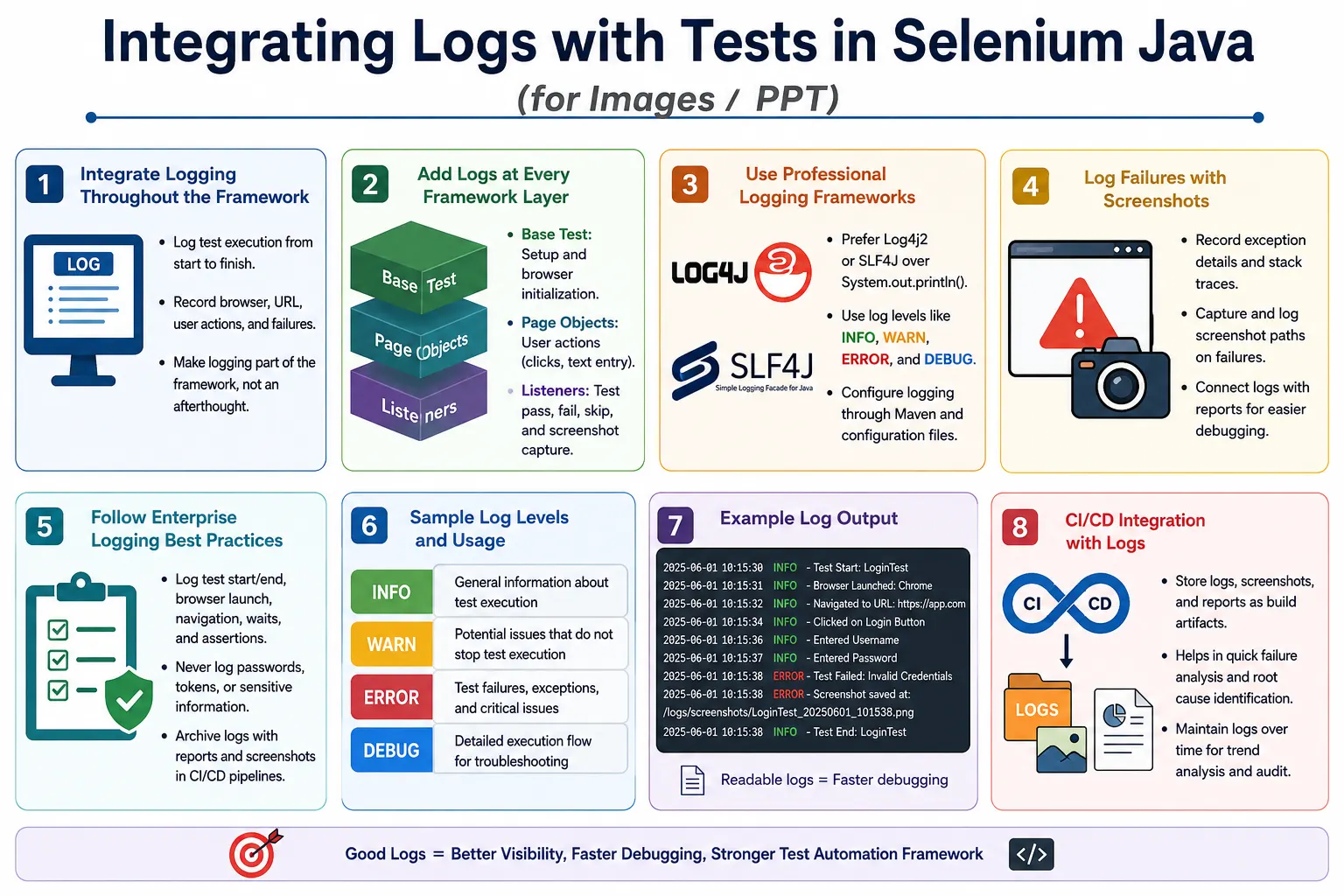
In a simple Selenium script, you can often debug by watching the browser. In a real automation suite, tests may run on a remote grid, inside CI/CD, in headless mode, across browsers, and across environments. Nobody may be watching the browser when the failure happens. Logs become the execution story. They help you understand the path the test followed before it passed, failed, or skipped.
The strongest Selenium frameworks usually integrate logs at multiple levels: base test setup, test methods, page objects, utilities, listeners, screenshot capture, and reports. Each level has a role. Base test logs explain framework setup and teardown. Page object logs explain user actions. Listener logs explain test result status. Screenshot logs connect visual evidence to failure events. Together, they make failures easier to investigate.
1. Why Integrate Logs with Tests?
Without logs, a failed test may simply say Test failed. That is not enough. You may not know which URL opened, which browser was used, whether the login action happened, whether the assertion failed after navigation, or whether the application showed an error message. Logs answer those questions.
With logs, the same failure becomes traceable. The log can show that the test started, Chrome launched, the QA login URL opened, the username was entered, the password was entered, the login button click was attempted, the click failed because the element was not clickable, and a screenshot was captured. That sequence gives a clear debugging path.
2. Basic Test Without Logging
The following test performs login validation but gives no execution trace. If it fails, only the final failure details are available.
@Test
public void verifyLogin() {

    driver.get("https://example.com/login");

    driver.findElement(By.id("username"))
          .sendKeys("admin");

    driver.findElement(By.id("password"))
          .sendKeys("admin123");

    driver.findElement(By.id("login"))
          .click();

    Assert.assertEquals(
            driver.getTitle(),
            "Dashboard"
    );
}
The problem is not that the test is short. The problem is that the execution is invisible. If the assertion fails, you have to infer what happened. Did the page load? Were the fields present? Did the click happen? Was there a validation message? Without logs, the test provides very little context.
3. Test with Simple Logs
Adding logs around each important step makes the same test easier to follow. The log messages describe the intended action before or after it happens.
@Test
public void verifyLogin() {

    logger.info("Opening login page.");
    driver.get("https://example.com/login");

    logger.info("Entering username.");
    driver.findElement(By.id("username"))
          .sendKeys("admin");

    logger.info("Entering password.");
    driver.findElement(By.id("password"))
          .sendKeys("admin123");

    logger.info("Clicking login button.");
    driver.findElement(By.id("login"))
          .click();

    logger.info("Validating dashboard title.");
    Assert.assertEquals(
            driver.getTitle(),
            "Dashboard"
    );
}
This is already better. If the test fails, the last successful log message tells you roughly where the flow stopped. In a full framework, these logs should be produced by a logging framework such as Log4j2 or SLF4J rather than only console prints.
4. Log4j2 Maven Dependencies
Log4j2 is a common logging framework for Java Selenium projects. A Maven project can add Log4j2 API and Core dependencies. The versions should be managed according to your project standards.
<dependency>
    <groupId>org.apache.logging.log4j</groupId>
    <artifactId>log4j-api</artifactId>
    <version>2.23.1</version>
</dependency>

<dependency>
    <groupId>org.apache.logging.log4j</groupId>
    <artifactId>log4j-core</artifactId>
    <version>2.23.1</version>
</dependency>
In real projects, dependency versions may be controlled by a parent POM or dependency management section. The key idea is that logging should use a proper library so log levels, output format, and file destinations can be configured cleanly.
5. Creating a Logger Object
A logger is usually created per class. This allows log output to show which class produced each message. In Log4j2, the logger is commonly declared as a static final field.
import org.apache.logging.log4j.LogManager;
import org.apache.logging.log4j.Logger;

public class LoginTest {

    private static final Logger logger =
            LogManager.getLogger(LoginTest.class);
}
Using the class name in the logger makes output easier to read. A log line from LoginPage means the page object produced it. A log line from TestListener means the listener produced it.
6. Logging in TestNG Base Test
The base test class is a natural place for setup and teardown logs. It controls driver creation, browser window setup, configuration loading, and browser cleanup. These events are important because many failures happen before the actual test method begins.
public class BaseTest {

    protected WebDriver driver;

    protected static final Logger logger =
            LogManager.getLogger(BaseTest.class);

    @BeforeMethod
    public void setup() {

        logger.info("Starting browser setup.");

        WebDriverManager.chromedriver().setup();
        driver = new ChromeDriver();

        logger.info("Chrome browser launched.");

        driver.manage().window().maximize();
        logger.info("Browser window maximized.");
    }

    @AfterMethod
    public void tearDown() {

        logger.info("Closing browser.");

        if (driver != null) {
            driver.quit();
        }

        logger.info("Browser closed successfully.");
    }
}
If a CI run fails during setup, these logs help identify whether the browser was created, whether setup stopped early, or whether teardown happened correctly.
7. Logging in Test Class
The test class should log high-level test intent. It should not duplicate every detail already logged in page objects, but it should clearly mark test start, major business steps, assertions, and test completion.
public class LoginTest extends BaseTest {

    private static final Logger logger =
            LogManager.getLogger(LoginTest.class);

    @Test
    public void verifyValidLogin() {

        logger.info("Test Started: verifyValidLogin");

        driver.get("https://example.com/login");
        logger.info("Login page opened.");

        driver.findElement(By.id("username"))
              .sendKeys("admin");
        logger.info("Username entered.");

        driver.findElement(By.id("password"))
              .sendKeys("admin123");
        logger.info("Password entered.");

        driver.findElement(By.id("login"))
              .click();
        logger.info("Login button clicked.");

        Assert.assertEquals(
                driver.getTitle(),
                "Dashboard"
        );
        logger.info("Dashboard title validated.");

        logger.info("Test Completed: verifyValidLogin");
    }
}
In a Page Object Model framework, direct element interactions usually move into page classes. The test class then logs business flow, while page objects log UI actions.
8. Logging Test Failures with Listener
Listeners are the best place for centralized result logging. A TestNG listener can log pass, fail, and skip events consistently for every test.
public class TestListener implements ITestListener {

    private static final Logger logger =
            LogManager.getLogger(TestListener.class);

    @Override
    public void onTestFailure(ITestResult result) {

        logger.error("Test Failed: " + result.getName());

        logger.error(
                "Failure Reason: ",
                result.getThrowable()
        );
    }

    @Override
    public void onTestSuccess(ITestResult result) {

        logger.info("Test Passed: " + result.getName());
    }

    @Override
    public void onTestSkipped(ITestResult result) {

        logger.warn("Test Skipped: " + result.getName());
    }
}
The listener receives the result object, so it can log the test name, status, throwable, and other metadata. This keeps result handling out of test methods.
9. Register Listener in testng.xml
A TestNG listener must be registered. In larger projects, testng.xml registration is a clean option because the listener applies to the suite without adding annotations to every test class.
<listeners>
    <listener class-name="listeners.TestListener"/>
</listeners>
If listener logs do not appear, verify that the XML file is used during execution and the class name is correct.
10. Logging with Screenshot on Failure
Logs become more valuable when connected to screenshots. When a failure occurs, the listener can log the exception and screenshot path. This creates a direct link between technical error and visual evidence.
@Override
public void onTestFailure(ITestResult result) {

    logger.error("Test Failed: " + result.getName());
    logger.error("Failure Reason: ", result.getThrowable());

    WebDriver driver = DriverFactory.getDriver();

    String screenshotPath =
            ScreenshotUtil.captureScreenshot(
                    driver,
                    result.getName()
            );

    logger.info("Screenshot captured: " + screenshotPath);
}
This is a strong failure-handling pattern. The log records the failure, stack trace, and screenshot location. The report can also attach the same screenshot path.
11. Logging in Page Object Model
Page objects are good places for action-level logging. A page object method knows the UI action being performed, such as entering username, entering password, clicking login, selecting a dropdown, or submitting a form.
public class LoginPage {

    private WebDriver driver;

    private static final Logger logger =
            LogManager.getLogger(LoginPage.class);

    private By username = By.id("username");
    private By password = By.id("password");
    private By loginButton = By.id("login");

    public LoginPage(WebDriver driver) {
        this.driver = driver;
    }

    public void enterUsername(String user) {

        logger.info("Entering username.");
        driver.findElement(username).sendKeys(user);
    }

    public void enterPassword(String pass) {

        logger.info("Entering password.");
        driver.findElement(password).sendKeys(pass);
    }

    public void clickLogin() {

        logger.info("Clicking login button.");
        driver.findElement(loginButton).click();
    }
}
Page object logs should describe business-level UI actions. Avoid overloading page classes with too many low-level debug messages unless they are needed.
12. Avoid Logging Sensitive Data
Logging must be useful, but it must also be safe. Never log passwords, tokens, API keys, OTPs, credit card numbers, personal data, or private customer details. Logs are often archived in CI and shared with multiple team members.
// Bad
logger.info("Password entered: admin123");

// Good
logger.info("Password entered.");
If test data context is needed, log safe labels such as Admin user scenario, Invalid password scenario, or Locked user scenario. Do not log the sensitive values themselves.
13. Sample Log Output
A good integrated log reads like a timeline. It shows framework setup, test start, page object actions, failure event, and screenshot capture.
2026-07-01 10:15:20 INFO  BaseTest - Starting browser setup.
2026-07-01 10:15:22 INFO  BaseTest - Chrome browser launched.
2026-07-01 10:15:25 INFO  LoginTest - Test Started: verifyValidLogin
2026-07-01 10:15:26 INFO  LoginPage - Entering username.
2026-07-01 10:15:27 INFO  LoginPage - Entering password.
2026-07-01 10:15:28 INFO  LoginPage - Clicking login button.
2026-07-01 10:15:30 ERROR TestListener - Test Failed: verifyValidLogin
2026-07-01 10:15:31 INFO  TestListener - Screenshot captured: screenshots/verifyValidLogin.png
This output is useful because it identifies the source class for each message. You can see which layer produced each log entry.
14. Log Test Start and End
Every test should have clear start and end logs. These markers help separate one test from another in a long console or file log.
logger.info("Test started: LoginTest");

// test execution

logger.info("Test completed: LoginTest");
In TestNG, you can log method names through @BeforeMethod and @AfterMethod.
15. Log Browser Launch
Browser launch logs help identify environment and browser-specific failures. Include browser name and, where practical, browser version or execution mode.
logger.info("Launching Chrome browser");

WebDriver driver = new ChromeDriver();
If the framework supports headless mode, remote grid, or multiple browsers, log that context as well.
16. Log Application URL
Wrong URLs are common causes of automation failures. Log the URL being opened and the current URL after navigation when useful.
String url = "https://example.com";

logger.info("Opening application URL: " + url);

driver.get(url);
Be careful with URLs that contain secrets or tokens. If needed, sanitize query parameters before logging.
17. Log Page Title and Current URL
Page title and current URL are useful checkpoints after navigation, login, redirects, and failures.
String title = driver.getTitle();

logger.info("Page title is: " + title);
logger.info("Current URL: " + driver.getCurrentUrl());
These logs can quickly reveal that the browser stayed on the login page, redirected to an error page, or opened the wrong environment.
18. Log Element Click
Click actions should be logged when they represent important user actions. The log should describe the action in business terms rather than only technical locator terms.
logger.info("Clicking Login button");

driver.findElement(By.id("loginBtn")).click();
For low-level click utilities, use DEBUG logs for locator details and INFO logs for user-level actions.
19. Log Text Entry
Text entry should be logged, but sensitive values should not be printed. It is fine to log that a username was entered if the username is not sensitive in your project. It is not fine to log passwords or tokens.
logger.info("Entering username");

driver.findElement(By.id("username"))
      .sendKeys("admin");

logger.info("Entering password");

driver.findElement(By.id("password"))
      .sendKeys("admin123");
The password value is used in code, but it is not printed in the log message.
20. Log Assertions
Assertions should be logged because they mark validation points. Log what is being verified, and log success only after the assertion passes.
logger.info("Verifying dashboard title");

Assert.assertEquals(
        driver.getTitle(),
        "Dashboard"
);

logger.info("Dashboard title verified successfully");
If the assertion fails, the success log will not print. The last log message tells the reviewer which validation was being performed.
21. Log Assertion Failure
In some cases, explicit assertion logging is useful. Capture the assertion error, log it, and rethrow it so the test still fails.
try {
    Assert.assertEquals(
            driver.getTitle(),
            "Dashboard"
    );
} catch (AssertionError e) {
    logger.error(
            "Dashboard title verification failed",
            e
    );
    throw e;
}
In larger frameworks, listeners can handle failure logging centrally. But this pattern is useful for understanding how assertion failures should be logged.
22. Log Exception in Test
When an unexpected exception occurs, log the message and stack trace. Then rethrow the exception unless the framework intentionally handles it.
try {
    driver.findElement(By.id("submit")).click();
} catch (Exception e) {
    logger.error("Submit button click failed", e);
    throw e;
}
Logging without rethrowing can hide real failures. The test should still fail when the application or automation flow fails.
23. Log in TestNG BeforeMethod
@BeforeMethod can log the test method name before setup starts. This is useful because setup failures may occur before the test method body begins.
@BeforeMethod
public void setUp(Method method) {
    logger.info(
            "Starting test method: "
            + method.getName()
    );

    driver = new ChromeDriver();
}
If browser creation fails, the log still shows which test was starting.
24. Log in TestNG AfterMethod
@AfterMethod can log test completion and status. It is also a good place to ensure browser cleanup is visible.
@AfterMethod
public void tearDown(ITestResult result) {
    logger.info(
            "Finished test method: "
            + result.getName()
    );

    driver.quit();
}
In a failure-aware teardown, log pass, fail, or skip status before quitting the browser.
25. Log TestNG Failure and Success Status
Result-based logs help summarize execution outcomes. This can be done in @AfterMethod or in listeners.
@AfterMethod
public void tearDown(ITestResult result) {
    if (result.getStatus() == ITestResult.FAILURE) {
        logger.error("Test failed: " + result.getName());
    }

    if (result.getStatus() == ITestResult.SUCCESS) {
        logger.info("Test passed: " + result.getName());
    }
}
Listeners are cleaner for large frameworks because they centralize result handling.
26. Base Test Logger Setup
A base test can combine method name logging, driver setup logging, and teardown logging. This creates consistent framework-level logs for every test.
public class BaseTest {

    protected WebDriver driver;

    protected static final Logger logger =
            LogManager.getLogger(BaseTest.class);

    @BeforeMethod
    public void setup(Method method) {
        logger.info(
                "Starting test: "
                + method.getName()
        );

        driver = new ChromeDriver();
    }

    @AfterMethod
    public void teardown(ITestResult result) {
        logger.info(
                "Ending test: "
                + result.getName()
        );

        driver.quit();
    }
}
This is a useful baseline. Later, it can be extended to include browser name, environment, grid URL, and execution mode.
27. Page Object Logging
Page object logging gives readable action-level traces. The test class can remain business-focused, while page objects log the UI interactions.
public class LoginPage {

    WebDriver driver;
    Logger logger =
            LogManager.getLogger(LoginPage.class);

    By username = By.id("username");
    By password = By.id("password");
    By loginBtn = By.id("loginBtn");

    public LoginPage(WebDriver driver) {
        this.driver = driver;
    }

    public void login(String user, String pass) {
        logger.info("Entering username");
        driver.findElement(username).sendKeys(user);

        logger.info("Entering password");
        driver.findElement(password).sendKeys(pass);

        logger.info("Clicking login button");
        driver.findElement(loginBtn).click();
    }
}
Page object logs should remain clear. If every small locator lookup is logged at INFO level, logs become noisy. Put detailed locator logs at DEBUG level if needed.
28. Logging in Utility Methods
Reusable utilities should log important fallback behavior. For example, a click utility may wait for an element, scroll to it, retry a click, or use JavaScript click. These hidden actions should be visible when debugging.
logger.debug("Waiting for element to be clickable");
logger.info("Clicking element: Login button");
logger.warn("Normal click failed. Retrying click.");
This makes framework behavior explainable. If a fallback is used frequently, the logs reveal a stability issue in the UI or locator strategy.
29. Logging Dynamic Context
Logs are more useful when they include safe dynamic context. Browser name, environment, test method, current URL, page title, and screenshot path are examples of useful context. Sensitive values should be excluded or masked.
logger.info("Environment: QA");
logger.info("Browser: Chrome");
logger.info("Current URL: " + driver.getCurrentUrl());
This context helps compare failures across environments and browsers.
30. Logging in Parallel Execution
When tests run in parallel, log messages from multiple tests can appear together. Include thread IDs, test names, or use logging context where possible. This helps separate one test's actions from another test's actions.
logger.info(
        "Running on thread: "
        + Thread.currentThread().getId()
);
In mature frameworks, per-test log files or mapped diagnostic context can make parallel logs much easier to read.
31. Logging and CI/CD
CI/CD logs are often the first place teams look after a failed build. Make sure the logs contain enough information to investigate remotely. Browser, environment, test name, failed step, exception, screenshot path, and report path are all useful.
Archive log files along with reports and screenshots. If logs only appear in console output, they may be harder to download or attach to defects. A dedicated log file gives better long-term traceability.
32. Logging with Reports
Logs and reports should support each other. Reports summarize pass, fail, skip, screenshots, and timing. Logs provide deeper execution detail. If a report shows a failure, logs should explain the sequence that led to it.
Some reporting tools allow step logs to be added directly to the report. Even if you do that, keep framework logs as files. Reports are for readability; logs are for detailed investigation.
33. Good Log Message Style
Good log messages are short, clear, and action-oriented. They should say what the framework is doing or what happened. Avoid vague messages such as Done, Here, or Error occurred. A good message is specific enough to help debugging.
- Use
Opening login pageinstead ofOpening. - Use
Clicking Submit buttoninstead ofClicking. - Use
Timeout waiting for dashboard headerinstead ofTimeout. - Use
Screenshot saved: pathinstead ofScreenshot done.
34. Logging Configuration by Environment
Different environments often need different logging behavior. A local developer run may need DEBUG logs to diagnose a failing locator. A CI smoke run may need only INFO, WARN, and ERROR logs to keep output readable. A nightly regression run may need file logs archived with reports and screenshots. This is why logging should be controlled through configuration rather than hardcoded inside test methods.
For example, the same code can run with different Log4j2 or SLF4J backend settings depending on the environment. In local debugging, detailed logs can be enabled. In CI, logs can be written to a file with timestamps and thread names. The test code still calls logger.info(), logger.warn(), and logger.error(). The configuration decides where those messages go and which levels are shown.
This design keeps the framework flexible. When a team needs more detail, they change logging configuration instead of editing dozens of test classes. That is the main advantage of integrating logs professionally instead of relying on scattered print statements.
35. Correlating Logs, Screenshots, and Reports
Logs are most useful when they can be correlated with screenshots and reports. If a failure screenshot is named verifyValidLogin_FAIL_Chrome_QA_20260701_101531.png, the log should mention the same screenshot path. The report should also attach the same file. This creates one connected evidence chain.
A reviewer should be able to start from the report, open the screenshot, and then look at the log lines around the same failure. The report gives the summary, the screenshot gives the visual state, and the log gives the sequence of events. When these artifacts are disconnected, investigation becomes slower.
logger.error("Test failed: " + result.getName());
logger.error("Current URL: " + driver.getCurrentUrl());

String screenshotPath =
        ScreenshotUtil.captureScreenshot(
                driver,
                result.getName()
        );

logger.info("Failure screenshot: " + screenshotPath);
This type of correlation is simple but powerful. It gives every failure a clear trail from test result to browser state to execution steps.
36. Logging Before and After Critical Actions
For critical actions, it can be useful to log both before and after the action. The before log shows intent. The after log confirms completion. If the after log is missing, the failure likely occurred during the action.
logger.info("Clicking Place Order button.");

driver.findElement(By.id("placeOrder"))
      .click();

logger.info("Place Order button clicked successfully.");
This pattern should be used selectively. It is helpful for high-value actions such as login, payment, order submission, file upload, file download, and record deletion. It may be too verbose for every small UI interaction.
37. Logging Wait Conditions
Wait conditions are a common source of Selenium failures. When a test times out, the log should explain what condition was expected. A generic timeout stack trace is less useful than a log message that says the framework was waiting for the dashboard header, success toast, payment iframe, or export button.
logger.info("Waiting for dashboard header to be visible.");

wait.until(
        ExpectedConditions.visibilityOfElementLocated(
                By.id("dashboardHeader")
        )
);

logger.info("Dashboard header is visible.");
If the wait fails, the last log message tells the reviewer what the automation expected. Combined with a screenshot, this usually explains timing and state-related failures quickly.
38. Logging Test Data Without Exposure
Test data often explains why a test behaved a certain way, but raw data can be sensitive. A good logging integration uses safe labels. For a login test, log the scenario name rather than the actual password. For a checkout test, log product category or test case ID rather than real customer information.
logger.info("Executing login scenario: LockedUser");
logger.info("Executing checkout scenario: ValidVisaPayment");
These messages are safe and helpful. They tell the reviewer which data path was being tested without exposing secrets. This matters because logs may be retained in CI systems and viewed by many team members.
39. Logging for Flaky Test Investigation
Flaky tests are tests that pass sometimes and fail sometimes without an obvious code change. Logs are essential for investigating them. A flaky test may fail because the application was slow, a popup appeared, a stale element was used, a retry occurred, or the environment returned inconsistent data.
To investigate flaky tests, log waits, retries, current URL, page title, browser name, environment, and fallback actions. If a click utility retries with JavaScript, log that retry. If a wait took longer than expected, log a warning. These details help identify recurring instability.
logger.warn("Element not clickable on first attempt. Retrying.");
logger.info("Retry click completed.");
Over time, repeated warnings can reveal weak areas of the application or framework. Logs are not just for single failures; they help detect patterns.
40. Logging in Data-Driven Tests
Data-driven tests execute the same test logic with different input data. Without data labels in logs, it can be hard to know which row failed. Do not log sensitive data, but do log safe scenario identifiers.
logger.info("Running data set: InvalidEmailFormat");
logger.info("Running data set: EmptyMandatoryFields");
If using TestNG DataProvider, you can pass a scenario name as one of the data fields. That scenario name can appear in logs, screenshot names, and report labels. This makes failures much easier to trace.
41. Logging Remote and Grid Execution
When Selenium runs on a remote grid, BrowserStack, Sauce Labs, Selenium Grid, or Docker containers, logs should include remote execution context. A failure may occur only on a specific node, browser version, operating system, or remote session.
Useful details include browser name, browser version, platform, grid URL or provider, session ID if available, and execution mode. Do not expose credentials in grid URLs. If the remote URL contains username or access key, sanitize it before logging.
logger.info("Execution mode: Remote Grid");
logger.info("Browser: Chrome");
logger.info("Platform: Windows");
Remote context is especially valuable when failures cannot be reproduced locally.
42. Logging Download and Upload Steps
File upload and download tests need clear logs because failures can happen outside the visible browser page. For uploads, log the file path being used, but avoid sensitive file names if needed. For downloads, log the expected download directory, file name pattern, and verification result.
logger.info("Uploading test document.");
logger.info("Waiting for downloaded report.");
logger.info("Download verified: Employee_Report.csv");
When a download fails, logs should show whether the click happened, where the framework expected the file, and what verification failed. This saves time during investigation.
43. Logging Current Browser State on Failure
When a test fails, it is useful to log browser state before quitting. Current URL, page title, screenshot path, and sometimes window handle count can provide strong context. The listener is a good place for this.
logger.error("URL at failure: " + driver.getCurrentUrl());
logger.error("Title at failure: " + driver.getTitle());
logger.error("Window count: " + driver.getWindowHandles().size());
These values often reveal wrong navigation, unexpected redirects, or missing window switches. Capture them before driver.quit().
44. Common Beginner Mistakes
- Using only
System.out.println()in a production-style framework. - Logging passwords, tokens, OTPs, or personal data.
- Logging every tiny action at INFO level and creating noisy logs.
- Not logging exceptions with stack traces.
- Not logging screenshot paths after failure capture.
- Putting all logs only in test classes and none in page objects or listeners.
- Forgetting to register TestNG listeners.
- Using inconsistent message styles across the framework.
45. Best Practices
- Log test start, test end, pass, fail, and skip status.
- Log browser launch, URL navigation, key page actions, waits, and assertions.
- Use BaseTest logs for setup and teardown events.
- Use Page Object logs for user-level actions.
- Use listeners for centralized result and failure logging.
- Log exceptions with stack traces.
- Log screenshot paths on failure.
- Avoid logging sensitive data.
- Use Log4j2 or SLF4J instead of only console prints.
- Store logs as CI artifacts with reports and screenshots.
46. Interview Perspective
A short interview answer is: logs are integrated into Selenium tests using logging frameworks like Log4j2 or SLF4J. They record test execution steps, failures, exceptions, and screenshot paths, which makes debugging easier.
A stronger real-time answer is: in my Selenium framework, I integrate logs at multiple levels. BaseTest logs browser setup, environment, and teardown. Page Objects log user actions such as entering text, clicking buttons, and submitting forms. TestNG listeners log pass, fail, and skip statuses. On failure, the listener logs the exception details, captures a screenshot, logs the screenshot path, and attaches it to the report. I avoid logging sensitive data and archive logs in CI/CD along with reports and screenshots.
47. Key Takeaway
Integrating logs with Selenium tests means making the entire test flow observable. A strong logging design does not only say that a test failed. It explains how the test reached the failure.
The best approach is layered logging: BaseTest logs setup and teardown, Page Objects log actions, listeners log results and failures, screenshot utilities log evidence paths, and CI archives the logs for later investigation. This creates a complete execution trail.
Good logging makes automation easier to debug, easier to maintain, and easier to trust. It turns Selenium execution from a black box into a traceable workflow.