Headless Browser Execution in Selenium
Headless Browser Execution in Selenium is the process of running a real browser without displaying its graphical user interface. The browser still loads web pages, renders HTML and CSS, executes JavaScript, handles cookies, interacts with elements, captures screenshots, and returns results to WebDriver, but no visible browser window appears on the screen. This makes headless execution extremely useful for CI/CD pipelines, Docker containers, Linux servers, Selenium Grid nodes, and cloud environments where a graphical desktop is unavailable or unnecessary.
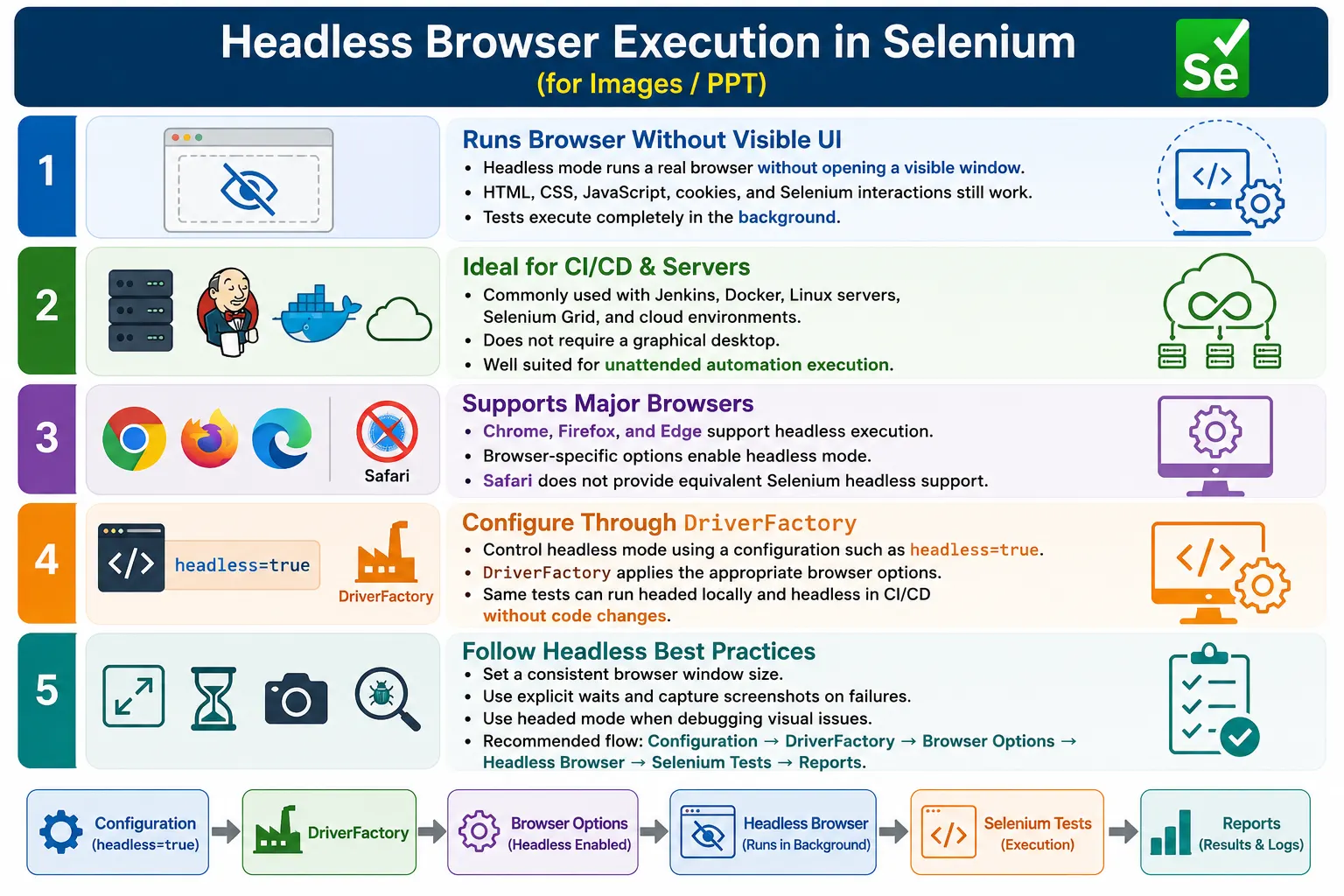
Headless mode is not a different testing tool. It is a browser execution mode. A headless Chrome browser is still Chrome. A headless Firefox browser is still Firefox. Selenium commands such as get(), findElement(), click(), sendKeys(), JavaScript execution, waits, and screenshots still work. The main difference is that execution happens in the background without a visible UI.
1. What Headless Browser Execution Means
Headless browser execution means the browser runs without opening a visible window. In normal headed execution, testers can see the browser, watch page navigation, inspect popups, and visually observe failures. In headless execution, the browser performs the same work internally, but it does not display the window to the user.
Headed Execution
  Browser Window
    Visible UI
      User can watch execution

Headless Execution
  Browser Engine
    No visible UI
      Execution runs in background
This makes headless mode ideal for automated environments where no one needs to watch the test run. It also reduces the need for a graphical desktop session on servers.
2. Why Headless Execution Is Needed
Many automation environments do not have a desktop UI. Jenkins agents, Linux servers, Docker containers, and cloud execution machines often run without a visible display. If a normal headed browser requires a graphical desktop and the environment does not provide one, browser launch may fail. Headless mode solves this problem because the browser can run without displaying a window.
Headless execution is also useful for speed and resource efficiency. Since the browser does not need to draw a visible UI on screen, startup may be faster and resource usage may be lower. The exact improvement depends on the application, browser, test workload, and infrastructure, but headless mode is generally convenient for automated pipeline execution.
3. Problems Without Headless Mode
Without headless mode, a CI server may need a desktop session, virtual display, or special operating system setup just to launch browsers. This adds complexity to pipeline infrastructure. On Linux servers and containers, headed browsers may fail with display-related errors if no display server is available.
For large-scale automation, visible browser windows are often unnecessary. A nightly suite may run at midnight on a build agent. No tester is watching it. What matters is the final report, logs, screenshots, and test results. Headless execution supports this workflow cleanly.
4. Core Idea
The core idea is to execute the same Selenium test in an invisible browser. The framework should be able to switch between headed and headless mode through configuration. Developers can use headed mode for debugging, while CI/CD can use headless mode for efficient unattended execution.
Configuration
  headless=true
    DriverFactory
      Browser Options
        Headless Browser
          Selenium Tests
Headless should not be hardcoded inside tests. It should be controlled through properties, environment variables, TestNG parameters, or pipeline parameters.
5. How Headless Browsers Work
A headless browser still has a rendering engine. It loads HTML, applies CSS, executes JavaScript, builds the DOM, handles browser events, and returns the result to Selenium. The difference is that the rendered page is not shown in a visible window.
Selenium Test
  WebDriver
    Headless Browser
      Render HTML
      Execute JavaScript
      Interact with Elements
      Return Results
Because the page is still rendered internally, Selenium can capture screenshots in headless mode. This is important for debugging failures in CI/CD where no browser window is visible.
6. Supported Browsers
Modern Chrome, Edge, and Firefox support headless mode for Selenium automation. Safari currently does not provide a Selenium-compatible headless mode in the same way. This means Safari testing usually requires a headed browser on macOS or a cloud provider that supports Safari sessions.
Headless Support
  Chrome
  Edge
  Firefox

Not commonly available for Selenium headless mode
  Safari
Browser support may evolve, so frameworks should keep browser-specific options centralized. This makes future updates easier.
7. Chrome Headless
Modern Chrome supports the newer headless mode through the --headless=new argument. This is the preferred option for current Chrome-based automation.
ChromeOptions options =
        new ChromeOptions();

options.addArguments("--headless=new");

WebDriver driver =
        new ChromeDriver(options);
This creates a Chrome browser session without opening a visible window. The test can navigate, interact, wait, assert, and capture screenshots normally.
8. Firefox Headless
Firefox supports headless execution through the -headless argument in FirefoxOptions.
FirefoxOptions options =
        new FirefoxOptions();

options.addArguments("-headless");

WebDriver driver =
        new FirefoxDriver(options);
This is useful when the framework must run Firefox tests on CI servers, Linux agents, or Selenium Grid nodes without a display.
9. Edge Headless
Microsoft Edge is Chromium-based and supports headless execution through the same modern argument style used by Chrome.
EdgeOptions options =
        new EdgeOptions();

options.addArguments("--headless=new");

WebDriver driver =
        new EdgeDriver(options);
This allows Edge tests to run in background mode while still validating Edge-specific browser behavior.
10. DriverFactory Integration
Headless mode should be integrated into DriverFactory. Tests should not call new ChromeDriver() directly and should not decide headless mode inside each test method. DriverFactory should read configuration and apply the correct browser options.
ChromeOptions options =
        new ChromeOptions();

if (headless) {
    options.addArguments("--headless=new");
}

WebDriver driver =
        new ChromeDriver(options);
This makes the framework flexible. The same tests can run headed on a developer machine and headless in Jenkins by changing configuration only.
11. Configuration Management
A configuration file can control browser and headless settings. This avoids code changes when switching execution modes.
browser=chrome
headless=true
boolean headless =
Boolean.parseBoolean(
ConfigReader.get("headless")
);Configuration-driven execution is an enterprise best practice. It allows local, CI/CD, Docker, Grid, and cloud runs to use different settings without modifying test code.
12. Execution Flow
The execution flow begins with TestNG or another test runner. The setup method asks DriverFactory for a browser. DriverFactory reads the configuration, applies the headless option, creates the browser, and returns it to the test.
TestNG
  DriverFactory
    Read headless flag
      Apply browser options
        Create browser
          Execute tests
Reports and screenshots should work the same way as in headed execution. If a failure occurs, the framework should capture a screenshot before quitting the browser.
13. Headless vs Headed Browser
Headed execution opens a visible browser window. It is useful for debugging because testers can watch the application behavior. Headless execution runs in the background. It is useful for CI/CD and servers because it does not require a visible GUI.
Headed
  Visible browser
  Easier debugging
  Higher UI resource usage

Headless
  No visible browser
  Better for CI/CD
  Lower UI overhead
A mature framework supports both. Headless mode is not a replacement for all headed testing. It is an execution option.
14. Window Size Matters
One of the most common headless issues is viewport size. If no window size is set, a headless browser may use a default size that triggers responsive layouts unexpectedly. A page may show a mobile menu, hide a button, or rearrange content. This can cause failures that do not appear in headed mode.
options.addArguments("--window-size=1920,1080");You can also set the window size through Selenium after driver creation.
driver.manage()
      .window()
      .setSize(new Dimension(1920, 1080));
Using a consistent window size makes headless and headed behavior more comparable.
15. Performance
Headless execution generally offers faster startup, lower memory usage, reduced CPU usage, and better fit for server environments. However, the performance gain depends on the application and test design. A JavaScript-heavy application may still take time to load and render. Network calls, waits, backend responses, and test data setup still affect execution time.
Do not assume that headless mode automatically makes poor tests fast. Good waits, stable locators, efficient test data, and proper suite design are still required.
16. Selenium Grid Integration
Selenium Grid Nodes can run browsers in headless mode. This is useful when Grid runs on Linux servers or containers without a graphical desktop. TestNG creates parallel threads, RemoteWebDriver connects to Grid, and Grid assigns headless browser sessions to Nodes.
TestNG
  RemoteWebDriver
    Selenium Grid
      Headless Chrome Node
        Execution
Headless Grid execution is common in CI/CD because it scales well and reduces desktop-environment dependencies.
17. Docker Integration
Headless mode is very common in Docker. Containers are designed to run without full desktop environments. A Docker-based Selenium setup can run Chrome, Firefox, or Edge in headless mode and execute tests from Jenkins or another pipeline tool.
Jenkins
  Docker Container
    Headless Browser
      Selenium Tests
Docker environments often use additional Chrome arguments such as --no-sandbox and --disable-dev-shm-usage. These options are mainly useful for Linux CI and container environments.
18. CI/CD Integration
Headless execution is ideal for CI/CD pipelines. A pipeline can pull code, start tests, run headless browsers, generate reports, archive screenshots, and publish results without requiring an interactive desktop.
Git
  Jenkins
    Headless Browser
      Selenium Tests
        Extent Report
In pipelines, headless mode should be controlled by parameters or environment configuration. This allows the same suite to run headed locally and headless in CI.
19. Cloud Execution
Cloud providers often support headless execution for efficiency. A local test can connect to a cloud grid where the provider creates a headless browser session. This reduces local infrastructure needs and can support scalable execution.
When using cloud providers, check provider-specific capability names and support. Some providers treat headless mode as a capability, while others use browser options. Keep those settings inside capability builder classes rather than scattering them in tests.
20. Screenshot Support
Even though no browser window is visible, Selenium can still capture screenshots in headless mode. The browser renders the page internally, and Selenium captures the rendered state.
File screenshot =
        ((TakesScreenshot) driver)
                .getScreenshotAs(OutputType.FILE);
This is critical for debugging CI/CD failures. Since no one watches the browser, screenshots become the visual evidence.
21. JavaScript Support
Headless browsers support JavaScript execution. Selenium can still use JavascriptExecutor to scroll, inspect values, or execute browser-side scripts when needed.
JavascriptExecutor js =
        (JavascriptExecutor) driver;

js.executeScript(
        "window.scrollTo(0,500)"
);
JavaScript-heavy applications can be tested in headless mode, but timing and rendering differences may require robust explicit waits.
22. Additional Chrome Arguments
Some Chrome arguments commonly appear in CI and Docker setups. --disable-gpu is generally unnecessary in modern Chrome but may appear in older frameworks. --no-sandbox is often used in Linux containers. --disable-dev-shm-usage can help in containers with limited shared memory.
options.addArguments(
        "--headless=new",
        "--window-size=1920,1080",
        "--no-sandbox",
        "--disable-dev-shm-usage"
);
Do not add arguments blindly. Use the options that solve real infrastructure needs and keep browser configuration documented.
23. Headless Mode Using TestNG Parameter
Headless mode can be controlled through TestNG parameters. This is useful when different suites or pipeline jobs need different modes.
@Parameters("headless")
@BeforeMethod
public void setup(String headlessValue) {
    boolean headless =
            Boolean.parseBoolean(headlessValue);

    ChromeOptions options =
            new ChromeOptions();

    if (headless) {
        options.addArguments("--headless=new");
    }

    driver = new ChromeDriver(options);
}
<parameter name="headless" value="true"/>Properties files, environment variables, and CI/CD parameters can also control the same setting.
24. Cross-Browser Headless Factory
A DriverFactory can support headless mode for Chrome, Firefox, and Edge. Unsupported browsers should fail clearly rather than silently creating the wrong driver.
public WebDriver createDriver(
        String browser,
        boolean headless) {

    if (browser.equalsIgnoreCase("chrome")) {
        ChromeOptions options =
                new ChromeOptions();
        if (headless) {
            options.addArguments("--headless=new");
        }
        return new ChromeDriver(options);
    }

    if (browser.equalsIgnoreCase("firefox")) {
        FirefoxOptions options =
                new FirefoxOptions();
        if (headless) {
            options.addArguments("-headless");
        }
        return new FirefoxDriver(options);
    }

    if (browser.equalsIgnoreCase("edge")) {
        EdgeOptions options =
                new EdgeOptions();
        if (headless) {
            options.addArguments("--headless=new");
        }
        return new EdgeDriver(options);
    }

    throw new IllegalArgumentException(
            "Unsupported browser: " + browser
    );
}
This keeps cross-browser headless behavior centralized and maintainable.
25. Headless BaseTest
A simple BaseTest can create a headless browser, set a consistent window size, configure timeouts, and quit the driver after each test.
public class BaseTest {
    protected WebDriver driver;

    @BeforeMethod
    public void setup() {
        ChromeOptions options =
                new ChromeOptions();
        options.addArguments(
                "--headless=new",
                "--window-size=1920,1080"
        );

        driver = new ChromeDriver(options);
        driver.manage()
              .timeouts()
              .pageLoadTimeout(
                      Duration.ofSeconds(30)
              );
    }

    @AfterMethod(alwaysRun = true)
    public void tearDown() {
        if (driver != null) {
            driver.quit();
        }
    }
}
In a full framework, this setup would be moved into DriverFactory and controlled by configuration rather than hardcoded in BaseTest.
26. Advantages
Headless execution provides faster startup in many environments, lower resource usage, no GUI requirement, server compatibility, Docker compatibility, CI/CD friendliness, easier Grid scaling, and suitability for cloud execution. It is especially useful for automated pipelines where no one needs to watch the browser.
It also simplifies infrastructure. A Linux server or Docker container can run tests without a full desktop session. This makes automation easier to run consistently across build agents.
27. Limitations
Headless execution can be harder to debug because the browser is not visible. Some UI rendering issues may differ slightly. Browser-specific bugs may appear only in headed mode. File download dialogs and OS-level interactions can behave differently. Animations and timing issues may need stronger synchronization.
Because of these limitations, important workflows should occasionally be validated in headed mode. When a headless-only failure occurs, switching to headed mode is a practical debugging step.
28. Headless vs Selenium Grid
Headless mode and Selenium Grid solve different problems. Headless mode is a browser mode that removes the visible GUI. Selenium Grid is a distributed execution platform that routes tests across machines. They are often used together, but they are not the same thing.
Headless
  Browser mode
  No visible window
  Improves server compatibility

Selenium Grid
  Distributed execution
  Multiple machines or nodes
  Improves scalability
A Grid Node can run browsers in headed or headless mode depending on configuration.
29. Common Beginner Mistakes
Common mistakes include forgetting to pass browser options, assuming headless always behaves exactly like headed mode, not setting window size, debugging only in headless mode, and assuming faster execution automatically means better testing. Headless mode improves execution efficiency, but it does not replace functional validation.
Another mistake is adding many browser arguments without understanding them. Keep options intentional and documented. If an option is required only for Docker, do not assume it is needed everywhere.
30. Best Practices
Control headless mode through configuration files, TestNG parameters, or pipeline variables. Use DriverFactory to enable or disable headless execution. Set a consistent browser window size. Capture screenshots on failures. Use headless mode in CI/CD and headed mode during debugging. Validate critical flows in both modes when appropriate. Keep browser and driver versions synchronized.
Use explicit waits because headless execution can expose timing issues. Use --no-sandbox and --disable-dev-shm-usage mainly in Linux CI or Docker environments. Do not assume that headless and headed modes render every page identically.
31. Debugging Headless Failures
When a test fails only in headless mode, first check window size. A responsive layout may be changing the page. Next, inspect screenshots from the failure. Check whether a button is hidden, a loader is still visible, a popup appears, or a menu layout changed. Also check timing. Headless execution may expose weak waits because actions happen faster or rendering timing differs.
If screenshots are not enough, rerun the test in headed mode with the same window size. Compare behavior. If the test passes headed and fails headless, check browser options, waits, viewport, and application rendering. Avoid masking real issues with JavaScript clicks unless the root cause is understood.
32. Real Enterprise Architecture
A real enterprise workflow often starts with a developer push to Git. Jenkins triggers a TestNG suite. DriverFactory reads browser and headless settings. Headless Chrome, Firefox, or Edge runs locally, in Docker, or on Grid. Extent Reports capture results and screenshots.
Developer Push
  Git Repository
    Jenkins Pipeline
      TestNG Suite
        DriverFactory
          Headless Browser
            Selenium Grid or Docker
              Extent Reports
This architecture is common because it is efficient, repeatable, and suitable for unattended pipeline execution.
33. Interview Perspective
A short interview answer is: Headless Browser Execution is the process of running a browser without a graphical user interface. It executes Selenium automation in the background and is commonly used in CI/CD pipelines, Docker containers, Selenium Grid, and server environments.
A stronger real-time answer is: in my Selenium hybrid framework, headless execution is controlled through a configuration property such as headless=true. DriverFactory reads this value and configures browser-specific options like ChromeOptions, FirefoxOptions, or EdgeOptions before creating the driver. This allows the same framework to switch between headed and headless execution without code changes. We primarily use headless mode for Jenkins pipelines and Selenium Grid, while using headed mode during debugging when visual inspection is needed.
34. Headless Execution Workflow
The workflow starts with configuration. DriverFactory reads the headless flag and browser name. Browser options are created. The headless browser runs tests in the background. Reports and screenshots are generated.
Configuration File
  DriverFactory
    Browser Options
      Headless Browser
        Execute Selenium Tests
          Generate Reports
This workflow keeps headless execution configurable and framework-friendly.
35. Headless and Headed Validation Strategy
A practical Selenium framework should not treat headless and headed execution as enemies. They serve different purposes. Headed mode is better when a developer or tester needs to watch the browser, inspect animations, observe popups, troubleshoot scrolling, or understand why an element is not clickable. Headless mode is better for repeatable pipeline execution where no one is watching the screen and the main output is the report.
For this reason, many teams follow a mixed strategy. During local development, tests are often run headed so failures can be watched directly. During CI/CD execution, the same tests run headless to avoid display dependencies and improve infrastructure efficiency. Before major releases, a small set of critical flows may be run in headed mode on supported browsers to confirm that visible behavior is still correct.
This strategy avoids two extremes. It avoids relying only on headed mode, which can make server execution harder. It also avoids relying only on headless mode, which can make visual debugging more difficult. The framework should make switching between modes easy, predictable, and configuration-driven.
36. Headless Execution and Wait Strategy
Headless execution can expose weak synchronization. A test that appears stable in headed mode may fail headless because the timing is slightly different. The browser may start faster, render at a different pace, or expose a hidden race condition in the application. This does not mean headless mode is wrong. It often means the test is relying on timing assumptions instead of waiting for meaningful application states.
Explicit waits are especially important in headless execution. Wait for elements to be visible, clickable, present, or for a business condition to be true. Avoid fixed sleeps as the main synchronization method. A fixed sleep may pass locally and fail in CI because server load, browser timing, and network speed differ. Good waits make tests stable in both headed and headless modes.
When debugging headless timing issues, compare screenshots, page source, browser logs, and failure points. If a button is not clickable, check whether a loader is still present. If a page title is wrong, check whether navigation completed. If a field is missing, check whether the application rendered a different responsive layout because the window size was not set.
37. File Downloads in Headless Mode
File downloads need special attention in headless execution. In a visible browser, a tester may see a download prompt or browser download bar. In headless mode, there is no visible prompt. The framework should configure download directories and verify downloaded files through the filesystem where the browser is running.
For local headless execution, the download folder may be on the same machine as the test. For Selenium Grid or Docker execution, downloads may occur inside the remote Node or container. This means the test machine may not immediately see the downloaded file unless the framework maps volumes, configures remote download support, or uses a cloud provider feature. Teams should design file download tests carefully for remote headless runs.
Headless file download verification should use clear configuration: download directory, expected file name, timeout, file existence check, and cleanup. Avoid relying on visual browser download indicators because those are not available in headless mode.
38. CI and Docker Browser Arguments
CI and Docker environments commonly use additional browser arguments. --no-sandbox is often used when Chrome runs in certain Linux container environments. --disable-dev-shm-usage can help when Docker's shared memory space is small. --window-size=1920,1080 keeps layouts consistent. These options are practical, but they should be used intentionally.
Do not copy every browser argument from the internet without understanding why it exists. Some options are historical. Some are needed only in Docker. Some may hide environmental problems. Keep a small, documented set of arguments in DriverFactory or browser configuration classes. If an option is needed only for CI, make it conditional based on execution environment.
Good configuration makes the browser setup transparent. When a headless test fails in CI but passes locally, the team should be able to compare browser arguments, window size, browser version, driver version, operating system, and container settings from logs or reports.
39. Reporting in Headless Execution
Reports become more important in headless execution because the browser is invisible. A failure report should include the exception, stack trace, screenshot, browser name, browser version, execution mode, window size, environment, and test logs. Without these details, debugging a headless failure can become guesswork.
Screenshots should be captured on failure even when no GUI is visible. The screenshot is often the only way to know whether the page loaded correctly, whether a popup appeared, whether a responsive layout changed, or whether an error message was displayed. In CI/CD pipelines, screenshots should be archived with the report so developers can inspect failures after the browser session has ended.
It is also useful to record whether the run was headed or headless in the report. A failure that occurs only in headless mode should be triaged differently from a failure that occurs in both modes. Execution mode is part of the test environment and should be visible in automation evidence.
40. When Not to Use Headless Mode
Headless mode is powerful, but it is not always the best choice. During active test development, headed mode is often easier because the tester can watch the scenario. During debugging of visual issues, headed mode provides direct feedback. For workflows involving OS-level dialogs, native file dialogs, browser profile UI, or visual animation behavior, headed mode may be easier to inspect.
Headless mode also should not be used as an excuse to ignore visual quality. A test may pass functionally in headless mode while the visible page has layout issues in a real browser window. For UI-heavy applications, combine functional headless automation with visual checks, screenshot reviews, or targeted headed validation.
The right question is not whether headless is good or bad. The right question is where it fits. Use headless for fast, scalable, unattended execution. Use headed mode for debugging, visual inspection, and selected confidence checks.
41. Practical Headless Checklist
Before enabling headless mode broadly, confirm that browser selection is configuration-driven, the window size is fixed, screenshots are captured on failure, reports show execution mode, and CI-specific browser arguments are documented. Run a small smoke suite first, then expand to regression after the setup is stable. If failures appear only in headless mode, compare screenshots and rerun the same scenario in headed mode with the same window size.
Also confirm that downloads, uploads, authentication, cookies, popups, and JavaScript-heavy pages behave correctly. These areas often reveal differences between local headed runs and server-side headless runs. A short checklist prevents teams from enabling headless mode blindly and then spending time debugging avoidable environment issues.
42. Key Takeaway
Headless Browser Execution enables Selenium tests to run efficiently in environments where a graphical interface is unavailable or unnecessary. Chrome, Firefox, and Edge support headless mode, and it is especially useful for CI/CD, Docker, Selenium Grid, cloud execution, and server environments.
Automation Tests
  DriverFactory
    Headless Browser
      Chrome
      Firefox
      Edge
        Background Execution
          Fast and Resource-Efficient Testing
The best implementation keeps headless mode configuration-driven, sets a consistent window size, captures screenshots on failures, uses headed mode for debugging, applies CI/Docker-specific browser arguments only when needed, and validates critical workflows in both modes when appropriate. When combined with DriverFactory, Selenium Grid, and CI/CD reporting, headless execution becomes a practical and scalable solution for enterprise Selenium automation.