Handling Upload Buttons in Selenium Java
1. Introduction
Many web applications provide an Upload, Choose File, Browse, Attach Document, Import, or Add Image button. From a user's point of view, the behavior looks simple: click the button, choose a file, and submit it. From an automation point of view, upload buttons need careful inspection because not all upload controls are implemented the same way.
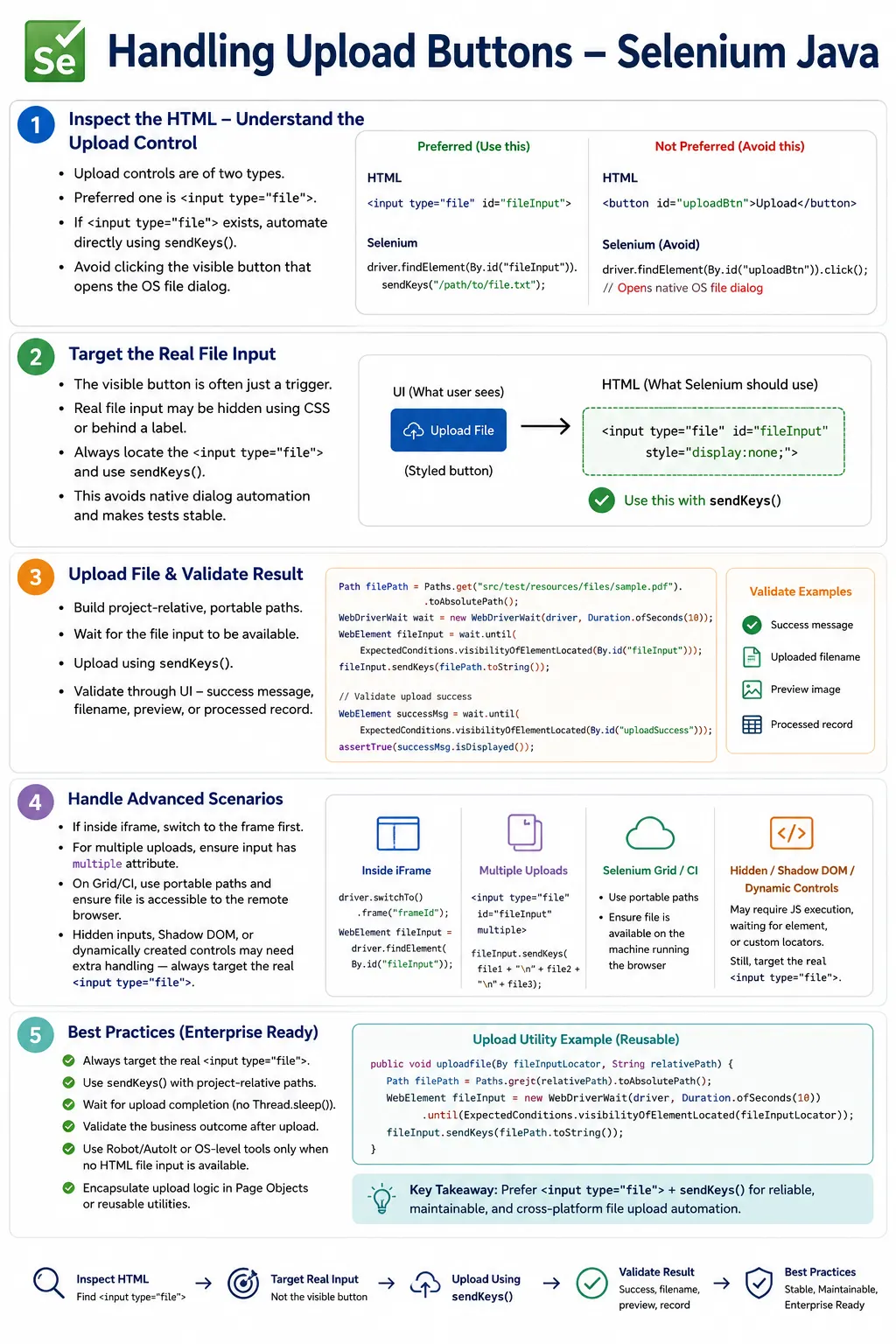
In Selenium, upload implementations usually fall into two main categories. The first and preferred category is a standard HTML file input, usually written as <input type="file">. The second category is a custom upload button that opens a native operating system file dialog. Selenium handles these two designs very differently. A standard file input can be automated directly using sendKeys(). A native OS dialog is outside the browser and cannot be controlled directly by Selenium WebDriver.
The most important rule is simple: inspect the HTML before choosing an upload strategy. In many modern applications, the visible upload button is only a styled trigger. The real automation target is a hidden file input behind that button. If you can locate that input, sendKeys() is usually the cleanest and most reliable solution.
2. What Is an Upload Button?
An upload button allows a user to select files from the local computer and provide them to a web application. The user flow may look like this: click Choose File, select Resume.pdf, see the filename on the page, then click Upload or Submit.
In a standard HTML implementation, the upload behavior is powered by a file input.
<input type="file" id="uploadFile">In a custom implementation, the visible button may be a normal button while the real file input is hidden elsewhere in the DOM.
<button id="uploadBtn">
    Upload Resume
</button>

<input
    type="file"
    id="uploadFile"
    style="display:none">
For Selenium, this difference matters. The visible button may open a dialog, but the file input is the element that accepts the file path.
3. Types of Upload Buttons
A standard HTML file input is directly supported by Selenium. A hidden file input is also usually supported because Selenium can send the path directly to the input. A native OS file dialog is not directly supported because it is outside the browser. Drag-and-drop upload depends on implementation, but many drag-and-drop widgets still have a hidden file input behind them.
Before automating, classify the upload control. If you find <input type="file">, use it. If no file input exists and the button opens a native dialog, then Selenium alone may not be enough.
4. Standard HTML Upload Button
<input
    type="file"
    id="uploadFile">
This is the easiest upload type to automate.
driver.findElement(By.id("uploadFile"))
      .sendKeys(
              "C:\\Files\\Resume.pdf"
      );
No OS dialog is required. Selenium sends the absolute file path directly to the file input. The browser selects the file, and the application can then upload it.
5. Custom Upload Button
Many websites hide the real file input and display a styled button. The visible button improves the design, but the browser still needs a file input behind the scenes.
<button id="uploadBtn">
    Upload Resume
</button>

<input
    type="file"
    id="uploadFile"
    style="display:none">
A user clicks the visible button. Internally, the hidden file input opens the file picker. In Selenium, you usually do not need to click the visible button. Locate the hidden file input and use sendKeys().
6. Inspect Before Automating
Always inspect the DOM with browser DevTools before writing upload code. Look for input[type='file']. If it exists, use that element as the automation target.
driver.findElement(By.id("uploadFile"))
      .sendKeys(filePath);
This is the preferred solution. It avoids native dialogs, OS-specific tools, keyboard timing, clipboard issues, and active-window problems.
7. Complete Example
WebDriver driver =
        new ChromeDriver();

driver.get("https://example.com");

String filePath =
        "C:\\Files\\Resume.pdf";

driver.findElement(By.id("uploadFile"))
      .sendKeys(filePath);

driver.findElement(By.id("submit"))
      .click();
This example uses the file input directly and then submits the form. In real projects, avoid hardcoded file paths and use project-relative paths.
8. Required Imports
import java.nio.file.Paths;
import java.time.Duration;
import java.util.List;

import org.openqa.selenium.By;
import org.openqa.selenium.JavascriptExecutor;
import org.openqa.selenium.WebDriver;
import org.openqa.selenium.WebElement;
import org.openqa.selenium.chrome.ChromeDriver;
import org.openqa.selenium.support.ui.ExpectedConditions;
import org.openqa.selenium.support.ui.WebDriverWait;
import org.testng.Assert;
The exact imports depend on the implementation. Paths helps create portable file paths. JavascriptExecutor is useful for rare hidden-input visibility adjustments. WebDriverWait is useful for waiting until upload controls and success states are ready.
9. Hidden File Input
<input
    type="file"
    id="upload"
    style="display:none">
In many cases, this still works:
driver.findElement(By.id("upload"))
      .sendKeys(filePath);
This works because Selenium sends the path directly to the file input. It does not need to click the hidden input visually. This is one of the most useful facts about Selenium file uploads.
10. Make Hidden Upload Visible If Needed
If the application or browser refuses interaction with the hidden file input, you can temporarily make it visible using JavaScript.
WebElement upload =
        driver.findElement(By.id("upload"));

JavascriptExecutor js =
        (JavascriptExecutor) driver;

js.executeScript(
        "arguments[0].style.display='block';",
        upload
);

upload.sendKeys(filePath);
Use this only when direct sendKeys() does not work. If direct upload works, changing the UI is unnecessary.
11. Upload After Clicking Button
Some applications create or initialize the file input only after the visible upload button is clicked. In that case, click the trigger first, then locate the file input.
driver.findElement(By.id("uploadBtn"))
      .click();

WebElement upload =
        wait.until(
                ExpectedConditions
                        .presenceOfElementLocated(
                                By.id("uploadFile")
                        )
        );

upload.sendKeys(filePath);
The key is still to send the file path to the input, not to the native dialog.
12. Verify Uploaded Filename
WebElement upload =
        driver.findElement(By.id("uploadFile"));

upload.sendKeys(filePath);

System.out.println(
        upload.getAttribute("value")
);
Many browsers show C:\fakepath\Resume.pdf. This is normal and exists for security reasons. Do not assert the full real path. Assert the filename or application-visible upload state.
13. Upload Image Example
String image =
        System.getProperty("user.dir")
        + "\\images\\profile.jpg";

driver.findElement(By.id("imageUpload"))
      .sendKeys(image);
After selecting the image, verify preview, thumbnail, or success message. A selected path alone is not a complete business assertion.
14. Upload PDF Example
String pdf =
        System.getProperty("user.dir")
        + "\\documents\\Resume.pdf";

driver.findElement(By.id("resume"))
      .sendKeys(pdf);
PDF uploads are common in resume portals, insurance portals, banking workflows, and document systems.
15. Upload Excel File
String excel =
        System.getProperty("user.dir")
        + "\\data\\Employees.xlsx";

driver.findElement(By.id("excelUpload"))
      .sendKeys(excel);
Excel uploads may trigger server-side parsing. Wait for the processing result or import preview before asserting success.
16. Upload Multiple Files
Multiple uploads require the file input to support the multiple attribute.
<input
    type="file"
    id="upload"
    multiple>
Use newline-separated file paths:
String file1 =
        "C:\\Files\\A.pdf";

String file2 =
        "C:\\Files\\B.pdf";

driver.findElement(By.id("upload"))
      .sendKeys(file1 + "\n" + file2);
If the input does not support multiple files, do not assume this will work. Inspect the HTML and validate the UI after selection.
17. Native OS File Dialog
Some upload buttons open the operating system file picker directly. The flow is: click Upload, Windows File Dialog opens, user selects file. Selenium cannot automate native OS windows because WebDriver controls the browser, not Windows Explorer or the macOS Finder dialog.
Possible alternatives are to use the hidden file input if available, use Java Robot, use AutoIt on Windows, use Sikuli image-based automation, or ask the development team to expose a testable file input. The hidden file input is still the preferred solution whenever possible.
18. Why Selenium Cannot Handle OS Dialogs
Selenium
     │
     ▼
Browser
The operating system file picker exists outside that browser automation boundary. It is not part of the DOM. Selenium cannot locate its buttons, text fields, or folders using WebDriver locators. That is why sendKeys() on the file input is the correct browser-native solution.
19. Detect Whether File Input Exists
List<WebElement> uploads =
        driver.findElements(
                By.cssSelector("input[type='file']")
        );

System.out.println(
        uploads.size()
);
If the size is greater than zero, inspect those elements and choose the correct file input. On pages with multiple upload controls, do not blindly use the first one.
20. Wait Before Upload
WebDriverWait wait =
        new WebDriverWait(
                driver,
                Duration.ofSeconds(10)
        );

WebElement upload =
        wait.until(
                ExpectedConditions
                        .presenceOfElementLocated(
                                By.id("uploadFile")
                        )
        );

upload.sendKeys(filePath);
Presence is often enough for file inputs, including hidden inputs. If the input is dynamically created, wait until it exists before sending the path.
21. Verify Upload Success
driver.findElement(By.id("submit"))
      .click();

String message =
        driver.findElement(By.id("success"))
              .getText();

Assert.assertEquals(
        message,
        "Upload Successful"
);
File selection is not always the same as upload success. Always verify the final application state: success message, uploaded filename, preview, import summary, or saved record.
22. Upload Utility Method
public static void uploadFile(
        WebDriver driver,
        By locator,
        String filePath) {

    driver.findElement(locator)
          .sendKeys(filePath);
}
Usage:
uploadFile(
        driver,
        By.id("uploadFile"),
        filePath
);
A utility method keeps upload code consistent across the framework.
23. Page Object Model Example
public class UploadPage {

    private WebDriver driver;

    private By upload =
            By.id("uploadFile");

    public UploadPage(WebDriver driver) {
        this.driver = driver;
    }

    public void upload(String path) {
        driver.findElement(upload)
              .sendKeys(path);
    }
}
Usage:
UploadPage page =
        new UploadPage(driver);

page.upload(filePath);
Page objects should hide locator details and expose meaningful actions such as uploadResume(), uploadProfilePicture(), or importCsv().
24. Portable File Paths
Hardcoded paths such as C:\Files\resume.pdf are not portable. Build paths from project resources instead.
String file =
        Paths.get(
                "src",
                "test",
                "resources",
                "files",
                "resume.pdf"
        ).toAbsolutePath()
         .toString();

driver.findElement(By.id("fileUpload"))
      .sendKeys(file);
This works better across developer machines, CI agents, and operating systems.
25. Real Project Example: Resume Upload
String resume =
        System.getProperty("user.dir")
        + "\\documents\\Resume.pdf";

driver.findElement(By.id("resumeUpload"))
      .sendKeys(resume);

driver.findElement(By.id("submit"))
      .click();
Resume upload tests should validate that the resume was accepted, displayed, or attached to the candidate profile.
26. Real Project Example: Profile Picture Upload
String image =
        System.getProperty("user.dir")
        + "\\images\\profile.jpg";

driver.findElement(By.id("profileUpload"))
      .sendKeys(image);
For profile pictures, verify preview image, cropper behavior, save confirmation, or updated avatar after reload.
27. Real Project Example: CSV Import
String csv =
        System.getProperty("user.dir")
        + "\\test-data\\Employees.csv";

driver.findElement(By.id("csvUpload"))
      .sendKeys(csv);

driver.findElement(By.id("import"))
      .click();
CSV import tests should verify row count, validation summary, success message, or imported records, not only that the file was selected.
28. Upload File Inside Frame
driver.switchTo().frame("uploadFrame");

driver.findElement(By.id("fileUpload"))
      .sendKeys(filePath);

driver.switchTo().defaultContent();
If the upload control is inside a frame, switch to the frame first. The file path technique does not remove the need for correct frame context.
29. Click Upload or Submit After Selecting File
driver.findElement(By.id("fileUpload"))
      .sendKeys(filePath);

driver.findElement(By.id("uploadButton"))
      .click();
Some components upload immediately after file selection. Others require a separate click. Understand the application flow and verify the correct final state.
30. Verify Upload Button Is Enabled
WebElement button =
        driver.findElement(By.id("uploadButton"));

System.out.println(
        button.isEnabled()
);
Many forms enable the Upload button only after file selection. This can be a useful assertion before clicking submit.
31. Click Upload Button Using JavaScript
WebElement button =
        driver.findElement(By.id("uploadButton"));

JavascriptExecutor js =
        (JavascriptExecutor) driver;

js.executeScript(
        "arguments[0].click();",
        button
);
Use JavaScript click only when a normal click is blocked for a known reason. JavaScript click does not solve native dialog handling. It can trigger a button, but Selenium still cannot control the OS file picker that may appear.
32. Standard Upload vs Native Dialog
A standard HTML file input uses <input type="file">, supports sendKeys(), and is fully supported by Selenium. A native OS dialog does not expose DOM elements, does not support WebDriver locators, and may require OS automation if no file input can be targeted.
The recommended approach is always to prefer the HTML file input. Native dialog automation should be treated as a last resort because it is slower, more brittle, and less portable.
33. Drag-and-Drop Upload Areas
Drag-and-drop upload widgets look different, but many still contain a hidden file input. Inspect the DOM. If a file input exists, send the path to it. Do not immediately try to simulate desktop drag-and-drop.
If there is no usable input, discuss testability with the development team. A small test hook or accessible file input can make automation much more stable than image-based or OS-level workarounds.
34. Multiple Upload Controls on One Page
Some pages have several upload buttons: resume, profile photo, identity proof, and address proof. A generic selector such as input[type='file'] may match all of them. Use a specific locator that identifies the correct input.
driver.findElement(
        By.cssSelector(
                "input[data-testid='resume-upload']"
        )
).sendKeys(resumePath);
Stable data attributes are often better than relying on the first file input on the page.
35. Disabled Upload Button
An upload button may be disabled until the user selects a category, accepts terms, or fills required fields. Do not remove the disabled attribute with JavaScript unless the test is explicitly about internal setup. Satisfy the business condition that enables the control.
For example, select the document type first, then wait for the file input or upload button to become ready. This keeps the test aligned with user behavior.
36. Upload Button and Progress Indicators
After clicking Upload, the application may show a progress bar, spinner, or processing message. Wait for the final state instead of using a fixed sleep.
driver.findElement(By.id("uploadButton"))
      .click();

wait.until(
        ExpectedConditions
                .invisibilityOfElementLocated(
                        By.id("uploadProgress")
                )
);

wait.until(
        ExpectedConditions
                .visibilityOfElementLocated(
                        By.id("success")
                )
);
This makes the test reliable on slow environments and CI agents.
37. Handling Uploads in CI
CI agents may run on Linux while developers run on Windows. Do not use local Windows paths in CI-ready code. Keep test files inside the project and construct paths with Paths.get(). Print the resolved path when upload fails so troubleshooting is easier.
Also confirm that the test files are included in the repository or generated during the build. A missing file in CI is a common cause of upload failure.
38. Handling Uploads in Selenium Grid
When using Selenium Grid, the browser may run on a remote node. File availability can become more complex because the file path is created on the test runner, while the browser is remote. Modern Selenium has support for remote file upload, but the framework setup must be correct.
If upload works locally but fails on Grid, check whether the remote driver can access the file. Do not assume a local path exists on the remote node.
39. Negative Upload Scenarios
Upload testing should include invalid cases when requirements demand them. Test unsupported file types, oversized files, empty files, corrupt files, duplicate files, and missing required metadata. The goal is not only to prove that valid files upload, but also to prove that invalid uploads fail correctly.
For these scenarios, verify clear error messages and confirm that invalid files are not saved.
40. File Name and Security Considerations
Use safe test files. Do not upload real resumes, bank statements, or customer documents. For file names, include predictable examples and edge cases such as spaces, underscores, and long names if the application has requirements around names.
Remember that browsers show C:\fakepath\ for security. This is normal. Assert the filename or application result, not the complete local path.
41. Common Exceptions
InvalidArgumentException often means the path is empty, invalid, or points to a missing file. ElementNotInteractableException may mean the locator points to the visible button instead of the real input, the input is disabled, or the element is not ready. NoSuchElementException means Selenium cannot locate the file input.
Before adding Robot or JavaScript, confirm that the locator targets the correct input[type='file'] and that the file path is valid.
42. Framework Design
A robust framework should centralize upload behavior. Use utilities to resolve test-data paths, verify file existence, send paths to file inputs, and wait for upload results. Page objects should expose business-level methods such as uploadResume() or importEmployeesCsv().
This keeps tests readable and prevents fragile path logic from being duplicated across the suite.
43. Upload Buttons with Labels
A common implementation uses a visible label as the upload button and a hidden file input as the real control. The label may be styled to look like a button, while the input is visually hidden. In manual use, clicking the label opens the file picker because the label is connected to the input through the for attribute.
<label for="resumeUpload">
    Upload Resume
</label>

<input
    type="file"
    id="resumeUpload"
    style="display:none">
In Selenium, do not spend time trying to automate the label click and native dialog. Locate resumeUpload and send the file path to it. The label is useful for users; the input is useful for automation. After the file is selected, verify the visible filename or success indicator that the user would see.
44. Upload Buttons with Shadow DOM
Some modern component libraries wrap upload controls inside web components. In that case, the file input may be inside a shadow root. Normal Selenium locators may not find it directly from the main DOM. You first need to access the shadow root and then locate the file input inside it.
The exact implementation depends on the application and Selenium version, but the principle remains the same: find the actual input[type='file']. If the component hides the input inside a web component, work with the component structure instead of trying to automate the OS dialog. Shadow DOM adds one more location step; it does not change the preferred upload strategy.
45. Upload Buttons with Validation Before Selection
Some pages require the user to select a document category before the upload control becomes active. For example, an insurance claim page may require "Claim Type" before enabling "Upload Proof". A banking KYC page may require "Document Type" before enabling file selection. In those cases, do not remove disabled attributes or force the upload input with JavaScript.
The correct automation should follow the business flow: select the required category, wait for the upload input or button to become enabled, send the file path, and verify upload success. This validates the actual workflow and avoids false confidence.
documentType.selectByVisibleText("Address Proof");

WebElement upload =
        wait.until(
                ExpectedConditions
                        .presenceOfElementLocated(
                                By.id("addressProofUpload")
                        )
        );

upload.sendKeys(filePath);
46. Upload Buttons and Client-Side Validation
Upload buttons often trigger client-side validation before any server request is made. The page may reject unsupported file extensions, oversized files, empty files, or duplicate file names. Good upload tests should include both valid and invalid scenarios where the requirements call for them.
For a valid upload, verify the success path. For an invalid file type, verify the error message. For an oversized file, verify the size warning. For a duplicate upload, verify that the application prevents the duplicate or handles it as required. This makes upload automation more than a mechanical file selection check.
47. Upload Buttons and Server-Side Processing
Some uploads complete in multiple phases. The browser selects the file, the application sends it to the server, the server scans or parses it, and then the UI shows a final result. A CSV import may show a row count. A document management system may show a document ID. An image upload may show a thumbnail after processing. A virus scan may delay availability.
In these cases, wait for the final business result. Do not assert immediately after sending the file path. A test that only checks that the file input has a value may pass even when the server rejected the file. A strong test waits for the final processing state that proves the application accepted the upload.
48. Upload Button Accessibility and Testability
Upload controls should be accessible and testable. A visible upload button should have clear text. The hidden input should still be associated with the visible label or component. If automation cannot locate a stable file input, ask the team for better markup or a stable test attribute. Upload components are important user workflows and should not require fragile selectors.
Good markup helps both users and tests. A stable id, accessible label, or data-testid on the file input makes automation straightforward. A purely visual upload widget with no accessible relationship is harder for screen readers and harder for Selenium.
49. Upload Buttons in Remote Browsers
When tests run locally, the browser usually runs on the same machine as the test code. In Selenium Grid, Docker, or cloud execution, the browser may run somewhere else. A path that exists on the test runner may not exist on the remote browser node. This is one of the most common reasons upload tests pass locally and fail remotely.
For remote execution, confirm how your Selenium setup transfers files to the remote browser. Keep test files in the project, use absolute paths created at runtime, and verify that the remote driver supports file upload. If the framework uses a remote WebDriver, file upload may need extra configuration compared with local ChromeDriver.
50. Upload Buttons and Cleanup
Upload tests can leave data behind. A document may remain attached to a user profile. A CSV import may create records. A profile image may overwrite an avatar. A product image may appear in a catalog. If tests run repeatedly, leftover uploads can cause duplicate data, storage growth, or inconsistent assertions.
Plan cleanup as part of the test strategy. Cleanup can happen through the UI, API, database reset, or isolated test accounts. For upload tests, unique filenames can also help avoid collisions. The automation should not only upload successfully; it should keep the test environment maintainable.
For repeated regression runs, predictable cleanup is especially important. Without it, a test may pass on a fresh environment and fail later only because yesterday's uploaded files are still present.
51. Upload Button Review Checklist
When reviewing upload automation code, check whether the code locates the real file input, uses portable paths, verifies file existence, handles frames or shadow DOM when needed, waits for upload completion, and validates the business result. Also check that Robot or AutoIT is not used when sendKeys() would work.
A good review should also ask whether the test data is safe and meaningful. Uploading random local files makes tests hard to reproduce. Uploading sensitive files creates risk. Uploading clearly named test files from a controlled test-data folder is the better approach.
The review should also confirm that the upload test is not only selecting a file. A meaningful test proves that the application accepted, processed, displayed, or rejected the file according to the requirement. That final assertion is what separates a reliable upload test from a simple browser input exercise.
52. Common Beginner Mistakes
- Clicking the visible upload button without inspecting the DOM.
- Trying to automate the Windows file picker with Selenium.
- Calling
sendKeys()on a button instead of an actual file input. - Hardcoding local file paths.
- Forgetting to validate upload success.
- Using Robot class when
sendKeys()would work. - Ignoring hidden file inputs behind custom upload buttons.
- Using generic locators when the page has multiple file inputs.
53. Best Practices
- Always identify the underlying
<input type="file">element. - Use
sendKeys()to provide the complete file path. - Prefer project-relative file paths for portable automation.
- Use
Paths.get(...).toAbsolutePath()for cross-platform path construction. - Wait until the file input is present before uploading.
- Verify upload success through UI messages, uploaded filenames, previews, or server results.
- Use JavaScript only when a hidden input must be made visible.
- Use OS automation tools only when no HTML file input is available.
54. Debugging Checklist
- Inspect the DOM for
input[type='file']. - Confirm the locator points to the file input, not the styled button.
- Confirm the file path is absolute and the file exists.
- Check whether the file input is hidden but still accepts
sendKeys(). - Check whether the file input is inside an iframe.
- Check whether the upload button is disabled because a prerequisite is missing.
- Wait for progress indicators to finish.
- Verify the final upload result.
55. Interview Perspective
A short interview answer is: handling upload buttons depends on their implementation. If the application uses a standard HTML <input type="file">, Selenium can upload files directly using sendKeys() with the absolute file path. If the button opens a native operating system dialog without exposing a file input, Selenium cannot control that dialog directly.
A stronger real-time answer is: in real projects, I first inspect the DOM to find whether the visible upload button is backed by a file input. If it is, I bypass the visible button and send the absolute file path to the input. I build paths from project resources, verify the file exists, and validate the upload success message or uploaded filename. I consider Robot, AutoIt, or similar tools only when the application provides no testable file input.
56. Key Takeaway
The visible upload button is often only a trigger. The real Selenium automation target is usually the hidden or visible <input type="file"> behind it. When that input exists, sendKeys(filePath) is the simplest and most reliable solution.
Always inspect the HTML before choosing an upload approach. Avoid native OS dialog automation unless absolutely necessary. Use portable paths, wait for the input and upload result, and verify that the application actually accepted the file.
Handled correctly, upload buttons become straightforward Selenium scenarios instead of fragile OS-level automation problems.